- Configuring Context-Based Access Control
- IPv6 IOS Firewall
- Cisco IOS Firewall Stateful Failover
- Configuring Port to Application Mapping
- Cisco IOS Firewall MIB
- Cisco IOS Firewall Performance Improvements
- Cisco IOS Firewall Support for TRP
- Firewall ACL Bypass
- Firewall Websense URL Filtering
- HTTP Inspection Engine
- Inspection of Router-Generated Traffic
- Transparent Cisco IOS Firewall
- Finding Feature Information
- Prerequisites for Firewall Websense URL Filtering
- Restrictions for Firewall Websense URL Filtering
- Information About Firewall Websense URL Filtering
- How to Configure Firewall Websense URL Filtering
- Configuration Examples for Firewall Websense URL Filtering
- Additional References
- Feature Information for Firewall Websense URL Filtering
- Glossary
Firewall Websense URL Filtering
The Firewall Websense URL Filtering feature enables the firewall (also known as Cisco Secure Integrated Software) to interact with the Websense URL filtering software, thereby allowing you to prevent users from accessing specified websites on the basis of a configured policy. The firewall works with the Websense server to recognize whether a particular URL should be allowed or denied (blocked).
- Finding Feature Information
- Prerequisites for Firewall Websense URL Filtering
- Restrictions for Firewall Websense URL Filtering
- Information About Firewall Websense URL Filtering
- How to Configure Firewall Websense URL Filtering
- Configuration Examples for Firewall Websense URL Filtering
- Additional References
- Feature Information for Firewall Websense URL Filtering
- Glossary
Finding Feature Information
Your software release may not support all the features documented in this module. For the latest caveats and feature information, see Bug Search Tool and the release notes for your platform and software release. To find information about the features documented in this module, and to see a list of the releases in which each feature is supported, see the feature information table at the end of this module.
Use Cisco Feature Navigator to find information about platform support and Cisco software image support. To access Cisco Feature Navigator, go to www.cisco.com/go/cfn. An account on Cisco.com is not required.
Prerequisites for Firewall Websense URL Filtering
Websense Server Requirement
To enable this feature, you must have at least one Websense server; however, two or more Websense servers are preferred. Although there is no limit to the number of Websense servers you may have, and you can configure as many servers as you wish, only one server will be active at any given time--the primary server. URL lookup requests are sent only to the primary server.
URL Filtering Support
Before enabling the Firewall Websense URL Filtering feature, you must ensure that there is no other URL filtering scheme configured, such as N2H2.
Restrictions for Firewall Websense URL Filtering
URL Filtering Support Restriction
This feature supports only one active URL filtering scheme at a time.
Username Restriction
This feature does not pass the username and group information to the Websense server. However, the Websense server can work for user-based policies because it has a mechanism for getting the username to correspond to an IP address.
Exclusive Domain List Restriction
Websense URL filtering does not resolve domains before it searches for an exclusive domain list. When a questionable URL is presented to the filtering server, Websense URL filtering searches only for the value that was specified in the CLI. For example, if an exclusive domain list was configured by using the ip urlfilter exclusive-domain deny 192.168.1.1 command, a user typing http://192.168.1.1 into a browser's address field will be denied access. However, a user who is trying to access the same domain and who enters http://www.cisco.com will be allowed access because 192.168.1.1 was specified via the CLI and not www.cisco.com.
PISA URL Filtering Restrictions--Cisco IOS Release 12.2(18)ZYA
- Context-based Access Control (CBAC) is not supported.
- HTTP over ports that are used by static Network-Based Application Recognition (NBAR) protocols are not supported.
- Only HTTP filtering is supported. HTTPS and FTP filtering are not supported.
- Only Layer 3 switch virtual interfaces (SVIs), Layer 3 routed ports, and Layer 3 subinterfaces are supported.
- Only one inspection rule is supported.
- Only the Websense URL filtering server is supported. N2H2, SmartFilter, and Trend Micro filtering servers are not supported.
- The clear ip urlfilter cache and show ip urlfilter cache commands are not supported.
- Usernames are not passed on from the Programmable Intelligent Services Accelerator (PISA) to the Websense server.
Information About Firewall Websense URL Filtering
- Benefits of Firewall Websense URL Filtering
- Feature Design of Firewall Websense URL Filtering
- Websense Server Features Supported on a Firewall
Benefits of Firewall Websense URL Filtering
The Firewall Websense URL Filtering feature provides an Internet management application that enables you to control web traffic for a given host or user on the basis of a specified security policy.
Websense is a third-party filtering software that can filter HTTP requests on the basis of the following policies: destination hostname, destination IP address, keyword, and username. The software maintains a URL database for more than 20 million sites that are organized into more than 60 categories and subcategories. This feature supports the following functionalities:
Primary and Secondary Servers
When users configure multiple Websense servers, the firewall will use only one server at a time--the primary server; all other servers are called secondary servers. When the primary server becomes unavailable for any reason, it becomes a secondary server and one of the secondary servers becomes the primary server.
The firewall marks the primary server as down when sending a request to or receiving a response from the server fails. When the primary server goes down, the firewall goes to the beginning of the configured servers list and tries to activate the first server on the list. If the first server on the list is unavailable, it will try to activate the second server on the list; the system keeps trying to activate a server until it is successful or until it reaches the end of the server list. If the system reaches the end of the server list without activating any server, the system will set a flag indicating that all servers are down, and the system will enter allow mode.
When all servers are down and the system is in allow mode, a periodic event that occurs every minute will trace through the server list, trying to bring up a server by opening a TCP connection. If a TCP connection is successfully opened, the server is considered to be up, and the system will return to operational mode.
IP Cache Table
An IP cache table contains IP addresses of web servers whose underlying URLs can be accessed by all users and hosts.
The caching algorithm involves three parameters--the maximum number of IP addresses that can be cached, an idle time, and an absolute time. The algorithm also involves two timers--idle timer and absolute timer. The idle timer is a small periodic timer (1 minute) that checks to see whether the number of cached IP addresses in the cache table exceeds 80 percent of the maximum limit. When the number of cached IP addresses exceed 80 percent, the idle timer starts removing idle entries; if the number of cached IP addresses do not exceed 80 percent, the idle timer quits and waits for the next cycle. The absolute timer is a large periodic timer (1 hour) that removes all elapsed entries. (The age of an elapsed entry is greater than the absolute time.) An elapsed entry is also removed during cache lookup.
The idle time value is fixed at 10 minutes. The absolute time value is taken from the Websense lookup response, which is often greater than 15 hours. The absolute value for a cache entry that is made of exclusive domains is 12 hours. The maximum number of cache entries is configurable.
To configure cache table parameters, use the ip urlfilter cache command.
 Note |
For a device to cache pages when using the Firewall Websense URL Filtering feature, the Websense server must send the Websense cache command bit as 1. Use the show ip urlfilter command to display the statistics of cached entries. |
Packet Buffering
Packet buffering enables you to increase the maximum number of HTTP responses that a firewall can hold. If HTTP responses arrive before a Websense server reply, the buffering scheme allows the firewall to store a maximum of 200 HTTP responses. After 200 responses have been reached, the firewall will drop further responses. Responses remain in the buffer until an allow or deny message is received from the Websense server. If the message indicates that the URL is allowed, the firewall will release HTTP responses in the buffer to the browser of the end user. If the message indicates that the URL is blocked, the firewall discards HTTP responses in the buffer and closes the connection to both ends. Packet buffering prevents numerous HTTP responses from overwhelming your system.
To configure the maximum number of HTTP responses for the firewall, use the ip urlfilter max-resp-pak command.
Exclusive Domains
Exclusive domains provides a configurable list of domain names so that the firewall does not have to send a lookup request to the Websense server for the HTTP traffic that is destined for one of the domains in the exclusive list. Thus, the Websense server does not need to handle lookup requests for HTTP traffic that is destined for a host that has already been marked as "allowed."
Flexibility when entering domain names is also provided; that is, you can enter the complete domain name or a partial domain name. If the user adds a complete domain name, such as "www.cisco.com," to the exclusive domain list, all HTTP traffic whose URLs are destined for this domain (such as www.cisco.com/news and www.cisco.com/index) will be excluded from the Websense URL filtering policies, and based on the configuration, the URLs will be permitted or blocked (denied).
If the user adds a partial domain name such as ".cisco.com" to the exclusive domain list, all URLs whose domain names end with this partial domain name (such as www.cisco.com/products and www.cisco.com/eng) will be excluded from the Websense URL filtering policies, and based on the configuration, the URLs will be permitted or blocked (denied).
To configure an exclusive domain list, use the ip urlfilter exclusive-domain command.
Allow Mode
A system enters allow mode when connections to all Websense servers are down. The system will return to normal mode when a connection to at least one Websense server is up. Allow mode directs your system to forward or drop all packets on the basis of the configurable allow mode setting. By default, allow mode is off, so all HTTP requests are forbidden if all Websense servers are down.
To configure allow mode for the system, use the ip urlfilter allowmode command.
Feature Design of Firewall Websense URL Filtering
Note |
The Firewall Websense URL Filtering feature assumes that the Websense server will be part of a protected network and that requests from the firewall will not travel over any unprotected network to reach the Websense server. |
The figure below and the corresponding steps explain a sample URL filtering network topology.
| Figure 1 | Firewall Websense URL Filtering Sample Topology |
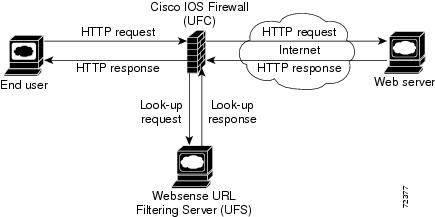
- The end user browses a page on the web server, and the browser sends an HTTP request.
- After the firewall receives this request, it forwards the request to the web server while simultaneously extracting the URL and sending a lookup request to the Websense server.
- After the Websense server receives the lookup request, it checks its database to see whether it should permit or deny the URL; it returns a permit or deny status via a lookup response to the firewall.
-
After the firewall receives the lookup response, it performs one of the following actions:
- If the lookup response permits the URL, the firewall sends the HTTP response to the end user.
- If the lookup response denies the URL, the Websense server redirects the user to its own internal web server, which displays a message that describes the category under which the URL is blocked; thereafter, the connection is reset on both ends.
Websense Server Features Supported on a Firewall
The firewall supports all filtering and user authentication methods that are supported by the Websense server.
The following filtering methods are supported:
- Category-based filtering that is applied on the basis of specific categories.
- Customized filtering that allows a user to apply a policy for customized URLs.
- Global filtering that is applied to all IP addresses, groups, and users.
- Keyword-based filtering that is applied on the basis of specific keywords (for example, a user can configure a policy to deny all URLs with the keyword "spam").
- User- or group-based filtering that is applied to a specific user or group.
The Websense server feature supports the NT LAN Manager (NTLM) and Lightweight Directory Access Protocol (LDAP) user authentication methods. The Websense server uses these methods to authenticate a user when the firewall does not pass the authenticated username along with the lookup request.
When the username is not passed along with the lookup request, the Websense server retrieves the username using one of the following methods:
- Manual authentication--The Websense server redirects the user to its own internal web server, which displays a challenge or response for the username and password. (This process is similar to when a user is blocked, but in this process, an authentication message is displayed instead of a blocked message.) Thereafter, the Websense server checks the NTLM or LDAP directory service to see if the username and password match. If there is a match, the Websense server associates the username with the source IP address and creates policies for this username.
- Transparent ID (XID) authentication--The Websense server has an agent that automatically associates users, when they log in to a Windows network, to their IP addresses. Unlike manual authentication, this method does not require an additional login by the user. However, this method can be used only for Windows.
Note |
Although the Websense server also supports user authentication via TACACS or RADIUS, this feature currently does not support these protocols for user authentication. |
How to Configure Firewall Websense URL Filtering
- Configuring Firewall Websense URL Filtering
- Verifying and Monitoring Firewall Websense URL Filtering
Configuring Firewall Websense URL Filtering
Before enabling the Firewall Websense URL Filtering feature, ensure that no other URL filtering scheme is configured, such as N2H2. If you try to enter a new filtering scheme when one already exists, the new scheme will be ignored, and the system will display an error message that says, "different URL filtering scheme cannot coexist."
Note |
Enabling HTTP inspection (by using the ip inspect name command) triggers the Java applet scanner, which is CPU intensive. The only way to stop the Java applet scanner is to specify the java-list access-list keyword-argument pair with the ip inspect name command and configure a standard access list to allow any traffic. Configuring URL filtering without enabling the java-list access-list keyword-argument pair will severely impact performance. |
DETAILED STEPS
Troubleshooting Tips
This feature introduces the following alert messages:
-
"%URLF-3-SERVER_DOWN: Connection to the URL filter server 10.92.0.9 is down"
This LOG_ERR-type message is displayed when a configured URL filter server (UFS) goes down. When the UFS goes down, the firewall marks the configured server as secondary and tries to bring up one of the other secondary servers and marks that server as the primary server. If no other server is configured, the firewall enters allow mode and displays the "URLF-3-ALLOW_MODE" message.
-
"%URLF-3-ALLOW_MODE: Connection to all URL filter servers are down and ALLOW MODE is OFF"
This LOG_ERR-type message is displayed when all UFSs are down and the system enters allow mode.
Note |
Whenever the system goes into allow mode (all filter servers are down), a periodic keepalive timer is triggered, which tries to bring up a server by opening a TCP connection. |
-
"%URLF-5-SERVER_UP: Connection to the URL filter server 10.92.0.9 is made; the system is returning from ALLOW MODE"
This LOG_NOTICE-type message is displayed when UFSs are detected as being up and the system is returning from allow mode.
-
"%URLF-4-URL_TOO_LONG: URL too long (more than 3072 bytes), possibly a fake packet?"
This LOG_WARNING-type message is displayed when the URL in a lookup request is too long; any URL longer than 3K is dropped.
-
"%URLF-4-MAX_REQ: The number of pending requests exceeds the maximum limit <1000>"
This LOG_WARNING-type message is displayed when the number of pending requests in the system exceeds the maximum limit and all further requests are dropped.
To display these alert messages, use the ip urlfilter alert command. This feature introduces the following syslog messages:
-
"%URLF-6-SITE_ALLOWED: Client 10.0.0.2:12543 accessed server 10.76.82.21:8080"
This message is logged for each request whose destination IP address is found in the cache. It includes the source IP address, source port number, destination IP address, and destination port number. The URL is not logged because the IP address of the request is found in the cache, so parsing the request and extracting the URL is a waste of time.
-
"%URLF-4-SITE-BLOCKED: Access denied for the site 'www.sports.com'; client 10.54.192.6:34557 server 172.24.50.12:80"
This message is logged when a request finds a match against one of the blocked domains in the exclusive-domain list or the corresponding entry in the IP cache.
-
"%URLF-6-URL_ALLOWED: Access allowed for URL http://www.websense.com/; client 10.54.192.6:54123 server 192.168.0.1:80"
This message is logged for each URL request that is allowed by a UFS. It includes the allowed URL, source IP address, source port number, destination IP address, and destination port number. Longer URLs will be truncated to 300 bytes and then logged.
-
"%URLF-6-URL_BLOCKED: Access denied URL http://www.google.com; client 10.45.192.6:54678 server 192.168.0.1:80"
This message is logged for each URL request that is blocked by a UFS. It includes the blocked URL, source IP address, source port number, destination IP address, and destination port number. Longer URLs are truncated to 300 bytes and then logged.
To display these syslog messages, use the ip urlfilter audit-trail command.
Verifying and Monitoring Firewall Websense URL Filtering
To verify that the Firewall Websense URL Filtering feature is working, perform any of the following optional steps. You can use these commands in any order.
| Command or Action |
Purpose |
|---|---|
| enable
Device> enable |
Enables privileged EXEC mode. |
| show ip urlfilter cache
Device# show ip urlfilter cache |
Displays destination IP addresses that are cached in the cache table. |
| show ip urlfilter config
Device# show ip urlfilter config |
Displays the size of the cache, the maximum number of outstanding requests, the allow mode state, and the list of configured Websense servers. |
| show ip urlfilter statistics
Device# show ip urlfilter statistics |
Displays information such as the number of requests that are sent to the Websense server, the number of responses received from the Websense server, the number of pending requests in the system, the number of failed requests, and the number of blocked URLs. |
| debug ip urlfilter {function-trace | detailed | events}
Device# debug ip urlfilter detailed |
Enables the debugging of the URL filter subsystems information. |
| clear ip urlfilter cache {ip-address | all}
Device# clear ip urlfilter cache all |
Clears the cache table. |
Configuration Examples for Firewall Websense URL Filtering
Example: Configuring Firewall Websense URL Filtering
hostname fw9-7200b
!
logging buffered 64000 debugging
enable secret 5 $1$qMOf$umPb75mb3sV27JpNbW//7.
!
clock timezone PST -8
clock summer-time PDT recurring
ip subnet-zero
ip cef
no ip domain lookup
!
ip inspect name test http urlfilter
ip urlfilter cache 5
ip urlfilter exclusive-domain permit .example-1.com
ip urlfilter exclusive-domain deny .example-2.com
ip urlfilter exclusive-domain permit www.example.com
ip urlfilter audit-trail
ip urlfilter alert
ip urlfilter server vendor websense 192.168.3.1
ip audit notify log
ip audit po max-events 100
ip port-map http port 8080
!
no voice hpi capture buffer
no voice hpi capture destination
!
mta receive maximum-recipients 0
!
interface FastEthernet 0/0
 ip address 192.168.3.254 255.255.255.0
 ip access-group 101 out
 ip nat inside
 ip inspect test in
 no ip route-cache
 no ip mroute-cache
!
interface Ethernet 1/0
 ip address 10.6.9.7 255.255.0.0
 ip nat outside
 no ip route-cache
 no ip mroute-cache
 duplex half
!
interface Ethernet 1/1
 no ip address
 no ip mroute-cache
 shutdown
 duplex half
!
interface Ethernet 1/2
 no ip address
 no ip mroute-cache
 shutdown
 duplex half
!
interface Ethernet 1/3
 no ip address
 no ip mroute-cache
 shutdown
 duplex half
!
interface Serial 2/0
 no ip address
 no ip mroute-cache
 shutdown
 dsu bandwidth 44210
 framing c-bit
 cablelength 10
 serial restart-delay 0
 fair-queue
!
ip nat pool devtest 10.6.243.21 10.6.243.220 netmask 255.255.0.0
ip nat inside source list 1 pool devtest
ip nat inside source static 192.168.3.1 10.6.243.1
ip nat inside source static 192.168.3.2 10.6.243.2
ip nat inside source static 192.168.3.3 10.6.243.3
ip classless
ip route 192.168.0.30 255.255.255.255 10.6.0.1
no ip http server
no ip http secure-server
!
ip pim bidir-enable
!
!
access-list 101 deny   tcp any any
access-list 101 deny   udp any any
access-list 101 permit ip any any
access-list 102 deny   tcp any any
access-list 102 deny   udp any any
access-list 102 permit ip any any
dialer-list 1 protocol ip permit
dialer-list 1 protocol ipx permit
!
!
call rsvp-sync
!
!
mgcp profile default
!
dial-peer cor custom
!!
!
gatekeeper
 shutdown
!
!
line con 0
 exec-timeout 0 0
 stopbits 1
line aux 0
 stopbits 1
line vty 0 4
 password letmein
 login
!
exception core-file example/exampledump/fw9-7200b.core
exception dump 192.168.0.1
no scheduler max-task-time
!
end
Additional References
Related Documents
| Related Topic |
Document Title |
|---|---|
| Cisco IOS commands |
|
| Firewall commands |
|
| N2H2 URL filtering |
"Firewall N2H2 Support" module |
Standards and RFCs
| Standard/RFC |
Title |
|---|---|
| RFC 1945 |
|
| RFC 2616 |
Technical Assistance
| Description |
Link |
|---|---|
| The Cisco Support and Documentation website provides online resources to download documentation, software, and tools. Use these resources to install and configure the software and to troubleshoot and resolve technical issues with Cisco products and technologies. Access to most tools on the Cisco Support and Documentation website requires a Cisco.com user ID and password. |
Feature Information for Firewall Websense URL Filtering
The following table provides release information about the feature or features described in this module. This table lists only the software release that introduced support for a given feature in a given software release train. Unless noted otherwise, subsequent releases of that software release train also support that feature.
Use Cisco Feature Navigator to find information about platform support and Cisco software image support. To access Cisco Feature Navigator, go to www.cisco.com/go/cfn. An account on Cisco.com is not required.
| Table 1 | Feature Information for Firewall Websense URL Filtering |
| Feature Name |
Releases |
Feature Information |
|---|---|---|
| Firewall Websense URL Filtering |
12.2(11)YU 12.2(15)T 12.2(18)ZYA |
The Firewall Websense URL Filtering feature enables the firewall to interact with the Websense URL filtering software, thereby allowing you to prevent users from accessing specified websites on the basis of some policy. In Cisco IOS Release 12.2(18)ZYA, support was added on the Catalyst 6500 series of switches equipped with the PISA. The following commands were introduced or modified: clear ip urlfilter cache, debug ip urlfilter, ip inspect name, ip urlfilter alert, ip urlfilter allowmode, ip urlfilter audit-trail, ip urlfilter cache, ip urlfilter exclusive-domain, ip urlfilter max-request, ip urlfilter max-resp-pak, ip urlfilter mode, ip urlfilter server vendor, ip urlfilter urlf-server-log, show ip urlfilter cache, show ip urlfilter config, show ip urlfilter statistics. |
Glossary
UFC--URL filter client. UFC is a separate process that accepts URLs from CSIS, forwards the URL to the Websense server, and processes replies from the vendor server (Websense or N2H2).
UFS--URL filter server. UFS is a generic name given to the vendor server (Websense or N2H2), which processes URLs and decides whether to allow or deny web traffic on the basis of a given policy.
Cisco and the Cisco logo are trademarks or registered trademarks of Cisco and/or its affiliates in the U.S. and other countries. To view a list of Cisco trademarks, go to this URL: www.cisco.com/go/trademarks. Third-party trademarks mentioned are the property of their respective owners. The use of the word partner does not imply a partnership relationship between Cisco and any other company. (1110R)
Any Internet Protocol (IP) addresses and phone numbers used in this document are not intended to be actual addresses and phone numbers. Any examples, command display output, network topology diagrams, and other figures included in the document are shown for illustrative purposes only. Any use of actual IP addresses or phone numbers in illustrative content is unintentional and coincidental.
 Feedback