- Title and copyright: PA-MC-E3 Multi-Channel E3 Port Adapter Installation and Configuration
- Preface: PA-MC-E3 Multi-Channel E3 Port Adapter Installation and Configuration
- Overview: PA-MC-E3 Multi-Channel E3 Port Adapter Installation and Configuration
- Preparing to Install the PA-MC-E3 Multi-Channel E3 Port Adapter
- Removing and Installing the PA-MC-E3 Multi-Channel E3 Port Adapter
- Configuring the PA-MC-E3 Multi-Channel E3 Port Adapter
Preparing for Installation
This chapter describes the general equipment, safety, and site preparation requirements for installing the PA-MC-E3.
• Software and Hardware Requirements
•Checking Hardware and Software Compatibility
Required Tools and Equipment
You need the following tools and parts to install a PA-MC-E3. If you need additional equipment, contact a service representative for ordering information.
•PA-MC-E3
•Catalyst RSM/VIP2 (for installation in Catalyst 5000 family switches). For information about the specific VIP models that support the PA-MC-E3, see the "Software and Hardware Requirements" section.
•Catalyst 6000 family FlexWAN module (for installation in the Catalyst 6000 family switches)
•VIP (for installation in Cisco 7000 series or Cisco 7500 series chassis only) with at least one available interface processor slot or a Cisco 7000 series router with an RSP7000 and RSP7000CI installed. For information about the specific VIP models that support the PA-MC-E3, see the "Software and Hardware Requirements" section.
•Cisco 7304 PCI Port Adapter Carrier Card (for installation in a Cisco 7304 router)
•75-ohm coaxial cables with BNC connectors, as appropriate for the E3 connections. (For cable information, refer to the "Cables, Connectors, and Pinouts" section.)
•Number 1 Phillips and a 3/16-inch flat-blade screwdriver (for VIP installation only)
•Number 2 Phillips screwdriver
•Your own electrostatic discharge (ESD)-prevention equipment or the disposable grounding wrist strap included with all upgrade kits, field-replaceable units (FRUs), and spares
•Antistatic mat
•Antistatic container
Software and Hardware Requirements
Table 2-1 lists the minimum Cisco IOS software release required to use the PA-MC-E3 in supported router platforms.
|
|
|
|---|---|
|
|
|
• |
Cisco IOS Release 11.1(18)CC or a later release of Cisco IOS Release 11.1CC |
|
|
|
• |
Cisco IOS Release 12.1(1)E or a later release of Cisco IOS Release 12.1E |
• |
Catalyst 6000 family supervisor engine software release 5.4(1)CSX or later release |
|
|
|
• |
Cisco IOS Release 12.0(2)XE2 or a later release of Cisco IOS Release 12.0XE |
• |
Cisco IOS Release 11.1(22)CC or a later release of Cisco IOS Release 11.1CC |
• |
Cisco IOS Release 11.1(19)CC1 or a later release of Cisco IOS Release 11.1CC |
|
|
|
• |
Cisco IOS Release 12.0(3)T or a later release of Cisco IOS Release 12.0T |
|
|
|
Cisco IOS Release 12.4(4)XD7 or a later release of Cisco IOS Release 12.4XD |
|
|
|
|
Cisco IOS Release 12.2(11)YZ or a later release of Cisco IOS Release 12.2YZ |
|
|
|
|
• |
Cisco IOS Release 12.2(14)SZ or a later release of Cisco IOS Release 12.2SZ |
|
|
|
Cisco IOS Release 11.1(18)CC or a later release of Cisco IOS Release 11.1CC Cisco IOS Release 12.0(10)S or a later release of Cisco IOS Release 12.0S |
1 MSFC = Multilayer Switch Feature Card |

Note For specific software features and commands available for the PA-MC-E3 and the Cisco IOS release in which they are supported, refer to the Cisco IOS release note specific to your Cisco IOS release.
Checking Hardware and Software Compatibility
To check the minimum software requirements of Cisco IOS software with the hardware installed on your router, Cisco maintains the Software Advisor tool on Cisco.com. This tool does not verify whether modules within a system are compatible, but it does provide the minimum IOS requirements for individual hardware modules or components.
Note Access to this tool is limited to users with Cisco.com login accounts.
To access Software Advisor, click Log In at Cisco.com and go to Support > Tools and Resources. You can also access the tool by pointing your browser directly to http://www.cisco.com/en/US/support/tsd_most_requested_tools.html.
Choose a product family or enter a specific product number to search for the minimum supported software release needed for your hardware.
 The VIP requires that the host Cisco 7000 series router has the RSP7000 and RSP7000CI installed. The VIP will
not operate properly with the Route Processor (RP), Switch Processor (SP), or Silicon Switch Processor (SSP) installed in the host Cisco 7000 series router.
The VIP requires that the host Cisco 7000 series router has the RSP7000 and RSP7000CI installed. The VIP will
not operate properly with the Route Processor (RP), Switch Processor (SP), or Silicon Switch Processor (SSP) installed in the host Cisco 7000 series router.
Note While the VIP, Catalyst RSM/VIP2, and Cisco 7304 PCI Port Adapter Carrier Card support online insertion and removal, individual port adapters installed on a VIP, Catalyst RSM/VIP2, or Cisco 7304 PCI Port Adapter Carrier Card do not. To replace port adapters you must first remove the VIP, Catalyst RSM/VIP2, or Cisco 7304 PCI Port Adapter Carrier Card from the chassis, then replace port adapters as required. Port adapters have a handle attached, but this handle is occasionally not shown in this publication to allow a full view of detail on the port adapter faceplate.
The Cisco 7200 series routers, Cisco 7201 routers, and Cisco 7301 routers support online insertion and removal of the PA-MC-E3.
In the Cisco 7200 series routers or Cisco uBR7200 series routers, the PA-MC-E3 port adapter does not support the NPE-100.
For port adapter hardware and memory configuration guidelines for Cisco 7200 series routers, refer to the document Cisco 7200 Series Port Adapter Hardware Configuration Guidelines at the following URL:
It has been observed that an E1 line on the PA-MC-E3 might begin transmitting an invalid E1 framing pattern causing a loss of frame (LOF) at the far end. This behavior occurs after changing the E1 line clock source or after the PAMC-E3 receives an E3 alarm indication signal (AIS). The probability is very low that this will happen after either of these events.
This condition only effects the initially released version of the PA-MC-E3 (Hardware Version 3.1.0) and will be fixed with the release of Hardware Version 3.1.1. To determine the hardware revision of your installed PA-MC-E3, issue the show controllers e3 command and observe the following line:
CE3 H/W Version : 3.1.0
The symptom of this condition is the reception by an E1 line of a persistent receive alarm indication (RAI) signal from the far end that cannot be attributed to any other failure in the external network between the PA-MC-E3 and the far end. To recover from this condition, you must manually shut down the affected E1 line, and then immediately bring it back up. Do this by executing the following commands (in succession), which are available in the E3 controller configuration mode:
e1 e1-line-number shutdown
no e1 e1-line-number shutdown
Following is an example of this shutdown/no-shutdown operation for E1 line 5 of an PA-MC-E3 on a VIP2 in interface processor slot 2:
Router# config t
Enter configuration commands, one per line. End with CNTL/Z.
Router(config)# controller e3 2/0/0
Router(config-controller)# e1 5 ?
bert Start BERT test
channel-group Specify the timeslots to channel-group mapping for an E1
interface
clock Specify the clock source for an E1
framing Specify the type of Framing on an E1 line
loopback Put an E1 line into loopback
national Specify the National Reserved bits for an E1
pri-group Configure the specified timeslots for PRI
shutdown Shut down an E1 interface
unframed Unframed E1
Router(config-controller)# e1 5 shut
Router(config-controller)# no e1 5 shut
If the preceding operation does not resolve the problem, you might need to repeat the operation a second time to recover from this loss-of-frame (LOF) state.
Note The E1 line shutdown command will not be accepted while running BERT or loopbacks; these functions must be stopped first. In addition, a BERT or loopback cannot be started while an E1 line is shut down.
Safety Guidelines
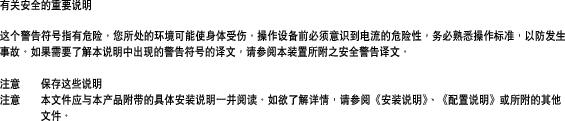
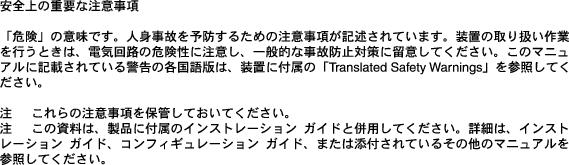
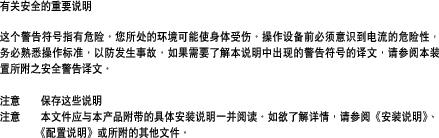
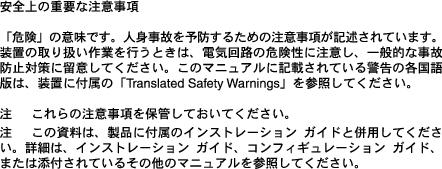
Following are safety guidelines that you should follow when working with any equipment that connects to electrical power or telephone wiring.



|

|

|
|

|
|
Electrical Equipment Guidelines
Follow these basic guidelines when working with any electrical equipment:
•Before beginning any procedures requiring access to the chassis interior, locate the emergency power-off switch for the room in which you are working.
•Disconnect all power and external cables before moving a chassis.
•Do not work alone when potentially hazardous conditions exist and never assume that power has been disconnected from a circuit; always check.
•Do not perform any action that creates a potential hazard to people or makes the equipment unsafe. Carefully examine your work area for possible hazards such as moist floors, ungrounded power extension cables, and missing safety grounds.
Telephone Wiring Guidelines
Use the following guidelines when working with any equipment that is connected to telephone wiring or to other network cabling:
•Never install telephone wiring during a lightning storm.
•Never install telephone jacks in wet locations unless the jack is specifically designed for wet locations.
•Never touch uninsulated telephone wires or terminals unless the telephone line has been disconnected at the network interface.
•Use caution when installing or modifying telephone lines.
Preventing Electrostatic Discharge Damage
Electrostatic discharge (ESD) damage, which can occur when electronic cards or components are improperly handled, results in complete or intermittent failures. Port adapters and processor modules consist of printed circuit boards that are fixed in metal carriers. Electromagnetic interference (EMI) shielding and connectors are integral components of the carrier. Although the metal carrier helps to protect the board from ESD, use a preventive antistatic strap during handling.
Following are guidelines for preventing ESD damage:
•Always use an ESD wrist or ankle strap and ensure that it makes good skin contact.
•Connect the equipment end of the strap to an unfinished chassis surface.
•When installing a component, use any available ejector levers or captive installation screws to properly seat the bus connectors in the backplane or midplane. These devices prevent accidental removal, provide proper grounding for the system, and help to ensure that bus connectors are properly seated.
•When removing a component, use any available ejector levers or captive installation screws to release the bus connectors from the backplane or midplane.
•Handle carriers by available handles or edges only; avoid touching the printed circuit boards or connectors.
•Place a removed component board-side-up on an antistatic surface or in a static shielding container. If you plan to return the component to the factory, immediately place it in a static shielding container.
•Avoid contact between the printed circuit boards and clothing. The wrist strap only protects components from ESD voltages on the body; ESD voltages on clothing can still cause damage.
•Never attempt to remove the printed circuit board from the metal carrier.
For safety, periodically check the resistance value of the antistatic strap. The measurement should be between 1 and 10 megohm (Mohm).
 Feedback