Expand Cisco HyperFlex System Clusters

Cluster Expansion Guidelines

  • If you have replication configured, put replication in pause mode before performing upgrade, expansion or cluster maintenance. After the upgrade, expansion or cluster maintenance is completed, then resume replication. Perform the pause and resume on any cluster that has replication configured to or from this local cluster.

  • If you are using RESTful APIs to perform cluster expansion, sometimes the task may take longer than expected.

  • ESXi installation is supported on SD cards for M4 converged nodes and M.2 SATA SSD for M5 converged nodes. For compute-only nodes, ESXi installation is supported for SD Cards, SAN boot, front SSD/HDD, or single M.2 SSD (using UCS-MSTOR-M2 controller). Installing ESXi on USB Flash is not supported for compute-only nodes

  • You must click on the discovered cluster to proceed with expanding a standard ESX cluster in a 3.5.x or earlier release. Not doing so results in errors.

  • Use only Admin credentials for the Controller VM during expansion work flow. Using any other credentials other than Admin may cause the expansion to fail.

  • In the event you see an error about unsupported drives or catalog upgrade, see the Compatibility Catalog.

ESXi Installation Guidelines

  1. Modify boot policy for compute node.

    To modify the template and boot policy for HyperFlex Stretched Cluster compute only node on M5 server:

    1. Clone the template.

    2. Uncheck the Flex flash from local boot policy, if the compute M5 node does not have flash cards.

    3. Add the SAN boot with proper WWPN to the boot order.

  2. Start the DPI expansion workflow.

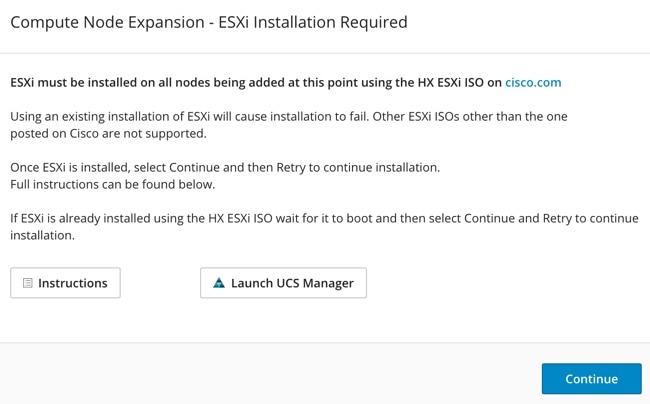
  3. When prompted, install ESXi using an ISO image.

  4. Return to the DPI expansion workflow and complete the ESXi installation workflow.


Note

If the Hypervisor configuration fails with the SOL logging failure message, access the installer CLI through SSH with root and default password and configure the ESXi hypervisor. Then, run the advanced installer and check the HX Storage Software and Expand Cluster check boxes to proceed with the ESXi installation process.


Prerequisites When Creating a Mixed M4/M5 Cluster

The following tasks should be performed prior to beginning cluster expansion in a mixed cluster:

  • Hypercheck Health Check Utility— Cisco recommends running this proactive health check utility on your HyperFlex cluster prior to upgrade. These checks provide early visibility into any areas that may need attention and will help ensure a seamless upgrade experience. For more information, see the Hyperflex Health & Pre-Upgrade Check Tool TechNote for full instructions on how to install and run Hypercheck.

  • Upgrade UCS Manager to 3.2(1d) or later.

  • Upgrade the existing HX cluster fully to 2.6(1a) or later.

  • Download and deploy the matching 2.6(1a) or later HX Data Platform Installer to run the expansion workflow.

  • Upgrade existing M4 server firmware to the latest 3.2(1) patch release.

  • Upgrade vCenter to 6.5 or later. Without vCenter 6.5, Broadwell EVC mode cannot be enabled. Only vCenter upgrade is required. ESXi can remain on an older version subject to the VMware software interoperability matrix. Proceeding with EVC mode off is not supported and will cause operational issues in the future.

Steps During Mixed Cluster Expansion

  • During the validation steps, before expansion begins, an EVC check is performed. Follow the displayed guidance to manually enable EVC mode on the existing cluster at this time.


    Caution

    Failure to enable EVC at the time of the warning will require a complete shutdown of the storage cluster and all associated VMs at a later point in time. Do not skip this warning.


  • Perform the EVC mode configuration in vCenter and then retry the validation.

  • Cluster expansion will then validate a second time and then continue with the expansion.

Prerequisites for Adding a Converged (HX220c/HX240c) Node

A converged node can be added to a HyperFlex cluster after cluster creation. The storage on a converged node is automatically added to the cluster's storage capacity.

Before you start adding a converged node to an existing storage cluster, make sure that the following prerequisites are met.

  • Ensure that the storage cluster state is healthy.

  • Ensure that the new node meets the system requirements listed under Installation Prerequisites, including network and disk requirements.

  • Ensure that the new node uses the same configuration as the other nodes in the storage cluster. This includes VLAN IDs and switch types (whether vSwitches), VLAN tagging with External Switch VLAN Tagging (EST), VLAN tagging with Virtual Switch Tagging (VST), or Virtual Distributed Switch.


    Note

    If the storage cluster is in an out of space condition, when you add a new node, the system automatically rebalances the storage cluster. This is in addition to the rebalancing that is performed every 24 hours.


  • Ensure that the node you add is of the same model (HX220 or HX240) type (Hybrid or All Flash), and disk configuration (SED or non-SED). In addition, ensure that the number of capacity disks matches the existing cluster nodes.

  • To add a node that has a different CPU family from what is already in use in the HyperFlex cluster, enable EVC. For more details, see the Setting up Clusters with Mixed CPUs section in the Cisco HyperFlex Systems Installation Guide for VMware ESXi.

  • Ensure that the software version on the node matches the Cisco HX Data Platform version, the ESXi version, and the vCenter version. To identify the software version, go to the Storage Cluster Summary tab in vCenter and check the HX Data Platform version in the top section. Upgrade if necessary.


    Note

    If you upgraded the cluster, you must download and install a new installer VM, that matches the current version of HXDP running on the cluster.


  • Ensure that the new node has at least one valid DNS and NTP server configured.

  • If you are using SSO or Auto Support, ensure that the node is configured for SSO and SMTP services.

  • Allow ICMP for ping between the HX Data Platform Installer and the existing cluster management IP address.

Preparing a Converged Node

Procedure


Step 1

Connect the converged node to the hardware and the network of the existing storage cluster.

Step 2

Ensure that the HX node is a node prepared at factory.

Note 

Do not reuse a removed converged node or its disks in the original cluster.


Adding a Converged Node to an Existing Cluster


Note

If you are using RESTful APIs to perform cluster expansion, the task may take longer than expected.


Procedure


Step 1

Launch the Cisco HX Data Platform Installer.

  1. In your web browser, enter the IP address or the node name for the HX Data Platform Installer VM. Click Accept or Continue to bypass any SSL certificate errors. The Cisco HX Data Platform Installer login page appears. Verify the HX Data Platform Installer Build ID in the lower right corner of the login screen.

  2. In the login page, enter the following credentials:

    Username: root

    Password (Default): Cisco123

    Note 

    Systems ship with a default password of Cisco123 that must be changed during installation. You cannot continue installation unless you specify a new user supplied password.

  3. Read the EULA, check the I accept the terms and conditions checkbox, and click Login.

Step 2

On the Workflow page, select Cluster Expansion.

Step 3

On the Credentials page, complete the following fields.

To perform cluster creation, you can import a JSON configuration file with the required configuration data. The following two steps are optional if importing a JSON file, otherwise you can input data into the required fields manually.

Note 

For a first-time installation, contact your Cisco representative to procure the factory preinstallation JSON file.

  1. Click Select a file and choose your JSON file to load the configuration. Select Use Configuration.

  2. An Overwrite Imported Values dialog box displays if your imported values for Cisco UCS Manager are different. Select Use Discovered Values.

Field

Description

UCS Manager Credentials

UCS Manager Host Name

UCS Manager FQDN or IP address.

For example, 10.193.211.120.

User Name

<admin> username.

Password

<admin> password.

vCenter Credentials

vCenter Server

vCenter server FQDN or IP address.

For example, 10.193.211.120.

Note 
  • A vCenter server is required before the cluster can be made operational.

  • The vCenter address and credentials must have root level administrator permissions to the vCenter.

  • vCenter server input is optional if you are building a nested vCenter. See the Nested vCenter TechNote for more details.

User Name

<admin> username.

For example, administrator@vsphere.local.

Admin Password

<root> password.

Hypervisor Credentials

Admin User Name

<admin> username.

This is root for factory nodes.

Admin Password

<root> password.

Default password is Cisco123 for factory nodes.

Note 

Systems ship with a default password of Cisco123 that must be changed during installation. You cannot continue installation unless you specify a new user supplied password.

Step 4

Click Continue. A Cluster Expand Configuration page is displayed. Select the HX Cluster that you want to expand.

If the HX cluster to be expanded is not found, or if loading the cluster takes time, enter the IP of the Cluster Management Address in the Management IP Address field.

Step 5

The Server Selection page displays a list of unassociated HX servers under the Unassociated tab, and the list of discovered servers under the Associated tab. Select the servers under the Unassociated tab to include in the HyperFlex cluster.

If HX servers do not appear in this list, check Cisco UCS Manager and ensure that they have been discovered.

For each server you can use the Actions drop-down list to set the following:

  • Launch KVM Console—Choose this option to launch the KVM Console directly from the HX Data Platform Installer.

  • Disassociate Server—Choose this option to remove a service profile from that server.

Note 

If there are no unassociated servers, the following error message is displayed:

No unassociated servers found. Please login to UCS Manager and ensure server ports are enabled. 

The Configure Server Ports button allows you to discover any new HX nodes. Typically, the server ports are configured in Cisco UCS Manager before you start the configuration.

Step 6

Click Continue. The UCSM Configuration page appears.

Note 

If you imported a JSON file at the beginning, the Credentials page should be populated with the required configuration data from the preexisting HX cluster. This information must match your existing cluster configuration.

Step 7

In the UCSM Configuration page, complete the following fields for each network.

Field

Description

VLAN Configuration

Note 

Use separate subnet and VLANs for each of the following networks.

VLAN for Hypervisor and HyperFlex management

VLAN Name

VLAN ID

Name: hx-inband-mgmt

Default VLAN ID: 3091

VLAN for HyperFlex storage traffic

VLAN Name

VLAN ID

Name: hx-storage-data

Default VLAN ID: 3092

VLAN for VM vMotion

VLAN Name

VLAN ID

Name: hx-vmotion

Default VLAN ID: 3093

VLAN for VM Network

VLAN Name

VLAN ID(s)

Name: vm-network

Default VLAN ID: 3094

A comma-separated list of guest VLANs.

MAC Pool

MAC Pool Prefix

Configure MAC Pool prefix by adding in two more hex characters (0-F).

For example, 00:25:B5:A0.

'hx-ext-mgmt' IP Pool for Out-of-Band CIMC

IP Blocks

The range of IP addresses designated for the HyperFlex nodes. This can be a comma-separated list of values for the guest VLANs.

For example, 10.193.211.124-127, 10.193.211.158-163

Subnet Mask

Set the subnet to the appropriate level to limit and control IP addresses.

For example, 255.255.0.0.

Gateway

IP address.

For example, 10.193.0.1.

iSCSI Storage

Note 

This must be configured upfront if you want to use external storage at any point in the future.

Enable iSCSI Storage checkbox Check to configure iSCSI storage.

VLAN A Name

Name of the VLAN associated with the iSCSI vNIC, on the primary fabric interconnect (FI-A).

VLAN A ID

ID of the VLAN associated with the iSCSI vNIC, on the primary fabric interconnect (FI-A).

VLAN B Name

Name of the VLAN associated with the iSCSI vNIC, on the subordinate fabric interconnect (FI-B).

VLAN B ID

ID of the VLAN associated with the iSCSI vNIC, on the subordinate fabric interconnect (FI-A).

FC Storage

Note 

This must be configured upfront if you want to use external storage at any point in the future.

Enable FC Storage checkbox

Check to enable FC Storage.

WWxN Pool

A WWN pool that contains both WW node names and WW port names. For each fabric interconnect, a WWxN pool is created for WWPN and WWNN.

VSAN A Name

The name of the VSAN for the primary fabric interconnect (FI-A). By default, this is set to hx-ext-storage-fc-a.

VSAN A ID

The unique identifier assigned to the network for the primary fabric interconnect (FI-A).

Caution 

Do not enter VSAN IDs that are currently used on the UCS or HyperFlex system. If you enter an existing VSAN ID in the installer which utilizes UCS zoning, zoning will be disabled in your existing environment for that VSAN ID.

VSAN B Name

The name of the VSAN for the subordinate fabric interconnect (FI-B). By default, this is set to hx-ext-storage-fc-b.

VSAN B ID

The unique identifier assigned to the network for the subordinate fabric interconnect (FI-B).

Caution 

Do not enter VSAN IDs that are currently used on the UCS or HyperFlex system. If you enter an existing VSAN ID in the installer which utilizes UCS zoning, zoning will be disabled in your existing environment for that VSAN ID.

Advanced

UCS Firmware Version

Select the UCS firmware version to associate with the HX servers from the drop-down list. The UCS firmware version must match the UCSM version. See the latest Cisco HX Data Platform Release Notes for more details.

For example, 3.2(1d).

HyperFlex Cluster Name

The name applied to a group of HX Servers in a given cluster. This is a user-defined name. The HyperFlex cluster name adds a label to service profiles for easier identification.

Org Name

Displays a unique Org Name of the cluster, that ensures isolation of the HyperFlex environment from the rest of the UCS domain.

Note 

Review the VLAN, MAC pool, and IP address pool information in the Configuration pane. These VLAN IDs might be changed by your environment. By default, the Installer sets the VLANs as non-native. You must configure the upstream switches to accommodate the non-native VLANs by appropriately applying a trunk configuration.

Step 8

Click Continue. The Hypervisor Configuration page appears. Complete the following fields:

Attention 
You can skip the completion of the fields described in this step in case of a reinstall, and if ESXi networking has been completed.

Field

Description

Configure Common Hypervisor Settings

Subnet Mask

Set the subnet mask to the appropriate level to limit and control IP addresses.

For example, 255.255.0.0.

Gateway

IP address of gateway.

For example, 10.193.0.1.

DNS Server(s)

IP address for the DNS Server.

If you do not have a DNS server, do not enter a hostname in any of the fields on the Cluster Configuration page of the HX Data Platform installer. Use only static IP addresses and hostnames for all ESXi hosts.

Note 

If you are providing more than one DNS server, check carefully to ensure that both DNS servers are correctly entered, separated by a comma.

Hypervisor Settings

Ensure to select Make IP Addresses and Hostnames Sequential, to make the IP addresses sequential.

Note 

You can rearrange the servers using drag and drop.

Name

Server name.

Serial

Serial number of the server.

Static IP Address

Input static IP addresses and hostnames for all ESXi hosts.

Hostname

Do not leave the hostname fields empty.

Step 9

Click Continue. The IP Addresses page appears. You can add more compute or converged servers, by clicking Add Compute Server or Add Converged Server.

Ensure to select Make IP Addresses Sequential, to make the IP addresses sequential. For the IP addresses, specify if the network should belong to Data Network or Management Network.

For each HX node, complete the following fields for Hypervisor Management and Data IP addresses.

Field

Description

Management Hypervisor

Enter the static IP address that handles the Hypervisor management network connection between the ESXi host and the storage cluster.

Management Storage Controller

Enter the static IP address that handles the HX Data Platform storage controller VM management network connection between the storage controller VM and the storage cluster.

Data Hypervisor

Enter the static IP address that handles the Hypervisor data network connection between the ESXi host and the storage cluster.

Data Storage Controller

Enter the static IP address that handles the HX Data Platform storage controller VM data network connection between the storage controller VM and the storage cluster.

When you enter IP addresses in the first row for Hypervisor (Management), Storage Controller VM (Management), Hypervisor (Data), and Storage Controller VM (Data) columns, the HX Data Platform Installer applies an incremental auto-fill to the node information for the rest of the nodes. The minimum number of nodes in the storage cluster is three. If you have more nodes, use the Add button to provide the address information.

Note 

Compute-only nodes can be added only after the storage cluster is created.

Controller VM Password

A default administrator username and password are applied to the controller VMs. The VMs are installed on all converged and compute-only nodes.

Important 
  • You cannot change the name of the controller VM or the controller VM’s datastore.

  • Use the same password for all controller VMs. The use of different passwords is not supported.

  • Provide a complex password that includes 1 uppercase character, 1 digit, 1 special character, and a minimum of 10 characters in total.

  • You can provide a user-defined password for the controller VMs and for the HX cluster to be created. For password character and format limitations, see the section on Guidelines for HX Data Platform Special Characters in the Cisco HX Data Platform Management Guide.

Advanced Configuration

Jumbo frames

Enable Jumbo Frames checkbox

Check to set the MTU size for the storage data network on the host vSwitches and vNICs, and each storage controller VM.

The default value is 9000.

Note 

To set your MTU size to a value other than 9000, contact Cisco TAC.

Disk Partitions

Clean up Disk Partitions checkbox

Check to remove all existing data and partitions from all nodes added to the storage cluster. You must backup any data that should be retained.

Important 

Do not select this option for factory prepared systems. The disk partitions on factory prepared systems are properly configured. For manually prepared servers, select this option to delete existing data and partitions.

Step 10

Click Start. A Progress page displays the progress of various configuration tasks.

Note 

If the vCenter cluster has EVC enabled, the deploy process fails with a message: The host needs to be manually added to vCenter. To successfully perform the deploy action, do the following:

  • Log in to the ESXi host to be added in vSphere Client.

  • Power off the controller VM.

  • Add the host to the vCenter cluster in vSphere Web Client.

  • In the HX Data Platform Installer, click Retry Deploy.

Step 11

When cluster expansion is complete, click Launch HyperFlex Connect to start managing your storage cluster.

Note 

When you add a node to an existing storage cluster, the cluster continues to have the same HA resiliency as the original storage cluster until auto-rebalancing takes place at the scheduled time.

Rebalancing is typically scheduled during a 24-hour period, either 2 hours after a node fails or if the storage cluster is out of space.

To rebalance the storage cluster before the scheduled time, perform the following steps to manually initiate rebalance storage cluster command.

  1. From a storage cluster controller VM command line, run the # stcli rebalance start --force command:

  2. To monitor rebalance status, run the # stcli rebalance status command.

Step 12

Create the required VM Network port groups and vMotion vmkernel interfaces using HyperFlex hx_post_install script or manually to match the other nodes in the cluster.

  1. SSH to HyperFlex cluster management IP.

  2. Log in as the admin user.

  3. Run the hx_post_install command.

  4. Follow the on-screen instructions, starting with vMotion and VM network creation. The other configuration steps are optional.

Step 13

After the new nodes are added to the storage cluster the High Availability (HA) services are reset so that HA can recognize the added nodes.

  1. Log in to vCenter.

  2. In the vSphere Web Client, navigate to the Host: Home > vCenter > Inventory Lists > Hosts and Clusters > vCenter > Server > Datacenter > Cluster > Host

  3. Select the new node.

  4. Right-click and select Reconfigure for vSphere HA.


Prerequisites for Adding a Compute-Only Node

A compute-only node can be added to a HyperFlex cluster, after cluster creation. It is added to provide extra compute resources. The Cisco UCS server does not need to have any caching or persistent drives as they do not contribute any storage capacity to the cluster.

Before you start adding a compute-only node, make sure that the following prerequisites are met.

  • Ensure that the storage cluster state is healthy.

  • Ensure that the new node meets the compute-only system requirements listed in Installation Prerequisites, including network and disk requirements.

  • Install ESXi hypervisor after service profile association.

  • Ensure that the new node uses the same configuration as the other nodes in the storage cluster. This includes VLAN IDs and switch types (whether vSwitches), VLAN tagging with External Switch VLAN Tagging (EST), VLAN tagging with Virtual Switch Tagging (VST), or Virtual Distributed Switch.


    Note

    If the storage cluster is in an out of space condition, when you add a new node, the system automatically rebalances the storage cluster. This is in addition to the rebalancing that is performed every 24 hours.


  • Enable EVC if the new node to be added has a different CPU family than what is already used in the HX cluster. For more details, see the Setting up Clusters with Mixed CPUs section in the Cisco HyperFlex Systems Installation Guide for VMware ESXi.

  • Ensure that the software version on the node matches the Cisco HX Data Platform version, the ESXi version, and the vCenter version. To identify the software version, go to the Storage Cluster Summary tab in vCenter and check the HX Data Platform version in the top section. Upgrade if necessary.

  • Ensure that the new node has at least one valid DNS and NTP server configured.

  • If you are using SSO or Auto Support, ensure that the node is configured for SSO and SMTP services.

  • ESXi installation is supported on SD cards for M4 converged nodes and M.2 SATA SSD for M5 converged nodes. For compute-only nodes, ESXi installation is supported for SD Cards, SAN boot, front SSD/HDD, or single M.2 SSD (using UCS-MSTOR-M2 controller). Installing ESXi on USB Flash is not supported for compute-only nodes.

  • Compute-only nodes are deployed with automatic detection and configuration of disk and boot policies based on the boot hardware.

    Starting with HX Data Platform version 4.5(1a) and later, compute-only nodes are deployed with automatic detection and configuration of disk and boot policies based on the inventoried boot hardware. Users cannot directly select the UCSM policies. Instead, the boot device is automatically determined based on the first acceptable boot media discovered in the server. The tables below show the priority order for M4 and M5 generation servers. Reading from top to bottom, the first entry that is a match based on the inventoried hardware are selected automatically during cluster expansion. For example, when expanding with a B200 compute node with a single M.2 boot SSD, the second rule in the table below is a match and used for SPT association.

    If the server is booted using a mechanism not listed (such a SAN boot), the catch-all policy of anyld is selected and administrators may subsequently modify the UCSM policies and profiles as needed to boot the server.

Priority for M5

Priority

SPT Name

Boot Device

Number of disks

1

compute-nodes-m5-m2r1

M.2 Raid

2

2

compute-nodes-m5-m2pch

PCH/Non-RAID M.2

1

3

compute-nodes-m5-sd

FlexFlash

2

4

compute-nodes-m5-ldr1

MegaRAID

2

5

compute-nodes-m5-sd

FlexFlash

1

6

compute-nodes-m5-anyld

Any other config

Any

Priority for M4

Priority

SPT Name

Boot Device

Number of disks

1

compute-nodes-m5-sd

FlexFlash

1 or 2

2

compute-nodes-m5-anyld

Any other config

Any

Preparing a Compute-Only Node

Procedure


Step 1

Ensure that the server is a supported HX server and meets the requirements. For more details, see the Host Requirements section in the Cisco HyperFlex Systems Installation Guide for VMware ESXi.

Step 2

Log in to Cisco UCS Manager.

  1. Open a browser and enter the Cisco UCS Manager address for the fabric interconnect of the storage cluster network.

  2. Click the Launch UCS Manager button.

  3. If prompted, download, install, and accept Java.

  4. Log in with administrator credentials.

    Username: admin

    Password: <admin password>

Step 3

Locate the server to ensure that the server has been added to the same FI domain as the storage cluster and is an approved compute-only model. Check the latest Release Notes for Cisco HX Data Platform for a full list of compatible Compute-only nodes.


Verify the HX Data Platform Installer

Procedure


Step 1

Verify that the HX Data Platform installer is installed on a node that can communicate with all the nodes in the storage cluster and compute nodes that are being added to the storage cluster.

Step 2

If the HX Data Platform installer is not installed, see Deploy the HX Data Platform Installer.


Apply an HX Profile on a Compute-only Node Using UCS Manager

In Cisco UCS Manager the network policies are grouped into an HX profile. The HX installer handles automatic service profile association for compute-only nodes. Manual association is not required.

Procedure


Once install beings, you should monitor compute-only node service profile association in UCS Manager. Wait until the server is fully associated before continuing on to install ESXi.


Install VMware ESXi on Compute Nodes


Important

Install VMware ESXi on each compute-only node.

Install a Cisco HX Data Platform supported version of ESXi. See the Cisco HyperFlex Data Platform Release Notes for a list of supported ESXi versions.

If the compute only node already has ESXi installed, it must be re-imaged with the Cisco HX Custom image.


Before you begin

Ensure the required hardware and network settings are met. For more details, see the Installation Prerequisites section in the Cisco HyperFlex Systems Installation Guide for VMware ESXi. Ensure the service profiles in the previous step have finished associating.

Procedure


Step 1

Download the HX Custom Image for ESXi from the Cisco.com download site for Cisco HyperFlex. See Download Software.

Select a networked location that can be accessed through Cisco UCS Manager.

Step 2

Log in to Cisco UCS Manager.

Step 3

Log in to the KVM console of the server through Cisco UCS Manager.

  1. In the Navigation Pane, click Servers > Service Profiles > Sub-Organizations > hx-cluster.

  2. Right click the hx-cluster and choose KVM Console.

Step 4

Copy the HX-Vmware.iso image to the KVM path for the compute server.

Example:

HX-Vmware-ESXi-60U3-5050593-Cisco-Custom-6.0.3.1.iso

Step 5

From the KVM console session, select Virtual Media > Map CD/DVD and mount the HX Custom Image for ESXi image. If you do not see the Map CD/DVD option, first activate virtual devices.

  1. Select Virtual Media > Activate Virtual Devices.

    This opens in a pop-up window.

  2. Click Accept the session > Apply.

Step 6

From the Map CD/DVD option, map to the location of the HX-Vmware.iso file.

  1. Select the HX-Vmware.iso file.

  2. Select Map Device.

    There is a check mark indicating that the file is on a mapped location, once the process is complete. The mapped file's full name includes the ESXi build ID.

Step 7

Reset the compute server.

  1. Click the Reset button on the KVM console. Click OK to confirm.

  2. Select Power Cycle. Click OK.

Step 8

Change the boot path to point to the HX-Vmware.iso file.

  1. Press F6.

  2. From the Enter boot selection menu, use the arrow keys to highlight the Cisco vKVM-Mapped vDVD1.22 option.

  3. Press Enter to select.

    This launches the ESXi installer bootloader. Select one of the three compute-only node options based on desired boot type: SD Card, Local Disk, or Remote Disk. Type in yes (all lowercase) to confirm selection. The rest of the installation is automated. ESXi will reboot several times. It is normal to see warnings that automatically dismiss after a short wait period. Wait for the ESXi DCUI to fully appear, signaling the end of installation.

Step 9

Repeat steps 3 to 8 for each Cisco HyperFlex server.

Step 10

Once ESXi is fully installed, click continue. Then click Retry Hypervisor Configuration to complete the rest of the cluster expansion.


Adding a Compute-Only Node to an Existing Cluster

To add a HyperFlex compute-only node to an existing HyperFlex system cluster, complete the following steps.


Note

If you are using RESTful APIs to perform cluster expansion, sometimes the task may take longer than expected.


Note

After you add a compute-only node to an existing cluster, you must manually configure the vmk2 interface for vmotion.


Procedure


Step 1

Launch the Cisco HX Data Platform Installer.

  1. In your web browser, enter the IP address or the node name for the HX Data Platform Installer VM. Click Accept or Continue to bypass any SSL certificate errors. The Cisco HX Data Platform Installer login page appears. Verify the HX Data Platform Installer Build ID in the lower right corner of the login screen.

  2. In the login page, enter the following credentials:

    Username: root

    Password (Default): Cisco123

    Note 

    Systems ship with a default password of Cisco123 that must be changed during installation. You cannot continue installation unless you specify a new user supplied password.

  3. Read the EULA, check the I accept the terms and conditions checkbox, and click Login.

Step 2

On the Workflow page, select Cluster Expansion.

Step 3

On the Credentials page, complete the following fields.

To perform cluster creation, you can import a JSON configuration file with the required configuration data. The following two steps are optional if importing a JSON file, otherwise you can input data into the required fields manually.

Note 

For a first-time installation, contact your Cisco representative to procure the factory preinstallation JSON file.

  1. Click Select a file and choose your JSON file to load the configuration. Select Use Configuration.

  2. An Overwrite Imported Values dialog box displays if your imported values for Cisco UCS Manager are different. Select Use Discovered Values.

Field

Description

UCS Manager Credentials

UCS Manager Host Name

UCS Manager FQDN or IP address.

For example, 10.193.211.120.

User Name

<admin> username.

Password

<admin> password.

vCenter Credentials

vCenter Server

vCenter server FQDN or IP address.

For example, 10.193.211.120.

Note 
  • A vCenter server is required before the cluster can be made operational.

  • The vCenter address and credentials must have root level administrator permissions to the vCenter.

  • vCenter server input is optional if you are building a nested vCenter. See the Nested vCenter TechNote for more details.

User Name

<admin> username.

For example, administrator@vsphere.local.

Admin Password

<root> password.

Hypervisor Credentials

Admin User Name

<admin> username.

This is root for factory nodes.

Admin Password

<root> password.

Default password is Cisco123 for factory nodes.

Note 

Systems ship with a default password of Cisco123 that must be changed during installation. You cannot continue installation unless you specify a new user supplied password.

Step 4

Click Continue. A Cluster Expand Configuration page is displayed. Select the HX Cluster that you want to expand.

If the HX cluster to be expanded is not found, or if loading the cluster takes time, enter the IP of the Cluster Management Address in the Management IP Address field.

Step 5

Click Continue. A Server Selection page is displayed. On the Server Selection page, the Associated tab lists all the HX servers that are already connected. Do not select them. On the Unassociated tab, select the servers you wish to add to the cluster.

Step 6

Click Continue. A UCS Manager Configuration page is displayed.

Note 
  • If you imported a JSON file at the beginning, the fields should be populated with the required configuration data from the pre-existing HX cluster. If the server to add into the cluster is not associated, select them and click Continue.

  • This information must match your existing cluster configuration. Ensure that you use the proper settings on this page.

Enter the following information for each network:

Field

Information

VLAN for ESXi and HyperFlex management

VLAN Name

VLAN ID

Name: hx-inband-mgmt

Default VLAN ID: 3091

VLAN for HyperFlex Storage traffic

VLAN Name

VLAN ID

Name: hx-storage-data

Default VLAN ID: 3092

VLAN for VM vMotion

VLAN Name

VLAN ID

Name: hx-vmotion

Default VLAN ID: 3093

VLAN for VM Network

VLAN Name

VLAN ID

Name: hx-vm-network

Default VLAN ID: 3094

MAC Pool

MAC Pool Prefix

For example, 00:25:B5:99 (99 is default and can be set as per the user environment).

hx-ext-mgmt IP Pool for Out-of-Band CIMC

IP Blocks

The range of IP addresses designated for the HyperFlex nodes. This can be a comma-separated list of values for the guest VLANs.

For example, 10.193.211.124-127, 10.193.211.158-163, 255.255.255.0.

Enter IP address of gateway. For example, 10.193.0.1.

Subnet

Set the subnet to the appropriate level to limit and control IP addresses.

For example, 255.255.0.0.

Default gateway

IP address.

For example, 10.193.0.1.

Advanced

UCS Firmware version

Select the UCS firmware version to associate with the HX servers from the drop-down list. The UCS firmware version must match the UCSM version. See the latest Cisco HX Data Platform Release Notes for more details.

For example, 3.2(1d).

HyperFlex Cluster Name

The name applied to a group of HX Servers in a given cluster. This is a user-defined name. The HyperFlex cluster name adds a label to service profiles for easier identification.

Note 

Review the VLAN, MAC pool, and IP address pool information in the Configuration pane. These VLAN IDs might be changed by your environment. By default, the Installer sets the VLANs as non-native. You must configure the upstream switches to accommodate the non-native VLANs by appropriately applying a trunk configuration.

Step 7

Click Continue. The Hypervisor Configuration page appears. Complete the following fields:

Attention 
You can skip the completion of the fields described in this step in case of a reinstall, and if ESXi networking has been completed.

Field

Description

Configure Common Hypervisor Settings

Subnet Mask

Set the subnet mask to the appropriate level to limit and control IP addresses.

For example, 255.255.0.0.

Gateway

IP address of gateway.

For example, 10.193.0.1.

DNS Server(s)

IP address for the DNS Server.

If you do not have a DNS server, do not enter a hostname in any of the fields on the Cluster Configuration page of the HX Data Platform installer. Use only static IP addresses and hostnames for all ESXi hosts.

Note 

If you are providing more than one DNS server, check carefully to ensure that both DNS servers are correctly entered, separated by a comma.

Hypervisor Settings

Ensure to select Make IP Addresses and Hostnames Sequential, to make the IP addresses sequential.

Note 

You can rearrange the servers using drag and drop.

Name

Server name.

Serial

Serial number of the server.

Static IP Address

Input static IP addresses and hostnames for all ESXi hosts.

Hostname

Do not leave the hostname fields empty.

Step 8

Click Continue. An IP Addresses page is displayed. Click Add Compute-only Node to add a new node.

If you are adding more than one compute-only node, select Make IP Addresses Sequential.

Field

Information

Management Hypervisor

Enter the static IP address that handles the Hypervisor management network connection between the ESXi host and storage cluster.

Management Storage Controller

None.

Data Hypervisor

Enter the static IP address that handles the Hypervisor data network connection between the ESXi host and the storage cluster.

Data Storage Controller

None.

Controller VM

Enter the default Admin username and password that were applied to controller VMs when they were installed on the existing HX Cluster.

Note 

The name of the controller VM cannot be changed. Use the existing cluster password.

Step 9

Click Start. A Progress page displays the progress of various configuration tasks.

Note 

By default no user intervention is required if you are booting from FlexFlash (SD Card). However, if you are setting up your compute-only node to boot from a local disk, complete the following steps in Cisco UCS Manager:

  1. Click the service profile created by the HX Data Platform Installer.

    For example, blade-1(HX_Cluster_Name).

  2. On the General tab, click Unbind from the Template.

  3. In the working pane, click the Storage tab. Click the Local Disk Configuration Policy sub tab.

  4. In the Actions area, select Change Local Disk Configuration Policy > Create Local Disk Configuration Policy.

  5. Under Create Local Disk Configuration Policy, enter a name for the policy, and keep the rest as default. Click Ok.

  6. In the Change Local Disk Configuration Policy Actions area, select the newly created local disk configuration policy from the drop-down list. Click Ok.

  7. Now, go back to the HX Data Platform Installer UI and click Continue, and then click Retry UCSM Configuration.

    Note 

    If the vCenter cluster has EVC enabled, the deploy process fails, The host needs to be manually added to vCenter. To successfully perform the deploy action, do the following:

  1. Log in to the ESXi host to be added in vSphere Client.

  2. Power off the controller VM.

  3. Add the host to the vCenter cluster in vSphere Web Client.

  4. In the HX installer, click Retry Deploy.

Step 10

When installation is complete, start managing your storage cluster by clicking Launch HyperFlex Connect.

Step 11

After the new nodes are added to the storage cluster, HA services are reset so that HA is able to recognize the added nodes.

  1. Log on to VMware vSphere Client.

  2. Select Home > Hosts and Clusters > Datacenter > Cluster > Host.

  3. Select the new node.

  4. Right-click and select Reconfigure for vSphere HA.

Step 12

After adding compute-only nodes to an existing cluster, you must manually configure the vmk2 interface for vmotion.


Resolving Failure of Cluster Expansion

If you receive an error dialog box and the storage cluster expansion doesn't complete, proceed with the resolution options listed below:

Procedure


Step 1

Edit Configuration - Returns you to the Cluster Configuration page. You fix the issues listed in the validation page.

Step 2

Start Over - Allows you to reverse the settings you applied by clearing progress table entries and you are returned to the Cluster Configuration page to restart a new deployment. See Technical Assistance Center (TAC).

Step 3

Continue - Adds the node to the storage cluster in spite of the failure generating errors. See Technical Assistance Center (TAC).

Note 

Select the Continue button only if you understand the failures and are willing to accept the possibility of unpredictable behavior.

For more information about cleaning up a node for the purposes of redeploying HyperFlex, see the HyperFlex Customer Cleanup Guides for FI and Edge.


Enabling Logical Availability Zones

Once you have successfully configured your HyperFlex cluster, refer to the commands below to enable or disable Logical Availability Zones (LAZ).


Important

Please be advised to wait for at least 10 seconds between successive invocations of LAZ disable and, LAZ enable operations in that order.

In case of fresh cluster installation, for best results, it is recommended that LAZ is enabled during cluster creation.


Command

Description

stcli cluster get-zone

Checks if zones are enabled.

stcli cluster set-zone --zone 0

Disables zones.

stcli cluster set-zone --zone 1

stcli rebalance start

(Recommended) Enables and creates zones (default number of zones)

Important 
  • A cluster created without zoning enabled, will become zone compliant only after enabling zoning and successful completion of rebalance.

  • You must execute the rebalance start command after you enable and create zones.

  • Triggering rebalance activity may involve large scale data movements across several nodes in the cluster which may decrease the IO performance in the cluster.

stcli cluster set-zone --zone 1 --numzones <integer-value>

stcli rebalance start

Enables zones and creates a specific number of zones.

Important 

You must execute the rebalance start command after you enable and create zones.

Requirements and Limitations for Logical Availability Zones

Logical Availability Zones (LAZ) are subject to the following requirements and limitations:

  • Only HyperFlex clusters with 8 nodes or more can be configured with Logical Availability Zones during the installation process.

  • Logical Availability Zones can be enabled during the HyperFlex cluster installation, or it can be enabled using the command line interface at a later time. It is recommended to enable this feature during installation, in order to avoid a large migration and reorganization of data across the cluster, which would be necessary to comply with the data distribution rules if LAZ is turned on in a cluster already containing data.

  • The number of zones can be manually specified as 3, 4, 5, or you can allow the installer to automatically choose, which is the recommended setting. When you let the installer decide the number of zones, the number of zones is decided based on the number of nodes in the cluster.

    Here is a mapping table of number of nodes and resultant number of zones, with the assumption of RF as 3:

    No. of Hyperconverged Nodes in the cluster

    No. of Zones in the cluster

    8

    4

    9

    3

    10

    5

    11

    3

    12

    3

    13

    3

    14

    7

    15

    3

    16

    4

    17

    3

    18

    3

    19

    3

    20

    4

    21

    3

    22

    11

    23

    3

    24

    3

    25

    5

    26

    13

    27

    3

    28

    4

    29

    3

    30

    3

    31

    3

    32

    4

    You can view the LAZ status and check which node is in which zone, by accessing HyperFlex Connect > System information and HyperFlex Connect > Dashboard respectively.

    Also, you can view the LAZ details through CLI by running the following command:

    stcli cluster get-zone
     
    zones:
        ----------------------------------------
        pNodes:
            ----------------------------------------
            state: ready
            name: 10.10.18.61
            ----------------------------------------
            state: ready
            name: 10.10.18.59
            ----------------------------------------
        zoneId: 0000000057eebaab:0000000000000003
        numNodes: 2
        ----------------------------------------
        pNodes:
            ----------------------------------------
            state: ready
            name: 10.10.18.64
            ----------------------------------------
            state: ready
            name: 10.10.18.65
            ----------------------------------------
        zoneId: 0000000057eebaab:0000000000000001
        numNodes: 2
        ----------------------------------------
        pNodes:
            ----------------------------------------
            state: ready
            name: 10.10.18.60
            ----------------------------------------
            state: ready
            name: 10.10.18.63
            ----------------------------------------
        zoneId: 0000000057eebaab:0000000000000004
        numNodes: 2
        ----------------------------------------
        pNodes:
            ----------------------------------------
            state: ready
            name: 10.10.18.58
            ----------------------------------------
            state: ready
            name: 10.10.18.62
            ----------------------------------------
        zoneId: 0000000057eebaab:0000000000000002
        numNodes: 2
        ----------------------------------------
    isClusterZoneCompliant: True
    zoneType: logical
    isZoneEnabled: True
    numZones: 4
    AboutCluster Time : 08/22/2019 2:31:39 PM PDT
    
  • The HyperFlex cluster determines which nodes participate in each zone, and this configuration cannot be modified.

  • To maintain the most balanced consumption of space and data distribution, it is recommended that the number of nodes in a cluster are whole multiples of 3, 4, 5, or 7. For example, 8 nodes would evenly divide into 4 zones of 2 servers each, and 9 nodes would divide evenly into 3 zones of 3 servers each. Eleven nodes would create an unbalanced number of nodes across the zones, leading to unbalanced space consumption on the nodes.

  • Expansion of a cluster should be done in multiples of the number of zones, when the cluster is operating with LAZ enabled. Expanding in such a way preserves a matched number of nodes in each zone, and prevents any unbalance of space consumption. For example, a cluster with 3 zones should be expanded by adding 3 more nodes, because adding only 1 or 2 nodes would lead to an imbalance, as would adding 4 nodes.

Expanding Cluster with Nodes Lesser than Zones

There are several requirements and guidelines to configuring Logical Availability Zones (LAZ) in a cluster. See Requirements and Limitations for Logical Availability Zones. If you choose to ignore these requirements, you can expand the cluster with the following procedure.

Procedure


Step 1

Disable LAZ.

stcli cluster set-zone --zone 0

You must wait for a few minutes, roughly around 5 minutes for LAZ to be disabled.

Step 2

Add nodes to the cluster.

Step 3

After the nodes are added to the cluster, enable LAZ.

stcli cluster set-zone --zone 1

If the number of zones are not configured, 4 zones are created by default.

Step 4

Initiate rebalancing in the cluster.

stcli rebalance start

Note 
  • Rebalancing of nodes may decrease the performance of the cluster by about 30% to 40%.

  • The time taken to rebalance the nodes in the cluster depends on the cluster size and the data within the cluster. You can use the stcli rebalance status command to review the progress of the rebalancing activity.

Step 5

Review the cluster configuration and determine if the cluster is zone compliant.

stcli cluster get-zone