Detailed Pre-Upgrade Procedures

Important


Warning

This chapter contains a list of procedures required by various upgrade workflows. Follow only the procedures that are required for the specific upgrade workflow you intend to use. For step-by-step guidance on online and offline upgrades, refer to the Upgrade Procedures chapter.


Downloading Software

For a successful HyperFlex upgrade, the Cisco HyperFlex System component bundles can be downloaded from the Cisco HyperFlex Download website:

  1. HX Data Platform upgrade bundle (.tgz file)

  2. VMware ESXi Offline Zip bundle

  3. Cisco UCS infrastructure bundle, blade firmware bundle, and rack firmware bundle.

After the Cisco UCS bundles and firmware are downloaded, they need to be copied to Cisco UCS Manager.

To copy UCS software bundles to CIsco UCS Manager

Procedure


Step 1

Log in to the Cisco UCS Manager GUI.

Step 2

Enter the username and password.

Step 3

In the Navigation pane, click the Equipment tab.

Step 4

On the Equipment tab, click the Equipment node.

Step 5

In the Work pane, click Firmware Management > Installed Firmware > Download Firmware.

Step 6

In the Download Firmware dialog box, click the Local File System radio button in the Location of the Image File field and fill in the required fields.

Step 7

In the Filename field, enter the full path and name of the image file.

If you do not know the exact path to the folder where the firmware image file is located, click Browse and navigate to the file.

Step 8

Click OK. The Cisco UCS Manager GUI begins downloading the firmware bundle to the fabric interconnect.

Step 9

Monitor the status of the download on the Download Tasks tab.

Note 

If Cisco UCS Manager reports that the bootflash is out of space, delete obsolete bundles on the Packages tab to free up space. To view the available space in bootflash, navigate to Equipment > Fabric Interconnect > Local Storage Information and look in the Work pane area under the General tab.

Step 10

Repeat this task until all the required firmware and bundles are downloaded to the fabric interconnect.


Test Upstream Network Connectivity

Ensure that the hx-storage-data and vMotion upstream switches are configured for Jumbo Frames. Skipping this step could lead to input/output interruption during Cisco UCS infrastructure upgrade.

Procedure


Step 1

Put a node in Cisco HX Maintenance mode (see Entering Cisco HyperFlex Maintenance Mode).

Step 2

SSH to the ESXi host in step 1.

Step 3

Verify that the ping is working by pinging the corresponding vmk1 IP interface of another host.

If using Jumbo Frames:

vmkping -I vmk1 -d -s 8972 <data IP of address of another host>

If not using Jumbo Frames:

vmkping -I vmk1 -d -s 1472 <data IP of address of another host>

Note 

Early Hyperflex installs used vmnic2 and vmnic3 for hx-storage-data Vswitch. vmnic5 and vmnic1 are supported from HX 3.5(x) and later releases.

Please verify which interfaces are used for testing the hx-storage-data Vswitch failover either through Vcenter GUI, or SSH to the ESXi host using esxcfg-vswitch-l command for your clusters ESXi hosts.

Step 4

Swap the active interfaces in vswitch-hx-storage-data to force traffic upstream.

esxcli network vswitch standard policy failover set -a vmnic2 -s vmnic3 -v vswitch-hx-storage-data

Step 5

Again, verify that the ping is working by pinging the corresponding vmk1 IP interface of another host.

If using Jumbo Frames:

vmkping -I vmk1 -d -s 8972 <data IP of address of another host>

If the ping fails, try again with:

vmkping -I vmk1 -d -s 1472 <data IP of address of another host>

If not using Jumbo Frames:

vmkping -I vmk1 -d -s 1472 <data IP of address of another host>

Note 

If the ping fails, do not proceed to upgrade the Cisco UCS firmware. Investigate the network configuration including upstream switch to identify cause of failure.

Step 6

Swap interface back to defaults even if ping fails.

esxcli network vswitch standard policy failover set -a vmnic3 -s vmnic2 -v vswitch-hx-storage-data

Step 7

Exit the node from Cisco HX Maintenance mode (see Exiting Cisco HyperFlex Maintenance Mode).


Graceful Shutdown of a HX Cluster


Warning

This chapter contains a list of procedures required by various upgrade workflows. Follow only the procedures that are required for the specific upgrade workflow you intend to use. For step-by-step guidance on online and offline upgrades, refer to the Upgrade Procedures chapter.


Procedure


Step 1

SSH to any controller VM in the cluster.

Step 2

Check cluster health ~#stcli cluster info | grep health.

Step 3

If healthy, shutdown the cluster ~#stcli cluster shutdown.

Step 4

Shutdown takes a few minutes, wait for the prompt to return.


Modifying Host Firmware Package Using Cisco UCS Manager

Host Firmware Package is set automatically, during CIsco UCS infrastructure upgrade. To manually stage the correct firmware version before starting the upgrade process use the following procedure.

Procedure


Step 1

Sign in to Cisco UCS Manager.

Step 2

In the Navigation pane, click Servers.

Step 3

Expand Servers > Policies > Sub-Organizations > hx-cluster.

Step 4

Expand Host Firmware Packages and choose the policy you want to update.

Step 5

In the Work pane, click the General tab.

Step 6

To modify the components in the host firmware package, click Modify Package Versions.

Step 7

Modify value for Blade Package and Rack Package, to the latest firmware version. See Recommended FI/Server Firmware - 4.0(x) Releases for the list of recommended UCS FI firmware.

Step 8

In the Excluded Components area, check the boxes corresponding to the components that you want to exclude from this host firmware package.

Step 9

Click OK. Click yes for all the warnings.


What to do next

Verify pending activities.

User acknowledgement of each server is performed automatically during upgrade. Optionally, you can manually acknowledge pending activities on the HyperFlex node.

On the Cisco UCS Manager toolbar, click Pending Activities.

The User Acknowledged Activities tab lists the HyperFlex nodes that require user acknowledgment within the selected sub-org. They are in Pending Reboot status.


Note

Do not acknowledge service profiles.


Auto Bootstrap Upgrade Process from HX Connect UI

Before you begin

If you are running HyperFlex release 3.5(1a) or later, you can upgrade the Cisco HX Data Platform by performing the auto-bootstrap process from the HX Connect UI. However, if you are running a HyperFlex release that is earlier than release 3.5(1a) you must run the manual bootstrap process to upgrade the Cisco HX Data Platform as outlined in Manual Bootstrap Upgrade Process.

Procedure


Step 1

Log in to HX Connect.

  1. Enter the HX Storage Cluster management IP address in a browser. Navigate to https://<storage-cluster-management-ip>.

  2. Enter the administrative username and password.

  3. Click Login.

Step 2

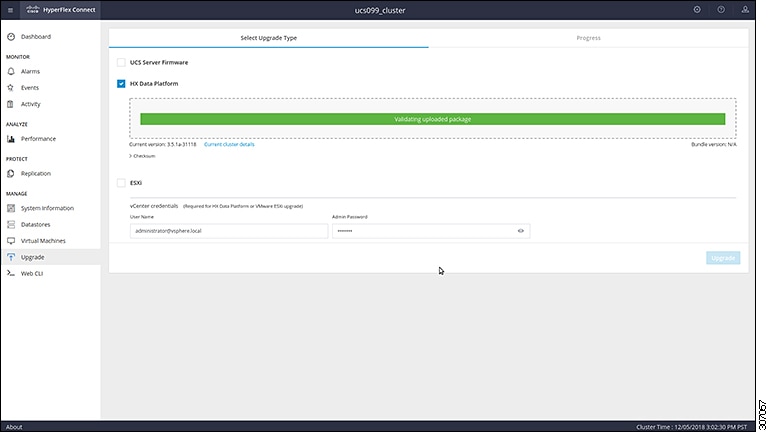
In the Navigation pane, select Upgrade. The Select Upgrade Type page appears.

Figure 1. Select Upgrade Type Page
Step 3

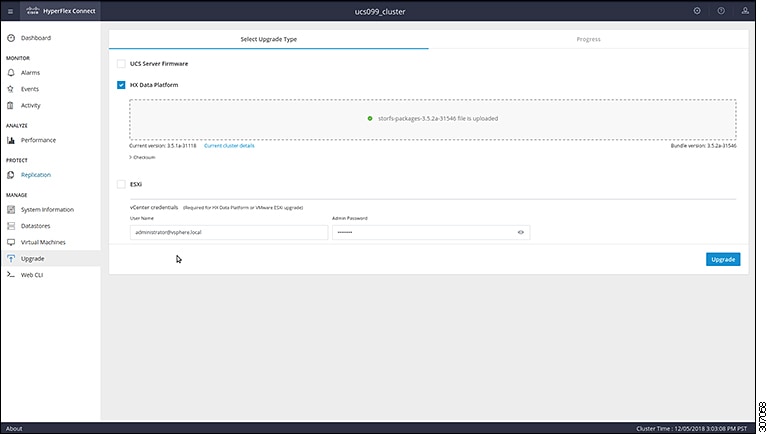
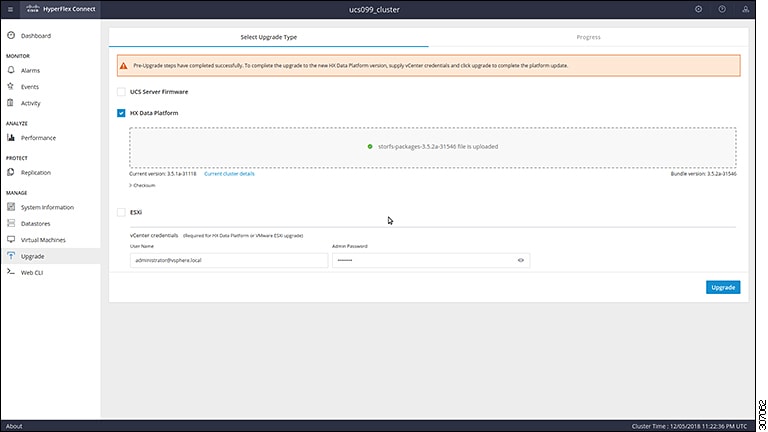
Upload the new Cisco HX Data Platform upgrade package, specify vCenter credentials, and then click Upgrade.

Figure 2. Uploading a Cisco HX Data Platform Upgrade File
Step 4

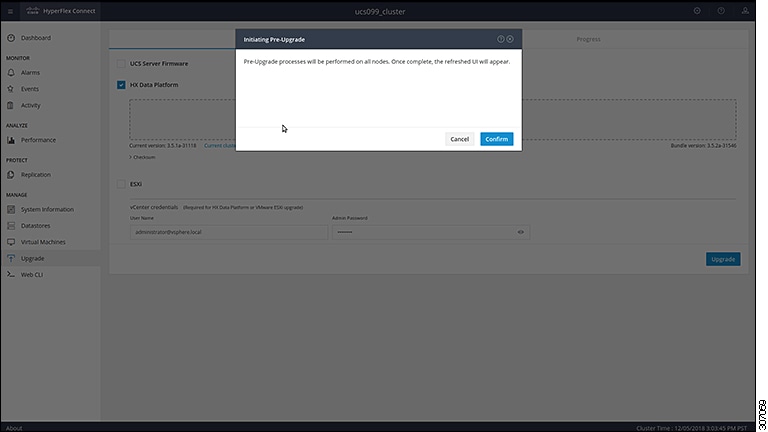
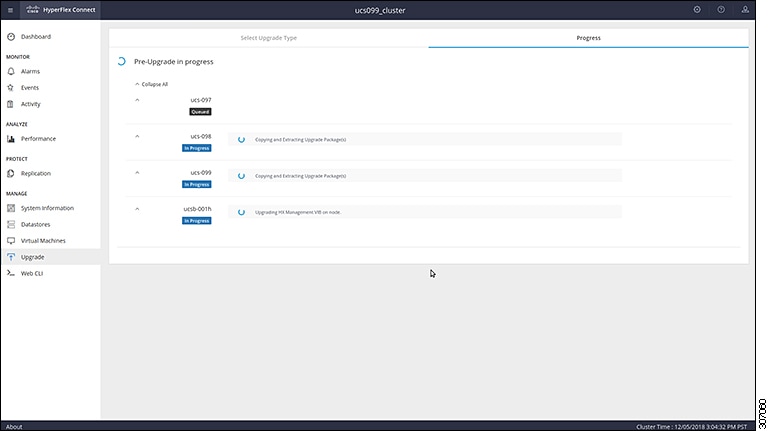
Click Confirm in the Initiating Pre-Upgrade message box. The Pre-Upgrade process begins and will be performed on all nodes.

Figure 3. Initiating the Pre-Upgrade Process
Figure 4. Pre-Upgrade Progress Screen
Step 5

When the Pre-Upgrade upgrade (management packages upgrade) process is completed, the HX Connect UI prompts you so with an onscreen message. The software will again ask you which component you want to upgrade. Click Upgrade again the complete the HX data platform part of the upgrade.

Note 

The cluster upgrade is not complete until the full upgrade is initiated. The upgrade is only partially complete after the pre-upgrade process (as outlined in step 4).

Figure 5. Completing the Pre-Upgrade Process

Manual Bootstrap Upgrade Process

The manual bootstrap process enables you to upgrade the Cisco HX Data Platform and the Cisco HX Data Platform Plug-in.


Note

Perform this procedure on the node that has the Cluster Management IP address.


Note

If you are running a HyperFlex release that is earlier than release 3.5(1a) you must run the manual bootstrap process to upgrade the Cisco HX Data Platform as outlined in this procedure. However, if you are running HyperFlex release 3.5(1a) or later, you can upgrade the Cisco HX Data Platform by performing the auto-bootstrap process from the HX Connect UI as outlined in Auto Bootstrap Upgrade Process from HX Connect UI.


Procedure


Step 1

From the vSphere Web Client Navigator, select vCenter Inventory Lists > Cisco HyperFlex Systems > Cisco HX Data Platform > cluster.

Step 2

Navigate to Actions > Summary and note the Cluster Management IP address.

Step 3

SSH to the cluster management IP address with root privileges.

Step 4

Transfer the latest HX Data Platform upgrade bundle to the controller VM's /tmp directory.

Depending on your operating system, use you can either use SCP directly or download third-party tools, such as WinSCP or MobaXterm.

Step 5

From the controller VM shell, change to the /tmp directory.

Warning 

Do not use any folder other than /tmp and do not create any subfolders.

Step 6

Un-compress the package using tar –zxvf <storfs package name>.tgz.

Example:

tar –zxvf storfs-packages-3.5.1a-31462.tgz

This un-compresses and extracts all files to the root of the /tmp folder.

Step 7

Invoke the cluster-bootstrap.sh script to bootstrap packages for upgrade. Execute the command

~# ./cluster-bootstrap.sh

Enter the vCenter FQDN or IP address and administrator level username and password.

Example:

root@ucs-stctlvm-097-1:/tmp/upgrade# ./cluster-bootstrap.sh 
Current version of the cluster is "2.5.1c-26345"
Current version is compatible with upgrade. Continuing...
Preparing bootstrap process. Please wait, this can take a few seconds...
Enter vCenter Host: pguo-vm3.eng.storvisor.com
Enter vCenter User: administrator@vsphere.local
Enter vCenter password: Installing legacy oss packages...
remove asupcli.log*
Installing HyperFlex Software Packages
======================================
Target OS: 16.04
BUILD_ID: 31462
Release: 3.5.1a
Tag: 
Date: 20181119
Branch: 3.5
Install date: Mon Nov 19 20:29:52 UTC 2018
==========================================
Applying changes to HX controller
cron stop/waiting
cron start/running, process 26082
HX controller changes done
Migrating install directory to front SSD
Installing debian package cryptsetup-bin
Selecting previously unselected package cryptsetup-bin.
(Reading database ... 35449 files and directories currently installed.)
Preparing to unpack .../cryptsetup-bin_2%3a1.6.6-5ubuntu2_amd64.deb ...
Unpacking cryptsetup-bin (2:1.6.6-5ubuntu2) ...
Setting up cryptsetup-bin (2:1.6.6-5ubuntu2) .....
..
..
..
..
reloading nginx
* Reloading nginx configuration nginx
   ...done.
done
Installing debian package storfs-mgmt-ui
(Reading database ... 36034 files and directories currently installed.)
Preparing to unpack .../storfs-mgmt-ui_3.5.1a-31462_x86_64.deb ...
Unpacking storfs-mgmt-ui (3.5.1a-31462) over (2.5.1c-26345) ...
Uninstalling storfs-mgmt-ui-2.5.1c-26345
done
Setting up storfs-mgmt-ui (3.5.1a-31462) ...
Installing storfs-mgmt-ui-3.5.1a-31462
Restarting hxmanager ...
hxmanager start/running, process 6262
Setting up webapps for storfs-mgmt-ui-3.5.1a-31462
done
Generating inventory json file
Update cluster state in ZK
Stoppping mgmt services
stop: Unknown instance: 
Starting mgmt services
Wait for system management service to restart...
All management services have started
Expected Version: 3.5.1a-31462
wait_for_services succeeded after tries 1.
Not running in daemon mode, skipping package links creation.
 
 
Updating vCenter plugin ...
 
Executing MgmtAgentScript : clearMgmtConfig.sh
Update sed configuration files...
SED capability is: 0
Updating configuration with default SED values..
Disabling cluster wide rebalance using stcli
Successfully disabled rebalance on the cluster
Bootstrap completed. Please use HX Connect UI to upgrade cluster to "3.5(1a)" release.
If you have an active HX Connect session on a browser, refresh the session manually or re-login into the session.

Wait for the system management service to restart and the bootstrap process to complete. Verify if the HX Data Platform Plug-in is now updated.


Verify vMotion Configuration for HX Cluster

Before you perform maintenance operations on the Cisco HyperFlex (HX) cluster, verify all nodes in the HX cluster are configured for vMotion. Confirm the following from your vSphere Web Client:

  1. Verify that the vMotion port group is configured with vmnic3 and vmnic7 in an active/standby configuration across all of the ESXi hosts in the cluster.

  2. Verify that a port group is configured for vMotion, and that the naming convention is EXACTLY the same across all ESXi hosts in the cluster.


    Note

    The name is case-sensitive.


  3. Verify that you have assigned a static IP to each vMotion port group, and that the static IPs for each vMotion port group are in the same subnet.


    Note

    The static IP address is defined as a VMKernel interface.


  4. Verify that the vMotion port group has the vMotion option checked in the properties, and that no other port groups (such as management) have this option checked, on each ESXi host in the cluster.

  5. Verify in the settings that the vMotion port group is set to 9000 MTU, (if you are using jumbo frames), and the VLAN ID matches the network configuration for the vMotion subnet.

  6. Verify you can ping from the vMotion port group on one ESXi host to the vMotion IP on the other host.

    Type vmkping -I vmk2 -d -s 8972 <vMotion IP address of neighboring server>

Entering Cisco HyperFlex Maintenance Mode

Using the Cisco HyperFlex (HX) Connect User Interface


Note

Maintenance Mode was introduced in Cisco HyperFlex Release 2.5(1a) and 2.5(1b).


  1. Log in to Cisco HX Connect: https://<cluster management ip>.

  2. In the menu, click System Information.

  3. Click Nodes, and then click the row of the node you want to put in to maintenance mode.

  4. Click Enter HX Maintenance Mode.

  5. In the Confirm HX Maintenance Mode dialog box, click Enter HX Maintenance Mode.


    Note

    After you complete any maintenance tasks, you must manually exit HX maintenance mode.


Using the vSphere Web Client

  1. Log in to the vSphere web client.

  2. Go to Home > Hosts and Clusters.

  3. Expand the Datacenter that contains the HX Cluster.

  4. Expand the HX Cluster and select the node.

  5. Right-click the node and select Cisco HX Maintenance Mode > Enter HX Maintenance Mode.

Using the Command-Line Interface

  1. Log in to the storage controller cluster command line as a user with root privileges.

  2. Move the node into HX Maintenance Mode.

    1. Identify the node ID and IP address.

      # stcli node list --summary

    2. Enter the node into HX Maintenance Mode.

      # stcli node maintenanceMode (--id ID | --ip IP Address) --mode enter

      (see also stcli node maintenanceMode --help)

  3. Log in to the ESXi command line of this node as a user with root privileges.

  4. Verify that the node has entered HX Maintenance Mode.

    # esxcli system maintenanceMode get

You can monitor the progress of the Enter Maintenance Mode task in vSphere Web Client, under the Monitor > Tasks tab.

If the operation fails, an error message displays. Try to fix the underlying problem and attempt to enter maintenance mode again.

Exiting Cisco HyperFlex Maintenance Mode

Using the Cisco HyperFlex (HX) Connect User Interface


Note

Maintenance Mode was introduced in Cisco HyperFlex Release 2.5(1a) and 2.5(1b).


  1. Log in to HX Connect: https://<cluster management ip>.

  2. In the menu, click System Information.

  3. Click Nodes, and then click the row of the node you want to remove from maintenance mode.

  4. Click Exit HX Maintenance Mode.

Using the vSphere Web Client

  1. Log in to the vSphere web client.

  2. Go to Home > Hosts and Clusters.

  3. Expand the Datacenter that contains the HX Cluster.

  4. Expand the HX Cluster and select the node.

  5. Right-click the node and select Cisco HX Maintenance Mode > Exit HX Maintenance Mode.

Using the Command-Line Interface

  1. Log in to the storage controller cluster command line as a user with root privileges.

  2. Exit the node out of HX Maintenance Mode.

    1. Identify the node ID and IP address.

      # stcli node list --summary

    2. Exit the node out of HX Maintenance Mode.

      # stcli node maintenanceMode (--id ID | --ip IP Address) --mode exit

      (see also stcli node maintenanceMode --help)

  3. Log in to the ESXi command line of this node as a user with root privileges.

  4. Verify that the node has exited HX Maintenance Mode.

    # esxcli system maintenanceMode get

You can monitor the progress of the Exit Maintenance Mode task in vSphere Web Client, under the Monitor > Tasks tab.

If the operation fails, an error message displays. Try to fix the underlying problem and attempt to exit maintenance mode again.