Upgrading Cisco HX Data Platform using HX Connect

Upgrading Cisco HX Data Platform using HX Connect UI

Procedure


Step 1

Log into HX Connect.

  1. Enter the HX Storage Cluster management IP address in a browser. Navigate to https://<storage-cluster-management-ip>.

  2. Enter the administrative username and password.

  3. Click Login.

Step 2

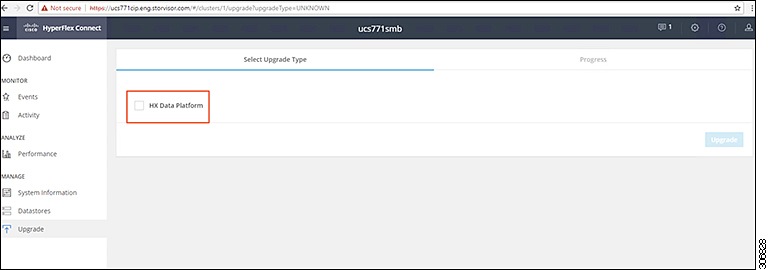
On the Select Upgrade Type page, select the HX Data Platform check box.

Step 3

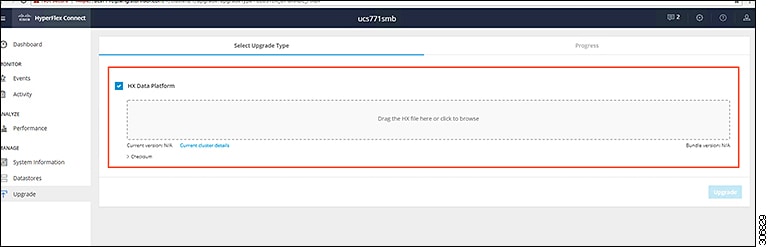
In the Drag the HX file here or click to browse area, upload the latest Cisco HyperFlex Data Platform Upgrade Bundle for upgrading existing clusters with previous release.tgz package file from Software Download - HyperFlex HX Data Platform.

For example:

storfs-packages-4.0.2c-35590.tgz

Step 4

Click Upgrade.

Step 5

The Validation Screen on the Upgrade Progress page displays the progress of the checks performed. Fix validation errors, if any. Confirm that the upgrade is complete.

Note 

As of HX 5.0(1b), an upgrade status appears providing the result of the last upgrade along with the versions that were upgraded (source and target versions for each component selected in the upgrade). You can dismiss this status only if it is successful. If the last upgrade fails, you will need to fix the issue. This banner is a reminder to take action to correct the upgrade.


Upgrading UCS Firmware

After you have successfully upgraded the Cisco HX Data Platform, change the UCS host firmware policy accordingly with the recommended UCS firmware. For more information, see the HyperFlex release notes.