Configure and Run Tests

Run Raw Test

To test the storage performance in HxBench, under the Test History tab start the Run Test wizard.

Procedure


Step 1

On the Define Test page, enter a unique Test Name. You can associate the test parameters and results to the Test Name.

  1. a) Under Select Test Type, select Raw I/O workload.

  2. Under Select Test Profile, select the Custom option to enter the Vdbench test parameters. Alternatively, you can choose the Pre-Configured option to update the Vdbench test parameters from a file that is already available.

  3. Complete the following fields under Test Profile Details. Click Next.

    Field

    Description

    Test Parameters

    Read Mix (%) field

    By default set to 60%.

    The allowed range is from 0 to 100%.

    IO Type drop-down list

    • Random—Default

    • Sequential

    IO Block Size (KB) field

    By default set to 8.

    Number of Threads per VM field

    By default set to 32.

    Run Time (mins) field

    By default set to 60 minutes.

    Data Set

    Deduplication Ratio field

    By default set to 50%.

    The allowed range is 0-99%.

    Compression Ratio field

    By default set to 50%.

    The allowed range is 0-99%.

    Dataset per VM (GB) field

    By default set to 100.

    Working Set (% of Dataset) field

    By default set to 100%.

Step 2

On the Define Infra page, provide the following details of the infrastructure where you want to deploy the test virtual machines to run the test.

  1. You can either use an existing infrastructure or create a new infrastructure.

    • To use the existing infrastructure to run the tests, select Use Existing VM Group. Select the VM from the Select VM Group drop-down list.

    • To create a new infrastructure, select Create New VMs and complete the following fields:

      Field

      Description

      VM Name Prefix field

      Name of the VM.

      vCenter field

      vCenter field is pre-populated. You cannot edit or change the values.

      Datastore drop-down list

      List of datastores in the vCenter that are queried at runtime.

      Number of VMs field

      By default set to 4.

      Minimum of 1 to a maximum of 4 VMs.

  2. Click Next.

  3. Upon successful selection of Define Test and Define Infra, click Confirm to start the test. As the test progresses, it will automatically transition to the next steps.

Step 3

On the Create Infra page, you can view the Test VMs created with the given specifications. You can view the progress in the Log Details tab.

Step 4

On the Validate Infra page, the VM infrastructure is validated for its availability and reachability.

Step 5

On the Create Data Set page, data disk priming is carried out to run the test.

Step 6

The VM infrastructure is ready with upon the completion of data disk priming. Now, the Vdbench tool is triggered to run the storage performance test using the provided test inputs on the VM infrastructure. On the Run Tests page, various performance metrics are captured and updated as the test progresses.

Step 7

When the test is successfully Completed, the status turns green. The fields under Aggregate Test Results are updated.


Terminate a Test

You can terminate a running test using the Terminate option in the Run test wizard. The test will be marked as Terminated by user.

Test Details

The various operations you can perform on completed tests, test profiles, and VM infrastructure are listed in this section.

Test History

You can view the list of tests run on the controller under the Test History tab. You can select any test from this list and visualize the test summary, performance metrics and compare across multiple tests. If there is a test running, the Test History view lists it as In-Progress Test and updates the view details periodically. You can delete a test and associated data from HxBench.

Test Profiles

You can view the list of available profiles in the controller under the Test Profiles tab. You can select a profile and view the details. You can download a profile from here. You can also upload a profile and use it for testing. However, when a profile file is uploaded, the content must be in the correct format as defined by Vdbench. If there is any wrong format or unrecognized keys, the test will fail. You can delete a profile from HxBench.

VM Infra

You can view the available VM infrastructure and its status from the VM Infra page. If an infrastructure is not required for any further testing, you can delete it.

You can create a VM infrastructure to run a test using the Run Test wizard.

Application Logs

Application logs are stored in the following location:

/home/appadmin/hxbench/hxbench/hxbench.log

The following screenshot shows how to download the application logs.

Click on the download icon to download the application logs.

Test Results

Test Results Logs

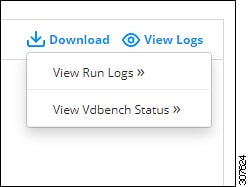
  • Click on Test Details > View Logs > View Run Logs.

    You can view the complete test logs.

  • Click on Test Details > View Logs > View Vdbench Status.

    You can view the parsable information about the current status of Vdbench.

Select the View Run Logs and View Vdbench options to view the logs and status.

Download Test Results Report

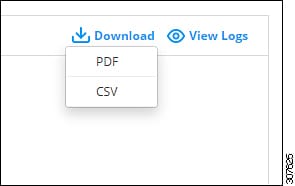
  • To download the detailed results in PDF, click on Download icon under Test Details and select PDF.

  • To download the detailed results in CSV, click on Download icon under Test Details and select CSV.

Select the PDF or CSV options to download the results.