Storage Controller Considerations

This appendix provides storage controller (RAID and HBA) information.

Supported Storage Controllers and Cables

This server supports a single, PCIe-style, SAS RAID or HBA controller that plugs into a dedicated internal riser. Alternatively, the server has a software-based SATA RAID controller embedded in the system.


Note

Do not mix controller types in the server. Do not use the embedded SATA controller and a hardware-based RAID controller card at the same time. This combination is not supported and could result in data loss.

Note

NVMe PCIe SSDs cannot be controlled by a SAS/SATA RAID controller.

This server supports the RAID and HBA controller options and cable requirements shown in the following table.

Controller

Server Version/Maximum Drives Controlled

RAID Levels

Optional Supercap Backup?

Required Cables

Embedded RAID (PCH SATA)

This controller is supported only in these server versions:

  • All server versions can use the embedded SATA controller to control two internal SATA M.2 drives.

  • 8 front-loading SATA drives (drive bays 1 - 8)

0, 1, 10

No

Use SAS/SATA cable included with chassis to connect interposer board to drive backplane.

Cisco 12G Modular RAID Controller with 2-GB cache

UCSC-RAID-M5

Includes 2-GB cache

This controller is supported only in these server versions:

  • 10 front-loading SAS/SATA drives

0, 1, 5, 6, 10, 50, 60

Yes

Use SAS/SATA cable included with chassis to connect controller to drive backplane.

Cisco 12G 9400-8e HBA for external JBOD attach

UCSC-9400-8E

Supported in all server versions:

8 external SAS/SATA ports, controlling up to 1024 external drives.

Non-RAID

No

External drive cables not sold by Cisco.

NOTE: This HBA does not support optical cables for connection to external storage (copper only).

Cisco Boot-Optimized M.2 RAID Controller

UCS-M2-HWRAID

Controls two SATA M.2 drives that mount to this controller.

1

No

None. Controller connects to motherboard socket.

Storage Controller Card Firmware Compatibility

Firmware on the storage controller (RAID or HBA) must be verified for compatibility with the current Cisco IMC and BIOS versions that are installed on the server.

RAID Backup (Supercap)

This server supports installation of one supercap unit. The unit mounts to a bracket in-line with the fan modules.

The optional SCPM provides approximately three years of backup for the disk write-back cache DRAM in the case of a sudden power loss by offloading the cache to the NAND flash.

For supercap unit replacement instructions, see Replacing the Supercap (RAID Backup).

Write-Cache Policy for Cisco 12G SAS Modular RAID Controller

For this server and other Cisco Generation M5 servers, the default write-cache policy for the Cisco Modular RAID controller is Write Through (irrespective of the presence of a charged supercap or “good BBU”). This utilizes the optimal performance characteristics of the controller.

The write policy can be set to Write Back, if preferred. You can set the write policy using the following methods:

  • For standalone servers, use the Cisco IMC interface to set Virtual Drive Properties > Write Policy. See the “Managing Storage Adapters” section in your Cisco IMC Configuration Guide.

    Cisco IMC GUI and CLI Configuration Guides

  • For Cisco UCS-integrated servers, use the Cisco UCS Manager interface to set the write-cache policy as part of virtual drive configuration in your storage profile.

    Cisco UCS Manager Configuration Guides

  • Use the LSI Option ROM Configuration Utility.

Mixing Drive Types in RAID Groups

The following table lists the technical capabilities for mixing hard disk drive (HDD) and solid state drive (SSD) types in a RAID group. However, see the recommendations that follow for the best performance.

Table 1. Mixing Drive Types

Mix of Drive Types in RAID Group

Allowed?

SAS HDD + SATA HDD

Yes

SAS SSD + SATA SSD

Yes

HDD + SSD

No

Drive Type Mixing Best Practices

For the best performance follow these guidelines:

  • Use either all SAS or all SATA drives in a RAID group.

  • Use the same capacity for each drive in the RAID group.

  • Never mix HDDs and SSDs in the same RAID group.

RAID Controller Migration

This server supports SAS/SATA hardware RAID (controller card) and embedded software SATA RAID. You cannot use hardware RAID and software RAID at the same time. See the table below for which data migrations are allowed and a summary of migration steps.

Starting RAID Controller

Migrate to Hardware RAID Allowed?

Migrate to Software RAID Allowed?

None (no drives).

Embedded RAID is disabled in the BIOS.

Allowed

  1. Install RAID card.

  2. Install SAS cables.

Allowed

  1. Install SATA interposer card.

  2. Install SATA cables.

  3. Enable embedded RAID in BIOS.

Embedded software RAID.

Embedded RAID is enabled in the BIOS.

Caution 
Data migration from software RAID to hardware RAID is not supported and could result in data loss.

Allowed only before there is data on the drives; data migration is not supported.

  1. Disable embedded RAID in the BIOS.

  2. Install RAID card.

  3. Install SAS cables.

-

Hardware RAID.

Embedded RAID is disabled in the BIOS.

-

Not allowed.

Storage Controller and Backplane Connectors

This section describes cabling connections for the storage controllers and the backplane. The SAS/SATA cables are factory-installed and are used for all supported internal controllers in the SFF 10-drive of the SE-CL-L3 .

This section also contains diagrams that show the cable-to-drive mapping.

Embedded RAID

This SW RAID option can control up to 8 SATA drives in the SFF 10-drive version and up to 4 SATA drives in the LFF 4-drive version.

This embedded RAID option requires that you have a SATA interposer card installed in internal mRAID riser 3. Use the SAS/SATA cables that came with the server.

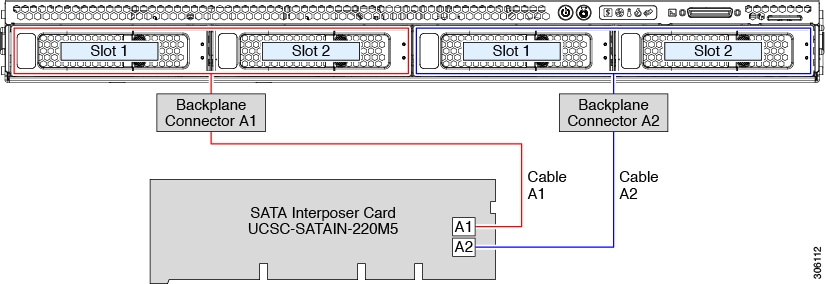
  1. Connect SAS/SATA cable A1 from the A1 interposer connector to the A1 backplane connector.

  2. Connect SAS/SATA cable A2 from the A2 interposer connector to the A2 backplane connector.


Note

See the following figures that illustrate cable connections and which drives are controlled by each cable. In the SFF 10-drive version, drives 5 and 10 cannot be controlled by the embedded SATA RAID controller.
Figure 1. Embedded RAID Interposer Cable-to-Drive Backplane Mapping, LFF 4-Drive Version
Figure 2. Embedded RAID Interposer Cable-to-Drive Backplane Mapping, SFF 10-Drive Version

This image 306113a.jpg is not available in preview/cisco.com

Cisco 12G Modular SAS RAID Controller or HBA

This HW RAID option can control up to 10 SAS/SATA drives in the SFF 10-drive version and up to 4 SAS/SATA drives in the LFF 4-drive version.

This option requires that you have a SAS RAID or HBA card installed in internal mRAID riser 3. Use the SAS/SATA cables that came with the server.

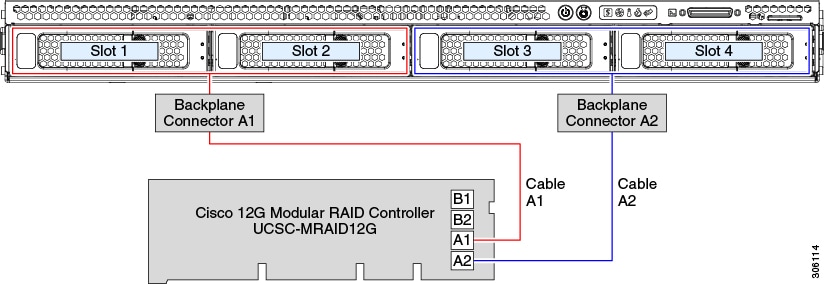
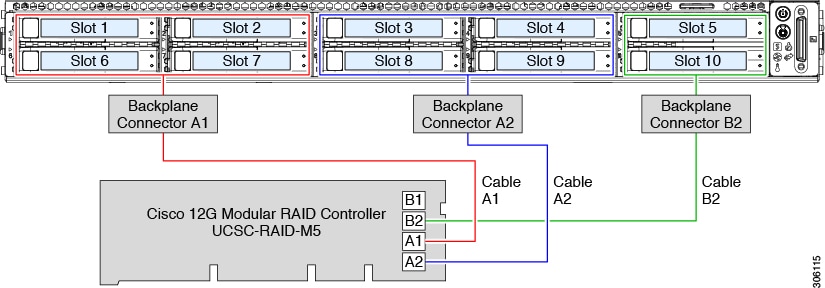
  1. Connect SAS/SATA cable A1 from the A1 card connector to the A1 backplane connector.

  2. Connect SAS/SATA cable A2 from the A2 card connector to the A2 backplane connector.

  3. For SFF-10-drive servers only: Connect SAS/SATA cable B2 from the B2 card connector to the B2 backplane connector.


Note

See the following figures that illustrate cable connections and which drives are controlled by each cable.
Figure 3. Hardware RAID Card Cable-to-Drive Backplane Mapping, LFF 4-Drive Version
Figure 4. Hardware RAID Card Cable-to-Drive Backplane Mapping, SFF 10-Drive Version

Embedded SATA RAID Controller

This server includes an embedded MegaRAID controller that supports RAID levels 0 and 1. The primary controller can control up to eight front-loading SATA-only drives. The secondary controller can control two internal M.2 SATA drives.


Note

The VMware ESX/ESXi operating system is not supported with the embedded SATA MegaRAID controller in SW RAID mode. You can use VMWare in AHCI mode.

Note

The Microsoft Windows Server 2016 Hyper-V hypervisor is supported for use with the embedded MegaRAID controller in SW RAID mode, but all other hyperviors are not supported. All Hypervisors are supported in AHCI mode.


Note

You cannot control the M.2 SATA SSDs in the server with a HW RAID controller.


Embbeded SATA RAID Requirements

The embedded SATA RAID controller requires the following items:

  • Interposer card UCSC-SATAIN-220M5. This must be installed in internal mRAID riser 3.

  • The SAS/SATA cables that are preinstalled in the chassis.

  • Primary controller: SATA drives only (up to eight, in front drive bays 1–8).

  • Secondary controller: M.2 mini-storage module with two SATA M.2 SSDs.

  • The embedded SATA RAID controllers must be enabled in the server BIOS. If you ordered the server with embedded SATA RAID, it is enabled at the factory.

  • (Optional) LSI MegaSR drivers for Windows or Linux.

  • The software RAID controller requires UEFI boot mode; Legacy boot mode is not supported.

  • If you use an embedded RAID controller with Linux, both the pSATA and the sSATA controller must be set to LSI SW RAID mode.

Embedded SATA RAID Controller Considerations

Note the following considerations:

  • The default setting for this embedded controller hub is SATA RAID 0, 1, and 10 support for up to eight front-loading SATA drives, and up to two internal M.2 SATA drives. The hub is divided into two SATA controllers that have different functions. See Embedded SATA RAID: Two SATA Controllers.

  • When you order the server with this embedded controller, the controller is enabled in the BIOS. Instructions for enabling the controller are included for the case in which a server is reset. See Enabling SATA Mode For the Embedded Controllers.

  • You cannot downgrade from using a hardware RAID controller card to using the software RAID embedded controller (see RAID Controller Migration).


    Caution

    Data migration from software RAID (embedded RAID) to hardware RAID (a controller card) is not supported and could result in data loss. Migrations from software RAID to hardware RAID are supported only before there is data on the drives, or when there are no drives in the server.
  • The required drivers for this controller are already installed and ready to use with the LSI SWRAID Configuration Utility.

Embedded SATA RAID: Two SATA Controllers

The embedded RAID platform controller hub (PCH) is split into two controllers: primary SATA (pSATA) and secondary SATA (sSATA). These two controllers are seen as separate RAID controllers in the Cisco IMC interface and are configurable separately.

  • SFF 10-drives server SE-CL-L3 :

    • The pSATA controller controls up to eight front SATA drives (drive bays 1–8).

    • The sSATA controller controls two internal SATA M.2 drives, when they are present in the M.2 mini-storage module option.

    • If the M.2 mini-storage module is not present, or if M.2 NVMe drives are installed in the mini-storage module, the sSATA controller is automatically disabled.

Enabling SATA Mode For the Embedded Controllers

This procedure uses the server's BIOS Setup Utility.


Note

If you use an embedded RAID controller with Linux, both the pSATA and the sSATA controller must be set to LSI SW RAID mode.

Procedure


Step 1

Boot the server and press F2 when prompted to enter the BIOS Setup utility.

Step 2

Set the SATA mode:

  1. Choose the Advanced tab, and then choose LOM and PCIe Slots Configuration.

  2. For the primary pSATA controller, select pSATA and then choose one of the options from the dialog:

    • LSI SW RAID—Enable the embedded pSATA RAID controller.

      Note 

      This menu option does not appear when the server is set to boot in Legacy mode (UEFI mode is required). To change the boot mode, use the BIOS setting for Boot Options > Boot Mode.

    • Disabled—Disable the embedded pSATA RAID controller.

  3. For the secondary sSATA controller, select M.2 and then choose one of the options from the dialog:

    • LSI SW RAID—Enable the embedded sSATA RAID controller for control of internal SATA M.2 drives.

      Note 

      This menu option does not appear when the server is set to boot in Legacy mode (UEFI mode is required). To change the boot mode, use the BIOS setting for Boot Options > Boot Mode.

      Note 

      This menu option does not appear when the server has no M.2 mini storage module, or when no SATA M.2 drive is installed in the mini-storage module.

    • AHCI—Enable control of the internal SATA M.2 drives by AHCI through your OS rather than the embedded RAID controller.

    • Disabled—Disable the embedded sSATA RAID controller.

Step 3

Press F10 to save your changes and exit the utility.


Accessing the Software RAID Configuration Utility

To configure RAID settings for the embedded SATA RAID controllers, use the utility that is built into the BIOS. Each controller is controlled by its own instance of the utility.

Procedure


Step 1

Boot the server and press F2 when prompted to enter the BIOS Setup utility.

Step 2

Choose the Advanced tab.

Step 3

Select the instance of the utility that is for the controller that you want to manage (primary or secondary):

  • For the pSATA controller, select LSI Software RAID Configuration Utility (SATA).

  • For the sSATA controller, select LSI Software RAID Configuration Utility (sSATA).


For More RAID Utility Information

The Broadcom utilities have help documentation for more information about using the utilities.