Configure Cisco Crosswork Data Gateway Base VM

This appendix describes how to configure a Cisco Crosswork Data Gateway Base VM.

This section contains the following topics:

About Cisco Crosswork Data Gateway Base VM

A Cisco Crosswork Data Gateway instance is created as a standalone VM and can be geographically separate from the controller application (the controller application could be Crosswork Cloud or a Crosswork On-Prem application, such as Cisco Crosswork Optimization Engine). This Base VM is capable of connecting to the controller application and enable data collection from the network.

Crosswork orchestrates the collection from the distributed Cisco Crosswork Data Gateway VM instances.

The Cisco Crosswork Data Gateway VM is delivered as an OVA file and the additional functional images are delivered as Docker images.

Base VM Contents

The Base VM (OVA) is pre-packaged with basic functionality required to reach the controller application.

The Cisco Crosswork Data Gateway VM (OVA) contains the following pre-packaged contents:

  • Cisco hardened Ubuntu distribution of Linux

  • Cisco Crosswork Data Gateway services:

    • Vitals Monitor - Monitors resource usage on the VM.

    • Controller Gateway – Establishes trusted connection with the controller application via the Controller Gateway and downloads functional images and configuration files.

    • Image Manager – Coordinates between the Cisco Crosswork Data Gateway and the controller application to download functional images and configuration files.

    • Route Manager – Directs traffic to devices on different south-bound destinations and also connects to the controller application and data devices via the north-bound interface.

    • Docker IPv6nat - Programs IPv6 routes for docker containers.


Note

Functional images (CLI, SNMP, and MDT collectors) are not included in the Base VM. They are downloaded by Cisco Crosswork Data Gateway from the controller application after successful authentication and bootstrap.


Log In and Log Out

You can use either of the following two ways to access Cisco Crosswork Data Gateway:

Access Cisco Crosswork Data Gateway Through vCenter

Follow these steps to log in via vCenter:

Procedure

Step 1

Locate the VM in vCenter and then right click and select Open Console.

The Cisco Crosswork Data Gateway flash screen comes up.

Step 2

Enter username (dg-admin or dg-oper as per the role assigned to you) and the corresponding password (the one that you created during installation process) and press Enter.


Access Cisco Crosswork Data Gateway Via SSH


Note

The SSH process is protected from brute force attacks by blocking the client IP after a number of login failures. Failures such as incorrect username or password, connection disconnect, or algorithm mismatch are counted against the IP. Up to 4 failures within a 20 minute window will cause the client IP to be blocked for at least 7 minutes. Continuing to accumulate failures will cause the blocked time to be increased. Each client IP is tracked separately.


Follow these steps to login via SSH.

Procedure

Step 1

Run the following command:

ssh <username>@<ManagementNetworkIP>

where ManagementNetworkIP is the management network IP address.

For example,

To login as adminstrator user: ssh dg-admin@<ManagementNetworkIP>

To login as operator user: ssh dg-oper@<ManagementNetworkIP>

The Cisco Crosswork Data Gateway flash screen opens prompting for password.

Step 2

Input the corresponding password (the one that you created during installation process) and press Enter.


Use the Interactive Console

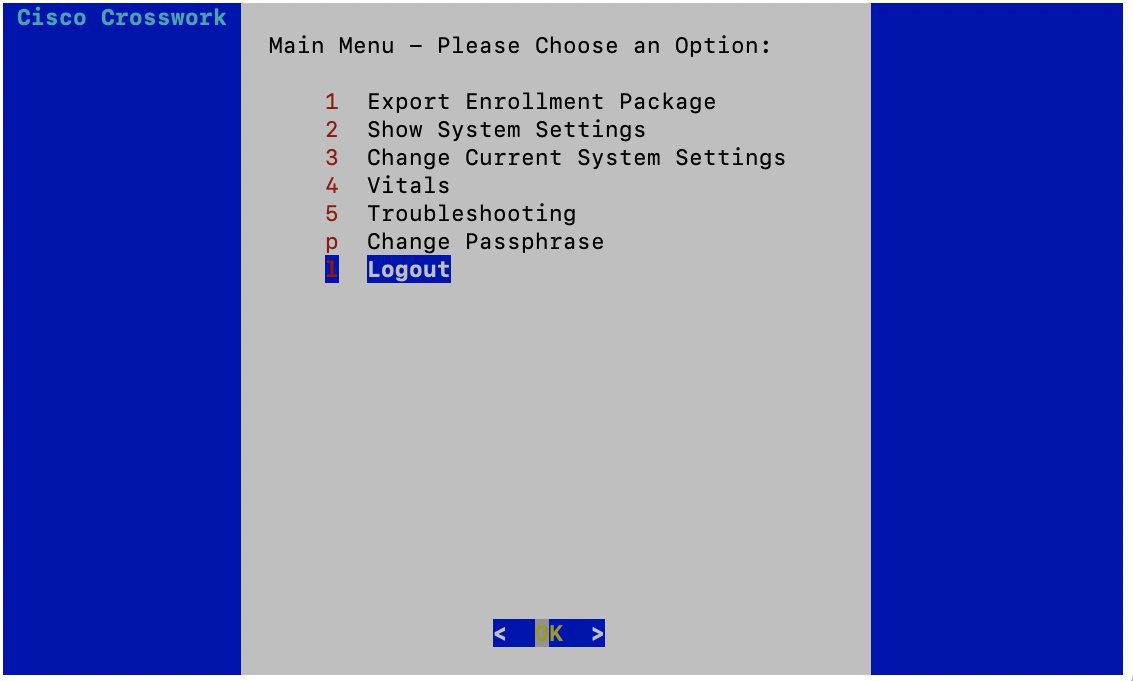
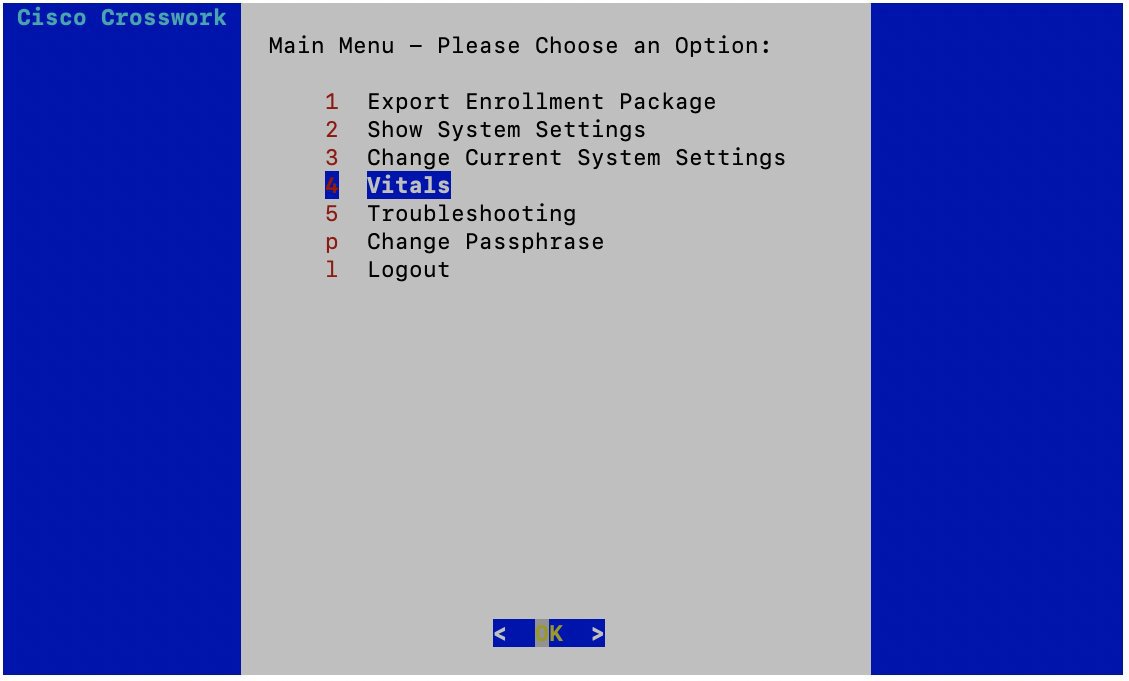
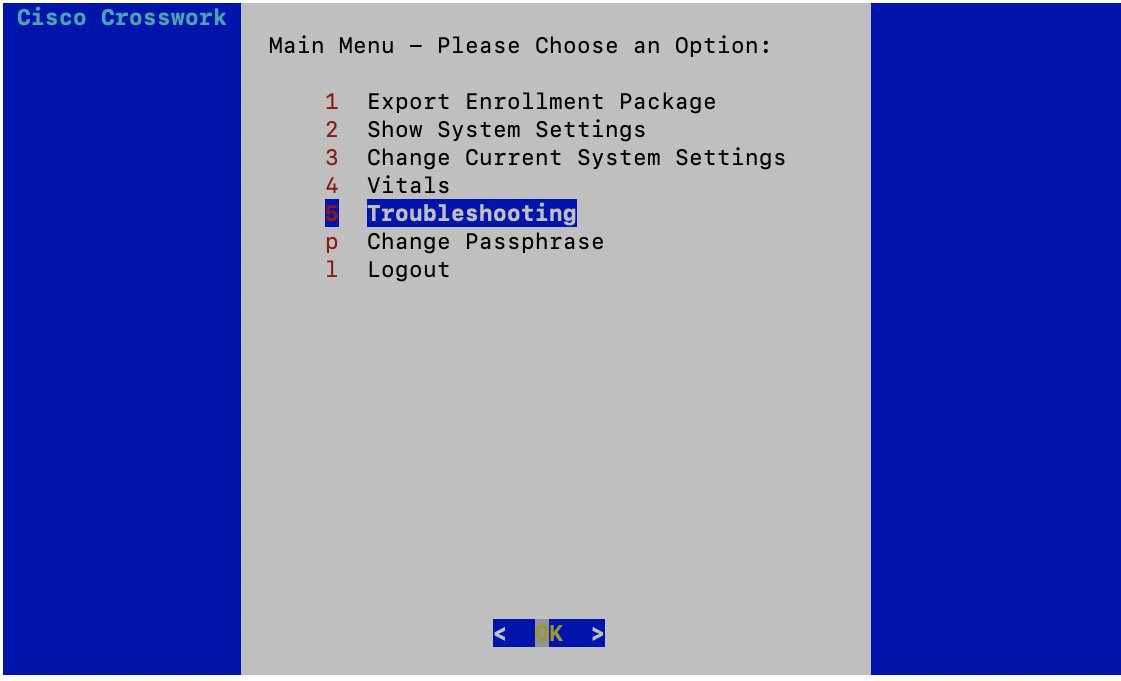
Cisco Crosswork Data Gateway launches an interactive console upon successful login. The interactive console displays the Main Menu as shown in the following figure:


Note

The Main Menu shown here corresponds to dg-admin user. It is different for dg-oper user as the operator does not have same privileges as the adminstrator. See Supported User Roles.


The Main Menu presents the following options:

  1. Export Enrollment Package

  2. Show System Settings

  3. Change Current System Settings

  4. Vitals

  5. Troubleshooting

p. Change Passphrase

l. Logout
Basic Concepts

Cisco Crosswork Data Gateway makes extensive use of certain concepts. It is helpful to be familiar with them before you get started.

Cisco Crosswork Data Gateway Components

Cisco Crosswork Data Gateway has the following five main components or services:

Controller Gateway

Controller Gateway is the component responsible for all the interaction between a Cisco Crosswork Data Gateway instance and its controller application. It manages the session creation with the controller application and makes sure all the payloads and responses are signed and verified for integrity. Components such as Image Manager, Vitals Monitor, and Route manager interact via Controller Gateway with the controller application to exchange the details those components need.


Note

When the Controller Gateway stops, any alerts are not updated in cdg-alerts.log. However, when it starts, it sends an alert that it has started. This is because all the alerts go through the Controller Gateway and if it is down, the controller application won't receive the alerts. To access log files, see Run show-tech.


Image Manager

The Image Manager starts up when Cisco Crosswork Data Gateway VM boots. It downloads the functional images from the repository as instructed by the controller application and brings up the services.

It has the following responsibilities:

  • Periodically pull boot-config file from the controller application via Controller Gateway.

  • Based on the boot-config and local images metadata cache, determine if the functional images and docker-compose file need to be downloaded.

  • Send appropriate alerts to the controller application, if there are issues while processing the boot-config.

  • Stop and remove any services that are no longer called for in the latest boot-config.

  • Cleanup the local images metadata cache to keep it synchronized with the latest boot-config received from the controller application.

  • Downloads collectors environment and other files that facilitate establishment of connection between collectors and Crosswork.

  • Downloads system device packages and MIB packages required by the collectors from Crosswork.

  • Downloads custom software to the collectors when uploaded via Crosswork UI.


Note

Functional images are downloaded only when there is a change in boot-config response.


Vitals Monitor

The Vitals Monitor monitors the health and vitals of the Cisco Crosswork Data Gateway VM. It collects the CPU, memory, disk usage, docker containers metrics, etc. and aggregates this information in a file on the host filesystem.

For more information, see Monitor Cisco Crosswork Data Gateway Health.

Route Manager

Route Manager manages south-bound routes to devices and north-bound routes to data destinations based on add/delete requests from collector upon the updates of inventory and collection jobs.

Route manager adds/deletes the static routes by comparing the existing routes configured on the VM with the routes configuration. This configuration is pushed to the Route Manager by the controller application in case of Crosswork On-Premise deployment.

Appropriate alerts are sent to the controller application if there is any failure in processing route request.

Docker IPv6nat

docker-ipv6nat is a special process that programs ipv6 routes for docker containers.

Manage Users

This section contains the following topics:

Supported User Roles

Cisco Crosswork Data Gateway supports only two users with the following user roles:

  • Administrator: One default user with administrator role is created when Cisco Crosswork Data Gateway is brought up for the first time. This user cannot be deleted and has both read and write privileges such as start/shut down Cisco Crosswork Data Gateway, register an application, apply authentication certificates, configure server settings, and perform kernel upgrade.

  • Operator: This user is also created by default during the initial VM bring up. Operator can review the state/health of theCisco Crosswork Data Gateway, retrieve health/error logs, receive error notifications and run connectivity tests between Cisco Crosswork Data Gateway instance and the output destination.


Note

  • Both users' credentials are configured during Cisco Crosswork Data Gateway installation.

  • Users are locally authenticated.


The following table shows the permissions available to each role:

Table 1. Permissions Per Role

Permissions

Administrator

Operator

Export enrollment package

Show system settings

vNIC Addresses

NTP

DNS

Proxy

UUID

Syslog

Certificates

First Boot Provisioning Log

Change Current System Settings

Configure NTP

Configure DNS

Configure Control Proxy

Configure Static Routes

Configure Syslog

Create new SSH keys

Import Certificate

vNIC1 MTU

Vitals

Docker Containers

Docker Images

Controller Reachability

NTP Reachability

Route Table

ARP Table

Network Connections

Disk Space Usage

Troubleshooting

Ping a Host

Traceroute to a Host

NTP Status

System Uptime

Run show-tech

Remove All Collectors and Reboot VM

Reboot VM

Test SSH Connection

Change Passphrase

Change Password

Both Adminstrator and Operator users can change their own passphrases but not each others'.

Follow these steps to change your passphrase:

Procedure


Step 1

From the Main Menu, select p Change Passphrase and click OK.

Step 2

Input your current password and press Enter.


Step 3

Enter new password and press Enter. Re-type the new password and press Enter.


View Current System Settings

Cisco Crosswork Data Gateway allows you to view the following settings:

  • vNIC Addresses

  • NTP

  • DNS

  • Proxy

  • UUID

  • Syslog

  • Certificates

  • First Boot Provisioning Log

Follow these steps to view the current system settings:

Procedure


Step 1

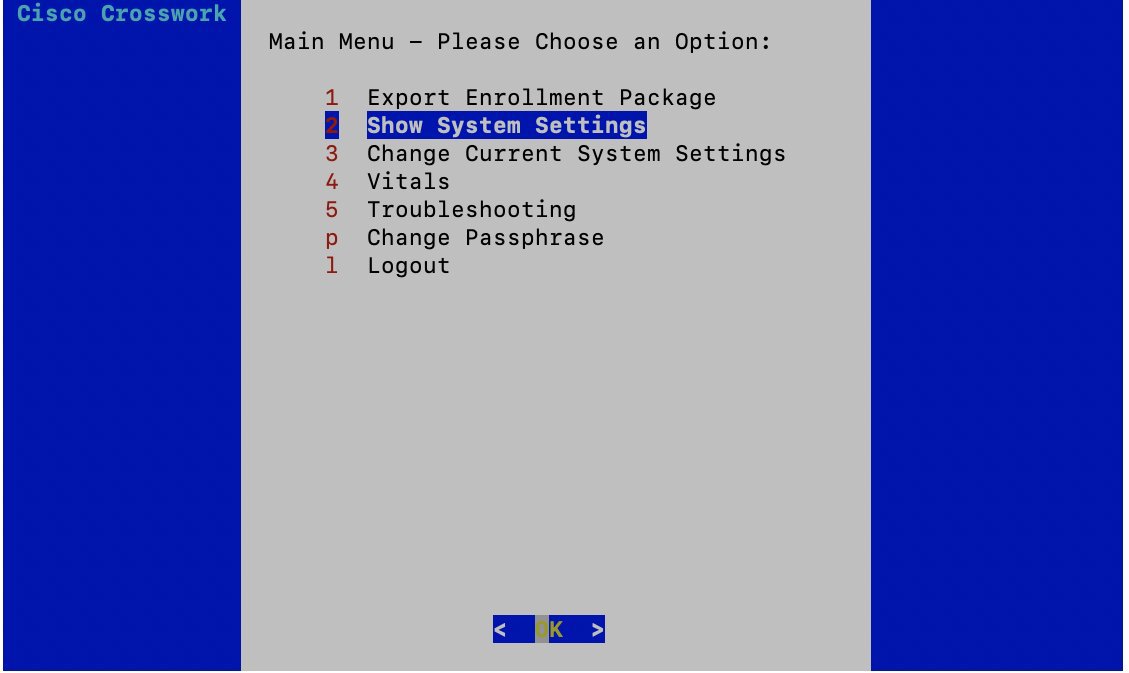
From the Main Menu, select 2 Show System Settings, as shown in the following figure:


Step 2

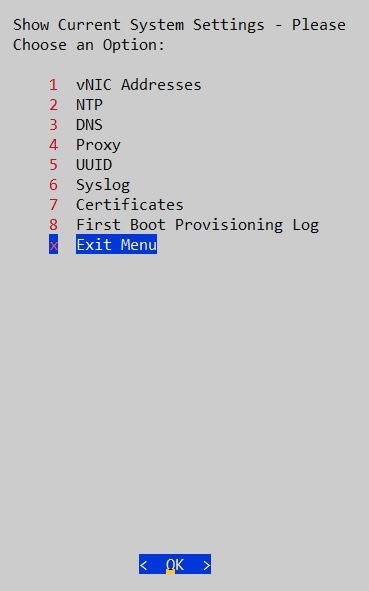
Click OK. The Show Current System Settings menu opens.


Step 3

Select the setting you want to view.

Setting Option

Description

1 vNIC Addresses

Displays the addresses of the vNIC0, vNIC1, and vNIC2 interfaces.

2 NTP

Displays NTP settings.

It is important that NTP time be synchronized with the controller application and its Cisco Crosswork Data Gateway instances.

If not, then session handshake doesn’t happen and functional images are not downloaded. In such cases, error message clock time not matched and sync failed is logged in controller-gateway.log. To access log files, see Run show-tech.

You can use Controller Reachability and NTP Reachability options from Main Menu > Vitals to check NTP reachability for the controller application as well as the Cisco Crosswork Data Gateway instance. See View Cisco Crosswork Data Gateway Vitals. If NTP has been set incorrectly,you will see error Session not established.

To configure NTP settings, see Configure NTP.

3 DNS

Displays addresses of the DNS servers.

4 Proxy

Displays proxy server settings if there's any.

5 UUID

Displays the unique identifier of the Cisco Crosswork Data Gateway VM.

6 Syslog

Displays syslog settings.

The Controller Gateway doesn't send a start event to the Syslog server. Also, SNMP, MDT, and CLI events are not updated in the local syslog file, but are sent to the external syslog server. To configure syslog settings, see Configure Syslog.

7 Certificates

Provides the following options to view certificate files:

  • Collector certificate file

  • Controller signing certificate file

  • Controller SSL/TLS certificate file

  • Syslog certificate file

8 First Boot Provisioning Log

Displays the first boot provisioning log.

Step 4

Click OK. Cisco Crosswork Data Gateway displays the selected setting.

After you are done viewing the settings, press any key to return to the Show Current System Settings menu.

To return to the Main Menu, select x Exit Menu and click OK.


Change Current System Settings


Note

  • Cisco Crosswork Data Gateway System settings can only be configured by the Administrator.

  • In settings options where you require to use SCP, if you are not using the default SCP port 22, you can specify the port as a part of the SCP command. For example,

    -P55 user@host:path/to/file

    where 55 is a custom port.


Cisco Crosswork Data Gateway allows you to change the following settings:

  • NTP

  • DNS

  • Control Proxy

  • Static routes

  • Syslog

  • SSH keys

  • Certificate

  • vNIC1 MTU

Follow these steps to change the current system settings:

Procedure


Step 1

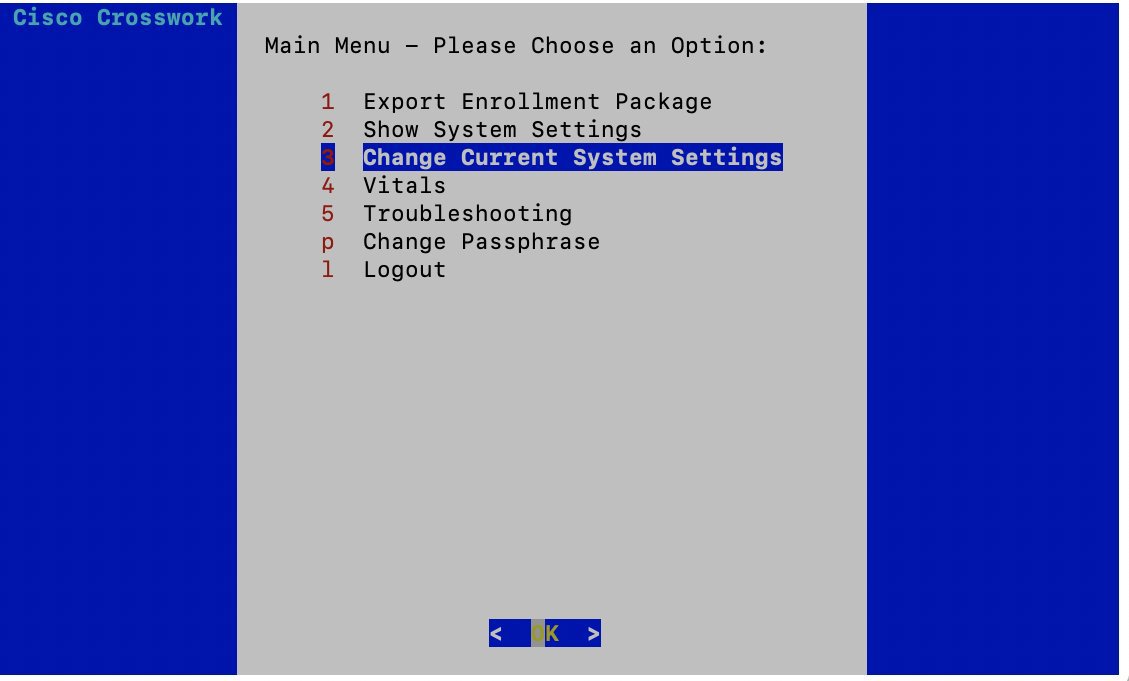
From the Main Menu, select 3 Change Current System Settings, as shown in the following figure.


Step 2

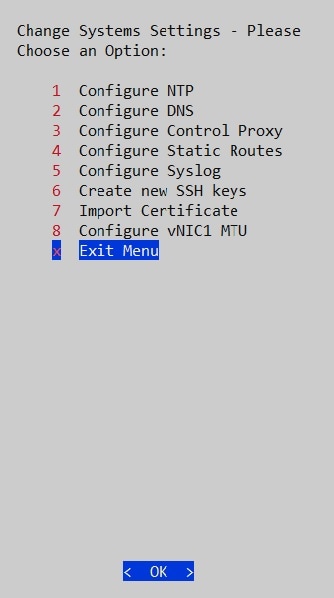
Click OK. The Change System Settings menu opens.


Step 3

Select the setting you want to change.

Step 4

Click OK. Cisco Crosswork Data Gateway prompts you to input new value for the selected setting.

Step 5

After you have entered the new settings, click OK to save the settings and return to the Change System System Settings menu.

To return to the Main Menu, select x Exit Menu and click OK.


Configure NTP

Procedure


Step 1

From the Change Current System Settings Menu, select 1 Configure NTP and click OK.

Step 2

Enter the new NTP server.

Step 3

Click OK to save the settings.


Configure DNS

Procedure


Step 1

From the Change Current System Settings menu, select 2 Configure DNS and click OK.

Step 2

Enter the new DNS domain and server address.

Step 3

Click OK to save the settings.


Configure Control Proxy

Procedure


Step 1

From the Change Current System Settings menu, select 3 Configure Control Proxy and click OK.

Step 2

Enter the new Proxy server URL and the exception list.

Step 3

Click OK to save the settings.


Configure Static Routes

In Cisco Crosswork Data Gateway, the static routes are configured when the Route Manager receives add/delete requests from the collectors. The Configure Static Routes option from the main menu can be used for troubleshooting purpose.


Note

Static routes configured using this option are lost when the Cisco Crosswork Data Gateway reboots.


Add Static Routes

Procedure

Step 1

From the Change Current System Settings menu, select 4 Configure Static Routes and click OK.

Step 2

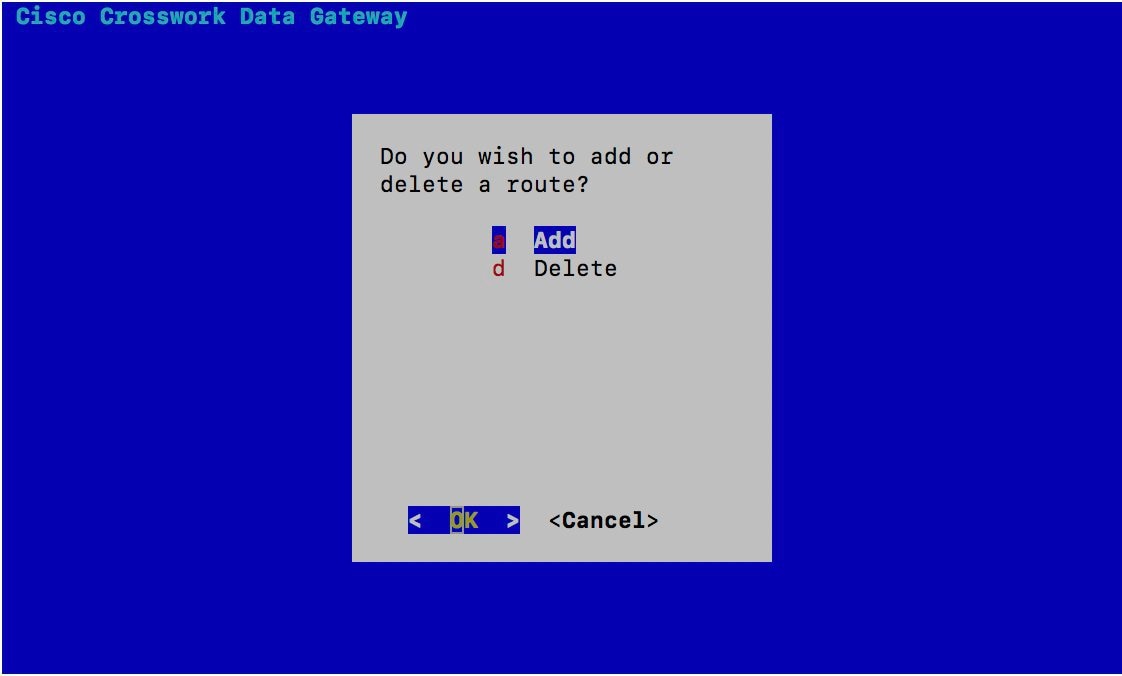
To add a static route, select a Add and click OK.


Step 3

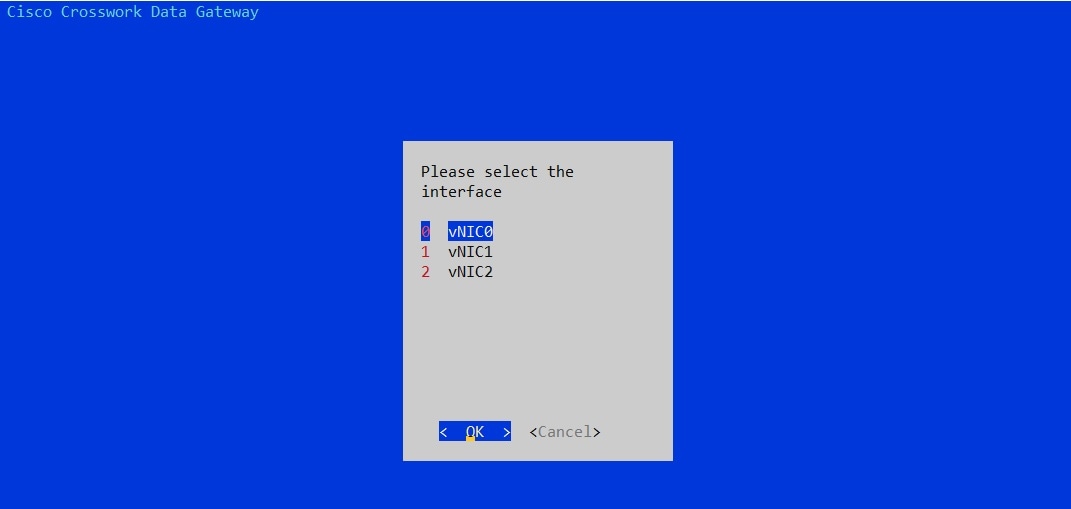
Select the interface for which you want to add a static route and click OK.


Step 4

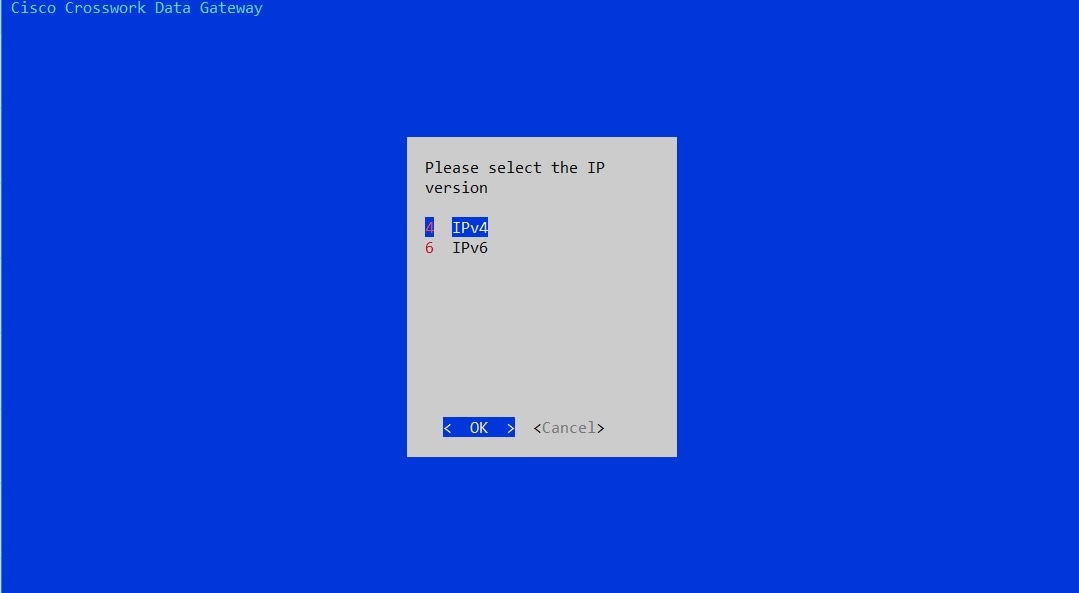
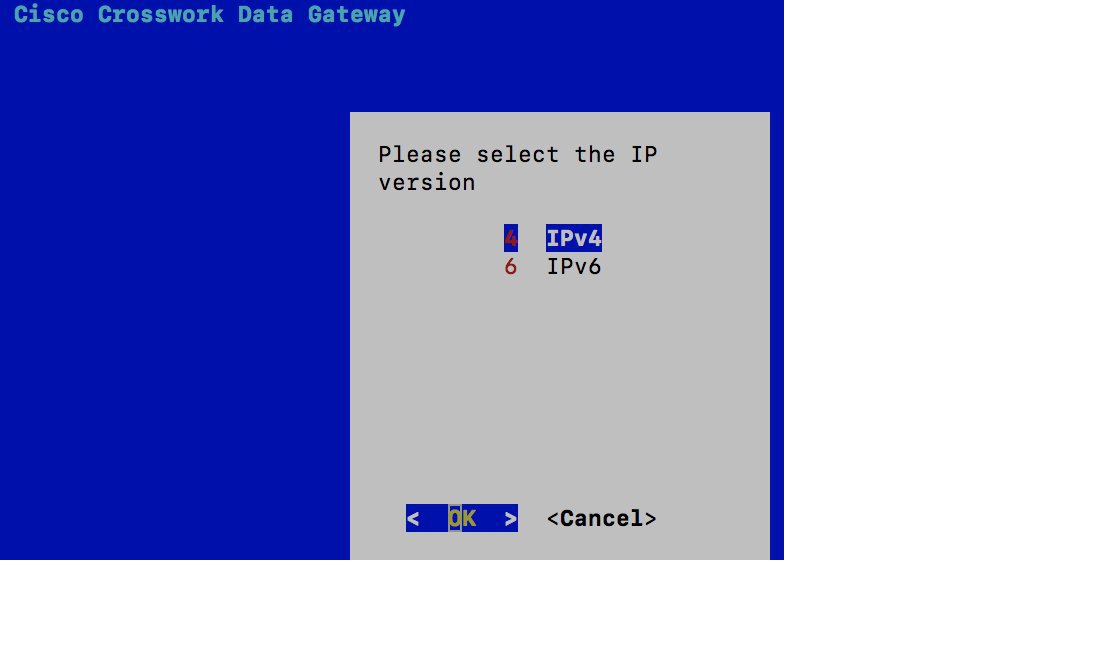
Select the IP address version for which you want to add a route and click OK.


Step 5

Enter IPv4/IPv6 subnet in CIDR format when prompted.

Step 6

Click OK to save the settings.


Delete Static Routes

Procedure

Step 1

From the Change Current System Settings Menu, select 4 Configure Static Routes and click OK.

Step 2

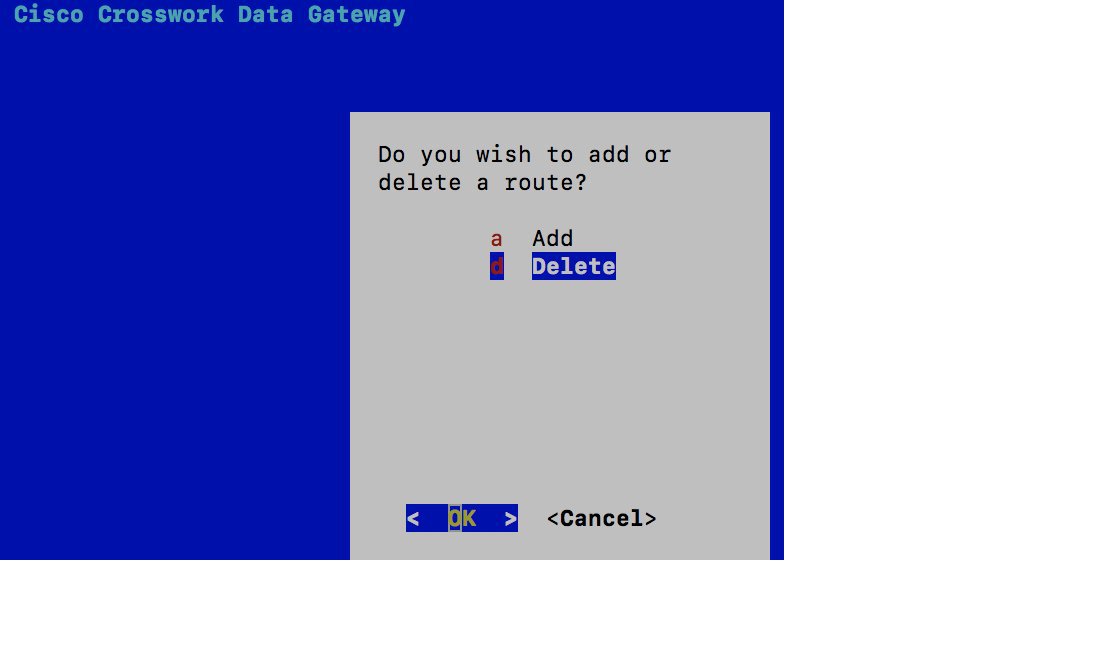
To delete a static route, select d Delete and click OK.


Step 3

Select the interface for which you want to delete a static route and click OK.


Step 4

Select the IP address version for which you want to delete a route and click OK.


Step 5

Enter IPv4/IPv6 subnet in CIDR format.

Step 6

Click OK to save the settings.


Configure Syslog


Note

For any Syslog server configuration with IPv4/IPv6 support for different linux distributions, please refer your system administrator and configuration guides.


Procedure


Step 1

From the Change Current System Settings Menu, select 5 Configure Syslog and click OK.

Step 2

Enter the new values for the following syslog attributes:.

  • Server address: IPv4 or IPv6 address of a syslog server accessible from the management interface. If you are using an IPv6 addres, it must be surrounded by square brackets ([1::1]).

  • Port: Port number of the syslog server

  • Protocol: Use UDP, TCP, or RELP when sending syslog.

  • Use Syslog over TLS?: Use TLS to encrypt syslog traffic.

  • TLS Peer Name: Syslog server's hostname exactly as entered in the server certificate SubjectAltName or subject common name.

  • Syslog Root Certificate File URI: PEM formatted root cert of syslog server retrieved using SCP.

  • Syslog Certificate File Passphrase: Password of SCP user to retrieve Syslog certificate chain.

Step 3

Click OK to save the settings.


Create New SSH Keys

Procedure


Step 1

From the Change Current System Settings Menu, select 6 Create new SSH keys.

Step 2

Click OK. Crosswork Data Gateway launches an auto-configuration process that generates new SSH keys.


Import Certificate

Updating any certificate other than Controller Signing Certificate causes a collector restart.

Procedure


Step 1

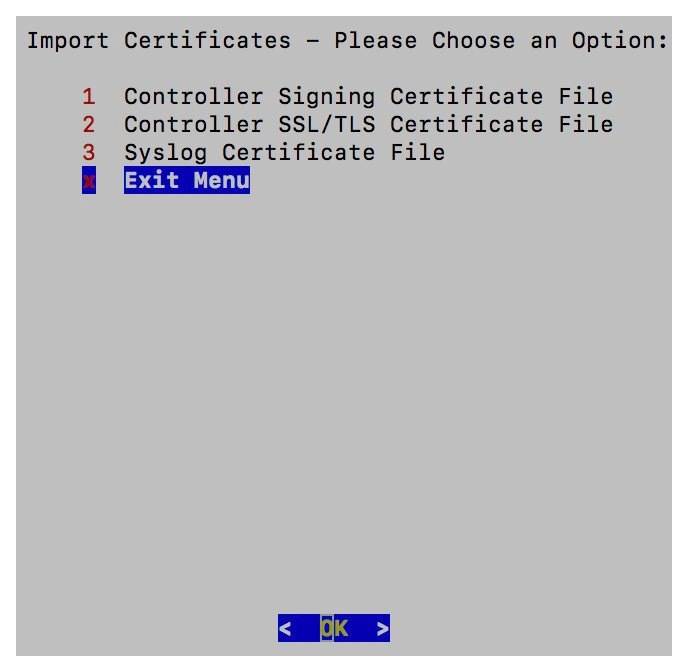
From the Change Current System Settings Menu, select 7 Import Certificate and click OK.

Step 2

Select the certificate you want to import and click OK.


Step 3

Enter SCP URI for the selected certificate file and click OK.

Step 4

Enter passphrase for the SCP URI and click OK.


Configure vNIC1 MTU


Note

  • This procedure is not applicable to Cloud deployment.

  • In case of On Premise deployment, you can change vNIC1 MTU only if you are using 3 NICs.


If your interface supports jumbo frames, the MTU value lies in the range of 60-9000, inclusive. For interfaces that do not support jumbo frames, the valid range is 60-1500, inclusive. Setting an invalid MTU causes Cisco Crosswork Data Gateway to revert the change back to the currently configured value. Please verify with your hardware documentation to confirm what the valid range is. An error will be logged into kern.log for MTU change errors which can be viewed after running show_tech.

Procedure


Step 1

From the Change Current System Settings menu, select 8 Configure vNIC1 MTU.

Step 2

Enter vNIC1 MTU value.

Step 3

Click OK to save the settings.


Monitor Cisco Crosswork Data Gateway Health

This section contains the following topics:

Vitals Monitor

The Vitals Monitor component of Cisco Crosswork Data Gateway enables you to view vitals for the following:

  1. Docker containers

  2. Docker images

  3. Controller reachability

  4. NTP reachability

  5. Route table

  6. ARP table

  7. Network connections

  8. Disk space usage

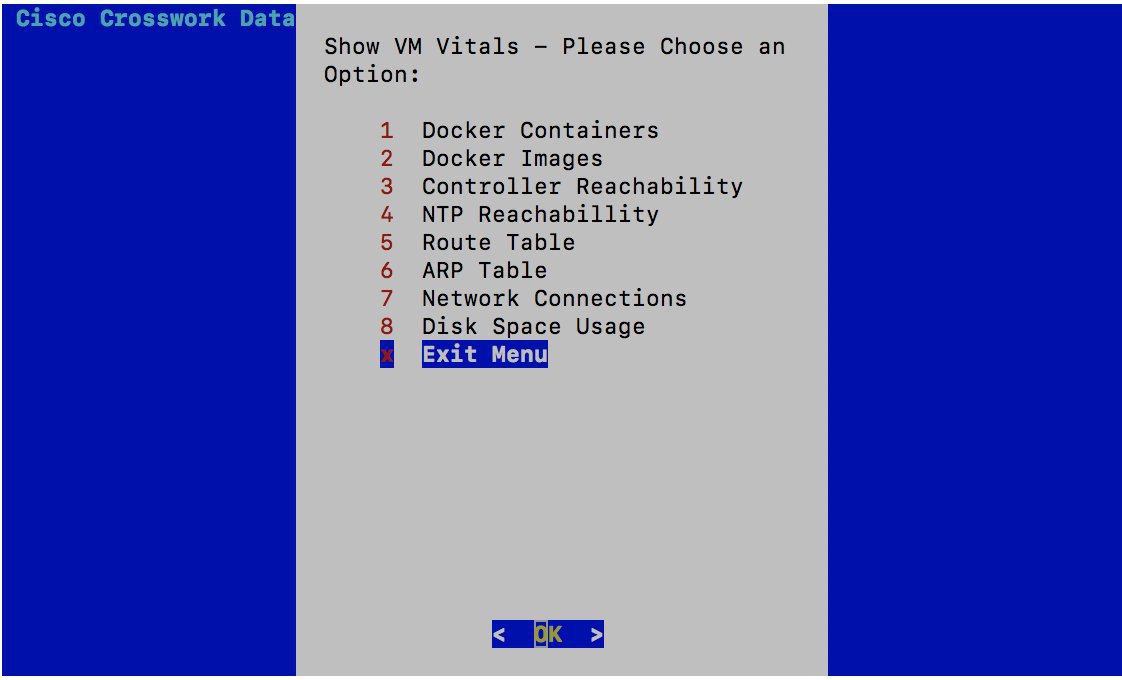
View Cisco Crosswork Data Gateway Vitals

Follow these steps to view Cisco Crosswork Data Gateway vitals:

Procedure


Step 1

From the Main Menu, select 4 Vitals and click OK.


The Show VM Vitals menu opens.

Step 2

Select the vital you want to view and click OK.


Vital

Description

Docker Containers

Displays the following vitals for the docker containers:

• Container ID

• Image

• Name

• Command

• Created Time

• Status

• Port

Docker Images

Displays the following vitals for the docker images:

• Repository

• Image ID

• Created Time

• Size

• Tag

Controller Reachability

Displays the following vitals for controller reachability:

• Default gateway status

• Reachability test details (number of packets transmitted and received, packet loss percentage, and time)

• DNS server

• DNS server status

• Reachability test details (number of packets transmitted and received, packet loss percentage, and time)

• Controller session status

NTP Reachability

Displays the following vitals for NTP reachability:

• NTP server

• Resolved IP Address

• Status

• Reachability test details (number of packets transmitted and received, packet loss percentage, and time)

• Chrony status

• Reference ID

• System time

Route Table

Displays IPv4 and IPv6 route tables.

ARP Table

Displays ARP tables.

Network Connections

Displays the following vitals for network connections:

• Netid

• State

• Recv-Q

• Send-Q

• Local Address and Port

• Peer Address and Port

Disk Space Usage

Displays the following vitals for disk space usage:

• Filesystem

• Size

• Used space

• Available space

• Use percentage

• Mounted on volume

Cisco Crosswork Data Gateway displays the vitals for the selected item.

After you are done viewing the vitals, press any key to return to the ShowVM Vitals menu.

To return to the Main Menu, select x Exit Menu and click OK.


collector-vitals Service

Cisco Crosswork Data Gateway comprises of various containerized services running on an Ubuntu VM. Its overall health depends on health of each containerized service.

As part of collector vitals, Cisco Crosswork Data Gateway collects host and container metrics and writes them to a container mounted path in vitals.json file and sends it to the Controller.

These vitals of a Cisco Crosswork Data Gateway VM can also be viewed in the Crosswork UI as described in Section: View Cisco Crosswork Data Gateway Instance Health.

It collects the following metrics:

Field

Description

Host VM

Disk Space Used

Percentage of the disk space used for partitions:

/

/opt/dg/log

/var/lib/docker

Disk In/Out

Number of read/write or input/output operations involving a disk for the partitions:

/

/opt/dg/log

/var/lib/docker

Note 

This is a cumulative counter, not a delta time series.

CPU Utilization

Amount of actively used CPU and total number of vCPUs.

Load

Load average – is the average system load over a given period of time of 1, 5, and 15 minutes.

Memory

Amount of memory used and available memory.

Note 

The value shown for memory represents the usable amount for user processes, not the total VM amount. The Cisco Crosswork Data Gateway operating system reserves about 700MB from the total VM memory for itself, which is excluded from memory reporting tools. It is expected for the memory value reported here to be 1GB less than the full amount allocated to the VM due to operating system reservation and rounding.

Network In/Out

The amount of data sent/received in MB for NIC interfaces:

eth0

eth1

eth2

Note 

This is a cumulative counter, not a delta time series.

Service Status

Service

Name of the Cisco Crosswork Data Gateway service.

Status

Status of the service:

  • Running

  • Degraded

  • Error

CPU Utilization

Percentage of actively utilized CPU by the service.

Version

Version of the service deployed.

Memory Used (MB)

Amount of memory being used by the service.

Network In/Out

The amount of data sent/received in MB by the service over its interface.

Note 

This is a cumulative counter, not a delta time series.

Disk In/Out

Number of read/write or input/output operations that the service has done involving a disk.

Note 

This is a cumulative counter, not a delta time series.


Note

  • When either of the following components listed below are not responsive, Cisco Crosswork Data Gateway vitals are not updated:

    • Docker Engine

    • Vitals Monitor

    • Controller Gateway

    The "Collector Vitals" and "Controller Gateway" dockers must be up and running for alerts/vitals to get updated.

  • When Vitals Monitor stops, no alerts are added to cdg-alerts.log. This is because the monitor service runs as a part of Vitals Monitors and it doesn't trigger any alerts when Vitals Monitor itself is down.

  • Also, the alerts are not added to cdg-alerts.log when Vitals Monitor is running and Controller Gateway is down.

    To access log files, see Run show-tech.


Troubleshooting

You can troubleshoot a Cisco Crosswork Data Gateway instance directly from the VM. Cisco Crosswork Data Gateway provides logs of errors, requests to the server, and changes made to the VM and reports any process failures/outages.

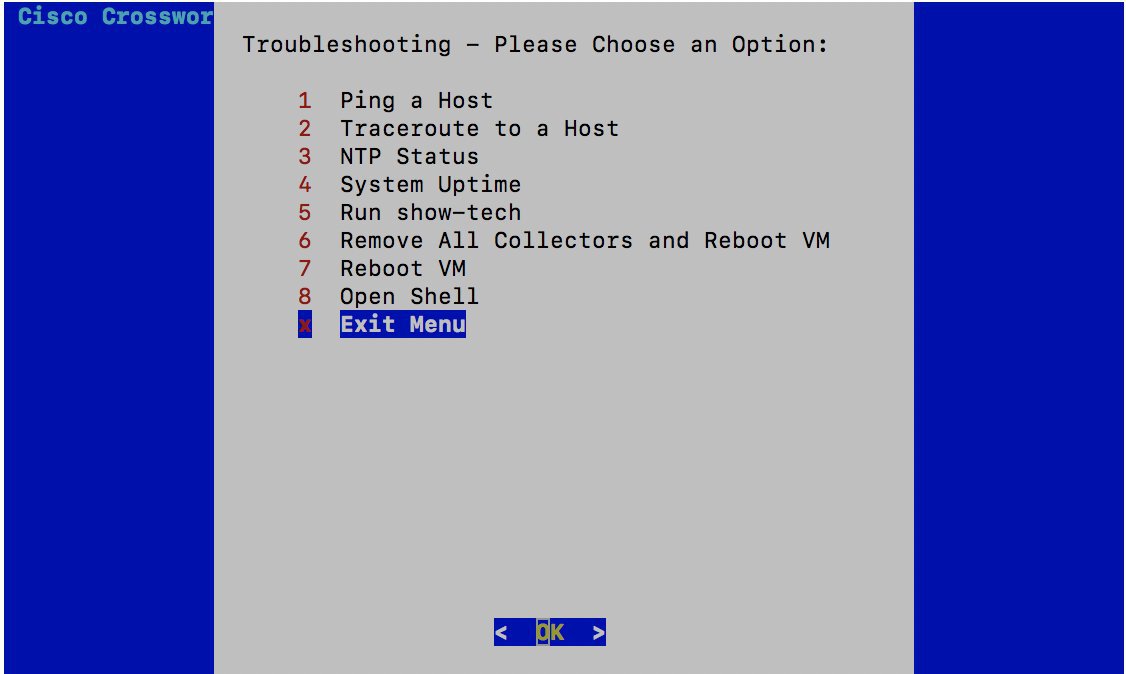
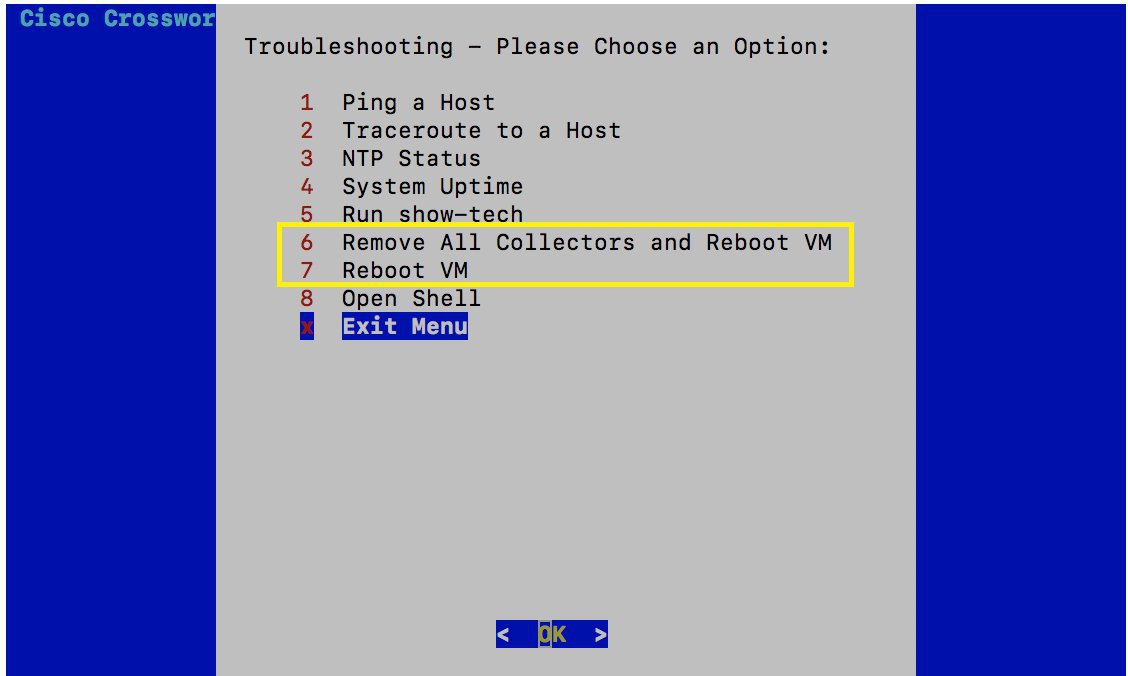
To access Troubleshooting menu, select 5 Troubleshooting from the Main Menu and click OK, as shown in the following figure:


Cisco Crosswork Data Gateway opens the Troubleshooting menu that provides you the following options to troubleshoot your Cisco Crosswork Data Gateway instance:


Note

The following figure shows the Troubleshooting Menu corresponding to dg-admin user. Few of these options are not available to dg-oper user. See Table Table 1.


This section contains the following topics:

Ping a Host

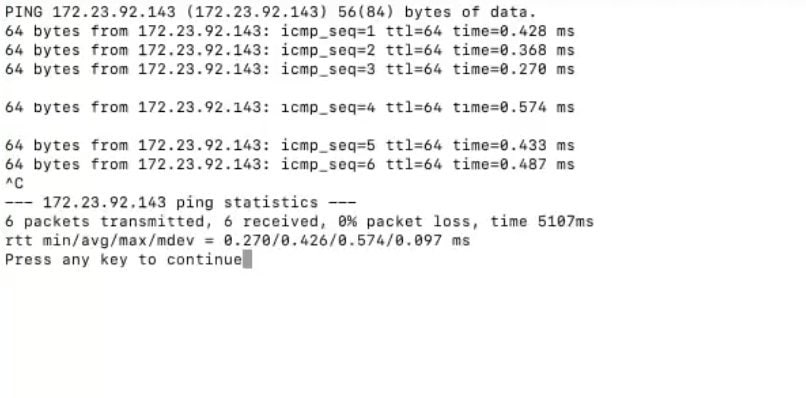
To aid troubleshooting, Cisco Crosswork Data Gateway provides you Ping utility that can be used to check reachability to any IP address.

Procedure


Step 1

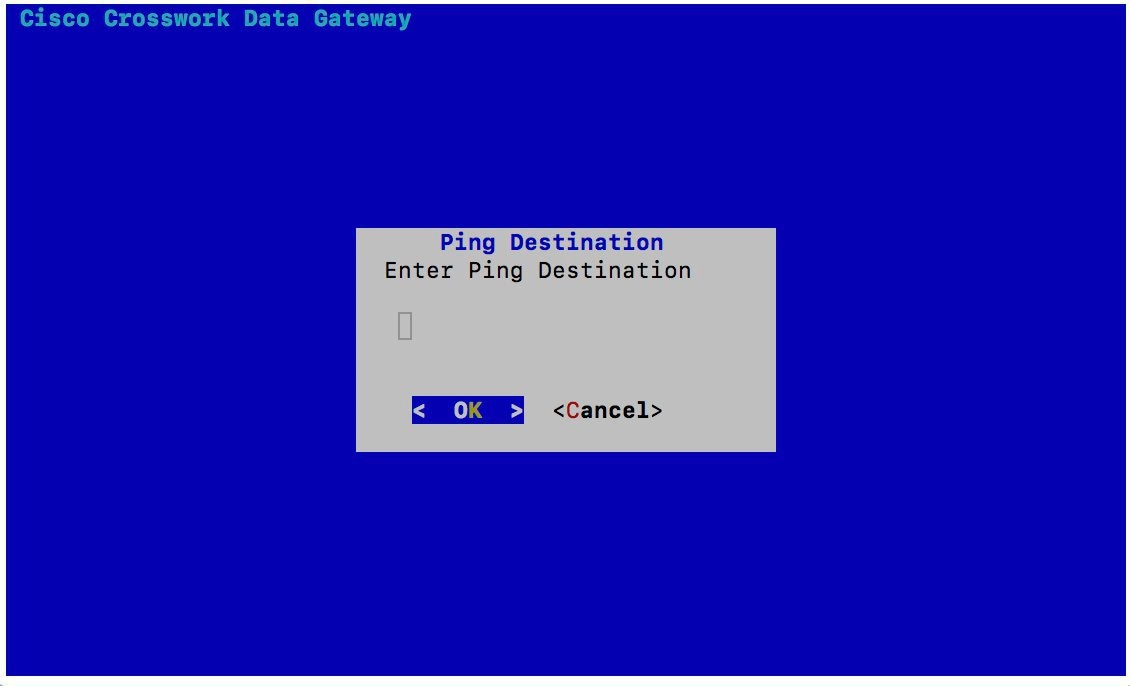
From Troubleshooting menu, select 1 Ping a Host and click OK.

Step 2

Enter the ping destination.


Step 3

Click OK.

Cisco Crosswork Data Gateway displays the result of the ping operation.


Traceroute to a Host

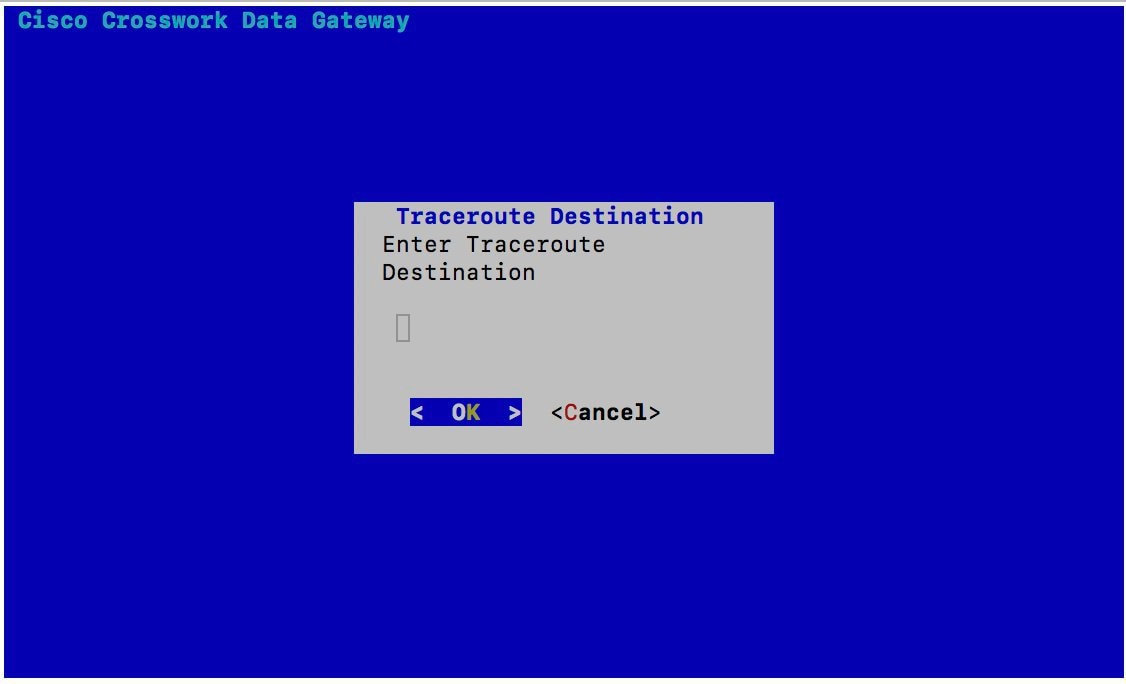
Cisco Crosswork Data Gateway provides Traceroute to a Host option to help troubleshoot latency issues. Using this option provides you a rough time estimate for the Cisco Crosswork Data Gateway to reach the controller application.

Procedure


Step 1

From Troubleshooting menu, select 2 Traceroute to a Host and click OK.

Step 2

Enter the traceroute destination.


Step 3

Click OK.


Check NTP Status

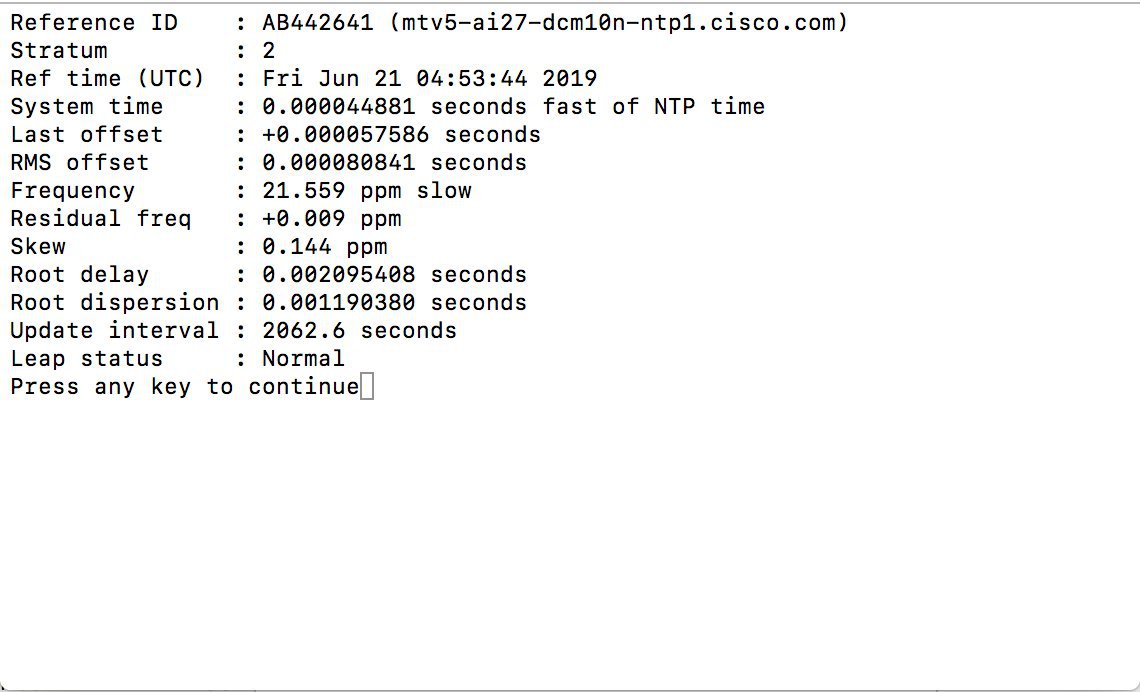
Use this option to check the status of the NTP server.

Procedure


Step 1

From Troubleshooting menu, select 3 NTP Status.

Step 2

Click OK. The Cisco Crosswork Data Gateway displays the NTP server status.


Check System Uptime

Use this option to check system uptime.

Procedure


Step 1

From Troubleshooting menu, select 4 System Uptime.

Step 2

Click OK. The Crosswork Data Gateway displays the system uptime.


Run show-tech

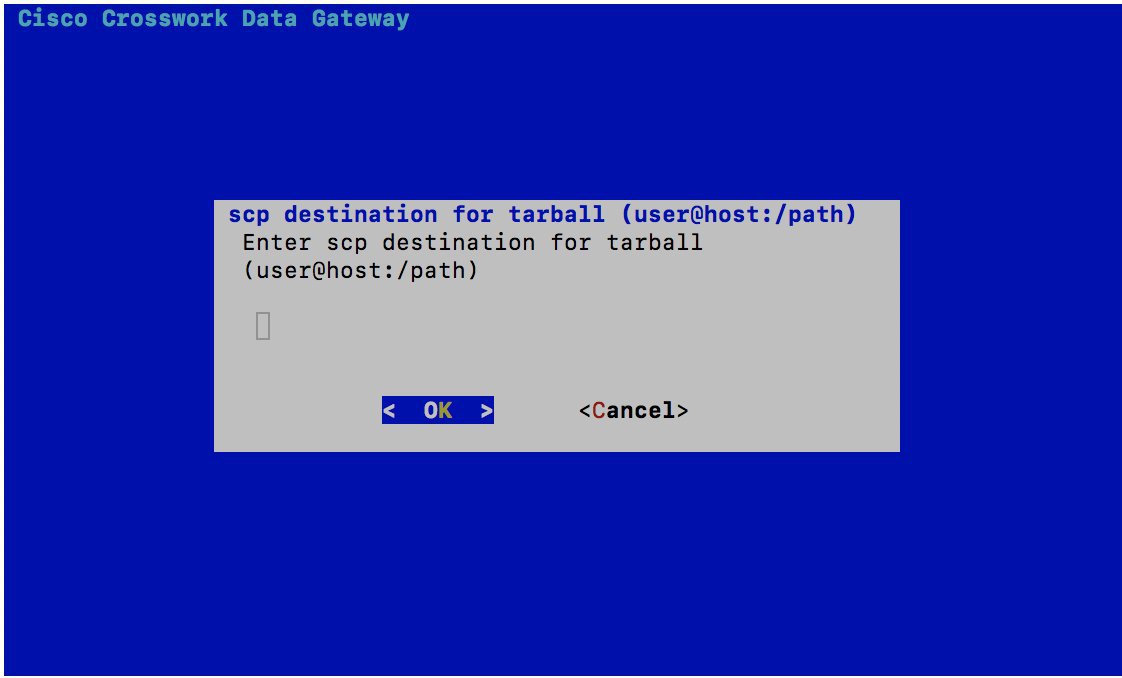
Cisco Crosswork Data Gateway provides the option show_tech to export its log files to a user-defined SCP destination.

The collected data includes the following:

  • Logs of all the Data Gateway components running on docker containers

  • VM Vitals

It creates a tarball in the directory where it is executed. The output is a tarball named CDG-<CDG-version>-year-month-day--hour-minute-second-*.tar.bz2

The execution of this command may take several minutes depending on the state of Crosswork Data Gateway.

Procedure


Step 1

From Troubleshooting menu, select 5 Show-tech and click OK.

Step 2

Enter the destination to save the tarball containing logs and vitals.


Step 3

Enter your SCP passphrase and click OK.


Reboot Crosswork Data Gateway VM


Note

This task can only be performed by dg-admin user.


Crosswork Data Gateway gives you two options to reboot the VM:


  • Remove All Collectors and Reboot VM: Select this option from the Troubleshooting menu if you want to remove all the collectors (functional images) and reboot VM.

  • Reboot VM: Select this option from the Troubleshooting menu for a normal reboot.