Upgrade Cisco Crosswork Optimization Engine

This section contains the following topics:

Upgrade Workflow

Cisco Crosswork Optimization Engine 1.2.1 introduces secure Kafka to the Crosswork platform in addition to other features listed in the Cisco Crosswork Optimization Engine 1.2.1 Release Notes.

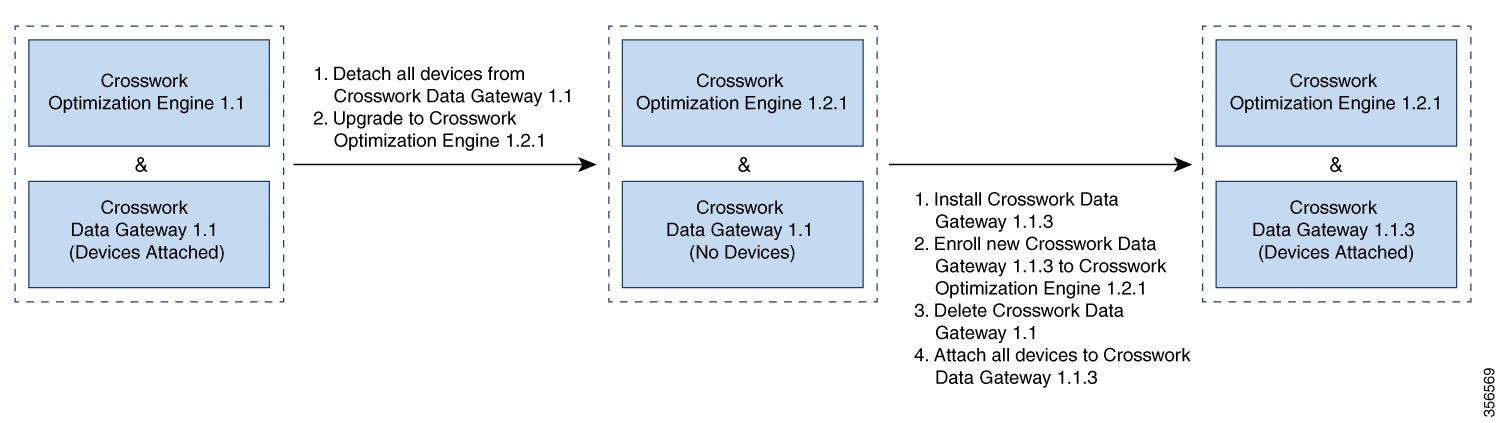
This section explains the upgrade workflow from Cisco Crosswork Optimization Engine 1.1 to 1.2.1. As part of the upgrade, you must delete Cisco Crosswork Data Gateway 1.1 and install Cisco Crosswork Data Gateway 1.1.3.


Note

  • If running the Bandwidth Optimization Function Pack you must first disable the "Delete Tactical SR Policies when Disabled" option, then disable the Bandwidth Optimization Function Pack. If this option is enabled, then all Bandwidth Optimization policies are deleted from the network.

  • Disable all function packs prior to upgrading Cisco Crosswork Optimization Engine.


Figure 1. Upgrade Workflow
Upgrade Workflow Stages
Table 1. Upgrade Cisco Crosswork Optimization Engine
Step For more information, see...

1. Detach all the devices from Cisco Crosswork Data Gateway.

"Detach a Device From a Cisco Crosswork Data Gateway Instance" topic in the Cisco Crosswork Optimization Engine User Guide.

2. Upgrade to Cisco Crosswork Optimization Engine 1.2.1.

Upgrade Cisco Crosswork Optimization Engine

3. Install Cisco Crosswork Data Gateway 1.1.3.

4. Enroll the new Cisco Crosswork Data Gateway 1.1.3 VM with Cisco Crosswork Optimization Engine 1.2.1.

Enroll Cisco Crosswork Data Gateway

5. Delete the old Cisco Crosswork Data Gateway 1.1 VM.

Deleting Cisco Crosswork Optimization Engine and Cisco Crosswork Data Gateway

6. Attach all the devices to Cisco Crosswork Data Gateway 1.1.3.

"Attach a Device From a Cisco Crosswork Data Gateway Instance" topic in the Cisco Crosswork Optimization Engine User Guide.

Upgrade Cisco Crosswork Optimization Engine

This section explains the procedure to upgrade Cisco Crosswork Optimization Engine 1.1 to Crosswork Optimization Engine 1.2.1.

The upgrade process retains the following:

  • User uploaded inventory (devices, providers, credential profiles, and tags)

  • Platform details (database credentials)

  • User configurations

  • Function pack configurations

  • UI configurations

  • Affinity mapping

  • AAA server integration data, custom local roles and custom roles

  • Cisco Crosswork Optimization Engine VM version 1.1 settings for any rollback scenario


Note

The upgrade process for Cisco Crosswork Optimization Engine VM requires two instances (old and new) to exist at the same time. As a result you should plan to have resources (storage, disk and memory) within your data center (even if only temporarily) to support two VMs.

Without adequate resources, the upgrade operation will be unable to load the services successfully, and will fail in the first boot.


Before you begin, ensure that:

  • You meet the system requirements to install Cisco Crosswork Optimization Engine and Cisco Crosswork Data Gateway. For more information, see Cisco Crosswork Optimization Engine Installation Requirements.

  • You have details of the Cisco Crosswork Optimization Engine 1.1 VM including the Management IPv4 address, username and password.

  • You have a public IPv4 address to assign to the Crosswork Optimization Engine 1.2.1 VM management network virtual interface. This is a temporary address as the Management IPv4 address from Cisco Crosswork Optimization Engine 1.1 VM version is retained.


    Note

    It is preferred that the DNS and NTP servers are reachable via the Management Network Interface. However, it is not mandatory. The only requirement is that they are reachable on one of the network interfaces connected to the server.


  • You have a public or private IPv4 to assign to the Cisco Crosswork Optimization Engine VM's data network virtual interface. This IP address must be able to reach your managed devices, Cisco Crosswork Optimization Engine network. If using Cisco Network Services Orchestrator (NSO), it must also be reachable by NSO.


Note

VMware vCenter vSphere Client using flash mode (not HTML5 mode) is recommended for the Cisco Crosswork Optimization Engine VM deployment and is explained in this procedure.


Procedure


Step 1

Download the latest available Cisco Crosswork Optimization Engine image file (*.ova) to your system.

Warning 

The default VMware vCenter deployment timeout is 15 minutes. The total time needed to deploy the OVA image file may take much longer than 15 minutes, depending on your network speed and other factors. If vCenter times out during deployment, the resulting VM will be not be bootable. To prevent this, Cisco recommends that you either set the vCenter deployment timeout to a much longer period (such as one hour), or unTAR the OVA file before continuing and then deploy using the OVA's three separate Open Virtualization Format and Virtual Machine Disk component files: cw.ovf, cw_rootfs.vmdk, and cw_dockerfs.vmdk.

Step 2

With VMware ESXi running, log in to the VMware vSphere Web Client. On the left side, choose the ESXi host on which you want to deploy the VM, then select Actions > Deploy OVF Template.

Step 3

The VMware Deploy OVF Template wizard appears and highlights the first step, 1 - Select template. Click Browse to navigate to the location where you downloaded the OVA image file and select it. Once selected, the file name is displayed in the window.

Step 4

Click Next to go to 2 - Select a name and folder. Enter a name for the Cisco Crosswork Optimization Engine VM you are creating.

Cisco recommends that you include the Cisco Crosswork Optimization Engine version and build number in the name (for example: CW_COE-1.2.1_400).

Step 5

Click Next to go to 3 - Select a compute resource. Choose the VM’s host.

Step 6

Click Next. The VMware vCenter Server validates the OVA. Network speed will determine how long validation takes. When validation is complete, the wizard moves to 4 - Review details. Take a moment to review the OVF template you are deploying. Note that this information is gathered from the OVF and cannot be modified.

Step 7

Click Next to go to 5 - Accept license agreements. Review the End User License Agreement and click to accept the license agreements before you continue.

Step 8

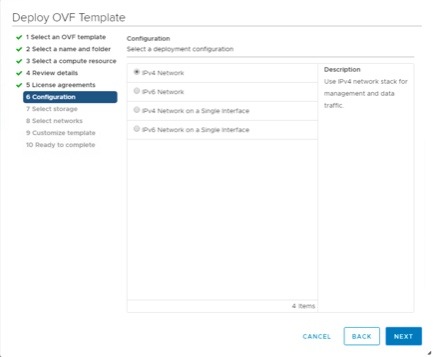
Click Next to go to 6 - Configuration. Select the appropriate Network.

Select Configuration
Step 9

Click Next to go to 7 - Select storage. Select the relevant option from the Select virtual disk format drop-down list. From the table, choose the datastore you want to use and review its properties to ensure there is enough available storage.

Note 

For production deployment, consider choosing Thick provision eager zeroed as it will not have a penalty of allocating and initializing disk space at runtime. For demo or testing purposes, Thin provision is recommended as it saves disk space.

Step 10

Click Next to go to 8 - Select networks. From the table, choose the appropriate destination network for the source Data Network and Management Network, respectively.

Step 11

Click Next to go to 9 - Customize template. Typically, the Crosswork Configuration settings are expanded by default. Make an entry in the Disclaimer field. The entry will be displayed when a user launches Cisco Crosswork Optimization Engine.

Step 12

Expand the Management Network settings. Enter the temporary IP address you want to be associated with the VM during the upgrade.

Step 13

Expand the Data Network settings. According to your deployment configuration, the fields displayed are different. Enter a temporary IP address and other information for the data network.

Step 14

Expand the Deployment Type settings, select Upgrade, and make relevant entries for the following fields: Upgrade Option
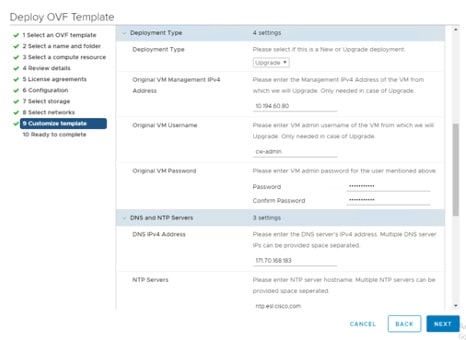
  1. Original VM Management IPv4 Address: Management IPv4 address of Cisco Crosswork Optimization Engine 1.1 VM.

  2. Original VM Password: Provide theCisco Crosswork Optimization Engine 1.1 VM password in the Enter Password and Confirm Password fields.

  3. Original VM Username: Username of the Cisco Crosswork Optimization Engine 1.1 VM. Typically, it is cw-admin unless it has been changed by your system administrator.

Note 

Switching the Management or Data IPv4 address is not supported during upgrade owing to restrictions in Cisco Crosswork Optimization Engine and Cisco Crosswork Data Gateway certificates.

Step 15

Expand the DNS and NTP Servers settings, as shown in the following figure. According to your deployment configuration, the fields displayed are different. Make entries in three fields:

  • DNS IP Address: The IP addresses of the DNS servers you want the Cisco Crosswork Optimization Engine server to use. Separate multiple IP addresses with spaces.

  • DNS Search Domain: The name of the DNS search domain.

  • NTP Servers: The IP addresses or host names of the NTP servers you want to use. Separate multiple IPs or host names with spaces.

Step 16

Disk Configuration settings allows you to adjust the amount of storage space available to Cisco Crosswork Optimization Engine. The default settings should work for most environments. For assistance in adding additional storage, contact the Cisco Customer Experience team.

Step 17

Expand the Crosswork Collection Configuration settings. Check this option if you plan to use Cisco NSO. For more guidance and information on which mode to select, see Collection Considerations.

Step 18

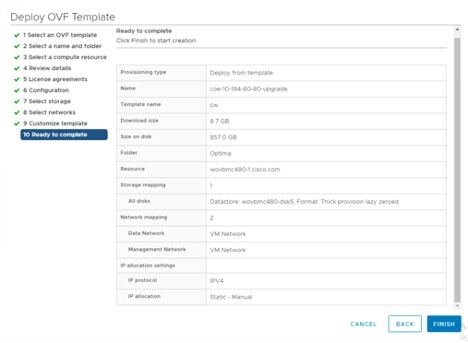
Click Next to go to 10 - Ready to Complete, as shown in the following figure. Review your settings and then click Finish if you are ready to begin deployment. Ready to Complete - Summary
Step 19

Wait for the deployment to finish before continuing. To check on the deployment status:

  1. Open a VMware vCenter client.

  2. In the Recent Tasks tab for the host VM, view the status for the Deploy OVF template and Import OVF package jobs, as shown in the following figure.

Step 20

After the deployment tasks are complete, check the host's VM settings to permit boot from EFI Firmware:

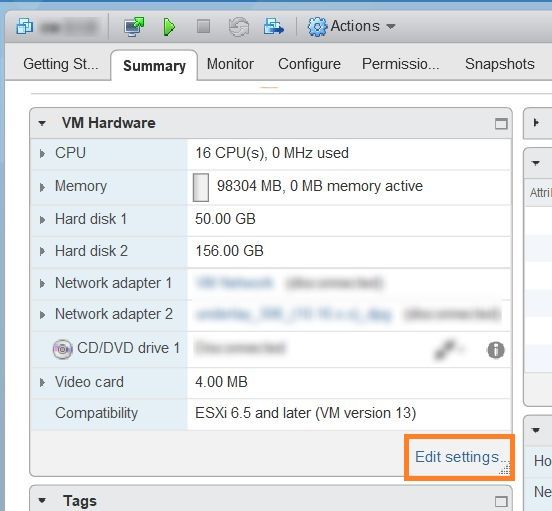
  1. On the host VM Summary tab, below the VM Hardware table, click Edit Settings, as shown in the following figure.

    VM Summary tab
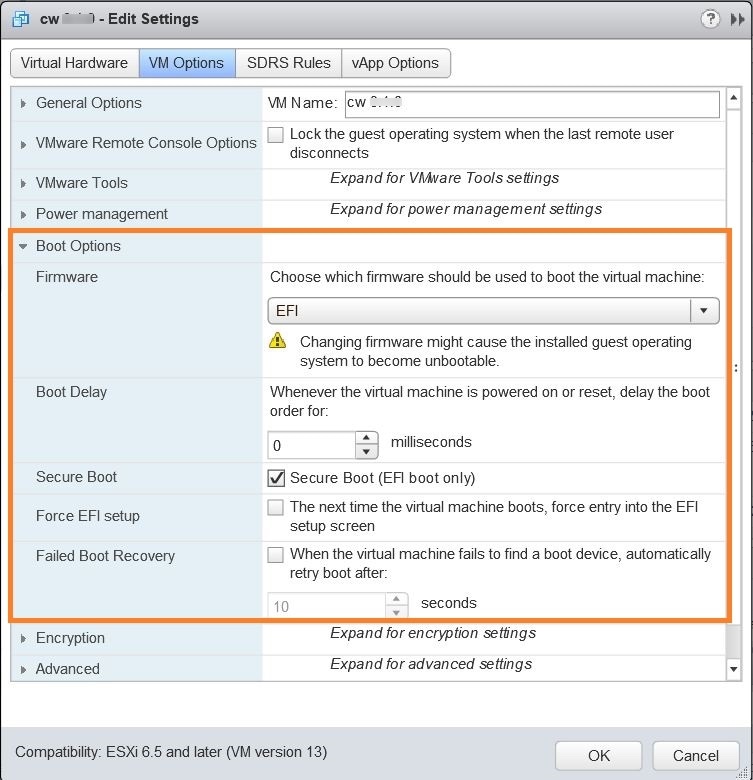
  2. On the Edit Settings page, click the VM Options tab.

  3. Expand the Boot Options dropdown list and change the Firmware setting to EFI, if it not set by default. When you are finished, click OK. You may want to take a snapshot of the VM at this point.

Step 21

You can now power on the Cisco Crosswork Optimization Engine VM to complete the deployment process. Expand the host’s entry so you can click the VM and then choose Actions > Power > Power On.

From this point, the upgrade is automatically triggered. The Data and IP configurations are transferred from Cisco Crosswork Optimization Engine 1.1 to Crosswork Optimization Engine 1.2.1. Once the transfer is completed, Cisco Crosswork Optimization Engine 1.1 VM shuts down. It will take 30 minutes or more for the Crosswork Optimization Engine 1.2.1 VM to become operational. Please wait for the process to finish before continuing.

To get the current status of the upgrade, login as the super user and use the CLI upgrade status command on the VM.

Note 

Each time the Cisco Crosswork Optimization Engine VM is re-imaged, you need to refresh the Cisco Crosswork Optimization Engine login page to accept the new certificate. Otherwise, the error message Http failure response for /crosswork/sso/v1/tickets: 0 Unknown Error is displayed on the login page.

Step 22

Move on to the next steps as documented in the Upgrade Workflow:


What to do next

  • Verify that you are able to login to Crosswork Optimization Engine 1.2.1 using the Cisco Crosswork Optimization Engine 1.1 credentials (cw-admin as username and password).

    The previous Cisco Crosswork Optimization Engine credentials for cw-admin are not saved. After logging into Cisco Crosswork Optimization Engine 1.2.1 for the first time, you will need to change the password. However, the admin credentials are saved. The admin user must log into Cisco Crosswork Optimization Engine with the old Cisco Crosswork Optimization Engine 1.1 IP address.

  • Verify if the inventory data, application configurations, and AAA user configurations from Cisco Crosswork Optimization Engine 1.1 have been retained in Crosswork Optimization Engine 1.2.1.


    Note

    While managing inventory in Crosswork Optimization Engine 1.2.1:

    • Make sure to use the latest CSV template for managing inventory.

    • Configured state of devices being onboarded needs to be marked as DOWN.


  • Verify if the device details are visible in the Topology page.

  • Verify that Cisco Crosswork Data Gateway 1.1.3 is onboarded and functioning properly.


    Note

    Post upgrade, if helios fails to cleanup some of the nodes there will not be any impact, as the devices will be remapped to the new Cisco Crosswork Data Gateway VM.


  • Check the health status of Crosswork Optimization Engine 1.2.1 and Cisco Crosswork Data Gateway using the Crosswork Manager and Data Gateway Managementwindows in the UI respectively.

  • Check if you are able to configure and use Crosswork Optimization Engine 1.2.1. For more information on the UI workflow, see the Cisco Crosswork Optimization Engine User Guide.

Upgrade Cisco Crosswork Data Gateway

Cisco Crosswork Data Gateway functions as a passive device in the network. As such, the upgrade process consists of stopping the active Cisco Crosswork Data Gateway instance and replacing it with a Cisco Crosswork Data Gateway instance that is running the new version of Cisco Crosswork Data Gateway software, essentially exchanging one Cisco Crosswork Data Gateway instance for another.

Procedure


Step 1

Install the new Cisco Crosswork Data Gateway VM. See Install Cisco Crosswork Data Gateway.

Step 2

Enroll the new Cisco Crosswork Data Gateway instance with Crosswork and ensure its Administration state is Up. See Enroll Cisco Crosswork Data Gateway With Cisco Crosswork Optimization Engine.

Step 3

Once the new Cisco Crosswork Data Gateway VM is Up, detach devices from the old Cisco Crosswork Data Gateway VM.

See Section Detach a Device from a Cisco Crosswork Data Gateway Instance in Cisco Crosswork Optimization Engine User Guide.

Step 4

Attach the devices to the new Cisco Crosswork Data Gateway VM.

See Section Attach a Device to a Cisco Crosswork Data Gateway Instance in Cisco Crosswork Optimization Engine User Guide.

Step 5

Set the administrative state of the old Cisco Crosswork Data Gateway VM to Maintenance.

See Section Change the Administration State of a Cisco Crosswork Data Gateway Instance in Cisco Crosswork Optimization Engine User Guide.

Step 6

Confirm that the new Cisco Crosswork Data Gateway VM is operating properly. Time to monitor it is up to the operator, but Cisco recommends at least an hour of normal operations before proceeding with Step 7.

See Section De-enroll Cisco Crosswork Data Gateway in Cisco Crosswork Optimization Engine User Guide.

Step 7

Delete the old Cisco Crosswork Data Gateway VM from Crosswork.

See Section De-enroll Cisco Crosswork Data Gateway in Cisco Crosswork Optimization Engine User Guide.

Step 8

From vCenter, power off the old Cisco Crosswork Data Gateway VM.

Step 9

Double check that all is still working correctly with the new Cisco Crosswork Data Gateway VM.

Step 10

From vCenter, delete the old Cisco Crosswork Data Gateway VM from the disk.


Crosswork Patch Framework

There are three types of patches in Crosswork Optimization Engine:

  • Crosswork Application Patching (PATCH_IMAGE): This is a patch on the Crosswork applications such as Crosswork Optimization Engine, and the configuration packages within the application layer. One or more applications can be patched simultaneously.

  • Crosswork Data Gateway Patching (PATCH_CDG): This is a patch on the collector images for Cisco Crosswork Data Gateway VM.

  • Crosswork Data Patching (PATCH_DATA): This is a patch to dynamically update the pre-built set of fundamental data such as YANG models and system MIB packages used by the Crosswork applications.

The patch versioning is done in the [MAJOR: MINOR: PATCH] format, where MAJOR corresponds to every major release of the Crosswork Optimization Engine, MINOR corresponds to every critical (backward incompatible) change made during a release, and PATCH corresponds to every patch created in a release.

The unit of a patch is a TAR file. The TAR file consists of the patch metadata, list of docker images, checksum and signature. The metadata contains platform and product details, patch version, type of patch and other creation details. Signature is a security requirement in order to safeguard the patch; the signature is verified by the patch framework. It also helps to perform error correction mechanisms and detect if the patch is corrupted or not.

The platform orchestrator (such as Robot orchestrator) maintains and manages the lifecycle of all applications in the Crosswork platform. Each Crosswork product has its own centralized manifest file <orchmanifest.json> which contains the list of applications and the corresponding configurations. When the orchestrator is up, it goes through the manifest. Along with the manifest, the dependency diagram <orch.yaml> explains the logical grouping of applications and their dependencies. Currently, simultaneous application patching is possible as the applications are independent of each other. Patching the Collection Infra is a system-wide change and requires shutting down other dependent applications. A patch on the Core Infra is not allowed and is considered as a VM upgrade. Schema changes are not allowed during patching. Users are recommended to take backup of the system before patching, to restore in case of any error.

Patching Activation Workflow:

Each stage of the patching workflow, performed using APIs, are explained below:

  1. Validate

    • API: /crosswork/platform/v1/patch/validate

    • User downloads the patch to any reachable host from the Crosswork VM. After the download, the patch is validated for accuracy and compatibility to the product version.

  2. Add

    • API: /crosswork/platform/v1/patch/add

    • After the patch is validated, it is added to the corresponding registry in the system, such as updating the IMAGE registry in case of an IMAGE patch. The add operation prepares the system for the patch to be activated. It is an asynchronous operation and may take around 15 mins. Once add is initiated, user receives a corresponding job ID and the operation is performed in the background.

  3. Status

    • There are 2 status APIs:

    • Status - which displays the current status of the Patch framework.

      • API: /crosswork/platform/v1/patch/status

      • This API displays the current status of the patch framework, such as if add is successful or ongoing, or if activate has been triggered.

    • Job Status - which displays the specific job status.

      • API: /crosswork/platform/v1/patch/jobstatus

      • This API return the status of a specific job based on the Job ID.

  4. Activate

    • API: /crosswork/platform/v1/patch/activate

    • After successful addition, the patching is locked. If a patch is added, it needs to be activated before another patch can be added to the application. Activate, like add, is an asynchronous operation that generates a job ID for the user and continues the process in the background. Activation takes the backup of the current state and updates the configuration. If the patch fails, the auto-roll back functionality rolls back to the previous version and the status is updated with the failure details.

  5. Summary

    • API: /crosswork/platform/v1/patch/summary

    • Summary provides the overall summary of the Patch framework, and summary of the different patch types including patch version. This information changes each time a new patch is added and activated:

      • PATCH_IMAGE - Patch version and the applications changed as part of the patch.

      • PATCH_CDG - Patch version

      • PATCH_DATA - Patch version and the applications to which the new data has been uploaded.

  6. Remove

    • API: /crosswork/platform/v1/patch/remove

    • A patch can be removed in 2 ways:

      • Flow 1: A patch can be removed after it is validated and added. For example, if user chooses to cancels after the add is successful, remove can be used.

      • Flow 2: A patch can be removed after it is validated, added and activated. For example, if user chooses to go back to a previous version after a patch is applied successfully, remove can be used.

For more information, refer the Swagger file for Payload in https://developer.cisco.com/docs/crosswork/#!platform.

Upon successful activation of a patch, user can verify the health of the application using the Crosswork Manager or Data Gateway Management feature in Crosswork Optimization Engine, depending on the type of the patch. For more information, see the Perform Administrative Tasks chapter in the Cisco Crosswork Optimization Engine User Guide .