Install Cisco Crosswork Data Gateway

This chapter contains the following topics:

Cisco Crosswork Data Gateway Installation Workflow

Cisco Crosswork Data Gateway is installed as a VM called Base VM (containing only enough software to register itself with Cisco Crosswork). Use this procedure to install the first Cisco Crosswork Data Gateway VM or for adding additional Cisco Crosswork Data Gateway VMs.


Note


If you are redeploying the same Cisco Crosswork Data Gateway with Cisco Crosswork, delete the previous Crosswork Data Gateway entry from the Virtual Machine table under Data Gateway Management. For information on how to delete a Crosswork Data Gateway VM, see Delete Crosswork Data Gateway VM from Cisco Crosswork.


To install Crosswork Data Gateway VM for use with Cisco Crosswork, follow these steps:

  1. Choose the deployment profile for the Crosswork Data Gateway VM. See Crosswork Data Gateway VM Requirements.

  2. Install Cisco Crosswork Data Gateway on your preferred platform:

    Table 1. Crosswork Data Gateway installation options

    VMware

    Install Cisco Crosswork Data Gateway Using vCenter vSphere Client

    Install Cisco Crosswork Data Gateway Via OVF Tool

    Amazon EC2

    Install Crosswork Data Gateway on Amazon EC2

  3. Complete the post-installation tasks mentioned in the section Crosswork Data Gateway Post-installation Tasks

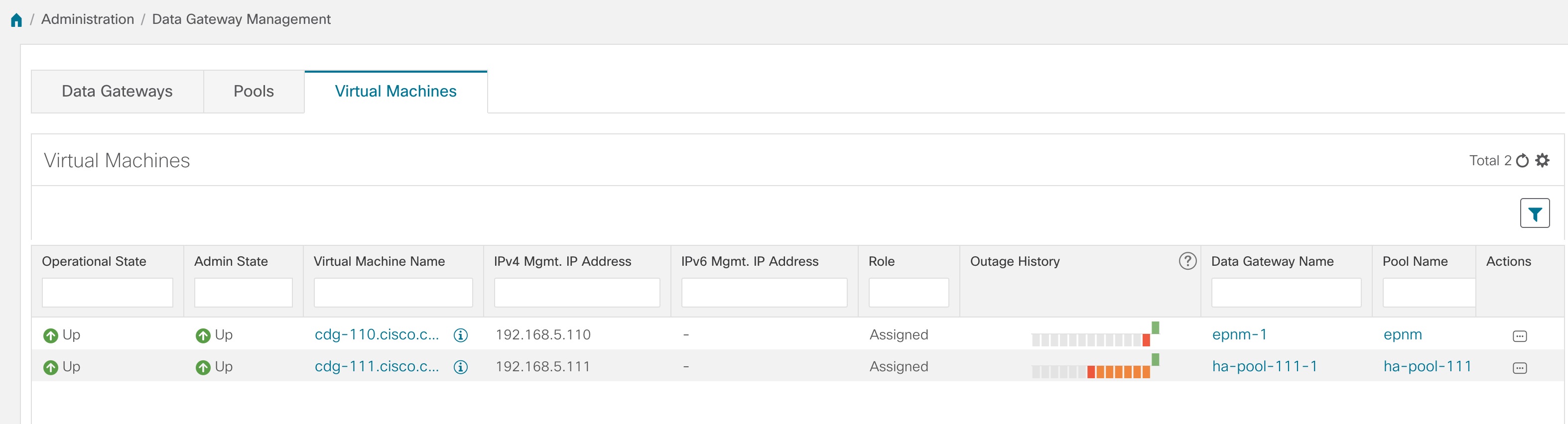
  4. Verify that the Crosswork Data Gateway VM has enrolled successfully with Cisco Crosswork. See Cisco Crosswork Data Gateway Authentication and Enrollment.

After verifying that the Crosswork Data Gateway VM has enrolled successfully with Cisco Crosswork, set up the Crosswork Data Gateway for collection by creating a Crosswork Data Gateway pool. See Section: Create a Crosswork Data Gateway Pool in the Cisco Crosswork Infrastructure 4.4 and Applications Administration Guide.


Note


If you plan to install multiple Cisco Crosswork Data Gateway VMs due to load or scale requirements or you wish to leverage Cisco Data Gateway High Availability, we recommend that you install all the Crosswork Data Gateway VMs first and then proceed with adding them to a Data Gateway pool.


Cisco Crosswork Data Gateway Parameters and Deployment Scenarios

Before you begin installing the Crosswork Data Gateway, go through this section to read about the deployment parameters and possible deployment scenarios.

Crosswork Data Gateway supports either IPv4 or IPv6 addresses for all interfaces. Cisco Crosswork does not support dual stack configurations. Therefore, plan ALL addresses for the environment as either IPv4 or IPv6.

During installation, Cisco Crosswork Data Gateway creates two user accounts:

  • Cisco Crosswork Data Gateway administrator, with the username, dg-admin and the password set during installation. The administrator uses this ID to log in and troubleshoot Cisco Crosswork Data Gateway.

  • Cisco Crosswork Data Gateway operator, with the username, dg-oper and the password set during installation. The dg-oper user has permissions to perform all ‘read’ operations and limited ‘action’ commands.

    To know what operations an admin and operator can perform, see Section Supported User Roles in the Cisco Crosswork Infrastructure 4.4 and Applications Administration Guide.

The dg-admin and dg-oper user accounts are reserved usernames and cannot be changed. You can change the password in the console for both the accounts. See Section Change Passphrase Cisco Crosswork Infrastructure 4.4 and Applications Administration Guide. In case of lost or forgotten passwords, destroy the current VM, you have to create a new VM, and reenroll the new VM with Cisco Crosswork.

In the following table:

* Denotes the mandatory parameters. Parameters without this mark are optional. You can choose them based on your deployment scenario. Deployment scenarios are explained (wherever applicable) in the Additional Information column.

** Denotes parameters that you can enter during install or address later using additional procedures.

Table 2. Cisco Crosswork Data Gateway Deployment Parameters and Scenarios

Name

Parameter

Description

Additional Information

Host Information

Hostname*

Hostname

Name of the Cisco Crosswork Data Gateway VM specified as a fully qualified domain name (FQDN).

Note


In larger systems, you are likely to have more than one Cisco Crosswork Data Gateway VM. The hostname must, therefore, be unique and created in a way that makes identifying a specific VM easy.

Description*

Description

A detailed description of the Cisco Crosswork Data Gateway.

Label

Label

Label used by Cisco Crosswork to categorize and group multiple Cisco Crosswork Data Gateway VMs.

Deployment

Deployment

Parameter that conveys the type of controller application that CDG is deployed with. For an on-premise installation, choose either:

  • onpremise-standard

  • onpremise-extended

The default value is onpremise-standard.

You need to specify this value for OVF tool installation.

Active vNICs*

ActiveVnics

Number of vNICs to use for sending traffic. The default number of interfaces for the deployment options—Standard, Standard Plus, and Extended are 3.

You can choose to use either 1, 2, or 3 vNICs as per the following combinations:

Important


If you use one vNIC in your Crosswork cluster, use only one vNIC in the Crosswork Data Gateway. If you use two vNICs in your Crosswork Cluster, then you can use two or three vNICs in the Crosswork Data Gateway.

  • 1 - sends all traffic through vNIC0.

  • 2 - sends management traffic through vNIC0 and all data traffic through vNIC1.

  • 3 - sends management traffic through vNIC0, data traffic through vNIC1, and device data on vNIC2.

AllowRFC8190*

AllowRFC8190

Choose how to validate interface addresses that fall in a usable RFC 8190 range. Options are True, False, or Ask, where the initial configuration scripts prompts for confirmation.

The default value is True to automatically allow interface addresses in an RFC 8190 range.

Private Key URI

DGCertKey

SCP URI to private key file for session key signing. You can retrieve this using SCP (user@host:path/to/file).

Cisco Crosswork uses self-signed certificates for handshake with Cisco Crosswork Data Gateway. These certificates are generated at installation.

However, if you want to use third party or your own certificate files, then enter these parameters.

Certificate chains override any preset or generated certificates in the Cisco Crosswork Data Gateway VM and are given as an SCP URI (user:host:/path/to/file).

Note


The host with the URI files must be reachable on the network (from the vNIC0 interface via SCP) and files must be present at the time of install.

Certificate File and Key Passphrase

DGCertChainPwd

Passphrase of SCP user to retrieve the Cisco Crosswork Data Gateway PEM formatted certificate file and private key.

Data Disk Size

DGAppdataDisk

Size in GB of a second data disk. Default value of this parameter in each profile is:

  • 20 GB for Standard.

  • 520 GB for Extended.

AwsIamRole

AwsIamRole

AWS IAM role name for EC2 installation.

A role created in Identity and Access Management (IAM) in the AWS environment with relevant permissions.

Passphrase

dg-admin Passphrase*

dg-adminPassword

The password you have chosen for the dg-admin user.

Password must be 8-64 characters.

dg-oper Passphrase*

dg-operPassword

The password you have chosen for the dg-oper user.

Password must be 8-64 characters.

Interfaces

In a 3-NIC deployment, you need to provide IP address for Management Traffic (vNIC0) and Control/Data Traffic (vNIC1) only. IP address for Device Access Traffic (vNIC2) is assigned during Crosswork Data Gateway pool creation as explained in the Section: Create a Crosswork Data Gateway Pool in the Cisco Crosswork Infrastructure 4.4 and Applications Administration Guide.

Note

 
  • Selecting None in both IPv4 Method and the IPv6 Method fields of the vNIC results in a nonfunctional deployment.

  • VMware vCenter does not require the vNIC2 details and does not ask for this value during deployment.

  • Amazon EC2 mandates entering an IP address for the vNIC2 interface when Crosswork Data Gateway is deployed using 3 NICs. This is an AWS EC2 requirement and not imposed by Crosswork.

vNIC IPv4 Address

vNIC IPv4 Method*

For example, the parameter name for vNIC0 is vNIC0 IPv4 Method.

Vnic0IPv4Method

Vnic1IPv4Method

Vnic2IPv4Method

Method in which the interface is assigned an IPv4 address - None, Static, or DHCP.

The default value is None.

If you have selected Method as:

  • None: Skip the rest of the fields for the vNIC IPv4 parameters. Proceed to enter information in the vNIC IPv6 Address parameters.

  • Static: Enter information in Address, Netmask, Skip Gateway, and Gateway fields

  • DHCP: The vNIC IPv4 Address parameter values are assigned automatically. Do not change these values.

vNIC IPv4 Address

Vnic0IPv4Address

Vnic1IPv4Address

Vnic2IPv4Address

IPv4 address of the interface.

vNIC IPv4 Netmask

Vnic0IPv4Netmask

Vnic1IPv4Netmask

Vnic2IPv4Netmask

IPv4 netmask of the interface in dotted quad format.

vNIC IPv4 Skip Gateway

Vnic0IPv4SkipGateway

Vnic1IPv4SkipGateway

Vnic2IPv4SkipGateway

The default value is False.

Setting this to True skips configuring a gateway.

vNIC IPv4 Gateway

Vnic0IPv4Gateway

Vnic1IPv4Gateway

Vnic2IPv4Gateway

IPv4 address of the vNIC gateway.

vNIC IPv6 Address

vNIC IPv6 Method*

Vnic0IPv6Method

Vnic1IPv6Method

Vnic2IPv6Method

Method in which the vNIC interface is assigned an IPv6 address - None, Static, or DHCP.

The default value is None.

If you have selected Method as:

  • None: Skip the rest of the fields for the vNIC IPv6 parameters. Enter information in the vNIC IPv4 Address parameters.

  • Static: Enter information in Address, Netmask, Skip Gateway, and Gateway fields

  • DHCP:

    Values for the vNIC IPv6 Address parameters are assigned automatically.

    Do not change the VnicxIPv6Address default values.

vNIC IPv6 Address

Vnic0IPv6Address

Vnic1IPv6Address

Vnic2IPv6Address

IPv6 address of the interface.

vNIC IPv6 Netmask

Vnic0IPv6Netmask

Vnic1IPv6Netmask

Vnic2IPv6Netmask

IPv6 prefix of the interface.

vNIC IPv6 Skip Gateway

Vnic0IPv6SkipGateway

Vnic1IPv6SkipGateway

Vnic2IPv6SkipGateway

Options are True or False.

Selecting True skips configuring a gateway.

vNIC IPv6 Gateway

Vnic0IPv6Gateway

Vnic1IPv6Gateway

Vnic2IPv6Gateway

IPv6 address of the vNIC gateway.

DNS Servers

DNS Address*

DNS

Space delimited list of IPv4 or IPv6 addresses of the DNS servers accessible from the management interface.

DNS Search Domain*

Domain

DNS search domain

DNS Security Extensions

*
DNSSEC

Options are False, True, or Allow-Downgrade.

The default value is False

Select True to use DNS security extensions.

DNS over TLS*

DNSTLS

Options are False, True, and Opportunistic.

The default value is False.

Select True to use DNS over TLS.

Multicast DNS*

mDNS

Options are False, True, and Resolve. Select True to use multicast DNS.

The default value is False.

If you choose Resolve, only resolution support is enabled. Responding is disabled.

Link-Local Multicast Name Resolution*

LLMNR

Options are False, True, Opportunistic, or Resolve.

The default value is False.

Select True to use link-local multicast name resolution.

If you choose Resolve, only resolution support is enabled. Responding is disabled.

NTPv4 Servers

NTPv4 Servers*

NTP

Space-delimited list of IPv4, IPv6 addresses, or hostnames of the NTPv4 servers accessible in the management interface.

You must enter a value here, such as pool.ntp.org. NTP server is critical for time synchronization between Crosswork Data Gateway VM, Crosswork, and devices. Using a nonfunctional or dummy address may cause issues when Cisco Crosswork and Crosswork Data Gateway try to communicate with each other. If you are not using an NTP server, ensure that time gap between Crosswork Data Gateway and Crosswork is not more than 10 minutes. Else, Crosswork Data Gateway fails to connect.

Use NTPv4 Authentication

NTPAuth

Select True to use NTPv4 authentication.

The default value is False.

NTPv4 Keys

NTPKey

Key IDs to map to the server list. Enter space-delimited list of Key IDs.

NTPv4 Key File URI

NTPKeyFile

SCP URI to the chrony key file.

NTPv4 Key File Passphrase

NTPKeyFilePwd

Password of SCP URI to the chrony key file.

Remote Syslog Server

Use Remote Syslog Server* UseRemoteSyslog Options are True and False. Select True to send syslog messages to a remote host.

The default value is False.

Configuring an external syslog server sends service events (CLI/MDT/SNMP/gNMI) to the external syslog server. Otherwise, they are logged only to the Cisco Crosswork Data Gateway VM.

If you want to use an external syslog server, specify the following settings:

  • Use Remote Syslog Server

  • Syslog Server Address

  • Syslog Server Port

  • Syslog Server Protocol

Note


The host with the URI files must be reachable on the network (from vNIC0 interface via SCP) and files must be present at the time of install.

Syslog Server Address

SyslogAddress

Hostname, IPv4, or IPv6 address of a syslog server accessible in the management interface.

Note


If you are using an IPv6 address, surround the address with square brackets ([1::1]).

Syslog Server Port

SyslogPort

Port number of the syslog server.

The default port number is 514.

Syslog Server Protocol

SyslogProtocol

Options are UDP or TCP to send the syslog.

The default value is UDP.

Use Syslog over TLS?

SyslogTLS

Select True to use TLS to encrypt syslog traffic.

The default value is False.

Syslog TLS Peer Name

SyslogPeerName

Syslog server hostname exactly as entered in the server certificate SubjectAltName or subject common name.

Syslog Root Certificate File URI

SyslogCertChain

PEM formatted root cert of syslog server retrieved using SCP.

Syslog Certificate File Passphrase

SyslogCertChainPwd

Password of SCP user to retrieve Syslog certificate chain.

Remote Auditd Server

Use Remote Auditd Server*

UseRemoteAuditd Options are True and False. The default value is False.. Select True to send auditd messages to a remote host.

If desired, you can configure an external remote auditd server to send Cisco Crosswork Data Gateway VM change audit notifications.

Specify these three settings to use an external Auditd server.

Auditd Server Address

AuditdAddress

Hostname, IPv4, or IPv6 address of an optional Auditd server.

Auditd Server Port

AuditdPort

Port number of an optional Auditd server.

The default port is 60.

Controller and Proxy Settings

Crosswork Controller IP*

ControllerIP

The Virtual IP address or the hostname of Cisco Crosswork Cluster.

Note


If you are using an IPv6 address, it must be surrounded by square brackets ([1::1]).

This is required if you are providing a controller signing certificate file URI.

Crosswork Controller Port*

ControllerPort

Port of the Cisco Crosswork controller.

The default port is 30607.

Controller Signing Certificate File URI*

ControllerSignCertChain

PEM formatted root cert of Cisco Crosswork to validate signing certs retrieved using SCP. Cisco Crosswork generates the PEM file and is available at the following location: cw-admin@<Crosswork_VM_Management_VIP_Address>:/home/cw-admin/controller.pem

Crosswork Data Gateway requires the Controller Signing Certificate File to enroll automatically with Cisco Crosswork.

If you specify these parameters during the installation, the certificate file is imported once Crosswork Data Gateway boots up for the first time.

If you do not specify these parameters during installation, then import the certificate file manually by following the procedure Import Controller Signing Certificate File.

Controller SSL/TLS Certificate File URI

ControllerTlsCertChain

Cisco Crosswork Controller PEM formatted SSL/TLS certificate file retrieved using SCP.

Controller Certificate File Passphrase*

ControllerCertChainPwd

Password of SCP user (cw-admin) to retrieve Cisco Crosswork certificate chain.

Proxy Server URL

ProxyURL

URL of the HTTP proxy server.

Note


This parameter applies to the Crosswork Data Gateway cloud deployment.

Crosswork Data Gateway must connect to the Internet via TLS, and a proxy server may be required if it is not present in your environment.

If you want to use a proxy server, specify these parameters.

Proxy Server Bypass List

ProxyBypass

Comma-delimited list of addresses and hostnames that will not use the proxy server.

Note


This parameter applies to the Crosswork Data Gateway cloud deployment.

Authenticated Proxy Username

ProxyUsername

Username for authenticated proxy servers.

Note


This parameter applies to the Crosswork Data Gateway cloud deployment.

Authenticated Proxy Passphrase

ProxyPassphrase

Passphrase for authenticated proxy servers.

Note


This parameter applies to the Crosswork Data Gateway cloud deployment.

HTTPS Proxy SSL/TLS Certificate File URI

ProxyCertChain

HTTPS proxy PEM formatted SSL/TLS certificate file retrieved using SCP.

Note


This parameter applies to the Crosswork Data Gateway cloud deployment.

HTTPS Proxy SSL/TLS Certificate File Passphrase

ProxyCertChainPwd

Password of SCP user to retrieve proxy certificate chain.

Note


This parameter applies to the Crosswork Data Gateway cloud deployment.


Note


If you are not using the default SCP port 22, you can specify the port as a part of the SCP command. For example,

-P55 user@host:path/to/file

Where 55 is a custom port.


Install Cisco Crosswork Data Gateway Using vCenter vSphere Client

Follow the steps to install Cisco Crosswork Data Gateway using vCenter vSphere Client:

Note


We have included sample images of Cisco Crosswork Data Gateway on-premise Standard deployment in the procedure.


Procedure


Step 1

Download the Cisco Crosswork Data Gateway 4.1 image file from cisco.com (*.ova).

Warning


The default VMware vCenter deployment timeout is 15 minutes. If the time taken to fill the OVF template exceeds 15 minutes, vCenter times out and you have to start over again. To prevent this, it is recommended that you plan for the installation by having the necessary parameters and requirements ready. Refer to the Table Table 1 for list of mandatory and optional parameters.

Step 2

Connect to vCenter vSphere Client. Then select Actions > Deploy OVF Template

Step 3

The VMware Deploy OVF Template wizard appears and highlights the first step, 1 Select template.

  1. Click Browse to navigate to the location where you downloaded the OVA image file and select it.

    Once selected, the file name is displayed in the window.

Step 4

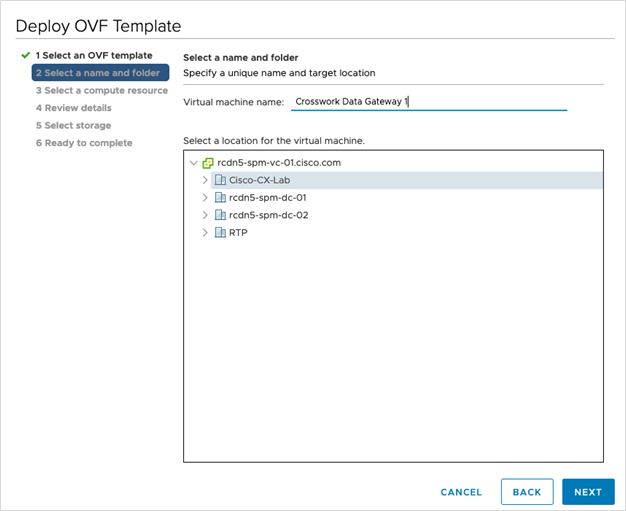
Click Next to go to 2 Select name and location, as shown in the following figure.

  1. Enter a name for the VM you are creating.

  2. In the Select a location for the virtual machine list, choose the data center under which the VM will reside.

Step 5

Click Next to go to 3 Select a resource. Choose the VM’s host.

Step 6

Click Next. The VMware vCenter Server validates the OVA. Network speed will determine how long validation takes. When the validation is complete, the wizard moves to 4 Review details. Review the OVA’s information and then click Next.

Take a moment to review the OVF template you are deploying.

Note


This information is gathered from the OVF and cannot be modified.

Step 7

Click Next to go to 5 accept license agreements. Review the End User License Agreement and click Accept.

Step 8

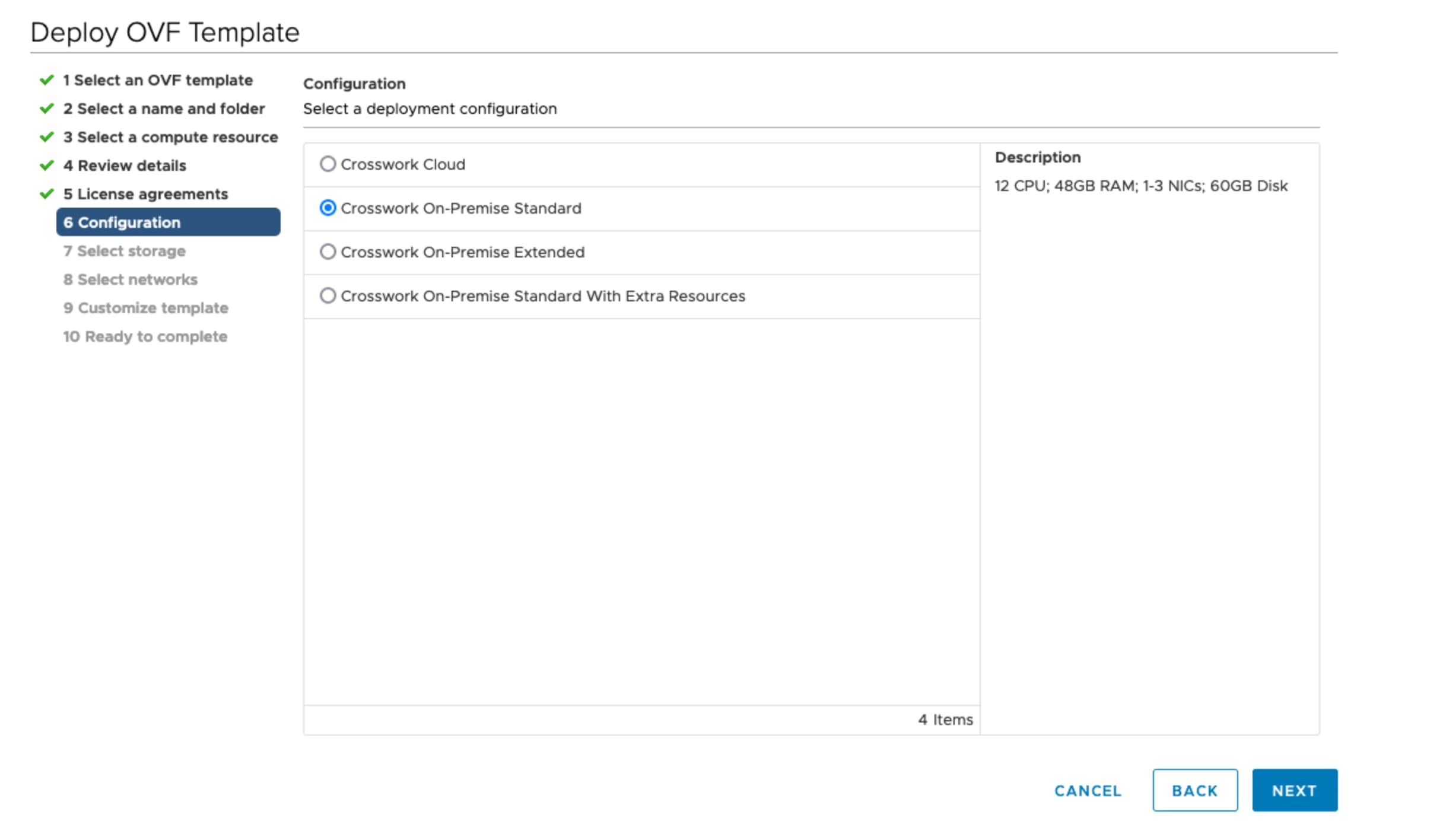
Click Next to go to 6 Select configuration, as shown in the following figure. Select the type of configuration from Crosswork On-Premise Standard and Crosswork On-Premise Extended. See Mandatory deployment type for Crosswork Data Gateway for more information.
Attention


The On-Premise Standard with Extra Resources profile is available as a limited-availability feature and must not be used while deploying Crosswork Data Gateway. Please contact the Cisco Customer Experience team for assistance.

Step 9

Click Next to go to 7 Select storage, as shown in the following figure.
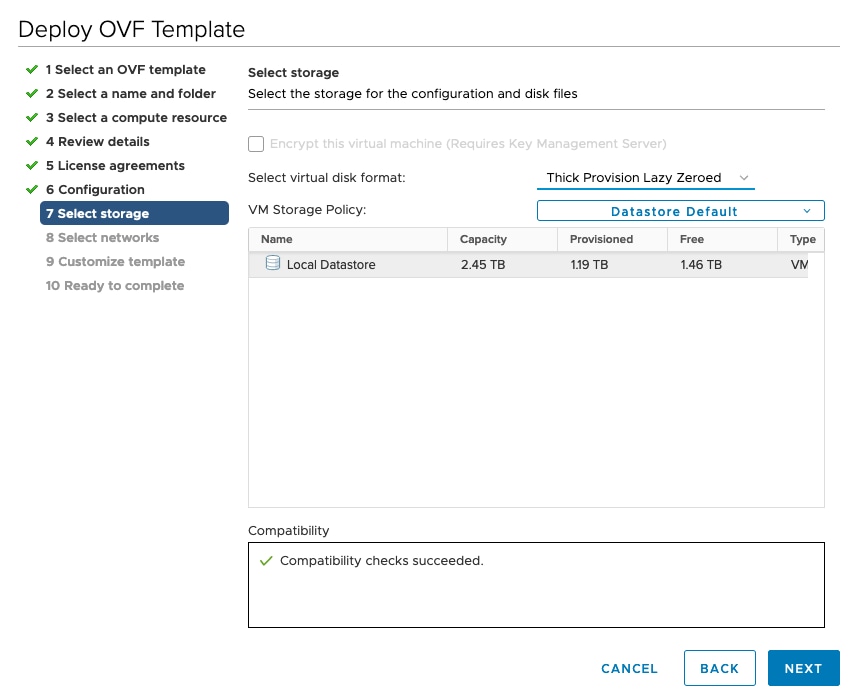
  1. Cisco recommends that you select Thick provision lazy zeroed from the Select virtual disk format drop-down list.

  2. From the Datastores table, choose the data store you want to use and review its properties to ensure there is enough available storage.

Step 10

Click Next to go to 8 Select networks, as shown in the following figure. In the drop-down table at the top of the page, choose the appropriate destination network for each source network, vNIC2, vNIC1, and vNIC0 respectively.

Note


Starting with vNIC0, select a destination network for vNICs that will be used and leave unused vNICs set to the default value.

Step 11

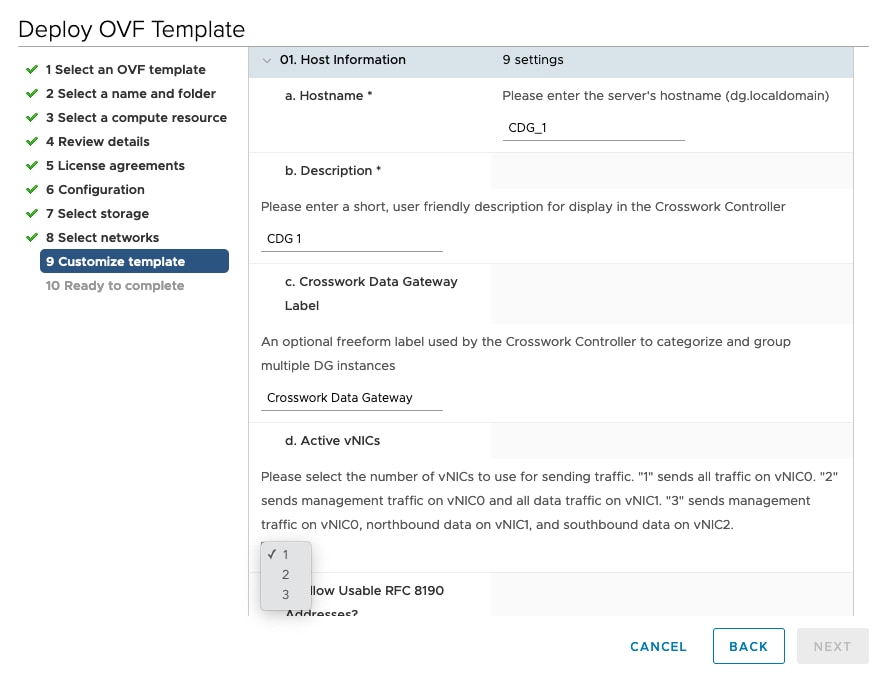
Click Next to go to 9 Customize template, with the Host Information Settings already expanded. Enter the information for the parameters as explained in Table: Table 1.
Step 12

Click Next to go to 10 Ready to complete. Review your settings and then click Finish if you are ready to begin deployment.

Step 13

Wait for the deployment to finish before continuing. To check the deployment status:

  1. Open the vCenter vSphere client.

  2. In the Recent Tasks tab for the host VM, view the status for the Deploy OVF template and Import OVF package jobs.

Wait for the deployment status to become 100%. You can now proceed to power on the VM.

Step 14

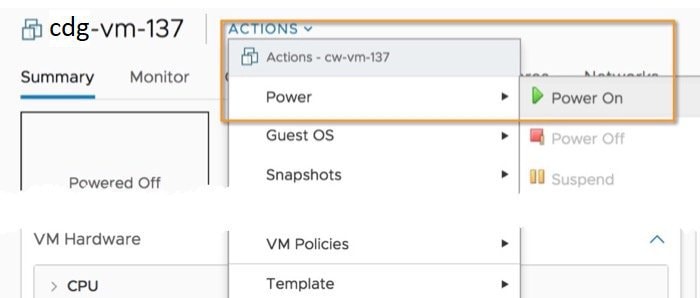
Once the deployment status is 100%, power on the VM to complete the deployment process. Expand the host’s entry so you can click the VM and then choose Actions > Power > Power On, as shown in the following figure:


Wait for at least 5 minutes for the VM to come up and then log in via vCenter or SSH as explained below.

Warning


Changing the VM's network settings in vCenter may have significant unintended consequences, including but not limited to the loss of static routes and connectivity. The settings have been validated to provide the best network performance. Make changes to these settings at your own risk.


What to do next

Log in to Cisco Crosswork Data Gateway VM Via vCenter:

  1. Locate the VM in vCenter and then right click and select Open Console.

  2. Enter user name (dg-admin or dg-oper as per the role assigned to you) and the corresponding password (the one that you created during installation process) and press Enter.

After you log in, the Crosswork Data Gateway should present you with the welcome screen and options menu indicating that the installation completed successfully. Log out and proceed with the post-installation tasks explained in the next section.

Install Cisco Crosswork Data Gateway Via OVF Tool

You can modify the list of mandatory and optional parameters in the command/script as per your requirement and run the OVF Tool. Refer to the Table: Table 1 for the list of installation parameters and their default values.


Note


Ensure that you specify all the required mandatory and optional parameters with the desired values when you build the script. Parameters that are not included in the script will be considered with their default values for deployment.


Below is a sample if you plan to run the OVF tool with a script:

#!/usr/bin/env bash

VM_NAME='VM_NAME'
DM='thin'
DS='Datastore name'
Vcenter='Vcenter IP'
Host='Vcenter Host IP'
DC='DC Name'
CwIpv4Mgmt='CW IP'
ManagementIPv4Address='CDG IP'
ManagementIPv4Netmask='Netmask address'
ManagementIPv4Gateway='Management Gateway IP'
NorthDataIPv4Address='Northbound IP'
NorthDataIPv4Netmask='Netmask address'
NorthDataIPv4Gateway='Data Gateway IP'
DNSv4='DNS IP'
NTP='NTP FQDN'
Domain='Domain name'
CtrlerCertChainPwd='Controller Password'
DgAdminPwd='Admin user password'
DgOperPwd='Oper user password'
CdgDomain='CDG hostname'
MgmtNetwork='Standard Network'
SouthDataNetwork='Southbound port group name'
NorthDataNetwork='Northbound port group name'
DeploymentOption='Deployment Option'
VcenterUser='Vcenter username'
VcenterPwd='Vcenter password'
ImageFilePath='CDG Image Path'

ovftool --version
ovftool --acceptAllEulas --skipManifestCheck --X:injectOvfEnv --overwrite --powerOffTarget --powerOn --noSSLVerify  --allowExtraConfig \
-ds=$DS \
--deploymentOption="${DeploymentOption}" \
--diskMode=$DM \
--name="${VM_NAME}" \
--prop:"ControllerIP=${CwIpv4Mgmt}" \
--prop:"ControllerPort=30607" \
--prop:"ControllerSignCertChain=cw-admin@${CwIpv4Mgmt}:/home/cw-admin/controller.pem" \
--prop:"ControllerCertChainPwd=${CtrlerCertChainPwd}" \
--prop:"Hostname=${CdgDomain}" \
--prop:"Description=CDG Base VM for Automation" \
--prop:"Vnic0IPv4Method=Static" \
--prop:"Vnic0IPv4Address=${ManagementIPv4Address}" \
--prop:"Vnic0IPv4Netmask=${ManagementIPv4Netmask}" \
--prop:"Vnic0IPv4Gateway=${ManagementIPv4Gateway}" \
--prop:"Vnic1IPv4Method=Static" \
--prop:"Vnic1IPv4Address=${NorthDataIPv4Address}" \
--prop:"Vnic1IPv4Netmask=${NorthDataIPv4Netmask}" \
--prop:"Vnic1IPv4Gateway=${NorthDataIPv4Gateway}" \
--prop:"dg-adminPassword=${DgAdminPwd}" \
--prop:"dg-operPassword=${DgOperPwd}" \
--prop:"DNS=${DNSv4}" \
--prop:"NTP=${NTP}" \
--prop:"Domain=${Domain}" \
--net:"vNIC0=${MgmtNetwork}" \
--net:"vNIC1=${NorthDataNetwork}" \
--net:"vNIC2=${SouthDataNetwork}" \
$ImageFilePath \
vi://$VcenterUser:$VcenterPwd@$Vcenter/$DC/host/$Host

Procedure


Step 1

Open a command prompt.

Step 2

Navigate to the location where you installed the OVF Tool.

Step 3

Install the VM by executing the script that you created containing the command and arguments.

./<script_file>

For example,

root@cxcdgctrl:/opt# ./cdgovfdeployVM197

Once the VM powers up, log into the VM. See Login into Crosswork Data Gateway VM. After you log in, the Crosswork Data Gateway should present you with the welcome screen and options menu indicating that the installation completed successfully. Log out and proceed with the post-installation tasks explained in the next section.

Install Crosswork Data Gateway on Amazon EC2

You can install the Crosswork Data Gateway on Amazon EC2 in one of the following ways:

Install Crosswork Data Gateway on Amazon EC2 using CloudFormation Template

Installing Crosswork Data Gateway on EC2 using CloudFormation (CF) templates involves creating a template (YAML formatted text file) which describes the VM resources and their properties. Whenever you create a stack, CloudFormation provisions the resources that are described in your template and installs the VMs.

A sample CF template is attached here for your reference.

Before you begin
  • Ensure that you have met the requirements specified in the section AWS EC2 Settings.

  • All the Cisco Crosswork VMs have been installed.

Procedure

Step 1

Log in to AWS and search for the CloudFormation service. The CloudFormation dashboard opens.

Step 2

Click Stacks from the side menu.

All existing stacks in the environment are displayed here.

Step 3

In Step 1 - Specify template, select the following settings:

  1. Under Prepare template, select Template is ready.

  2. Under Template source, select Upload a template file.

  3. Click Choose file, and select your CF template (.yaml file).

  4. Click Next.

Step 4

In Step 2 - Specify stack details, enter relevant values for the stack name and each parameter field, and click Next.

Note


The parameter field names visible in this window are defined by the parameters in the CF template.

Step 5

In Step 3 - Configure stack options, enter the relevant values for the settings based on your production preferences. Click Next to continue.

Step 6

In Step 4 - Review, review the settings you have configured.

Step 7

Select the acknowledgment checkbox, and click Create stack to start the VM installation.


Verify that the VMs were installed successfully
  1. In the CloudFormation dashboard, click Stacks from the side menu to view the list of stacks.

  2. Select the stack you installed. The stack details are displayed on the right. Click on each tab in this window to view details of the stack creation.

    The status of the stack in the Events tab will be CREATE_IN_PROGRESS

  3. After the stack has been created:

    • The status of the stack changes to CREATE_COMPLETE and the Logical ID displays the stack name.

    • The Resources tab displays details of the all the resources that the CF template has created, including the physical IDs.

    • The Output tab has details of the VM's interface IP addresses.

  4. Click the Physical ID of the VM instance in your stack.

    Doing this will open the Instances window in the EC2 dashboard with details of the selected VM instance.

  5. Click Connect (top right corner).

  6. In the Connect to instance window that appears, click the EC2 Serial Control tab and click Connect.

  7. Click on the EC2 serial console tab. Click Connect to connect to the console of the VM.

  8. Log in to the VM as a dg-admin or dg-oper user using the password you configured.

    The Interactive Console of the VM is displayed on successful login.
Install Crosswork Data Gateway on Amazon EC2 Manually

Follow these steps to install Crosswork Data Gateway on EC2.


Note


  • The Launch Instance workflow offers a wide range of launch options that you can configure based on your requirements. The following procedure lists the mandatory settings that must be configured to install the Crosswork Data Gateway VM successfully.

  • The steps in this procedure explain the installation of an Extended Crosswork Data Gateway VM with 3 interfaces.


Before you begin

Ensure that you have the following information ready before deploying the Crosswork Data Gateway VMs :

  • Ensure that you have met the requirements specified in AWS EC2 Settings.

  • All the Cisco Crosswork VMs have been installed.

  • Decide the number of Crosswork Data Gateway VM instances to install.

  • Have the Crosswork Data Gateway AMI image saved in a location accessible to your AWS.

Procedure

Step 1

Prepare the user data for the Crosswork Data Gateway VMs.

  1. Prepare the user data for Crosswork Data Gateway VMs. See Crosswork Data Gateway Deployment Parameters and Scenarios for more information about the parameters. Sample user data for a VM is attached here for your reference. Important parameters have been highlighted.

    AwsIamRole=changeme
    ActiveVnics=3
    AllowRFC8190=Yes
    AuditdAddress=
    AuditdPort=60
    ControllerCertChainPwd=changeme
    ControllerIP=
    ControllerPort=30607
    ControllerSignCertChain=cw-admin@<controller-IP>:/home/cw-admin/controller.pem
    ControllerTlsCertChain=
    Deployment=Crosswork On-Premise
    Description=changeme
    DGAppdataDisk=5
    DGCertChain=
    DGCertChainPwd=
    DGCertKey=
    DNS=changeme
    DNSSEC=False
    DNSTLS=False
    Domain=changeme
    EnrollmentPassphrase=
    EnrollmentURI=
    Hostname=changeme
    Label=
    LLMNR=False
    mDNS-False
    NTP=changeme
    NTPAuth=False
    NTPKey=
    NTPKeyFile=
    NTPKeyFilePwd=
    Profile=Extended
    ProxyBypass=
    ProxyCertChain=
    ProxyCertChainPwd=
    ProxyPassphrase=
    ProxyURL=
    ProxyUsername=
    SyslogAddress=
    SyslogCertChain=
    SyslogCertChainPwd=
    SyslogPeerName=
    SyslogPort=514
    SyslogProtocol=UDP
    SyslogTLS=False
    UseRemoteAuditd=False
    UseRemoteSyslog=False
    Vnic0IPv4Address=0.0.0.0  //IP address of management interface
    Vnic0IPv4Gateway=0.0.0.1
    Vnic0IPv4Method=None
    Vnic0IPv4Netmask=0.0.0.0
    Vnic0IPv4SkipGateway=False
    Vnic0IPv6Address=::0
    Vnic0IPv6Gateway=::1
    Vnic0IPv6Method=None
    Vnic0IPv6Netmask=64
    Vnic0IPv6SkipGateway=False
    Vnic1IPv4Address=0.0.0.0  //IP address of data interface
    Vnic1IPv4Gateway=0.0.0.1
    Vnic1IPv4Method=None
    Vnic1IPv4Netmask=0.0.0.0
    Vnic1IPv4SkipGateway=False
    Vnic1IPv6Address=::0
    Vnic1IPv6Gateway=::1
    Vnic1IPv6Method=None
    Vnic1IPv6Netmask=64
    Vnic1IPv6SkipGateway=False
    Vnic2IPv4Address=0.0.0.0  //leave unchanged to default value.
    Vnic2IPv4Gateway=0.0.0.1
    Vnic2IPv4Method=None
    Vnic2IPv4Netmask=0.0.0.0
    Vnic2IPv4SkipGateway=False
    Vnic2IPv6Address=::0
    Vnic2IPv6Gateway=::1
    Vnic2IPv6Method=None
    Vnic2IPv6Netmask=64
    Vnic2IPv6SkipGateway=False
    dg-adminPassword=changeme
    dg-operPassword=changeme
  2. Repeat the previous step to create the user data for each Crosswork Data VM that you plan to install.

Step 2

Install the Crosswork Data Gateway VM.

  1. Log in to AWS and search for the EC2 service. The EC2 dashboard opens.

  2. Navigate to Launch Instance pane on the dashboard and click Launch Instance > Launch Instance.

    A Launch an Instance window appears.

  3. In the Name and tags section, enter the name of the Crosswork Data Gateway VM.

  4. In the Application and OS Images (Amazon Machine Image) section, click My AMIs > Owned by me and select the Crosswork Data Gateway AMI image in the Amazon Machine Image (AMI) field.

  5. In the Instance type section, select the following instance types (both production and lab environment) based on the profile of the Crosswork Data VM you are deploying.

    • m5.4xlarge - for a Standard VM.

    • m5.8xlarge - for an Extended VM.

  6. In the Key pair (login) section, select a Key pair name from the drop-down list.

    Note

     
    Cisco Crosswork does not support key-based authentication. This is an AWS requirement and will not be used by Cisco Crosswork.
  7. In the Network Settings section, click Edit.

    1. Enter values in the following fields:

      • VPC - Select the appropriate VPC for your environment.

      • Subnet - Select the subnet that you wish to assign to the management interface.

      • Auto-assign public IP - Select Disabled.

      • Firewall (security groups) - Specify a security group for the VM. You can create a security group or use an existing security group that you have already created.

        After you have entered the details above, under Advanced network configuration, a Network Interface1 is automatically created.

    2. Update the Description, Primary IP (vNIC0 IP address from the user data), Subnet, Security groups.

    3. Click Add network interface and add details for a second interface (corresponds to vNIC1) and a third interface (vNIC2) of the VM.

      Important

       
      Please note that the user data for the VM does not have an IP address for vNIC2 as this is assigned during pool creation. It is an AWS requirement to assign an IP address each time a network interface is created. You can either enter an IP address in the Primary IP field (static IP) of the third interface or leave it blank (AWS assigns an IP automatically).
  8. In the Configure Storage section, click Advanced and click Add new volume to add an additional partition for your VM. Update the following fields for the newly created volume.

    • Device name - /device/sdb

    • Size (GIB) - 20 GB (Standard CDG) or 520 GB (Extended CDG)

    • Volume type - We recommend using gp2 or gp3.

  9. In the Advanced Settings section, update the following fields.

    • IAM instance profile - Select the AWS IAM role that you had specified in the user data or create a new role.

    • Metadata accessible - Enabled.

    • Metadata version - V1 and V2 (token optional)

    • Metadata response hop limit - 2

    • User data - Copy the user data that you had prepared in Step 1 and paste it within the window here. If you are providing the parameters in a base64 encoded format, select the check box.

      Note

       
      Ensure that there are no leading white spaces when you paste the user data otherwise the deployment will fail.

Step 3

Click Launch Instance. AWS EC2 initiates the installation of the VM.

Step 4

Repeat steps 2 to 4 to install the remaining VMs.


Verify that the VMs were installed successfully
  1. In the EC2 dashboard, click Instances from the menu on the left to view the VMs that were deployed. You can search for the VMs using the name, attributes or tags.

    Wait for about 20 minutes for the VMs to be deployed.

  2. After the VMs are launched successfully, they have the Instance State as Running.

  3. To verify that the VMs were installed successfully, select a VM and click Connect (top right corner).

  4. In the Connect to instance window that appears, click the EC2 Serial Control tab and click Connect.

  5. Log in to the VM as a dg-admin or dg-oper user using the password you configured in the user data.

    The Interactive Console of the VM is displayed on successful login.
Crosswork Data Gateway Post-installation Tasks

After installing Cisco Crosswork Data Gateway, configure the timezone and log out of the Croosswork Data Gateway VM.

Configure Timezone of the Crosswork Data Gateway VM

The Crosswork Data Gateway VM first launches with default timezone as UTC. Update the timezone with your geographical area so that all Crosswork Data Gateway processes (including the showtech logs) reflect the timestamp corresponding to the location you have chosen.

Procedure


Step 1

In Crosswork Data Gateway VM interactive menu, select Change Current System Settings.

Step 2

Select 9 Timezone.

Step 3

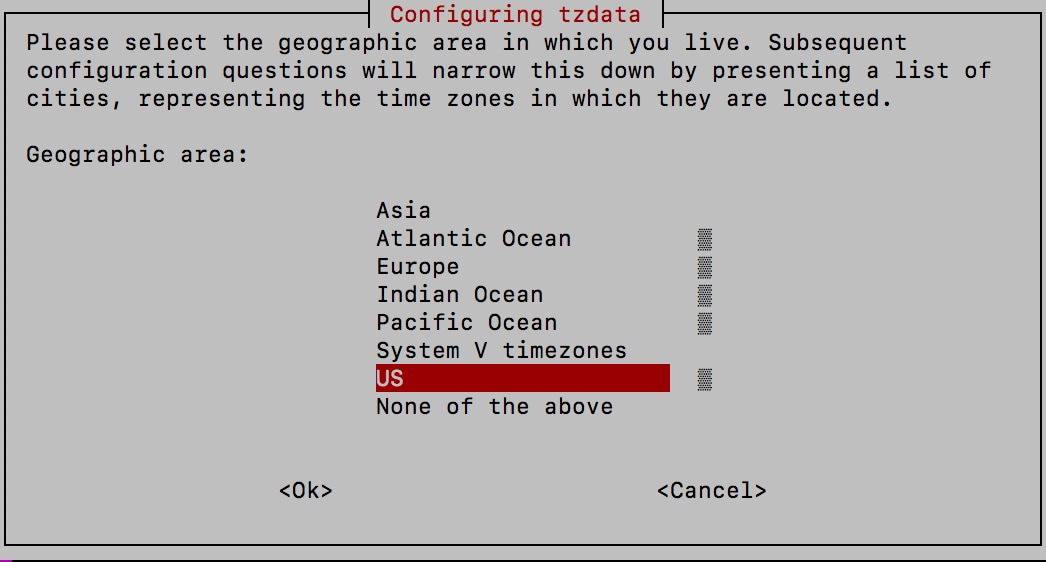
Select the geographic area in which you live.

Step 4

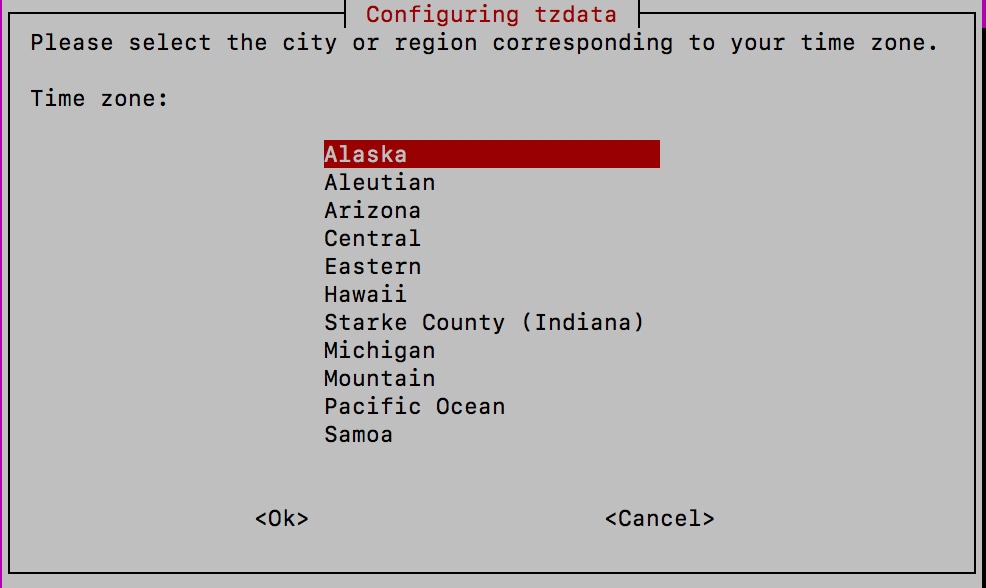
Select the city or region corresponding to your timezone.

Step 5

Select OK to save the settings.

Step 6

Reboot the Crosswork Data Gateway VM so that all processes pick up the new timezone.

Step 7

Log out of the Crosswork Data Gateway VM.


Log in and Log out of Crosswork Data Gateway VM

You can log in to the Crosswork Data Gateway VM in one of the following ways:

To log out of the Crosswork Data Gateway VM, see Log Out of Crosswork Data Gateway VM.

Access Crosswork Data Gateway VM from SSH

The SSH process is protected from brute force attacks by blocking the client IP after a number of login failures. Failures such as incorrect username or password, connection disconnect, or algorithm mismatch are counted against the IP. Up to 4 failures within a 20 minute window will cause the client IP to be blocked for at least 7 minutes. Continuing to accumulate failures will cause the blocked time to be increased. Each client IP is tracked separately.

Follow these steps to login to the Cisco Crosswork Data Gateway VM from SSH.

Procedure


Step 1

From your work station with network access to the Cisco Crosswork Data Gateway management IP, run the following command:

ssh <username>@<ManagementNetworkIP>

where ManagementNetworkIP is the management network IP address.

For example,

To login as adminstrator user: ssh dg-admin@<ManagementNetworkIP>

To login as operator user: ssh dg-oper@<ManagementNetworkIP>

The Crosswork Data Gateway flash screen opens prompting for password.

Step 2

Input the corresponding password (the one that you created during installation process) and press Enter.


If you are unable to access the Cisco Crosswork Data Gateway VM, there is an issue with your network configuration settings. From the console check the network settings. If they are incorrect, it is best to delete the Cisco Crosswork Data Gateway VM and re-install with the correct network settings.

Access Crosswork Data Gateway Through vCenter

Follow these steps to log in via vCenter:

Procedure


Step 1

Locate the VM in vCenter and then right click and select Open Console.

The Crosswork Data Gateway console comes up.

Step 2

Enter username (dg-admin or dg-oper as per the role assigned to you) and the corresponding password (the one that you created during installation process) and press Enter.


Log Out of Crosswork Data Gateway VM

To log out, select option l Logout from the Main Menu and press Enter or click OK.

Cisco Crosswork Data Gateway Authentication and Enrollment

Once the Crosswork Data Gateway is installed, it identifies itself and enrolls with Cisco Crosswork automatically. Cisco Crosswork then instantiates a new Crosswork Data Gateway instance in its database and waits for a "first-sign-of-life" from the Crosswork Data Gateway VM.

After the connectivity is established, the Crosswork Data Gateway instance confirms the identity of the controller application (Cisco Crosswork) and offers its own proof of identity via signed certificates. Cisco Crosswork Data Gateway then downloads the configuration files and functional images (collection profiles) from Cisco Crosswork.

To verify if the Crosswork Data Gateway VM has enrolled successfully with Cisco Crosswork:

  1. Log into the Cisco Crosswork UI. See Log into the Cisco Crosswork UI.

  2. Navigate to Administration > Data Gateway Management.

  3. Click on Virtual Machines tab.

    All the Cisco Crosswork Data Gateway VMs that have successfully enrolled with Cisco Crosswork are displayed here.

Newly installed Crosswork Data Gateway VMs have the Operational State as "Degraded". After enrolling successfully with Cisco Crosswork, the Operational State changes to Not Ready. While it depends on the bandwidth between the Crosswork Data Gateway VMs and Cisco Crosswork, this operation typically takes less than 5 minutes.


Note


Cisco Crosswork Data Gateway VMs that were previously onboarded and still have the Operational State as Degraded need to be investigated. Contact Cisco Customer Experience team for assistance.

For information about the different operational states of the VMs, see Section: Overview of Cisco Crosswork Data Gateway in the Cisco Crosswork Infrastructure 4.4 and Applications Administration Guide.


Click the Refresh icon in the Virtual Machines pane to refresh the pane and reflect the latest Operational State of the Crosswork Data Gateway VMs.


Note


Crosswork Data Gateway VMs that have the Role as Unassigned must be assigned to a pool before they can used. A Cisco Crosswork Data Gateway VM is your physical Crosswork Data Gateway. You cannot attach or detach devices to it. Devices can be attached only to a Cisco Crosswork Data Gateway pool.


Troubleshoot Crosswork Data Gateway Installation and Enrollment

If Crosswork Data Gateway fails to auto-enroll with Cisco Crosswork, you can collect Crosswork Data Gateway show-tech (Main menu > 5 Troubleshooting > 2 Run show-tech) and check for the reason in controller-gateway logs. For more information on how to collect show-tech logs, see Collect show-tech logs from the Interactive Console. If there are session establishment or certificate related issues, ensure that the controller.pem certificate is uploaded using the Interactive Console. .

The following table lists common problems that might be experienced while installing or enrolling Crosswork Data Gateway, and provides approaches to identifying the source of the problem and solving it.

Table 3. Troubleshooting the Installation/Enrollment

Issue

Action

1. Cannot enroll Crosswork Data Gateway with Cisco Crosswork

Crosswork Data Gateway cannot be enrolled with Cisco Crosswork due to an NTP issue, i.e., there is a clock-drift between the two.

The clock-drift might be with either Crosswork Data Gateway or Cisco Crosswork.

Also, on the NTP servers for Cisco Crosswork and Crosswork Data Gateway, the initial time is set to the ESXi server. For this reason, the ESXi server must also have NTP configured.

Sync the clock time on the host and retry.

1. Log into the Crosswork Data Gateway VM.

2. From the main menu, select 5 Troubleshooting > 2 Run show-tech.

Enter the destination to save the tarball containing logs and vitals and click OK.

The show-tech is now encrypted with a file extension ending with .tar.xz.

3. Run the following command to decrypt the show-tech file.

openssl enc -d -AES-256-CBC -pbkdf2 -md sha512 -iter 100000 -in <showtech file> -out <decrypted filename> -pass pass:<encrypt string>

In the show-tech logs (in file session.log at location /opt/dg/log/controller-gateway/session.log), if you see the error UNAUTHENTICATED:invalid certificate. reason: x509: certificate has expired or is not yet valid, then there is a clock-drift between Crosswork Data Gateway and Cisco Crosswork.

3. From the main menu, go to 3 Change Current System Settings > 1 Configure NTP.

Configure NTP to sync with the clock time on the Cisco Crosswork server and try re-enrolling Crosswork Data Gateway.

2. Crosswork Data Gateway remains in degraded state for more than 10 minutes with reason stated as "Could not collect vitals"

Crosswork Data Gateway remains in degraded state for more than 10 minutes with reason stated as "Could not collect vitals" due to certificate errors.

1. Log into the Crosswork Data Gateway VM.

2. From the main menu, select 5 Troubleshooting > 2 Run show-tech.

Enter the destination to save the tarball containing logs and vitals and click OK.

The show-tech is now encrypted with a file extension ending with .tar.xz.

3. Run the following command to decrypt the show-tech file.

openssl enc -d -AES-256-CBC -pbkdf2 -md sha512 -iter 100000 -in <showtech file> -out <decrypted filename> -pass pass:<encrypt string>

In the show-tech logs (in file gateway.log at location /opt/dg/log/controller-gateway/gateway.log), if you see certificate errors, then re-upload the Controller Signing Certificate, as explained in the steps below:

1. From the main menu, select 3 Change Current System Settings > 7 Import Certificate.

2. From the Import Certificates menu, select 1 Controller Signing Certificate File and click OK.

3. Enter the SCP URI for the certificate file and click OK.

3. Crosswork Data Gateway remains in degraded state for more than 10 minutes with reason stated as "gRPC connection cannot be established"

Crosswork Data Gateway remains in degraded state for more than 10 minutes with reason stated as "gRPC connection cannot be established" due to certificate errors.

1. Re-upload the certificate file as explained in the troubleshooting scenario 2. above.

2. Reboot the Crosswork Data Gateway VM following the steps below:

a. From the main menu, select 5 Troubleshooting and click OK.

b. From the Troubleshooting menu, select 4 Reboot VM and click OK.

c. Once the reboot is complete, check if the Crosswork Data Gateway's operational status is Up.

Crosswork Data Gateway goes into Error state

Check the vNIC values in the OVF template in case of vCenter.

Crosswork Data Gateway enrollment with 1 NIC Cisco Crosswork fails

Check the vNIC values in the OVF template in case of vCenter. If ActiveVnics property is missing for 1 NIC and 2 NIC, Crosswork Data Gateway tries to deploy 3 NICs by default.

Due to this, Crosswork Data Gateway enrollment with 1 NIC Cisco Crosswork fails post deployment with error in gateway.log that Crosswork Data Gateway expected 1 NIC, but it is not 1 NIC.

Crosswork Data Gateway deploys Standard profile instead of Extended profile

Check the Deployment parameter in the OVF template in case of vCenter. If Deployment paramter mismatches or does not exist for an Extended profile, then Crosswork Data Gateway deploys the Standard profile by default.

Import Controller Signing Certificate File

The Controller Certificate file is automatically imported after the VM boots. You will need to perform this step manually for the following reasons:

  • You have not specified Controller Signing Certificate File URI under the Controller Settings during installation.

  • Cisco Crosswork was upgraded or reinstalled and you need to authenticate and enroll Crosswork Data Gateway with Cisco Crosswork.

Follow these steps to import controller signing certificate file.

Procedure


Step 1

From the Cisco Crosswork Data Gateway VM's Interactive Menu, select 3 Change Current System Settings.

The Change System Settings menu opens.

Step 2

Select 7 Import Certificate.

Step 3

From Import Certificates menu, select 1 Controller Signing Certificate File.

Step 4

Enter the SCP URI for the certificate file.

An example URI is given below:

cw-admin@{server ip}:/home/cw-admin/controller.pem

Step 5

Enter the SCP passphrase (the SCP user password).

The certificate file is imported.

Step 6

Verify that the certificate was installed successfully. SeeView the Controller Signing Certificate File.


View the Controller Signing Certificate File

Follow the steps to view the signing certificate.

Procedure


Step 1

From the Crosswork Data Gateway VM's interactive menu, select 2 Show System Settings.

Step 2

From the Show Current System Settings menu, select 7 Certificates.

Step 3

Select 2 Controller Signing Certificate File.

Crosswork Data Gateway displays the default certificate if no new certificate has been imported. Otherwise, it displays the new certificate if it was successfully imported.