Maintaining the Cisco Remote PHY Shelf 7200

Removing the Power Module

Before you begin

  • Attach an ESD-preventive wrist strap to your wrist and connect the other end to the grounding lug connected to the chassis.

  • Be aware of the weight and size of the equipment. Handle it with care.

Restrictions

  • For the DC-powered Cisco Remote PHY Shelf 7200 with 2+2 redundancy, ensure that the chassis has at least two operational DC Power Modules for the chassis to be functional.

  • • For the AC-powered Cisco Remote PHY Shelf 7200 with 2+2 redundancy, ensure that the chassis has at least two operational AC Power Modules for the chassis to be functional.

Required Tools and Equipment

  • ESD-preventive wrist strap

  • 3/16" flat-blade torque screwdriver

  • Antistatic bag

To remove the Power Module, complete the following steps:

  1. Loosen the screw on the Power Module ejector using a 3/16" flat-blade torque screwdriver.

  2. Pull the handle down to disengage the Power Module from the chassis.

  3. Slide the Power Module out of its bay with one hand while supporting the base of the module with your other hand.
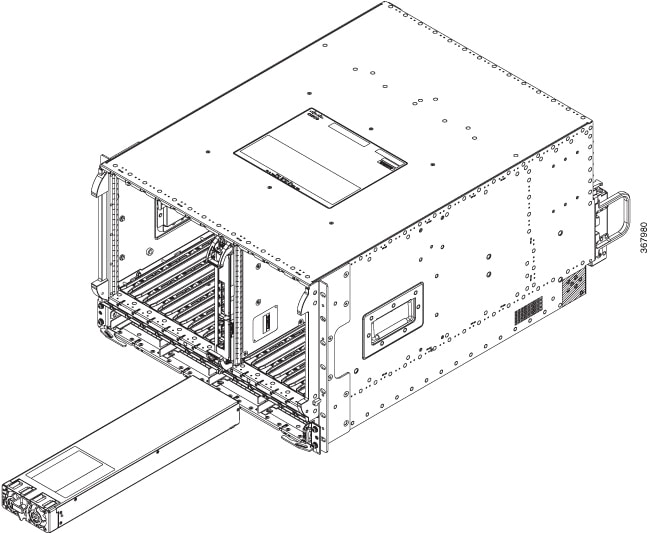
  4. Place the removed Power Module in an antistatic bag.
Removing the Fan Tray

The fan tray is a Field Replaceable Unit which can be replaced on the site when required.

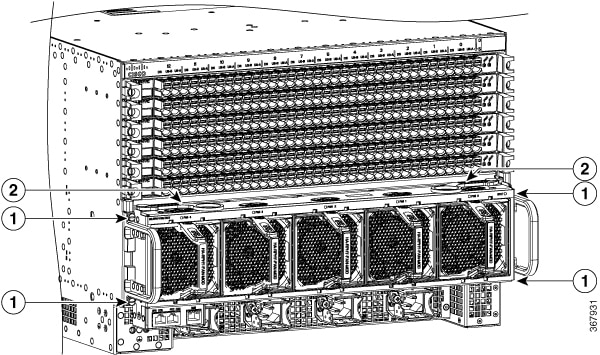
Complete the following steps to replace a fan tray:

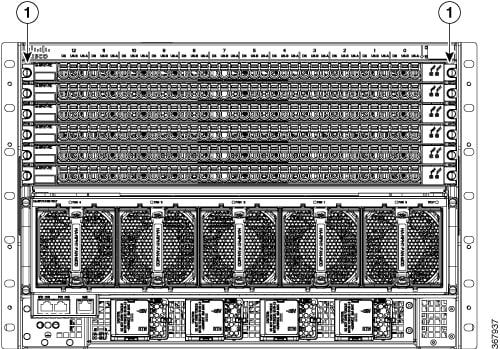
  1. Unscrew the four Fan Tray-to-chassis securing screws.

    1

    Fan Tray Screws

    2

    Ejectors

  2. Actuate both ejectors on the Fan Tray to pull out the Fan Tray for about 0.5 inch.

  3. Wait for the fan blades are stopped.


    DANGER

    Rotating fan blades can cause serious injury during fan tray removal or replacement.


  4. Pull out the Fan Tray completely and replace it with a new Fan Tray.

The shelf system should not be operating without a Fan Tray installed for more than 1-2 minutes or the system could experience thermal events, alarms, and potentially trip thermal protections that would shut down RPD cards.

Removing the Fan Module

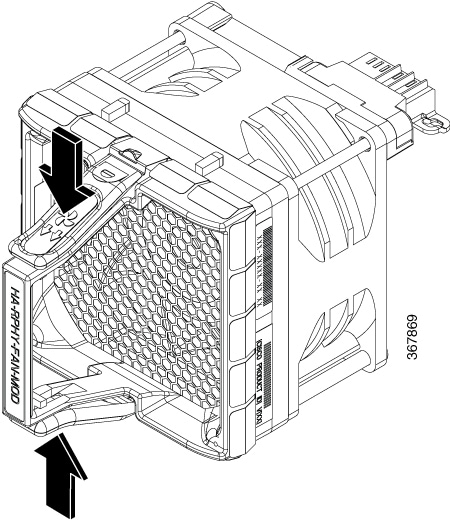
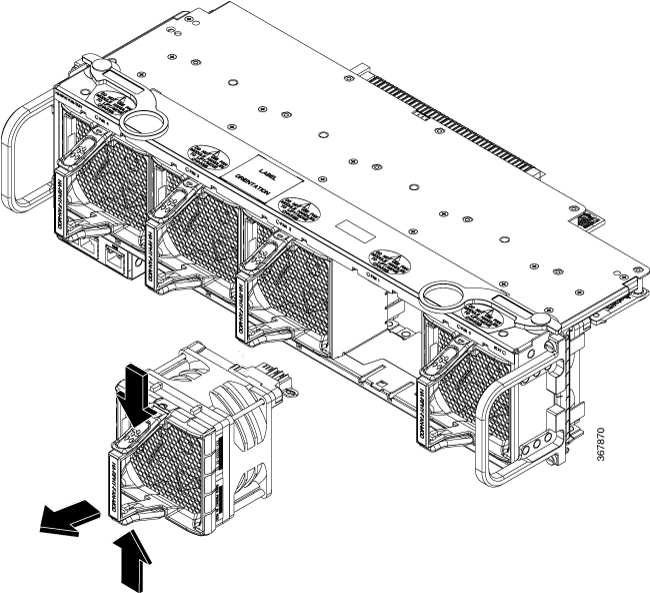
The Fan Module can be OIR from the Fan Tray while the Cisco Remote PHY Shelf 7200 system is operational. The HA-RPHY-FAN-MOD is comprised of only the fan, handle structure, EMI containment, and connector to interface to the Cisco Remote PHY Shelf 7200 Fan Tray.


DANGER

Rotating fan blades can cause serious injury during fan tray removal or replacement.


To remove the Fan Module from the Fan Tray, complete the following steps:

  1. Firrmly and fully depress the top and bottom fan module latches on the pastic handle.
  2. Gently pull the Fan Module while continually depressing the latches on the handle to remove the Fan Module from the Fan Tray.

Removing the PIC

The Cisco Remote PHY Shelf 7200 PIC should be handled gently and carefully, to avoid damage to the RF connectors.

Complete the following steps to remove the PIC:

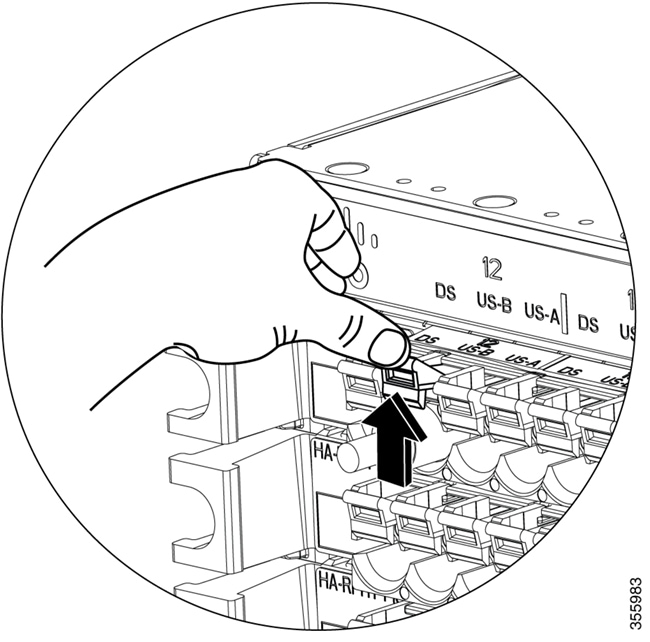
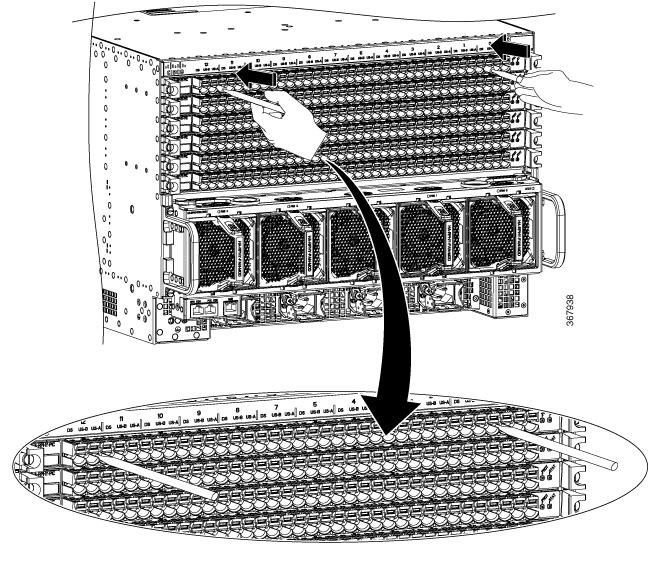
  1. Remove the cables from the specific RF PIC by actuating each port plastic latch vertically and pulling out the cables horizontally.

    Figure 1. Actuating the latch to remove the cable
  2. Unfasten the two captive screws on either side of the RF PIC faceplate.

    1

    Captive Screws on the faceplate

  3. Insert the PIC removal tools into the cable ports until the plastic latch engages.

  4. Use the PIC removal tools as handles to pull the RF PIC card out of the system.

Opening the PIC Connector Latches

The PIC connector latches are springs designed to close automatically when cables are patched into them. When opened they want to spring back closed.

You can choose to actuate the latch using your fingers or by using a tool.

  • You can actuate the latches with your fingers. There is no end detent that keeps them open. To actuate the latch, gently lift the latch upward.

    Figure 2. Actuating the latch with your fingers

    Note

    Do not try to actuate the latch by pushing backward into the panel.


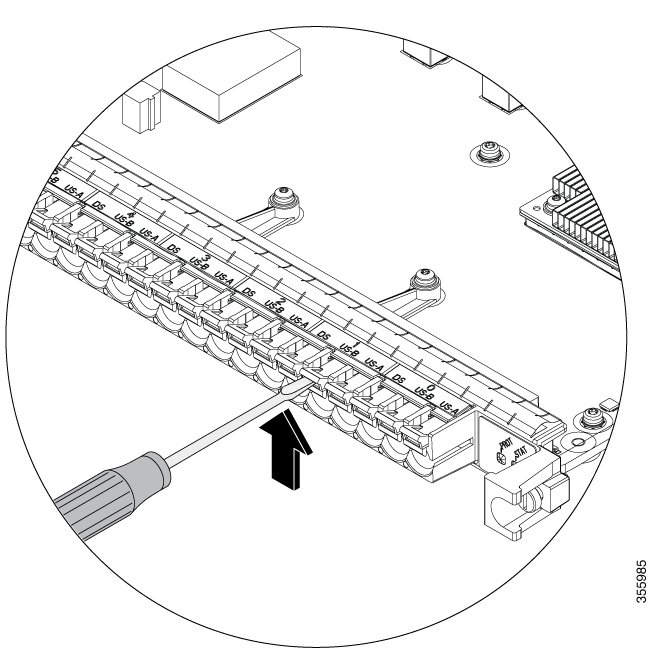
  • You can also lift the latch upward with the tool. It only takes 3.5lbs of force to open the spring latch, 6lbs will bring the latch to the top of its extraction point for replacement. You can actuate the latches with use of a 3/16 screwdriver or a similar tool.

    Figure 3. Actuating the latch with a tool

    Note

    Do not push the latch straight back inward excessively with the tool.


Removing the RPD

To remove the RPD, complete the following steps:

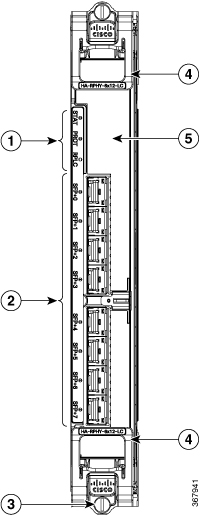
  1. Unfasten the two faceplate captive screws.

    1

    Status LED's

    2

    8x SFP + Ports

    3

    Captive Screws

    4

    Ejector

    5

    Air Filter

  2. Actuate both ejectors at the same time to pull the card out of the chassis.

  3. Gently pull on the ejectors to slide the card out of the chassis.

Removing the Air Filter

Required Tools and Equipment

  • ESD-preventive Wrist Strap

Attach an ESD-preventive wrist strap to your wrist and connect its end to the grounding lug that is connected to the chassis.


Note

Removal of the Air Filter can be done while the RPD is in service or outside the system.


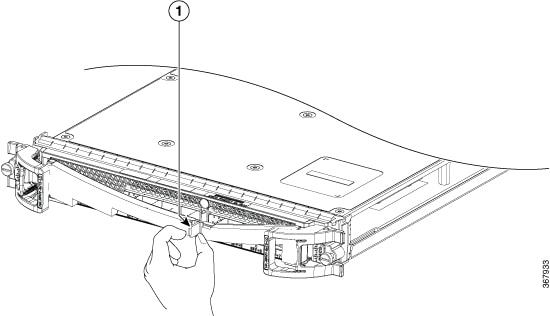
  1. Hold the Air Filter Pull Tab located on center of the Air Filter and gently pull the tab for the Air Filter removal.

    1

    Air Filter Pull Tab

  2. Pull the left and right ends of the Air Filter out from behind the ejector levers.


Note

Removal can be done while the RPD is in service, or outside the system.