The Cable RPD Automation page enables you to add, organize, and update information about CMTS and RPD devices in the network.
The information available in the view is focused on CCAP Cores and Remote PHY Devices.
The Cable RPD Automation page has four tabs; Overview, RPD Assignment, Service Definitions, and Global Settings.
Overview
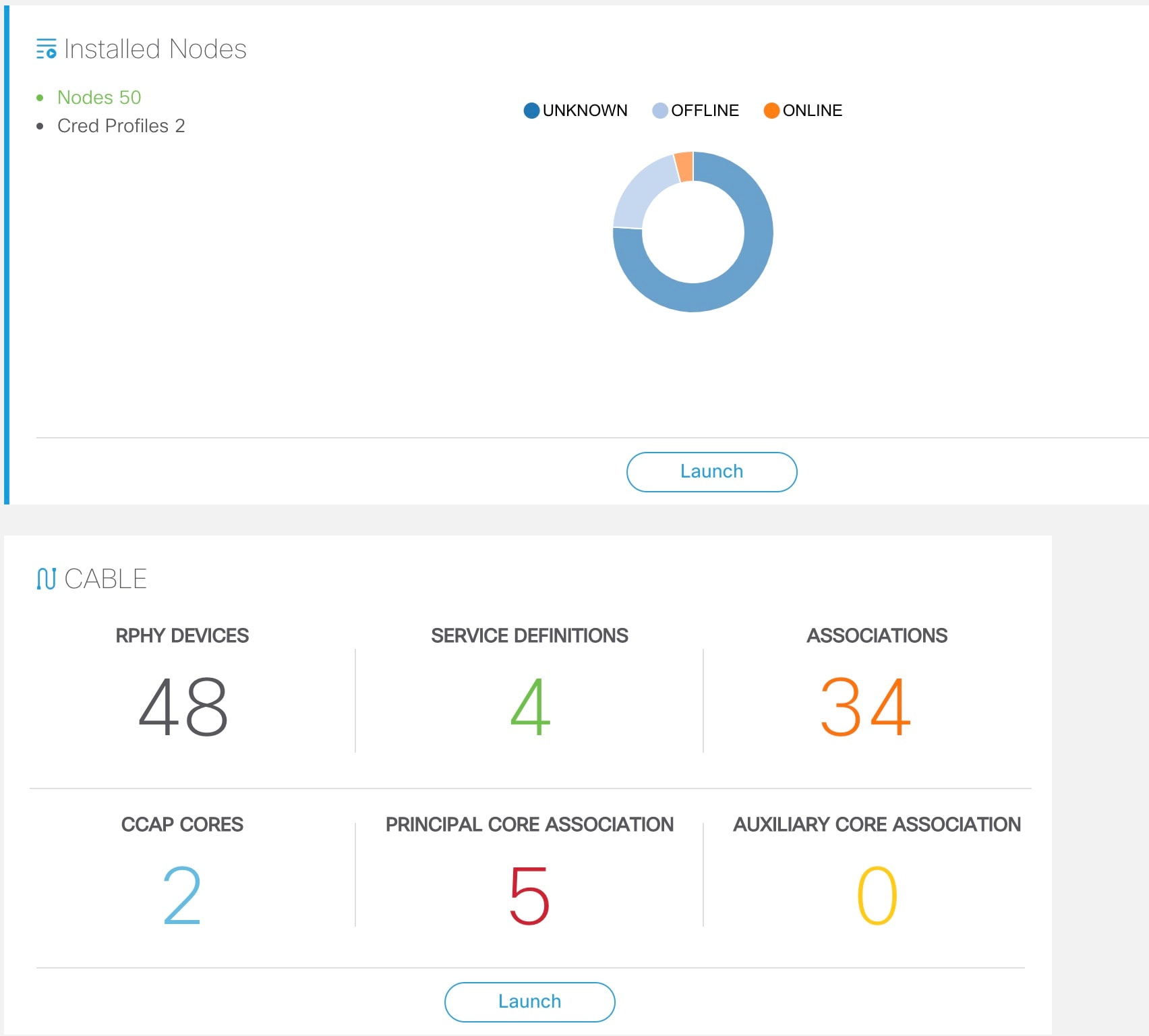
Provides a view of the number of RPDs, their status, and the number of Cores. Also, it provides a dashboard view of the Core
and the RPDs in different states.
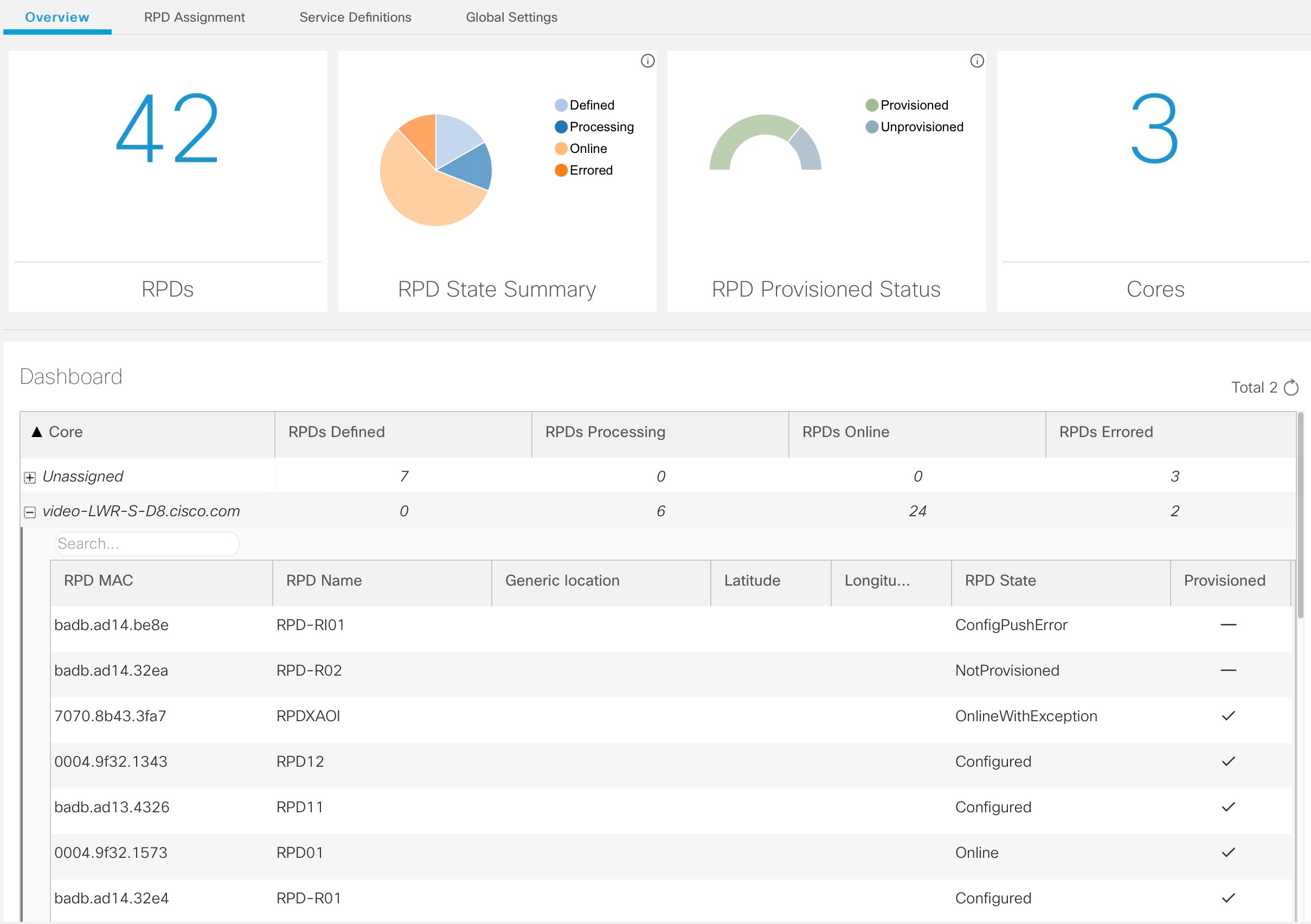
You can view the following RPD State Summary table by clicking the  icon in the RPD State Summary dashlet.
Table 1. RPD States Summary
|
RPD Summary
|
RPD State
|
Description
|
|
DEFINED
|
Defined
|
RPD pairing is defined. However, MAC address is not yet assigned.
|
|
DEFINED
|
Installed
|
Installed RPD. RPD name, MAC address, and the GPS location are available.
|
|
DEFINED
|
Inventory
|
Added RPD MAC address to the inventory without the GPS details.
|
|
ERRORED
|
ConfigNotFound
|
RPD assignment is incomplete or not specified in the Cisco Smart PHY application.
|
|
ERRORED
|
ConfigPushError
|
Unable to push the RPD configuration to the CCAP core.
|
|
ERRORED
|
ConfigReadError
|
Unable to get the existing CCAP core configuration.
|
|
ERRORED
|
ConfigurationError
|
Assigned incorrect RPD in the Cisco Smart PHY application.
|
|
ERRORED
|
GcpRedirectError
|
Received an error from the RPD when redirecting to the CCAP core.
|
|
ERRORED
|
NotProvisioned
|
Cisco cBR-8 router is not provisioned with the RPD configuration.
RPD configuration is not pushed to the Cisco cBR-8 router.
|
|
ERRORED
|
Offline
|
RPD is offline. However, RPD configuration is pushed to the CCAP core.
|
|
ERRORED
|
ResourceAllocationError
|
Unable to allocate resources to an RPD for the assigned CCAP core or interface.
|
|
ONLINE
|
Online
|
RPD is online on the CCAP core.
|
|
ONLINE
|
OnlineWithException
|
RPD is online, but NDF or NDR fails.
|
|
ONLINE
|
PartialOnline
|
Parttial services are available if the RPD is not online on all cores.
|
|
PROCESSING
|
Configured
|
CCAP core is configured.
RPD configuration is pushed to the CCAP core.
|
|
PROCESSING
|
DeletePending
|
RPD pairing deletion is pending.
|
|
PROCESSING
|
GcpRedirected
|
Received an ACK from the RPD for the CCAP core redirect message.
This redirect message captures the result of the redirect request, initiated by the Cisco Smart PHY application, along with
the hostname, the IP address, and the interface of the redirected core.
|
|
PROCESSING
|
GcpRedirectStartedWithException
|
RPD configuration is pushed to the CCAP core and redirecting the RPD to that core has started. However, one of the following
errors occurred:
|
|
PROCESSING
|
GcpRedirectStarted
|
RPD configuration is pushed to the CCAP core and the RPD is redirected to that core.
|
|
PROCESSING
|
GcpRedirectedWithException
|
Received an ACK from the RPD for the CCAP core redirect message. However, one of the following errors occurred:
|
|
PROCESSING
|
GcpUp
|
Received GCP message from the RPD.
|
|
WARNING
|
RouterVersionIncompatible
|
RPD software version is incompatible with the CCAP core version.
|
|
WARNING
|
StaticRouteNotConfigured
|
Static route is not configured.
|
RPD Assignment
Allows you to add, edit, import, or export the details of RPD assignments. Search allows you to search for or filter the RPD
information.
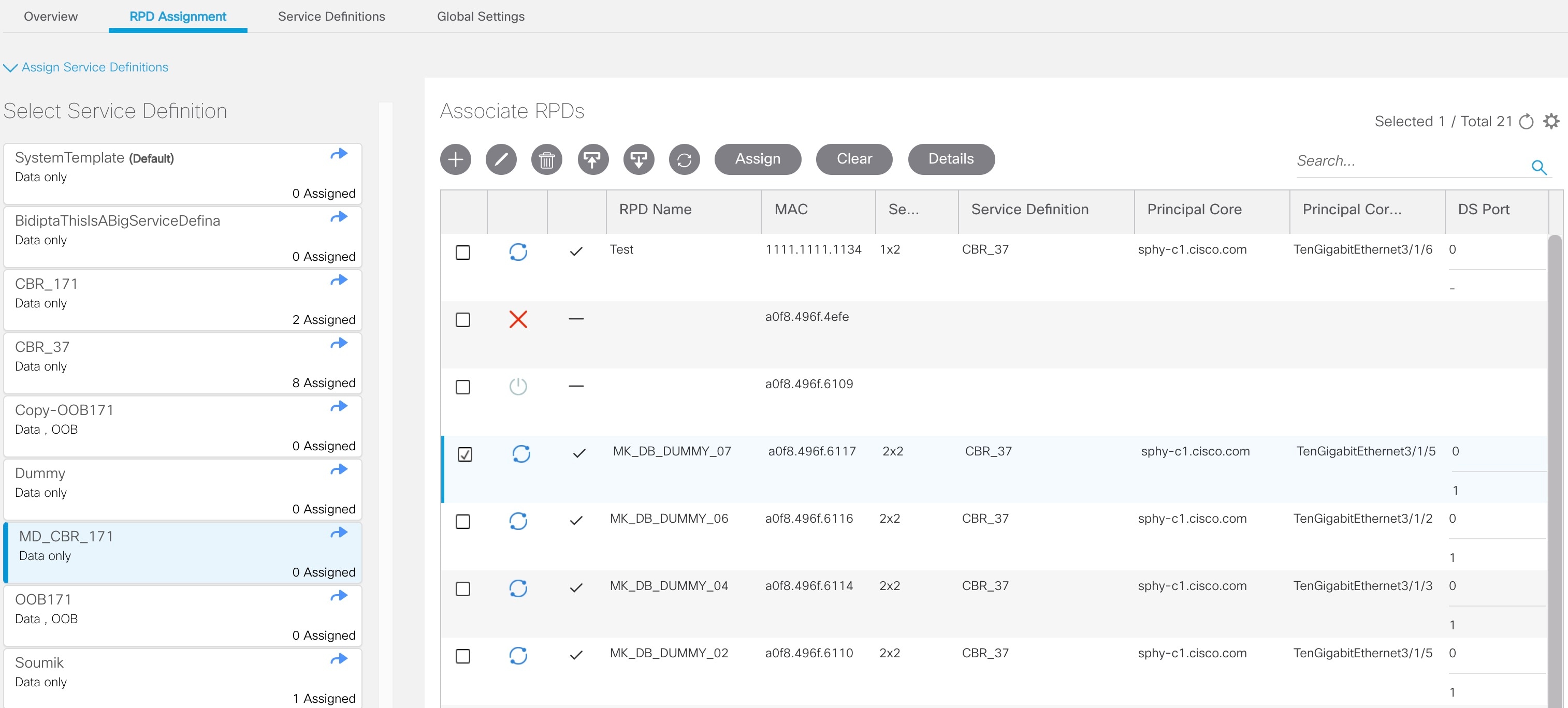
Following are the menu options available on the RPD Assignment window:
|
Options
|
Description
|
|
|
To assign an RPD for a specific RPD name or to add an RPD MAC address to the RPD Inventory.
You can assign additional RPD information only after specifying a name for the RPD MAC address.
|
|
|
To edit an existing RPD assignment.
You can edit the name, the MAC address information, and so on.
|
|

|
To delete an RPD name and its RPD assignment information.
When you delete the RPD Assignment details, the RPD MAC address that is assigned to the RPD name is moved back to the Inventory
and is retained in the system.
To delete the RPD MAC address, delete it from the main Inventory page.
Similarly, deleting an RPD MAC address from the Inventory does not delete the RPD name and its assignment information in the
RPD Assignment table. This deletion removes only the RPD MAC address from the RPD Assignment table.
|
|

|
Imports the details of RPD assignments using a CSV file.
Sample of the CSV file is available when you click this icon.
|
|

|
Exports the details of RPD assignments to a CSV file.
|
 |
Synchronizes RPD states manually by fetching the latest RPD status.
|
|
Assign
|
To assign the chosen Service Definition to all the selected RPDs.
|
|
Clear
|
To clear the core and the service template assignment for a specific RPD name. This option does not clear the mapping between
an RPD name and the MAC address.
|
|
Details
|
To get the details of the RPD, such as RPD Summary, RPD State History, and RPD CLI.
|
|
Search
|
Use any filtering option.
|
|

|
Sets the required columns in the device table.
|
Following are the field descriptions in the Associate RPDs table:
|
Field Name
|
Description
|
|
Status
|
Shows the status of the RPDs.
|
|
Provisioned
|
Shows whether the RPD is provisioned or not.
|
|
RPD Name
|
Name for the RPD.
This RPD name is also used in the cable rpd CLI command.
|
|
MAC
|
MAC address of the RPD.
|
|
Segmentation
|
Node segmentation of the RPD: 1x1, 1x2, or 2x2.
|
|
Service Definition
|
Service Definition as created in the Service Definitions tab. If Cisco Smart PHY does not manage the principal CCAP core and if the Principal Core field is empty, then this Service Definition field is optional.
|
|
Principal Core
|
The name of the managed Cisco cBR-8 router or the unmanaged Core, which is the Principal Converged Cable Access Platform (CCAP)
Core for the RPD.
|
|
SSD Profile
|
Secure Software Download (SSD) profile details for image storage.
|
|
Disable Network Delay
|
The default is value is No.
Changing this value to yes is service impacting, if the RPD’s assigned Service Definition/Template has network-delay configured.
|
|
Principal Core Interface
|
If the Principal Core is a managed Cisco cBR-8 router, the name of the TenGigabitEthernet DPIC interface is listed in this
field.
If the Principal Core is an unmanaged Core, the field is empty.
|
|
Video Core
|
Name of the Cisco cBR-8 router, which is the auxiliary CCAP core for the RPD that provides video services.
|
|
Video Core Interfaces
|
List of complete names of the TenGigabitEthernet DPIC interfaces to be used for Video Services.
|
|
OOB Core
|
Name of the Cisco cBR-8 router which is the CCAP core for the RPD that provides out-of-band (OOB) SCTE 55–1 service and NDF/NDR
services.
|
|
OOB Core Interface
|
Complete name of the TenGigabitEthernet DPIC interface to be used for out-of-band 55-1 and NDF/NDR service.
|
|
Downstream VOM ID
|
OOB 55-1 Downstream Virtual out-of-band Modulator (VOM) Identification (ID). If present, this value overrides the value from
the Service Definition.
|
|
Downstream VOM Profile
|
OOB 55-1 Downstream VOM profile. If present, this value overrides the value from the Service Definition.
|
|
Upstream VARPD ID
|
OOB 55-1 Upstream Virtual Advanced Return Path Demodulator (VARPD) ID. If present, this value overrides the value from the
Service Definition.
|
|
Upstream VARPD Profile
|
OOB 55-1 Upstream VARPD profile for first logical Downstream/Upstream (DS/US) pairing. If present, this value overrides the
value from the Service Definition.
The Upstream VARPD Profile (upstreamVarpdProfile) and the Second Upstream VARPD Profile (secondUpstreamVarpdProfile) can have
the same value. For more details, see Common OOB 55-1 US Profile for Cisco RPD 1x2/2x2.
|
|
Second Upstream VARPD Profile
|
OOB 55-1 Upstream VARPD profile for second logical Downstream/Upstream (DS/US) pairing. If present, this value overrides the
value from the Service Definition.
The upstream VARPD profile (upstreamVarpdProfile) and the second upstream VARPD profile (secondUpstreamVarpdProfile) can have
the same value. For more details, see Common OOB 55-1 US Profile for Cisco RPD 1x2/2x2.
|
|
Cable DSG TGs
|
Semicolon separated list of DOCSIS Set-Top Gateway (DSG) Tunnel Group (TG) identifications. If present, this list overrides
the list from the Service Definition.
|
|
Additional Cores
|
Semicolon separated list of additional cores to which the RPD must connect.
|
|
Latitude
|
Latitude of the RPD (GPS coordinates)
|
|
Longitude
|
Longitude of the RPD (GPS coordinates)
|
|
RPD Description
|
Description for the RPD
|
Service Definitions
Allows you to add, edit, delete, or assign service templates. Fields that are not marked as optional are mandatory.
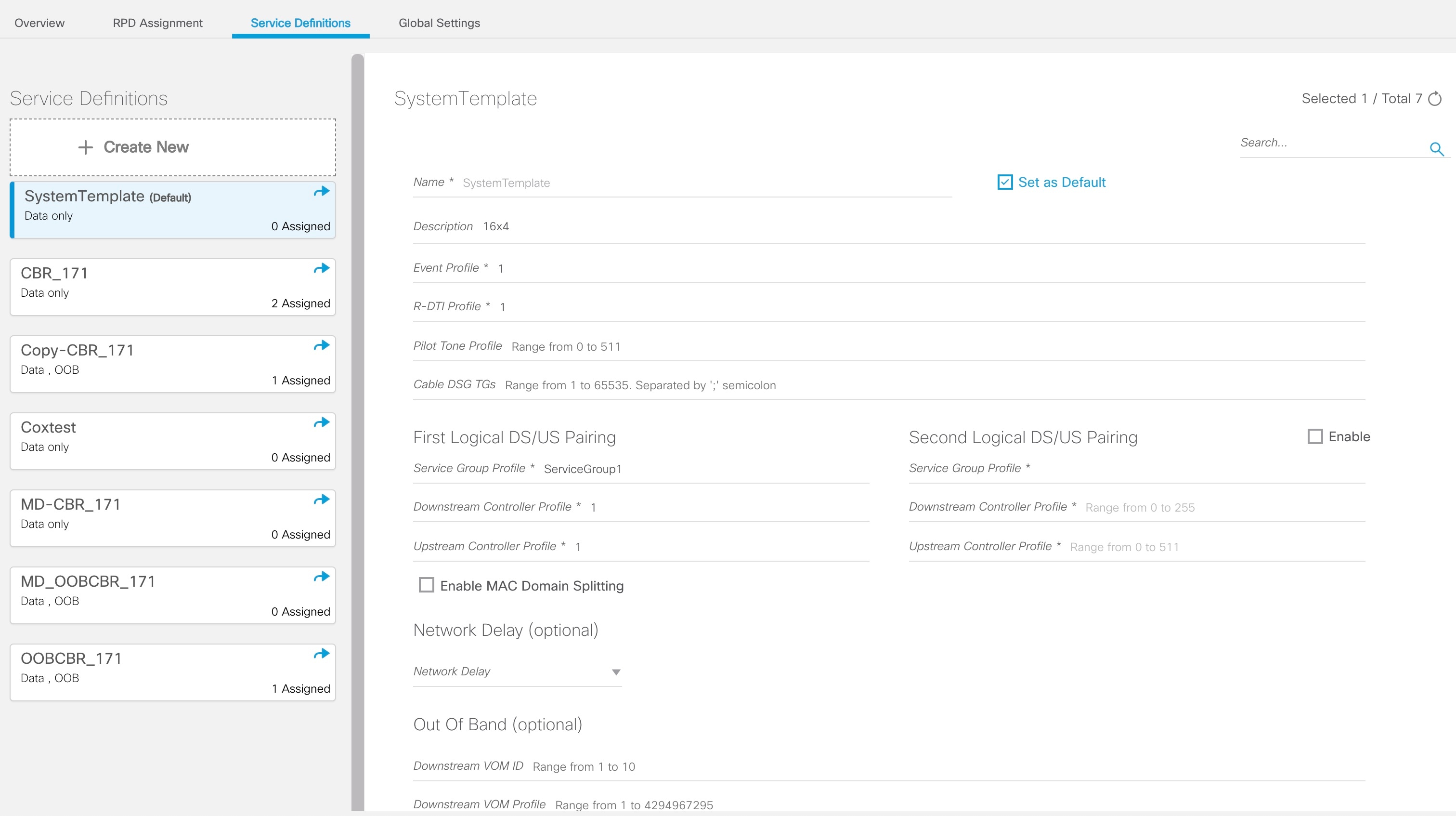
Following are the menu options descriptions:
|
Name
|
Description
|
|
+ Create New
|
Click this option to create a new service template.
|
|
Name of the existing service definition
|
Click the name of the existing service definition to edit the template.
|
|
New Service Definition
|
Enter the details in each filed and click the Save button to create a new service template.
|
|
Search
|
Use this Search text field in upper right-hand corner to filter service definition names.
|
Global Settings
You can perform the following configurations from the Global Settings window.
-
Database Backup
-
Global Configuration
-
Software Compatibility
Database Backup
You can back up the database to a local server or a remote server.
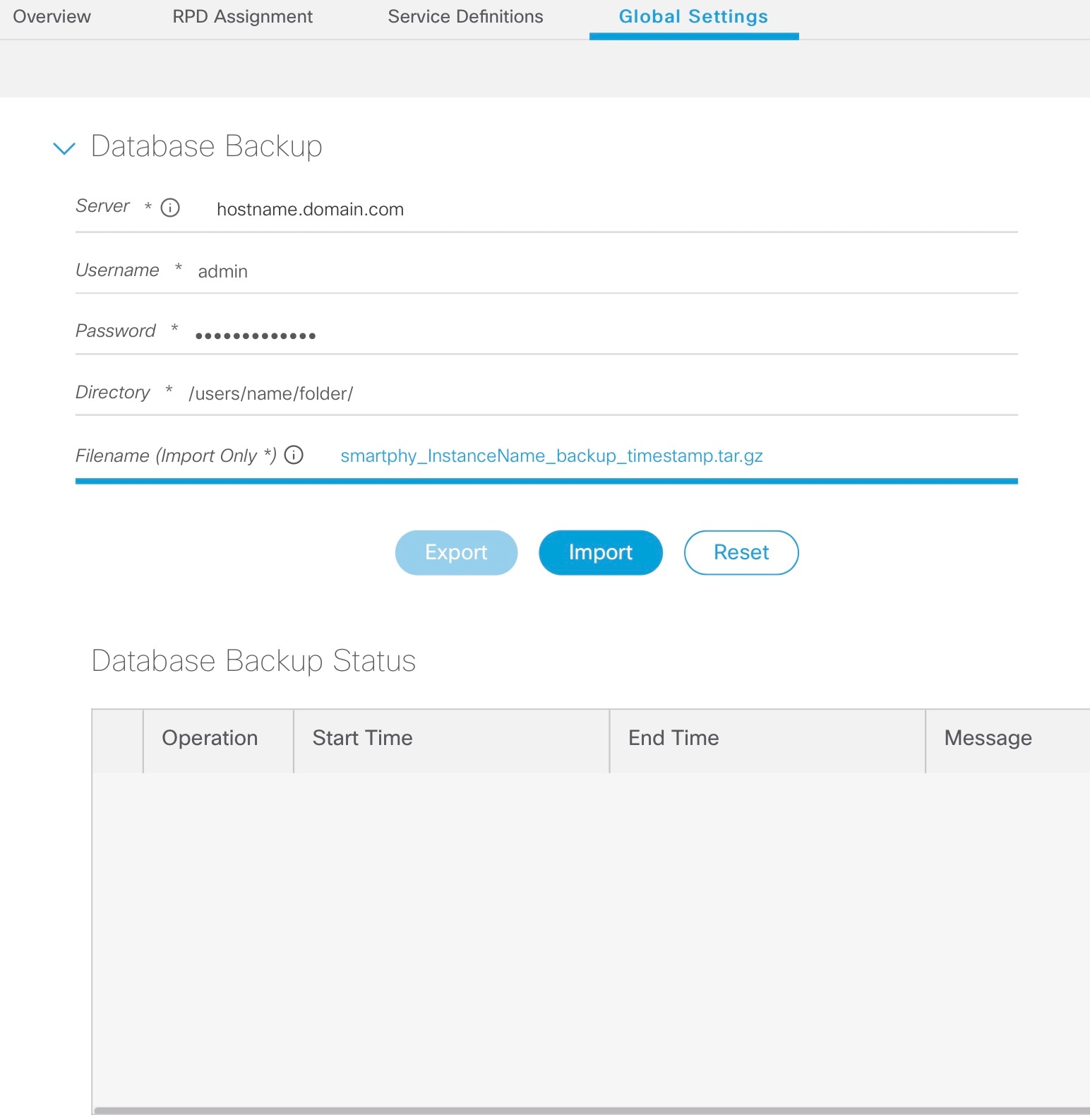
The database backup file is a TAR.GZ file with the following naming convention: filename_YYYYMMDD_HHMMSS.tar.gz. For example, aio_backup_20210318_121354.tar.gz. Enter the following details in the Database Backup window to back up the database.
|
Field
|
Description
|
|
Server
|
The location where you want to save the DB.
-
Local backup—Enter localhost . Local backup files are saved to the /var/smartphy/backup directory on the local filesystem.
-
Remote backup—Enter the IP address or the principal coreFQDN of the remote host. For remote backup, the Cisco Smart PHY application
uses SFTP to transfer files from Cisco Smart PHY instances.
|
|
Username
|
|
|
Password
|
|
|
Directory
|
|
|
Filename (Import Only)
|
Used exclusively for importing a database. Imported file must be in the following format: smartphy_InstanceName_backup_timestamp.tar.gz
|
|
Export
|
Click the Export button to perform local and remote backup.
|
|
Import
|
Click the Import button to import a DB.
|
Global Configuration
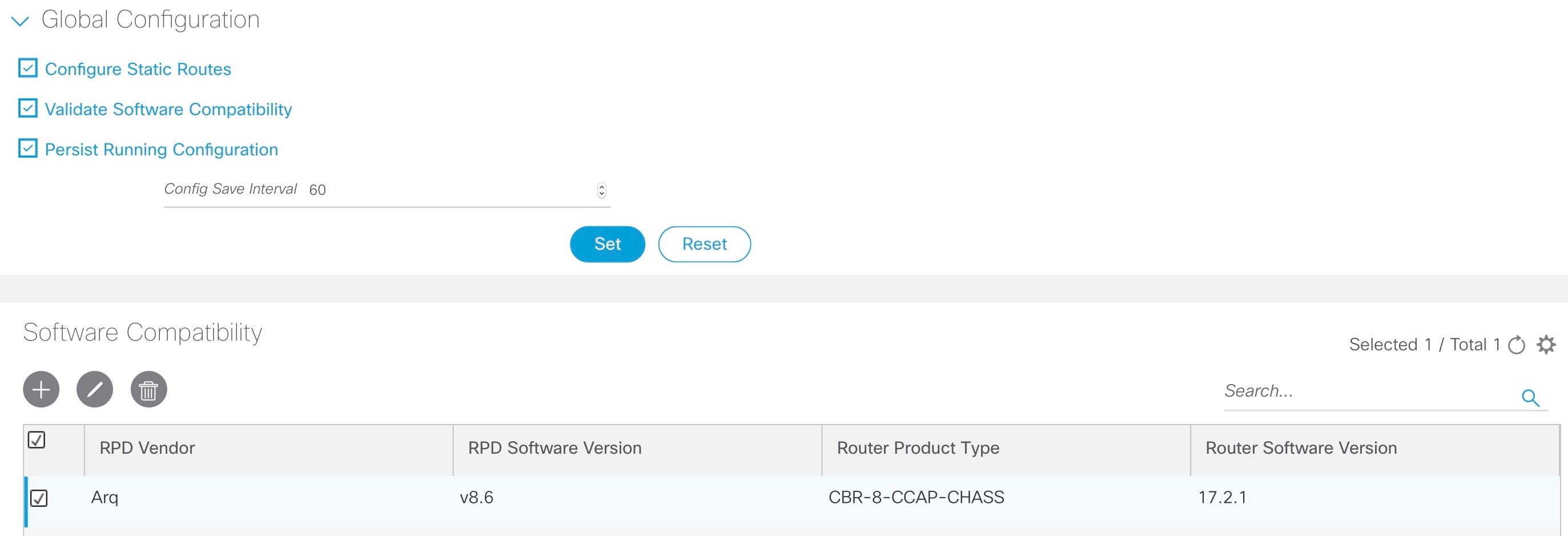
The Global Configuration section under the Global Settings menu provides the following options for you to configure on RPDs. Choose the following functions according to your requirement.
-
Configure Static Routes—If you enable this option, for interfaces with /31 (IPv4 networks) or /127 (IPv6 networks) configured
on the DPIC, the Cisco Smart PHY application adds a static route configuration on the Cisco cBR-8 router per RPD.
-
Validate Software Compatibility—If you enable this option, the Cisco Smart PHY application checks the compatibility between
the RPD version and the Cisco cBR-8 router version that is specified in the table.
-
Persist Running Configuration—If you enable this option, when the Cisco Smart PHY makes a change to the Cisco cBR-8 configuration,
the Cisco Smart PHY makes the configuration persistent. This option allows you to make the changes persistent on the Cisco
cBR-8 router at a specific interval.
Static Route
To route traffic and for communication between an RPD and a Cisco cBR-8 router, static routes to the Cisco cBR-8 router are
created when you configure the RPDs.
Smart PHY automatically creates a static route for the RPD if the DPIC interface is configured with a /31 (IPv4 networks)
or /127 (IPv6 networks) subnet. The static route is determined by calculating the gateway IP address and routing traffic through
the gateway for the RPD.

Note |
|
Sample of a Cisco Smart PHY-Generated Configuration
cable rpd <the name assigned to the RPD>
 identifier a0f8.496f.6506
 type shelf
 rpd-ds 0 base-power 25
 rpd-ds 1 base-power 25
 core-interface Te9/1/6
  principal
  rpd-ds 0 downstream-cable 9/0/16 profile 100
  rpd-us 0 upstream-cable 9/0/1 profile 4
 r-dti 2
 rpd-event profile 0
rpd-55d1-us-event profile 0

cable fiber-node <next available fiber-node>
 downstream Downstream-Cable 9/0/16
 upstream Upstream-Cable 9/0/1
 downstream sg-channel 0 23 downstream-Cable 9/0/16 rf-channel 0 23
 upstream sg-channel 0 3 Upstream-Cable 9/0/1 us-channel 0 3
 service-group managed md 0 Cable 9/0/1
 service-group profile SG1
Software Compatibility
Allows you to add, edit, or delete the software compatibility matrix. Fields that are not marked as optional are mandatory.
Software Compatibility—This window displays a compatibility matrix for the RPD software versions and the Cisco cBR-8 software
versions. The Smart PHY application detects the software incompatibility between an RPD and a Cisco cBR-8 router, and alerts
you about the incompatibility. After the alert appears, either manually upgrade the RPD software or associate the RPD with
an SSD profile through the Cisco Smart PHY application, which notifies the Cisco cBR-8 for the software upgrade.
Table 2. Field Description for Software Compatibility Matrix
|
Name
|
Description
|
|
RPD Vendor
|
Name of the RPD vendor.
|
|
RPD Software Version
|
Software version running on the RPD.
|
|
Router Product Type
|
Product type of the router from the Inventory. Example: CBR-8-CCAP-CHASS
|
|
Router Software Version
|
Software version of the router.
|








 Feedback