Configure Credential Profiles

Create a New Credential Profile

Before you begin

Make sure that the SSH and SNMP are configured on Cisco cBR-8 router.

Procedure


Step 1

Choose Inventory > Credential Profiles.

Step 2

Click Create New.

Step 3

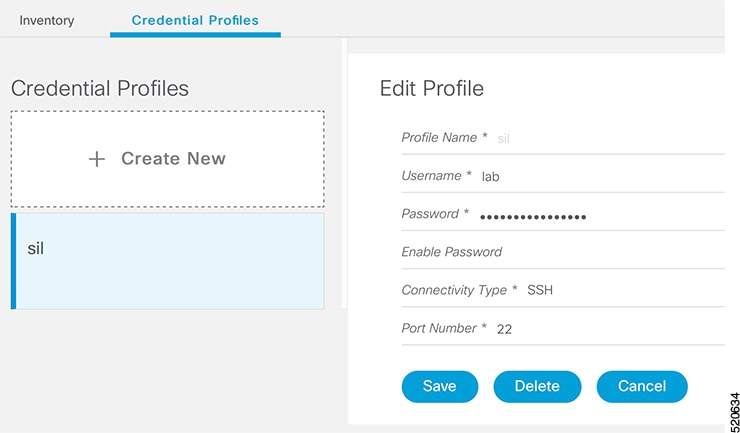
Enter the following details in the text fields.

If you have many credential profiles, make the name and description as informative as possible, because that information is displayed on the Credential Profiles panel.

Field Name

Description

Profile Name

Name of the Profile

Username

Username of the Cisco cBR-8 router

Password

Password of the Cisco cBR-8 router

Connectivity Type

SSH

Port Number

22

Save/Delete/Cancel

Use these buttons to complete your action.

Note 

The Cisco Smart PHY application requires SSH to log in directly to the exec mode on the Cisco cBR-8 router.

When a device is added or updated using this profile, the content you specify here is applied to the device.

Step 4

Click Save.


Apply Device Credential from Credential Profiles

Using credential profiles lets you apply credential settings consistently across devices. When you add or import devices, you specify the credential profile the devices use. If you need to make a credential change, such as changing a device password, you can edit the profile to update the settings across all devices that use that profile.

Procedure


Step 1

To view the existing profiles, choose Inventory > Credential Profiles.

Step 2

Click the profile you want to view.

Credential profiles can be shared by multiple devices. Large networks might have similar credentials for hundreds of devices.

The mandatory fields are:

  • Profile Name

  • Username

  • Password

  • Connectivity Type

  • Port Number


Apply a Different Credential Profile to Existing Devices

You can use the Inventory user interface to edit device information, including changing the credential profile in the inventory record. This operation overwrites any existing association between a device and a credential profile. You can also use this operation to synchronize device configurations with new settings.

Before you begin

You need a credential profile to complete this task.

Procedure


Step 1

To view inventory, choose Inventory > Inventory.

Step 2

(Optional) In the Inventory section, filter the list of devices by entering text in the Search field or filtering on the individual headings.

Step 3

Check the check boxes of the devices you want to change, and click the Edit icon.

Step 4

Choose a different credential profile from the Credential Profile drop-down list, for example, or make other changes in the device records.

Step 5

Click Save.


Apply Different Credential Profile in Bulk

This is an alternative to changing the credential profile for devices within the Cisco Smart PHY Inventory Manager GUI. If you are changing the credential profile for a large number of devices, you may find it more efficient to make the change by using a CSV file rather than the Cisco Smart PHY UI. Export a CSV file, make the changes, and import the changed CSV file. This operation overwrites any existing association between a device and a credential profile. You can also use this operation to synchronize device configurations with new settings.

Procedure


Step 1

(Optional) To review the contents of a credential profile, choose Inventory > Credential Profiles.

Step 2

Click the profile you want to use. Else, create a new profile.

Step 3

To view device inventory, choose Inventory > Inventory.

Step 4

Choose which device records to change by including them in the CSV file.

Do one of the following:

  • Click the Export icon to include all devices.

  • Filter the list of devices by entering text in the Search field or by filtering on the individual headings, and then click the Export icon to include the filtered list of devices.

  • Check the check boxes for the device records you want to change, and then click the Export icon to include the selected devices.

Step 5

Edit and save the new CSV file. Note: You must save the file opened in MS Excel as a CSV file only.

Step 6

In the Import CSV File dialog box, click Browse, select the new CSV file, and click the Import icon.

Step 7

In the Replace Existing Node dialog box, click Yes to All.

Step 8

Click Save.


Delete a Credential Profile

To delete a credential profile from Inventory Manager, disassociate the profile from any devices. Inventory Manager displays an alert if you attempt to delete a credential profile that is associated with devices.

(Optional) Check whether any devices are using the obsolete credential profile and change the credential profile before deleting the profile.

  1. Choose Inventory > Inventory.

  2. In the Inventory section, enter the obsolete credential profile name in the Search field.

  3. Check the check boxes for the devices that use the obsolete credential profile, and click Edit.

  4. Choose a different credential profile from the Credential Profile drop-down list.

  5. Click Save.

Procedure


Step 1

Choose Inventory > Credential Profiles.

Step 2

Click the profile, and click Delete.

Edit Credential Profiles