Migrate to 6 GHz and Wi-Fi 7 with Cisco Wireless
Available Languages
Contents
Introduction
This document describes design and configuration guidelines to optimize the performance of Wi-Fi 7 and fully leverage the 6 GHz spectrum.
CX Design Guide

CX Design Guides are written by specialists from Cisco CX in collaboration with engineers from other departments and peer-reviewed by experts within Cisco; the guides are based on Cisco leading practices as well as knowledge and experience gained from countless customer implementations over many years. Networks designed and configured in line with the recommendations in this document help avoid common pitfalls and improve network operation.
Why 6 GHz and Wi-Fi 7
The 6 GHz band became available for WLAN operations in 2020 and was required for Wi-Fi 6E certification. While Wi-Fi 6 operates in the 2.4 GHz and 5 GHz bands, Wi-Fi 6E utilises the same IEEE 802.11ax standard but extends its functionality to the 6 GHz band, provided specific requirements are met.
The new Wi-Fi 7 certification is based on the IEEE 802.11be standard and supports operations in the 2.4 GHz, 5 GHz, and 6 GHz bands. Wi-Fi 7 also introduces new features and enhancements compared to previous certifications.
Supporting the 6 GHz band and/or Wi-Fi 7 comes with specific requirements, often necessitating new configurations and RF designs, especially when compared to the established practices for the 2.4 GHz and 5 GHz bands with Wi-Fi 6.
For instance, just as using outdated WEP security prevents the adoption of 802.11 standards beyond 802.11a/b/g, newer standards impose even stricter security prerequisites to encourage the deployment of more secure networks.
Conversely, the introduction of the 6 GHz band offers access to cleaner frequencies, improved performance, and support for new use cases. It also enables a more seamless implementation of existing applications, such as voice and video conferencing.
Base requirements for 6 GHz operations and Wi-Fi 7
These are the security requirements specified by the certifications for 6 GHz and Wi-Fi 7 operations.
6 GHz band requirements
The 6 GHz band only allows WPA3 or Enhanced Open WLANs, which means one of these security options:
- WPA3-Enterprise with 802.1X authentication
- WPA3 Simultaneous Authentication of Equals (SAE) (a.k.a. WPA3-Personal) with a passphrase. SAE-FT (SAE with Fast Transition) is another possible AKM and is recommended because the SAE handshake is not trivial, and FT allows that longer exchange to be skipped.
- Enhanced Open with Opportunistic Wireless Encryption (OWE)
Although the WPA3 v3.4 specification (Section 11.2) states that Enhanced Open transition mode is not supported on 6 GHz, many vendors (including Cisco up to Cisco IOS XE 17.18) do not enforce this restriction yet. Therefore, it is technically possible to configure, for example, an Open SSID on 5 GHz and a corresponding Enhanced Open SSID on 5 and 6 GHz, both with Transition Mode enabled, without complying with the standard specifications. However, in such a scenario, configure instead an Enhanced Open SSID without transition mode that is available only on 6 GHz (clients supporting 6 GHz typically support Enhanced Open too), while keeping our regular Open SSID on 5 GHz, also without transition mode.
There are no new specific cipher or algorithm requirements for WPA3-Enterprise, apart from 802.11w/Protected Management Frame (PMF) enforcement. Many vendors, including Cisco, consider only 802.1X-SHA256 or "FT + 802.1X" (which is 802.1X with SHA256 and Fast Transition) to be WPA3 compliant. Plain 802.1X (which uses SHA1) is considered part of WPA2 and is therefore not suitable or supported for 6 GHz.
Wi-Fi 7 requirements
With the Wi-Fi 7 certification of the 802.11be standard, the Wi-Fi Alliance increased the security requirements. Some of these requirements allow the use of 802.11be data rates and protocol improvements, while others support Multi-Link Operations (MLO), allowing compatible devices (clients and/or APs) to use multiple frequency bands while maintaining the same association.
In general, Wi-Fi 7 mandates one of these security types:
- WPA3-Enterprise with AES(CCMP128) and 802.1X-SHA256 or FT + 802.1X (which still uses SHA256, even if it is not explicit in its name). The newer WPA3 specification (v3.4) changes the requirement to "The AP has to offer GCMP256 algorithm," even if the client is still allowed to use AES128. This creates differences in client behavior: some clients attempt to use Wi-Fi 7 Enterprise with AES128, while others already expect GCMP256.
- WPA3-Personal with GCMP256 and SAE-EXT-KEY and/or FT + SAE-EXT-KEY (AKM 24 or 25). Wi-Fi 6E mandates WPA3 SAE and/or FT + SAE with regular AES(CCMP128) and no additional extended key usage; this means that a new cipher was specifically introduced for Wi-Fi 7.
- Enhanced Open / OWE with GCMP256. While AES(CCMP128) can still be configured on the same SSID, clients using AES 128 do not support Wi-Fi 7. Before Wi-Fi 7, most clients supporting Enhanced Open were using AES 128 only, so this is a new, stronger requirement. As for 6 GHz support, no transition mode is allowed.
Regardless of the selected security type, Protected Management Frames (PMF) and Beacon Protection are required to support Wi-Fi 7 on the WLAN.
Because Wi-Fi 7 is still a recent certification at the time of this writing, many vendors did not enforce all these security requirements from the beginning.
More recently, Cisco has been progressively enforcing the configuration options to be compliant with the Wi-Fi 7 certification. Here are the version-specific behaviors:
Cisco IOS® XE 17.15.3 and later 17.15.x versions
In this branch, all WLANs are broadcast as Wi-Fi 7 SSIDs, provided that Wi-Fi 7 is enabled globally, regardless of the security settings.
A client can associate as a Wi-Fi 7-capable device and achieve Wi-Fi 7 data rates regardless of the security method it uses, provided that method is supported by the WLAN. However, the client can associate as MLO capable (on one or more bands) only if it meets the strict Wi-Fi 7 security requirements; otherwise, it is rejected.
This could cause issues when early Wi-Fi 7 clients that do not support more secure ciphers, such as GCMP256, attempt an MLO association with a WLAN whose security settings do not meet the Wi-Fi 7 requirements. In such a situation, the client is rejected because of the invalid security settings, even though those settings can still be configured on the WLAN.
Cisco IOS XE 17.18.1/17.18.2
Beacon Protection is automatically enabled if your WLAN is Wi-Fi 7 compliant, regardless of whether you enable the checkbox.
Cisco IOS XE 17.18.1 and later releases advertise a WLAN as Wi-Fi 7 and MLO capable only if the appropriate security requirements are enabled in the WLAN settings. For example, a WLAN advertising only SAE, not SAE-EXT, is broadcast as MLO incapable.
The 17.18 branch introduces an 802.11be Profile that can be attached to a WLAN Profile to control Wi-Fi 7 activation on a per-SSID or even per-radio basis.
A preconfigured 802.11be Profile named “default-dot11be-profile” is available by default under the new Configuration > Tags & Profiles > 802.11be menu.
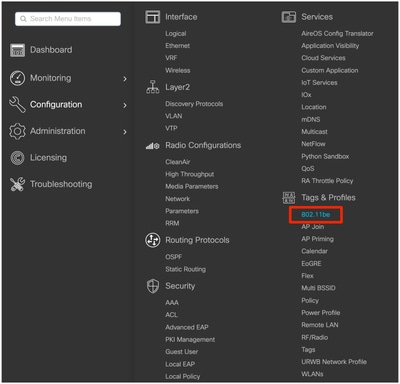
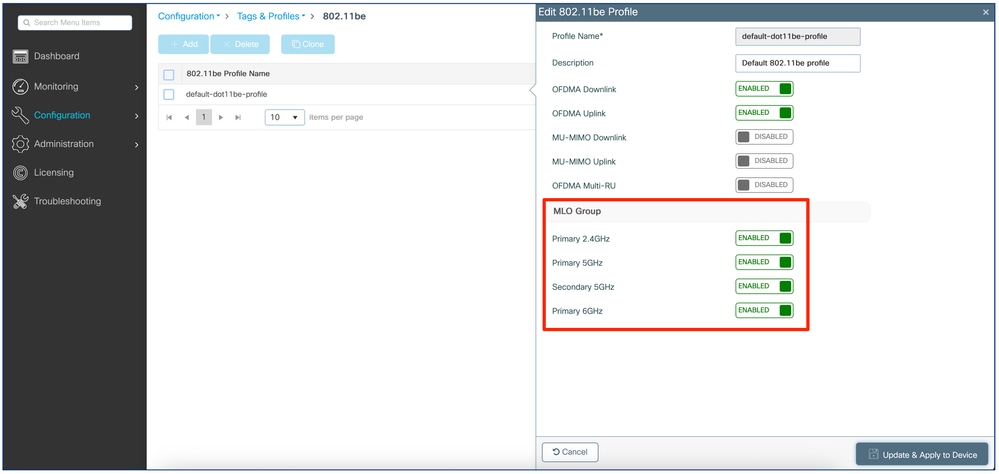
The four main settings for enabling or disabling Wi-Fi 7 are under the “MLO Group” section. Disabling all four settings disables Wi-Fi 7 on every band in any WLAN Profile to which the 802.11be Profile is attached. Enabling some or all of them enables Wi-Fi 7 on the corresponding bands/radios of the attached WLAN Profile.
The “default-dot11be-profile” enables MLO and Wi-Fi 7 on all radios, and it is attached by default to every WLAN Profile.
By creating a new 802.11be Profile with all "MLO Group" settings disabled and attaching it to specific WLAN Profiles, we can, for example, selectively disable Wi-Fi 7 for some of our SSIDs.
Under the “Advanced” settings tab of each WLAN Profile, a corresponding 802.11be Profile is attached:
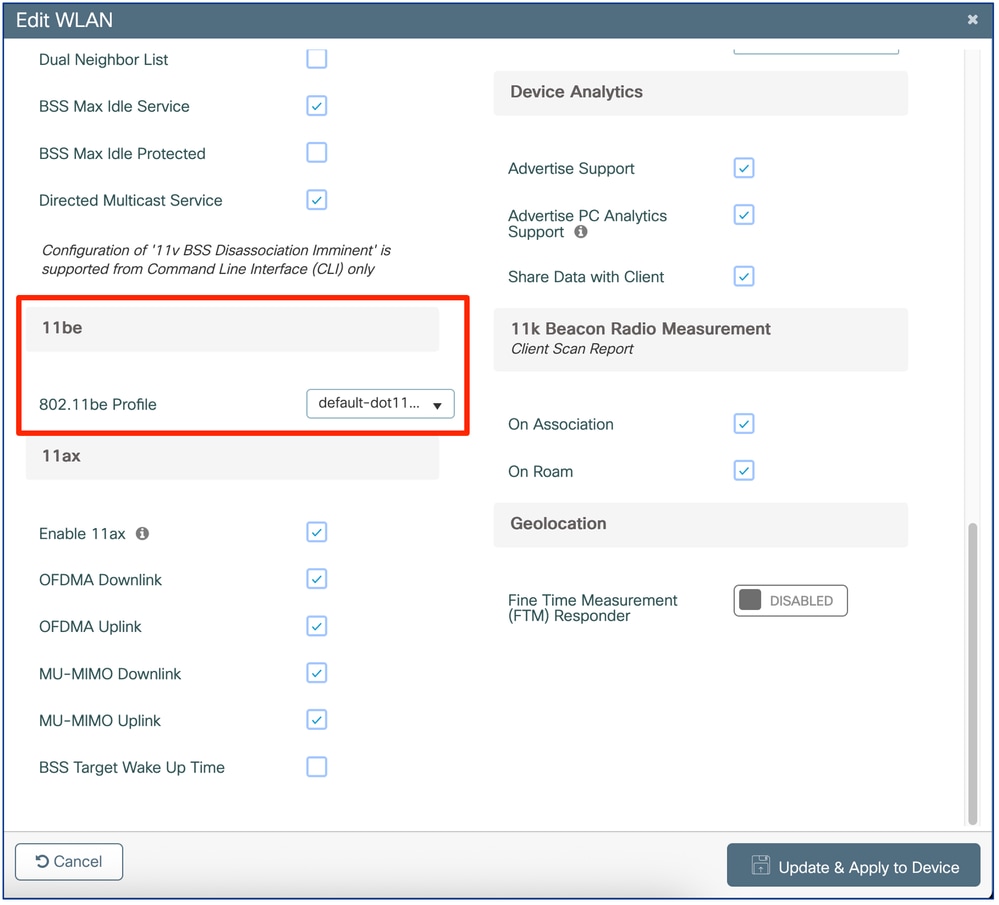
As we can see in the example, the “default-dot11be-profile” is attached by default to any WLAN Profile.

Note: If Wi-Fi 7 is not globally enabled on the controller, as explained later, Wi-Fi 7 is disabled for all WLAN Profiles and 802.11be Profiles are not applied.
17.18.2 introduces a small wizard in the WLAN edit page that helps you visualize whether your WLAN is Wi-Fi 7 compliant and shows you what is missing:
 17.18.2 security wizard
Cisco IOS XE 17.18.3 and later
Cisco IOS 17.18.3 allows you to configure the GCMP256 cipher for an 802.1X Enterprise SSID, which was not possible in earlier versions. This satisfies some clients' requirement for Wi-Fi 7 Enterprise SSIDs to offer GCMP256 in addition to AES128 ciphers and complies with the WPA3 v3.4 specification.
GCMP256 is automatically added to your configuration upon upgrade if your SSID was Wi-Fi 7 compliant before the upgrade, to avoid having it degrade to a Wi-Fi 6E SSID if GCMP256 were not enabled after upgrading to 17.18.3.
Radio design considerations for 6 GHz coverage
Without attempting to be a fully prescriptive guide to site surveys, this section briefly describes some basic considerations when designing for 6 GHz coverage, especially when migrating an existing 2.4/5 GHz installation to Wi-Fi 6E or 7.
As with any new Wi-Fi deployment in the 2.4 GHz and/or 5 GHz bands, a new 6 GHz wireless project must also include a dedicated 6 GHz site survey.
When pre-Wi-Fi 6E/7 APs are already positioned to meet specific 5 GHz coverage needs, in some cases, we can expect to replace them with Wi-Fi 6E/7-capable APs and still obtain good coverage on 6 GHz. For this approach to work, our existing APs must already provide adequate 5 GHz coverage for the intended needs (data only, voice, specific applications, and so on) while operating at least 3-4 transmit power levels less than their maximum. APs typically have 7 to 8 power levels, and each successive power level halves the transmit power. A comfortable operating point is therefore near the middle of the allowed transmit power range.
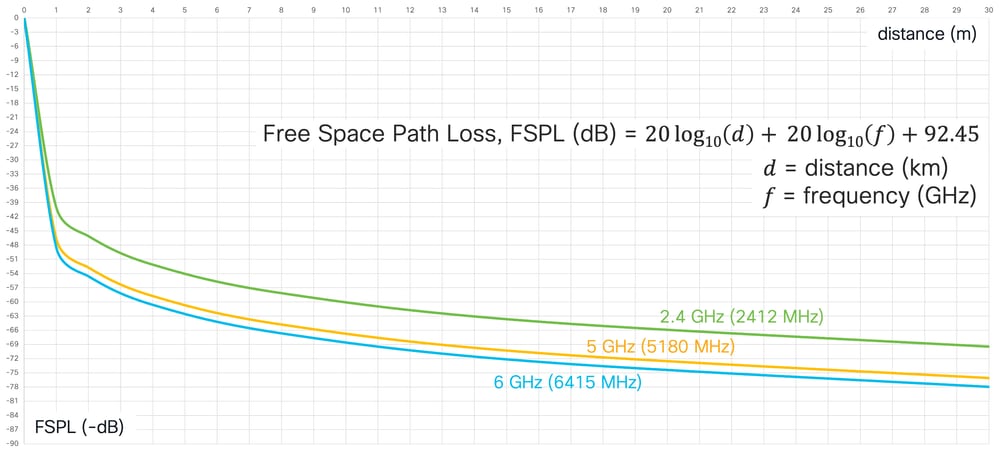
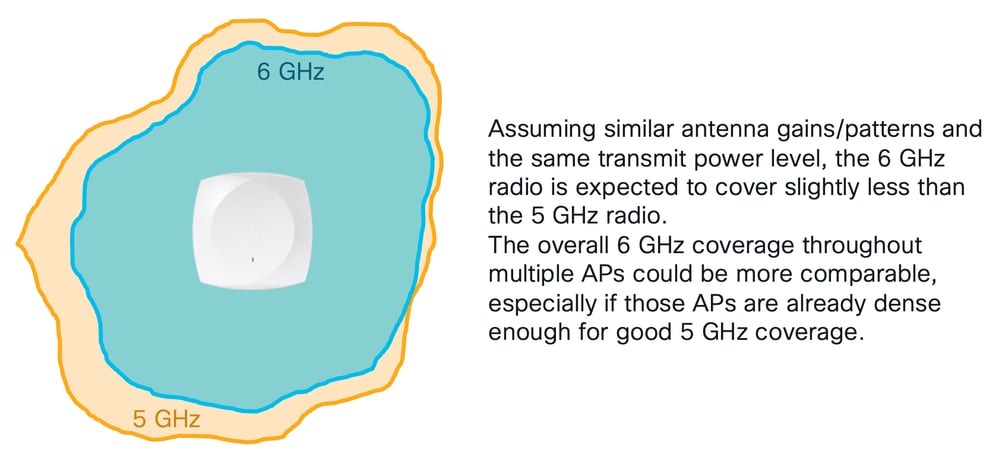
According to free-space loss calculations, 6 GHz signals experience 2 dB more attenuation than 5 GHz signals. In addition, 6 GHz signals can be more affected by obstacles than their 5 GHz equivalents.
When a Cisco AP increases or decreases its transmit power by one level, it does so in a “jump” of 3 dB. For example, an AP moving from power level 4, with a transmit power of 11 dBm, to power level 3 increases its transmit power to 14 dBm. The values of 11 dBm for power level 4 and 14 dBm for power level 3 are only generic examples, as different AP models and generations can have slightly different transmit power values in dBm for the same power level number.
If a pre-Wi-Fi 6E/7 AP already provides good coverage at 5 GHz on power level 4, for instance, a newer Wi-Fi 6E/7 AP with similar 5 GHz radio patterns could replace that former AP without any significant impact on the existing 5 GHz network.
Also, the 6 GHz radio of the new Wi-Fi 6E/7 AP could provide coverage similar to that of the 5 GHz radio by operating one transmit power level (3 dB) higher.
If adequate 5 GHz coverage is already provided by the AP 5 GHz radio at 3-4 power levels less than its maximum, the corresponding 6 GHz radio could therefore be set at 2-3 power levels less than its maximum for comparable coverage. This assumption works provided that regulations in the deployment country allow 6 GHz radios and EIRP levels to use higher power than at 5 GHz. Channel aggregation and the specific AP model can also need to be considered; refer to each AP model power settings table for country-specific information.
Also, if the 6 GHz radio already provides adequate coverage at 2-3 power levels less than its maximum, it could still increase by a couple of levels in exceptional situations, for example, to work around temporary, unexpected coverage holes caused by a neighboring AP failure, unannounced obstacles, new RF requirements, and so on.
Roaming behaviors between pre-Wi-Fi 6E/7 and Wi-Fi 6E/7 APs
Deploying APs that support different standards and/or frequency bands in the same coverage area has never been recommended, especially if different generations of APs are installed in a “salt and pepper” fashion (that is, mixed in the same zone).
While a wireless controller can handle operations (for example, dynamic channel assignment, transmit power control, PMK cache distribution, and so on) for a group of several AP models, clients moving between different standards and frequency bands sometimes do not handle those transitions properly and can experience roaming issues.
In addition, Wi-Fi 6E/7 APs support GCMP256 ciphers for WPA3, but the same is not always true for some Wi-Fi 6 and earlier AP models. For passphrase/WPA3-Personal and Enhanced Open/OWE SSIDs that require both AES(CCMP128) and GCMP256 ciphers, certain Wi-Fi 6 APs (such as the 9105, 9115, and 9120 series, as well as 802.11ac Wave 2 x800 series APs) do not support GCMP256 and can offer only AES(CCMP128) to associating clients, including Wi-Fi 6E/7-capable clients. If these Wi-Fi 6E/7 clients need to roam between neighboring Wi-Fi 6E/7 APs that support GCMP256, they must complete a new association because renegotiating ciphers between AES(CCMP128) and GCMP256 is not supported for transparent roaming. Moreover, it is generally not optimal to have APs offering different capabilities in the same area: such a deployment does not allow clients to use these capabilities reliably while moving and can lead to stickiness or disconnections.
Although this scenario is a corner case, keep in mind that, with GCMP256 ciphers configured on the WLAN, roaming of Wi-Fi 6E/7 clients between 9105/9115/9120 APs and 9130/9124/916x/917x APs can be impossible, as the latter series support GCMP256 and the former do not.
Channel widths of 40 MHz or more on 6 GHz can also cause stickiness for 6 GHz-capable clients, which can refuse to reassociate on other bands. This is another reason not to mix 6 GHz-capable APs and non-6 GHz-capable APs in the same roaming area.
Enabling Wi-Fi 7 globally
Enabling Wi-Fi 7 globally on Cisco IOS XE
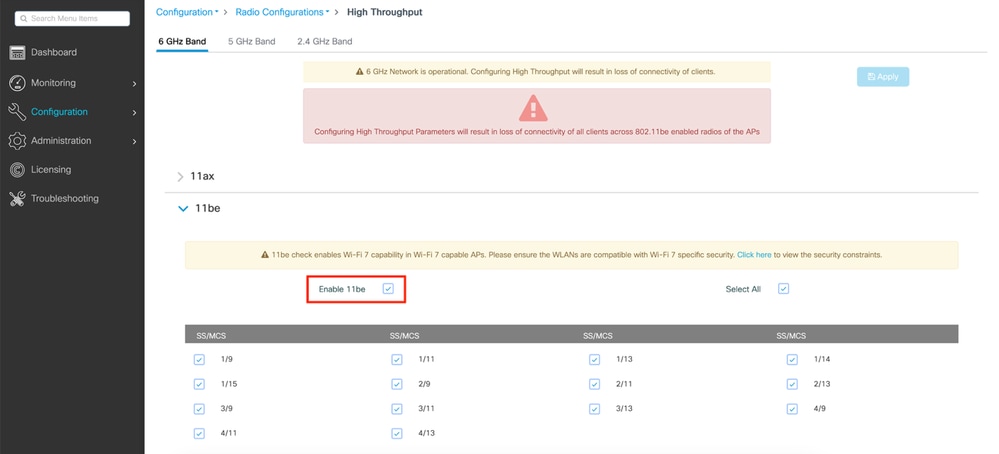
When installing or upgrading to an Cisco IOS XE version that supports Wi-Fi 7, support for Wi-Fi 7 is globally disabled by default.
To activate it, we need to navigate to the High Throughput configuration menu for each 2.4/5/6 GHz band and check the box to enable 11be.

Alternatively, run these three commands via SSH or console in terminal configuration mode:
ap dot11 24ghz dot11be
ap dot11 5ghz dot11be
ap dot11 6ghz dot11be
As mentioned in the warning note, when trying to modify these settings, changing the status of 802.11be support results in a brief loss of connectivity for all clients across radios of Wi-Fi 7 APs. If you want to do MLO, which means clients connecting to several bands at the same time, you need to enable 11be on all the bands you want the client to connect to. It is not necessary to enable all the bands, but recommended simply for performance.
Enabling Wi-Fi 7 globally on Cisco Meraki Dashboard
When adding Wi-Fi 7-capable APs (for example, CW9178I or CW9176I/D1) to a Cisco Meraki Dashboard network for the first time, support for 802.11be operation is enabled in their default RF Profile.
To activate it, navigate to Wireless > Radio Settings, click the RF Profile tab, and select the profile assigned to the AP (the default is 'Basic Indoor Profile' for indoor APs).
In the General section, enable 802.11be (on) as shown in this screenshot:

If one or more WLANs are configured with security settings weaker than those required by the Wi-Fi 7 specification, the Dashboard displays an alert banner, as shown in the next image.
While the Dashboard allows the configuration to be saved, Wi-Fi 7 is not enabled on the flagged SSIDs until they comply with the Wi-Fi 7 requirements. As of this writing, for Wi-Fi 7 to be enabled on firmware version MR 31.1.x and later, all WLANs enabled in the network must meet the Wi-Fi 7 specification requirements (this behavior changes in a future version of firmware MR 32.1.x).
Once the configuration of the SSID meets the Wi-Fi 7 minimum criteria, the banner disappears.
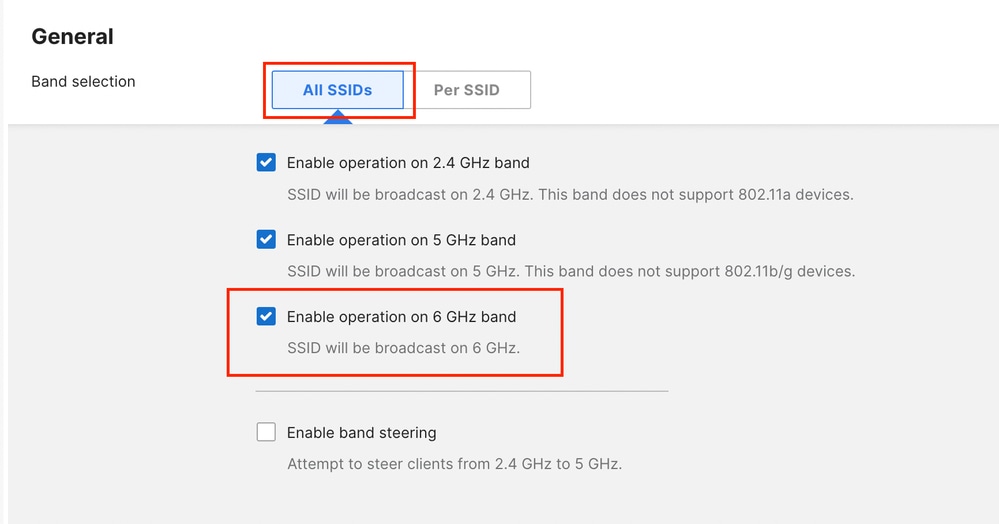
In the same RF Profile, make sure to enable 6 GHz operation on the APs.
This can be done either for all the SSIDs in bulk or per individual SSID.
Note that Band Steering is available only between 2.4 and 5 GHz.
Example of 6 GHz enablement for all the SSIDs.
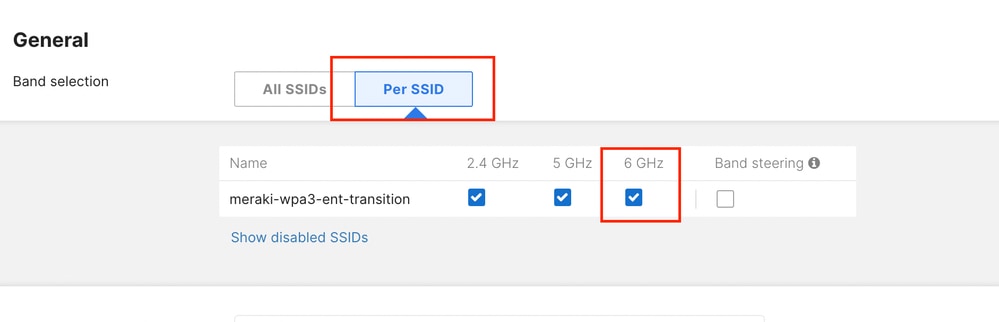
Example of 6 GHz enablement for a single SSID.
Use cases
802.1X / WPA3-Enterprise networks
WPA3-Enterprise configuration on Cisco IOS XE
Enterprise WLANs based on WPA2/3 with 802.1X authentication are the easiest to migrate to 6 GHz.
Enabling your 802.1X SSID for 6 GHz requires enabling PMF support, even if it is optional, as well as 802.1X-SHA256 and/or FT + 802.1X AKMs, both of which are WPA3 compliant.
We can keep offering WPA2 with standard 802.1X (SHA1) on the same WLAN, which is advertised on the 5 GHz band only.
Wi-Fi 7 support requires enabling Beacon Protection; WPA2 802.1X (SHA1) can remain on the WLAN as a backward-compatibility option.
Enabling AES128 and GCMP256, setting PMF as optional, and allowing WPA2 AKMs such as regular 802.1X can potentially support many devices for compatibility. However, this presents clients with many choices. If clients advertise Wi-Fi 7 support but select a security configuration that is not Wi-Fi 7 compliant, the AP must reject them, which can cause compatibility issues.
However, Cisco IOS XE 17.18.2 and earlier versions do not support GCMP256 for an Enterprise SSID. The main recommendation is to reserve this use case for enterprise environments running mainly Windows 11 laptops.
When running 17.18.3 or later, you can enable GCMP256 and properly support broader mobile device categories (some clients refuse to connect if the SSID claims to be Wi-Fi 7 but supports only AES128).
The Meraki Cloud dashboard supports GCMP256 and requires it to enable Wi-Fi 7 on the SSID. Although a Wi-Fi 7 client can support only AES128, a certified Wi-Fi 7 AP must provide both AES128 and GCMP256.
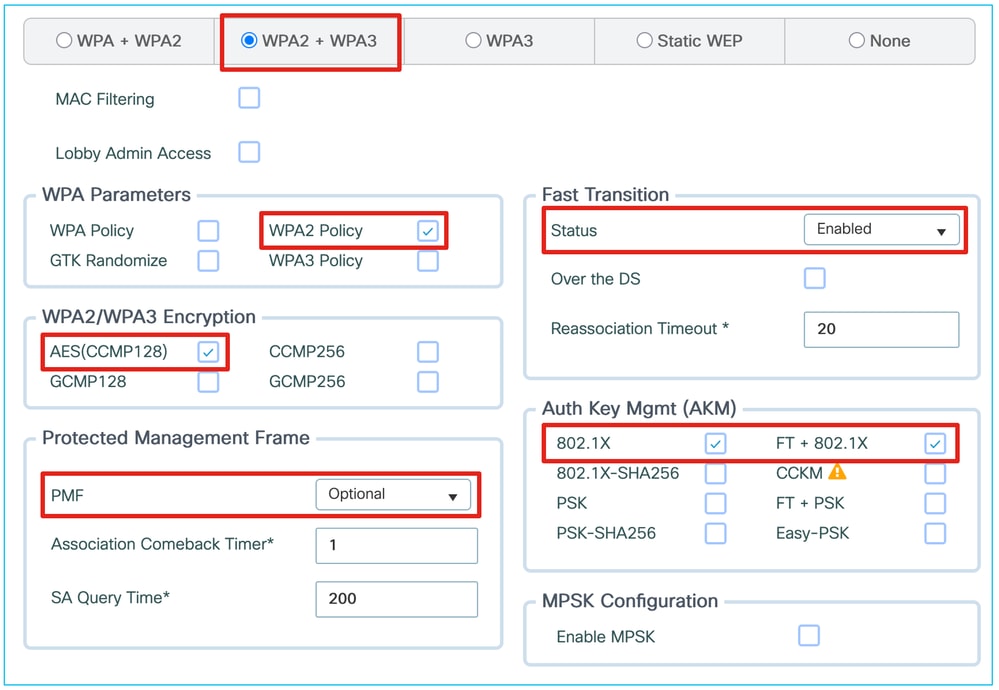
From a typical WPA2 SSID with these L2 security settings:
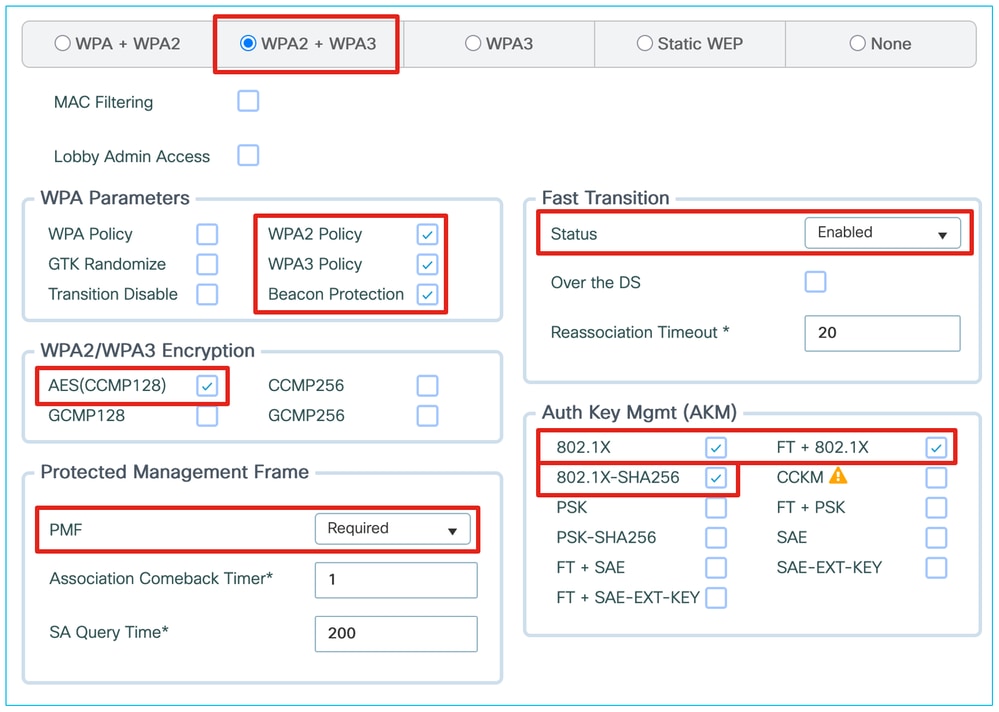
We can migrate the configuration for WPA3, 6 GHz, and partial Wi-Fi 7 support as shown here:
This last screen capture is missing GCMP256 for proper Wi-Fi 7 support. Offering this many different ciphers can also cause client compatibility issues, so consider moving as soon as possible to a full WPA3 WLAN with AES128+GCMP256.
WPA3-Enterprise configuration on the Cisco Meraki dashboard
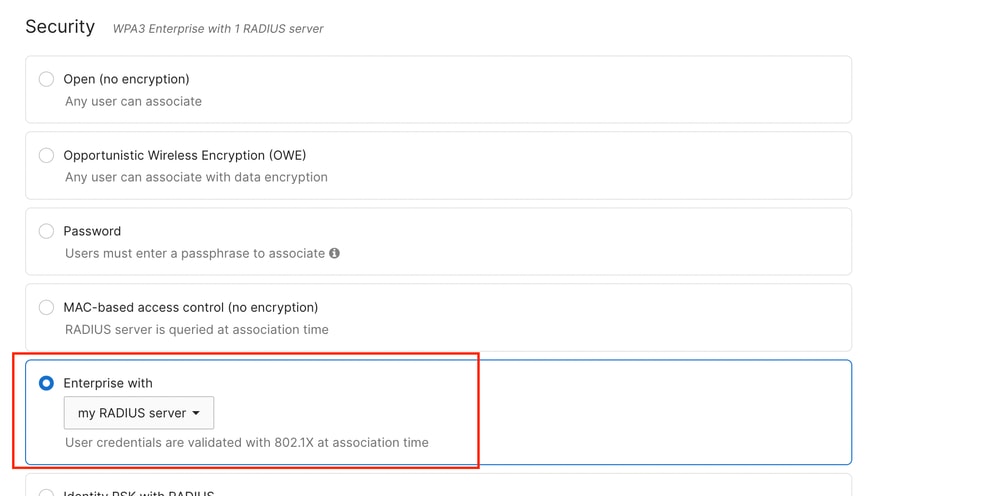
At the time of this writing, WPA3-Enterprise operation is available only with an external RADIUS server (aka "my RADIUS server").
WPA3-Enterprise is not available with Meraki Cloud Authentication.
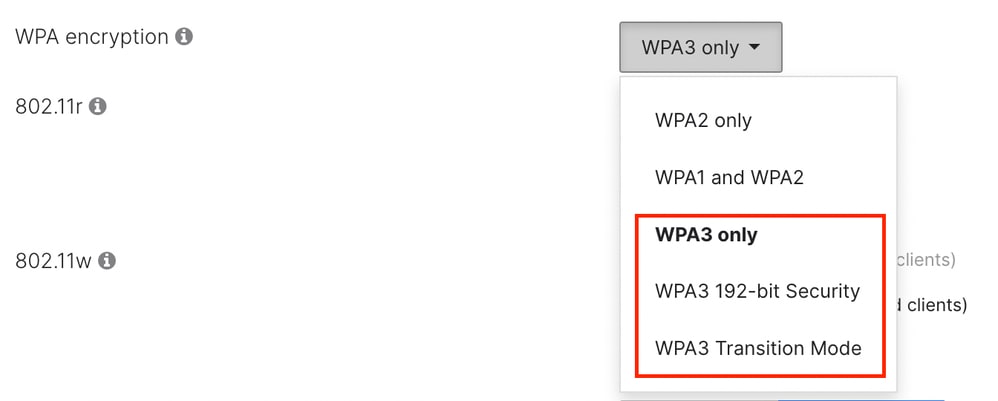
Starting with MR 31.x, the WPA types are:
- 'WPA3 only', which uses the same ciphers as WPA2, but requires 802.11w (PMF).
- 'WPA3 192-bit', which allows only the EAP-TLS method with ciphers TLS_ECDHE_ECDSA_WITH_AES_256_GCM_SHA384, TLS_ECDHE_RSA_WITH_AES_256_GCM_SHA384, or TLS_DHE_RSA_WITH_AES_256_GCM_SHA384. The same ciphers must be configured on the RADIUS server to enable this mode.
- 'WPA3 Transition Mode' (aka mixed mode), which allows the coexistence of WPA2 clients on the same WLAN used for WPA3.
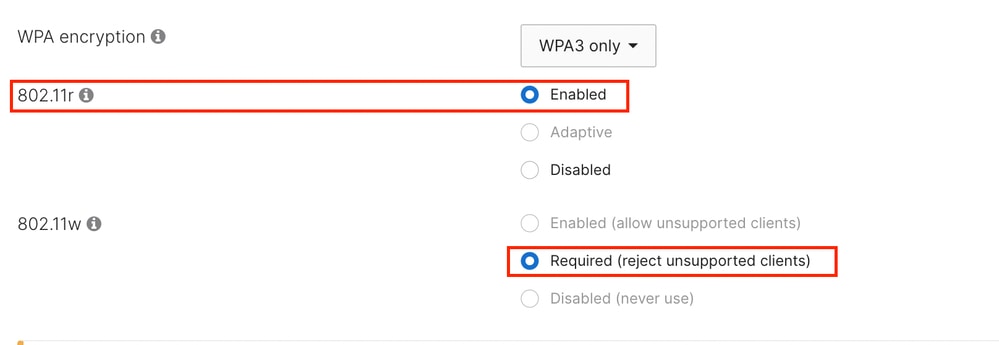
When using 'WPA3 only' or 'WPA3 192-bit Security', PMF is mandatory for all clients.
In most applications, FT (802.11r), while not mandatory, is recommended to be enabled to mitigate the impact of roaming and reauthentication latency when using an external RADIUS server.
6 GHz operation requires enabling PMF (802.11w).
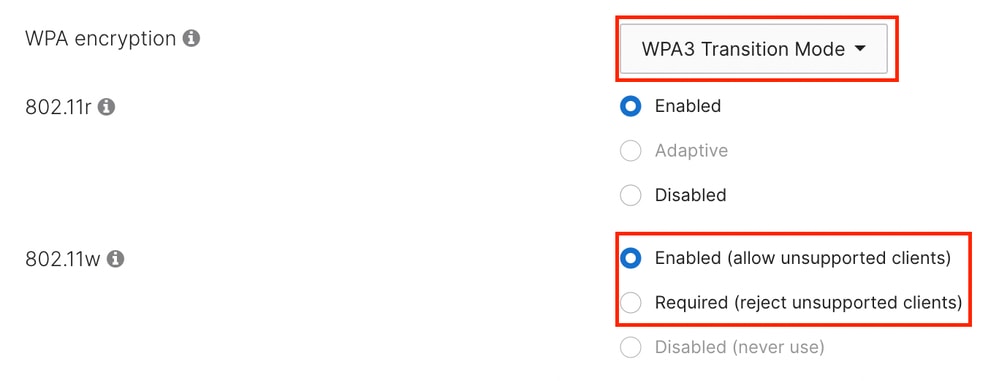
When selecting WPA3 Transition Mode, all the clients capable of using WPA3 default to using PMF. All the clients operating on 6 GHz use WPA3.
In this mode, you can select whether legacy clients using WPA2 must use PMF (802.11w required) or whether that feature is optional (802.11w enabled).
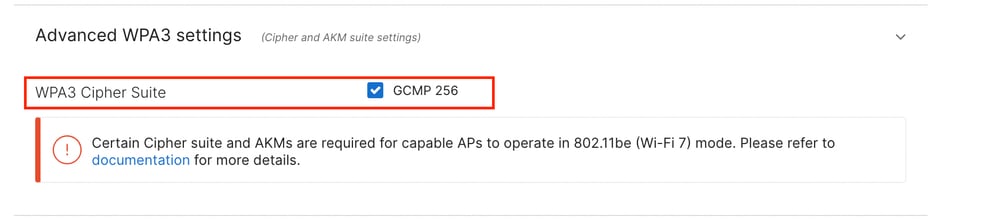
Regardless of the WPA3 selection, Cisco Meraki APs require the GCMP 256 cipher suite to be enabled to operate in Wi-Fi 7 mode.
Furthermore, Beacon Protection is enabled by default on 2.4, 5, and 6 GHz when the APs are operating in Wi-Fi 7 mode.
Passphrase / WPA3-Personal / IoT networks
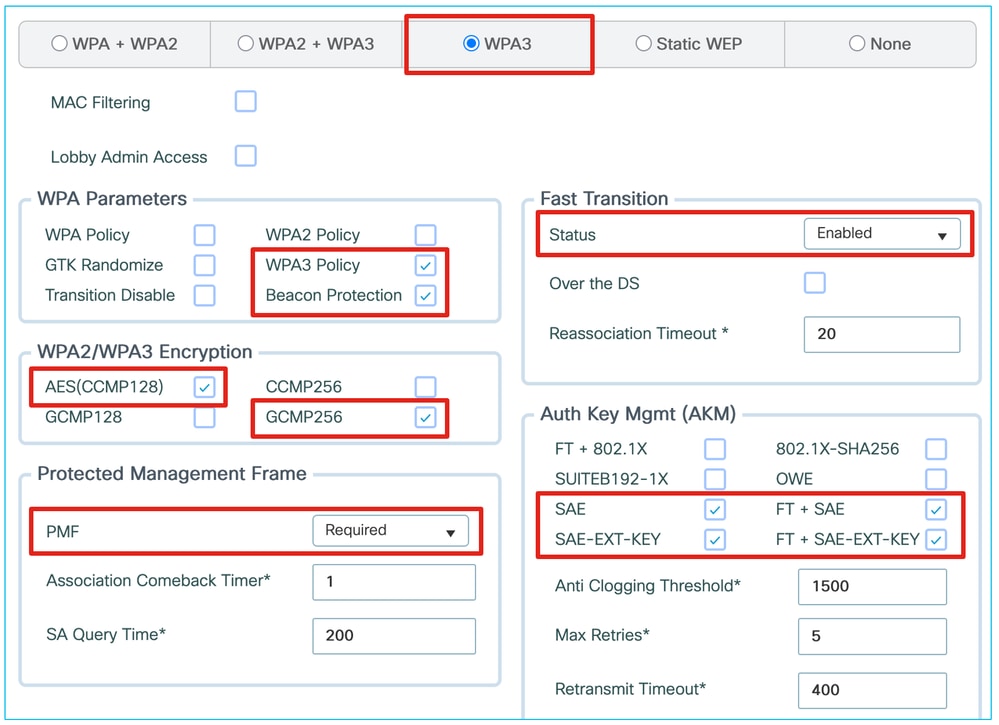
Enabling a passphrase SSID for 6 GHz, up to Wi-Fi 6E support, is simple and requires SAE and/or FT + SAE, along with other WPA2 PSK AKMs if needed. However, for Wi-Fi 7 support, the certification mandates adding SAE-EXT-KEY and/or FT + SAE-EXT-KEY AKMs, along with the GCMP256 cipher.
Cisco IOS XE 17.18.1 and later allow you to configure WPA2-PSK in addition to the four SAE AKMs mentioned above. However, this can present too many AKMs to poorly implemented client drivers, even though the configuration is supported by the standard. We recommend verifying in practice whether your WPA2 clients can handle all the AKMs enabled on the WLAN. In this situation, clients that connect using WPA2 cannot use MLO or Wi-Fi 7, but clients connecting with SAE-EXT can. The WLAN itself still advertises Wi-Fi 7 and MLO capabilities.
In such cases, we can configure a dedicated WPA3-only SSID with SAE, FT + SAE, SAE-EXT-KEY, and FT + SAE-EXT-KEY, offering both AES(CCMP128) and GCMP256 ciphers for more recent Wi-Fi 6E and Wi-Fi 7 clients.
In all these scenarios, we strongly recommend enabling FT when using SAE. The SAE frame exchange is more resource-intensive and takes longer than the WPA2 PSK four-way handshake.
Some device manufacturers, such as Apple, expect FT to be enabled when SAE is used, and their devices can refuse to connect if FT is unavailable.
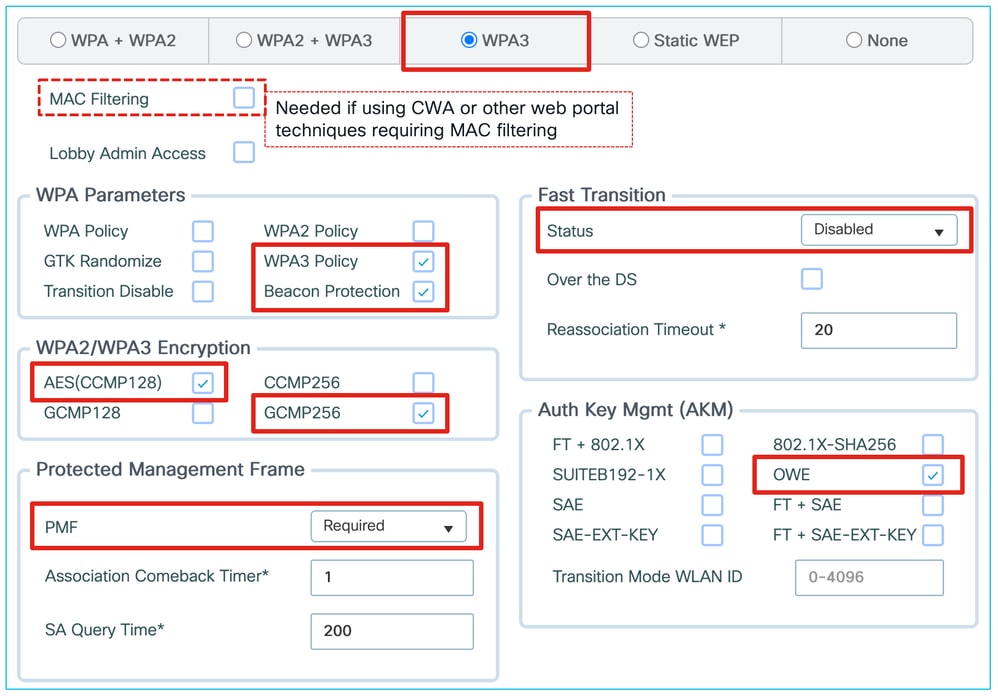
WPA3-SAE configuration on Cisco IOS XE
Note: If (FT +) SAE is enabled on the WLAN and a Wi-Fi 7 client tries to associate with it instead of (FT +) SAE-EXT-KEY, it is rejected. As long as (FT +) SAE-EXT-KEY is also enabled, Wi-Fi 7 clients must use the latter AKM, so this issue does not occur.
Although using a legacy PSK-only WLAN in addition to a WPA3-only WLAN increases the total number of SSIDs, it allows us to maintain maximum compatibility on one SSID. We can also disable advanced features that could affect compatibility, which can help in many IoT scenarios, while offering maximum features and performance to more recent devices through the other SSID. This can be a preferred approach if you have older or more sensitive IoT devices deployed. If you do not have IoT devices, using a single transition mode WLAN can be more efficient because you advertise only one SSID.
WPA3-SAE configuration on the Cisco Meraki dashboard
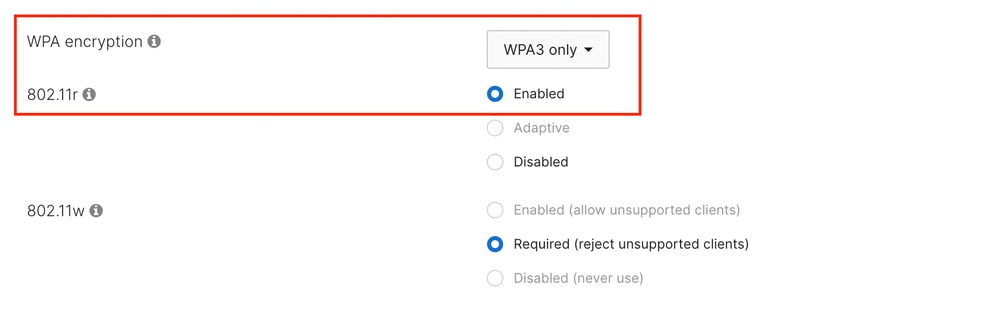
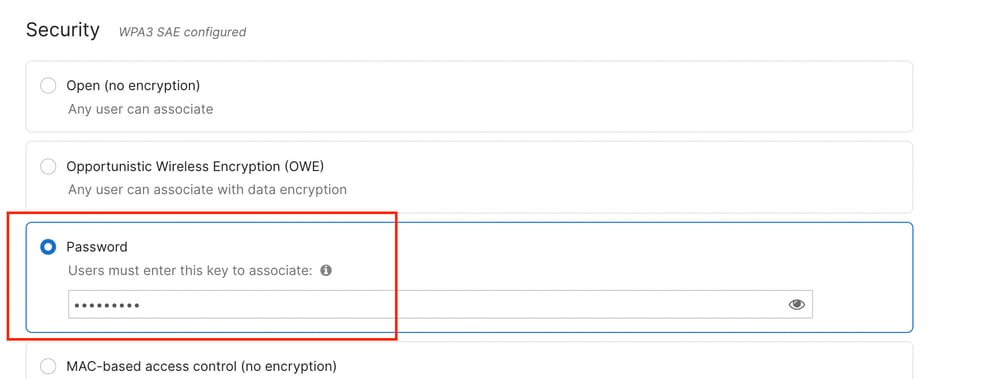
Up to firmware MR 30.x, the only supported WPA type is 'WPA3 only', and the dashboard does not let you select a different method.
PMF is mandatory in this configuration, while FT (802.11r) is better enabled when using SAE.
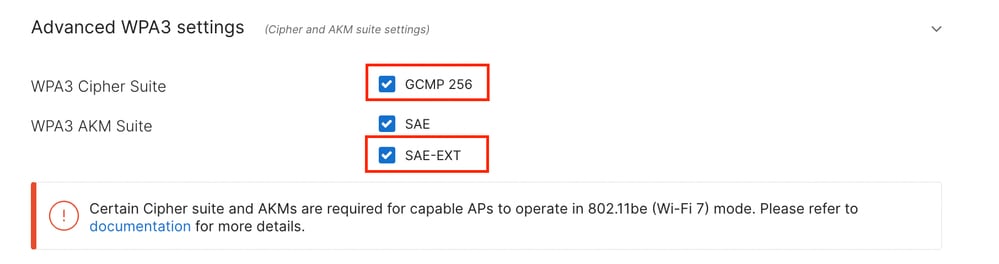
To allow Wi-Fi 7 operation, the GCMP 256 cipher suite and SAE-EXT AKM suite must be enabled when configuring the SSID.
They are disabled by default and can be enabled under 'Advanced WPA3 settings.'
As of this writing, all WLANs enabled in the network must meet the Wi-Fi 7 specification requirements to be enabled on firmware version MR 31.1.x and later.
This means that a Wi-Fi 7 SSID configured as described previously cannot coexist with another SSID using WPA2-Personal or WPA3-SAE Transition Mode.
If a WPA2-Personal SSID is configured in the dashboard network, all the Wi-Fi 7 APs would revert to Wi-Fi 6E operation.
This behavior changes in a future version of firmware MR 32.1.x.
Open / Enhanced Open / OWE / Guest networks
Guest networks come in many flavors. Typically, they require no 802.1X credentials or passphrase to connect and can include a splash page or portal that requires credentials or a code. This is traditionally handled with an Open SSID and either a local or external guest portal solution. However, SSIDs with open security (no encryption) are not allowed on 6 GHz or for Wi-Fi 7 support.
A conservative approach is to dedicate guest networks to the 5 GHz band and Wi-Fi 6 at best. This leaves the 6 GHz band reserved for corporate devices, reduces complexity, and provides maximum compatibility, but it does not provide Wi-Fi 6E/7 performance.
Although Enhanced Open is a strong security method that provides privacy while retaining the “open” experience (end users do not need to enter 802.1X credentials or a passphrase), endpoint support remains limited. Some clients still do not support it and, even when they do, the experience is not always smooth: a device can show the connection as unsecured when it is secure, or it can display the connection as passphrase-protected even though OWE requires no passphrase. Because a guest network is expected to work with all unmanaged guest devices, it can be too early to provide only an Enhanced Open SSID. We recommend providing both options through separate SSIDs: an Open SSID on 5 GHz and an OWE-enabled SSID on 5 and 6 GHz, both using the same captive portal if required. The two networks must use different SSID names because, according to the 802.11 standard, the SSID name identifies all BSSs where a client can roam seamlessly. Using the same SSID name with different security settings is therefore invalid and dangerous. Transition Mode is not supported on Wi-Fi 6E, 6 GHz (even though the software can still allow it), or Wi-Fi 7, so it is not recommended. All portal redirection techniques (internal or external web authentication, Central Web Authentication, and so on) are still supported with OWE.
OWE configuration on Cisco IOS XE
To provide 6 GHz service to guests, we recommend creating a separate SSID with Enhanced Open / OWE (Opportunistic Wireless Encryption). It could offer both the AES(CCMP128) cipher for maximum compatibility with clients up to Wi-Fi 6E and GCMP256 for Wi-Fi 7-capable clients.
At this time, many mobile clients offer partial or not-so-user-friendly support of OWE/Enhanced Open. Test with your clients to measure the support.
Having two separate guest WLANs (one Open and one OWE/Enhanced Open) can be a solution, especially if you keep the OWE-secured guest WLAN on 6 GHz only and the fully open one on 5 GHz only. However, you must segregate the two guest WLANs into different subnets; otherwise, the Open WLAN negates the security benefit of the secure WLAN by providing unencrypted access to the same subnet.
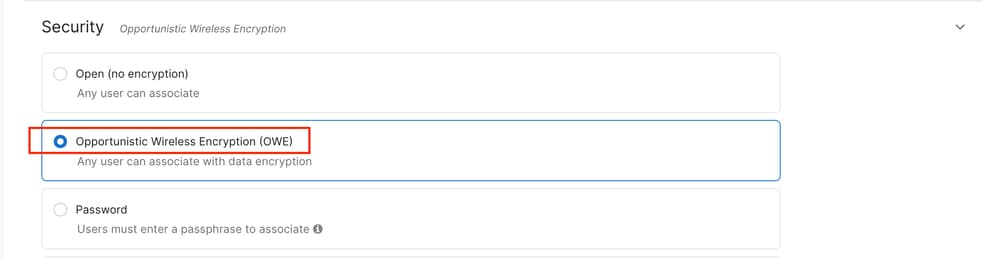
OWE configuration on the Cisco Meraki dashboard
As with Cisco IOS XE, we recommend creating a separate Guest SSID with Enhanced Open / OWE that operates on 6 GHz.
Configure this on the Cisco Meraki dashboard under Wireless > Access Control by selecting 'Opportunistic Wireless Encryption (OWE)' as the Security method.
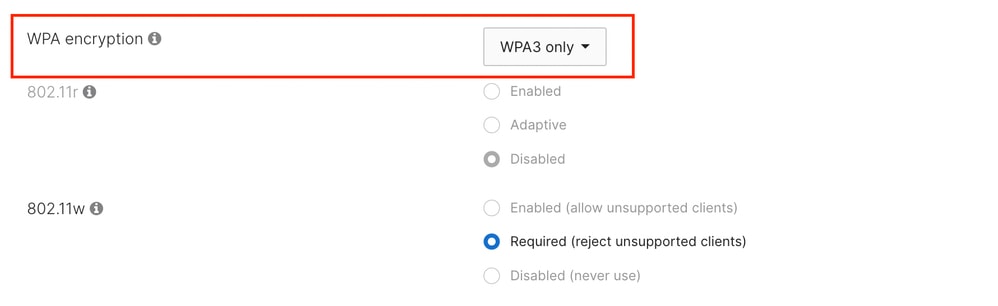
When running firmware up to MR 31, the only supported WPA type is 'WPA3 only', and the dashboard does not let you select a different method.
PMF is mandatory in this configuration, while FT (802.11r) cannot be enabled.
Note that the label 'WPA3 only' is misleading because OWE is not part of the WPA3 standard; however, this configuration refers to OWE without Transition Mode.
OWE Transition Mode is available in a future MR 32.1.x release.
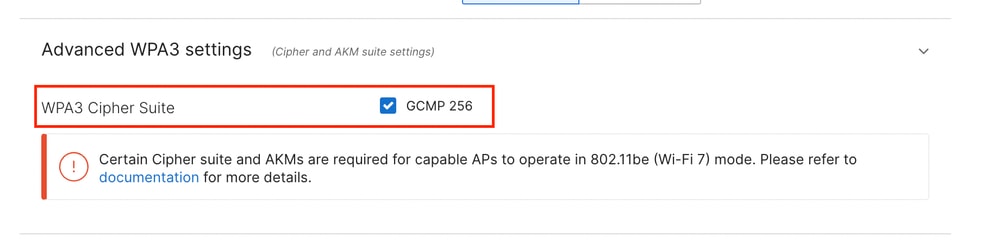
The AES(CCMP128) cipher is enabled by default for maximum compatibility up to Wi-Fi 6E clients.
GCMP256 can be enabled alongside CCMP128 for compliance with Wi-Fi 7 requirements.

Additional WPA3 and related options
While WPA3 options are best described and covered in the WPA3 deployment guide, this section covers some additional recommendations for WPA3 specifically related to 6 GHz and Wi-Fi 7 support.
Beacon protection
This feature addresses a vulnerability in which an attacker can transmit beacons that impersonate the legitimate access point and modify fields to change security or other settings for already associated clients. Beacon protection adds an information element (Management MIC) to the beacon that acts as a signature, proving that the legitimate access point sent the beacon and that it has not been tampered with. Only associated clients with a WPA3 encryption key can verify the beacon legitimacy; probing clients have no means to verify it. Clients that do not support the additional information element (that is, non-Wi-Fi 7 clients) must simply ignore it, and it does not normally cause compatibility issues unless a client has a poorly programmed driver.
After 17.18, the beacon protection elements are enabled automatically if your WLAN is Wi-Fi 7 compliant, regardless of whether you enable the beacon protection checkbox.
This screenshot shows an example of the content of the Management MIC Information Element:

GCMP256
Until the Wi-Fi 7 certification, most clients implemented AES(CCMP128) cipher encryption. CCMP256 and GCMP256 are specific variants related to the SUITE-B 802.1X AKM. Although some early Wi-Fi 7 clients on the market claim Wi-Fi 7 support, they do not always implement GCMP256 encryption. This can become an issue when Wi-Fi 7 APs enforce the standard and prevent clients without proper GCMP256 support from connecting.
When GCMP256 is enabled, the Robust Security Network Element (RSNE) in the Beacon Frames for the WLAN advertises the capability in the Pairwise Cipher Suite List as shown here.
Troubleshoot and verify
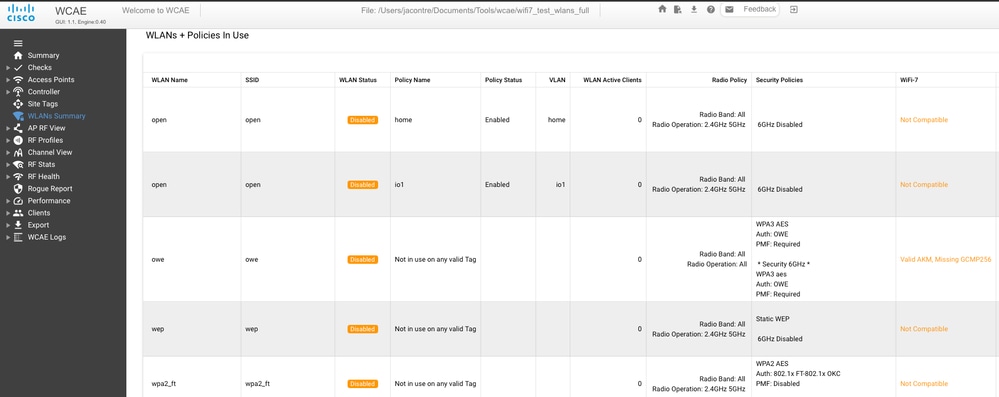
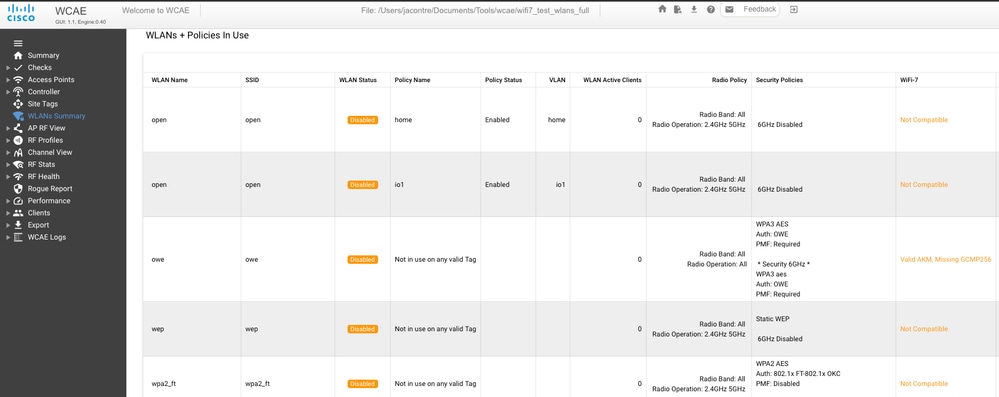
The latest version of Wireless Configuration Analyzer Express has a Wi-Fi 7 readiness check that evaluates your 9800 configuration against all the Wi-Fi 7 requirements mentioned previously.
If you are still unsure whether your configuration is Wi-Fi 7 ready, the WCAE identifies what is wrong.
Troubleshooting checklist
- The Web UI (in R32 or 17.18.2 and later) tells you whether your WLAN complies with the Wi-Fi 7 standard. Use this document to verify that the security settings are compliant.
- Make sure the client supports Wi-Fi 7. A Windows laptop requires at least Windows 11 24H2. Make sure the wireless adapter drivers are up to date.
- The command "netsh wlan show drivers" in Windows is very useful to list the capabilities of the wireless adapter and verify its status.
- For a laptop, go to the adapter settings and verify that the adapter has 11be mode enabled. Many adapters initially shipped with 11be disabled and operated as 11ax for compatibility.
- In case of doubt, take an over-the-air packet capture to verify that:
- The AP is broadcasting an EHT information element in the beacon. This can be captured with any sniffer; it does not need to support Wi-Fi 7 because the beacon is sent at legacy rates.
- If the AP is correctly broadcasting EHT, the client must send the EHT element in its association request. If it does not, either the client does not consider the AP security settings compliant with Wi-Fi 7 or 802.11be is disabled in the adapter properties.
References
Revision History
| Revision | Publish Date | Comments |
|---|---|---|
10.0 |
22-Jul-2026
|
Updated list of APs not supporting GCMP256 |
9.0 |
12-May-2026
|
Updated the GCMP256 17.18.3 change |
8.0 |
05-Mar-2026
|
Updated the guest SSID section |
7.0 |
17-Feb-2026
|
Reworded a sentence around txpower on 6GHz |
6.0 |
16-Jan-2026
|
Updated recommendations according to latest feedback |
5.0 |
13-Aug-2025
|
Updated for 17.18.1 again |
4.0 |
04-Jul-2025
|
Temporarily removed 17.18 section (until software is released) and fixed the fact that WPA2-PSK is accepted now on wifi7 SSID as per WPA specs 3.5 |
3.0 |
01-Jul-2025
|
Added CX design guide stamp |
2.0 |
25-Jun-2025
|
Added Meraki content |
1.0 |
26-May-2025
|
Initial Release |

 Feedback
Contact Cisco
- Open a Support Case

- (Requires a Cisco Service Contract)