Introduction
This document describes how to configure a WLC and a Cisco Secure ACS so that the AAA server can authenticate management users on the controller.
Prerequisites
Requirements
Ensure that you meet these requirements before you attempt this configuration:
Components Used
The information in this document is based on these software and hardware versions:
The information in this document was created from the devices in a specific lab environment. All of the devices used in this document started with a cleared (default) configuration. If your network is live, ensure that you understand the potential impact of any command.
Conventions
Refer to Cisco Technical Tips Conventions for more information on document conventions.
Background Information
This document explains how to configure a Wireless LAN Controller (WLC) and an Access Control Server (Cisco Secure ACS) so that the Authentication, Authorization, and Accounting (AAA) server can authenticate management users on the controller. The document also explains how different management users can receive different privileges with Vendor-specific Attributes (VSAs) returned from the Cisco Secure ACS RADIUS server.
Configure
In this section, you are presented with the information on how to configure the WLC and the ACS for the purpose described in this document.
Network Diagram
This document uses this network setup:
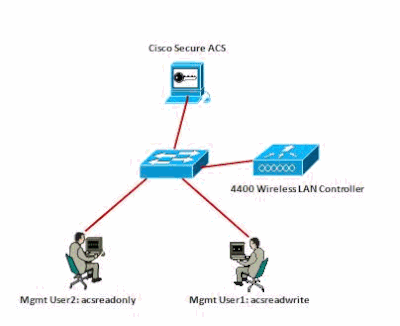 Network Diagram
This configuration example uses these parameters:
-
IP address of the Cisco Secure ACS —172.16.1.1/255.255.0.0
-
Management interface IP address of the controller—172.16.1.30/255.255.0.0
-
Shared secret key that is used on the access point (AP) and the RADIUS server—asdf1234
-
These are the credentials of the two users that this example configures on the ACS:
-
Username - acsreadwrite
Password - acsreadwrite
-
Username - acsreadonly
Password - acsreadonly
You need to configure the WLC and Cisco Secure Cisco Secure ACS in order to:
-
Any user who logs into the WLC with the username and password asacsreadwrite is given full administrative access to the WLC.
-
Any user who logs into the WLC with the username and password as acsreadonly is given read-only access to the WLC.
Configurations
This document uses these configurations:
WLC Configuration
Configure the WLC to Accept Management through the Cisco Secure ACS Server
Complete these steps in order to configure the WLC so that it communicates with the RADIUS server:
-
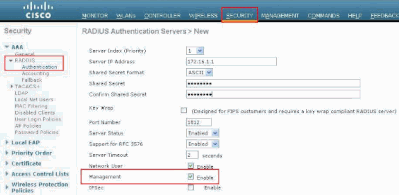
From the WLC GUI, click Security. From the menu on the left, click RADIUS > Authentication. The RADIUS Authentication serverspage appears. To add a new RADIUS Server, click New. In the RADIUS Authentication Servers > New page, enter the parameters specific to the RADIUS server. Here is an example.
-
Check the Management radio button in order to allow the RADIUS Server to authenticate users who log in to the the WLC.

Note: Ensure that the shared secret configured on this page matches with the shared secret configured on the RADIUS server. Only then can the WLC communicate with the RADIUS server.
-
Verify whether the WLC is configured to be managed by Cisco Secure ACS. In order to do this, click Security from the WLC GUI. The resultant GUI window appears similar to this example.
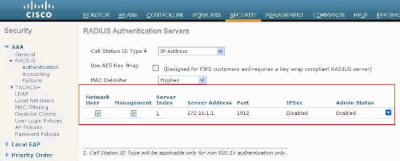
You can see that theManagement check box is enabled for RADIUS server 172.16.1.1. This illustrates that ACS is allowed to authenticate the management users on the WLC.
Cisco Secure ACS Configuration
Complete the steps in these sections in order to configure the ACS:
-
Add the WLC as an AAA Client to the RADIUS Server
-
Configure Users and Their Appropriate RADIUS IETF Attributes
-
Configure a User with Read-Write Access
-
Configure a User with Read-Only Access
Add the WLC as an AAA Client to the RADIUS Server
Complete these steps in order to add the WLC as an AAA client in the Cisco Secure ACS:
-
From the ACS GUI, click Network Configuration.
-
Under AAA Clients, click Add Entry.
-
In the Add AAA Client window, enter the WLC host name, the IP address of the WLC, and a shared secret key.
In this example, these are the settings:
-
AAA Client Hostname is WLC-4400.
-
172.16.1.30/16 is the AAA Client IP Address, which, in this case is the WLC.
-
The shared secret key is asdf1234.
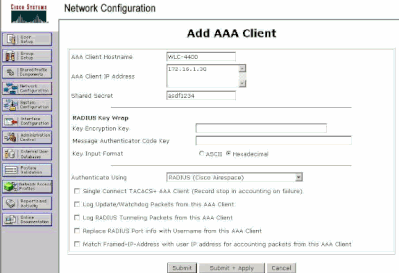 Add AAA Client Window
This shared secret key must be the same as the shared secret key that you configure on the WLC.
-
From the Authenticate Using drop-down menu, choose RADIUS (Cisco Airespace).
-
Click Submit + Restart in order to save the configuration.
Configure Users and Their Appropriate RADIUS IETF Attributes
In order to authenticate a user via a RADIUS server, for controller log in and management, you must add the user to the RADIUS database with the IETF RADIUS attributeService-Typeset to the appropriate value based on the user privileges.
-
In order to set read-write privileges for the user, set the Service-Type Attribute to Administrative.
-
In order to set read-only privileges for the user, set theService-TypeAttribute to NAS-Prompt.
Configure a User with Read-Write Access
The first example shows the configuration of a user with full access to the WLC. When this user tries to log in to the controller, the RADIUS server authenticates and provides this user with full administrative access.
In this example, the username and password is acsreadwrite.
Complete these steps on the Cisco Secure ACS.
-
From the ACS GUI, click User Setup.
-
Type the username to be added to the ACS as this example window shows.
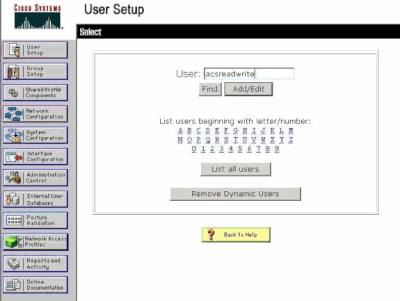 User Setup Window
-
Click Add/Edit in order to go to the User Edit page.
-
In the User Edit page, provide the Real Name, Description and Password details of this user.
-
Scroll down to the IETF RADIUS Attributes setting and check Service-Type Attribute.
-
Since, in this example, user acsreadwrite needs to be given full access, choose Administrative for the Service-Type pull-down menu and click Submit.
This ensures that this particular user has read-write access to the WLC.
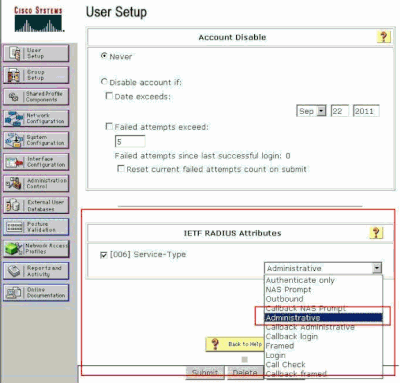 ETF RADIUS Attributes Settings
Sometimes, this Service-Type attribute is not visible under the user settings. In such cases, complete these steps in order to make it visible.
-
From the ACS GUI, navigate to Interface Configuration > RADIUS (IETF) in order to enable IETF attributes in the User Configuration window.
This takes you to the RADIUS (IETF) Settings page.
-
From the RADIUS (IETF) Settings page, you can enable the IETF attribute that needs to be visible under user or group settings. For this configuration, check Service-Type for the User column and click Submit. This window shows an example.
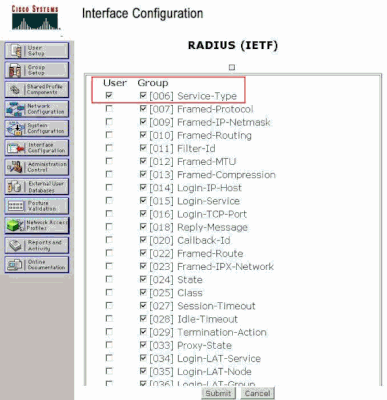 RADIUS (IETF) Settings Page
Note: This example specifies authentication on a per-user basis. You can also perform authentication based on the group to which a particular user belongs. In such cases, enable the Group check box so that this attribute is visible under Group settings. Also, if the authentication is on a group basis, you need to assign users to a particular group and configure the group setting IETF attributes to provide access privileges to users of that group. Refer to Group Management for detailed information on how to configure and manage groups.
Configure a User with Read-Only Access
This example shows the configuration of a user with read-only access to the WLC. When this user tries to logi n to the controller, the RADIUS server authenticates and provides this user with read-only access.
In this example, the username and password is acsreadonly.
Complete these steps on the Cisco Secure ACS:
-
From the ACS GUI, click User Setup.
-
Type the username you want to add to the ACS and click Add/Edit in order to go to the User Edit page.
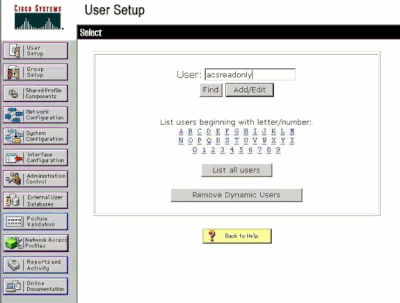 Add a Username
-
Provide the Real Name, Description and Password of this user. This window shows an example.
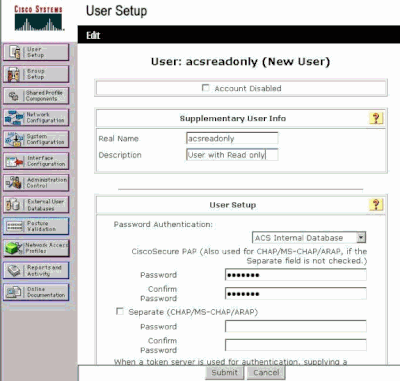 Provide the Real Name, Description and Password of the Added User
-
Scroll down to the IETF RADIUS Attributes setting and check Service-Type Attribute.
-
Since, in this example, user acsreadonly needs to have read-only access, choose NAS Prompt from the Service-Type pull-down menu and click Submit.
This ensures that this particular user has read-only access to the WLC.
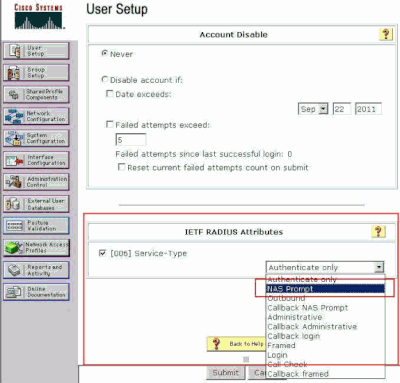 Check Service-Type Attribute
Manage the WLC Locally as well as Through the RADIUS Server
You can also configure the management users locally on the WLC. This can be done from the controller GUI, under Management > Local Management Users.
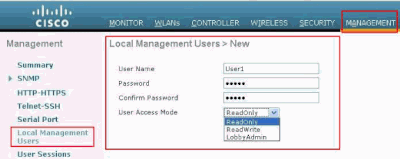 Configure the Management Users Locally on the WLC
Assume that the WLC is configured with management users both locally as well as in the RADIUS server with the Management check box enabled. In such a scenario, by default, when a user tries to log in to the WLC, the WLC behaves in this manner:
-
The WLC first looks at the local management users defined to validate the user. If the user exists in its local list, then it allows authentication for this user. If this user does not appear locally, then it looks to the RADIUS server.
-
If the same user exists both locally, as well as in the RADIUS server, but with different access privileges, then the WLC authenticates the user with the privileges specified locally. In other words, local configuration on the WLC always takes precedence when compared to the RADIUS server.
The order of authentication for management users can be changed on the WLC. In order to do this, from the Security page on the WLC, click Priority Order > Management User. From this page you can specify the order of authentication. Here is an example.
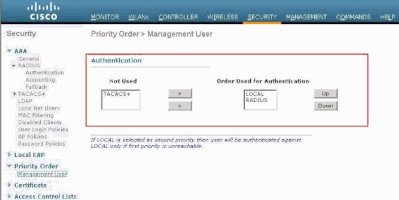 Priority Order > Management User Selection
Note: If LOCAL is selected as second priority, then the user is authenticated with this method only if the method defined as the first priority (RADIUS/ TACACS) is unreachable.
Verify
In order to verify whether your configuration works properly, access the WLC through the CLI or GUI (HTTP/HTTPS) mode. When the log in prompt appears, type the username and password as configured on the Cisco Secure ACS.
If you have the configurations correct, you are successfully authenticated into the WLC.
You can also ensure whether the authenticated user is provided with access restrictions as specified by the ACS. In order to do so, access the WLC GUI through HTTP/HTTPS (ensure that WLC is configured to allow HTTP/HTTPS).
A user with read-write access set in the ACS has several configurable privileges in the WLC. For example, a read-write user has the privilege to create a new WLAN under the WLANs page of the WLC. This window shows an example.
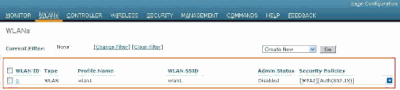 Configurable Privileges in the WLC
When a user with read only privileges tries to alter the configuration on the controller, the user sees this message.
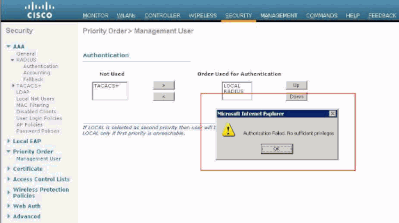 Cannot Alter the Controller with Read-only Access
These access restrictions can also be verified through the CLI of the WLC. This output shows an example.
(Cisco Controller) >?

debug          Manages system debug options.
help           Help
linktest       Perform a link test to a specified MAC address.
logout         Exit this session. Any unsaved changes are lost.
show           Display switch options and settings.

(Cisco Controller) >config

Incorrect usage.  Use the '?' or <TAB> key to list commands.
As this example output shows, a?at the controller CLI displays a list of commands available for the current user. Also notice that the config command is not available in this example output. This illustrates that a read-only user does not have the privilege to do any configurations on the WLC. Whereas, a read-write user does have the privileges to do configurations on the controller (both GUI and CLI mode).
Note: Even after you authenticate a WLC user through the RADIUS server, as you browse from page to page, the HTTP[S] server still fully authenticates the client each time. The only reason you are not prompted for authentication on each page is that your browser caches and replays your credentials.
Troubleshoot
There are certain circumstances when a controller authenticates management users via the ACS, the authentication finishes successfully (access-accept), and you do not see any authorization error on the controller.But, the user is prompted again for authentication.
In such cases, you cannot interpret what is wrong and why the user cannot log into the WLC with just the debug aaa events enable command. Instead, the controller displays another prompt for authentication.
One possible reason for this is that the ACS is not configured to transmit the Service-Type attribute for that particular user or group even though the username and password are correctly configured on the ACS.
The output of the debug aaa events enable command does not indicate that a user does not have the required attributes (for this example, the Service-Type attribute) even though an access-accept is sent back from the AAA server. In this example, debug aaa events enable command output shows an example.
 (Cisco Controller) >debug aaa events enable


Mon Aug 13 20:14:33 2011: AuthenticationRequest: 0xa449a8c

Mon Aug 13 20:14:33 2011: Callback.....................................0x8250c40

Mon Aug 13 20:14:33 2011: protocolType.................................0x00020001

Mon Aug 13 20:14:33 2011: proxyState......................1A:00:00:00:00:00-00:00

Mon Aug 13 20:14:33 2011: Packet contains 5 AVPs (not shown)

Mon Aug 13 20:14:33 2011: 1a:00:00:00:00:00 Successful transmission of
Authentication Packet (id 8) to 172.16.1.1:1812, proxy state
1a:00:00:00:00:00-00:00

Mon Aug 13 20:14:33 2011: ****Enter processIncomingMessages: response code=2

Mon Aug 13 20:14:33 2011: ****Enter processRadiusResponse: response code=2

Mon Aug 13 20:14:33 2011: 1a:00:00:00:00:00 Access-Accept
received from RADIUS server 172.16.1.1 for mobile 1a:00:00:00:00:00 receiveId = 0

Mon Aug 13 20:14:33 2011: AuthorizationResponse: 0x9802520

Mon Aug 13 20:14:33 2011: structureSize................................28

Mon Aug 13 20:14:33 2011: resultCode...................................0

Mon Aug 13 20:14:33 2011: protocolUsed.................................0x00000001

Mon Aug 13 20:14:33 2011: proxyState.......................1A:00:00:00:00:00-00:00

Mon Aug 13 20:14:33 2011: Packet contains 0 AVPs:
In this first example debug aaa events enable command output, you see that Access-Accept is successfully received from the RADIUS server but the Service-Type attribute is not passed onto the WLC. This is because the particular user is not configured with this attribute on the ACS.
Cisco Secure ACS needs to be configured to return the Service-Type attribute after user authentication. The Service-Type attribute value must be set to either Administrative or NAS-Prompt based on the user privileges.
This second example shows the debug aaa events enable command output again. However, this time the Service-Type attribute is set to Administrative on the ACS.
(Cisco Controller)>debug aaa events enable


Mon Aug 13 20:17:02 2011: AuthenticationRequest: 0xa449f1c

Mon Aug 13 20:17:02 2011: Callback.....................................0x8250c40

Mon Aug 13 20:17:02 2011: protocolType.................................0x00020001

Mon Aug 13 20:17:02 2011: proxyState.......................1D:00:00:00:00:00-00:00

Mon Aug 13 20:17:02 2011: Packet contains 5 AVPs (not shown)

Mon Aug 13 20:17:02 2011: 1d:00:00:00:00:00 Successful transmission of
Authentication Packet (id 11) to 172.16.1.1:1812, proxy state
1d:00:00:00:00:00-00:00

Mon Aug 13 20:17:02 2011: ****Enter processIncomingMessages: response code=2

Mon Aug 13 20:17:02 2011: ****Enter processRadiusResponse: response code=2

Mon Aug 13 20:17:02 2011: 1d:00:00:00:00:00 Access-Accept received
from RADIUS server 172.16.1.1 for mobile 1d:00:00:00:00:00 receiveId = 0

Mon Aug 13 20:17:02 2011: AuthorizationResponse: 0x9802520

Mon Aug 13 20:17:02 2011: structureSize................................100

Mon Aug 13 20:17:02 2011: resultCode...................................0

Mon Aug 13 20:17:02 2011: protocolUsed.................................0x00000001

Mon Aug 13 20:17:02 2011: proxyState.......................1D:00:00:00:00:00-00:00

Mon Aug 13 20:17:02 2011: Packet contains 2 AVPs:

Mon Aug 13 20:17:02 2011: AVP[01] Service-Type...........0x00000006 (6) (4 bytes)

Mon Aug 13 20:17:02 2011: AVP[02] Class.........
CISCOACS:000d1b9f/ac100128/acsserver (36 bytes)
You can see in this previous example output that the Service-Type attribute is passed onto the WLC.
Related Information

 Feedback