CUCM Attendant Console Error Messages
Available Languages
Contents
Introduction
The Cisco Unified Communications Manager (CUCM) Attendant Console allows you to set up Cisco IP phones as Attendant Consoles. The CUCM Attendant Console uses speed dial entries and quick directory access to look up phone numbers, monitor calls, and handle calls with the employment of a graphical user interface (GUI). A receptionist or administrative assistant uses the CUCM Attendant Console to handle calls for a department or company, or other employees can use it to manage their own telephone calls.
The CUCM Attendant Console installs on a PC with IP connectivity to the CUCM system. The Attendant Console works with a Cisco IP phone that is registered to a CUCM system (one console for each phone that is used as an Attendant Console). Multiple consoles can connect to a single CUCM system.
This document describes the error messages and the workarounds related to the CUCM Attendant Console.
Prerequisites
Requirements
There are no specific requirements for this document.
Components Used
The information in this document is based on these software and hardware versions:
-
Cisco Unified Communications Manager (CallManager) 4.x.
-
Cisco Unified Communications Manager 6.x/7.x/8.x
-
Cisco Unified Business/Department Attendant Console (CUBAC) 8.x
The information in this document was created from the devices in a specific lab environment. All of the devices used in this document started with a cleared (default) configuration. If your network is live, make sure that you understand the potential impact of any command.
Conventions
Refer to Cisco Technical Tips Conventions for more information on document conventions.
Error: Unable to connect to server
Problem
You are unable to launch the Cisco Unified Communications Manager Attendant console, and this error message is displayed:
Unable to connect to server
Solution
Restart the Cisco CTIManager and Cisco Telephony Call Dispatcher on the Cisco CallMananger server in order to resolve this problem. These services must be started from the Control Center as described in this procedure:
-
Choose Application > Cisco CallManager Serviceability > Tools > Control Center.
-
Stop and start these services:
-
Cisco CTIManager
-
Cisco Telephony Call Dispatcher
-
-
Open the Attendant Console application, and try to connect.
Error: Error communicating with server is displayed
Problem
You are unable to launch Cisco Unified Communications Manager Attendant console, and this error message is displayed:
Error communicating with server is displayed
Solution
Update the Hosts and LMHosts files with entries for your Unified Communications Manager servers in order to resolve this problem. Complete these steps in order to find the files:
-
From the affected PC, go to C:\Windows\System32\Drivers\Etc.
-
Locate the LMHosts.sam file.
-
Open the file in a text editor (such as Notepad).
-
Complete the instructions within the file in order to add entries for the IP address and host name of your Unified Communications Manager servers. Separate your entries with a tab. For example:
-
192.168.10.1 publisherhostname
-
192.168.10.2 subscriberhostname
-
-
Save the file.
-
In the same folder, locate the Hosts file, and repeat these steps.
-
Stop and start the Attendant Console.
Error: Failed to transfer the call due to internal error. Attempt to transfer a call that does not exist or is no longer active.
Problem
This error is received intermittently when you attempt to transfer calls using the Cisco Attendant Console:
Failed to transfer the call due to internal error.  Attempt to transfer a call that does
not exist or is no longer active.
Solution
In order to resolve this issue, update the Hosts and LMHosts files with entries for your Unified Communications Manager servers as described in the Solution section of Error: Error communicating with server is displayed.
Error: One or more lines on your phone are shared. Shared lines are not supported.
Problem
When trying to login to the Attendant Console, this error message is received: One or more lines on your phone are shared. Shared lines are not supported.
This issue occurs mainly when the same Directory Number (DN) is used on different lines at different partitions. Attendant Console depends on CTI/JTAPI and is not partition-aware because this a CTI/JTAPI limitation. Therefore, if you are using the same DN that is used on different lines at different partitions, Attendant Console gets confused because the phone configuration looks like a shared line on the same phone to the Attendant Console.
Solution
Complete these steps in order to resolve this issue:
-
Check if there are any shared lines. If so, remove the same.
-
Check if the same DN is used on different lines at different partitions. If so, reconfigure the same. Attendant Console does not support the configuration of the same DN in multiple partitions for the attendant phone.
-
Check if there are any unassigned DNs. If so, delete the same using the procedure mentioned in CallManager 4.x: Delete Unassigned Directory Numbers Configuration Example.
Attendant Console Steals Focus from other Windows on Incoming Call
Problem
The Attendant Console steals focus from other windows whenever a call comes in.
Solution
At the bottom of the Attendant Console window, there is a small icon just to the left of the Call Control status indicator area. The icon looks like a desktop window; if you click the icon, you can toggle the Activate console on new call feature on and off.
Error: unable to connect to server
Problem
This error message is received when you attempt to start the Attendant Console application on a Windows XP server: unable to connect to server
Solution
Complete these steps in order to resolve this issue:
-
Check the connectivity between the Cisco CallManager server and the Attendant Console server.
-
Check if any Antivirus/Firewall is blocking the Attendant Console Ports (TCP Ports range of 1099 through 1129 and 2748).
-
Edit the LMHOSTS and HOSTS files in the Attendant Console PC located in C:\WINDOWS\system32\drivers\etc as follows:
-
Open the file in a text editor (such as Notepad or Wordpad).
-
Add the CallManager Servers IP addresses or CallManager name, and save the changes.
-
-
Open the SQL Configuration Manager from Start > Programs > Microsoft SQL Server 2005 > Configuration Tools, and enable TCP/IP protocol on the server.
-
Restart the Cisco CTIManager service.
Error: 404 The Page Cannot be Found
Problem
You receive this error when you log in to the Admin page after a fresh install of Cisco Unified Business/Department Attendant Console (CUBAC):
404 The Page Cannot be Found
Solution
Go to Start > Settings > Control Panel > Add/Remove Programs, and verify that the Microsoft .NET Framework is installed. If it is not installed, then install the Microsoft .NET Framework in order to resolve this issue.
Line Status in the Attendant Console Displays as a Question Mark (?)
Problem
The Attendant Console shows a question mark in the line status field within speed dials and the directory. Call control works fine, and the status display is shown correctly.
The issue is not resolved if you log out and then log back in to the Attendant Console and then you reset the CTIManager service on the Cisco CallManager Publisher and Subscribers.
Solution 1
Generally, this issue is caused if the firewall is enabled on the client computer. In order to resolve this issue, disable the firewall on the client PC. Or, if it cannot be disabled, complete these steps:
-
If there is a firewall placed between the Telephony Call Dispatcher (TCD) server and Attendant Console client, open these ports:
-
Transport Control Protocol (TCP) ports 1099 - 1129
-
TCP port 2748
-
All User Datagram Protocol (UDP) ports. The UDP ports are used for the line status.
-
-
In order to control the UDP ports that are used by the Attendant Console for line state, configure the LocalHost IP Address field in the AdvancedSettings Dialog.
Enter a value in the IP Address:Port format. For example, 10.107.209.201:2658.
-
Open the UDP 2658 port at the firewall.
-
Exclude the Attendant Console client in the firewall.
-
Restart the computer telephony integration (CTI) and Cisco Secure Desktop services.
Solution 2
Go to the Cisco Callmanager Administration page, choose User Management > User Group, and verify that the ACDeviceAuthenticationUser exists.
For information on how to associate the ACDeviceAuthenticationUser user to the Attendant Console phones, refer to Associating Devices with the ACDeviceAuthenticationUser Application User.
Solution 3
If the line status does not appear in CUBAC, open a command window, and ping the CUBAC server; use the host name or host name + domain name (for example, hostname.domainname) in order to verify that the client machine can resolve the CUBAC server name (fully qualified domain name). If you are unable to ping the CUBAC server, complete these steps in order to add the CUBAC server host name to the client machine:
-
On the CUBAC server, open a command prompt, and type ipconfig to obtain the host name and domain name (if it exists).
-
Go to C:\WINDOWS\system32\drivers\etc, open the hosts file, and add this entry:
<ip_of_cubac_server> <host_name_of_cubac_server> <fqdn_of_cubac_server>
Note: The fully qualified domain name needs to be added only if the server is part of a domain.
-
Open the command prompt, and run this command:
nbtstat -R
Error: Operator terminal is up please re login if your device configuration has changed
Problem
This error message appears in the Cisco Attendant Console randomly:
Operator terminal is up please re login if your device configuration
has changed
Solution
Complete these steps in order to resolve the issue:
-
Change the user password (ACDeviceAuthenticationUser password and Attendant Console user password) to 12345.
-
Reset the Pilot Point.
-
Restart the CTI Manager and Cisco CallManager Attendant Console Server services.
-
Add the server host name and IP address to the host and lmhost files.
-
Add the server IP address and the PC's IP address to the console under Settings > Advanced.
Error: Your administrator must associate the Phone with a valid application user
Problem
You receive this error message when you attempt to log in to the Attendant Console: Your administrator must associate the Phone with a valid application user.
Solution
In order to resolve this issue, make sure the Attendant Phone is associated with the users ac and acdeviceauthenticationuser , and restart the CTI Manager and Cisco CallManager Attendant Console Server services.
Error: MSVCR71.dll not found
Problem
The Attendant Console installation fails with this error message:
This application has failed to start because MSVCR71.dll was not found.
Re-installing the application may this problem.
Solution
Complete these steps in order to resolve the issue:
-
Copy the MSVCR71.DLL and MSVCRT.DLL files to C:\WINDOWS\system32.
-
Run this command in order to re-register MSVCR71.DLL:
regsvr32 C:\WINDOWS\system32\msvcr71.dll
Note: When the custom launcher (cucsf.exe) loads a private JRE (jvm.dll) rather than a publicly installed JRE on a 64-bit machine, you must include MSVCR71.DLL in the same directory as cucsf.exe since it is possible that MSVCR71.DLL (which is required by jvm.dll) is not in the path. Inclusion of the DLL in the same directory helps to register the MSVCR71.DLL.
Note: This issue is documented in the Cisco Bug ID CSCsw88042 (registered customers only) .
Error: jqs_plugin.dll failed to register
Problem
You receive this error message when you try to install the Attendant Console:
jqs_plugin.dll failed to register. HRESULT -214702470
Solution
This error is caused by missing .dlls from the Attendant Console folder. In order to resolve this error, copy the MSVCR71.dll and MSVCRT.dll files from C:\ProgramFiles\Java\jre6\bin to C:\Program Files\Cisco\Unified Communications Manager Attendant Console\bin.
CTI Route Point and CTI Ports Fail to Register
Problem
You have issues registering CTI ports or route points with the Cisco Unified Business Attendant Console (CUBAC).
Solution
This issue was tracked based on the TSP trace. This sample output shows that CUBAC tried to open the CTI connection with IPv6:
09:56:04.347 |   CCtiInterface::ProcessRegisterDeviceResponse() RegisterDeviceRequest
failed. []
09:56:04.347 |   CCtiInterface::ProcessRegisterDeviceResponse() Result of register device
request is -1932787469
09:56:04.347 |<--CCtiInterface::ProcessRegisterDeviceResponse()
09:56:04.347 |<--CCtiInterface::OpenDevice() IPv6 [R3EDB27AD100016]
09:56:04.347 |-->CSelsiusTSPDevice::UnReserveMediaChannel() [0x00000000]
09:56:04.347 |   CSelsiusTSPDevice::UnReserveMediaChannel() [0x00000000] m_UserIP
[0x00000000]. m_UserRecvPort [0x00000000]
09:56:04.347 |-->CSelsiusTSPDevice::IsMediaChannelAssociated()
09:56:04.347 |   CSelsiusTSPDevice::IsMediaChannelAssociated() [0xFFFFFFFF] bRc - 0
09:56:04.347 |<--CSelsiusTSPDevice::IsMediaChannelAssociated()
09:56:04.347 |<--CSelsiusTSPDevice::UnReserveMediaChannel() [0x00000000]
09:56:04.347 |   CSelsiusTSPDevice::OpenDevice() [R3EDB27AD100016] *ERROR*
m_DeviceList->OpenDevice() failed with error 0x8CCC00F3 [Unknown value]
Complete these steps in order to resolve this issue:
-
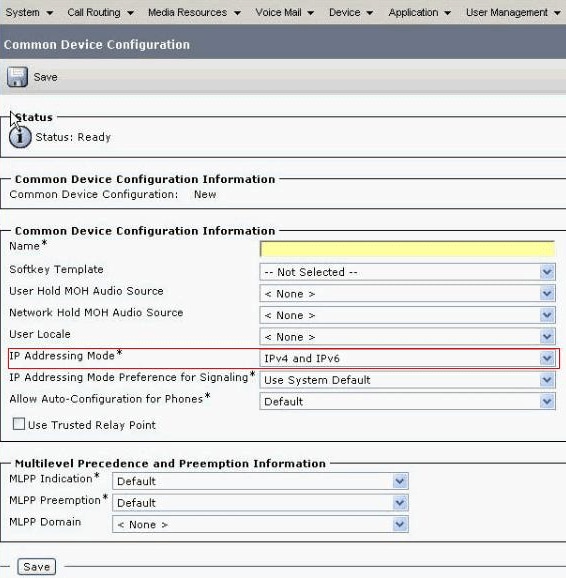
Remove IPv6 option from the Common Device template.
The common device configuration profile (Device > Device Settings > Common Device Configuration) contains the following IPv6 configuration information.
-
Restart the CTI route points, CTI ports, and CTI template device.
-
Restart the Windows Telephony service on CUBAC.

Error: Unable to connect to Backup CTI Manager. Please check the information provided and try again.
Problem
This error message appears on the installation screen where you configure the TSP information:
Unable to connect to Backup CTI Manager. Please check the information provided and try again.
Solution
This issue occurs when the CTI Manager service is not activated on the CUCM. Activate the CTI Manager and AXL services on the server in order to resolve this issue.
Attendant Console Sync Issue
Problem
Not all CUCM users appear in the Business Edition of the Attendant Console.
Solution
This issue mainly occurs when the directory reaches maximum capacity. Complete these steps in order to check if the directory has reached the maximum limit of user entries:
-
Choose System Configuration > Directory Synchronization > Enable, and verify that Directory Sync is enabled.
-
Restart the LDAP plugin service.
-
Choose Start > All Programs > Microsoft SQL Server 2008, click Connect, and expand the tree structure to the tables level.
-
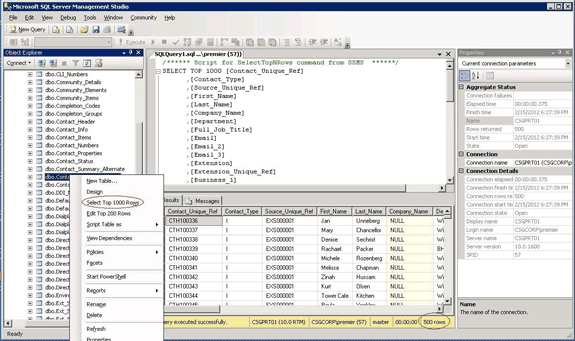
Right-click the dbo.Contact_Numbers table, and choose Select Top 1000 Rows.
The number of users imported into the directory appears in the lower-right corner of the user interface.

Error: Copy file CiscoTSP.tsp failed
Problem
When you try to install the CUBAC 8.x, the CTI ports show as unregistered and this error message is received:
Copy file CiscoTSP.tsp failed
Solution
Complete these steps in order to clean up the TSP registry keys and resolve this issue:
-
In the Registry Editor, navigate to HKEY_LOCAL_MACHINE > SOFTWARE > Cisco Systems, Inc., and delete the CiscoTSP registry key and all subkeys.
-
Delete all CiscoTSP*.tsp and CiscoTUISP*.dll files from the winnt\system32 directory. You might need to reboot the system so that the system will allow you to remove these files.
-
In the Registry Editor, navigate to HKEY_LOCAL_MACHINE > SOFTWARE > Microsoft > Windows > CurrentVersion > Uninstall, and delete the {AF198881-AF5B-11D4-9DA2-000039ED6324} and CiscoTSP subkeys.
Note: Do not delete the entire Uninstall key; delete only the {AF198881-AF5B-11D4-9DA2-000039ED6324} and CiscoTSP keys.
Refer to Cisco TSP 3.1 Installation Issues for more information.
Attendant Console Server Failures after Period of Uptime
Problem
The Attendant Console (AC) pilot point receives a busy tone intermittently or the AC client fails to log in successfully after a number of days.
The AC client application displays the Connecting to Server - Please Wait message followed by the Unable to connect to server message.
Solution
This issue occurs because the AC server closes the TCP port (1101). As a result, the AC client is not able to log in or receives a busy tone when calling the AC pilot point.
In order to resolve this issue, restart the Attendant Console Server and CTI manager service.
Note: This issue is documented in Cisco bug ID CSCsq93935 (registered customers only) .
Cisco Unified Communications Manager Attendant Console
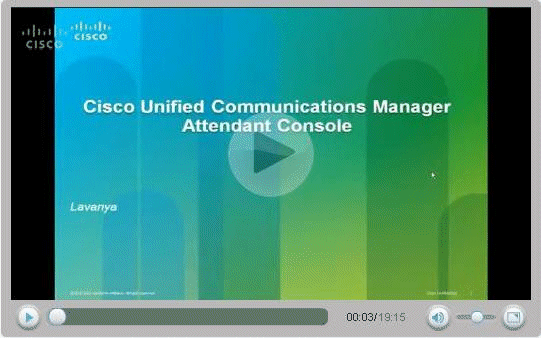
Here is a link to the video on the Cisco Support Community which explains about How to configure the Cisco Unified Communications Manager Attendant console.
Related Information

Revision History
| Revision | Publish Date | Comments |
|---|---|---|
1.0 |
16-Mar-2012
|
Initial Release |
 Feedback