Unified Communications and Collaboration
Together in one experience, Webex brings people together anywhere, on any device, with integrated collaboration.
Contact Cisco
-
-
Call Sales:
- 1-800-553-6387
- US/CAN | 5am-5pm PT
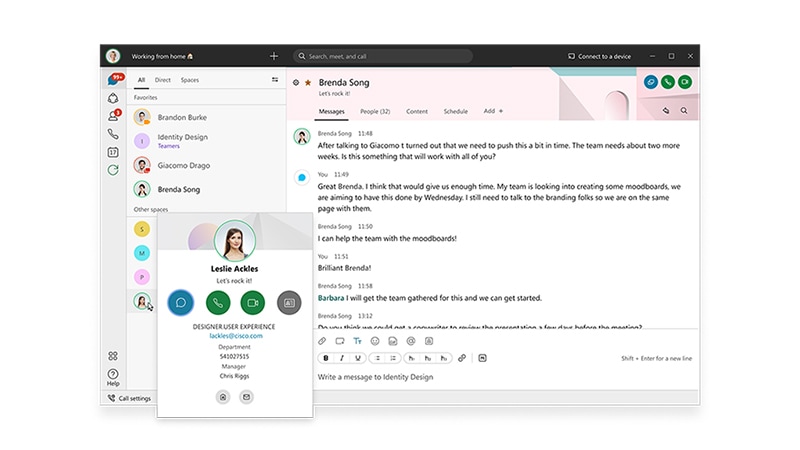
One app to call, meet, message and get work done.
One easy-to-use app to call, meet, message, and get work done.


Your unified collaboration experience
A complete cloud calling and collaboration experience for the enterprise is ready for you now, with Webex Calling.
Solutions
Get market-leading unified communications delivered on-premises, in the cloud, and any stage in between.




What is unified communications?
People work together in different ways. And they use a lot of collaboration tools: IP telephony for voice calling, web and video conferencing, voice mail, mobility, desktop sharing, instant messaging and presence, and more.
Unified communications (UC) solutions deliver integration of these tools, with seamless user experiences that help people work together more effectively. Anywhere, on any device. They bring real-time communication from your phone system and conferencing solutions together with messaging and chat, and integrate with everyday business applications using APIs.
UC solutions are available as on-premises software, partner-hosted solutions, or as a service (UCaaS) from cloud providers.
Featured products

Webex Calling
Deliver comprehensive global business calling from the cloud.

Webex App
The Webex App brings everyone together to do exceptional work. It is one easy-to-use and secure app for calling, meetings, and messaging to get work done.

Unified Communications Manager
Reduce costs, simplify management, improve mobility, and choose from multiple deployment options.

Secure and compliant collaboration
No need to compromise security in business unified communication apps.
Analyst reports

A Leader in Gartner Magic Quadrant
Cisco has once again been recognized as a Leader in the 2021 Magic Quadrant for UCaaS, Worldwide.

Aragon Research Globe™ leadership
Cisco is again positioned as an industry leader for Unified Communications and Collaboration.
Flexible subscription plans for your organization

Small-to-midsize business
Designed for businesses with up to 1000 users, this option is ideal for organizations that are new to Webex and are looking for an all-in-one, cloud collaboration solution in a single, flexible user subscription.

Large enterprises
Organizations with a mix of on-premises and cloud unified communications can extend the return on their investments with user-based or enterprise-wide agreements, that enable a streamlined transition to the cloud.

Education
Allow faculty and students to create, meet, message, whiteboard, and share, whether they are together or apart, with a plan that lets you mix and match deployment models depending on your needs.

Public sector
Mix and match on-premises and cloud collaboration services with a flexible subscription, including options for US Federal Risk and Authorization Management Program (FedRAMP)-authorized versions of Webex services.

Accelerate your results
Improve your ROI with UC experts who can take your solution to the next level.

Small business collaboration tools
Keep your teams happier, more productive, and more connected than ever before with powerful collaboration tools designed for the small business.
For partners
Are you a Cisco partner? Log in to see additional resources.
Looking for a solution from a Cisco partner? Connect with our partner ecosystem.
View partner enablement activities for Webex Calling and Webex Contact Center.