- Preface
- Information About the Cisco TelePresence WebEx OneTouch Solution
- Cisco TelePresence WebEx OneTouch First-Time Configuration Checklist
- Configuring Cisco TelePresence WebEx OneTouch on the Cisco TelePresence Multipoint Switch
- Configuring Cisco TelePresence WebEx OneTouch on Cisco Unified Communications Manager
- Configuring Cisco TelePresence WebEx OneTouch on Cisco TelePresence Manager
- Integrating Cisco TelePresence with Your Cisco WebEx Site Administration Account
- Troubleshooting the Cisco TelePresence WebEx OneTouch Solution
- Glossary
- Index
Verifying, Testing, and Troubleshooting Cisco TelePresence WebEx OneTouch on the Cisco TelePresence System
Contents
Verifying and Testing
• Cisco WebEx Site Administration Online Help
•Testing the Audio Dialback Number
Cisco WebEx Site Administration Online Help
For complete information about managing your Cisco WebEx Administration Site account, go to the Cisco WebEx Administration Site Help pages at the following URL and search on TelePesence:
https://go.webex.com/docs/T27LB/common_docs/en_US/siteadmin/help/wwhelp/wwhimpl/js/html/wwhelp.htm
Testing the Audio Dialback Number
To validate the Cisco WebEx audio number, call it from the PSTN (from a cell phone, for instance). Making a test call from outside the VoIP network ensures the following:
•The PSTN trunk/GW is active and the DID number is correct.
•The route pattern and trunk are correct.
•The called party transform mask is correct.
•The CTMS recognizes the called number as "the WebEx callback number" and is ready to accept calls.
•The DTMF relay works (KPML or RFC-2833)
If all of this is correct, the caller on the cell phone will hear three DTMF tones " ### "

Tip This test call can be made at any time, there does not need to be a meeting scheduled.
Troubleshooting Tips
Table 7-1 contains specific troubleshooting scenarios found in Cisco WebEx-enabled Cisco TelePresence meetings.
|
|
|
|
|---|---|---|
Unable to Schedule Cisco WebEx Sessions with Cisco TelePresence. |
• • • • • • • |
|
The following error code appears: 501229,SCH,WEBEX_KEY_RESERVE_ ERROR, Unable to get WebEx meeting key to reserve WebEx for meeting. |
Unable to obtain Cisco WebEx meeting key to reserve Cisco WebEx for meeting. The Cisco WebEx account was not provisioned correctly during initial Cisco WebEx setup. |
"Meeting Center Telepresence Privilege" must be set during the one-time authentication process. See Setting the Meeting Center Cisco TelePresence Privilege. |
Cisco WebEx Welcome screen does not appear; no "welcome to WebEx" audio greeting. |
When a user starts a Cisco TelePresence WebEx OneTouch meeting, the Cisco WebEx Welcome screen should appear and a "Welcome to WebEx" audio prompt is heard. If these are not present, the Cisco WebEx password might need to be reset. This could be due to a company policy or an administrator setting the system to require periodic password reset. |
1. 2. 3. Note |
Cisco TelePresence room participants hear only "...has joined the conference" rather than the person's name in the audio announcement. |
When a Cisco TelePresence WebEx OneTouch meeting is initiated from the Cisco TelePresence room, the meeting participants in the room hear the audio announcement: "[yourname] ...has joined the conference." For meetings initiated from the Cisco WebEx Client rather than the Cisco TelePresence room, participants in the room may hear this abbreviated announcement. |
This is an expected condition that does not affect functionality. |
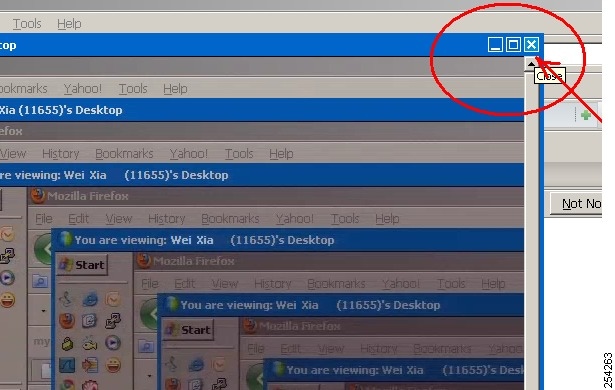
Cisco WebEx video view window cascades in a video loop when presenting. |
An undesirable window cascading effect can occur if you plug in the presentation cable while you have your Cisco WebEx video view panel open. |
Close the Cisco WebEx application before connecting your presentation cable to your laptop to present. See the Managing System Behavior for more information. |
Poor video quality for some Cisco WebEx participants but not others. |
If a particular Cisco WebEx client does not have enough bandwidth to send the CIF video, the accumulated packets on the server side will be dropped until next I-frame. The CIF/video/VOIP/desktop sharing quality depends on the client PC's network bandwidth and CPU power. When a network/CPU is not performing at an optimum level, you may experience blurred/temporary stuck/jumping effects because the server is discarding unsent packets. |
Network bandwidth should be at least 1 Mbps. Suggested CPU power (depends on running applications) is dual core CPU, 2.5 GHz memory running at least 2G. |
Cancelled meeting still shows active in Microsoft Exchange scheduler. |
CTS Manager does not detect the meeting modification. |
Log into Microsoft Web Access (OWA) using the room user ID and delete the meeting from the room calendar. |
Conference bridge may show the wrong caller as the active speaker. |
When a Cisco Telepresence endpoint has an active add-in caller that dials into a conferencing bridge, the conference bridge may show the CTS caller as the active speaker when the add-in caller is talking. When the add-in speaker speaks, the audio from that endpoint is forwarded by the CTS endpoint to the conference bridge. The conference bridge has as roster list entry only for the CTS caller. When the add-in caller speaks, the conference bridge will show an active speaker indication on the roster for the CTS caller, even though it is really the add-in caller that is speaking. |
This scenario happens with Cisco Telepresence callers that are connected to conference bridges, and have previously added another caller using the Conf softkey on the phone. No action is required. |
Unable to see data sharing in the Cisco WebEx Meeting (from Auto-Collaborate) |
Find out if there are other participants having the same issue. |
• • • • |
Unable to see Cisco TelePresence Video in Cisco WebEx |
Find out if there are other participants having the same issue. |
• • • |
Unable to hear Cisco TelePresence participants in the Cisco WebEx audio. |
• • • |
|
Meeting does not start, connection fails after 30 seconds. |
At meeting start time, CTM sends the callback number to WebEx. WebEx dials out to the CTMS then uses DTMF to signal the meeting instance to be bridged. The CTMS waits 30 seconds for the audio to arrive. The number must be a DID number on the PSTN with support for 24 calls. The Dial Number in the SIP INIVITE arriving at the CTMS must match the specified number exactly. The 30-second timer can be adjusted as necessary. |
Verify that you have entered the WexEx Dial In Number correctly (for example, "4085551234"). This number should match exactly in the CTMS WebEx Dial In > CTMS Dial In Number field and in the Called Party Transform Mask field of the Cisco Unified CM administration interface. See the following sections to verify: • |
Issues with Cisco WebEx digit detection during the handshake sequence. |
For field deployment of the Cisco TelePresence OneTouch feature, some customers are using non-Cisco VoIP GWs to connect to the PSTN. These devices are using different defaults for digit timing than are used by Cisco IOS GWs. |
Use the following default settings for non-Cisco GWs or PBXs: • • |
Cisco TelePresence presentation does not automatically display. |
This occurs after transitioning from a Cisco WebEx presenter to a Cisco TelePresence presenter. |
The Cisco TelePresence presenter must do the following to initiate the transition: 1. 2. 3. |
Managing System Behavior
•Managing the Cisco WebEx Video View Window
Managing the Cisco WebEx Video View Window
A window cascading effect can occur if you plug in the presentation (VGA) cable while you have your Cisco WebEx video view panel open. To prevent this issue, close the Cisco WebEx video view application before connecting your presentation cable to your laptop to present. If you receive a cascading screen, simply close the video view window, as shown in Figure 7-1.
Figure 7-1 Cascading Cisco WebEx Video View Window
 Feedback