- Preparing for Installation
- Verifying Switch Operation
- Installing the Switch
- Installing and Removing SFP Modules
- Inserting and Removing the SFP Module Patch Cable
- 10/100 or 10/100/1000 Ports
- Connecting the Switch to Compatible Devices
- Where to Go Next
Switch Installation (24- and 48-Port Switches)
This chapter describes how to install the Catalyst 3560 24- and 48-port switches, including how to interpret the power-on self-test (POST) that ensures proper operation. It also describes how to make connections to the switch.
For installation information for the Catalyst 3560-8PC and Catalyst 3560 12-PC-S switches, see Chapter 3 "Switch Installation (8- and 12-Port Switches)."
The instructions in this chapter for connecting to the switch ports and for installing, and connecting to the SFP modules apply to all Catalyst 3560 switches.
Read the topics and perform the procedures in this order:
• Installing and Removing SFP Modules
•Inserting and Removing the SFP Module Patch Cable
•Connecting the Switch to Compatible Devices
Preparing for Installation
Warnings
These warnings are translated into several languages in the Regulatory Compliance and Safety Information for the Catalyst 3560 Switch.
 |
Warning Do not stack the chassis on any other equipment. If the chassis falls, it can cause severe bodily injury and equipment damage. Statement 48
|
|
Warning Ethernet cables must be shielded when used in a central office environment. Statement 171
|
|
Warning If a redundant power system (RPS) is not connected to the switch, install an RPS connector cover on the back of the switch. Statement 265
|
|
Warning Attach only the following Cisco RPS model to the RPS receptacle: PWR-RPS2300 / PWR675-AC-RPS-N1 Statement 370 |
|
Warning Do not work on the system or connect or disconnect cables during periods of lightning activity. Statement 1001
|
|
Warning Before performing any of the following procedures, ensure that power is removed from the DC circuit. Statement 1003
|
|
Warning Read the installation instructions before connecting the system to the power source. Statement 1004
|
|
Warning This product relies on the building's installation for short-circuit (overcurrent) protection. Ensure that the protective device is rated not greater than: 5 A Statement 1005
|
|
Warning Class 1 laser product. Statement 1008
|
|
Warning This unit is intended for installation in restricted access areas. A restricted access area can be accessed only through the use of a special tool, lock and key, or other means of security. Statement 1017
|
|
Warning The plug-socket combination must be accessible at all times, because it serves as the main disconnecting device. Statement 1019
|
|
Warning A readily accessible two-poled disconnect device must be incorporated in the fixed wiring. Statement 1022
|
|
Warning This equipment must be grounded. Never defeat the ground conductor or operate the equipment in the absence of a suitably installed ground conductor. Contact the appropriate electrical inspection authority or an electrician if you are uncertain that suitable grounding is available. Statement 1024
|
|
Warning This unit might have more than one power supply connection. All connections must be removed to de-energize the unit. Statement 1028
|
|
Warning Only trained and qualified personnel should be allowed to install, replace, or service this equipment. Statement 1030
|
|
Warning Ultimate disposal of this product should be handled according to all national laws and regulations. Statement 1040
|
|
Warning For connections outside the building where the equipment is installed, the following ports must be connected through an approved network termination unit with integral circuit protection: 10/100/1000 Ethernet. Statement 1044
|
|
Warning When installing or replacing the unit, the ground connection must always be made first and disconnected last. Statement 1046
|
|
Warning This warning symbol means danger. You are in a situation that could cause bodily injury. Before you work on any equipment, be aware of the hazards involved with electrical circuitry and be familiar with standard practices for preventing accidents. Use the statement number provided at the end of each warning to locate its translation in the translated safety warnings that accompanied this device. Statement 1071
|
|
Warning Voltages that present a shock hazard may exist on Power over Ethernet (PoE) circuits if interconnections are made using uninsulated exposed metal contacts, conductors, or terminals. Avoid using such interconnection methods, unless the exposed metal parts are located within a restricted access location and users and service people who are authorized within the restricted access location are made aware of the hazard. A restricted access area can be accessed only through the use of a special tool, lock and key or other means of security. Statement 1072
|
|
Warning No user-serviceable parts inside. Do not open. Statement 1073
|
|
Warning Installation of the equipment must comply with local and national electrical codes. Statement 1074
|
Statement 371—Power Cable and AC Adapter

 To comply with the Telcordia GR-1089 Network Equipment Building Systems (NEBS) standard for electromagnetic compatibility and safety, connect the ethernet cables only to intrabuilding or nonexposed wiring or cabling.
To comply with the Telcordia GR-1089 NEBS standard, PoE or non-PoE 10/100/1000 Ethernet port cables that exit from either the left side or right side of the switch should be routed and tied to the nearest rack metal hardware.
To comply with the Telcordia GR-1089 Network Equipment Building Systems (NEBS) standard for electromagnetic compatibility and safety, connect the ethernet cables only to intrabuilding or nonexposed wiring or cabling.
To comply with the Telcordia GR-1089 NEBS standard, PoE or non-PoE 10/100/1000 Ethernet port cables that exit from either the left side or right side of the switch should be routed and tied to the nearest rack metal hardware.

Note The grounding architecture of this product is DC-isolated (DC-I).
Installation Guidelines
When you determine where to place the switch, be sure to observe these requirements:
•The operating environment is within the ranges listed in "Technical Specifications."
•Airflow around the switch and through the vents is unrestricted.
•Clearance to front and rear panels meets these conditions:
–You can easily read the front-panel indicators.
–Access to ports is sufficient for unrestricted cabling.
–The rear-panel power connector is within reach of an AC power receptacle.
•Temperature around the unit does not exceed 113°F (45°C).
If the switch is installed in a closed or multirack assembly, the temperature around it might be greater than normal room temperature.
•Cabling is away from sources of electrical noise, such as radios, power lines, and fluorescent lighting fixtures. Make sure the cabling is safely away from other devices that might damage the cables.
•For copper Ethernet ports, including 10/100 ports, 10/100/1000 ports, and 1000BASE-T SFP module ports, cable lengths from the switch to connected devices can be up to 328 feet (100 meters).
•The cables meet the specifications in Table B-1, which lists the cable specifications for 1000BASE-X and 100BASE-X SFP modules for the Catalyst 3560 switch. Catalyst 3560 switch SFP ports use both GLC-GE-100XX and GLC-FE-100XX SFP modules.
When you use shorter lengths of single-mode fiber cable, you might need to insert an inline optical attenuator in the link to avoid overloading the receiver.
When the fiber-optic cable span is less than 15.43 miles (25 km), you should insert a 5-decibel (dB) or 10-dB inline optical attenuator between the fiber-optic cable plant and the receiving port on the 1000BASE-ZX SFP module at each end of the link.
•Cisco Ethernet Switches are equipped with cooling mechanisms, such as fans and blowers. However, these fans and blowers can draw dust and other particles, causing contaminant buildup inside the chassis, which can result in a system malfunction.
You must install this equipment in an environment as free as possible from dust and foreign conductive material (such as metal flakes from construction activities).
These standards provide guidelines for acceptable working environments and acceptable levels of suspended particulate matter:
–Network Equipment Building Systems (NEBS) GR-63-CORE
–National Electrical Manufacturers Association (NEMA) Type 1
–International Electrotechnical Commission (IEC) IP-20
This applies to all Cisco Ethernet switches except for this compact model:
–Catalyst 3560-8PC switch—8 10/100 PoE ports and 1 dual-purpose port (one 10/100/1000BASE-T copper port and one SFP module slot)
Box Contents
The switch getting started guide on Cisco.com describes the box contents. If any item is missing or damaged, contact your Cisco representative or reseller for support.
Tools and Equipment
You need to supply a number-2 Phillips screwdriver to rack-mount the switch.
Verifying Switch Operation
Before you install the switch in a rack, on a wall, or on a table or shelf, you should power the switch and verify that the switch passes POST. See Section 3, "Running Express Setup," in the getting started guide for the steps required to connect a PC to the switch and to run Express Setup.
If your configuration has an RPS, connect the switch and the RPS to the same AC power source. See the "Cisco RPS" section, and see the Cisco RPS documentation for more information.
Note When you connect the RPS to the switch, put the RPS in standby mode. Set the RPS to active mode during normal operation.
To power on the switch, connect one end of the AC power cord to the AC power connector on the switch, and connect the other end of the power cord to an AC power outlet.
|
Warning Attach only the following Cisco RPS model to the RPS receptacle:PWR-RPS2300, PWR675-AC-RPS-N1=. Statement 370 |
As the switch powers on, it begins the POST, a series of tests that runs automatically to ensure that the switch functions properly. LEDs can blink during the test. POST lasts approximately 1 minute. When the switch begins POST, the System, RPS, Status, Duplex, and Speed LEDs turn green. The System LED blinks green, and the other LEDs remain solid green.
When the POST completes successfully, the System LED remains green. The RPS LED remains green for some time and then reflects the switch operating status. The other LEDs turn off and then reflect the switch operating status. If a switch fails POST, the System LED turns amber.
POST failures are usually fatal. Call Cisco technical support representative if your switch fails POST.
Powering Off the Switch
After a successful POST, disconnect the power cord from the switch. Install the switch in a rack, on a wall, on a table, or on a shelf as described in the "Installing the Switch" section.
Installing the Switch
Rack-Mounting
•Removing Screws from the Switch
•Attaching Brackets to the Catalyst 3560 Switch
•Mounting the Switch in a Rack
|
To prevent bodily injury when mounting or servicing this unit in a rack, you must take special precautions to ensure that the system remains stable. The following guidelines are provided to ensure your safety: • • •
|
Installing the switch in a 24-inch rack requires an optional bracket kit that contains the 24-inch rack-mounting brackets and hardware (RCKMNT-1RU=).
Removing Screws from the Switch
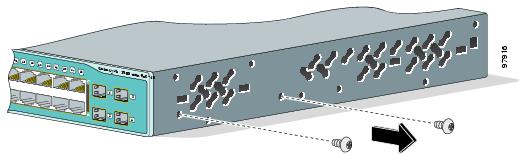
Before you install the switch in a rack, remove the switch chassis screws (see Figure 2-1.)
Figure 2-1 Removing Screws from the Catalyst 3560 Switch
Attaching Brackets to the Catalyst 3560 Switch
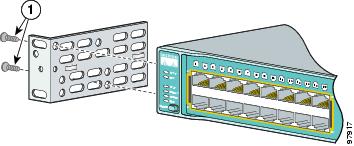
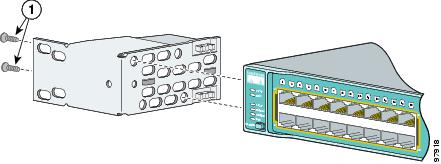
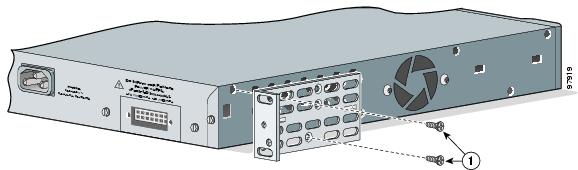
The bracket orientation and the brackets that you use depend on whether you are attaching the brackets for a 19-inch or a 24-inch rack.
•For 19-inch racks, use bracket part number 700-8209-01
•For 24-inch racks, use bracket part number 700-13248-01.
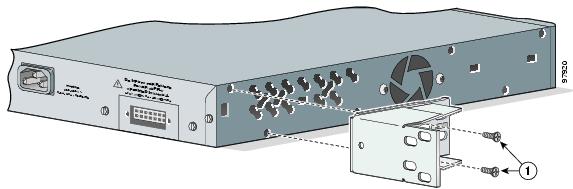
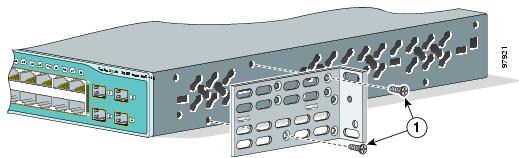
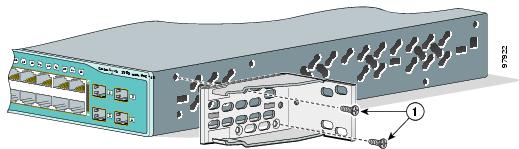
Figure 2-2 through Figure 2-7 show how to attach each type bracket to one side of the switch. Follow the same steps to attach the second bracket to the opposite side.
Figure 2-2 Attaching Brackets for 19-Inch Racks to a Catalyst 3560 Switch, Front Panel Forward
|
|
Phillips flat-head screws |
Figure 2-3 Attaching Brackets for 24-Inch Racks to a Catalyst 3560 Switch, Front Panel Forward
|
|
Phillips flat-head screws |
Figure 2-4 Attaching Brackets for 19-Inch Racks to a Catalyst 3560 Switch, Rear Panel Forward
|
|
Phillips flat-head screws |
Figure 2-5 Attaching Brackets for 24-Inch Racks to a Catalyst 3560 Switch, Rear Panel Forward
|
|
Phillips flat-head screws |
Figure 2-6 Attaching Brackets for 19-Inch Telco Racks to a Catalyst 3560 Switch
|
|
Phillips flat-head screws |
Figure 2-7 Attaching Brackets for 24-Inch Telco Racks to a Catalyst 3560 Switch
|
|
Phillips flat-head screws |
Mounting the Switch in a Rack
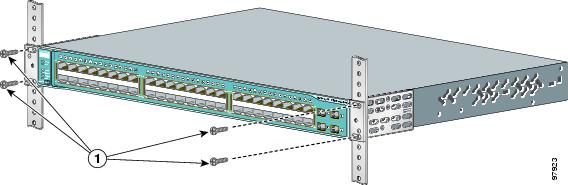
After the brackets are attached to the switch, use the four supplied number-12 Phillips machine screws to securely attach the brackets to the rack, as shown in Figure 2-8.
Figure 2-8 Mounting the Catalyst 3560 Switch in a Rack
|
|
Phillips machine screws |
After the switch is mounted in the rack:
1. Power on the switch. See the "Verifying Switch Operation" section.
2. Connect to a 10/100 or 10/100/1000 port, and run Express Setup. See the Catalyst 3560 Switch Getting Started Guide for instructions. To use the CLI setup program, see "Configuring the Switch with the CLI-Based Setup Program."
3. Connect to the front-panel ports.
Attaching the Cable Guide
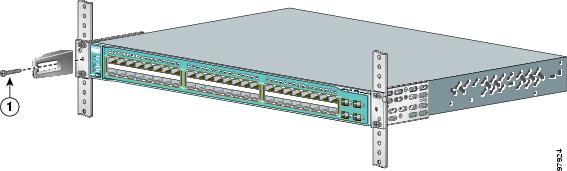
We recommend that you attach the cable guide to prevent the cables from obscuring the front panel of the switch and the other devices installed in the rack. Use the supplied black screw shown in Figure 2-9 to attach the cable guide to the left or right bracket.
Figure 2-9 Attaching the Cable Guide on the Catalyst 3560 Switch
|
|
Cable guide screw |
Wall-Mounting
These switches wall-mount only with the front panel facing up:
•Catalyst 3560-24PS, 3560-24TS-S, 3560-48PS, and 3560-48TS-S
•Catalyst 3560G-24PS, 3560G-24TS, 3560G-48PS, and 3560G-48TS
These switches wall-mount with the front panel facing up or down:
•Catalyst 3560V2-24PS, 3560V2-24TS, 3560V2-48PS, and 3560V2-48TS
The illustrations in this section show the Catalyst 3560G-48PS switch as an example.
You must install the RPS connector cover before wall-mounting the switch.
|
Warning Read the wall-mounting instructions carefully before beginning installation. Failure to use the correct hardware or to follow the correct procedures could result in a hazardous situation to people and damage to the system. Statement 378
|
To install the switch on a wall, follow the instructions in these procedures:
•Attaching the Brackets to the Switch for Wall Mounting
•Attaching the RPS Connector Cover
•Mounting the Switch on a Wall
Attaching the Brackets to the Switch for Wall Mounting
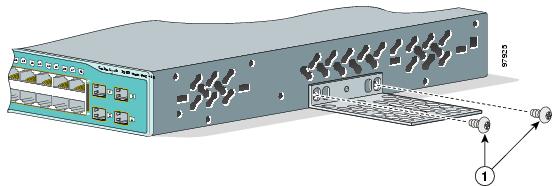
Figure 2-10 shows how to attach a 19-inch bracket to one side of the switch. Follow the same steps to attach the second bracket to the opposite side.
Figure 2-10 Attaching the 19-inch Brackets for Wall Mounting
|
|
Phillips truss-head screws |
Attaching the RPS Connector Cover
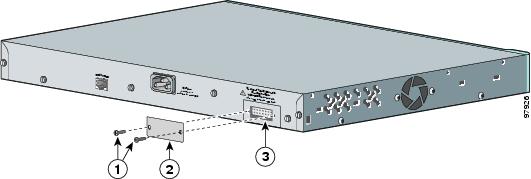
If you are not using an RPS with your switch, use the two Phillips pan-head screws to attach the RPS connector cover to the back of the switch, as shown in Figure 2-11.
|
Warning If a redundant power system (RPS) is not connected to the switch, install an RPS connector cover on the back of the switch. Statement 265
|
Figure 2-11 Attaching the RPS Connector Cover on the Catalyst 3560 Switch
|
|
Phillips pan-head screws |
|
RPS connector |
|
|
RPS connector cover |
||
Mounting the Switch on a Wall
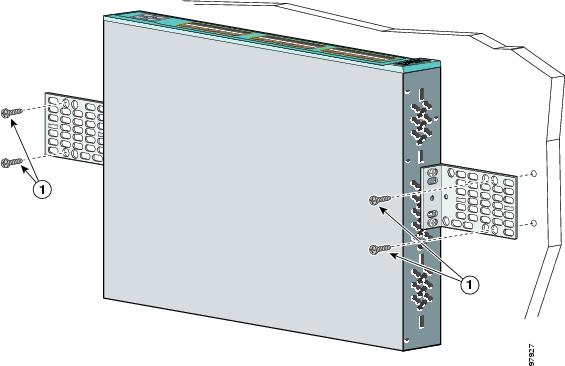
For the best support of the switch and cables, make sure the switch is attached securely to wall studs or to a firmly attached plywood mounting backboard. Mount the switch with the front panel facing up, as shown in Figure 2-12.
See the "Wall-Mounting" section for the switches that can also mount with the front panel facing down.
|
Warning Read the wall-mounting instructions carefully before beginning installation. Failure to use the correct hardware or to follow the correct procedures could result in a hazardous situation to people and damage to the system. Statement 378
|
Figure 2-12 Mounting the Switch on a Wall
|
|
User-supplied screws |
After the switch is mounted in the rack:
1. Power on the switch. See the "Verifying Switch Operation" section.
2. Connect to a 10/100 or 10/100/1000 port, and run Express Setup. See the Catalyst 3560 Switch Getting Started Guide for instructions. To use the CLI setup program, see "Configuring the Switch with the CLI-Based Setup Program."
3. Connect to the front-panel ports.
Table- or Shelf- Mounting
Step 1 Locate the adhesive strip with the rubber feet in the mounting-kit envelope. Attach the four rubber feet to the bottom of the switch near the corners.
Note Do not attach the rubber feet over the recessed screw holes on the bottom of the switch.
Step 2 Place the switch on the table or shelf near an AC power source.
After the switch is mounted in the rack:
1. Power on the switch. See the "Verifying Switch Operation" section.
2. Connect to a 10/100 or 10/100/1000 port, and run Express Setup. See the Catalyst 3560 Switch Getting Started Guide for instructions. To use the CLI setup program, see "Configuring the Switch with the CLI-Based Setup Program."
3. Connect to the front-panel ports.
Note When the connectors are not being used, replace the dust covers on them for protection.
Installing and Removing SFP Modules
The SFP modules are inserted into the SFP module slots on the front and provide uplink interfaces. You can use any combination of SFP modules. See the Catalyst 3560 release notes for the list of supported SFP modules. Each port must match the wave-length specifications on the other end of the cable, and for reliable communications, the cable must not exceed the stipulated cable length. See the Table B-1 for cable stipulations for SFP connections.
Use only Cisco SFP modules. Each SFP module has an internal serial EEPROM that is encoded with security information, which Cisco uses to identify and validate that the SFP module meets the requirements for the switch.
For detailed instructions on installing, removing, and cabling the SFP module, see the SFP module documentation.
Installing SFP Modules into SFP Module Slots
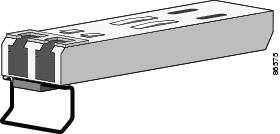
Figure 2-13 shows an SFP module that has a bale-clasp latch.
Figure 2-13 SFP Module with a Bale-Clasp Latch
We strongly recommend that you do not install or remove fiber-optic SFP modules with cables attached because of the potential damage to the cables, the cable connector, or the optical interfaces in the SFP module. Disconnect all cables before removing or installing an SFP module.
Removing and installing an SFP module can shorten its useful life. Do not remove and insert SFP modules more often than is absolutely necessary.
Step 1 Attach an ESD-preventive wrist strap to your wrist and to a bare metal surface on the chassis.
Step 2 Find the send (TX) and receive (RX) markings that identify the top side of the SFP module.
Note On some SFP modules, the send and receive (TX and RX) markings might be replaced by arrows that show the direction of the connection, either send or receive (TX or RX).
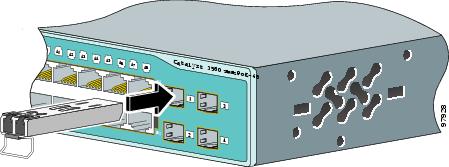
Step 3 Align the SFP module in front of the slot opening.
Step 4 Insert the SFP module into the slot until you feel the connector on the module snap into place in the rear of the slot. (See Figure 2-14.)
Figure 2-14 Installing an SFP Module into an SFP Module Slot
Step 5 For fiber-optic SFP modules, remove the dust plugs from the optical ports, and store them for later use.
Do not remove the dust plugs from the fiber-optic SFP module port or the rubber caps from the fiber-optic cable until you are ready to connect the cable. The plugs and caps protect the SFP module ports and cables from contamination and ambient light.
Step 6 Insert the cable connector into the SFP module:
•For fiber-optic SFP modules, insert the LC or MT-RJ cable connector into the SFP module.
•For copper SFP modules, insert the RJ-45 cable connector into the SFP module.
Note When connecting to 1000BASE-T SFP modules, be sure to use a twisted four-pair, Category 5 cable.
Removing SFP Modules from SFP Module Slots
Step 1 Attach an ESD-preventive wrist strap to your wrist and to a bare metal surface on the chassis.
Step 2 Disconnect the cable from the SFP module, and insert a dust plug into the cable end.
Note For reattachment, note which cable connector plug is send (TX) and which is receive (RX).
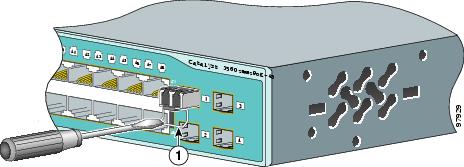
Step 3 Unlock and remove the SFP module, as shown in Figure 2-15.
If the module has a bale-clasp latch, pull the bale out and down to eject the module. If the bale-clasp latch is obstructed and you cannot use your index finger to open it, carefully use a small, flat-blade screwdriver or other long, narrow instrument to open the bale-clasp latch.
Figure 2-15 Removing a Bale-Clasp Latch SFP Module by Using a Flat-Blade Screwdriver
|
|
Bale clasp |
Step 4 Grasp the SFP module between your thumb and index finger, and carefully remove it from the module slot.
Step 5 For fiber-optic SFP modules, insert a dust plug into the optical ports of the SFP module to keep the optical interfaces clean.
Step 6 Place the removed SFP module in an antistatic bag or other protective environment.
Inserting and Removing the SFP Module Patch Cable
Step 1 Attach an ESD-preventive wrist strap to your wrist and to a bare metal surface on the chassis.
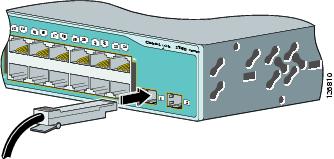
Step 2 Insert the SFP module patch cable into the slot until you feel the connector on the cable snap into place in the rear of the slot (see Figure 2-16).
Figure 2-16 Inserting an SFP Module Patch Cable into an SFP Module Slot
Step 3 Repeat these steps for the second Catalyst 3560 switch to which you want to cascade the first switch. See Figure 2-17.
Figure 2-17 Connecting Two Catalyst 3560 Switches with an SFP Module Patch Cable
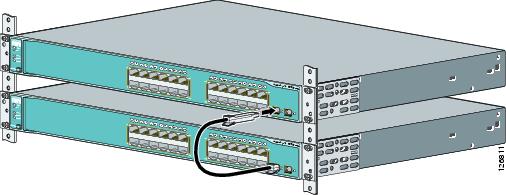
To remove an SFP module patch cable from the SFP module slot, release the connector, and pull it from the SFP module slot.
10/100 or 10/100/1000 Ports
The switch 10/100 and 10/100/1000 ports configure themselves to operate at the speed of attached devices. If the attached ports do not support autonegotiation, you can explicitly set the speed and duplex parameters. Connecting devices that do not autonegotiate or that have their speed and duplex parameters manually set can reduce performance or result in no linkage.
Note You can configure duplex mode to half, full, or autonegotiate on Gigabit Ethernet interfaces if the speed is set to 10 or 100 Mb/s. You cannot configure half-duplex mode on Gigabit Ethernet interfaces if the interface speed is 1000 Mb/s.
|
Warning Voltages that present a shock hazard may exist on Power over Ethernet (PoE) circuits if interconnections are made using uninsulated exposed metal contacts, conductors, or terminals. Avoid using such interconnection methods, unless the exposed metal parts are located within a restricted access location and users and service people who are authorized within the restricted access location are made aware of the hazard. A restricted access area can be accessed only through the use of a special tool, lock and key or other means of security. Statement 1072
|
To maximize performance, choose one of these methods for configuring the Ethernet ports:
•Let the ports autonegotiate both speed and duplex.
•Set the port speed and duplex parameters on both ends of the connection.
You can configure the 10/100 or 10/100/1000 ports on the Catalyst 3560 PoE switches either to automatically provide PoE if a Cisco IP Phone, Cisco Aironet Access Point, or end device compliant with IEEE 802.3af is connected or to never provide PoE, even if an IP phone or an access point is connected. The default setting is Auto. To prevent electrostatic-discharge (ESD) damage, follow your normal board and component handling procedures.
PoE faults are caused when noncompliant cabling or powered devices are connected to a PoE port. Only standard-compliant cabling can be used to connect Cisco prestandard IP Phones or wireless access points or IEEE 802.3af-compliant devices to PoE ports. You must remove a cable or device that causes a PoE fault from the network.
You can use the mdix auto interface configuration command in the CLI to enable the automatic medium-dependent interface crossover (auto-MDIX) feature. When the auto-MDIX feature is enabled, the switch detects the required cable type for copper Ethernet connections and configures the interfaces accordingly. Therefore, you can use either a crossover or a straight-through cable for connections to a copper 10/100, 10/100/1000, or 1000BASE-T SFP module port on the switch, regardless of the type of device on the other end of the connection.
The auto-MDIX feature is enabled by default on switches running Cisco IOS Release 12.2(18)SE or later. For releases between Cisco IOS Release 12.1(14)EA1 and 12.2(18)SE, the auto-MDIX feature is disabled by default. For configuration information for this feature, see the switch software configuration guide or the switch command reference.
The Catalyst 3560 switch can connect to a Cisco IP Phone through a straight-through, twisted four-pair Category 5 cable. The rear panel of the Cisco IP Phone might have more than one RJ-45 connector. Use the LAN-to-phone connector to connect the IP phone to the switch. See the Cisco IP Phone documentation for more information about connecting devices.
Many legacy powered devices, including older Cisco IP phones and access points that do not fully support IEEE 802.3af, might not support PoE when connected to the switches by a crossover cable.
Connecting the Switch to Compatible Devices
•Connecting to 10BASE-T or 100BASE-TX Devices
•Connecting to Fiber-Optic SFP Modules
•Connecting to 1000BASE-T SFP Modules
•Connecting to a Dual-Purpose Port
Connecting to 10BASE-T or 100BASE-TX Devices
Step 1 When connecting to workstations, servers, routers, and Cisco IP Phones, connect a straight-through cable to an RJ-45 connector on the front panel. (See Figure 2-18.) When connecting to switches or repeaters, use a crossover cable. (See the "Cable and Adapter Specifications" section for cable-pinout descriptions.)
Figure 2-18 Connecting to an Ethernet Port
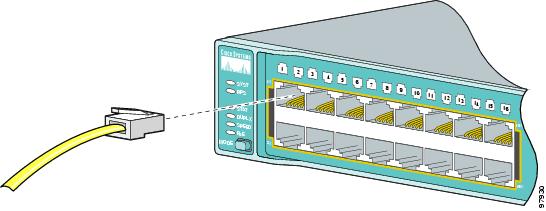
Step 2 Connect the other end of the cable to an RJ-45 connector on the other device. The port LED turns on when both the switch and the connected device have established link.
The port LED is amber while Spanning Tree Protocol (STP) discovers the topology and searches for loops. This takes about 30 seconds, and then the port LED turns green. If the port LED does not turn on, the device at the other end might not be turned on, or there might be a cable problem or a problem with the adapter installed in the attached device. See Chapter 4 "Troubleshooting," for solutions to cabling problems.
Step 3 Reconfigure and reboot the connected device, if necessary.
Step 4 Repeat Steps 1 through 3 to connect each device.
Connecting to Fiber-Optic SFP Modules
|
Warning Class 1 laser product. Statement 1008
|
Do not remove the rubber plugs from the SFP module port or the rubber caps from the fiber-optic cable until you are ready to connect the cable. The plugs and caps protect the SFP module ports and cables from contamination and ambient light.
Before connecting to the SFP module, be sure that you understand the port and cabling stipulations in the "Installation Guidelines" section. See "Connector and Cable Specifications," for information about the LC on the SFP module.
Step 1 Remove the rubber plugs from the module port and fiber-optic cable, and store them for future use.
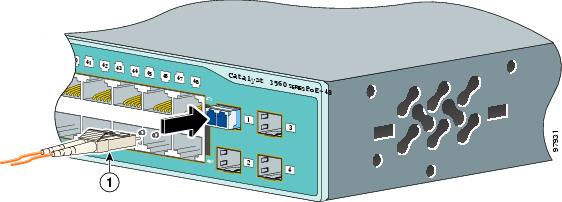
Step 2 Insert one end of the fiber-optic cable into the SFP module port (see Figure 2-19).
Figure 2-19 Connecting to a Fiber-Optic SFP Module Port
|
|
LC connector |
Step 3 Insert the other cable end into a fiber-optic connector on a target device.
Step 4 Observe the port status LED.
•The LED turns green when the switch and the target device have an established link.
•The LED turns amber while the STP discovers the network topology and searches for loops. This process takes about 30 seconds, and then the port LED turns green.
•If the LED is off, the target device might not be turned on, there might be a cable problem, or there might be problem with the adapter installed in the target device. See Chapter 4 "Troubleshooting," for solutions to cabling problems.
Step 5 If necessary, reconfigure and restart the switch or target device.
Connecting to 1000BASE-T SFP Modules
To prevent ESD damage, follow your normal board and component handling procedures.
Note When connecting to a 1000BASE-T device, use a four twisted-pair, Category 5 or higher cable.
The auto-MDIX feature is enabled by default. For configuration information for this feature, see the switch software configuration guide or the switch command reference.
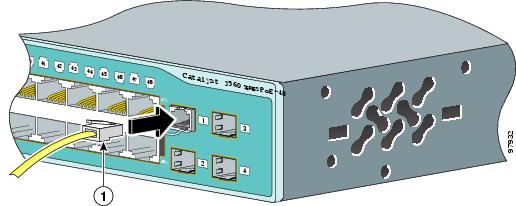
Step 1 Insert one end of the cable into the SFP module port (see Figure 2-20). When connecting to servers, workstations, and routers, insert a four twisted-pair, straight-through cable in the RJ-45 connector. When connecting to switches or repeaters, insert a four twisted-pair, crossover cable.
Figure 2-20 Connecting to a 1000BASE-T SFP Module
|
|
RJ-45 connector |
Step 2 Insert the other cable end in an RJ-45 connector on a target device.
Step 3 Observe the port status LED.
•The LED turns green when the switch and the target device have an established link.
•The LED turns amber while the STP discovers the network topology and searches for loops. This process takes about 30 seconds, and then the port LED turns green.
•If the LED is off, the target device might not be turned on, there might be a cable problem, or there might be problem with the adapter installed in the target device. See Chapter 4 "Troubleshooting," for solutions to cabling problems.
Step 4 If necessary, reconfigure and restart the switch or target device.
Connecting to a Dual-Purpose Port
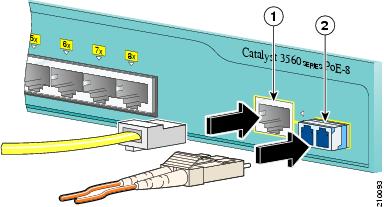
Step 1 Connect an RJ-45 connector to the 10/100/1000 port, or install an SFP module into the SFP module slot, and connect a cable to the SFP module port, as shown in Figure 2-21.
Figure 2-21 Connecting to a Dual-Purpose Port
|
|
RJ-45 connector |
|
LC connector |
Only one port can be active at a time. If both ports are connected, the SFP module port has priority. You cannot configure the priority setting.
Step 2 Connect the other end of the cable to the other device. The switch automatically detects the connection and configures the port.
Note By default, the switch automatically selects the interface type the first time a port links up. For subsequent links, you must use the media-type interface configuration command to manually configure either the RJ-45 connector or the SFP module connector. For more information, see the command reference. .
Where to Go Next
If the default configuration is satisfactory, the switch does not need further configuration. You can use any of these management options to change the default configuration:
•Start the device manager, which is in the switch memory, to manage individual switches. The device manager is a web interface that offers quick configuration and monitoring. You can access the device manager from anywhere in your network through a web browser. For more information, see the device manager online help.
•Start the Network Assistant application, which is described in the Getting Started with Cisco Network Assistant guide. Through this GUI, you can configure and monitor a switch cluster or an individual switch.
•Use the CLI from the console to configure the switch as a member of a cluster or as an individual switch. See the Catalyst 3560 Switch Software Configuration Guide and the Catalyst 3560 Switch Command Reference on Cisco.com for information on using the CLI with a Catalyst 3560 switch.
•Start an SNMP application such as the CiscoView application.
 Feedback