Getting Started with Cisco VSPT
Revised: March 17, 2010, OL-8907-06
This chapter provides directions for starting and using the Cisco VSPT. It contains the following sections:
• Defining Users and Permissions
Starting Cisco VSPT
To start the Cisco VSPT, use this procedure.

Note If you encounter any font problems in Cisco VSPT, start the VNC server using -fb /user/openwin/lib/X11/fonts/misc/ as the command arguments.
Step 1 Do one of the following to start Cisco VSPT:
•Start Cisco VSPT standalone.
–Log in to the Cisco VSPT server or access it from a machine with X window capability.
–In a terminal window, change to the default directory:
>cd /opt/CSCOvsp27
Note Navigate to the appropriate directory if you installed the Cisco VSPT in a different location.
–Enter the following command to start the Cisco VSPT:
>./vspt
•Start Cisco VSPT from Cisco Media Gateway Controller Node Manager (CMNM).
–Before starting Cisco MNM, log in as root.
–Right-click the Cisco PGW 2200 Softswitch host object in the Map Viewer and choose Tools > Voice Service Provisioning Tool (VSPT).
Note If you start the Cisco VSPT from Cisco MNM, the correct Cisco VSPT version is automatically launched to match the selected Cisco PGW 2200 Softswitch. You must have that version of Cisco VSPT installed before you launch it on the Cisco PGW 2200 Softswitch host object from Cisco MNM.
The login screen shown in Figure 3-1 appears.
Figure 3-1 Login Screen
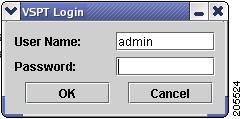
Step 2 Enter your user name and password and click OK.
The default user name is admin, and the password is also admin.
Note Cisco VSPT checks the license and provides the expiry date for that license after you provide the login information.
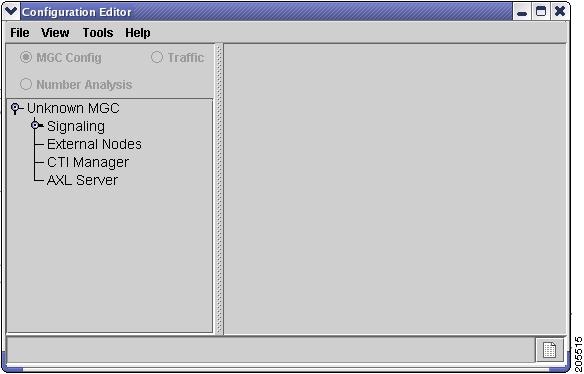
The Welcome screen is displayed briefly during the login process, and the Main VSPT window appears (see Figure 3-2).
Figure 3-2 Main Cisco VSPT Window
Using Cisco VSPT
This section describes the Cisco VSPT menus and Configuration Editor views and gives instructions for using the tool functions.
Menus
The Cisco VSPT menu bar contains these menus:
•File
•View
•Tools
•Help
These menus are described in the following sections.
File Menu
Table 3-1 describes File menu options.
View Menu
Table 3-2 describes View menu options.
Tools Menu
Table 3-3 describes Tools menu options.
Help Menu
Table 3-4 describes Help menu options.
Configuration Editor Views
You create, view, and modify configurations using the Cisco VSPT Configuration Editor, which has three different views.
To select a view, click one of the radio buttons at the top of the Configuration Editor window:
•MGC Config—Cisco PGW 2200 Softswitch Configuration view. Use to add components and provision component properties.
•Traffic—Traffic view. Use to create customer-specific files, including trunk groups, trunks, and routing.
•Number Analysis—Number Analysis view. Use to provision dial plans.
In each view, the left pane displays selectable components in an Explorer-type tree view.
The right pane displays data entry fields for the selected component.
Click a component to select it. To see all of the subcomponents for the component you select, click the icon next to the component name to expand the component list.
For instructions on using the Cisco VSPT to provision components, component properties, trunk groups, trunks, and routing, see the Cisco Media Gateway Controller Software Release 9 Provisioning Guide.
For instructions on using the Cisco VSPT to provision a dial plan, see the Cisco Media Gateway Controller Software Release 9 Dial Plan Guide.
Defining Users and Permissions
After you install the Cisco VSPT, you define users and their respective permissions using the following procedure:
Step 1 Log in to the server as root.
Step 2 Start Cisco VSPT, either by first starting Cisco MGC Node Manager and then starting Cisco VSPT, or by starting the Cisco VSPT standalone.
Step 3 Click Tools > User Admin.
The User Administration screen in Figure 3-3 appears.
Figure 3-3 Cisco VSPT User Administration
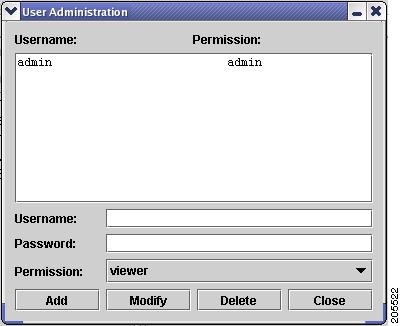
Step 4 To add a user, do the following:
a. Enter a user name and password.
b. From the Permission dropdown list, select the desired permission level, Admin, User, or Viewer.
Note Admin—Can create, modify, and delete users. This type of user has full read and write access to all of the configurations on the Cisco BAMS and the Cisco PGW 2200 Softswitch.
User—Cannot create, modify, or delete users. This type of user has full read and write access to all of the configurations on the Cisco BAMS and the Cisco PGW 2200 Softswitch.
Viewer—Cannot create, modify, or delete users. This type of user has the read-only access to the Cisco PGW 2200 Softswitch configurations saved on the Cisco VSPT but has no access to the Cisco BAMS configurations saved on the Cisco VSPT. A viewer cannot access the configurations on the remote Cisco BAMS or the Cisco PGW 2200 Softswitch.
c. Click Add.
To modify a user, select the user name, change the password or permission level, and click Modify.
To delete a user, select the user name, and click Delete.
Exiting the Cisco VSPT
You can exit the Cisco VSPT by choosing File > Exit or by clicking the X button in the upper right of the main window.
 Feedback