安装 Windows 代理以实现深度可视性和策略执行

安装 Windows 代理的前提条件

  • 有关平台要求,请参阅“受支持的平台和前提条件”部分。

  • 安装并运行代理服务需要拥有根权限或管理员权限。

  • 在运行 Windows 2008 R2 的工作负载上,或安装的代理版本低于 3.8 版本时,需安装 Npcap。若尚未安装 Npcap 驱动,代理会在服务启动后,在后台安装推荐版本的 Npcap。有关详细信息,请参阅 Npcap 版本信息。

  • 代理和日志文件需要 1GB 的存储空间。

  • 启用代理安装所需的 Windows 服务。若您的 Windows 主机经过安全强化,或偏离了默认配置,部分 Windows 服务可能已被禁用。有关详细信息,请参阅“必需的 Windows 服务”部分。

  • 在监控主机的安全应用上配置安全排除项,避免其阻止代理安装或运行。有关详细信息,请参阅安全排除项。

支持的 Windows 代理安装方法

有两种方法可以安装 Windows 代理,以实现深度可视性和执行。

您还可以使用黄金映像进行安装。有关详细信息,请参阅在 VDI 实例或 VM 模板上部署代理 (Windows)

使用代理脚本安装程序方法安装 Windows 代理

建议使用脚本安装程序方法来部署 Windows 代理,以实现深度可视性和执行。


Note


  • 安装的 Windows 代理支持深度可视性和执行。

  • 默认情况下,执行会被禁用。要启用执行,请参阅创建代理配置文件


要使用脚本安装程序方法来安装 Windows 代理,请执行以下操作:

Procedure


Step 1

导航至代理安装方法:

  • 如果您是新用户,请启动“快速启动”(Quick Start) 向导,然后点击安装代理 (Install Agents)

  • 从导航窗格中,选择管理 (Manage) > 代理 (Agents),然后选择安全程序 (Installer) 选项卡。

Step 2

点击代理脚本安装程序 (Agent Script Installer)

Step 3

选择平台 (Select Platform) 下拉菜单中,选择 Windows

要查看支持的 Windows平台,请点击显示支持的平台 (Show Supported Platforms)

Step 4

选择要安装代理的租户。

Note


对于 Cisco Secure Workload SaaS 集群,不需要选择租户。

Step 5

如果要为工作负载分配标签,请选择标签键并输入标签值。

当安装的代理报告主机上的 IP 地址时,此处选择的安装程序 CMDB 标签,以及已分配给该主机报告的 IP 的其他已上传 CMDB 标签,将分配给新的 IP 地址。如果上传的 CMDB 标签与安装程序的 CMDB 标签发生冲突:

  • 分配给确切 IP 地址的标签优先于分配给子网的标签。

  • 分配给确切 IP 地址的现有标签优先于安装程序 CMDB 标签。

Step 6

如果需要 HTTP 代理才能与 Cisco Secure Workload 通信,请选择是 (Yes),然后输入有效的代理 URL。

Step 7

安装程序到期 (Installer expiration) 部分下,从可用选项中选择一个选项:

  • 无过期 (No expiration):安装程序脚本可多次使用。

  • 一次 (One time):安装程序脚本只能使用一次。

  • 时间限制 (Time bound):您可以设置安装程序脚本可以使用的天数。

  • 部署次数 (Number of deployments):您可以设置安装程序脚本可以使用的次数。

Step 8

点击下载 (Download) 并将文件保存到本地磁盘。

Step 9

将安装程序 PowerShell 脚本复制到所有 Windows 主机进行部署,并以管理权限运行该脚本。

Note

 
  • 根据系统设置,可能需要在运行其他命令之前运行 Unblock-File 命令。

  • 如果租户上已安装代理,则脚本不会运行。


我们建议按照脚本使用详细信息中的规定运行预先检查。
Windows 安装程序脚本使用详细信息
# powershell -ExecutionPolicy Bypass -File tetration_windows_installer.ps1 [-preCheck] [-skipPreCheck <Option>] [-noInstall] [-logFile <FileName>] [-proxy <ProxyString>] [-noProxy] [-help] [-version] [-sensorVersion <VersionInfo>] [-ls] [-file <FileName>] [-save <FileName>] [-new] [-reinstall] [
-npcap] [-forceUpgrade] [-upgradeLocal] [-upgradeByUUID <FileName>] [-visibility] [-goldenImage] [-installFolder <Installation Path>]
  -preCheck: run pre-check only
  -skipPreCheck <Option>: skip pre-installation check by given option; Valid options include 'all', 'ipv6' and 'enforcement'; e.g.: '-skipPreCheck all' will skip all pre-installation checks; All pre-checks will be performed by default
  -noInstall: will not download and install sensor package onto the system
  -logFile <FileName>: write the log to the file specified by <FileName>
  -proxy <ProxyString>: set the value of HTTPS_PROXY, the string should be formatted as http://<proxy>:<port>
  -noProxy: bypass system wide proxy; this flag will be ignored if -proxy flag was provided
  -help: print this usage
  -version: print current script's version
  -sensorVersion <VersionInfo>: select sensor's version; e.g.: '-sensorVersion 3.4.1.0.win64'; will download the latest version by default if this flag was not provided
  -ls: list all available sensor versions for your system (will not list pre-3.1 packages); will not download any package
  -file <FileName>: provide local zip file to install sensor instead of downloading it from cluster
  -save <FileName>: downloaded and save zip file as <FileName>
  -new: remove any previous installed sensor;
  -reinstall: reinstall sensor and retain the same identity with cluster; this flag has higher priority than -new
  -npcap: overwrite existing npcap
  -forceUpgrade: force sensor upgrade to version given by -sensorVersion flag; e.g.: '-sensorVersion 3.4.1.0.win64 -forceUpgrade'; apply the latest version by default if -sensorVersion flag was not provided
  -upgradeLocal: trigger local sensor upgrade to version given by -sensorVersion flag; e.g.: '-sensorVersion 3.4.1.0.win64 -upgradeLocal'; apply the latest version by default if -sensorVersion flag was not provided
  -upgradeByUUID <FileName>: trigger sensor whose uuid is listed in <FileName> upgrade to version given by -sensorVersion flag; e.g.: '-sensorVersion 3.4.1.0.win64 -upgradeByUUID "C:\\Program Files\\Cisco Tetration\\sensor_id"'; apply the latest version by default if -sensorVersion flag was not provided
  -visibility: install deep visibility agent only; -reinstall would overwrite this flag if previous installed agent type was enforcer
  -goldenImage: install Cisco Secure Workload Agent but do not start the Cisco Secure Workload Services; use to install Cisco Secure Workload Agent on Golden Images in VDI environment or Template VM. On VDI/VM instance created from golden image with different host name, Cisco Secure Workload Services will work normally
  -installFolder: install Cisco Secure Workload Agent in a custom folder specified by -installFolder e.g.: '-installFolder "c:\\custom sensor path"'; default path is "C:\Program Files\Cisco Tetration"

使用代理映像安装程序方法安装 Windows 代理

建议使用自动安装程序脚本方法来安装 Windows 代理。如果有特殊原因需要使用手动方法,请使用映像安装程序方法。


Note


当现有代理已在主机上运行时,请勿手动部署旧版 MSI 代理。


软件包中与站点相关的文件:

  • ca.cert - 必需 - 用于传感器通信的 CA 证书。

  • enforcer.cfg - 仅在安装执行传感器时为必需 - 包含执行终端的配置。

  • sensor_config - 必需 - 深度可视性传感器的配置。

  • sensor_type - 传感器的类型(执行或深度可视性)。

  • site.cfg - 必需 - 全局站点终端配置。

  • user.cfg - 对于 SaaS - 必需 - 传感器激活密钥和代理配置。

前提条件:

对于 SaaS 集群以及在具有多个租户的本地集群的非默认租户上安装代理,请在 user.cfg 文件中配置 ACTIVATION_KEY 和 HTTPS_PROXY。有关详细信息,请参阅(仅限手动安装)更新用户配置文件

要使用代理映像方法来安装 Windows 代理,请执行以下操作:

Procedure


Step 1

导航至代理安装方法:

  • 如果您是新用户,请启动“快速启动”(Quick Start) 向导,然后点击安装代理 (Install Agents)

  • 从导航窗格中,选择管理 (Manage) > 代理 (Agents),然后选择安全程序 (Installer) 选项卡。

Step 2

点击代理映像安装程序 (Agent Image Installer)

Step 3

平台 (Platform) 字段中,输入 Windows。

Step 4

输入所需的代理类型和代理版本,然后从结果中下载所需的代理版本。

Step 5

tet-win-sensor<version>.win64-<clustername>.zip 文件复制到所有 Windows 主机进行部署。

Step 6

确保您具有管理权限并提取 ZIP 文件。

Step 7

在提取的文件夹中,运行以下命令以安装代理:msiexec.exe /i TetrationAgentInstaller.msi

此外,以下选项可用于 MSI 安装程序。

Table 1. MSI 安装程序的可用选项

选项

描述

agenttype=<AgentType>

AgentType 应为 sensorenforcer,具体取决于是否需要执行。默认情况下,安装程序会检查同一文件夹中 sensor_type 文件的内容,并使用该内容来覆盖传递的参数。但是,如果是在 /quiet 模式下安装代理,则需要该选项。

overwritenpcap=yes

对于 Windows 2008 R2,默认情况下,如果 Npcap 已存在,则代理不会尝试升级 Npcap。传递此参数可升级现有 Npcap。如果使用该选项,后续的代理自动升级也会将 Npcap 升级到更新的受支持版本。

nostart=yes

在 VDI 环境或 VM 模板中使用黄金映像安装代理时,传递此参数可防止代理服务 CswAgent 自动启动。在使用黄金镜像创建并使用不同主机名的 VDI/VM 实例上,这些服务会按预期自动启动。

installfolder=<FullPathCustomFolder>

在安装命令末尾使用此参数,以便在自定义文件夹中安装代理。

serviceuser=<Service UserName>

在安装命令末尾使用此参数可配置服务用户。默认服务用户为“LocalSystem”。

对于本地用户,serviceuser=.\<Service UserName>

对于域用户,serviceuser=<domain_name>\<samaccount name>

服务用户必须拥有本地管理权限。

服务帐户必须拥有本地管理或域管理员组权限。

servicepassword=<Service UserPassword>

在安装命令末尾使用此参数,以便为服务用户配置密码。密码必须为纯文本格式。

proxy=”<proxy_address>”

使用此参数可设置用于访问 Cisco Secure Workload 集群的 HTTPS 代理。

activationkey=<activation Key>

如果未在默认租户下安装代理,请使用此参数来指定租户。


Note


  • 如果在手动安装期间使用激活密钥和代理选项,则无需手动配置 user.cfg

  • 对于 Windows 2008 R2 以外的 Windows 操作系统,当您升级到版本 3.8 时,Windows 代理会自动卸载已安装的 Npcap。

  • 如果主机上已安装代理,请不要重新安装代理。要升级代理,请参阅升级软件代理部分。


验证 Windows 代理安装

Procedure


Step 1

确保文件夹 C:\Program Files\Cisco Tetration(或自定义文件夹)存在。

Step 2

确保用于深度可视性和执行的服务 CswAgent 存在且处于运行状态。使用管理权限运行命令 cmd.exe

运行命令 sc.exe query CswAgent

检查状态是否为正在运行 (Running)

运行命令 sc qc cswagent

检查显示名称是否为 Cisco Secure Workload 深度可视性 (Cisco Secure Workload Deep Visibility)

运行命令 services.msc

查找 Cisco Secure Workload 深度可视性 (Cisco Secure Workload Deep Visibility) 的名称

检查状态是否为正在运行 (Running)


在已配置的服务用户情景中验证 Windows 代理

  1. 确保服务 CswAgent 在配置的服务用户情景中运行。CswAgent 在同一服务用户情景中运行。

    使用管理员权限运行命令 cmd.exe

    运行命令 sc qc cswagent

    检查 SERVICE_START_NAME <configured service user>

    运行命令 services.msc

    查找 Cisco Secure Workload 深度可视性 (Cisco Secure Workload Deep Visibility) 的名称

    检查 <configured service user> 的登录身份

    查找名称 Cisco Secure Workload 执行 (Cisco Secure Workload Enforcement)

    检查 <configured service user> 的登录身份

    运行命令 tasklist /v | find /i “cswengine”

    检查正在运行的进程的用户情景(第 5 列)

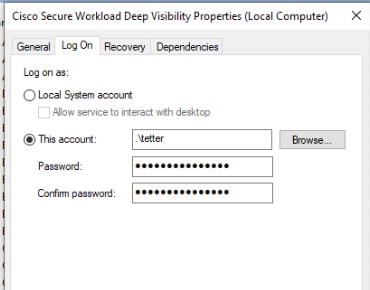
修改服务帐户

安装 Windows 代理后,可通过以下任一方式修改现有的 CswAgent 服务。

  • 使用 services.msc

    图 1. 根据 services.msc 帐户修改服务帐户
  • 使用任何第三方应用来配置服务。

  • 使用以下命令:

    1. 以管理员身份运行 cmd。

    2. 通过运行以下命令,使用服务帐户名称来修改服务:

      • sc config cswagent obj= <service user name> password= <password>

    3. 通过运行以下命令来验证服务配置:

      • sc qc cswagent

    4. 通过运行以下命令来重启 CswAgent 服务:

      1. sc.exe cswagent

      2. sc.exe cswagent

在 VDI 实例或 VM 模板上部署代理 (Windows)

默认情况下,代理服务会在代理安装后自动启动。在黄金镜像上安装时,必须使用安装程序标记来阻止这些服务启动。从黄金映像克隆实例时,代理服务会按预期自动启动。

代理不会在黄金 VM 上安装 Npcap,但如有需要,会在从黄金映像克隆的 VM 实例上自动安装。有关详细信息,请参阅 Windows 代理安装程序和 Npcap

在 VDI 环境或 VM 模板中的黄金映像上安装代理

Procedure


Step 1

使用 MSI 安装程序或 PowerShell 安装程序脚本,在 VDI 环境或虚拟机模板的黄金镜像上安装代理:

使用 nostart=yes 的 MSI 安装程序

使用带有 -goldenImage 标志的 PowerShell 安装程序。

Step 2

确保文件夹 C:\Program Files\Cisco Tetration(或自定义文件夹)存在。

Step 3

确保服务 CswAgent 存在并且已停止:

使用管理员权限运行命令 cmd.exe

运行命令 sc.exe query CswAgent

检查状态是否为已停止 (Stopped)

Step 4

虚拟机模板现已配置。

Step 5

关闭 VM 模板。


创建新的 VDI 实例虚拟机

Procedure


Step 1

通过克隆虚拟机模板创建新的 VDI 实例虚拟机。

Step 2

重启 VDI 实例 VM。

Step 3

重启 VDI 实例 VM 后,请确保服务 CswAgent 在配置的服务情景中运行。请参阅验证代理是否已安装

Step 4

在 VDI 实例虚拟机上,确保 NPCAP 驱动程序已安装并正在运行:

使用管理员权限运行命令 cmd.exe

运行命令 sc query npcap

检查状态是否正在运行

Step 5

在 VDI 实例虚拟机上,确保使用有效的 sensor_id 来注册代理:

  • 检查安装文件夹中的 sensor_id 文件。

  • 如果 sensor_id 以“uuid”开头,则它不是有效的 sensor_id。

  • 如果代理注册失败,但 Cisco Secure Workload Web 界面显示代理已注册:

  • 使用 OpenAPI 删除代理。有关详细信息,请参阅部署软件代理

Note

 
  • 请勿更改黄金映像或 VM 模板的主机名。

  • 如果黄金映像或虚拟机模板在安装代理后重启,则 Cisco Secure Workload 服务将在重启后开始运行。

  • 如果 VDI 实例虚拟机无法报告网络流,请参阅网络流中的 VDI 实例虚拟机部分。


Windows 代理安装程序和 Npcap - 适用于 Windows 2008 R2

  1. 有关受支持的 Npcap 版本,请参阅https://www.cisco.com/go/secure-workload/requirements/agents上的支持矩阵。

  2. 安装:

    如果未安装 Npcap,代理会在服务启动十秒后安装受支持的版本。如果用户已安装 Npcap,但其版本早于支持的版本,则 Npcap 无法升级。手动升级或卸载 Npcap,使用选项 overwritenpcap=yes 来运行代理安装程序,或使用 -npcap 来运行安装程序脚本,以获取支持的 Npcap 版本。如果任何应用正在使用 Npcap 驱动程序,则代理稍后会升级 Npcap。

  3. 升级:

    如果 Npcap 是由 Windows Agent 安装的,且版本早于支持的版本,则 Npcap 会在服务启动十秒后升级到支持的版本。如果任何应用正在使用 Npcap 驱动程序,则代理稍后会升级 Npcap。如果 Npcap 不是由 Windows 代理安装,则不会升级 Npcap。

  4. 卸载:

    如果 Npcap 是由 Windows 代理安装的,则代理会卸载 Npcap。如果 Npcap 由用户安装,但由代理安装程序使用 overwritenpcap=yes 进行升级,则不会卸载 Npcap。如果任何应用正在使用 Npcap 驱动程序,则代理不会卸载 Npcap。

Windows 代理流捕获:适用于除 Windows Server 2008 R2 之外的所有 Windows 操作系统

从最新版本的 Windows 开始,该代理使用 ndiscap.sys(Microsoft 内置)驱动程序和使用 Windows 的事件跟踪 (ETW) 框架来捕获网络流。

在升级到最新版本期间:

  • 代理从 npcap.sys 切换到 ndiscap.sys。

  • 在以下情况时,代理安装程序会卸载 Npcap:

    • Npcap 由代理安装。

    • 未使用 Npcap。

    • 操作系统版本并非 Windows Server 2008 R2。

代理服务启动后,代理会创建 ETW 会话 CSW_MonNet 和 CSW_MonDns(用于 DNS 数据),同时启动网络流捕获。


Note


  • 在 Windows Server 2012 上,系统会解析网络数据包以获取 DNS 数据。

  • Windows Server 2012 及更高版本的主机上的 Windows 代理会捕获使用者和提供者用户名,并且用户名在流观察结果中可用。由于操作系统限制,Windows Server 2008 R2 不支持此功能。在代理配置文件中,配置以下内容以捕获用户名:

    • 启用 PID/用户查找。

    • 将“流分析精确度”(Flow Analysis Fidelity) 设置为“详细”(Detailed)。