基本ポリシーの設定

次の設定を使用して基本的なセキュリティポリシーを設定します。

  • 内部インターフェイスと外部インターフェイス:内部インターフェイスにスタティック IP アドレスを割り当て、外部インターフェイスに DHCP を使用します。

  • DHCP サーバー:クライアントの内部インターフェイスで DHCP サーバーを使用します。

  • デフォルトルート:外部インターフェイスを介してデフォルトルートを追加します。

  • NAT:外部インターフェイスでインターフェイス PAT を使用します。

  • アクセスコントロール:内部から外部へのトラフィックを許可します。

セキュリティポリシーをカスタマイズして、より高度な検査を含めることもできます。

インターフェイスの設定

初期設定に Firewall Device Manager を使用する場合、次のインターフェイスが事前設定されます。

  • イーサネット 1/1:「外部」、DHCP からの IP アドレス、IPv6 自動設定

  • イーサネット 1/2:「内部」、192.168.95.1/24

  • デフォルトルート:外部インターフェイスで DHCP を介して取得

Firewall Management Center に登録する前に Firewall Device Manager 内で追加のインターフェイス固有の設定を実行した場合、その設定は保持されます。

次の例では、静的アドレスを持つルーテッドモードの内部インターフェイスと、DHCP を使用するルーテッドモードの外部インターフェイスを設定します。また、内部 Web サーバー用の DMZ インターフェイスも追加します。

手順


ステップ 1

[デバイス(Devices)] > [デバイス管理(Device Management)] の順に選択し、ファイアウォールの [編集(Edit)](編集アイコン) をクリックします。 >

ステップ 2

[インターフェイス(Interfaces)] をクリックします。

図 1. インターフェイス
インターフェイス

ステップ 3

40 Gb 以上のインターフェイスからブレークアウトポートを作成するには、インターフェイスの [ブレーク(Break)] アイコンをクリックします。

設定でフルインターフェイスをすでに使用している場合は、ブレークアウトを続行する前に設定を削除する必要があります。

ステップ 4

内部に使用するインターフェイスの [編集(Edit)](編集アイコン) をクリックします。

図 2. [General] タブ
[全般(General)] タブ
  1. [セキュリティゾーン(Security Zone)] ドロップダウンリストから既存の内部セキュリティゾーンを選択するか、[新規(New)] をクリックして新しいセキュリティゾーンを追加します。

    たとえば、inside_zone という名前のゾーンを追加します。ゾーンまたはグループに基づいてセキュリティポリシーを適用します。たとえば、内部ゾーンから外部ゾーンへのトラフィックは有効にするが外部ゾーンから内部ゾーンへのトラフィックは有効にしないアクセス コントロール ポリシーを設定します。

    内部インターフェイスが事前に設定されている場合、これらのフィールドの残りの部分はオプションです。

  2. 48 文字までの [名前(Name)] を入力します。

    たとえば、インターフェイスに inside という名前を付けます。

  3. [有効(Enabled)] チェックボックスをオンにします。

  4. [モード(Mode)] は [なし(None)] に設定したままにします。

  5. [IPv4] タブ、[IPv6] タブ、または両方のタブをクリックします。

    • [IPv4]:ドロップダウンリストから [スタティックIPを使用する(Use Static IP)] を選択し、IP アドレスとサブネットマスクをスラッシュ表記で入力します。

      たとえば、192.168.1.1/24 などと入力します。

      図 3. [IPv4] タブ
      [IPv4] タブ
    • [IPv6]:ステートレス自動設定の場合は [自動設定(Autoconfiguration)] チェックボックスをオンにします。

      図 4. [IPv6] タブ
      [IPv6] タブ
  6. [OK] をクリックします。

ステップ 5

外部に使用するインターフェイスの [編集(Edit)](編集アイコン) をクリックします。

図 5. [General] タブ
[全般(General)] タブ
  1. [セキュリティゾーン(Security Zone)] ドロップダウンリストから既存の外部セキュリティゾーンを選択するか、[新規(New)] をクリックして新しいセキュリティゾーンを追加します。

    たとえば、「outside_zone」という名前のゾーンを追加します。

    外部インターフェイスが事前に設定されている場合、これらのフィールドの残りの部分はオプションです。

  2. 48 文字までの [名前(Name)] を入力します。

    たとえば、インターフェイスに「outside」という名前を付けます。

  3. [有効(Enabled)] チェックボックスをオンにします。

  4. [モード(Mode)] は [なし(None)] に設定したままにします。

  5. [IPv4] タブ、[IPv6] タブ、または両方のタブをクリックします。

    • [IPv4]:[DHCPの使用(Use DHCP)] を選択し、次のオプションのパラメータを設定します。

      • [DHCP を使用してデフォルト ルートを取得(Obtain default route using DHCP)]:DHCP サーバーからデフォルト ルートを取得します。

      • [DHCPルートメトリック(DHCP route metric)]:アドミニストレーティブ ディスタンスを学習したルートに割り当てます(1 ~ 255)。学習したルートのデフォルトのアドミニストレーティブ ディスタンスは 1 です。

      図 6. [IPv4] タブ
      [IPv4] タブ
    • [IPv6]:ステートレス自動設定の場合は [自動設定(Autoconfiguration)] チェックボックスをオンにします。

      図 7. [IPv6] タブ
      [IPv6] タブ
  6. [OK] をクリックします。

ステップ 6

たとえば、Web サーバーをホストするように DMZ インターフェイスを設定します。

  1. 使用するインターフェイスの [編集(Edit)](編集アイコン) をクリックします。

  2. [セキュリティゾーン(Security Zone)] ドロップダウンリストから既存の DMZ セキュリティゾーンを選択するか、[新規(New)] をクリックして新しいセキュリティゾーンを追加します。

    たとえば、dmz_zone という名前のゾーンを追加します。

  3. 48 文字までの [名前(Name)] を入力します。

    たとえば、インターフェイスに dmz という名前を付けます。

  4. [有効(Enabled)] チェックボックスをオンにします。

  5. [モード(Mode)] は [なし(None)] に設定したままにします。

  6. 必要に応じて、[IPv4] タブと [IPv6] タブのいずれかまたは両方をクリックし、IP アドレスを設定します。

  7. [OK] をクリックします。

ステップ 7

[保存(Save)] をクリックします。


DHCP サーバーの設定

クライアントで DHCP を使用してファイアウォールから IP アドレスを取得するようにする場合は、DHCP サーバーを有効にします。

手順


ステップ 1

[デバイス(Devices)]、[デバイス管理(Device Management)] の順に選択し、デバイスの [編集(Edit)] をクリックします。 >

ステップ 2

[DHCP] > [DHCPサーバー(DHCP Server)] を選択します。

図 8. DHCP サーバー
DHCP サーバー

ステップ 3

[サーバー(Server)] エリアで、[追加(Add)] をクリックし、以下のオプションを設定します。

図 9. サーバーの追加
サーバーの追加
  • [インターフェイス(Interface)]:ドロップダウンリストからインターフェイス名を選択します。

  • [アドレスプール(Address Pool)]:IP アドレスの範囲を設定します。IP アドレスは、選択したインターフェイスと同じサブネット上に存在する必要があり、インターフェイス自身の IP アドレスを含めることはできません。

  • [DHCPサーバーを有効にする(Enable DHCP Server)]:選択したインターフェイスの DHCP サーバーを有効にします。

ステップ 4

[OK] をクリックします。

ステップ 5

[保存(Save)] をクリックします。


デフォルトルートの追加

デフォルトルートは通常、外部インターフェイスから到達可能なアップストリームルータを指し示します。DHCP から外部アドレスを取得した場合は、デバイスがすでにデフォルトルートを受信している可能性があります。手動でルートを追加する必要がある場合は、次の手順を実行します。

手順


ステップ 1

[デバイス(Devices)]、[デバイス管理(Device Management)] の順に選択し、デバイスの [編集(Edit)] をクリックします。 >

ステップ 2

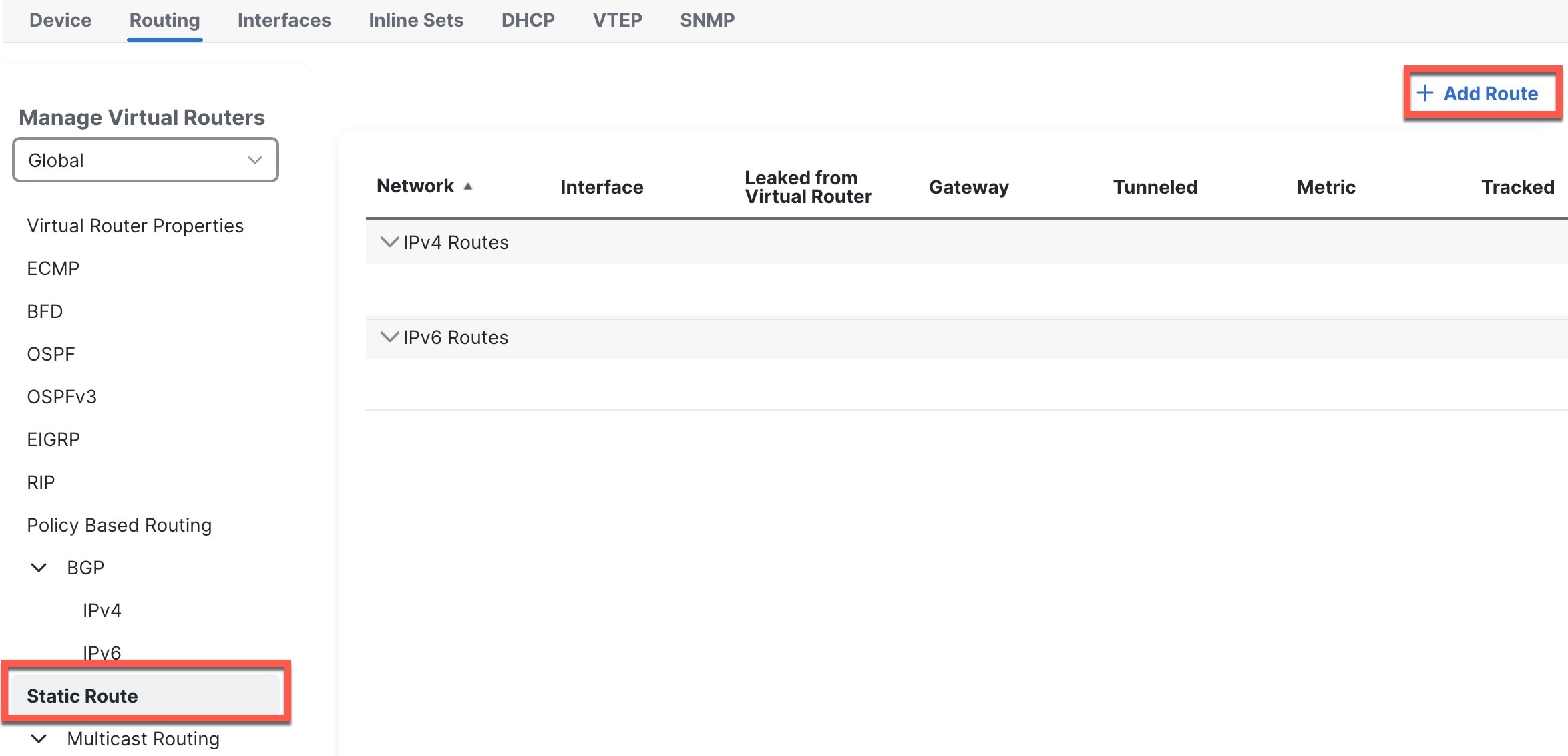
[ルーティング(Routing)] > [静的ルート(Static Routes)]を選択します。

図 10. 静的ルート
静的ルート

DHCP サーバーからデフォルトルートを受信した場合は、このテーブルに表示されます。

ステップ 3

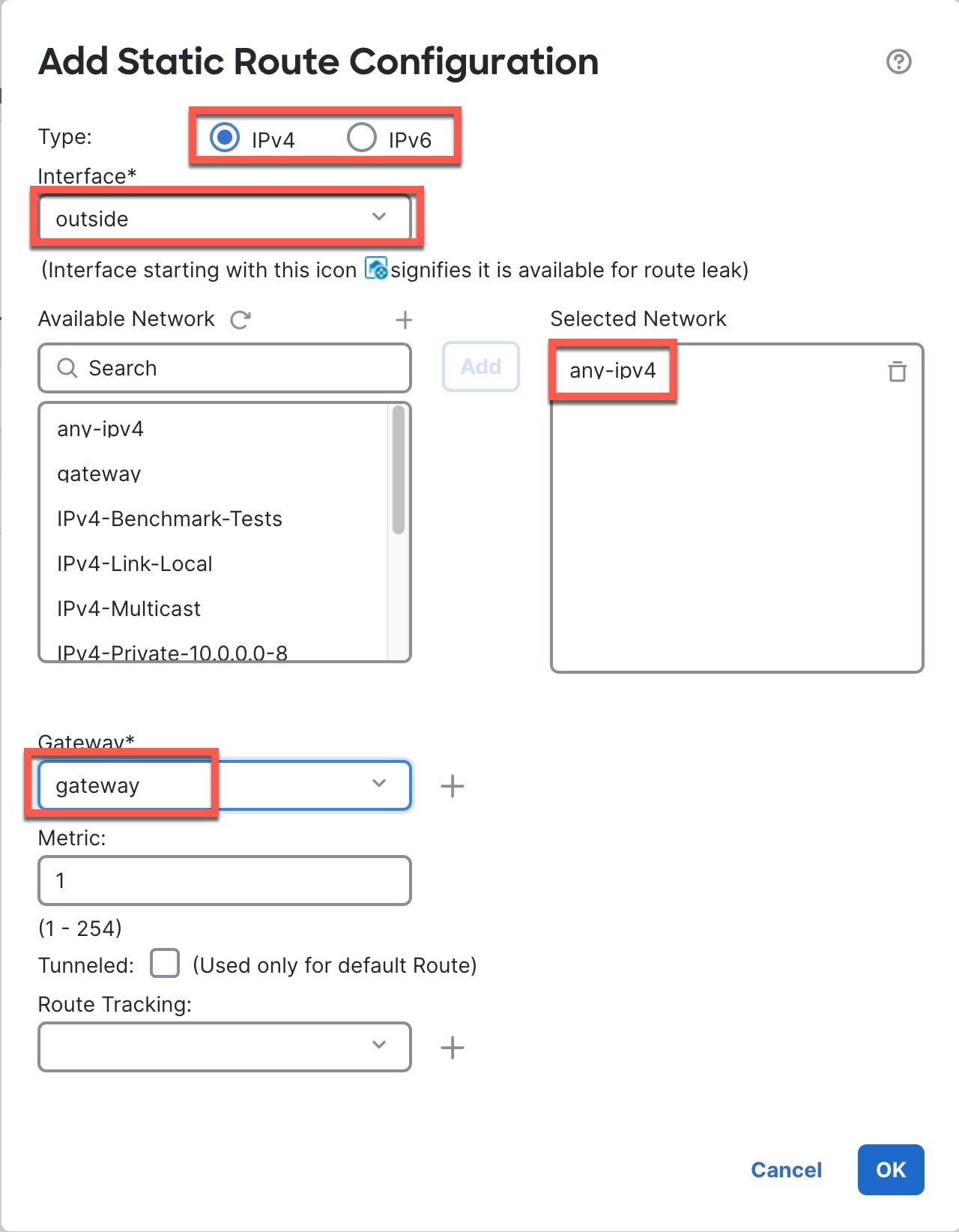
[ルートを追加(Add route)] をクリックして、次のオプションを設定します。

図 11. 静的ルート追加の設定
静的ルート追加の設定
  • [タイプ(Type)]:追加するスタティックルートのタイプに応じて、[IPv4] または [IPv6] オプションボタンをクリックします。

  • [インターフェイス(Interface)]:出力インターフェイスを選択します。通常は外部インターフェイスです。

  • [使用可能なネットワーク(Available Network)]:IPv4 デフォルトルートの場合は [any-ipv4] を選択し、IPv6 デフォルトルートの場合は [any-ipv6] を選択し、[追加(Add)] をクリックして [選択したネットワーク(Selected Network)] リストに移動させます。

  • [ゲートウェイ(Gateway)] または [IPv6ゲートウェイ(IPv6 Gateway)]:このルートのネクストホップであるゲートウェイルータを入力または選択します。IP アドレスまたはネットワーク/ホストオブジェクトを指定できます。

ステップ 4

[OK] をクリックします。

ルートがスタティックルートテーブルに追加されます。

ステップ 5

[保存(Save)] をクリックします。


NAT の設定

この手順では、内部クライアントが内部アドレスを外部インターフェイスの IP アドレスのポートに変換する NAT ルールを作成します。このタイプの NAT ルールのことをインターフェイス ポート アドレス変換(PAT)と呼びます。

手順


ステップ 1

[デバイス(Devices)] > [NAT] の順に選択し、[新しいポリシー(New Policy)] をクリックします。

ステップ 2

ポリシーに名前を付け、ポリシーを使用するデバイスを選択し、[保存(Save)] をクリックします。

図 12. 新しいポリシー
新しいポリシー

ポリシーが Firewall Management Center に追加されます。引き続き、ポリシーにルールを追加する必要があります。

図 13. NAT ポリシー
NAT ポリシー

ステップ 3

[ルールの追加(Add Rule)] をクリックします。

ステップ 4

基本ルールのオプションを設定します。

図 14. 基本ルールのオプション
基本ルールのオプション
  • [NATルール(NAT Rule)]:[自動NATルール(Auto NAT Rule)] を選択します。

  • [タイプ(Type)]:[ダイナミック(Dynamic)] を選択します。

ステップ 5

[インターフェイスオブジェクト(Interface objects)] ページで、[使用可能なインターフェイスオブジェクト(Available Interface Objects)] 領域から [宛先インターフェイスオブジェクト(Destination Interface Objects)] 領域に外部ゾーンを追加します。

図 15. インターフェイス オブジェクト
インターフェイス オブジェクト

ステップ 6

[変換(Translation)] ページで、次のオプションを設定します。

図 16. 変換
変換
  • [元の送信元(Original Source)]:[追加(Add)] (追加アイコン) をクリックして、すべての IPv4 トラフィック(0.0.0.0/0)のネットワークオブジェクトを追加します。

    図 17. 新しいネットワークオブジェクト
    新しいネットワークオブジェクト

    (注)  


    自動 NAT ルールはオブジェクト定義の一部として NAT を追加するため、システム定義の any-ipv4 オブジェクトを使用することはできません。また、システム定義のオブジェクトを編集することはできません。


  • [変換済みの送信元(Translated Source)]:[宛先インターフェイスIP(Destination Interface IP)] を選択します。

ステップ 7

[保存(Save)] をクリックしてルールを追加します。

ルールが [ルール(Rules)] テーブルに保存されます。

ステップ 8

NAT ページで [保存(Save)] をクリックして変更を保存します。


Configure an access control rule

Configure an access control rule to enable traffic flow through the firewall from trusted internal networks to external networks while maintaining security controls.

If you created a basic Block all traffic access control policy when you registered the firewall, then you need to add rules to the policy to allow traffic through the firewall. The access control policy can include multiple rules that are evaluated in order.

This procedure creates an access control rule to allow all traffic from the inside zone to the outside zone.

手順


ステップ 1

Choose [ポリシー(Policies)] > [セキュリティポリシー(Security policies)] > [アクセス制御(Access Control)], and click [編集(Edit)](編集アイコン) for the access control policy assigned to the device.

ステップ 2

Click Add Rule, and set the following parameters.

図 18. Source zone
Source Zone

1. Name this rule, for example, inside-to-outside.

2. Select the inside zone from Zones

3. Click Add Source Zone.

図 19. Destination zone
Destination Zone

4. Select the outside zone from Zones.

5. Click Add Destination Zone.

Leave the other settings as is.

ステップ 3

(任意) Customize associated policies by clicking on the policy type in the packet flow diagram.

Prefilter, Decryption, Security Intelligence, and Identity policies are applied before an access control rule. Customizing these policies is not required, but after you know your network's needs, they let you improve network performance by either fastpathing trusted traffic (bypassing processing) or blocking traffic so no further processing is required.

図 20. Policies applied before access control
Policies Applied Before Access Control
  • Prefilter Rules—The Default Prefilter Policy passes all traffic for the other rules to act on (analyzes). The only change to the default policy you can make is to block tunnel traffic. Otherwise, you can create a new prefilter policy to associate with the access control policy that can analyze (pass on), fastpath (bypass further checks) or block.

    Prefiltering lets you improve performance by dealing with traffic before it gets any further, by either blocking or fastpathing. In a new policy, you can add tunnel rules and prefilter rules. A tunnel rule lets you fastpath, block, or rezone plaintext (non-encrypted), passthrough tunnels. A prefilter rule lets you fastpath or block non-tunneled traffic identified by IP address, port, and protocol.

    For example, if you know you want to block all FTP traffic on your network, but fastpath SSH traffic from an administrator, you can add a new prefilter policy.

  • Decryption—Decryption is not applied by default. Decryption is a way to expose network traffic to deep inspection. In most cases, you don't want to decrypt traffic, and can only do so if it is legally allowed. For maximum network protection, a decryption policy might be a good idea for traffic going to critical servers or coming from untrusted network segments.

  • Security Intelligence—(Requires the IPS license) Security Intelligence is enabled by default. Security Intelligence is another early defense against malicious activity applied before passing connections to the access control policy for further processing. Security Intelligence uses reputation intelligence to quickly block connections to or from IP addresses, URLs, and domain names provided by Talos, the threat intelligence organization at Cisco. You can add or delete additional IP addresses, URLs, or domains if desired.


    (注)  


    If you do not have the IPS license, this policy will not be deployed even though it shows in your access control policy as enabled.


  • Identity—Identity is not applied by default. You can require a user to authenticate before allowing traffic to be processed by the access control policy.

ステップ 4

(任意) Add an Intrusion policy that is applied after the access control rule.

The Intrusion policy is a defined set of intrusion detection and prevention configurations that inspects traffic for security violations. The Firewall Management Center includes many system-provided policies you can enable as-is or that you can customize. This step enables a system-provided policy.

  1. Click the Intrusion Policy drop-down list.

    図 21. System-Provided intrusion policies
    System-Provided Intrusion Policies
  2. Choose one of the system-provided policies from the list.

    We recommend Balanced Security and Connections for most use cases.

ステップ 5

(任意) Add a File policy that is applied after the access control rule.

  1. Click the File Policy drop-down list and choose either an existing policy or add one by choosing the Open File Policy List.

    図 22. File policy
    File Policy

    For a new policy, the [ポリシー(Policies)] > [セキュリティポリシー(Security policies)] > [マルウェアとファイル(Malware & File)] page opens in a separate tab.

  2. See the Cisco Secure Firewall Device Manager コンフィギュレーション ガイド for details on creating the policy.

  3. Return to the Add Rule page and select the newly created policy from the drop-down list.

ステップ 6

Click Apply.

The rule is added to the Rules table.

ステップ 7

Click Save.


設定を展開する

設定の変更をデバイスに展開します。変更を展開するまでは、デバイス上でどの変更もアクティブになりません。

手順


ステップ 1

右上の [展開(Deploy)] をクリックします。

図 23. 展開
展開

ステップ 2

迅速な展開の場合は、特定のデバイスのチェックボックスをオンにして [展開(Deploy)] をクリックします。

図 24. 選択したものを展開
選択したものを展開

または、[すべて展開(Deploy All)] をクリックしてすべてのデバイスに展開します。

図 25. すべて展開
すべて展開

それ以外の場合は、追加の展開オプションを設定するために、[高度な展開(Advanced Deploy)] をクリックします。

図 26. 高度な展開
高度な展開

ステップ 3

展開が成功したことを確認します。展開のステータスを表示するには、メニューバーの [展開(Deploy)] ボタンの右側にあるアイコンをクリックします。

図 27. 展開ステータス
展開ステータス