はじめに
このドキュメントでは、LDAPおよびDuo認証プロキシを使用してIMMデバイスコンソールで多要素認証を設定する方法について説明します。
前提条件
要 件
Intersight Managed Mode(IMM)のUCSファブリックインターコネクト
登録済みユーザのDuoサブスクリプション
設定
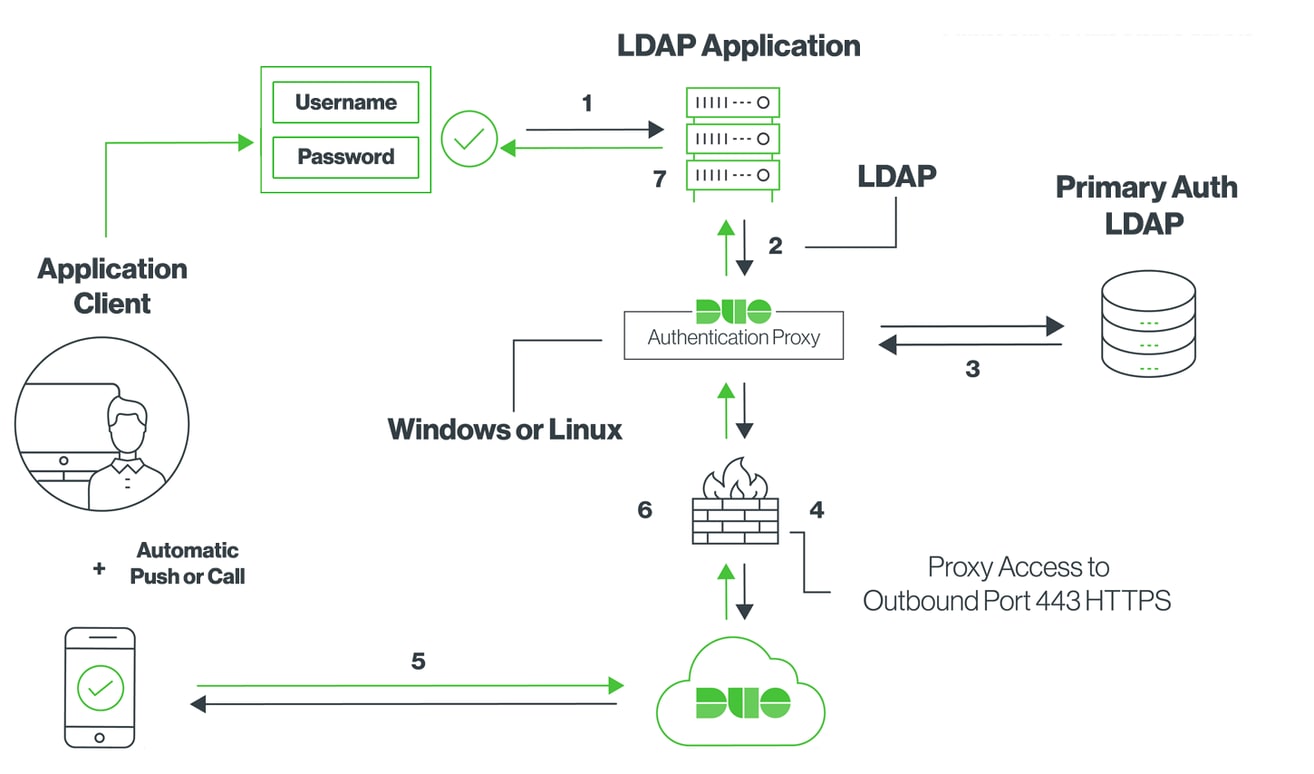
ネットワーク図
ステップ 1:
Active DirectoryとIMMデバイスコンソールの両方からアクセス可能なWindowsサーバにDuo Authentication Proxyをインストールします。
Duo認証プロキシは、ここから入手できます。
ステップ 2
私たちのDuoインスタンスでは、新しいアプリケーションを追加することができます。
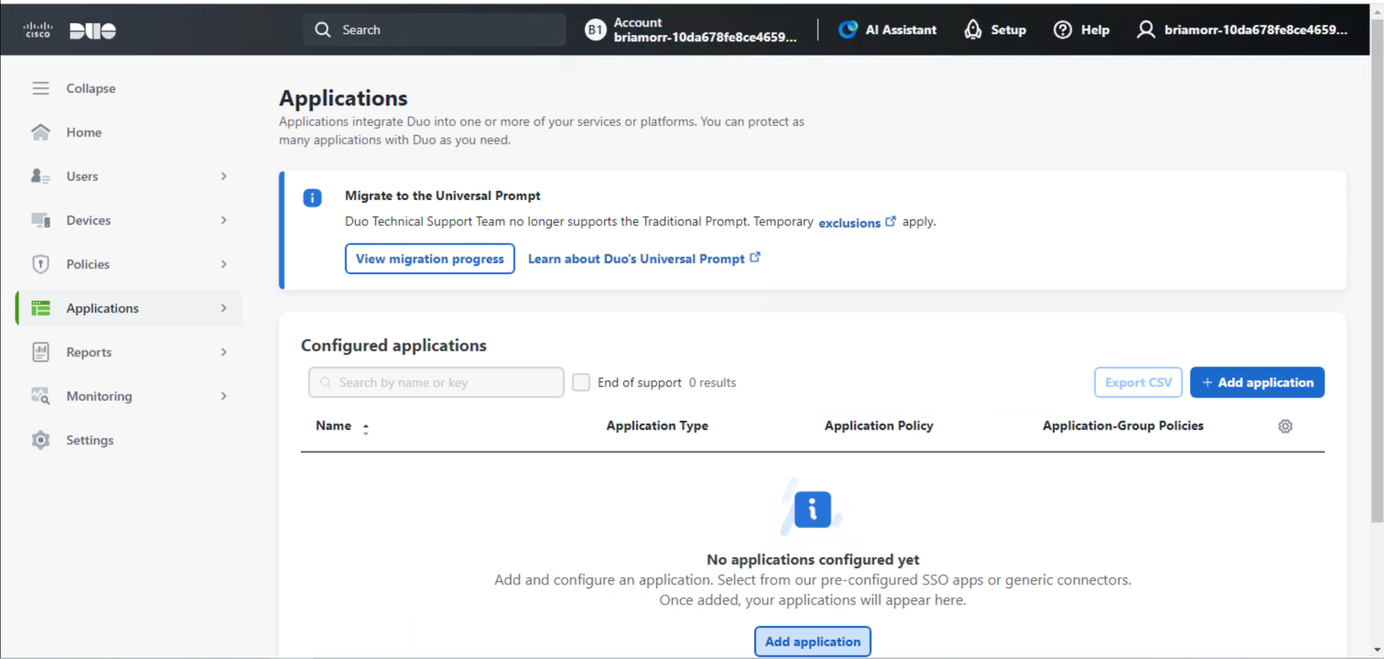
ldapを検索し、LDAPプロキシを追加して続行します。
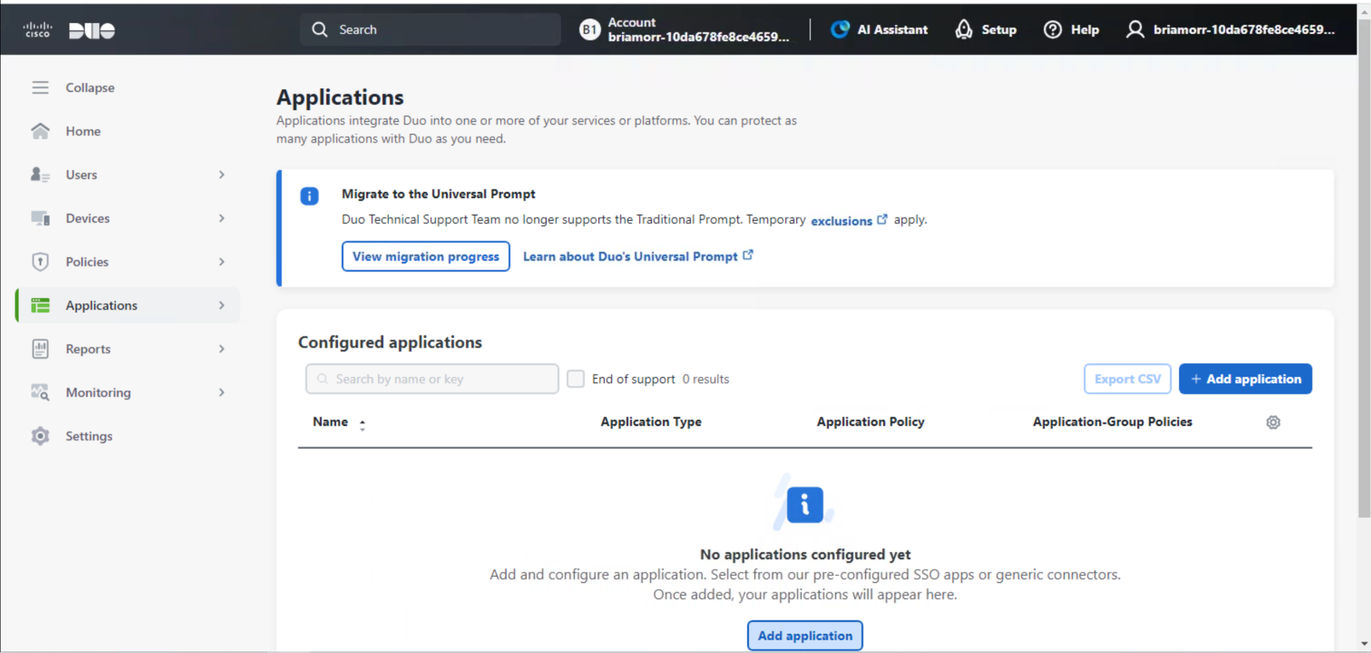
LDAPプロキシアプリケーションでは、アプリケーション名を設定し、すべてのユーザに対してイネーブルにし、後で使用できるように統合キー、秘密キー、およびAPIホスト名をコピーできます。
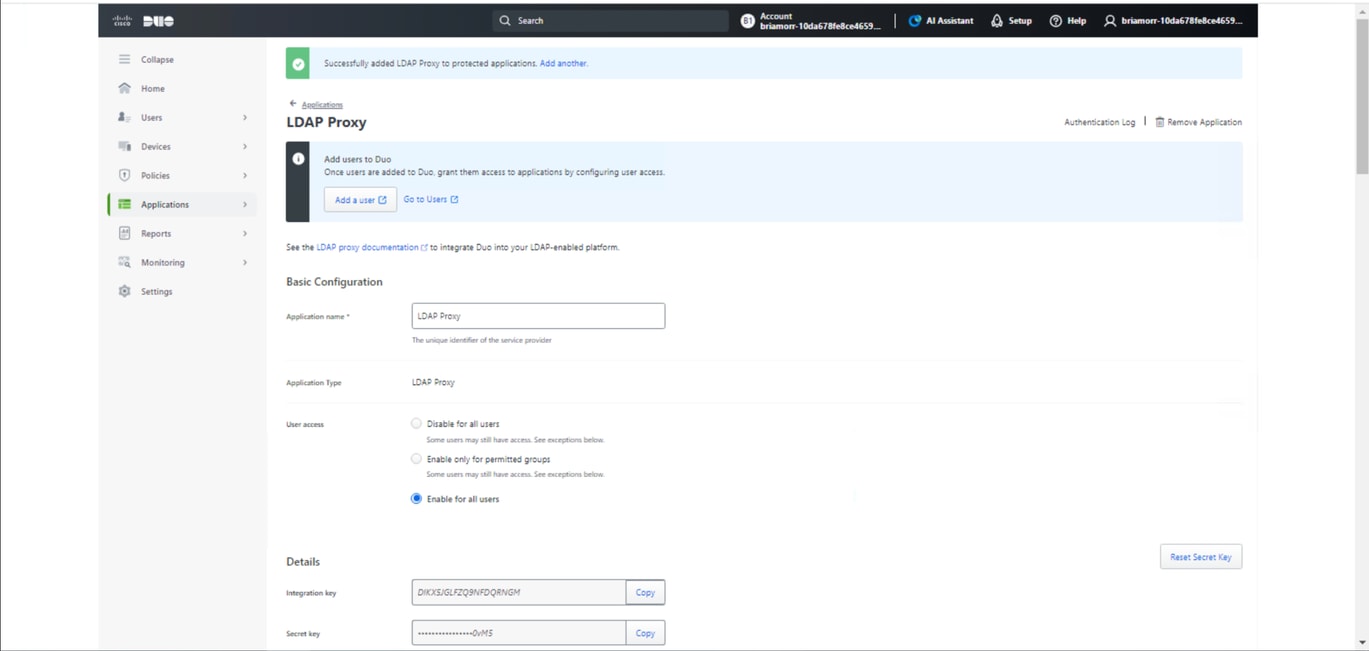
ステップ 3
Duo Authentication Proxyをインストールしたサーバに戻ると、Duo Authentication Proxy Managerを設定できます。
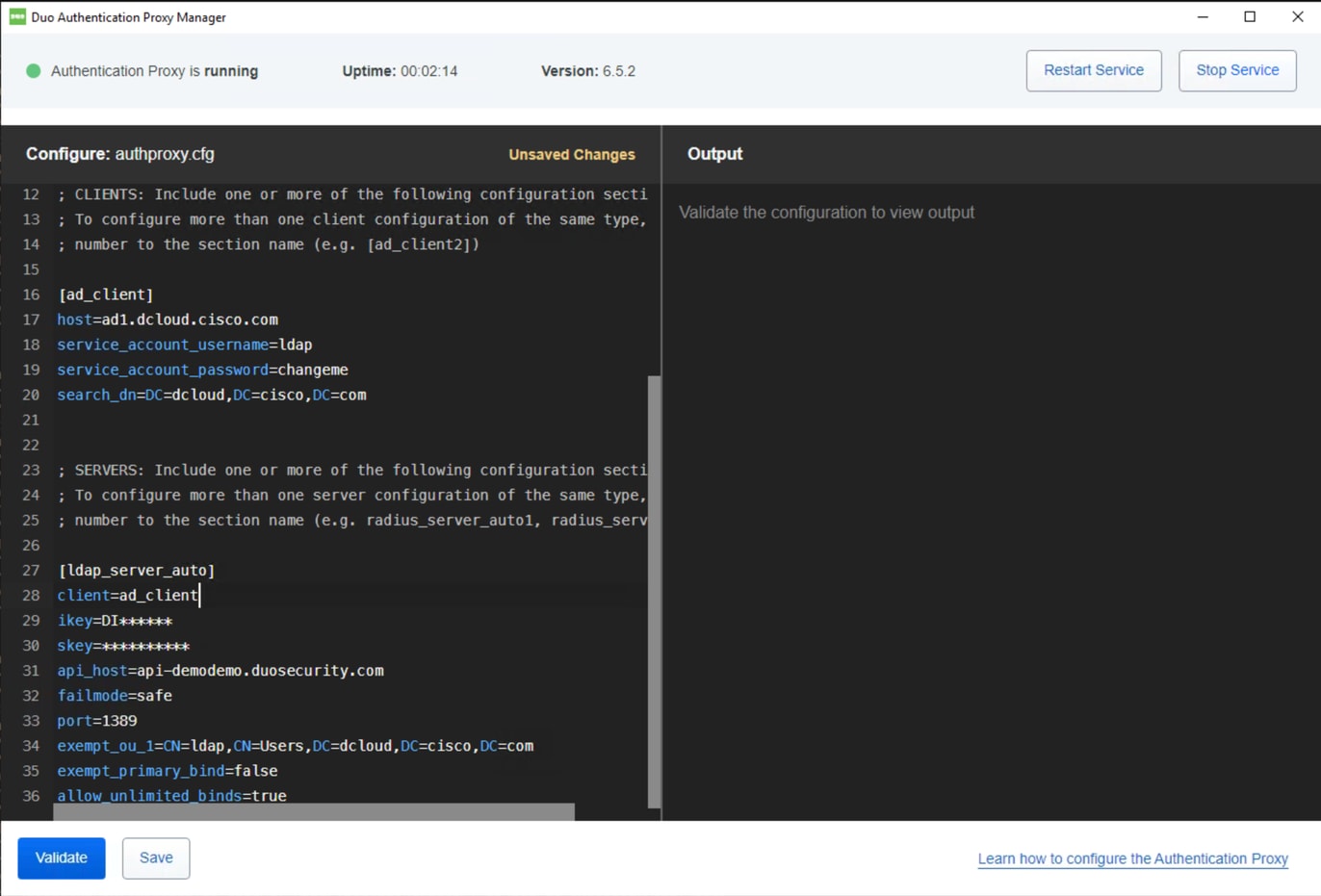
Duo認証プロキシ設定例:

注:読みやすいように#個のコメントが追加されています。
[ad_client]
host=ad1.dcloud.cisco.com   # Our Domain Controller
service_account_username=ldap # Our BIND Service Account in AD
service_account_password=changeme  # Service Accounts BIND password
search_dn=DC=dcloud,DC=cisco,DC=com  # LDAP Search DN


[ldap_server_auto]
client=ad_client
ikey=DI******	  # Copy from Duo LDAP Proxy App Page
skey=**********  # Copy from Duo LDAP Proxy App Page
api_host=api-demodemo.duosecurity.com  # Copy from Duo LDAP Proxy App Page
failmode=safe  # If proxy cant communicate with Duo cloud, allow auth with credentials only
port=1389 # Port the LDAP Proxy listen on
exempt_ou_1=CN=ldap,CN=Users,DC=dcloud,DC=cisco,DC=com # Exempt the Service Account from MFA
exempt_primary_bind=false  #  Exempt the Service Account from MFA on initial bind
allow_unlimited_binds=true  # Allow multiple binds, needed to prevent “Attempt to bindRequest multiple times in the same LDAP connection.  Disconnecting.” In Duo logs
ステップ 4
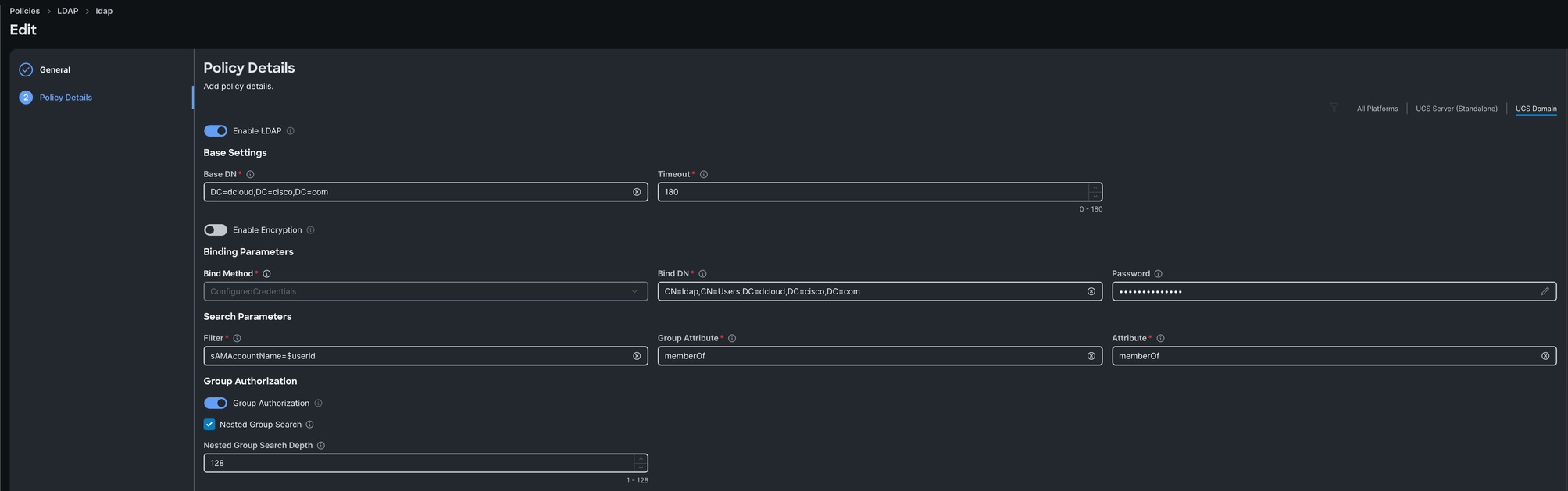
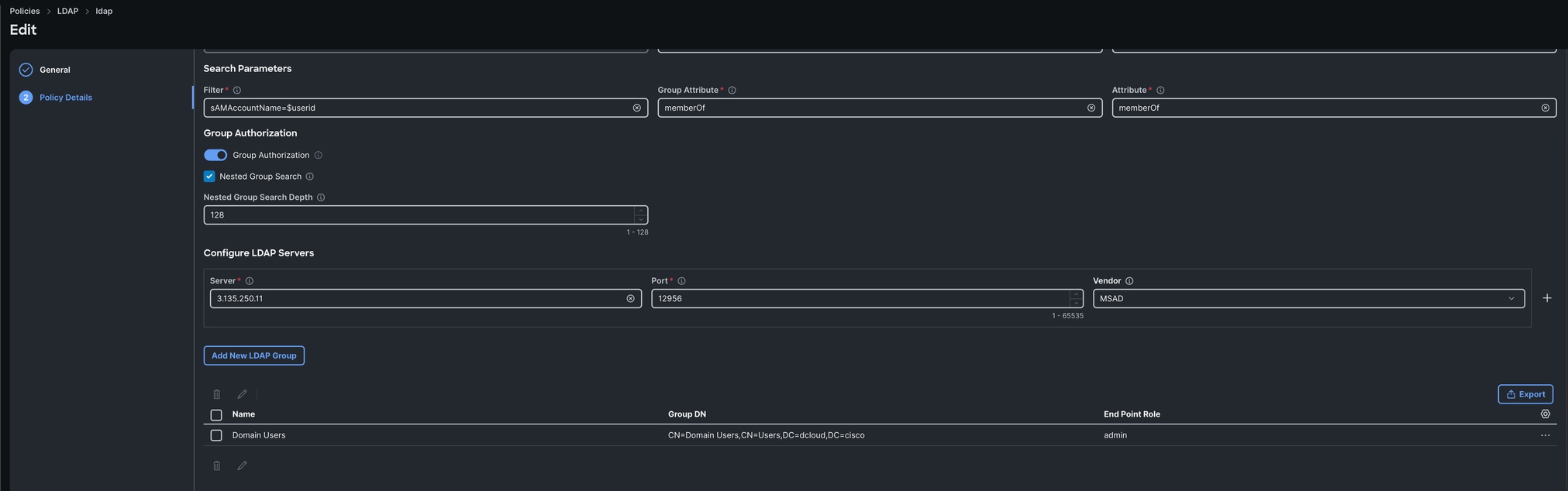
Intersightでは、ベースdn、バインドdn、LDAPサーバIP、パスワードなどの必要なActive Directory設定でDuo LDAPプロキシをポイントするLDAPポリシーを作成できます。 最初にActive Directoryを直接指し示し、が正しく動作することを確認してから、LDAPサーバをDuo LDAPプロキシに変更してトラブルシューティングを容易にすることを推奨します。
確認
デバイスコンソールで、以前Duoに登録したLDAPユーザとしてログインします。
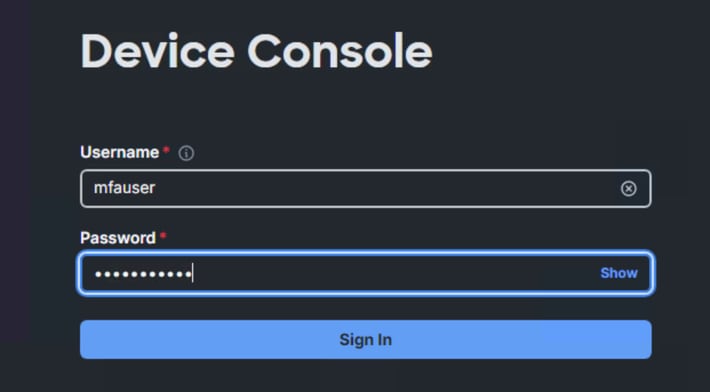
登録済みユーザは、デバイスでログインを求めるプロンプトを受け取ることができます。
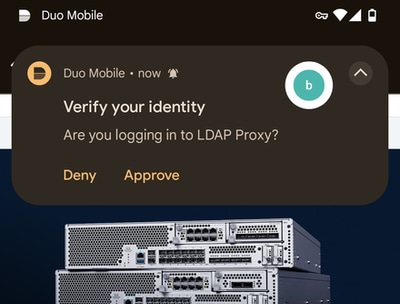
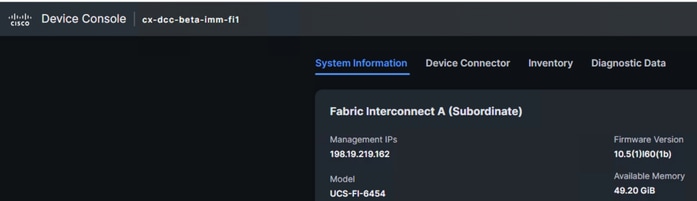
要求を確認したら、2要素認証とLDAPを使用してデバイスコンソールにログインします。
トラブルシュート
Duo LDAPプロキシログは次の場所にあります。
C:\Program Files\Duo Security Authentication Proxy\log\authproxy.log
Intersightマネージドモードファブリックインターコネクト上:
connect nxos

debug ldap
関連情報

 フィードバック