Troubleshooting Guide
Access and Setup
Login as Application User to create PFS privileged users. Run the below commands in EXEC mode:
Hostname# username privuser1 create
Hostname# username privuser1 password Test@123
Hostname# username privuser1 group pfs-privusers
Hostname# write
You can confirm the same using UI for the group:

SFTP Access
sftp privuser1@10.10.10.59
Enable Log and Directories
When connected via SFTP:
sftp> ls
core  packetcapture  pegcount  sipmsg  sml.log  trace
|
Directory/File |
Purpose |
Enable (UI) |
Enable (CLI) |
|---|---|---|---|
|
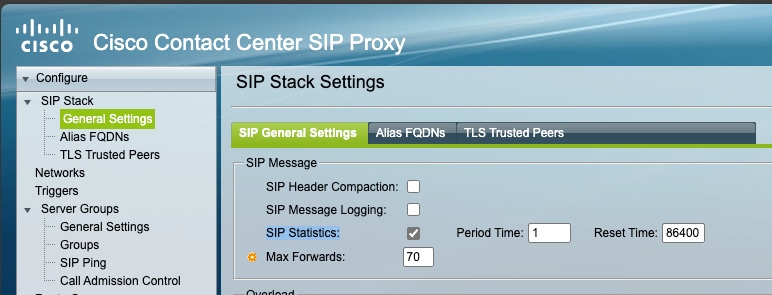
pegcount |
SIP message statistics |
Navigate to
|
|
|
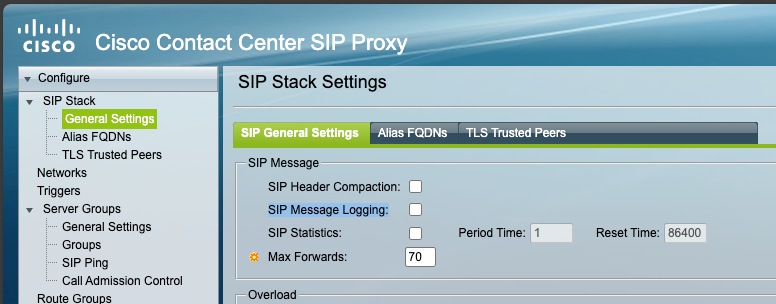
sipmsg |
Detailed SIP message logs |
Default: Off
|
|
|
sml.log |
Smart Licensing logs |
By default, the log is enabled. |
NA |
|
trace |
Application trace log for calls and TLS issues |
|
NA |
|
messages |
System-level logs |
By default, the log is enabled.
|
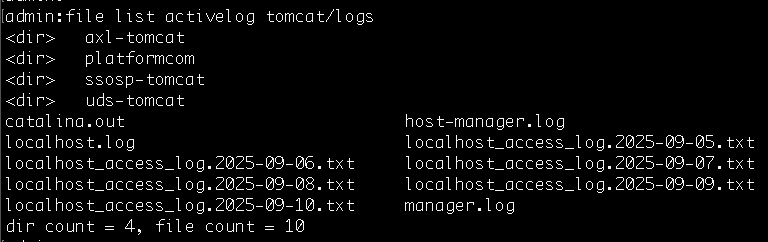
By default, the log is enabled. Follow the steps to download the log:
|
|
catalina.out |
Tomcat or HTTP server logs |
By default, the log is enabled. |
By default, the log is enabled.
|


Packet Capture
Case 1: When CCCSP UI is accessible
-
Login to CCCSP UI
-
Go to
-
Start Packet Capture

Case 2: When CCCSP UI is not accessible
-
Login as OS Admin
-
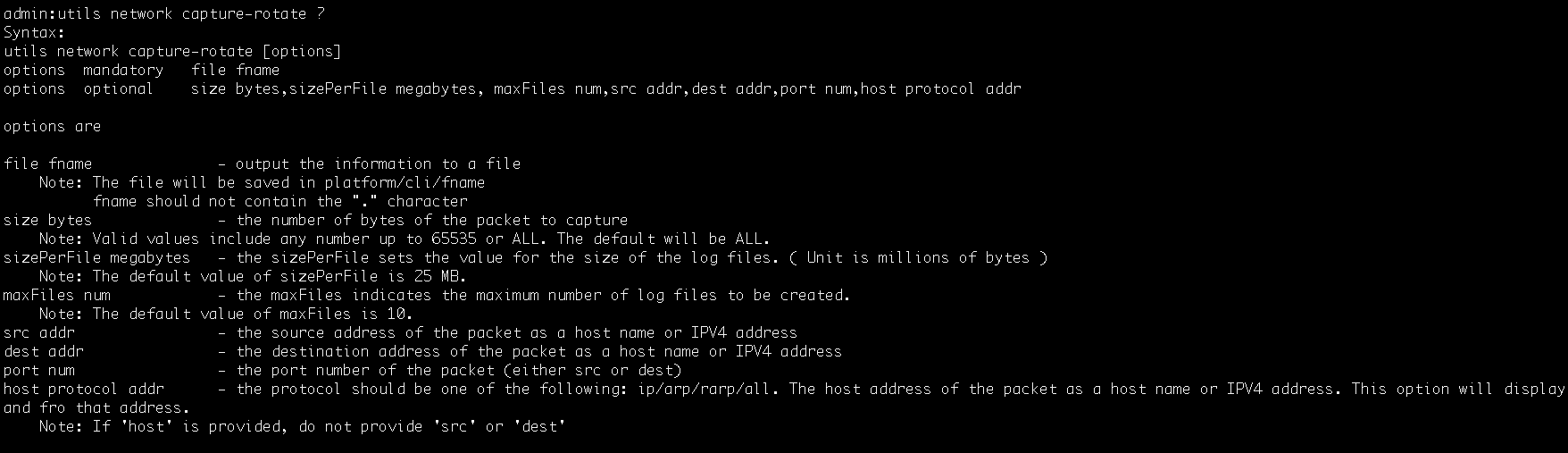
Use the following command to start the packet capture:
admin:utils network capture-rotate file mycapturename maxFiles 2maxFiles num - the maxFiles indicates the maximum number of log files to be created. The default value of maxFiles is 10.
Refer to Utility commands in CLI Command Reference Guide for CCCSP.
Troubleshooting Scenarios
Service Issues
-
messages.log
-
Trace logs
-
Trace log captures the proxy application level logging and is used to debug errors related to call routing. Debug errors such as, server group element status errors, load balancing issues, license updates, access and configuration-related changes. Enable trace logging and set level for various categories.
-
There are different levels of logging available in CCCSP. The following lists a few of them:
-
Info: provides a brief history of the function calls along with transaction parameters.
-
Debug: Verbose level of logging and defined only for running with minimal calls volume. It is not recommended to enable debug level of trace logging for any component in production systems. This can severely impact the performance of the CCCSP. This is designed for troubleshooting issues under test environments only. If you enable debug level with high call volume to observe the performance of the CCCSP, reboot is required.
-
Default: Captures exceptions and major error debugs. The default is equal to warn level tracing.
-
-
Show trace options display the levels for each category. Trace file rotates every 10MB. CCCSP supports 5GB of trace logs but default-logging size is 200MB.
-
Installation or Upgrade Failures
-
Login as OS Admin User.
-
Run the following command:
file get install/<log-file-name>.log -
The following logs are generated:
-
system-history.log – Logs upgrade or install status
-
install.log – provides detailed install logs
-
pre_install.log – provides pre-install script logs
-
post_install.log – provides post-install script logs
-
-
You can check the upgrade status using the utils system upgrade status command.
OS Issues
-
capture.txt– provides failed command output -
install.log– if related to install wizard -
You can check disk usage using the following commands:
-
admin: show status

-
admin: show tech runtime disk

-
Smart License Failures
-
sml.log -
messages.log -
Run the following command to get agent version from CCCSP application user
Hostname# show license smart agent-version SmartAgent Version: 3.1.23 -
Run the following command to get status:
Hostname# show license smart status application cusp Smart Agent is Enabled: true Smart Agent current state: UNIDENTIFIED -
Run the following command to get the summary:
Hostname# show license smart summary

Smart Agent is Enabled: true
Current State of the Agent: UNIDENTIFIED
Evaluation Mode: YES
Registration Successful: NO
Authorization Successful: YES
..... and more details will be printed here.
UI Failures
-
messages.log -
catalina.out
CLI Config Issues
-
messages.log -
Login as CCCSP Application User from the CLI. Run the show configuration active verbose command to get the configuration in CCCSP.
Call Failures
For TLS connection issues:
-
Use the show configuration active verbose command to get configuration.

Note
By default, Packet capture, sipmsg, pegcount are not enabled. You can enable them based on the usecase.
trace/trace.log sipmsg/ (all relevant files) pegcount/ (latest count) packetcapture/ (latest pcap) -
Login to as CCCSP Application user and run the show crypto key all command to list all the TLS certificates.
Java Exceptions
-
messages.log -
trace.log
Backup Restore Issues
-
messages.log -
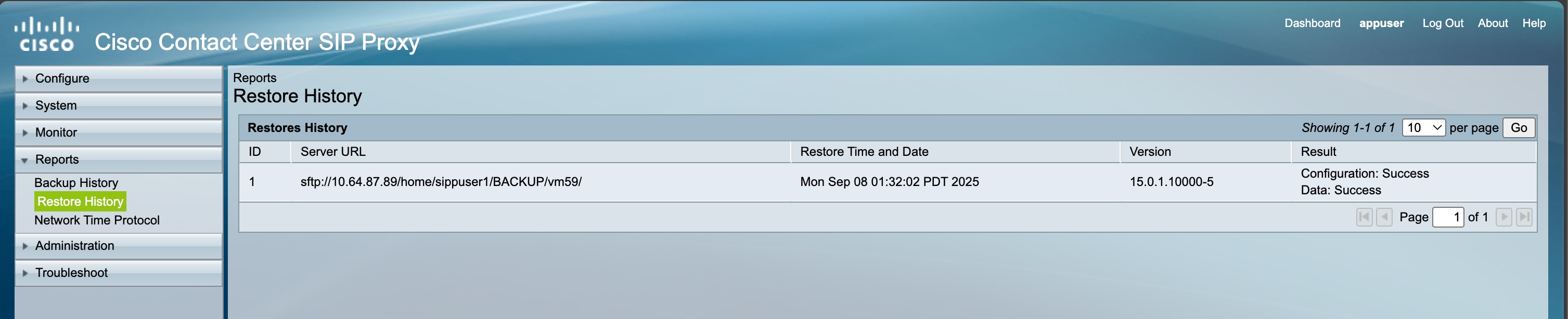
Check History from CCCSP Application User
CLI
-
Use the show backup history command to get backup history.
-
Use the show restore history command to restore history.
UI

Quick Reference Commands
SFTP Get File
sftp privUser@<IP_ADDRESS>
sftp> ls
sftp> get <filename>
Download sml.log
get sml.logTroubleshooting Matrix
|
Issues |
Logs to collect |
|---|---|
|
To get CCCSP version:
|
|
|
Service issue |
messages.log |
|
Installation failure |
system-history.log, install.log, pre_install.log, post_install.log |
|
Upgrade failure |
Same as install failure |
|
OS issue |
capture.txt, install.log |
|
Smart license failure |
sml.log, messages.log |
|
UI failure |
messages.log, catalina.out |
|
CLI config issue |
messages.log |
|
Call failure (TLS) |
trace.log, sipmsg/, pegcount/, packetcapture/ |
|
Java exceptions |
messages.log, trace.log |
|
Backup/restore |
messages.log |
 Feedback