Cisco UCS Director Open Automation Troubleshooting Guide, Release 6.5
Bias-Free Language
The documentation set for this product strives to use bias-free language. For the purposes of this documentation set, bias-free is defined as language that does not imply discrimination based on age, disability, gender, racial identity, ethnic identity, sexual orientation, socioeconomic status, and intersectionality. Exceptions may be present in the documentation due to language that is hardcoded in the user interfaces of the product software, language used based on RFP documentation, or language that is used by a referenced third-party product. Learn more about how Cisco is using Inclusive Language.
- Updated:
- July 11, 2017
Chapter: Open Automation Troubleshooting
Open Automation
Troubleshooting
Troubleshooting
- How do I verify that my module is registered with the platform?
-
Enable com.cloupia.service.cIM.inframgr=DEBUG under the logging.properties file, in the /opt/infra/inframgr directory. After enabling the debug, you will see the following message:
jar to be loaded:jar:
"Loading feature class " <moduleorFeatureName> " from feature definition file
If you do not find the "Error while loading feature classes for " error after a few lines, your module is added successfully.
After uploading zip file and restarting the Cisco UCS Director, check if the module features are uploaded successfully in Cisco UCS Director by verifying if the following three items are available in the /opt/infra/inframgr/features folder: <moduleId>.feature file, feature-<moduleId>.jar file, and <moduleId> folder.
- How do I verify that my report is registered?
-
Enable log4j.logger.com.cloupia.service.cIM.inframgr.reports.simplified=DEBUG to view the status of the report registration.
- What do I do if I'm not able to select a pod?
-
For choosing the custom-defined pod, you must provide the <moduleId>.xml file in the poddefinition folder to define your own pod. Also, ensure that the correct pod type is defined in the xml file.
For choosing a pod defined in Cisco UCS Director, ensure that the account type is defined in the pod definition file (/opt/infra/inframgr/resources/LicenseBundle).
- What do I do if the module is not loading?
-
If your module is not loading, check for the following message in the /opt/infra/inframgr/logfile.txt file:
initDynamicFeatures(FeatureContainer.java:295) - Loading feature class com.cisco.feature.tempOA.TempOAModule from feature definition file /opt/infra/inframgr/features/TempOA.feature
2015-08-17 20:58:57,258 [main] ERROR initDynamicFeatures(FeatureContainer.java:317) - Error while loading feature classes for /opt/infra/inframgr/features/TempOA.feature
java.lang.ClassNotFoundException: com.cisco.feature.tempOA.TempOAModule
        at java.net.URLClassLoader$1.run(URLClassLoader.java:202)
        at java.security.AccessController.doPrivileged(Native Method)
        at java.net.URLClassLoader.findClass(URLClassLoader.java:190)
        at java.lang.ClassLoader.loadClass(ClassLoader.java:306)
        at java.lang.ClassLoader.loadClass(ClassLoader.java:247)
        at com.cloupia.service.cIM.inframgr.FeatureContainer.initDynamicFeatures(FeatureContainer.java:305)
        at com.cloupia.service.cIM.inframgr.FeatureContainer.loadFeatures(FeatureContainer.java:197)
        at com.cloupia.service.cIM.inframgr.FeatureContainer.<init>(FeatureContainer.java:52)
        at com.cloupia.service.cIM.inframgr.FeatureContainer.<clinit>(FeatureContainer.java:37)
        at com.cloupia.service.cIM.inframgr.InfraMgrImpl.initService(InfraMgrImpl.java:738)
        at com.cloupia.service.cIM.inframgr.APIProvider.initService(APIProvider.java:217)
        at com.cloupia.fw.services.provider.ServiceProvider.init(ServiceProvider.java:520)
        at com.cloupia.fw.services.provider.ServiceProvider.init(ServiceProvider.java:293)
        at com.cloupia.fw.services.provider.ServiceProvider.init(ServiceProvider.java:267)
        at com.cloupia.service.cIM.inframgr.InfraMgrMain.main(InfraMgrMain.java:176)
If you find the ClassNotFoundException error in the log file, check if the tempOA module name is declared in the .feature file.
If the path or the module file name is correctly defined in the .feature file, verify that the class does not end with .java.
- What do I do if the report displays incorrectly in the menu?
-
Enable the log4j.logger.com.cloupia.service.cIM.inframgr.reports.simplified=DEBUG package to view the following logs:
Creating Simple Tabular Report Entry for compute.ComputeTabReport
2015-08-13 16:48:38,956 [main] DEBUG createEntry(ReportRegistryProxy.java:370) - ***************Registering Report compute.ComputeTabReport******************************
2015-08-13 16:48:38,956 [main] DEBUG createEntry(ReportRegistryProxy.java:371) - Report name : compute.ComputeTabReport
2015-08-13 16:48:38,957 [main] DEBUG createEntry(ReportRegistryProxy.java:372) - Report Type : 2
2015-08-13 16:48:38,957 [main] DEBUG createEntry(ReportRegistryProxy.java:373) - Is config table false
2015-08-13 16:48:38,957 [main] DEBUG createEntry(ReportRegistryProxy.java:387) - Implementation class : class com.cloupia.feature.compute.reports.ComputeTabReportGenerator
2015-08-13 16:48:38,957 [main] DEBUG createEntry(ReportRegistryProxy.java:389) - Report label ComputeTabReport
2015-08-13 16:48:38,957 [main] DEBUG createEntry(ReportRegistryProxy.java:391) - Show in summary false
2015-08-13 16:48:38,958 [main] DEBUG createEntry(ReportRegistryProxy.java:393) - Map Rules UCSM_COMPUTE, 90305
2015-08-13 16:48:38,958 [main] DEBUG createEntry(ReportRegistryProxy.java:396) - Menu ID 50
2015-08-13 16:48:38,958 [main] DEBUG createEntry(ReportRegistryProxy.java:398) - Context level -1
2015-08-13 16:48:38,959 [main] DEBUG createEntry(ReportRegistryProxy.java:400) - Management report false
2015-08-13 16:48:38,959 [main] DEBUG createEntry(ReportRegistryProxy.java:402) - Embedded report true
2015-08-13 16:48:38,959 [main] DEBUG createEntry(ReportRegistryProxy.java:410) - Report priority : 5
2015-08-13 16:48:38,959 [main] DEBUG createEntry(ReportRegistryProxy.java:419) - Management column index -1
2015-08-13 16:48:38,960 [main] DEBUG createEntry(ReportRegistryProxy.java:425) - Operation level no_check
If you didn't override the getMapRules API for your report, you can see the report registered under the GlobalAdmin context. Your logs should be similar to the following logs:
Processing hierarchy for report  compute.ComputeEasyReport @ Menu ID: 50
2015-08-13 16:48:38,960 [main] DEBUG preProcessReportHierarchy(ReportRegistryProxy.java:129) - Setting map rule global_admin,10
2015-08-13 16:48:38,978 [main] DEBUG preProcessReportHierarchy(ReportRegistryProxy.java:144) - The Dynamic context level to be used -1
2015-08-13 16:48:38,978 [main] DEBUG registerReportWithActions(ReportRegistryProxy.java:171) - Registering Report compute.ComputeEasyReport as a ConfigTable report
2015-08-13 16:48:38,978 [main] DEBUG registerReportWithActions(ReportRegistryProxy.java:175) - No Actions are defined for the report compute.ComputeEasyReport
2015-08-13 16:48:38,979 [main] DEBUG createConfigTable(ReportRegistryProxy.java:197) - Generating Config Table definition
2015-08-13 16:48:38,979 [main] DEBUG createConfigTable(ReportRegistryProxy.java:203) - The report context type -1
2015-08-13 16:48:38,979 [main] DEBUG createConfigTable(ReportRegistryProxy.java:207) - The Report entry context 10
2015-08-13 16:48:38,979 [main] DEBUG createConfigTable(ReportRegistryProxy.java:209) - The Management column 0
2015-08-13 16:48:38,980 [main] DEBUG createConfigTable(ReportRegistryProxy.java:211) - The Display column 1
2015-08-13 16:48:38,980 [main] DEBUG createEntry(ReportRegistryProxy.java:370) - ***************Registering Report compute.ComputeEasyReport.config******************************
- How do I verify that my module features were uploaded successfully?
-
After restarting Cisco UCS Director, verify that the following files are in the /opt/infra/inframgr/features directory:
- What if Cisco UCS Director does not restart successfully after uploading the module.zip file?
-
If your module has prevented Cisco UCS Director from starting, do the following:
-
Delete the zip file from the /opt/infra/uploads folder directory.
-
Analyze the logs.
-
Update your module code.
-
Reload the zip file.
-
Restart Cisco UCS Director.

Note
For Release 6.5 and later, you do not have to restart Cisco UCS Director to activate your module. The system enables your module as soon as it is uploaded.
-
- What do I do if the actionid_icon.json file became corrupted?
-
This can happen if the server shuts down while you are uploading a module.
Retrieve the backup file backup_actionid_icon.json from the location /opt/infra/web_cloudmgr/apache-tomcat/webapps/app/ux/resources on the Cisco UCS Director server and restore the actionid_icon.json file. Once the server is up, try the upload again.
- Why was I able to delete a module with an attached account? The account is still available and there was no warning message.
-
Check whether there is accountType information in the module.properties file.
Usually when you try to delete a module that has an associated account, you are prompted to delete the account before deleting the module. The framework relies on the accountType resource string in the module's module.properties file to identify the account. If the file does not include this field, the framework ignores the account and deletes the module.
- Why am I not seeing the updates after I delete, modify, or disable my module?
-
Restart Cisco UCS Director. Adding a module does not require a restart of Cisco UCS Director. Modifying a module, deleting a module, or disabling a module still require the Cisco UCS Director appliance be restarted for the changes to take effect.
- What should I do if I get the message Module File(s) jar file: XXX or feature file: YYY with same name exists. Please rename the file(s) and try again?
- Why are modules that were "Enabled/Active" in the previous version of Cisco UCS Director now "Enabled/Inactive" after I upgrade my appliance?
-
Either of these issues can be a symptom that there is already a feature of the same name in the system. This can happen if you have added a new feature to the upgraded version of Cisco UCS Director with the same name as a feature in the earlier version. When the framework tries to upload your Open Automation module from the earlier version of Cisco UCS Director, it fails due to naming conflicts.
To address either of these issues, you must delete your module, restart your appliance, and upload your module bundle with a different module name. Do the following:
-
In module.properties, change your module name to something unique. Assume for this example that you call it UniqueModuleName.
-
Rename your feature file to UniqueModuleName.feature.
-
Rename your build files so that the module-generated bundle has the new module name suffix. For example, feature-UniqueModuleName.zip.
-
Update the .feature file entries to use UniqueModuleName.jar.
-
Build and upload the module.
-
- Why does the screen never finish loading when I click on modify module and upload a newer version of my Open Automation module?
-
Usually this happens when the source bundle of the Open Automation module writes files or folders inside the features folder of the server file system (/opt/infra/inframgr/features/<<feature name>>/).
Open Automation modules should not create folders in this space. Open Automation modules may only write files into the folder /opt/oa/<<featurename>>. Do the following:
-
Modify the source code to prevent writing to the server feature folders.
-
Manually delete the folder /opt/infra/inframgr/features/<<feature name>>.
-
In the UI, repeat the modify action.
-
- Why am I am unable to see the summary and description for a particular task in the Task Library documentation?
-
The task name specified in the taskdoclet.xml must exactly match the workflow task handler name.
If the HANDLER_NAME in your task config file appears as follows:
public static final String HANDLER_NAME = "My Workflow Task Handler Name";
Then the TaskDoc entry in taskdoclet.xml must appear as follows:
<TaskDoc> <Task>My Workflow Task Handler Name</Task> <Summary>My summary ...</summary> <Description><![CDATA[ My description ... ]]> </Description> </TaskDoc> - Why am I unable to see the updated task library after I successfully upload an Open Automation module?
-
You must regenerate the library document to see the latest updates. Do the following:
-
Navigate to
-
Click the Task Library action.
-
In the Task Library window, check Regenerate Document.
-
Click Submit.
-
- Why does the Open Automation File Upload window persist after I upload a module? I can make the window disappear by refreshing the parent screen, at which point the module is Enabled but Inactive.
-
Ensure that your .feature file is named after your module ID. For example: If moduleId is myFeatureName, then name your feature file myFeatureName.feature.
The Cisco UCS Director framework requires the module's .feature file to activate the module upon upload. The system identifies and loads the .feature file by name, based on the module ID. If the name of the .feature file and the module ID are different, the .feature file does not load and the module is not activated.
Troubleshooting REST APIs of the Open Automation Module
This section provides solutions for problems that you may encounter while exposing the REST API support for Open Automation modules in the Cisco UCS Director user interface.
- What do I do if the REST API browser does not show the REST APIs of the Open Automation modules?
-
If the REST API browser does not show the REST APIs of the Open Automation modules, do the following:
-
Ensure that the following resource files are available at the <codebase>/moresource folder:
-
<moduleId>-api.mo
-
<moduleId>-url-mapiing.properties
-
Check if the resource path names set in the resource files are same as in the installMoPointer(MoParser parser) registry in the XXXModule.java file.
Example:
MoPointer p = new MoPointer("ComputeAccount", "ComputeAccount", restAdaptor, ComputeAccountCreateConfig.class);
-
- Where can I find the REST APIs of the Open Automation modules in the REST API browser?
-
In Cisco UCS Director, choose Orchestration and click Rest API Browser. You will find the REST APIs of the Open Automation modules under the folder name that you have set during the REST API registration as follows:
p.setCategory(ComputeConstants.REST_API_FOLDER_NAME);
- How do I test the Open Automation REST APIs?
-
You can test the Open Automation REST APIs using one of the following:
-
The REST API browser. See Cisco UCS Director REST API Getting Started Guide.
-
A third-party REST Client (example, RESTClient). See Cisco UCS Director REST API Getting Started Guide.
-
CloupiaScript. See Cisco UCS Director CloupiaScript Cookbook.
-
A Python script. See Cisco UCS Director Open Automation Getting Started Guide.
-
- How do I generate a JSON payload for a REST API call?
-
You can base a JSON payload on the XML request supplied by the REST API Browser.
For example, the XML request for creating a compute account is as follows:
<cuicOperationRequest>
<operationType>CREATE_COMPUTE_ACCOUNT</operationType>
<payload>
<![CDATA[
<ComputeAccount>
<accountName>Test1</accountName>
<status>Ok</status>
<ip>2.3.4.5</ip>
</ComputeAccount>
]]>
</payload>
</cuicOperationRequest>
The JSON payload for the above XML request is as follows:
var requestObj = {}; var computeAccount = {}; computeAccount.accountName = “Test1”; computeAccount.status = “OK”; computeAccount.ip = “2.3.4.5”; requestObj.ComputeAccount = computeAccount; var req = {}; req.operationType = "CREATE_COMPUTE_ACCOUNT"; req.payload = requestObj; var requestPayload = {}; requestPayload.cuicOperationRequest = req; - Are there any samples that I can use as reference for developing REST APIs?
-
Yes, you can find the Foo sample and Compute sample in the SDK Bundle supplied with Cisco UCS Director.
Adapter based APIs are available in the Foo sample:
-
FooAccount@CREATE_OA
-
FooAccount@READ
-
FooAccount@UPDATE_OA
-
FooAccount@DELETE_OA
-
FooAccount@CREATE (with the FormManagedList input)
Both Listener and Adapter based APIs are available in the Compute sample:
-
Adapter based APIs:
-
ComputeAccount@CREATE_COMPUTE_ACCOUNT
-
ComputeAccount@UPDATE_COMPUTE_ACCOUNT
-
ComputeAccount@DELETE_COMPUTE_ACCOUNT
-
ComputeAccount@READ
-
ComputeAccount@CREATE (with the FormManagedList input)
-
-
Listener based API
-
ComputeResource@READ
-
ComputeResource@CREATE
-
ComputeResource@UPDATE
-
ComputeResource@DELETE
-
-
- Are there any examples of Python scripts for the Open Automation module?
-
Yes. See the Cisco UCS Director Open Automation Getting Started Guide.
- How do I handle a No task-handler found to execute the action XXX error message in the response?
-
-
Check whether the workflow task is registered in the getTasks() method of the XXModule.java file.
-
Ensure that the task and handler names are the same.
-
- How do I handle a No output fields defined error in the response?
-
Check whether the output fields are registered in the getTaskOutputDefinitions() method of the task file (for example, ComputeAccountCreateAPITask.java).
- How do I handle a java.lang.Exception: MoResourceIf resource is null error message in the response?
-
Set the @XmlRootElement annotation in the config class.
- The @READ API returns information about all resources when I request a single resource (/cloupia/api-v2/ComputeAccount/Test1).
-
Define the @MoReference annotation for the field in the config class to filter the details. For example, to fetch a specific resource detail, define the @MoReference annotation for the resource name in the config class.
- Why can I not map an admin input to a task input?
- You must set the @UserInputField annotation in the config class of the field for which you want to map the admin input to the task input.
- Why do the task input fields do not have previously provided data when I am trying to change the input field values?
-
You must not assign or return null for configEntryId in the following setter and getter methods:
public long getConfigEntryId() {
	return configEntryId;
}
public void setConfigEntryId(long configEntryId) {
	this.configEntryId = configEntryId;
}
Debugging Open Automation
When you are debugging, you can trace problems through inframgr (Infra Manager) logs. You can get the inframgr logs through either the Cisco UCS Director Shell menu or the Cisco UCS Director GUI.
You need shell admin access to use the debugging functions that are available in the Cisco UCS Director Shell menu (also known as shell admin). Refer to the Deploying the Module on Cisco UCS Director section in the Cisco UCS Director Open Automation Getting Started Guide, for more details about access to and use of the Cisco UCS Director Shell menu.
To use the shell admin approach:
-
Open the Cisco UCS Director Shell menu.
-
Choose 18, Tail Inframgr logs.
To use the Cisco UCS Director GUI:
| Step 1 | Log in to the Cisco UCS Director GUI. |
| Step 2 | Choose . |
| Step 3 | From the Support Information drop-down menu, choose Show Log. |
| Step 4 | From the Show Log drop-down menu, choose Infra Manager. |
| Step 5 | Click Show Logs. You can find the Infra Manager log file (logfile.txt) at the /opt/infra/inframgr path. Developer can log error statements in the inframgr.out file at the /var/log/ucsd path, using the System.err.println statement or the printstacktrace statement. The logged error statements are used to identify the root cause for any exceptions or errors occurred. |
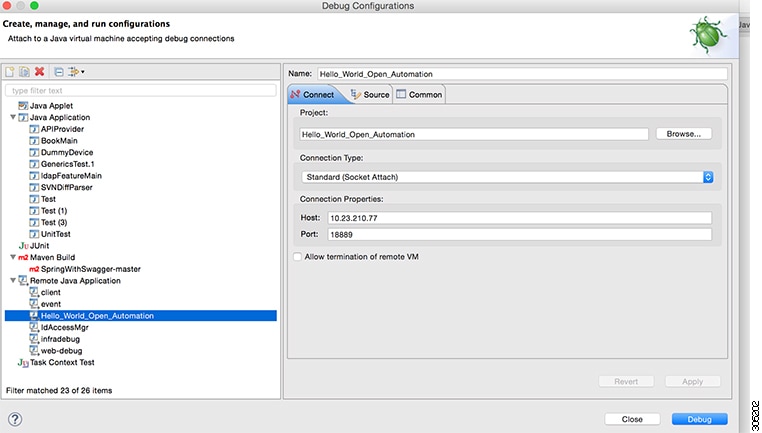
Setting Up the Open Automation Debug Configuration
Perform the following steps to setup the debug configuration for an Open Automation project and run the application on debug mode.
 Feedback