Installing a Blade Server

This chapter contains the following sections:

Installing a Blade Server in the Chassis

If a UCS B460 M4 blade server is mixed with other full-width or half-width blades in the chassis, the UCS B460 M4 blade servers must occupy the bottom two full-width slots in the chassis. The chassis should be loaded with the largest server on the bottom, starting with a UCS B460 M4 blade server on the bottom, followed by full-width blades above, and the half-width blades at the very top of the chassis.

Procedure


Step 1

If necessary, remove the slot divider from the chassis.

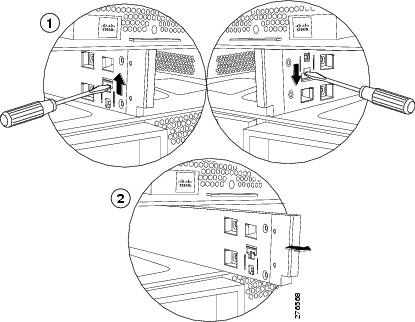
  1. Simultaneously pull up on the left side catch and push down on the right side catch as shown in callout 1 of the following figure.

  2. Pull the slot divider out of the chassis as shown in callout 2 of the following figure. Keep the slot divider in case it is needed at another time.

    Figure 1. Removing a Slot Divider
    Tip 

    To reinstall the slot divider, align it with the dimples in the slot top and bottom and slide it back in until it clicks into place.

Step 2

Grasp the front of the blade module and place your other hand under the blade to support it.
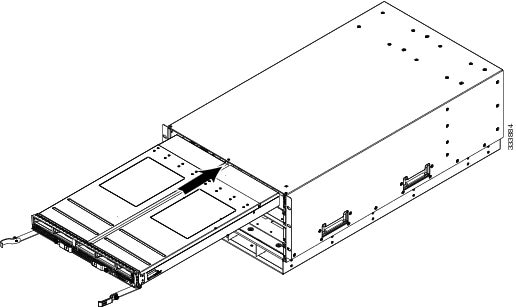
Figure 2. Positioning a UCS B260 M4 Blade Module in the Chassis
Step 3

Open the ejector levers in the front of the blade module.

Step 4

Gently slide the blade into the blade slot opening until you cannot push it any farther.

Step 5

Press the ejector levers so that they latch with the edge of the chassis and press the blade module all the way in.

Step 6

Tighten the captive screw on the front of the blade to no more than 3 in-lbs. Tightening with bare fingers will prevent stripped or damaged captive screws.

Step 7

Attach the UCS Scalability Terminator or UCS Scalability Connector to the blade module(s) as follows:

  1. Line up the four captive screws on the UCS Scalability Terminator with the holes on the front of the blade module(s).

  2. Push the UCS Scalability Terminator or UCS Scalability Connector into place.

  3. Tighten the captive screws on the front of the UCS Scalability Terminator or the UCS Scalability Connector.


Powering Off a Blade Server Using the Power Button


Note

The front panel power button is disabled by default to ensure that servers are decommissioned through the UCS Manager software before shutdown. If you prefer to shut down the server locally with the button, you can enable front power-button control in UCS Manager.


Tip

You can also shut down servers remotely using Cisco UCS Manager. For details, see the Configuration Guide for the version of Cisco UCS Manager that you are using. The configuration guides are available at the following URL: http://www.cisco.com/en/US/products/ps10281/products_installation_and_configuration_guides_list.html


Procedure


Step 1

If you are local to the server, check the color of the Power Status LED for each server in the chassis that you want to power off.

  • Green indicates that the server is running and must be shut down before it can be safely powered off. Go to Step 2.

  • Amber indicates that the server is already in standby mode and can be safely powered off. Go to Step 3.

Step 2

If you previously enabled front power-button control through Cisco UCS Manager, press and release the Power button, then wait until the Power Status LED changes to amber.

The operating system performs a graceful shutdown and the server goes to standby mode.

Caution 

To avoid data loss or damage to your operating system, you should always invoke a graceful shutdown of the operating system.

Step 3

(Optional) If you are shutting down all blade servers in a chassis, disconnect the power cords from the chassis to completely power off the servers.

Step 4

Remove the appropriate servers from the chassis.


Removing a Blade Server from the Chassis

You must power off the blade server or decommission it using Cisco UCS Manager before physically removing the blade server from the chassis.

Procedure


Step 1

Turn off the blade server using either Cisco UCS Manager or the power button.

Step 2

If you are removing a UCS B460 M4 blade server, completely loosen the captive screws on the UCS Scalability Connector and remove the connector by pulling it away from the two UCS B260 blade modules. If you are removing a UCS B260 M4 blade server, you do not need to remove the UCS Scalability Terminator prior to removing the UCS B260 M4 blade server.

Step 3

Completely loosen the captive screws on the front of the blade.

Step 4

Remove the blade from the chassis by pulling the ejector levers on the blade until it unseats the blade server.

Step 5

Slide the blade part of the way out of the chassis, and place your other hand under the blade to support its weight.

Step 6

Once removed, place the blade on an antistatic mat or antistatic foam if you are not immediately reinstalling it.

Step 7

If the blade server slot is to remain empty, reinstall the slot divider and install two blade server blanking panels.