Upgrade procedures
Upgrade through the Cisco Cyber Vision sensor management extension
Before updating IOx sensors, the Cisco Cyber Vision sensor management extension must be up-to-date.
It is possible to select which sensors to update. The update status will be visible in the Management jobs page.
Update the sensor management extension
The Cisco Cyber Vision sensor management extension must be up-to-date to update IOx sensors.
Procedure
|
Step 1 |
Retrieve the sensor management extension file (i.e. CiscoCyberVision-sensor-management-<version>.ext) on cisco.com. |
|
Step 2 |
In Cisco Cyber Vision, navigate to Admin > Extensions. |
|
Step 3 |
Click Update to browse the new version of the extension file. 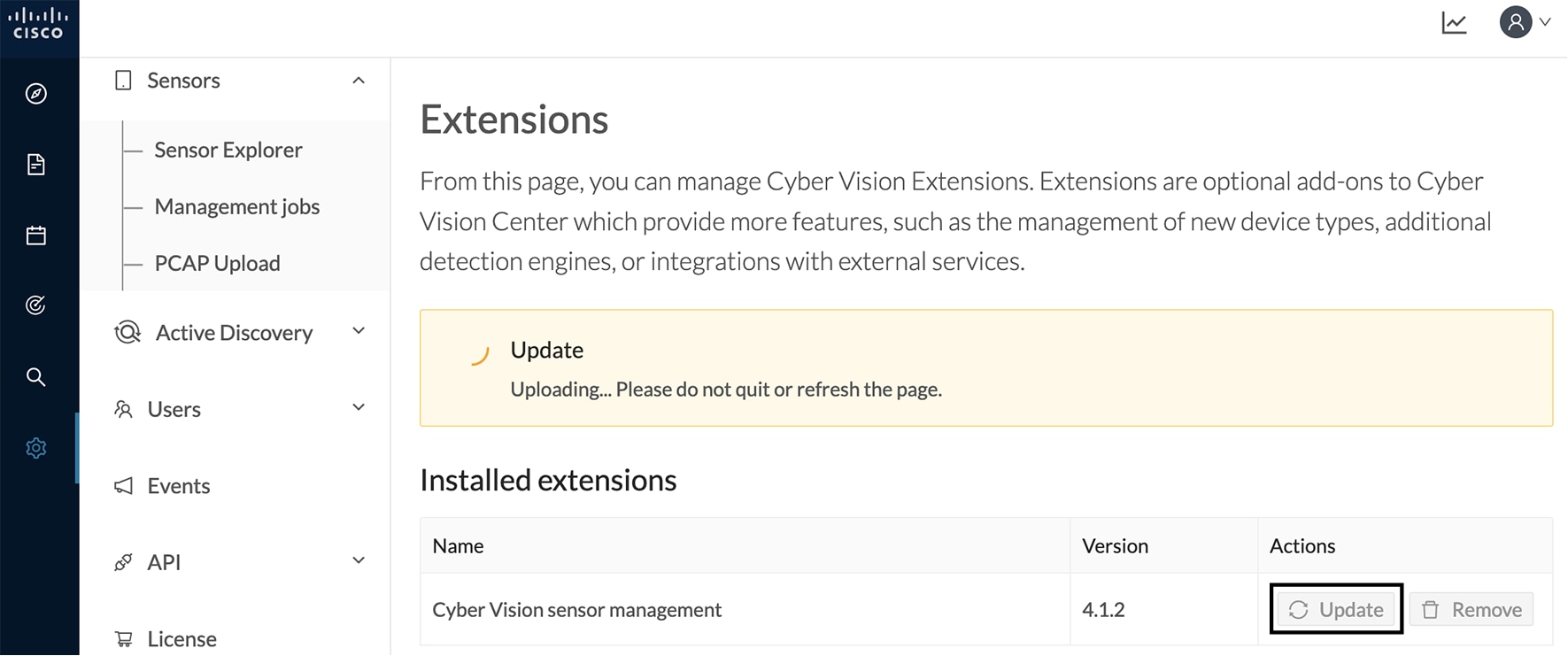 |
Update the sensors
Procedure
|
Step 1 |
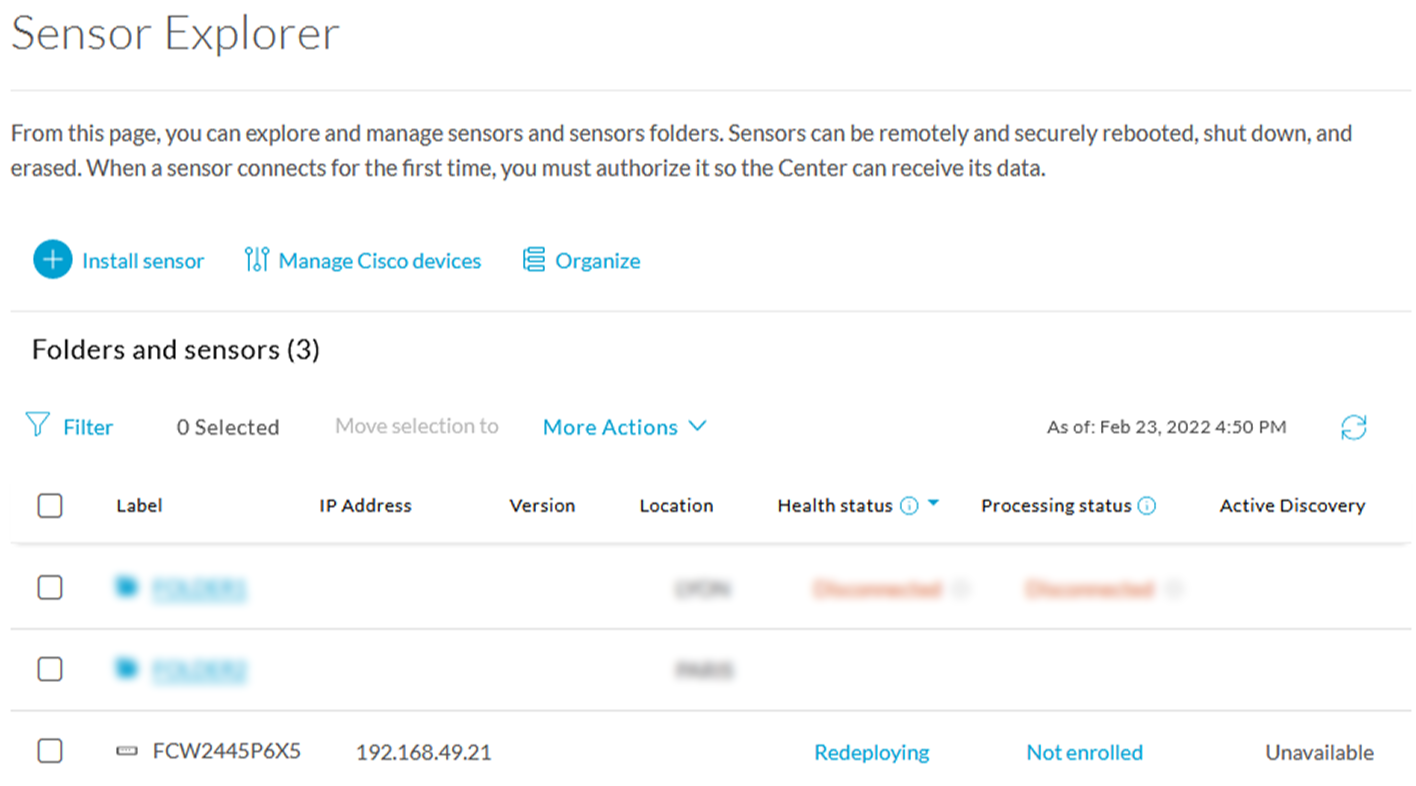
In Cisco Cyber Vision, navigate to Admin > Sensors > Sensor Explorer. Sensors that are not up-to-date have their version displayed in red. |
|
Step 2 |
Click Install sensor, then Update Cisco devices. 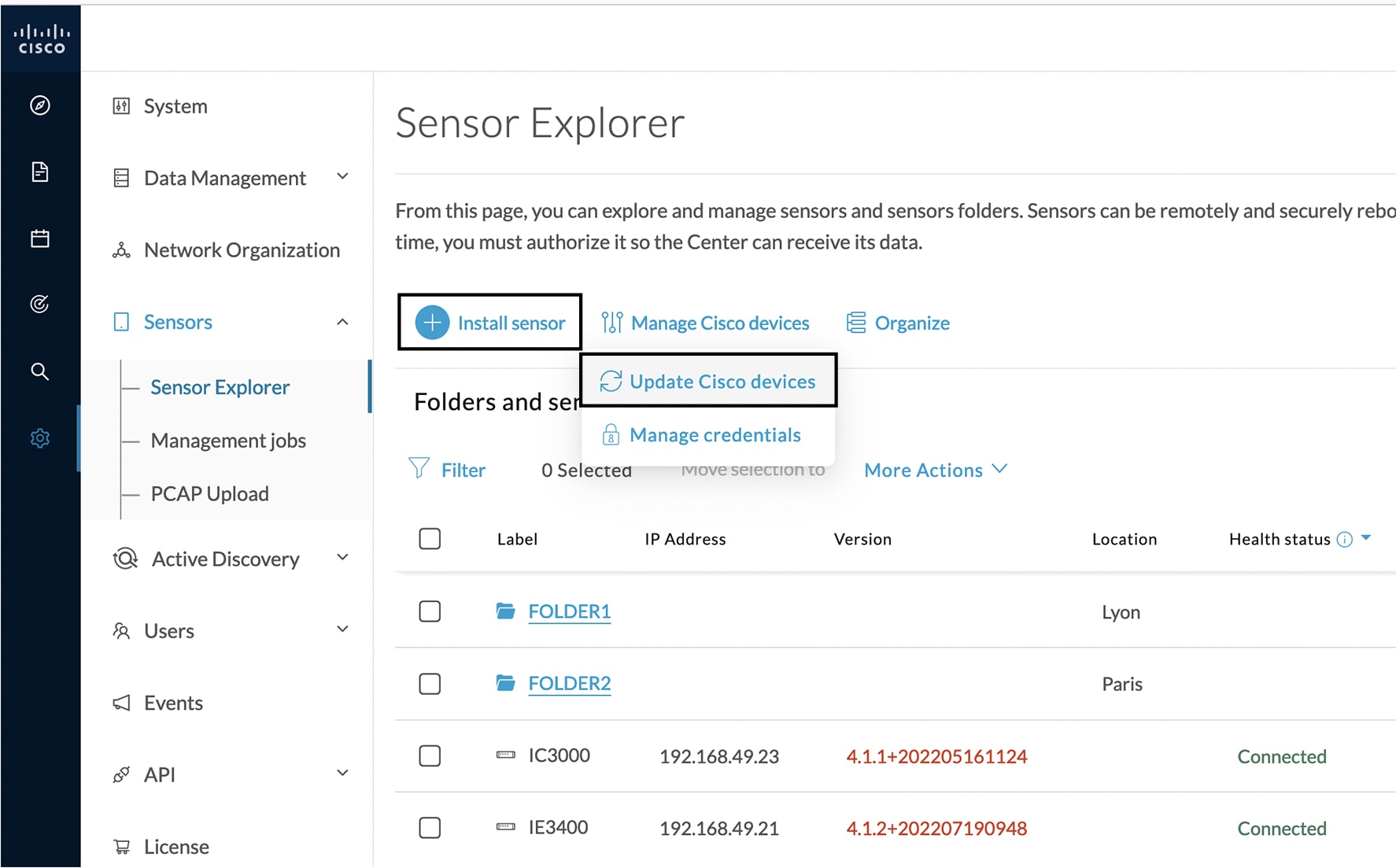 The update Cisco devices window pops up listing all sensors that have been deployed with the sensor management extension. 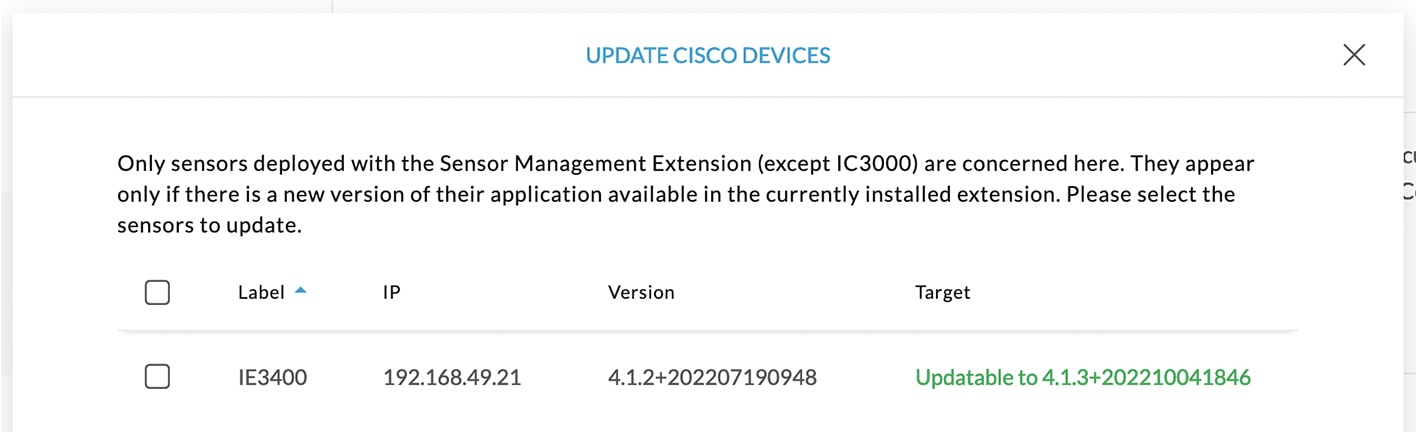 |
|
Step 3 |
Select the sensors you want to update. 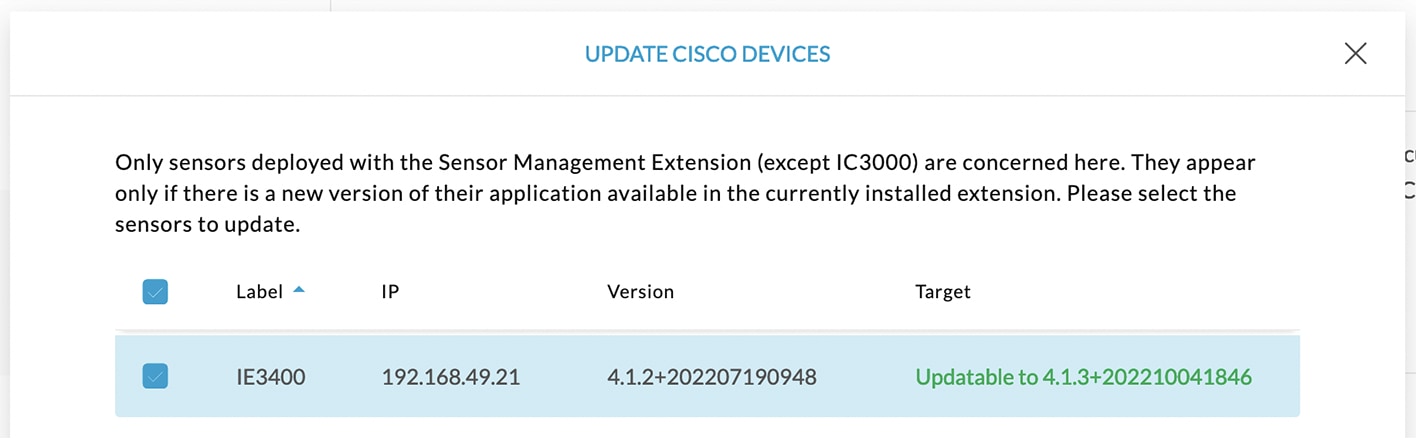 |
|
Step 4 |
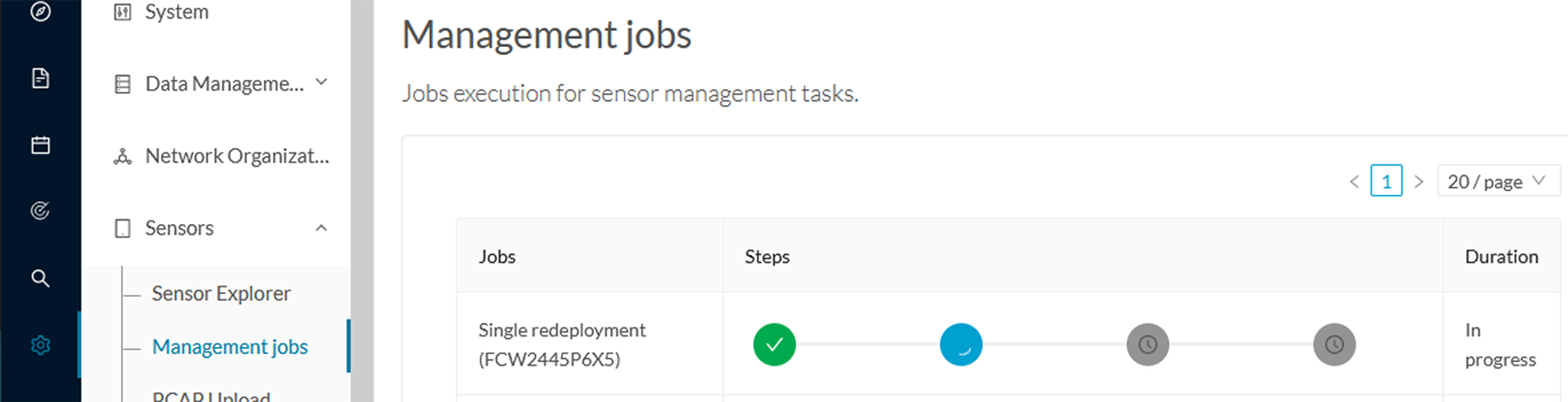
Click Update. The sensors' update status appear in the Management jobs page in batches per sensor type and of maximum ten sensors per batch. 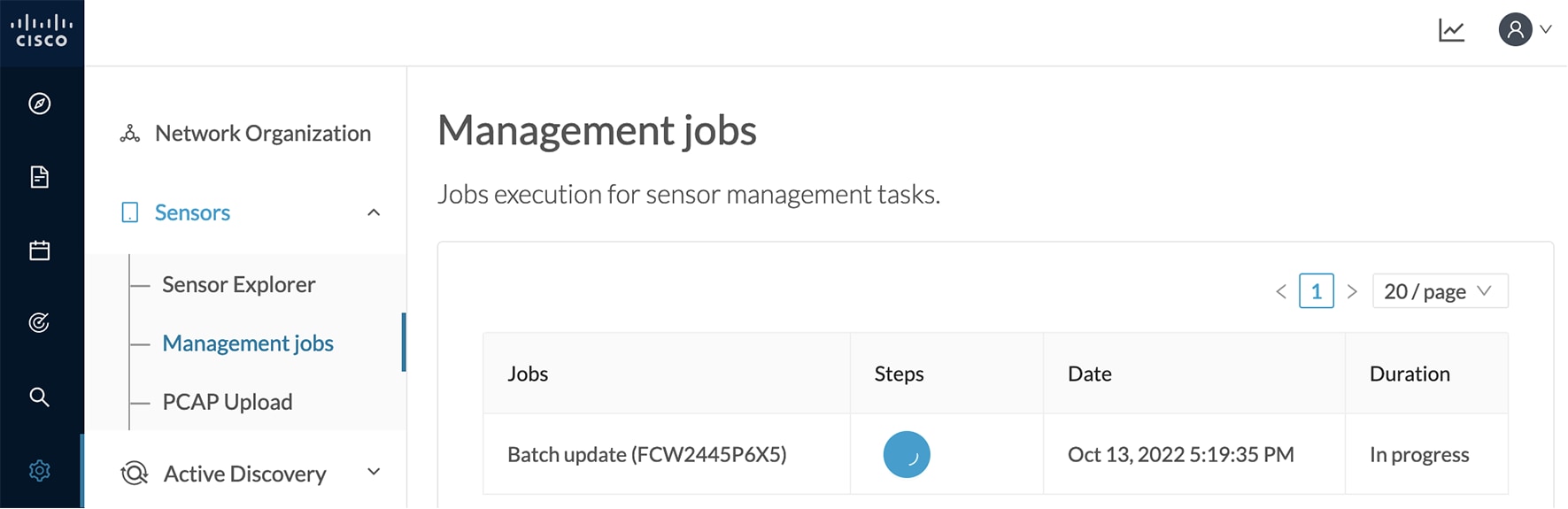 Herebelow the management jobs indicate that the batch of sensors updated successfully. 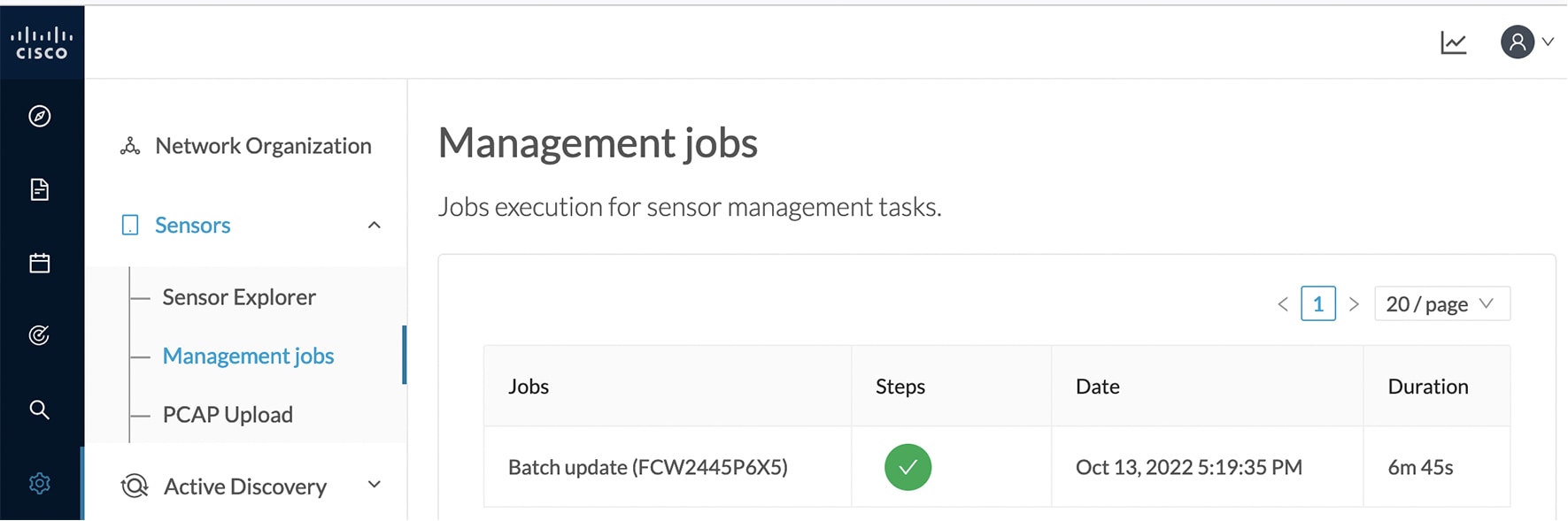 If the batch update fails, click the red update error icon to see logs. 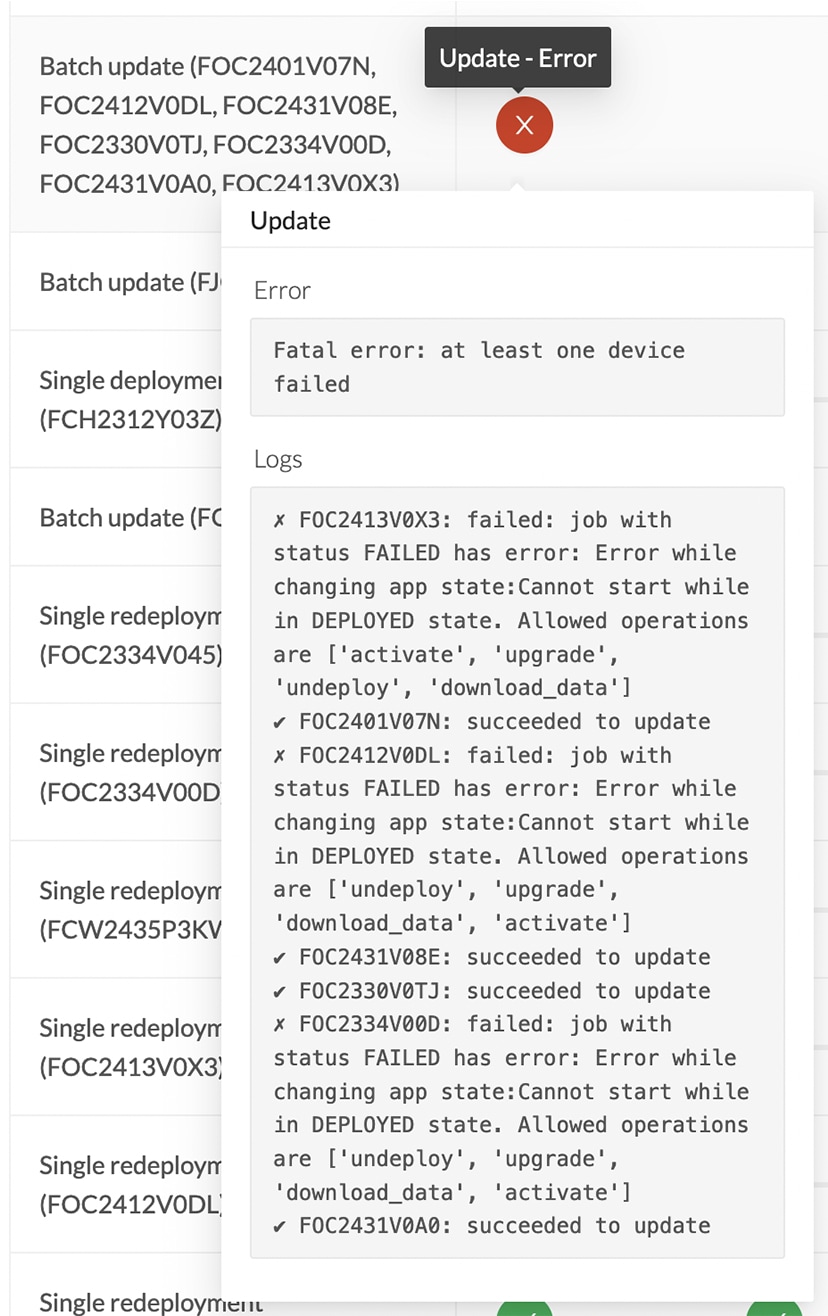 |
Upgrade through the IOx Local Manager
The following section explains how to upgrade the sensor through the IOx Local Manager.
 Note |
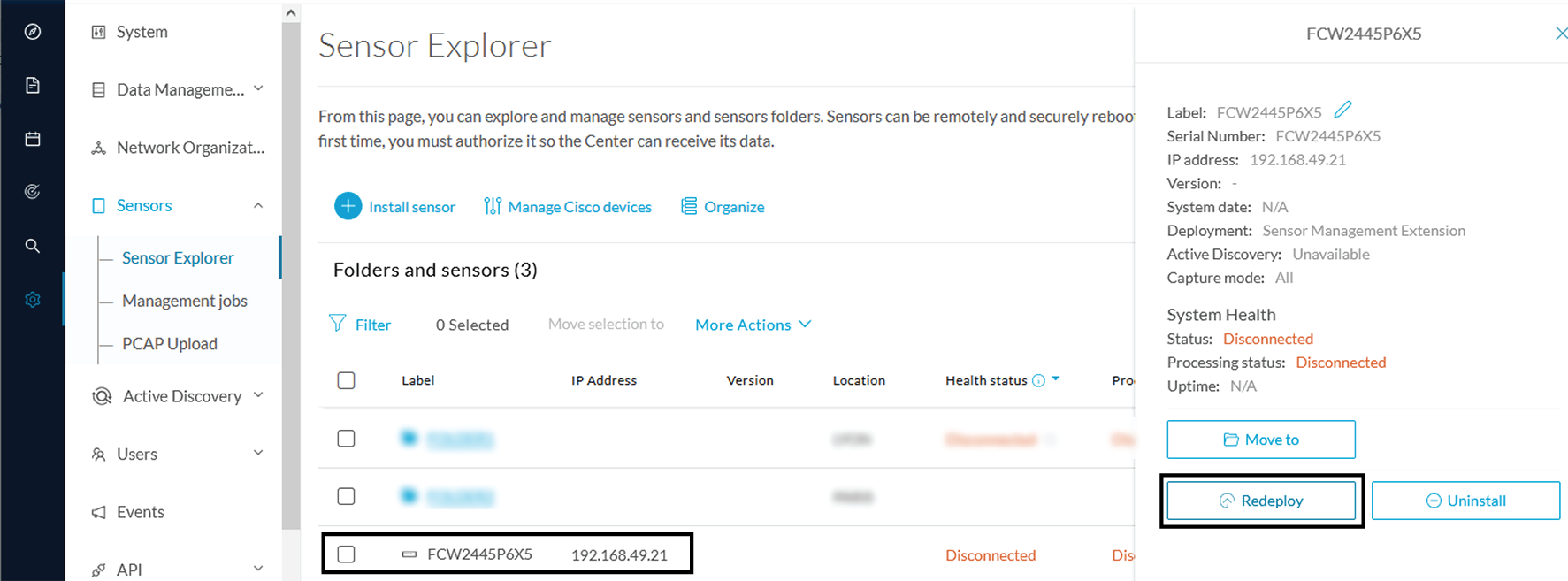
In the case of Cisco Cyber Vision upgrade for a Catalyst 9x00 from a release 4.1.2 or lower to a release 4.1.3, the update will fail due to the addition of the RSPAN option. The sensor application must be removed and deployed again. |
In the example below, the sensor is upgraded from Cisco Cyber Vision version 3.2.2 to version 3.2.3.
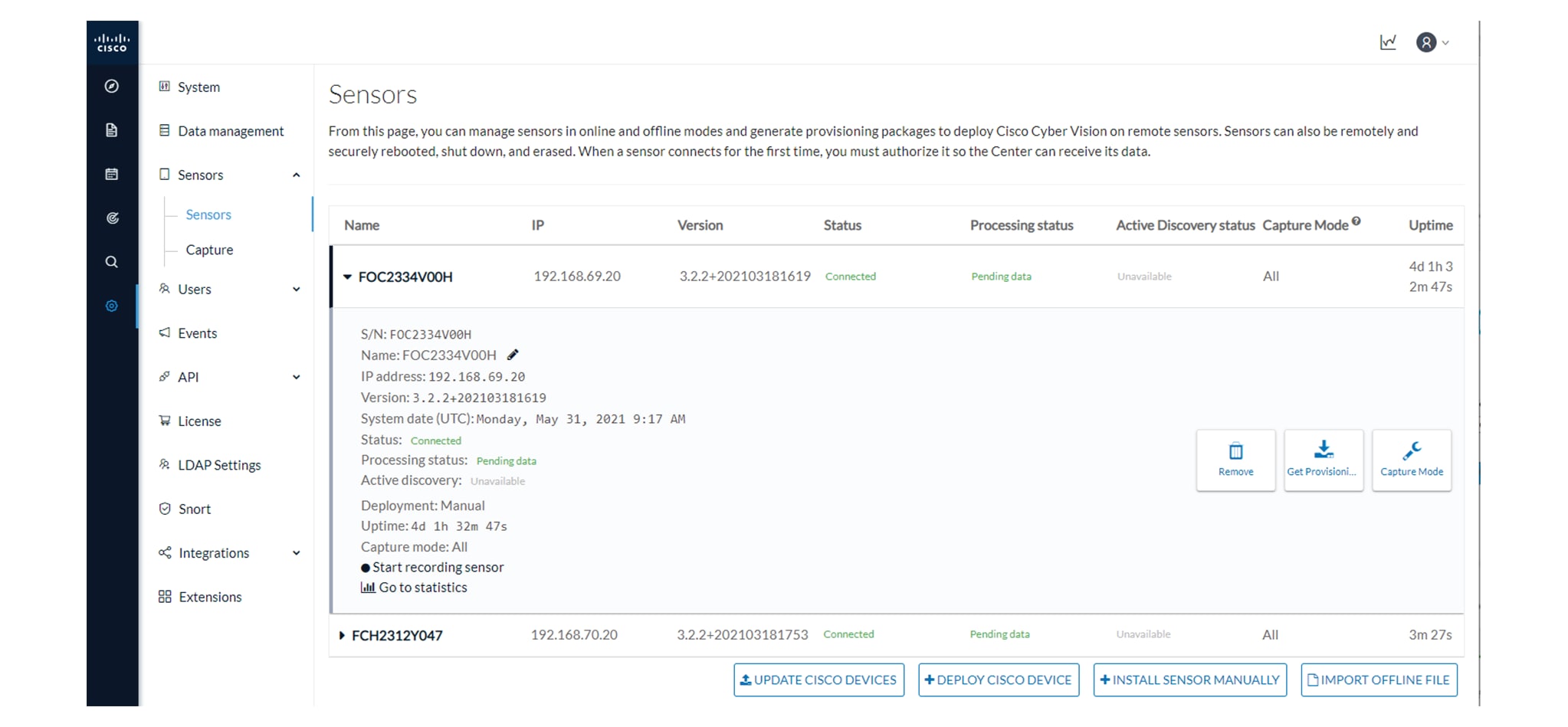
-
Access the IOx Local Manager.
-
Stop the application.
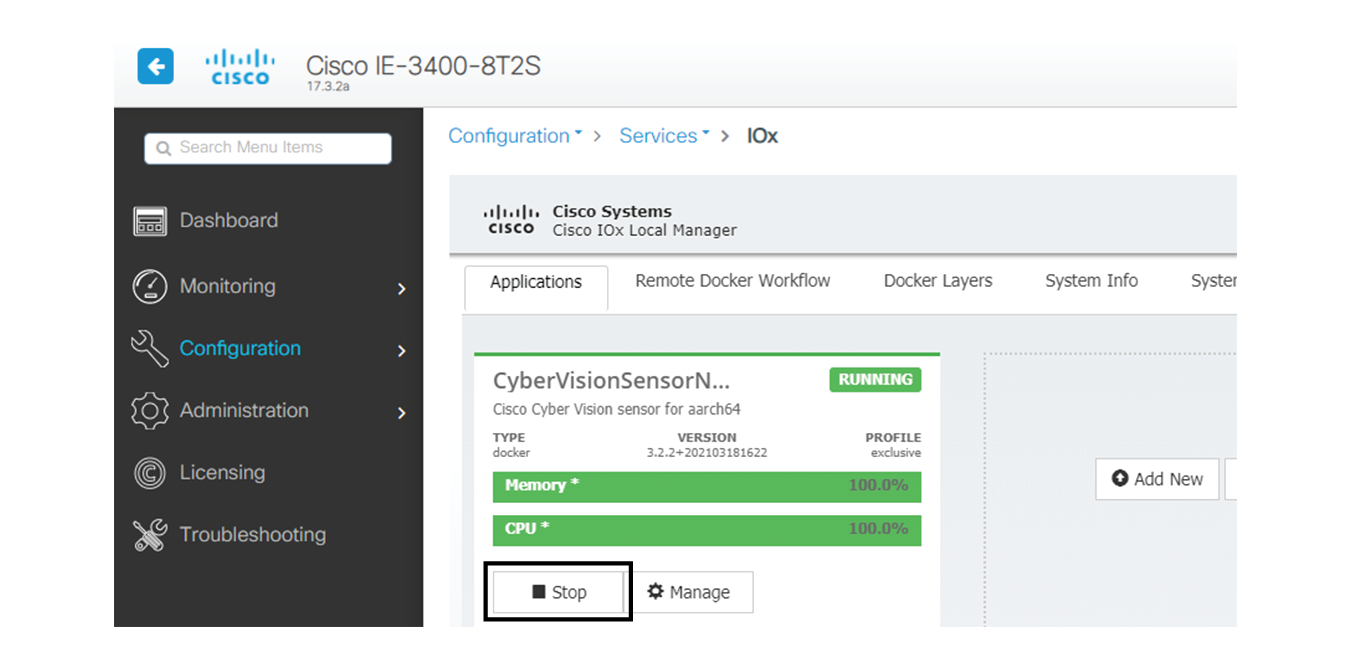
The operation takes a few moments.
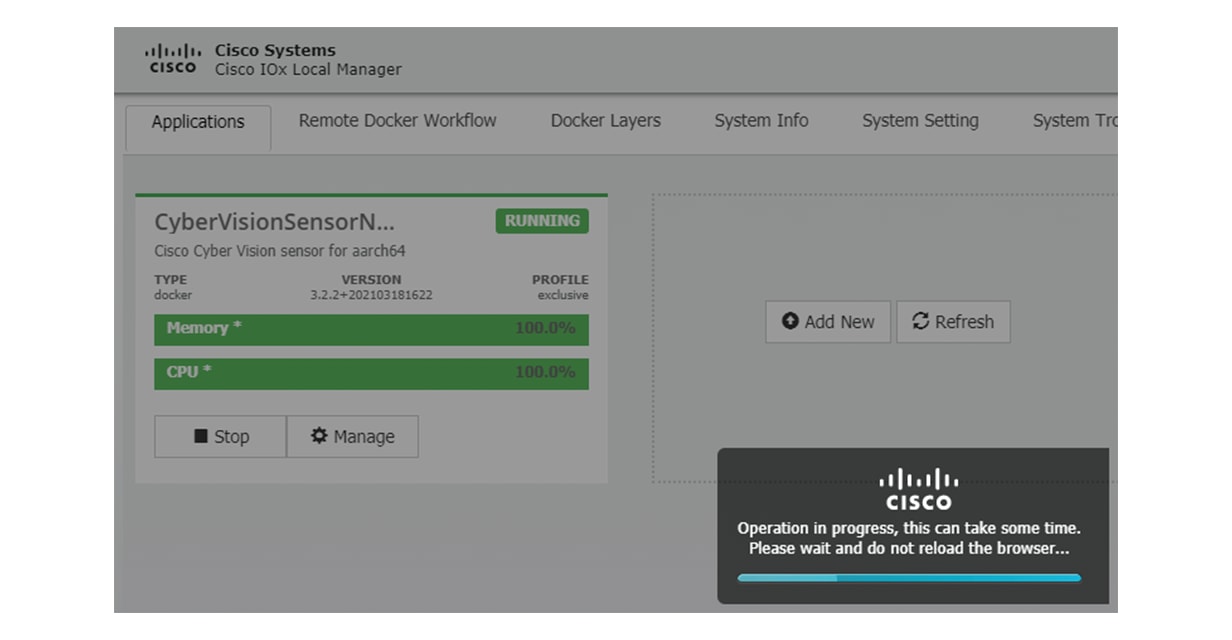
The application status switches to STOPPED.
In Cisco Cyber Vision, the sensor status switches to Disconnected.
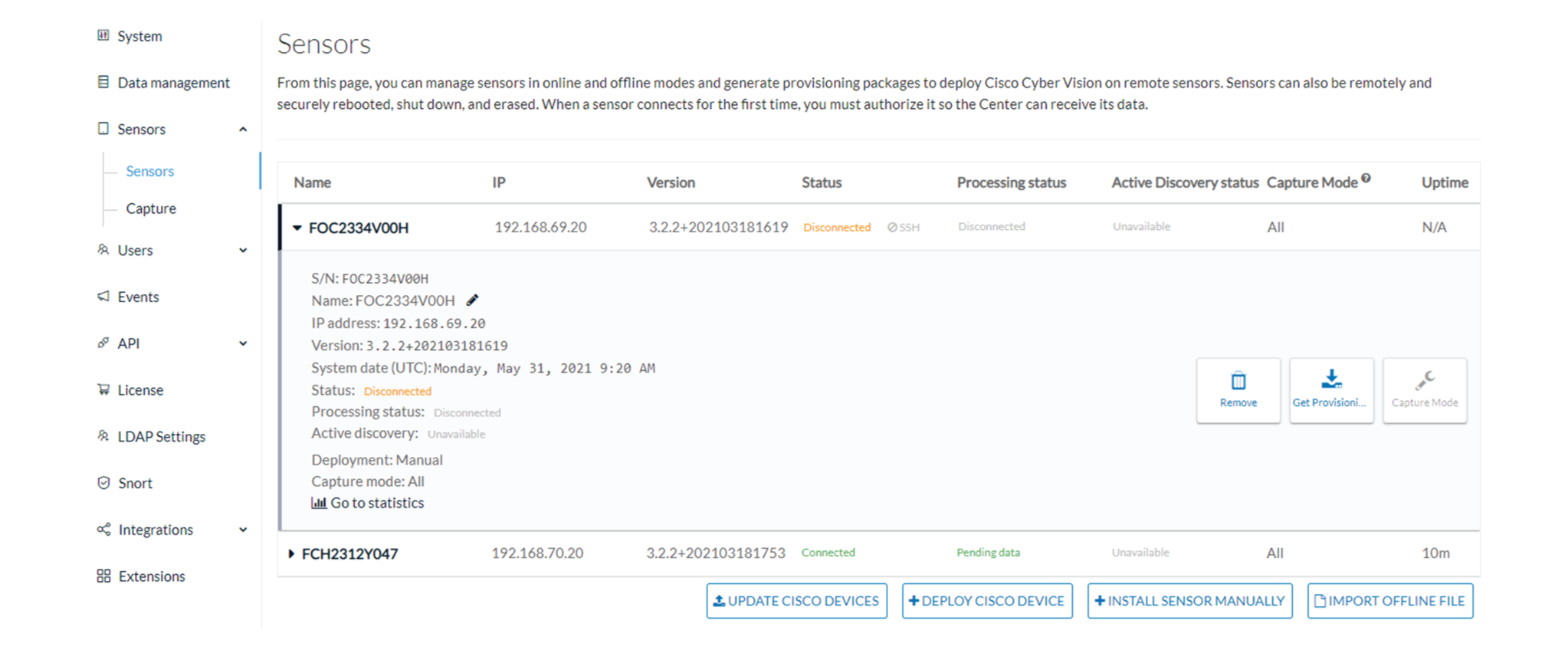
-
In the IOx Local Manager, click the Deactivate button.
The application status moves to DEPLOYED.
-
Click Upgrade.
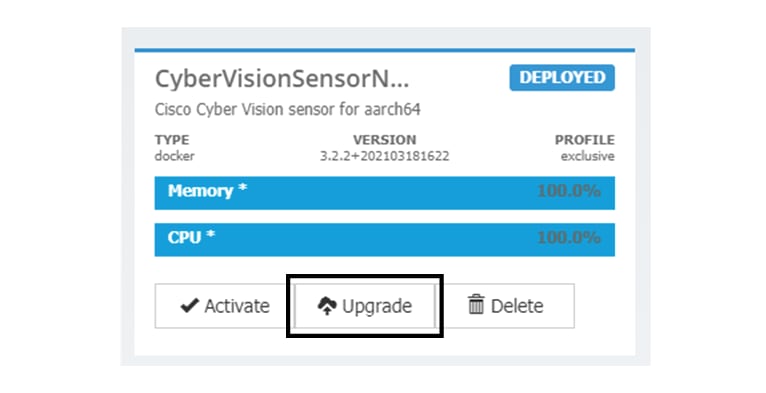
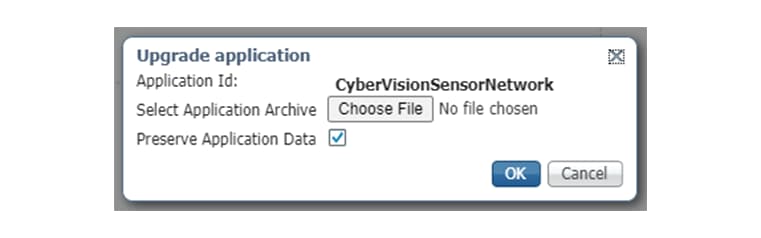
The pop up Upgrade application appears.
-
Select the Preserve Application Data option.
-
Select the new version of the application archive file.
e.g. CiscoCyberVision-IOx-aarch64-3.2.3.tar
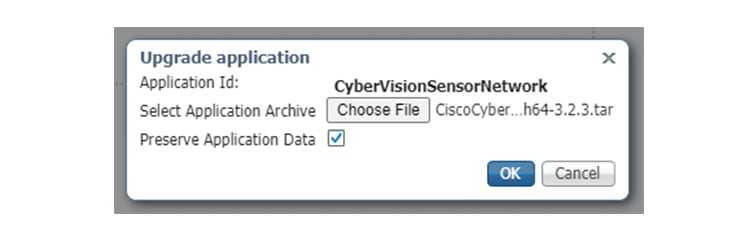
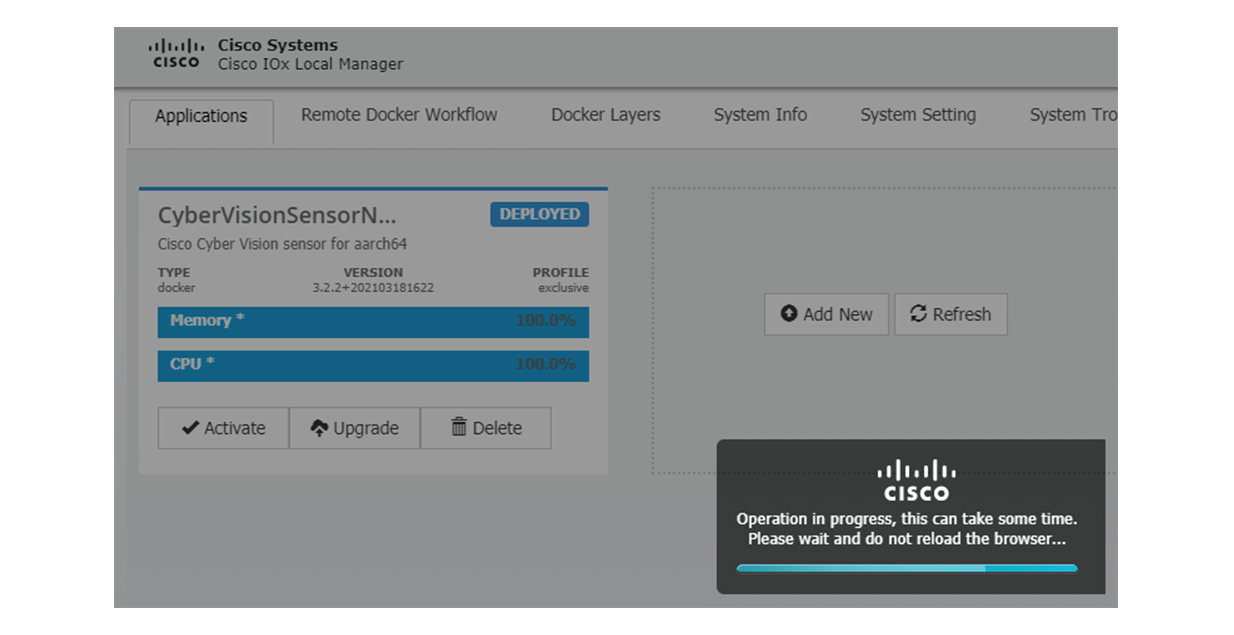
The operation takes a few moments.
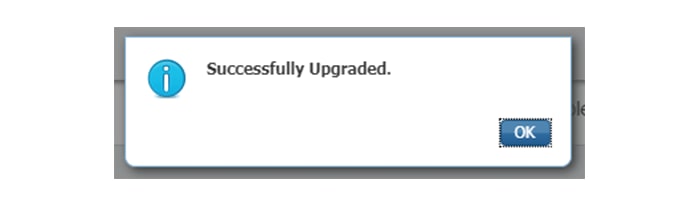
A message indicating that the sensor has been successfully upgraded is displayed.
-
Check the number of the new version.
-
Click Activate.
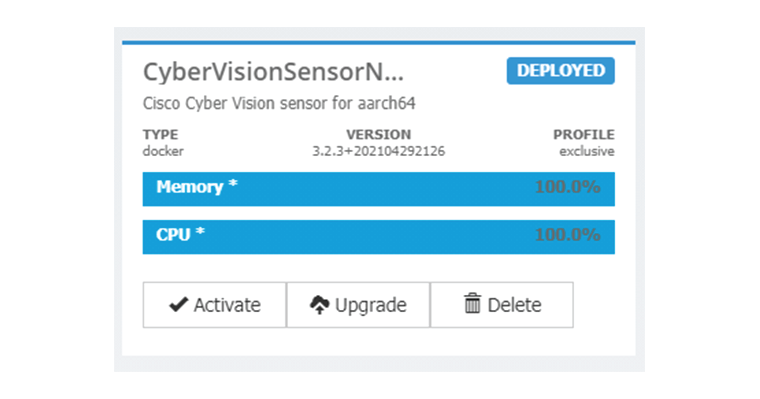
-
Check configurations.
It can happen that network configurations are lost during the upgrade. If they are, refer to Configure the sensor virtual application in the procedure with the Local Manager corresponding to the switch used and do as explained.
-
Click the Activate App button.
The application status moves to ACTIVATED.
-
Click the Start button.
The application status changes to RUNNING.
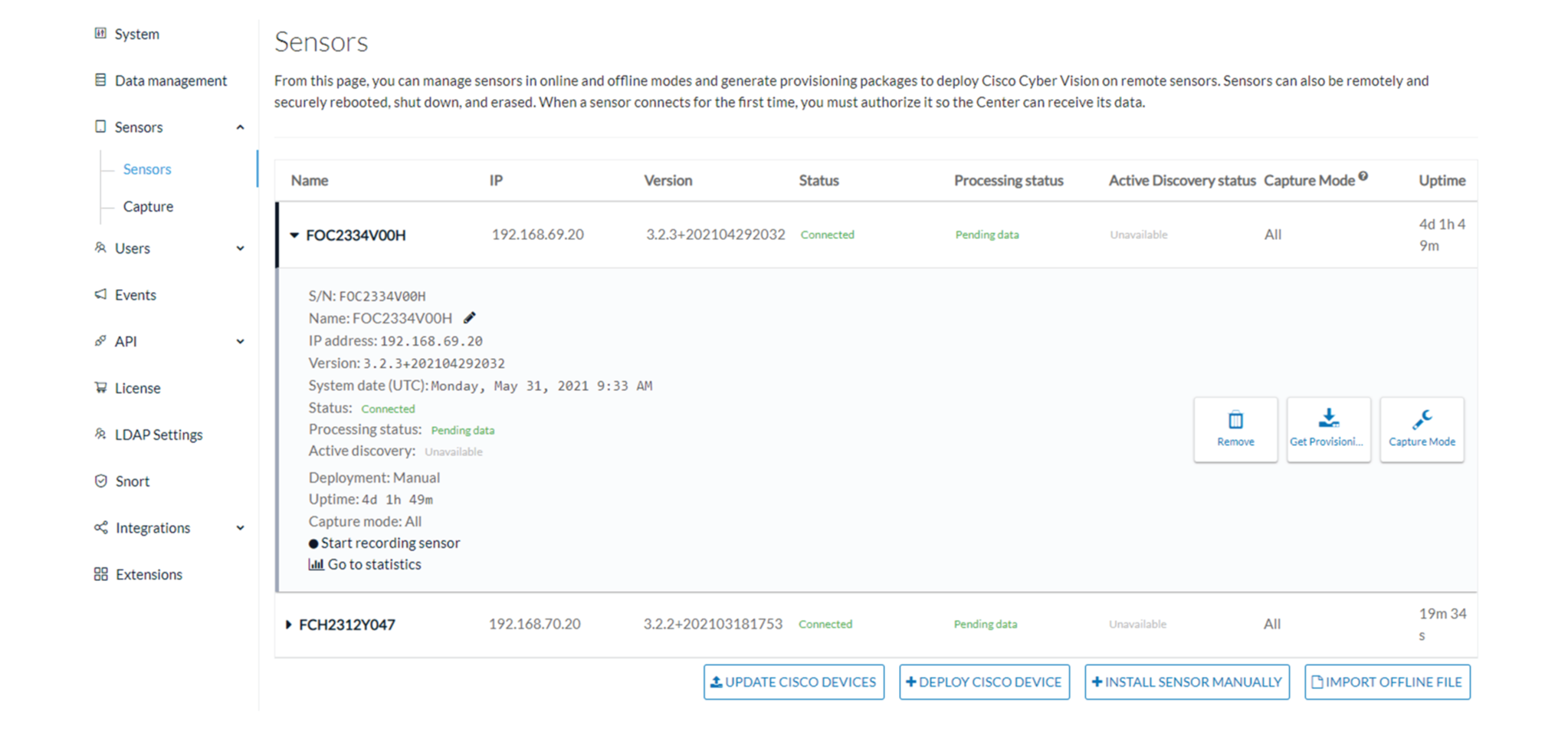
In Cisco Cyber Vision, the sensor is upgraded from version 3.2.2 to 3.2.3 and its status moves to Connected.


 Feedback