- Title and copyright: PA-F/FD-SM and PA-F/FD-MM Full-Duplex FDDI Port Adapter Installation and Configuration
- Preface: PA-F/FD-SM and PA-F/FD-MM Full-Duplex FDDI Port Adapter Installation and Configuration
- Overview: PA-F/FD-SM and PA-F/FD-MM Full-Duplex FDDI Port Adapter Installation and Configuration
- Preparing to Install the PA-F/FD Port Adapter
- Attaching the PA-F/FD Port Adapter Cables
- Configuring the PA-F/FD Port Adapter
PA-F/FD-SM and PA-F/FD-MM Full-Duplex FDDI Port Adatpter Installation and Configuration
Bias-Free Language
The documentation set for this product strives to use bias-free language. For the purposes of this documentation set, bias-free is defined as language that does not imply discrimination based on age, disability, gender, racial identity, ethnic identity, sexual orientation, socioeconomic status, and intersectionality. Exceptions may be present in the documentation due to language that is hardcoded in the user interfaces of the product software, language used based on RFP documentation, or language that is used by a referenced third-party product. Learn more about how Cisco is using Inclusive Language.
- Updated:
- September 14, 2007
Chapter: Preparing to Install the PA-F/FD Port Adapter
Preparing for Installation
This chapter describes the general equipment, safety, and site preparation requirements for installing PA-F/FD full-duplex FDDI port adapters. The chapter contains the following sections:
• Software and Hardware Requirements
Required Tools and Equipment
You need the following tools and parts to install a port adapter. If you need additional equipment, contact a service representative for ordering information.
•PA-F/FD-SM or PA-F/FD-MM and one of the following:
–Versatile Interface Processor (VIP)
–Catalyst RSM/VIP2-15 or Catalyst RSM/VIP2-40
–Cisco 7200 series router (including a Cisco 7206 as a router shelf in a Cisco AS5800 Universal Access Server) with at least one available port adapter slot
•Cables appropriate for the port adapter interfaces (single-mode, SC-type simplex or duplex, optical-fiber cables and multimode optical-fiber cables with media interface connectors [MICs]. These cables are not available from Cisco Systems; they are available from outside commercial cable vendors).
•Number 1 Phillips and a 3/16-inch flat-blade screwdriver (for VIP and Catalyst RSM/VIP2 installation).
•Your own ESD-prevention equipment or the disposable grounding wrist strap included with all upgrade kits, FRUs, and spares.
•Antistatic mat
•Antistatic container
Software and Hardware Requirements
Table 2-1 lists the minimum Cisco IOS software release required to use the PA-F/FD in supported router platforms.
|
|
|
|---|---|
|
• |
Cisco IOS Release 11.1(6)CA or a later release of Cisco IOS Release 11.1 CA |
|
• |
Cisco IOS Release 11.1(7)CA1 or a later release of Cisco IOS Release 11.1 CA1 |
• |
Cisco IOS Release 11.1(19)CC1 or a later release of Cisco IOS Release 11.1 CC |
|
|
|
• |
Cisco IOS Release 11.3(2)AA or a later release of Cisco IOS Release 11.3 AA |
|
• |
Cisco IOS Release 11.2(9)P or a later release of Cisco IOS Release 11.2P |
1 Also refer to the Cisco IOS software release note for the version of Cisco IOS software you are running. |

Note The PA-F/FD-SM and PA-F/FD-MM are not supported on Cisco 7200 VXR routers. If you insert either of these port adapters in a Cisco 7200 VXR router, a message similar to the following is displayed:PA-3-NOTSUPPORTED: PA in slot<n> (PA-F/FD-MM) is not supported on this chassis
Note In the Cisco 7200 series routers, specific configuration guidelines must be observed for high-bandwidth port adapters such as FDDI port adapters. For port adapter hardware and memory configuration guidelines for the Cisco 7200 series routers (including a Cisco 7206 as a router shelf in a Cisco AS5800 Universal Access Server), refer to the document Cisco 7200 Series Port Adapter Hardware Configuration Guidelines that shipped with your Cisco 7200 series router.
In the Catalyst 5000 family switches, the PA-F/FD requires one of the following Catalyst RSM/VIP2 models:
•Catalyst RSM/VIP2-15 (1 MB of SRAM, 16 MB of DRAM)
•Catalyst RSM/VIP2-40 (2 MB of SRAM, 32 MB of DRAM)
Note The maximum transmission unit (MTU) sizes available for two FDDI port adapters on a VIP require the additional VIP SRAM to ensure adequate packet buffers.
Note To prevent system problems, the VIP requires that the Cisco 7000 series router has the RSP7000 and RSP7000CI installed. The VIP will not operate properly with the Route Processor (RP), Switch Processor (SP), or Silicon Switch Processor (SSP) installed in the Cisco 7000 series router.
Verifying Full-Duplex Port Adapter Capability in Your Router
The PA-F/FD-SM and PA-F/FD-MM support full-duplex operation. (The PA-F-SM and PA-F-MM half-duplex FDDI port adapters do not support full-duplex operation.) To determine which FDDI port adapters are installed in your system, use the show diagbus command and verify that the PA-F/FD-SM or PA-F/FD-MM port adapters are installed.
If you discover that you do not have the appropriate Cisco IOS software release and PA-F/FD-SM or PA-F/FD-MM installed in your system, you cannot configure your FDDI port adapters for full-duplex operation. You require a minimum Cisco IOS software release and PA-F/FD-MM or PA-F/FD-SM for full-duplex operation.
For specific full-duplex configuration requirements, see the "Configuring Full-Duplex Operation" section on page 5-7.
Checking Hardware and Software Compatibility
To check the minimum software requirements of Cisco IOS software with the hardware installed on your router, Cisco maintains the Software Advisor tool on Cisco.com. This tool does not verify whether modules within a system are compatible, but it does provide the minimum IOS requirements for individual hardware modules or components.
Note Access to this tool is limited to users with Cisco.com login accounts.
To access Software Advisor, click Login at Cisco.com and go to Technical Support Help—Cisco TAC: Tool Index: Software Advisor. You can also access the tool by pointing your browser directly to http://www.cisco.com/cgi-bin/support/CompNav/Index.pl.
Choose a product family or enter a specific product number to search for the minimum supported software release needed for your hardware.
Safety Guidelines
This section provides safety guidelines that you should follow when working with any equipment that connects to electrical power or telephone wiring.
Safety Warnings
Safety warnings appear throughout this publication in procedures that, if performed incorrectly, might harm you. A warning symbol precedes each warning statement.
Laser Safety Guidelines
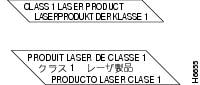
The single-mode aperture port on the PA-F/FD-SM contains a FDDI laser warning label, as shown in Figure 2-1.
Figure 2-1 Laser Warning Labels on PA-F/FD-SM

Warning Invisible laser radiation may be emitted from the aperture ports of the single-mode FDDI products when no fiber cable is connected. Avoid exposure and do not stare into open apertures.
Warning Class 1 laser product.
Electrical Equipment Guidelines
Follow these basic guidelines when working with any electrical equipment:
•Before beginning any procedures requiring access to the chassis interior, locate the emergency power-off switch for the room in which you are working.
•Disconnect all power and external cables before moving a chassis.
•Do not work alone when potentially hazardous conditions exist and never assume that power has been disconnected from a circuit; always check.
•Do not perform any action that creates a potential hazard to people or makes the equipment unsafe. Carefully examine your work area for possible hazards such as moist floors, ungrounded power extension cables, and missing safety grounds.
Telephone Wiring Guidelines
Use the following guidelines when working with any equipment that is connected to telephone wiring or to other network cabling:
•Never install telephone wiring during a lightning storm.
•Never install telephone jacks in wet locations unless the jack is specifically designed for wet locations.
•Never touch uninsulated telephone wires or terminals unless the telephone line has been disconnected at the network interface.
•Use caution when installing or modifying telephone lines.
Preventing Electrostatic Discharge Damage
Electrostatic discharge (ESD) damage, which can occur when electronic cards or components are improperly handled, results in complete or intermittent failures. Port adapters and processor modules consist of printed circuit boards that are fixed in metal carriers. Electromagnetic interference (EMI) shielding and connectors are integral components of the carrier. Although the metal carrier helps to protect the board from ESD, use a preventive antistatic strap during handling.
Following are guidelines for preventing ESD damage:
•Always use an ESD wrist or ankle strap and ensure that it makes good skin contact.
•Connect the equipment end of the strap to an unfinished chassis surface.
•When installing a component, use any available ejector levers or captive installation screws to properly seat the bus connectors in the backplane or midplane. These devices prevent accidental removal, provide proper grounding for the system, and help to ensure that bus connectors are properly seated.
•When removing a component, use any available ejector levers or captive installation screws to release the bus connectors from the backplane or midplane.
•Handle carriers by available handles or edges only; avoid touching the printed circuit boards or connectors.
•Place a removed board component-side-up on an antistatic surface or in a static shielding container. If you plan to return the component to the factory, immediately place it in a static shielding container.
•Avoid contact between the printed circuit boards and clothing. The wrist strap only protects components from ESD voltages on the body; ESD voltages on clothing can still cause damage.
•Never attempt to remove the printed circuit board from the metal carrier.
 For safety, periodically check the resistance value of the antistatic strap. The measurement should be between 1 and 10 megohms (Mohms).
FCC Class A Compliance
This equipment has been tested and found to comply with the limits for a Class A digital device, pursuant to part 15 of the FCC rules. These limits are designed to provide reasonable protection against harmful interference when the equipment is operated in a commercial environment. This equipment generates, uses, and can radiate radio-frequency energy and, if not installed and used in accordance with the instruction manual, may cause harmful interference to radio communications. Operation of this equipment in a residential area is likely to cause harmful interference, in which case users will be required to correct the interference at their own expense.
You can determine whether your equipment is causing interference by turning it off. If the interference stops, it was probably caused by the Cisco equipment or one of its peripheral devices. If the equipment causes interference to radio or television reception, try to correct the interference by using one or more of the following measures:
•Turn the television or radio antenna until the interference stops.
•Move the equipment to one side or the other of the television or radio.
•Move the equipment farther away from the television or radio.
•Plug the equipment into an outlet that is on a different circuit from the television or radio. (That is, make certain the equipment and the television or radio are on circuits controlled by different circuit breakers or fuses.)
Modifications to this product not authorized by Cisco Systems, Inc. could void the FCC approval and negate your authority to operate the product.
 Feedback