Build a Configuration

Build a Configuration Overview

In the build phase, you build the configurations for each node. After selecting the options for the overall topology and each node, you create the configuration files. Alternatively, you can use AutoNetkit to create the configuration files.

You can modify and save configuration files for the topology and for each node in your topology.

Create and Modify a Node Configuration

While AutoNetkit is useful for generating configuration files for all the nodes in the topology, you can bypass AutoNetkit and enter node configuration information directly.

You can enter configuration information in either of the following ways:

  • During the design phase, copy and paste configuration commands for each node.

  • During the simulation phase, connect to a node console and change its configuration when the topology is running. See the chapter Simulate the Topology for more information on how to modify, extract, and save a running configuration.


Note


When you create your configuration files:
  • Changes that are manually entered are not visible in the topology design. If you create a new interface by entering configuration commands, the interface is not created in OpenStack nor does the interface show up in any of the node views.
  • Depending on how the AutoNetkit Auto-generate the configuration based on these attributes feature is set, you may overwrite the changes you enter.

While in the Design perspective, any changes you manually make to a node configuration are saved in the current filename .virl file. Before you launch a simulation from the Design perspective, a notification window advises you to save the changes or cancel the simulation launch.
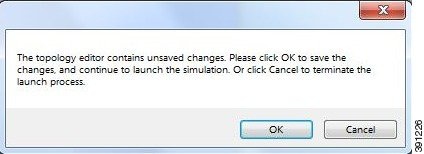
Figure 1. Save Changes Before Launch


Create a Node Configuration Manually

Before You Begin

The topology design should be complete.


    Step 1   In the Topology Editor, click a node.
    Step 2   In the Properties view, click AutoNetkit and uncheck the Auto-generate the configuration based on these attributes check box.
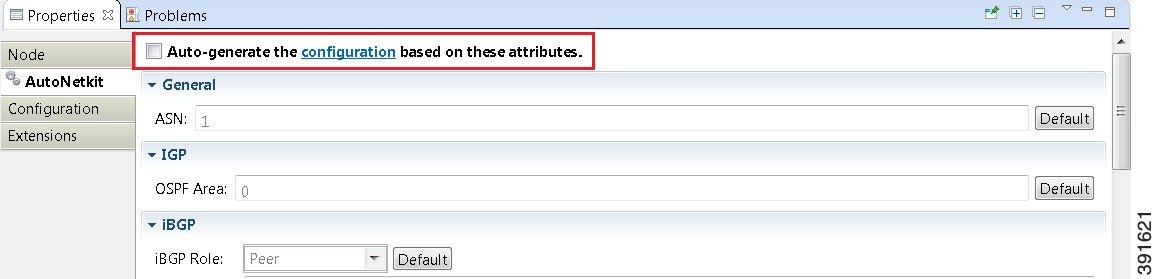
    Figure 2. Uncheck Auto-generate Check Box


    Step 3   Click the Configuration tab.
    Step 4   Enter the configuration commands in the Configuration view.
    Note    All changes are automatically saved to the filename .virl file. However, the changes made do not appear in the topology on the canvas.

    Note   

    It is important to note that when generating configurations manually, you must create default logins with the username cisco and password cisco. These default login details are necessary when extracting your configurations at a later stage. See Extract and Save Modified Configurations for further information.


    Use an Existing Node Configuration

    You can use an existing configuration file to create a node configuration in Cisco Modeling Labs.

    Before You Begin

    The topology design should be complete.


      Step 1   In the Topology Editor, click a node.
      Step 2   In the Properties view, click AutoNetkit and uncheck the Auto-generate the configuration based on these attributes check box.
      Step 3   Click the Configuration tab.
      1. Open the configuration file you want to use and copy the configuration commands.
      2. In the Configuration view, paste the configuration commands.
        Note    All changes are automatically saved to the filename.virl file. However, the changes made do not appear in the topology on the canvas.

      What to Do Next

      Launch a simulation to observe the changes.

      Import the Configuration from a Cariden MATE File

      You can import a topology from an existing Cariden MATE file, version 5.2.0 or later or version 6.1.0. Cisco Modeling Labs client will accept site imports up to two layers deep. Any Cariden MATE file that has a topology with more than two layers of sites will not import correctly.
      Before You Begin
      • A valid Cariden MATE file is available on your file system.

      • Cisco Modeling Labs client is running.

      • Your license allows Cariden MATE file import.


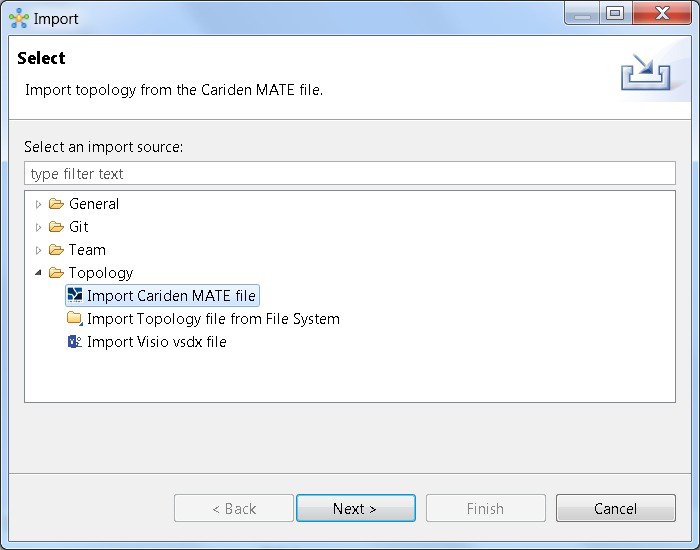
        Step 1   Choose File > Import. A window appears, prompting you to Import Cariden MATE file.
        Step 2   Choose Import Cariden MATE File then click Next.
        Figure 3. Import Cariden MATE File


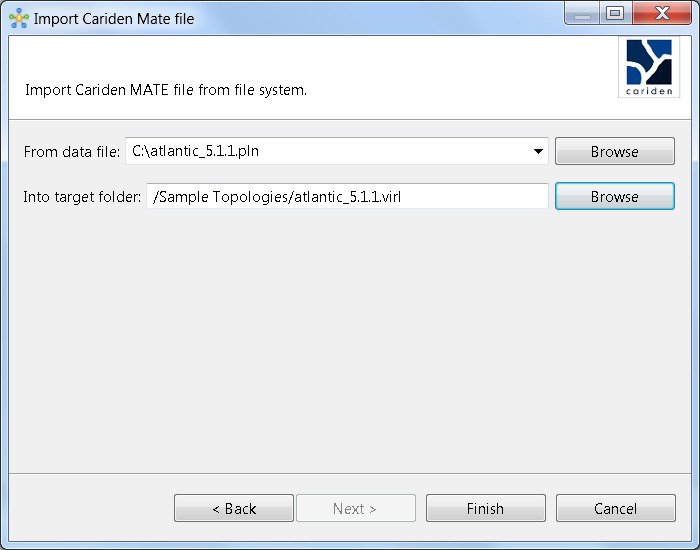
        Step 3   Choose the From data file Cariden MATE file to import. Use Browse to select the directory and file to import.
        Step 4   Choose the location Into target folder for the Cariden MATE file. Use Browse to select the target Project folder.
        Figure 4. Choose the From and To Locations


        Step 5   Enter a filename for the imported Cariden MATE file.
        Important: The filename you enter must have the extension .virl. For example, Lab_import.virl is a valid filename. Otherwise, you cannot open the file in the topology editor.

        The Cariden MATE file converts to a Cisco Modeling Labs .virl file.
        Step 6   In the Projects view, expand the project folder where you saved the imported file.
        Step 7   Right click on the imported file, for example, Lab_import.virl and choose Open With > Topology Editor. The canvas opens and displays the topology.
        Figure 5. Imported Cariden MATE File


        Export the Configuration to Cariden MATE File

        Before You Begin
        • Cisco Modeling Labs client is running.

        • A topology is open in the Topology Editor.

        • Your license allows Cariden MATE file export.


          Step 1   Choose File > Export. A window appears, prompting you to Export to Cariden MATE file.
          Step 2   Choose Export Cariden MATE File then click Next.
          Step 3   Choose the location To file for the Cariden MATE file export. Use Browse to select the target Project folder.
          Step 4   Enter a filename for the exported Cariden MATE file, or use the default filename. For example, sample_topology.virl is converted to sample_topology.pln and saved in the target directory.
          Step 5   Click Finish. The Cisco Modeling Labs .virl file silently converts to a Cariden MATE .pln file.

          Import the Configuration from a Visio vsdx File

          You can import a topology from an existing Visio .vsdx file, version 2013 and later.
          Before You Begin
          • A valid Visio file is available on your file system.

          • Cisco Modeling Labs client is running.

          • Your license allows Visio file import.


            Step 1   Choose File > Import. The Import dialog box appears.
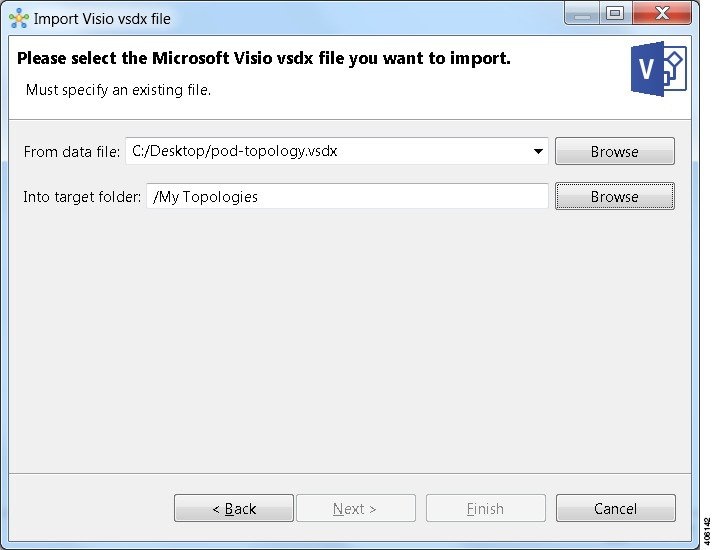
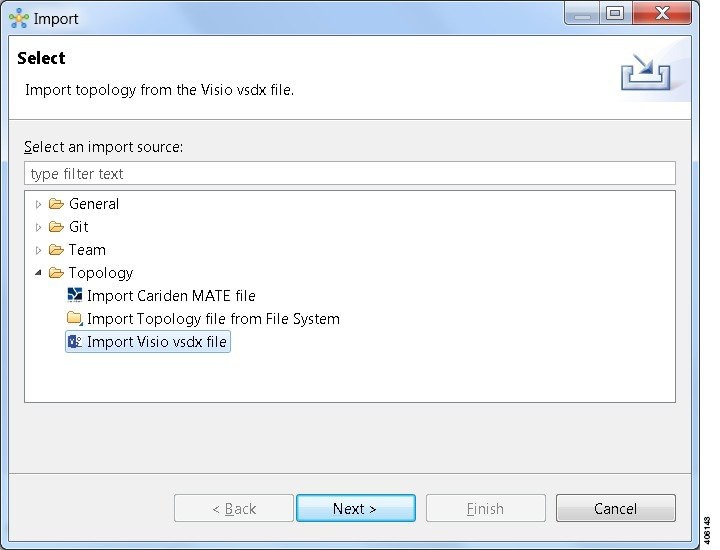
            Step 2   Expand the Topology folder, choose Import Visio vsdx File and click Next.
            Figure 6. Import Visio vsdx File


            Step 3   Choose the From data file Visio .vsdx file to import. Use Browse to select the directory and file to import.
            Step 4   Choose the location Into target folder for the Visio .vsdx file. Use Browse to select the target Project folder.
            Figure 7. Choose the From and To Locations


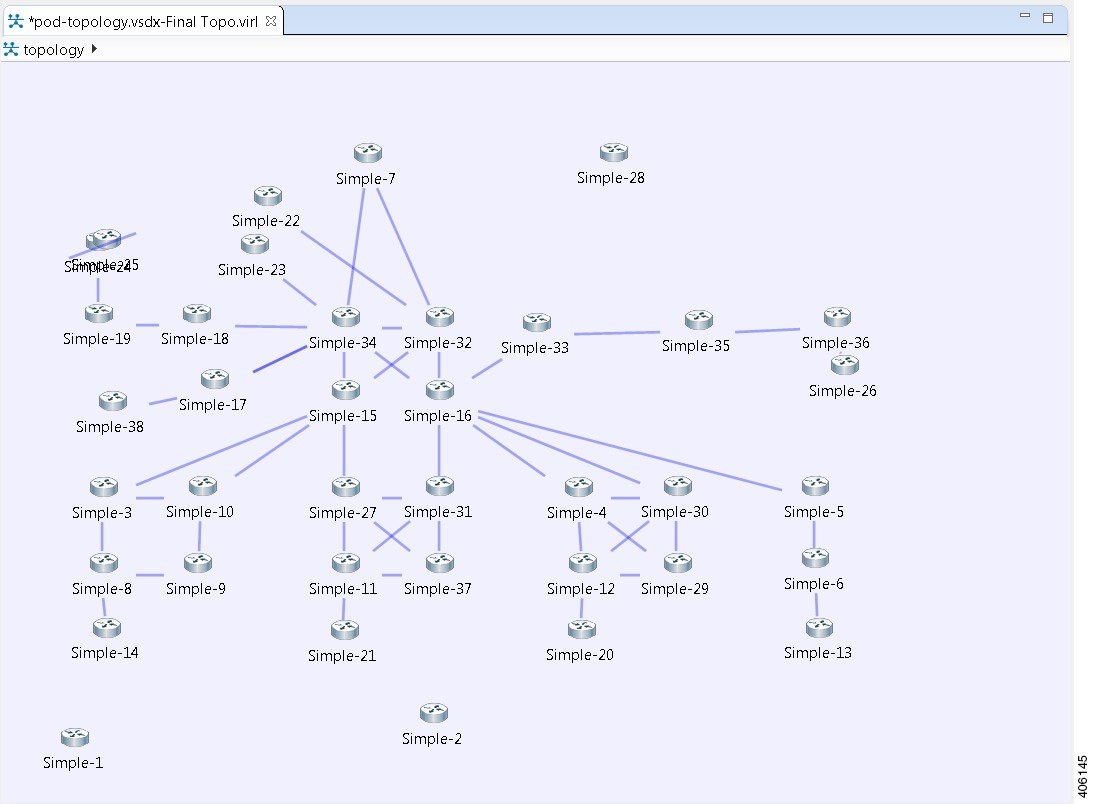
            Step 5   Click Finish. The Visio .vsdx file converts to a Cisco Modeling Labs .virl file, using the original filename of the file and it is automatically opened on the canvas.
            Figure 8. Imported Visio .vsdx File


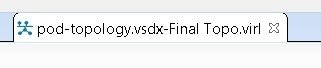
            Note    In this example, the file pod-topology.vsdx has been renamed by Cisco Modeling Labs to pod-topology.vsdx-Final Topo.virl. We recommend that for your .vsdx file imports, you rename the file(s) replacing the dot in .vsdx with '_'. In this example, pod-topology.vsdx-Final Topo.virl becomes pod-topology_vsdx-Final Topo.virl. You must do this as in Cisco Modeling Labs, the roster will parse the extra dot as a hierarchy delimiter and the simulation will fail.

            Export the Configuration to SVG Files

            For this release of Cisco Modeling Labs, export to Visio .vsdx files is not supported. However, export to .svg files is supported, as Visio supports the use of .svg files. The Export option can be used to export .virl files as .svg files.

            Before You Begin
            • Cisco Modeling Labs client is running.

            • A topology is open in the Topology Editor.

            • Your license allows SVG file export.


              Step 1   Choose File > Export. A window appears, prompting you to Export to SVG file.
              Step 2   Choose Export to SVG file then click Next.
              Step 3   Choose the location To file for the SVG file export. Use Browse to select the target Project folder.
              Step 4   Enter a filename for the exported SVG file, or use the default filename. For example, sample_topology.virl is converted to sample_topology.svg and saved in the target directory.
              Step 5   Click Finish. The Cisco Modeling Labs .virl file silently converts to a SVG .svg file.

              Create Node and Interface Configurations Using AutoNetkit

              Before You Begin

              The topology design should be complete.


                Step 1   Verify the configuration for each node in the topology.
                1. In the Topology Editor, click a node.
                2. In the Properties view, click AutoNetkit. Verify Auto-generate the configuration based on these attributes is checked or unchecked, depending on whether AutoNetkit will generate a configuration for that node.
                  Note    Any pre-existing configuration for this node is overwritten when you choose Build Initial Configurations from the toolbar. Uncheck the Auto-generate the configuration based on these attributes check box if you do not want the router configuration for this node updated by AutoNetkit.
                Step 2   Generate a configuration for the topology. Click Build Initial Configurations from the toolbar. Alternatively, from the menu bar, choose Configuration > Build Initial Configurations. You are prompted to save any changes made since the previous configuration update. If the Auto-generate the configuration based on these attributes check box is checked for a node, the configuration updates are generated by AutoNetkit.
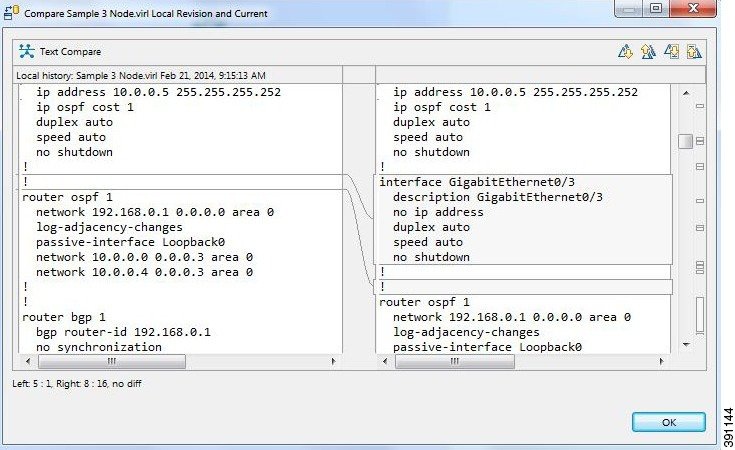
                Step 3   AutoNetkit displays a notification after it generates the configuration. Click No to skip a comparison of configuration changes. Click Yes to open a comparison view of the configuration changes.
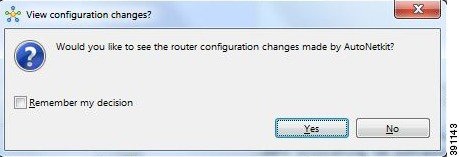
                Figure 9. View Configuration Changes? Notification


                Note    Selecting the Remember my decision check box will always display configuration changes for subsequent invocations. You can later change this behavior by choosing File > Preferences > General > Reset All "Remember my decision" Dialog Boxes.
                The .virl file opens and displays previous and current configurations side-by-side, with the changes highlighted. You can scroll through the contents and see the differences. However, you cannot edit the configurations.

                Figure 10. Show Configuration Comparison Side-by-Side


                Click OK to close the comparison view.
                Step 4   When you close the comparison view, a notification is displayed, and you can choose whether or not to open AutoNetkit visualization.
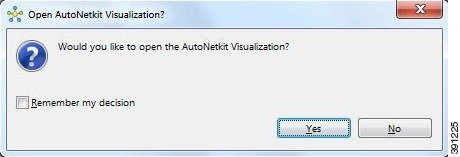
                • Click No to skip the visualization. You return to the Design perspective.

                • Click Yes to display the visualization. The AutoNetkit visualization opens in a browser window. For more information about this feature, see Visualization Overview.

                Figure 11. Open AutoNetkit Visualization? Notification


                Note    Selecting the Remember my decision check box will always open AutoNetkit visualization for subsequent invocations. You can later change this behavior by choosing File > Preferences > Web Services > AutoNetkit.

                Assign VLANs

                VLANs can be assigned to the interfaces of the end nodes, using the Properties > Interface view.

                VLANs are set using the VLAN property under the General tab in the AutoNetkit field on the interface. The interface is selected in the Node Editor. The properties are set on the interfaces of the nodes connected to the IOSvL2 image, such as on the IOSv nodes, server node interfaces.
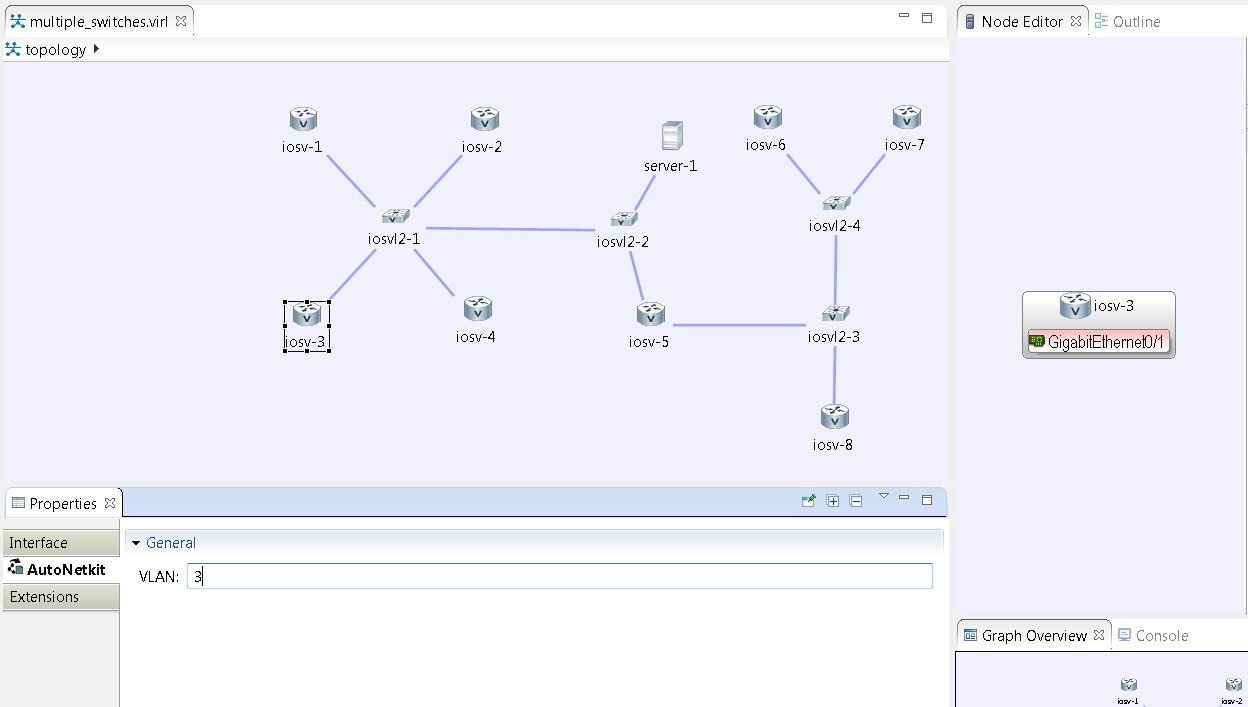
                The following example shows how to set a VLAN property.
                Figure 12. Set a VLAN Property


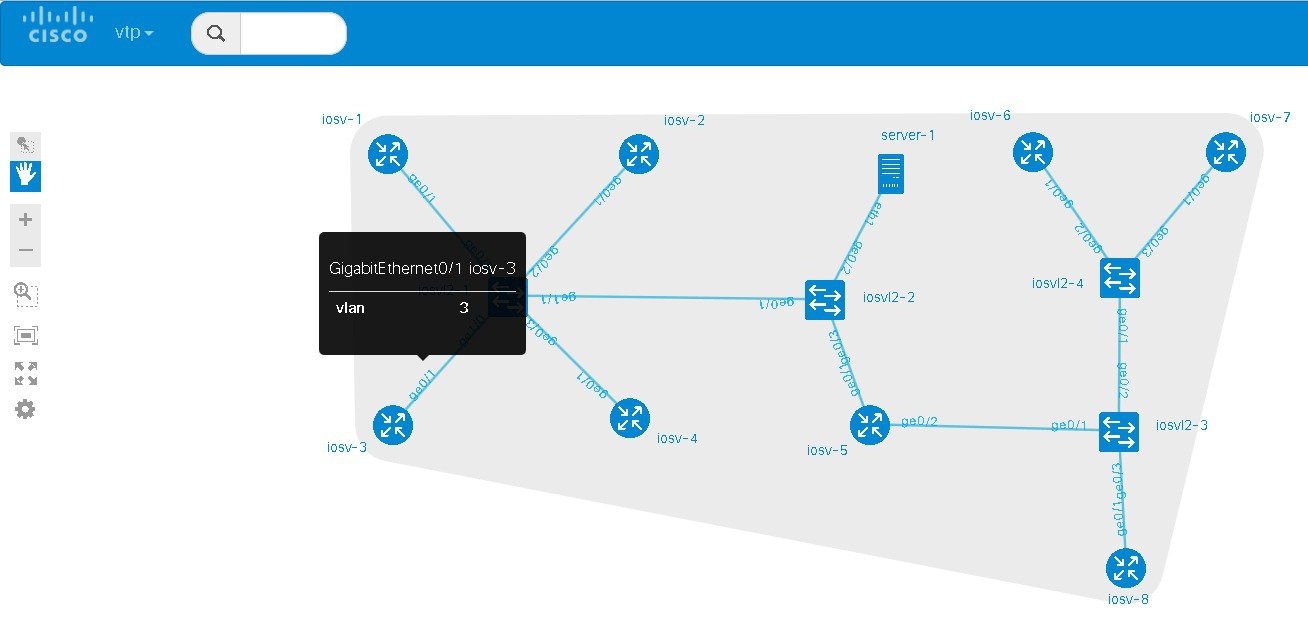
                These VLAN values are displayed in the VLAN attribute of the interfaces in AutoNetkit visualization:
                Figure 13. VLAN Property Assigned


                Use a Managed Switch

                The Cisco IOSv Layer 2 switch introduces a managed switch to the Cisco Modeling Labs environment.

                By default, all VLANs are placed in vlan2.
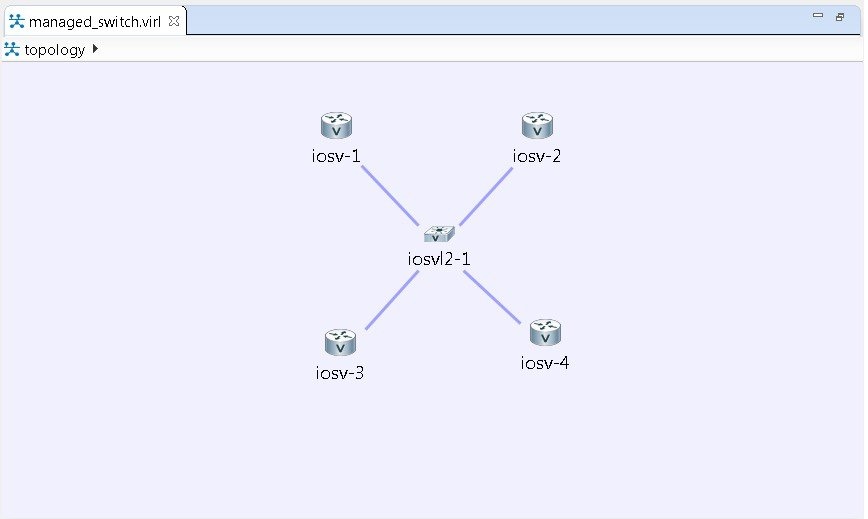
                For example, consider the following topology which includes four nodes and one IOSvL2 image:
                Figure 14. Using a Managed Switch


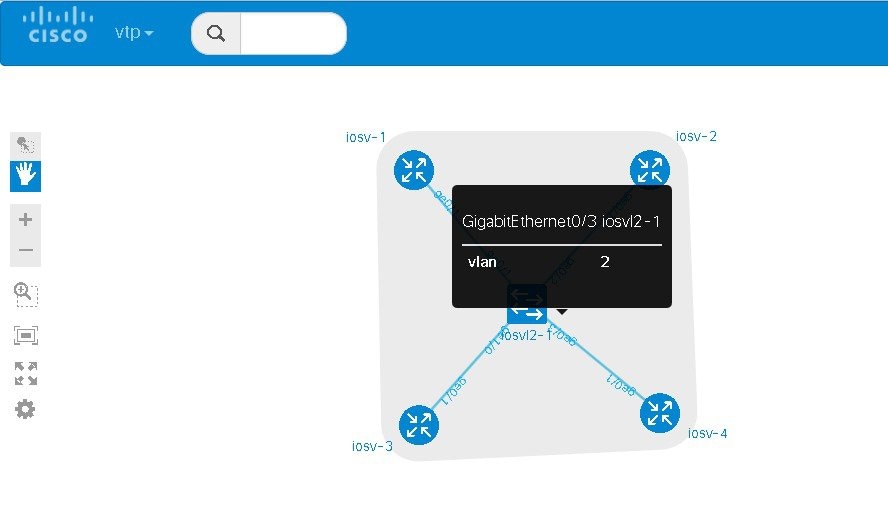
                After running AutoNetkit, you can see the default VLAN assigned using the vtp view:
                Figure 15. VLAN Assignment


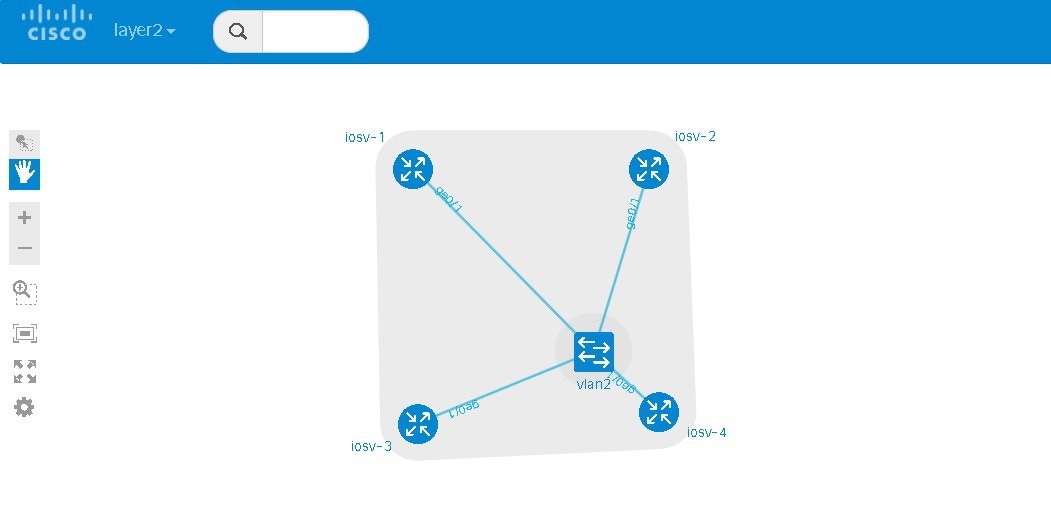
                The layer2 view shows the vtp domain originating from the virtual switch for vlan2:
                Figure 16. Vtp Domain - layer2.tiff


                The relevant configuration for the IOSvL2 image is:
                interface GigabitEthernet0/1
                 description to iosv-1
                 switchport access vlan 2
                 switchport mode access
                 no shutdown
                !
                interface GigabitEthernet0/2
                 description to iosv-3
                 switchport access vlan 2
                 switchport mode access
                 no shutdown
                !
                interface GigabitEthernet0/3
                 description to iosv-2
                 switchport access vlan 2
                 switchport mode access
                 no shutdown
                !
                interface GigabitEthernet1/0
                 description to iosv-4
                 switchport access vlan 2
                 switchport mode access
                 no shutdown
                !

                Use Multiple Managed Switches

                It is permissible to connect multiple managed switches together. Multiple managed switches connected together form a trunk link between the switches and their appropriate vtp domains.
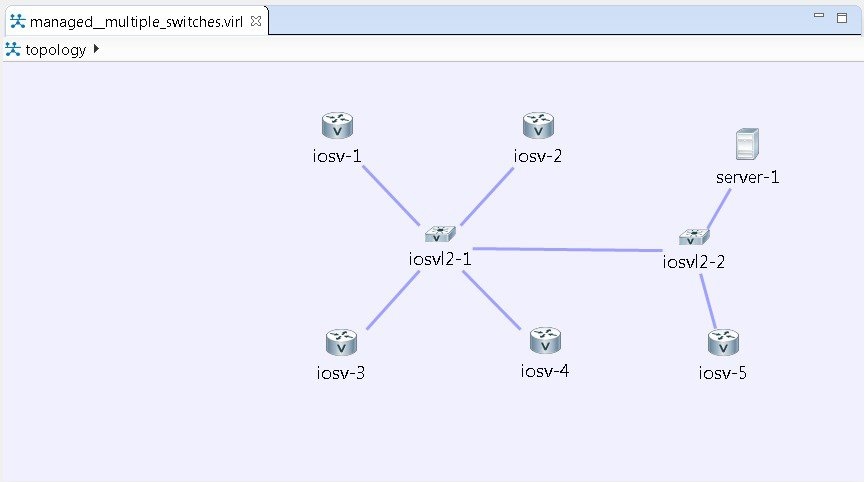
                In the following example, two managed switches are connected together:
                Figure 17. Using Multiple Managed Switches


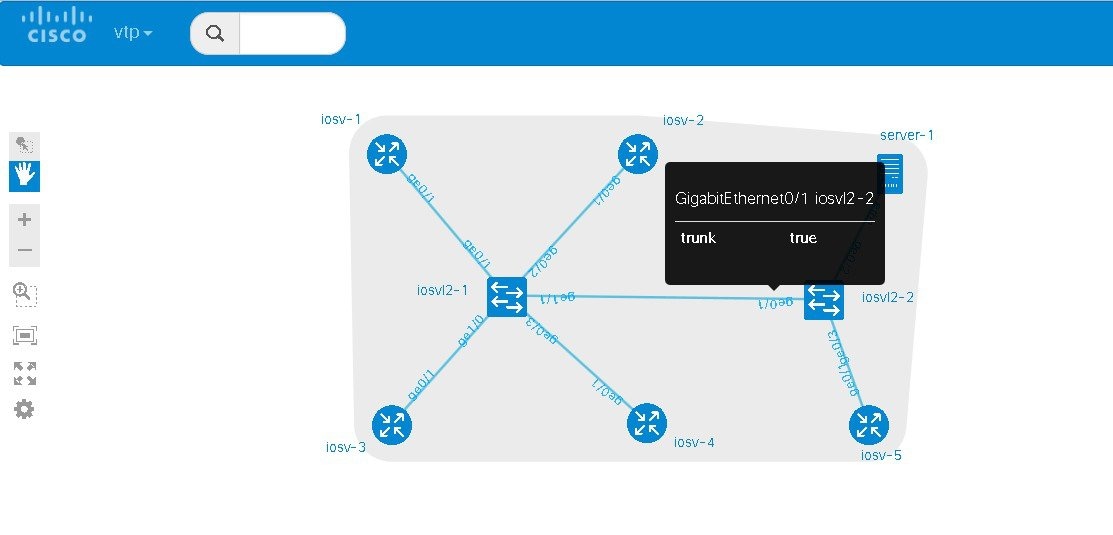
                The vtp view shows the trunk link created between the two managed switches:
                Figure 18. Trunk Link Created


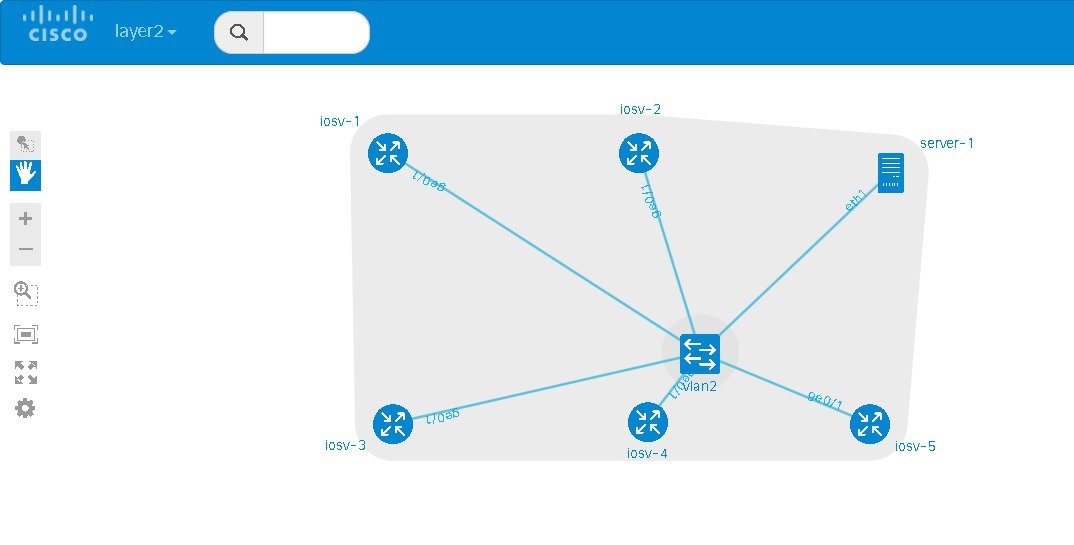
                The layer2 view shows the resulting layer2 connectivity, where both of the managed switches have been aggregated into a single vtp domain for the default vlan2:
                Figure 19. Layer2 Connectivity


                The relevant configurations for iosvl2-1 and iosvl2-2 on the trunk port are shown below.

                iosvl2-1
                interface GigabitEthernet0/1
                 description to iosv-1
                 switchport access vlan 2
                 switchport mode access
                 no shutdown
                !
                interface GigabitEthernet0/2
                 description to iosv-3
                 switchport access vlan 2
                 switchport mode access
                 no shutdown
                !
                interface GigabitEthernet0/3
                 description to iosv-2
                 switchport access vlan 2
                 switchport mode access
                 no shutdown
                !
                interface GigabitEthernet1/0
                 description to iosv-4
                 switchport access vlan 2
                 switchport mode access
                 no shutdown
                !
                interface GigabitEthernet1/1
                 description to iosvl2-2
                 switchport trunk encapsulation dot1q
                 switchport mode trunk
                 no shutdown
                !
                
                iosvl2-2
                interface GigabitEthernet0/1
                 description to iosvl2-1
                 switchport trunk encapsulation dot1q
                 switchport mode trunk
                 no shutdown
                !
                interface GigabitEthernet0/2
                 description to server-1
                 switchport access vlan 2
                 switchport mode access
                 no shutdown
                !
                interface GigabitEthernet0/3
                 description to iosv-5
                 switchport access vlan 2
                 switchport mode access
                 no shutdown
                !

                Use Multiple Unconnected Managed Switches

                In cases where there are multiple managed switches, only those that are directly connected, either through a point-to-point link or via an unmanaged switch are connected.
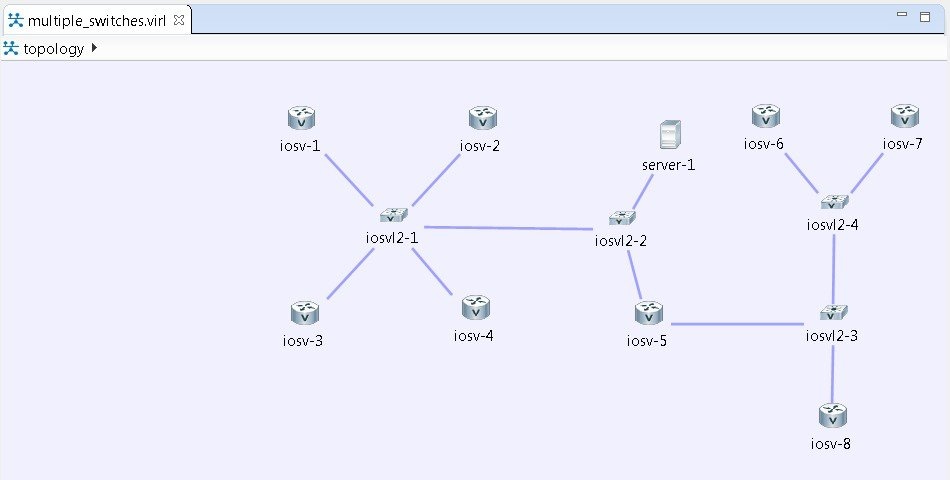
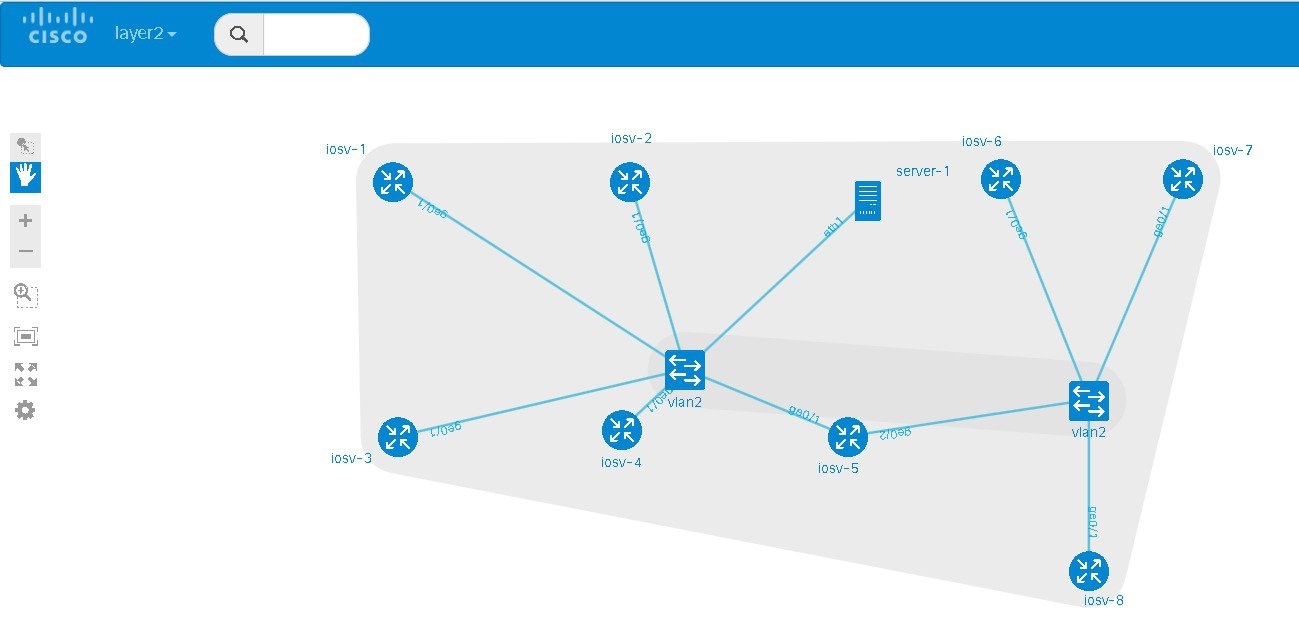
                For example, in this topology, there are two sets of managed switches:
                Figure 20. Using Multiple Managed Switches


                After running AutoNetkit, the resulting layer2 view shows two separate layer 2 domains:
                Figure 21. Separate Layer2 Domains


                Set Firewall Capabilities

                For this release of Cisco Modeling Labs, the Cisco ASAv image is available to purchase separately. The Cisco ASAv image adds firewall capabilities to Cisco Modeling Labs.

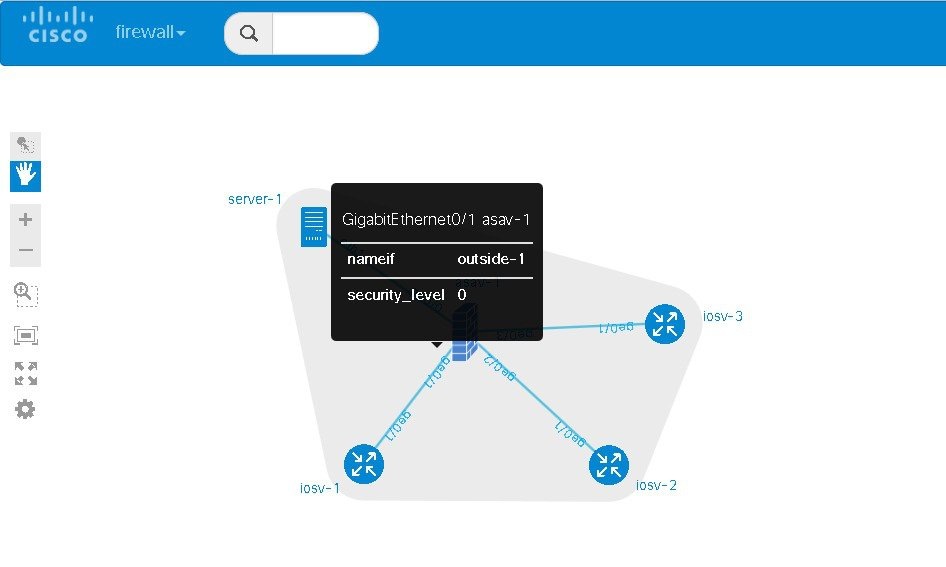
                The default AutoNetkit configuration puts each interface into security-level 0, adds a nameif, and allows http, SSH, and Telnet access to this nameif.
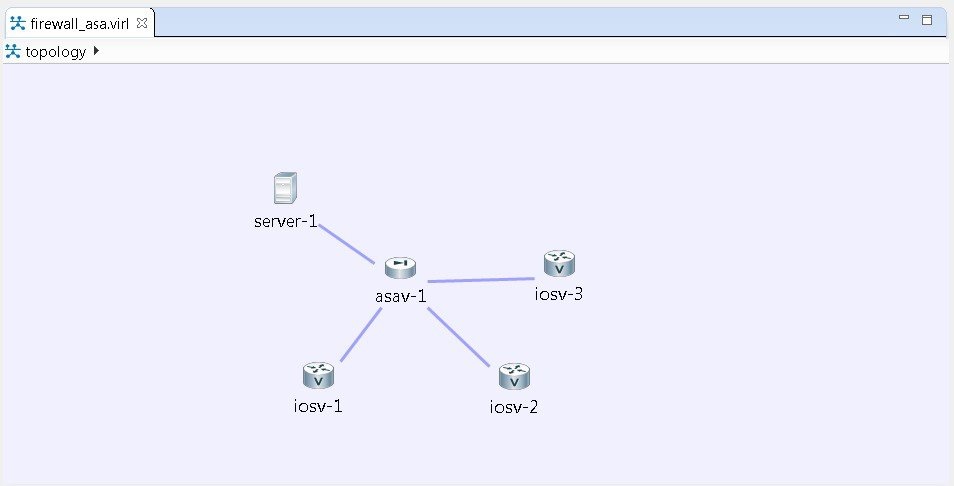
                For example, consider the following topology which includes three IOSv nodes, one server node and one ASAv node:
                Figure 22. Example Topology Showing a Cisco ASAv Node


                After running AutoNetkit, the firewall view shows the allocated properties on the interfaces:
                Figure 23. Allocated Firewall Properties


                The configuration for the interface is:
                interface GigabitEthernet0/0
                 description to server-1
                 nameif outside
                 security-level 0
                 no shutdown
                 ip address 10.0.0.5 255.255.255.252
                interface GigabitEthernet0/1
                 description to iosv-1
                 nameif outside-1
                 security-level 0
                 no shutdown
                 ip address 10.0.0.9 255.255.255.252
                interface GigabitEthernet0/2
                 description to iosv-2
                 nameif outside-2
                 security-level 0
                 no shutdown
                 ip address 10.0.0.13 255.255.255.252
                interface GigabitEthernet0/3
                 description to iosv-3
                 nameif outside-3
                 security-level 0
                 no shutdown
                 ip address 10.0.0.17 255.255.255.252
                
                The access details are:
                http 0.0.0.0 0.0.0.0 mgmt
                ssh 0.0.0.0 0.0.0.0 mgmt
                telnet 0.0.0.0 0.0.0.0 mgmt
                http 0.0.0.0 0.0.0.0 outside
                ssh 0.0.0.0 0.0.0.0 outside
                telnet 0.0.0.0 0.0.0.0 outside
                http 0.0.0.0 0.0.0.0 outside-1
                ssh 0.0.0.0 0.0.0.0 outside-1
                telnet 0.0.0.0 0.0.0.0 outside-1
                http 0.0.0.0 0.0.0.0 outside-2
                ssh 0.0.0.0 0.0.0.0 outside-2
                telnet 0.0.0.0 0.0.0.0 outside-2
                http 0.0.0.0 0.0.0.0 outside-3
                ssh 0.0.0.0 0.0.0.0 outside-3
                telnet 0.0.0.0 0.0.0.0 outside-3
                

                Set Security Levels
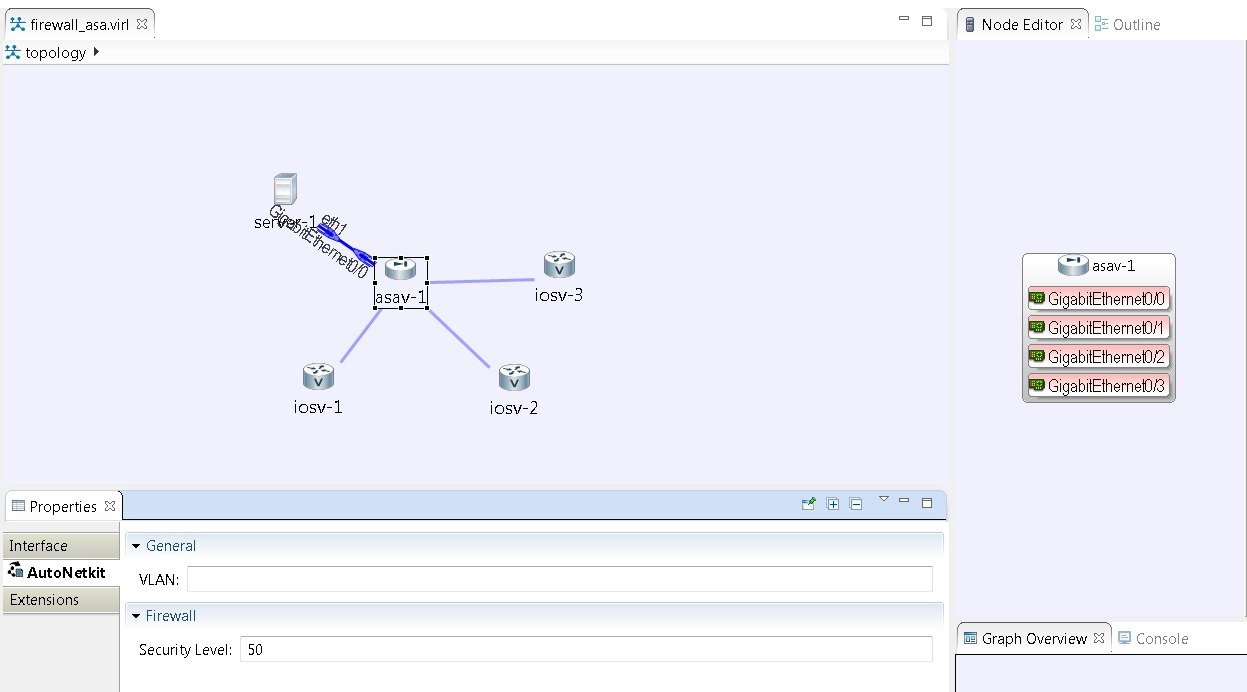
                Security levels are set using the Security Level property under the Firewall tab in the AutoNetkit field on the interface. The interface is selected in the Node Editor. The properties are set on the Cisco ASAv node's interfaces, as shown.
                Figure 24. Set the Security Level


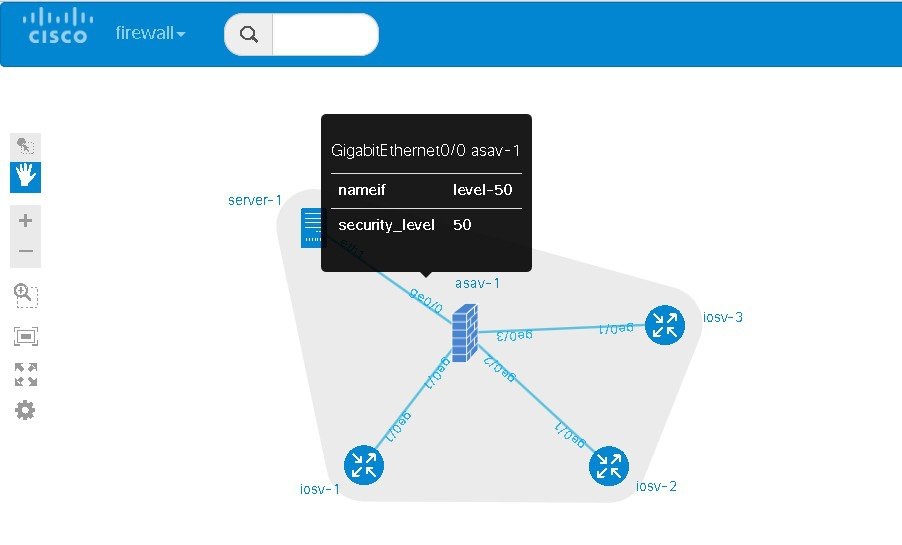
                The security level is displayed in the security_level attribute of the interfaces in AutoNetkit visualization:
                Figure 25. Security Level Attribute Set


                The configuration for nameif is updated.
                interface GigabitEthernet0/0
                 description to server-1
                 nameif level-50
                 security-level 50
                 no shutdown
                 ip address 10.0.0.5 255.255.255.252
                interface GigabitEthernet0/1
                 description to iosv-1
                 nameif outside
                 security-level 0
                 no shutdown
                 ip address 10.0.0.9 255.255.255.252
                interface GigabitEthernet0/2
                 description to iosv-2
                 nameif outside-1
                 security-level 0
                 no shutdown
                 ip address 10.0.0.13 255.255.255.252
                interface GigabitEthernet0/3
                 description to iosv-3
                 nameif outside-2
                 security-level 0
                 no shutdown
                 ip address 10.0.0.17 255.255.255.252
                
                
                The access details are also updated.
                http 0.0.0.0 0.0.0.0 level-50
                ssh 0.0.0.0 0.0.0.0 level-50
                telnet 0.0.0.0 0.0.0.0 level-50
                http 0.0.0.0 0.0.0.0 mgmt
                ssh 0.0.0.0 0.0.0.0 mgmt
                telnet 0.0.0.0 0.0.0.0 mgmt
                http 0.0.0.0 0.0.0.0 outside
                ssh 0.0.0.0 0.0.0.0 outside
                telnet 0.0.0.0 0.0.0.0 outside
                http 0.0.0.0 0.0.0.0 outside-1
                ssh 0.0.0.0 0.0.0.0 outside-1
                telnet 0.0.0.0 0.0.0.0 outside-1
                http 0.0.0.0 0.0.0.0 outside-2
                ssh 0.0.0.0 0.0.0.0 outside-2
                telnet 0.0.0.0 0.0.0.0 outside-2


                Note


                AutoNetkit automatically renames the nameif if there are multiple interfaces with the same security level.

                Configure GRE Tunnels

                Generic routing encapsulation (GRE) is a simple IP packet encapsulation protocol that is used to transport packets over a network. Information is sent from one network to the other through a GRE tunnel.
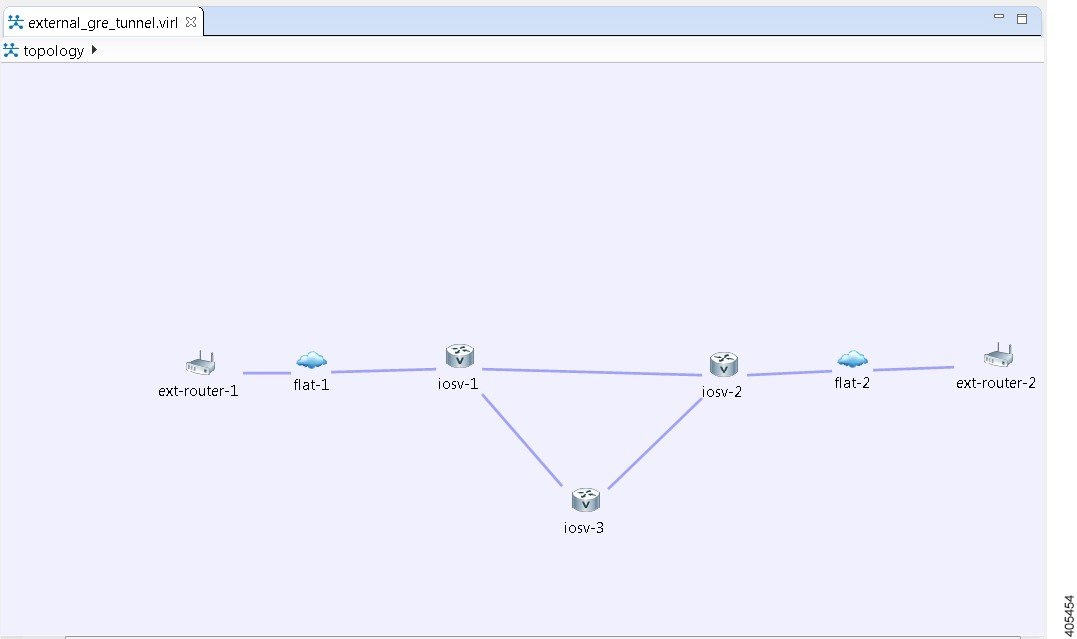
                The GRE tunnel functionality uses the IOSv subtype as the GRE tunnel head and connects from an IOSv instance out over the FLAT/FLAT1/SNAT connector to some other device which is the far-end of the GRE Tunnel.
                Figure 26. Using GRE Tunnels


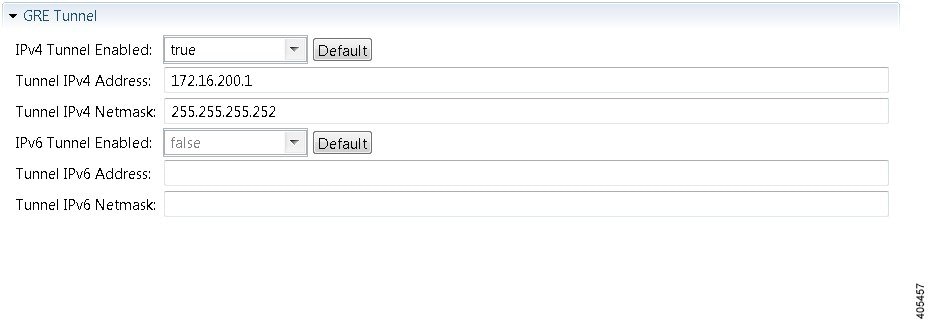
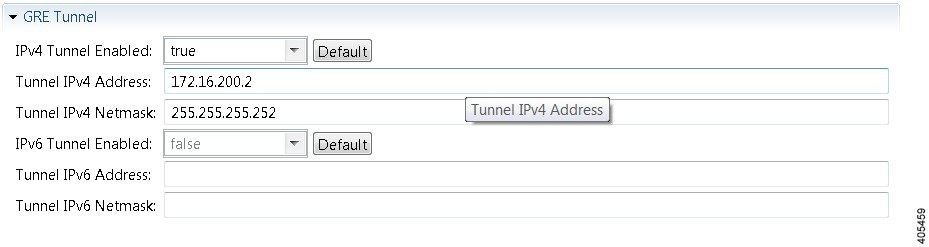
                In this example, you set the values on node iosv-1 and node iosv-2 to tell AutoNetkit to create the configuration for a GRE tunnel terminating on the external router node, ext_router_1.
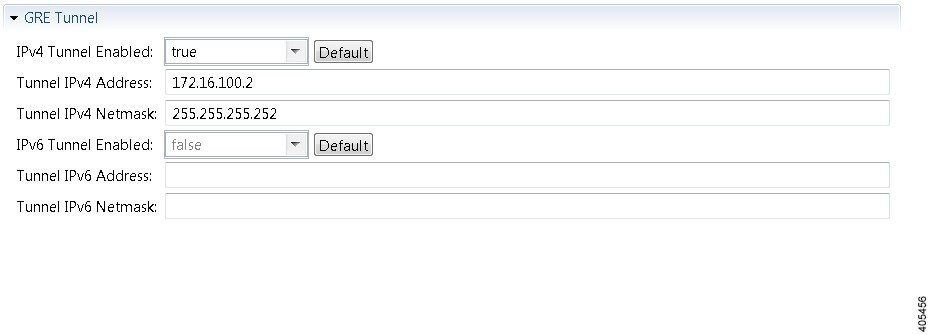
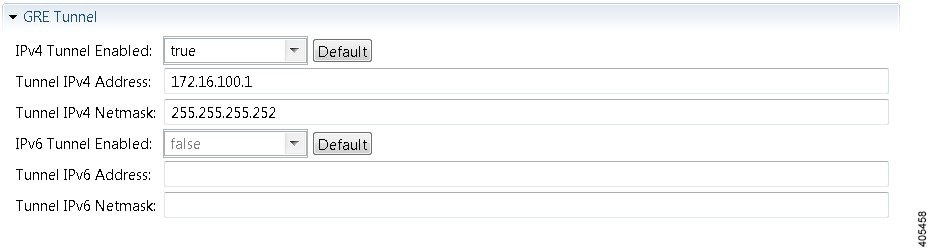
                So on iosv-1, set the tunnel IP address and subnet mask of the far-end device ext-router-1. Similarly, on the ext-router-1, set the tunnel IP address and subnet mask of the far-end device iosv-1.
                Figure 27. Tunnel IP Address and Subnet Mask for ext_router_1


                Figure 28. Tunnel IP Address and Subnet Mask for iosv-1


                On iosv-2, set the tunnel IP address and subnet mask of the far-end device ext-router-2. Similarly, on the ext-router-2, set the tunnel IP address and subnet mask of the far-end device iosv-2.
                Figure 29. Tunnel IP Address and Subnet Mask for ext_router_2


                Figure 30. Tunnel IP Address and Subnet Mask for iosv-2


                When the configurations are built, AutoNetkit selects the appropriate corresponding IP address and applies it to the interface as follows:
                !
                interface Tunnel1
                  ip address 172.16.100.2 255.255.255.252
                  tunnel source GigabitEthernet0/3
                  tunnel destination 0.0.0.0
                !
                The tunnel destination is blank since it needs to be set to the IP address of the far-end device, which you may or may not know in advance. However, you can edit the configuration in the Cisco Modeling Labs client GUI before you start up the simulation. So if you do know the target address, you can add the target IP address in there (tunnel destination x.x.x.x.) Remember that it is not the IP address of the tunnel that goes in here but the IP address of the router/device terminating the GRE tunnel itself. If this is a devices that is on the FLAT network directly, then a 172.16.1.x address would go in here.
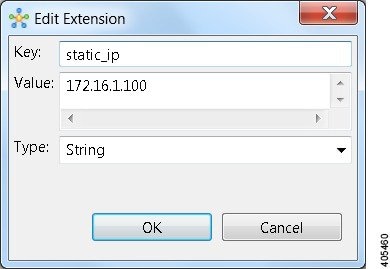
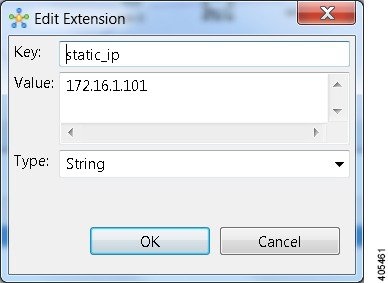
                To make things simple and repeatable, you can use a static IP address on the interface of the IOSv GRE tunnel device that connects to the FLAT/FLAT1/SNAT connector.
                Figure 31. Static IP Address for flat-1


                Figure 32. Static IP Address for flat-2


                This provides a target address that the other device can then try to connect to and it is the same IP address each time the simulation is started.

                Note


                You cannot do this using the standard guest account. The simulation will fail as you are using a system-level resource (the Static IP address), so an account with administrative permissions is required.
                You must create this account in the User Workspace Management interface.
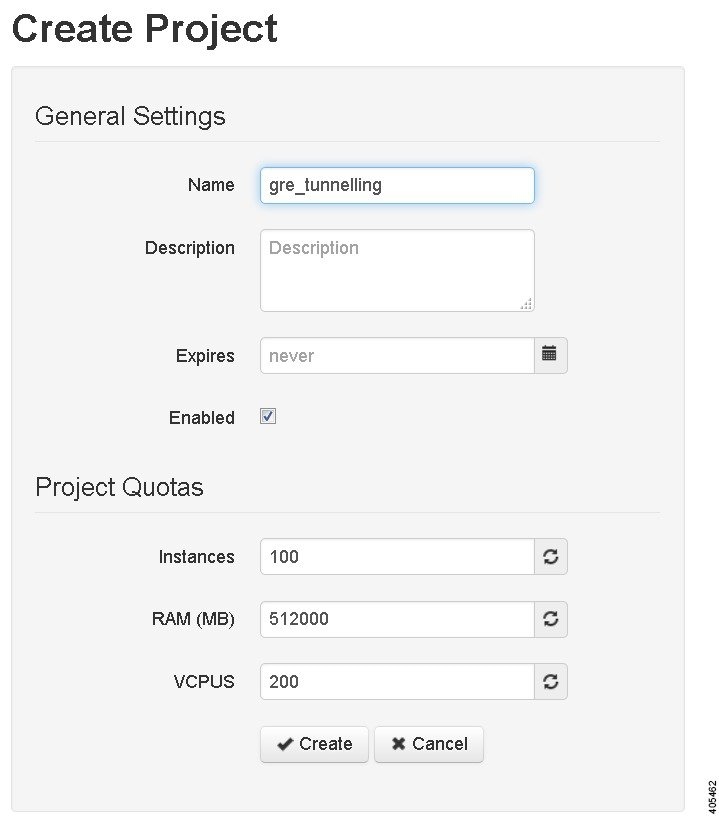
                In the User Workspace Management interface, under the Projects tab, click Add to create a new project, as follows:
                Figure 33. Create a New Project


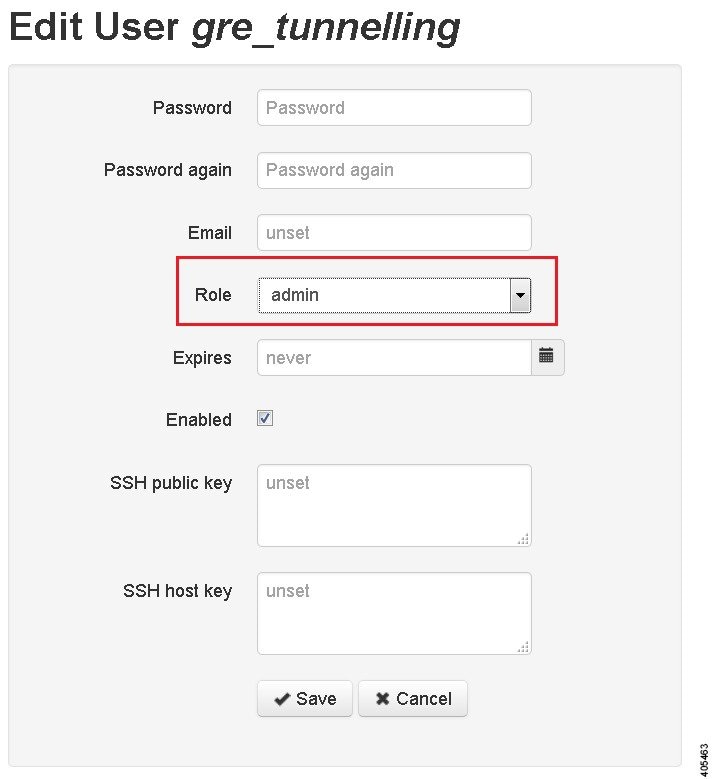
                In the corresponding user created for the project, set Role to admin.
                Figure 34. Update the Role Field


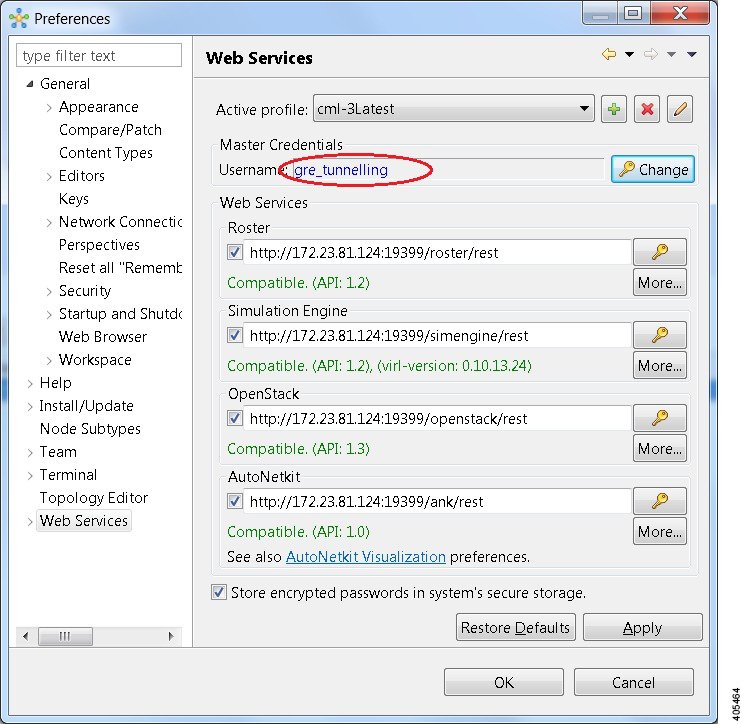
                In the Cisco Modeling Labs client GUI, choose File > Preferences > Web Services.. In the Web Services dialog box, click Change under Master Credentials to login with the newly created user.
                Figure 35. Log In as New Role


                You can now start your simulation.