Configure SSH on Routers
Available Languages
Contents
Introduction
This document describes how to configure and debug Secure Shell (SSH) on Cisco routers.
Prerequisites
Requirements
The Cisco image or software package must include crypto support for SSH. Requirements vary by platform, software release, and licensing model.
Components Used
The information in this document is based on Cisco IOS and Cisco IOS XE Software.
The information in this document was created from the devices in a specific lab environment. All of the devices used in this document started with a cleared (default) configuration. If your network is live, ensure that you understand the potential impact of any command.
Network Diagram
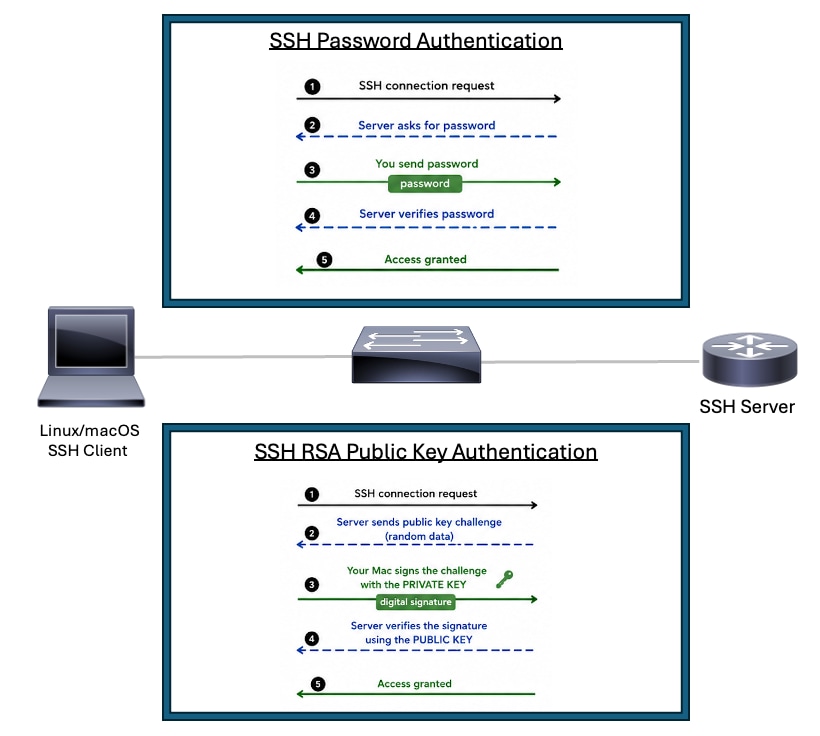 SSH Topology
Configure SSH on a Cisco Router Using Password Authentication
There are a few steps required to enable SSH basic support on a Cisco router:
1. Configure the router hostname.
2. Create a local user account for SSH authentication.
3. Configure the DNS domain name.
4. Enable the highest SSH version supported by the platform. Use SSH version 2 when supported.
5. Generate the RSA key pair for SSH. Use the largest RSA modulus supported by the platform and aligned with your security policy.
6. Enter VTY line configuration mode.
7. Configure the VTY lines to use either the local user database or aaa for authentication.
8. Restrict VTY access to SSH transport only.
The Cisco device that acts as the SSH server requires the hostname, domain name, RSA keys, authentication, and VTY configuration. A device that only initiates SSH sessions requires SSH client support and a valid route to the SSH server.
Routert#configure terminal
Router(config)#hostname R2
R2(config)#username cisco privilege 15 secret C1sc0
R2(config)#ip domain name rtp.cisco.com
R2(config)#ip ssh version 2
R2(config)#crypto key generate rsa general-keys modulus 4096
R2(config)#line vty 0 4
R2(config-line)#login local
R2(config-line)#transport input ssh
R2(config-line)#end
Note: If login local is not used, the aaa new-model command causes the local username and secret on the router to be used in the absence of other AAA statements.
Use this as an example SSH client command when testing from another router. Supported ciphers and hmac algorithms can vary by software release and SSH policy:
R3#ssh -v 2 -l cisco 10.20.20.20
Password:
R2>
Configure SSH on a Cisco Router Using RSA Public-Key Authentication
RSA public-key authentication allows an SSH client to authenticate to a Cisco router or switch without sending or relying on a password. The SSH server stores the public key. The SSH client keeps the matching private key. During login, the client proves that it owns the private key by digitally signing authentication data. The server verifies that signature with the public key configured on the device. The private key stays on the client and is not transmitted across the network.
Benefits
- Eliminates password-based SSH authentication for the configured user.
- Reduces exposure to password guessing and brute-force attacks.
- Keeps the private key on the SSH client instead of storing reusable passwords on network devices or automation systems.
- Works well for automation tools, scripts, and CI/CD systems that need secure access to Cisco devices.
- Improves operational consistency because the server validates a trusted public key instead of a typed password.
- Supports stronger authentication models for administrator workstations, jump hosts, and automation servers.
Complete these steps to configure the SSH server to perform RSA public-key based authentication:
1. Configure the router hostname.
2. Configure the DNS domain name.
3. Enable AAA or configure login local under line vty.
4. Generate the RSA key pair used by the SSH server.
5. Use the highest SSH version supported by the platform. Use SSHv2 when supported.
6. Use the strongest RSA modulus supported by the platform and security policy. A 4096-bit modulus is preferred when supported and when the performance impact is acceptable.
7. Enter SSH public-key chain configuration mode.
8. Configure the SSH username that is allowed to authenticate with RSA public-key authentication.
9. Add the RSA public key from the SSH client for that username.
Note: You can generate your SSH public key from your Linux/macOS device with the ssh-keygen command, for example, ssh-keygen -m PEM -t rsa -b 1024 -f ~/.ssh/cisco1024 afterwards you can read the key with the cat ~/.ssh/cisco1024.pub command.
Router#configure terminal
Router(config)#hostname RSA-PublicKey
RSA-PublicKey(config)#ip domain name rtp.cisco.com
RSA-PublicKey(config)#aaa new-model
RSA-PublicKey(config)#crypto key generate rsa modulus 4096
The name for the keys will be: RSA-PublicKey.rtp.cisco.com

% The key modulus size is 4096 bits
% Generating 4096 bit RSA keys, keys will be non-exportable...
[OK] (elapsed time was 4 seconds)

RSA-PublicKey(config)#ip ssh version 2
RSA-PublicKey(config)#ip ssh pubkey-chain
RSA-PublicKey(conf-ssh-pubkey)#username ciscoadmin
RSA-PublicKey(conf-ssh-pubkey-user)#key-string
RSA-PublicKey(conf-ssh-pubkey-data)#$QaVSyuVNw== user@MacBook-Pro
RSA-PublicKey(conf-ssh-pubkey-data)#end
RSA-PublicKey#
Additional Configuration Sets
Configure SSH Version 2
When configuring SSH, ensure that SSHv2 is enabled, as it provides stronger encryption and significantly better security than SSHv1.
Router(config)#ip ssh version 2Prevent Non-SSH Connections
If you want to prevent Non-SSH connections, add the transport input ssh command under the lines to limit the router to SSH connections only. Straight (non-ssh) Telnets are refused.
Router(config)#line vty 0 15
Router(config-line)#transport input ssh
Restrict SSH Access to a Subnet
You need to limit SSH connectivity to a specific subnetwork where all other SSH attempts from IPs outside the subnetwork are dropped.
You can use these steps to do the same:
- Define an access-list that permits the traffic from that specific subnetwork.
- Restrict access to the VTY line interface with an access-class.
This is an example configuration. In this example, only SSH access from 10.10.10.0/24 is permitted; all other source IP addresses are denied by the implicit deny at the end of the ACL.
Router(config)#access-list 23 permit 10.10.10.0 0.0.0.255
Router(config)#line vty 0 15
Router(config-line)#transport input ssh
Router(config-line)#access-class 23 in
Router(config-line)#exitVariations on Banner Command Output
The banner command output varies between the Telnet and different versions of SSH connections. This table illustrates how different banner command options work with various types of connections.
| Banner Command Options |
Telnet |
SSH v2 |
| banner login |
Displays before log in to device. |
Displays before log in to device. |
| banner motd |
Displays before log in to device. |
Displays after log in to device. |
| banner exec |
Displays after log in to device. |
Displays after log in to device. |
Debug and Show Commands
Before you issue the debug commands described here, refer to Understand Important Information on Debug Commands.
debug ip ssh - Enable debug messages for SSH.
show ssh - Display the status of SSH server connections.
RSA-PublicKey#show ssh
Connection Version Mode  Encryption  Hmac                          State                Username
0          2.0     IN   aes128-gcm@ohmac-sha2-256-etm@openssh.com Session started       ciscoadmin
0          2.0     OUT  aes128-gcm@ohmac-sha2-256-etm@openssh.com Session started       ciscoadmin
show ip ssh - Display the version and configuration data for SSH.
RSA-PublicKey#show ip ssh
SSH Enabled - version 2.0
Authentication methods:publickey,keyboard-interactive,password
Authentication Publickey Algorithms:ssh-rsa,ecdsa-sha2-nistp256,ecdsa-sha2-nistp384,ecdsa-sha2-nistp521,ssh-ed25519,x509v3-ecdsa-sha2-nistp256,x509v3-ecdsa-sha2-nistp384,x509v3-ecdsa-sha2-nistp521,rsa-sha2-256,rsa-sha2-512,x509v3-rsa2048-sha256
Hostkey Algorithms:rsa-sha2-512,rsa-sha2-256,ssh-rsa
Encryption Algorithms:chacha20-poly1305@openssh.com,aes128-gcm@openssh.com,aes256-gcm@openssh.com,aes128-gcm,aes256-gcm,aes128-ctr,aes192-ctr,aes256-ctr
MAC Algorithms:hmac-sha2-256-etm@openssh.com,hmac-sha2-512-etm@openssh.com
KEX Algorithms:curve25519-sha256,curve25519-sha256@libssh.org,ecdh-sha2-nistp256,ecdh-sha2-nistp384,ecdh-sha2-nistp521,diffie-hellman-group14-sha256,diffie-hellman-group16-sha512
Authentication timeout: 120 secs; Authentication retries: 3
Sample Debug RSA Public Authentication
SSH Client Debug (Linux/macOS)
ciscouser@CISCOUSER-M-R Desktop % ssh -i ~/.ssh/cisco1024 -v ciscoadmin@10.82.139.71
debug1: OpenSSH_10.2p1, LibreSSL 3.3.6
debug1: Reading configuration data /etc/ssh/ssh_config
debug1: Reading configuration data /etc/ssh/ssh_config.d/100-macos.conf
debug1: /etc/ssh/ssh_config.d/100-macos.conf line 1: Applying options for *
debug1: Reading configuration data /etc/ssh/crypto.conf
debug1: Authenticator provider $SSH_SK_PROVIDER did not resolve; disabling
debug1: Connecting to 10.82.139.71 [10.82.139.71] port 22.
debug1: Connection established.
debug1: loaded pubkey from /Users/ciscouser/.ssh/cisco1024: RSA SHA256:w5wW3BqX15fO5Qm+BP75tJ1YzaXNsDNeHLLNZTW+Roo
debug1: identity file /Users/ciscouser/.ssh/cisco1024 type 0
debug1: no identity pubkey loaded from /Users/ciscouser/.ssh/cisco1024
debug1: Local version string SSH-2.0-OpenSSH_10.2
debug1: Remote protocol version 2.0, remote software version Cisco-1.25
debug1: compat_banner: match: Cisco-1.25 pat Cisco-1.* compat 0x60000000
debug1: Authenticating to 10.82.139.71:22 as 'ciscoadmin'
debug1: load_hostkeys: fopen /Users/ciscouser/.ssh/known_hosts2: No such file or directory
debug1: load_hostkeys: fopen /etc/ssh/ssh_known_hosts: No such file or directory
debug1: load_hostkeys: fopen /etc/ssh/ssh_known_hosts2: No such file or directory
debug1: SSH2_MSG_KEXINIT sent
debug1: SSH2_MSG_KEXINIT received
debug1: kex: algorithm: ecdh-sha2-nistp256
debug1: kex: host key algorithm: rsa-sha2-512
debug1: kex: server->client cipher: aes128-gcm@openssh.com MAC: <implicit> compression: none
debug1: kex: client->server cipher: aes128-gcm@openssh.com MAC: <implicit> compression: none
debug1: expecting SSH2_MSG_KEX_ECDH_REPLY
debug1: SSH2_MSG_KEX_ECDH_REPLY received
debug1: Server host key: ssh-rsa SHA256:5wvYU0FIJQmz+eHACVJMvoaX3WSgXkyem/3tOgyOYuQ
debug1: load_hostkeys: fopen /Users/ciscouser/.ssh/known_hosts2: No such file or directory
debug1: load_hostkeys: fopen /etc/ssh/ssh_known_hosts: No such file or directory
debug1: load_hostkeys: fopen /etc/ssh/ssh_known_hosts2: No such file or directory
debug1: Host '10.82.139.71' is known and matches the RSA host key.
debug1: Found key in /Users/ciscouser/.ssh/known_hosts:2
debug1: rekey out after 4294967296 blocks
debug1: SSH2_MSG_NEWKEYS sent
debug1: expecting SSH2_MSG_NEWKEYS
debug1: SSH2_MSG_NEWKEYS received
debug1: rekey in after 4294967296 blocks
debug1: SSH2_MSG_EXT_INFO received
debug1: kex_ext_info_client_parse: server-sig-algs=<ssh-rsa,ecdsa-sha2-nistp256,ecdsa-sha2-nistp384,ecdsa-sha2-nistp521,ssh-ed25519,x509v3-ecdsa-sha2-nistp256,x509v3-ecdsa-sha2-nistp384,x509v3-ecdsa-sha2-nistp521,rsa-sha2-256,rsa-sha2-512,x509v3-rsa2048-sha256>
debug1: SSH2_MSG_SERVICE_ACCEPT received debug1: Authentications that can continue: publickey,keyboard-interactive,password
debug1: Next authentication method: publickey
debug1: get_agent_identities: bound agent to hostkey
debug1: get_agent_identities: ssh_fetch_identitylist: agent contains no identities
debug1: Will attempt key: /Users/ciscouser/.ssh/cisco1024 RSA SHA256:w5wW3BqX15fO5Qm+BP75tJ1YzaXNsDNeHLLNZTW+Roo explicit debug1: Offering public key: /Users/ciscouser/.ssh/cisco1024 RSA SHA256:w5wW3BqX15fO5Qm+BP75tJ1YzaXNsDNeHLLNZTW+Roo explicit debug1: Server accepts key: /Users/ciscouser/.ssh/cisco1024 RSA SHA256:w5wW3BqX15fO5Qm+BP75tJ1YzaXNsDNeHLLNZTW+Roo explicit Enter passphrase for key '/Users/ciscouser/.ssh/cisco1024': Authenticated to 10.82.139.71 ([10.82.139.71]:22) using "publickey".
debug1: channel 0: new session [client-session] (inactive timeout: 0)
debug1: Entering interactive session.
debug1: pledge: filesystem
debug1: Sending environment.
debug1: channel 0: setting env LANG = "C.UTF-8"
debug1: channel 0: setting env LC_CTYPE = "UTF-8"
RSA-PublicKey>en Password:
RSA-PublicKey#show version
Cisco IOS XE Software, Version 17.12.04
Cisco IOS Software [Dublin], ASR1000 Software (X86_64_LINUX_IOSD-UNIVERSALK9-M), Version 17.12.4, RELEASE SOFTWARE (fc3)
Technical Support: http://www.cisco.com/techsupport
Copyright (c) 1986-2024 by Cisco Systems, Inc.
Compiled Tue 23-Jul-24 09:43 by mcpre


Cisco IOS-XE software, Copyright (c) 2005-2024 by cisco Systems, Inc.
All rights reserved.  Certain components of Cisco IOS-XE software are
licensed under the GNU General Public License ("GPL") Version 2.0.  The
software code licensed under GPL Version 2.0 is free software that comes
with ABSOLUTELY NO WARRANTY.  You can redistribute and/or modify such
GPL code under the terms of GPL Version 2.0.  For more details, see the
documentation or "License Notice" file accompanying the IOS-XE software,
or the applicable URL provided on the flyer accompanying the IOS-XE
software.


ROM: 17.3(1r)

RSA-PublicKey uptime is 2 weeks, 2 days, 10 hours, 28 minutes
Uptime for this control processor is 2 weeks, 2 days, 10 hours, 30 minutes
System returned to ROM by Reload Command
System image file is "bootflash:asr1000-universalk9.17.12.04.SPA.bin"
Last reload reason: Reload Command


This product contains cryptographic features and is subject to United
States and local country laws governing import, export, transfer and
use. Delivery of Cisco cryptographic products does not imply
third-party authority to import, export, distribute or use encryption.
Importers, exporters, distributors and users are responsible for
compliance with U.S. and local country laws. By using this product you
agree to comply with applicable laws and regulations. If you are unable
to comply with U.S. and local laws, return this product immediately.

A summary of U.S. laws governing Cisco cryptographic products may be found at:
http://www.cisco.com/wwl/export/crypto/tool/stqrg.html

If you require further assistance please contact us by sending email to
export@cisco.com.

License Type: Smart License is permanent
License Suite: AdvUCSuiteK9
Next reload License Suite: AdvUCSuiteK9

The current crypto throughput level is 20000000 kbps


Smart Licensing Status: Smart Licensing Using Policy

cisco ASR1001-HX (1SR) processor (revision 1SR) with 3684784K/6147K bytes of memory.
Processor board ID TKM20160032
Router operating mode: Autonomous
Crypto Hardware Module present
8 Gigabit Ethernet interfaces
8 Ten Gigabit Ethernet interfaces
32768K bytes of non-volatile configuration memory.
8388608K bytes of physical memory.
29401087K bytes of eUSB flash at bootflash:.

Configuration register is 0x2102

RSA-PublicKey#exit debug1: client_input_channel_req: channel 0 rtype exit-status reply 0 debug1: channel 0: free: client-session, nchannels 1 Connection to 10.82.139.71 closed by remote host. Connection to 10.82.139.71 closed.
Transferred: sent 3640, received 6336 bytes, in 114.1 seconds
Bytes per second: sent 31.9, received 55.5
debug1: Exit status 0
SSH Server Debug (Cisco Router)
RSA-PublicKey#show logging
Syslog logging: enabled (0 messages dropped, 3 messages rate-limited, 0 flushes, 0 overruns, xml disabled, filtering disabled)

No Active Message Discriminator.


No Inactive Message Discriminator.


    Console logging: disabled
    Monitor logging: level debugging, 0 messages logged, xml disabled,
                     filtering disabled
    Buffer logging:  level debugging, 617 messages logged, xml disabled,
                    filtering disabled
    Exception Logging: size (4096 bytes)
    Count and timestamp logging messages: disabled
    Persistent logging: disabled

No active filter modules.

    Trap logging: level informational, 161 message lines logged
        Logging Source-Interface:       VRF Name:
    TLS Profiles:

Log Buffer (102400 bytes):

*Aug 22 06:05:51.736: SSH2 0: ssh_receive: 36 bytes received
*Aug 22 06:05:58.163: SSH0: starting SSH control process
*Aug 22 06:05:58.163: SSH0: sent protocol version id SSH-2.0-Cisco-1.25
*Aug 22 06:05:58.165: SSH0: protocol version id is - SSH-2.0-OpenSSH_10.2
*Aug 22 06:05:58.165: SSH2 0:
ssh2_server_key_exchange: kexinit sent: kex algo = curve25519-sha256,curve25519-sha256@libssh.org,ecdh-sha2-nistp256,ecdh-sha2-nistp384,ecdh-sha2-nistp521,diffie-hellman-group14-sha256,diffie-hellman-group16-sha512
*Aug 22 06:05:58.165: SSH2 0: kexinit sent: hostkey algo = rsa-sha2-512,rsa-sha2-256,ssh-rsa
*Aug 22 06:05:58.165: SSH2 0: kexinit sent: encryption algo = chacha20-poly1305@openssh.com,aes128-gcm@openssh.com,aes256-gcm@openssh.com,aes128-gcm,aes256-gcm,aes128-ctr,aes192-ctr,aes256-ctr
*Aug 22 06:05:58.165: SSH2 0: kexinit sent: mac algo = hmac-sha2-256-etm@openssh.com,hmac-sha2-512-etm@openssh.com
*Aug 22 06:05:58.165: SSH2 0: send:packet of  length 656 (length also includes padlen of 7)
*Aug 22 06:05:58.165: SSH2 0: SSH2_MSG_KEXINIT sent
*Aug 22 06:05:58.239: SSH2 0: ssh_receive: 1300 bytes received
*Aug 22 06:05:58.239: SSH2 0: input: total packet length of 1568 bytes
*Aug 22 06:05:58.239: SSH2 0: partial packet length(block_size)8 bytes,
            needed 1560 bytes, maclen 0
*Aug 22 06:05:58.239: SSH2 0: input: padlength 4 bytes
*Aug 22 06:05:58.239: SSH2 0: SSH2_MSG_KEXINIT received
*Aug 22 06:05:58.239: SSH2 0: kex: client->server enc:aes128-gcm@openssh.com mac:hmac-sha2-256-etm@openssh.com
*Aug 22 06:05:58.239: SSH2 0: kex: server->client enc:aes128-gcm@openssh.com mac:hmac-sha2-256-etm@openssh.com
*Aug 22 06:05:58.239: SSH2 0: Using kex_algo = ecdh-sha2-nistp256
*Aug 22 06:05:58.242: SSH2 0: kexecdh_server: expecting SSH2_MSG_KEX_ECDH_INIT
*Aug 22 06:05:58.312: SSH2 0: ssh_receive: 80 bytes received
*Aug 22 06:05:58.312: SSH2 0: input: total packet length of 80 bytes
*Aug 22 06:05:58.312: SSH2 0: partial packet length(block_size)8 bytes,
            needed 72 bytes, maclen 0
*Aug 22 06:05:58.312: SSH2 0: input: padlength 5 bytes
*Aug 22 06:05:58.312: ssh2_calculate_modulus_length: modulus len 32
*Aug 22 06:05:58.312: SSH2 0: kexecdh_server: Calculated shared secret len 32
*Aug 22 06:05:58.333: SSH2 0: send:packet of  length 1160 (length also includes padlen of 10)
*Aug 22 06:05:58.333: SSH2: kex_derive_keys complete
*Aug 22 06:05:58.333: SSH2 0: send:packet of  length 16 (length also includes padlen of 10)
*Aug 22 06:05:58.333: SSH2 0: newkeys: mode 1
*Aug 22 06:05:58.333: SSH2: AES-GCM key initialized
*Aug 22 06:05:58.333: SSH2 0: SSH2_MSG_NEWKEYS sent
*Aug 22 06:05:58.333: SSH2 0: Preparing SSH2_MSG_EXT_INFO server-sig-algs<ssh-rsa,ecdsa-sha2-nistp256,ecdsa-sha2-nistp384,ecdsa-sha2-nistp521,ssh-ed25519,x509v3-ecdsa-sha2-nistp256,x509v3-ecdsa-sha2-nistp384,x509v3-ecdsa-sha2-nistp521,rsa-sha2-256,rsa-sha2-512,x509v3-rsa2048-sha256>
*Aug 22 06:05:58.333: SSH2 0: send:packet of  length 260 (length also includes padlen of 19)
*Aug 22 06:05:58.333: SSH2 0: SSH2_MSG_EXT_INFO sent
*Aug 22 06:05:58.333: SSH2 0: waiting for SSH2_MSG_NEWKEYS
*Aug 22 06:05:58.411: SSH2 0: ssh_receive: 16 bytes received
*Aug 22 06:05:58.411: SSH2 0: input: total packet length of 16 bytes
*Aug 22 06:05:58.411: SSH2 0: partial packet length(block_size)8 bytes,
            needed 8 bytes, maclen 0
*Aug 22 06:05:58.411: SSH2 0: input: padlength 10 bytes
*Aug 22 06:05:58.411: SSH2 0: newkeys: mode 0
*Aug 22 06:05:58.411: SSH2: AES-GCM key initialized
*Aug 22 06:05:58.411: SSH2 0: SSH2_MSG_NEWKEYS received
*Aug 22 06:05:58.411: %SSH-5-SSH2_SESSION: SSH2 Session request from 10.189.3.9 (tty = 0) using crypto cipher 'aes128-gcm@openssh.com', hmac 'hmac-sha2-256-etm@openssh.com' Succeeded
*Aug 22 06:05:58.604: SSH2 0: ssh_receive: 52 bytes received
*Aug 22 06:05:58.604: SSH2 0: input: total packet length of 36 bytes
*Aug 22 06:05:58.604: SSH2 0: partial packet length(block_size)16 bytes,
            needed 32 bytes, maclen 0
*Aug 22 06:05:58.604: SSH2 0: input: padlength 14 bytes
*Aug 22 06:05:58.604: SSH2 0: send:packet of  length 36 (length also includes padlen of 14)
*Aug 22 06:05:58.604: SSH2 0: Authentications that can continue = publickey,keyboard-interactive,password
*Aug 22 06:05:58.677: SSH2 0: ssh_receive: 68 bytes received
*Aug 22 06:05:58.677: SSH2 0: input: total packet length of 52 bytes
*Aug 22 06:05:58.677: SSH2 0: partial packet length(block_size)16 bytes,
            needed 48 bytes, maclen 0
*Aug 22 06:05:58.677: SSH2 0: input: padlength 6 bytes
*Aug 22 06:05:58.677: SSH2 0: Using method = none
*Aug 22 06:05:58.677: SSH2 0: Authentications that can continue = publickey,keyboard-interactive,password
*Aug 22 06:05:58.677: SSH2 0: send:packet of  length 68 (length also includes padlen of 18)
*Aug 22 06:05:58.755: SSH2 0: ssh_receive: 244 bytes received
*Aug 22 06:05:58.755: SSH2 0: input: total packet length of 228 bytes
*Aug 22 06:05:58.755: SSH2 0: partial packet length(block_size)16 bytes,
            needed 224 bytes, maclen 0
*Aug 22 06:05:58.755: SSH2 0: input: padlength 5 bytes
*Aug 22 06:05:58.755: SSH2 0: Using method = publickey *Aug 22 06:05:58.755: SSH2 0: Received publickey algo = rsa-sha2-512 *Aug 22 06:05:58.755: SSH2 0: Got Publickey algo = 9 *Aug 22 06:05:58.755: SSH2 0: ssh2_validate_pubkey: Verifying pubkey blob is acceptable for 'ciscoadmin' in SSH2_MSG_USERAUTH_REQUEST
*Aug 22 06:05:58.755: SSH2 0: send:packet of  length 196 (length also includes padlen of 19)
*Aug 22 06:05:58.755: SSH2 0: ssh2_validate_pubkey: Authenticating 'ciscoadmin' with method: publickey
*Aug 22 06:06:02.615: SSH2 0: ssh_receive: 404 bytes received
*Aug 22 06:06:02.615: SSH2 0: input: total packet length of 388 bytes
*Aug 22 06:06:02.615: SSH2 0: partial packet length(block_size)16 bytes,
            needed 384 bytes, maclen 0
*Aug 22 06:06:02.615: SSH2 0: input: padlength 13 bytes
*Aug 22 06:06:02.615: SSH2 0: ssh2_verify_pubkey_sign: Verifying signature for user 'ciscoadmin' in SSH2_MSG_USERAUTH_REQUEST *Aug 22 06:06:02.615: SSH2 0: ssh2_blob_to_key: Got blob_public key ssh-rsa, blob_key_type 1, publickey_algo_type 9 *Aug 22 06:06:02.616: SSH2 0: ssh2_verify_pubkey_sign: Client Signature Verification PASSED
*Aug 22 06:06:02.616: SSH2 0: passed: Pubkey Authentication ssh2_authenticate_pubkey for user 'ciscoadmin'
*Aug 22 06:06:02.616: SSH2 0: send:packet of  length 20 (length also includes padlen of 14)
*Aug 22 06:06:02.617: SSH2 0: authentication successful for ciscoadmin
*Aug 22 06:06:02.617: %SEC_LOGIN-5-LOGIN_SUCCESS: Login Success [user: ciscoadmin] [Source: 10.189.3.9] [localport: 22] at 06:06:02 UTC Fri Aug 22 2014 *Aug 22 06:06:02.617: %SSH-5-SSH2_USERAUTH: User 'ciscoadmin' authentication for SSH2 Session from 10.189.3.9 (tty = 0) using crypto cipher 'aes128-gcm@openssh.com', hmac 'hmac-sha2-256-etm@openssh.com' Succeeded
*Aug 22 06:06:02.617:  SSH: bulk-mode applying server configs
*Aug 22 06:06:02.617:  SSH: bulk_mode applied server configs
Incorrect Configurations
These sections have sample debug output from several incorrect configurations.
Bad Password
Router Debug
*Jul 29 23:45:34.428: SSH2 0: input: padlength 9 bytes
*Jul 29 23:45:34.465: SSH0: password authentication failed for cisco
*Jul 29 23:45:36.465: SSH2 0: Authentications that can continue = publickey,keyboard-interactive,password
*Jul 29 23:45:36.465: SSH2 0: send:packet of  length 60 (length also includes padlen of 10)
*Jul 29 23:45:39.444: SSH2 0: ssh_receive: 64 bytes received
*Jul 29 23:45:39.444: SSH2 0: input: total packet length of 60 bytes
*Jul 29 23:45:39.444: SSH2 0: partial packet length(block_size)8 bytes,
            needed 56 bytes, maclen 0
*Jul 29 23:45:39.444: SSH2 0: input: padlength 5 bytes
*Jul 29 23:45:39.444: SSH2 0: Using method = password
*Jul 29 23:45:39.482: SSH0: password authentication failed for cisco *Jul 29 23:45:39.483: SSH0: AAA authentication fail reason: Password: *Jul 29 23:45:41.483: SSH2 0: authentication failed for userid (code=1) *Jul 29 23:45:41.484: %SSH-5-SSH2_USERAUTH: User '' authentication for SSH2 Session from 192.168.1.2 (tty = 0) using crypto cipher 'chacha20-poly1305@openssh.com', hmac 'hmac-sha2-512' Failed *Jul 29 23:45:41.484: %SSH-5-SSH2_CLOSE: SSH2 Session from 192.168.1.2 (tty = 0) for user '' using crypto cipher 'chacha20-poly1305@openssh.com', hmac 'hmac-sha2-512' closed *Jul 29 23:45:41.584: SSH0: Session disconnected - error 0x09
SSH Client Sends Unsupported Cipher
Router Debug
R2#
*Jul 29 23:43:00.126: SSH0: starting SSH control process
*Jul 29 23:43:00.126: SSH0: sent protocol version id SSH-2.0-Cisco-1.25
*Jul 29 23:43:00.129: SSH0: protocol version id is - SSH-2.0-Cisco-1.25
*Jul 29 23:43:00.129: SSH2 0:
ssh2_server_key_exchange: kexinit sent: kex algo = curve25519-sha256,curve25519-sha256@libssh.org,ecdh-sha2-nistp256,ecdh-sha2-nistp384,ecdh-sha2-nistp521,diffie-hellman-group14-sha256,diffie-hellman-group16-sha512,kex-strict-s-v00@openssh.com
*Jul 29 23:43:00.129: SSH2 0: Host-Key not configured. Skipping algo = ecdsa-sha2-nistp256
*Jul 29 23:43:00.129: SSH2 0: Host-Key not configured. Skipping algo = ecdsa-sha2-nistp384
*Jul 29 23:43:00.129: SSH2 0: Host-Key not configured. Skipping algo = ecdsa-sha2-nistp521
*Jul 29 23:43:00.129: SSH2 0: kexinit sent: hostkey algo = rsa-sha2-512,rsa-sha2-256
*Jul 29 23:43:00.129: SSH2 0: kexinit sent: encryption algo = chacha20-poly1305@openssh.com,aes128-gcm@openssh.com,aes256-gcm@openssh.com,aes128-gcm,aes256-gcm,aes128-ctr,aes192-ctr,aes256-ctr
*Jul 29 23:43:00.130: SSH2 0: kexinit sent: mac algo = hmac-sha2-256-etm@openssh.com,hmac-sha2-512-etm@openssh.com,hmac-sha2-256,hmac-sha2-512
*Jul 29 23:43:00.130: SSH2 0: send:packet of  length 736 (length also includes padlen of 10)
*Jul 29 23:43:00.130: SSH2 0: SSH2_MSG_KEXINIT sent
*Jul 29 23:43:00.131: SSH2 0: ssh_receive: 64 bytes received
*Jul 29 23:43:00.131: SSH2 0: input: total packet length of 424 bytes
*Jul 29 23:43:00.131: SSH2 0: partial packet length(block_size)8 bytes,
            needed 416 bytes, maclen 0
*Jul 29 23:43:00.131: SSH2 0: input: padlength 10 bytes
*Jul 29 23:43:00.131: SSH2 0: SSH2_MSG_KEXINIT received
*Jul 29 23:43:00.131: SSH2 0: strict kex is enabled
*Jul 29 23:43:00.131: %SSH-3-NO_MATCH: No matching cipher found: client 3des-cbc server chacha20-poly1305@openssh.com,aes128-gcm@openssh.com,aes256-gcm@openssh.com,aes128-gcm,aes256-gcm,aes128-ctr,aes192-ctr,aes256-ctr *Jul 29 23:43:00.131: %SSH-5-SSH2_SESSION: SSH2 Session request from 192.168.1.2 (tty = 0) using crypto cipher '', hmac '' Failed *Jul 29 23:43:00.131: %SSH-5-SSH2_CLOSE: SSH2 Session from 192.168.1.2 (tty = 0) for user '' using crypto cipher '', hmac '' closed *Jul 29 23:43:00.232: SSH0: Session disconnected - error 0x07
SSH Client Sends Unsupported HMAC
Router Debug
R2#
*Jul 29 23:36:06.824: %SYS-4-LOG_CLEARED: Logging buffer was cleared by user Unknown
*Jul 29 23:36:11.418: SSH0: starting SSH control process
*Jul 29 23:36:11.418: SSH0: sent protocol version id SSH-2.0-Cisco-1.25
*Jul 29 23:36:11.421: SSH0: protocol version id is - SSH-2.0-Cisco-1.25
*Jul 29 23:36:11.421: SSH2 0:
ssh2_server_key_exchange: kexinit sent: kex algo = curve25519-sha256,curve25519-sha256@libssh.org,ecdh-sha2-nistp256,ecdh-sha2-nistp384,ecdh-sha2-nistp521,diffie-hellman-group14-sha256,diffie-hellman-group16-sha512,kex-strict-s-v00@openssh.com
*Jul 29 23:36:11.421: SSH2 0: Host-Key not configured. Skipping algo = ecdsa-sha2-nistp256
*Jul 29 23:36:11.421: SSH2 0: Host-Key not configured. Skipping algo = ecdsa-sha2-nistp384
*Jul 29 23:36:11.421: SSH2 0: Host-Key not configured. Skipping algo = ecdsa-sha2-nistp521
*Jul 29 23:36:11.421: SSH2 0: kexinit sent: hostkey algo = rsa-sha2-512,rsa-sha2-256
*Jul 29 23:36:11.421: SSH2 0: kexinit sent: encryption algo = chacha20-poly1305@openssh.com,aes128-gcm@openssh.com,aes256-gcm@openssh.com,aes128-gcm,aes256-gcm,aes128-ctr,aes192-ctr,aes256-ctr
*Jul 29 23:36:11.421: SSH2 0: kexinit sent: mac algo = hmac-sha2-256-etm@openssh.com,hmac-sha2-512-etm@openssh.com,hmac-sha2-256,hmac-sha2-512
*Jul 29 23:36:11.421: SSH2 0: send:packet of  length 736 (length also includes padlen of 10)
*Jul 29 23:36:11.421: SSH2 0: SSH2_MSG_KEXINIT sent
*Jul 29 23:36:11.421: SSH2 0: ssh_receive: 64 bytes received
*Jul 29 23:36:11.421: SSH2 0: input: total packet length of 416 bytes
*Jul 29 23:36:11.421: SSH2 0: partial packet length(block_size)8 bytes,
            needed 408 bytes, maclen 0
*Jul 29 23:36:11.422: SSH2 0: ssh_receive: 64 bytes received
*Jul 29 23:36:11.422: SSH2 0: partial packet length(block_size)8 bytes,
            needed 408 bytes, maclen 0
*Jul 29 23:36:11.422: SSH2 0: input: padlength 6 bytes
*Jul 29 23:36:11.422: SSH2 0: SSH2_MSG_KEXINIT received
*Jul 29 23:36:11.423: SSH2 0: strict kex is enabled
*Jul 29 23:36:11.423: %SSH-3-NO_MATCH: No matching mac found: client hmac-sha1 server hmac-sha2-256-etm@openssh.com,hmac-sha2-512-etm@openssh.com,hmac-sha2-256,hmac-sha2-512 *Jul 29 23:36:11.423: %SSH-5-SSH2_SESSION: SSH2 Session request from 192.168.1.2 (tty = 0) using crypto cipher '', hmac '' Failed *Jul 29 23:36:11.423: %SSH-5-SSH2_CLOSE: SSH2 Session from 192.168.1.2 (tty = 0) for user '' using crypto cipher '', hmac '' closed *Jul 29 23:36:11.523: SSH0: Session disconnected - error 0x07
Error "%SSH-3-PRIVATEKEY: Unable to Retrieve RSA Private Key"
A change in the domain name or host name can trigger this error message. Try these workarounds:
-
Zeroize the RSA keys and re-generate the keys.
crypto key zeroize rsa label <key-name> crypto key generate rsa label <key-name> modulus <key-size>-
If the previous workaround does not work, try these steps:
- Zeroize all RSA keys.
- Reload the device.
- Create new labeled keys for SSH.
Recommendations
- Use the highest SSH protocol version supported by the platform. SSHv2 is preferred over SSHv1.
- Use the strongest RSA modulus supported by the platform. A 2048-bit modulus or higher is recommended when supported.
- Use a 4096-bit modulus when the platform supports it and performance impact is acceptable.
- Apply the SSH-only configuration to all available VTY lines, not only the default range.
- Use local secret credentials or AAA authentication instead of clear-text passwords.
-
If your SSH configuration commands are rejected as illegal commands, you have not successfully generated a RSA key pair for your router. Ensure you have specified a host name and domain. Then use the crypto key generate rsa command to generate a RSA key pairs and enable the SSH server.
-
When you configure RSA key pairs, you can get these error messages:
- "No hostname specified". Use the hostname global configuration command to configure a host name for the router.
- "No domain specified". Use the ip domain name global configuration command to configure a host domain for the router.
-
The number of allowable SSH connections is limited to the maximum number of
vtyconfigured for the router. Each SSH connection uses avtyresource. -
SSH uses either local security or the security protocol configured through AAA on your router for user authentication. When you configure AAA, you must ensure that the console is not run under AAA. Apply a keyword in the global configuration mode to disable AAA on the console.
-
Command show ssh displays active SSH sessions. The message %No SSHv2 server connections running means that no SSHv2 sessions are currently active. Use show ip ssh to verify SSH server status and configuration. If you have already configured SSH, it is recommended that you reconfigure the SSH server in the device. Complete these steps in order to reconfigure the SSH server on the device.
1. Delete the RSA key pairs using the crypto key zeroize rsa command. After the RSA key pairs are deleted, the SSH server is automatically disabled.
2. Reconfigure the hostname and domain name of the device with the hostname <name> and ip domain name <domain> commands respectively.
3. Generate RSA key pairs for your router with the crypto key generate rsa command. This automatically enables SSH.
4. Enable SSH version 2, with the ip ssh version 2 command. If you do not specify other SSH parameters, the default values are used.
Related Information
Revision History
| Revision | Publish Date | Comments |
|---|---|---|
6.0 |
30-Jul-2026
|
Recertification |
4.0 |
06-Dec-2024
|
Updated Branding Requirements, and Formatting. |
3.0 |
09-Aug-2023
|
Updated Legal Disclaimer, Alt Text and Formatting. |
1.0 |
10-Sep-2001
|
Initial Release |

 Feedback
Contact Cisco
- Open a Support Case

- (Requires a Cisco Service Contract)