Central Web Authentication with a Switch and Identity Services Engine Configuration Example

Available Languages
Bias-Free Language
The documentation set for this product strives to use bias-free language. For the purposes of this documentation set, bias-free is defined as language that does not imply discrimination based on age, disability, gender, racial identity, ethnic identity, sexual orientation, socioeconomic status, and intersectionality. Exceptions may be present in the documentation due to language that is hardcoded in the user interfaces of the product software, language used based on RFP documentation, or language that is used by a referenced third-party product. Learn more about how Cisco is using Inclusive Language.
Contents
Introduction
This document describes how to configure central web authentication with wired clients connected to switches with the help of Identity Services Engine (ISE).
The concept of central web authentication is opposed to local web authentication, which is the usual web authentication on the switch itself. In that system, upon dot1x/mab failure, the switch will failover to the webauth profile and will redirect client traffic to a web page on the switch.
Central web authentication offers the possibility to have a central device that acts as a web portal (in th is example, the ISE). The major difference compared to the usual local web authentication is that it is shifted to Layer 2 along with mac/dot1x authentication. The concept also differs in that the radius server (ISE in this example) returns special attributes that indicate to the switch that a web redirection must occur. This solution has the advantage to eliminate any delay that was necessary for web authentication to kick. Globally, if the MAC address of the client station is not known by the radius server (but other criteria can also be used), the server returns redirection attributes, and the switch authorizes the station (via MAC authentication bypass [MAB]) but places an access list to redirect the web traffic to the portal. Once the user logs in on the guest portal, it is possible via CoA (Change of Authorization) to bounce the switch port so that a new Layer 2 MAB authentication occurs. The ISE can then remember it was a webauth user and apply Layer 2 attributes (like dynamic VAN assignment) to the user. An ActiveX component can also force the client PC to refresh its IP address.
Prerequisites
Requirements
Cisco recommends that you have knowledge of these topics:
-
Identity Services Engine (ISE)
-
Cisco IOS® switch configuration
Components Used
The information in this document is based on these software and hardware versions:
-
Cisco Identity Services Engine (ISE), Release 1.1.1
-
Cisco Catalyst 3560 Series Switch that runs software version 12.2.55SE3
Note: The procedure is similar or identical for other Catalyst switch models. You can use these steps on all Cisco IOS Software Releases for Catalyst unless stated otherwise.
The information in this document was created from the devices in a specific lab environment. All of the devices used in this document started with a cleared (default) configuration. If your network is live, make sure that you understand the potential impact of any command.
Configure
Overview
ISE configuration is made up of these five steps:
- Create the downloadable access control list (ACL).
- Create the authorization profile.
- Create an authentication rule.
- Create an authorization rule.
- Enable the IP renewal (optional).
Create the Downloadable ACL
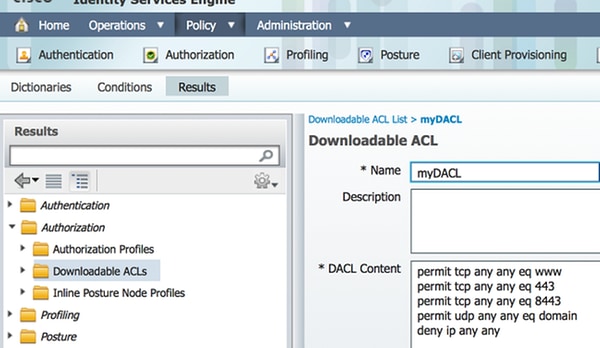
This is not a mandatory step. The redirect ACL sent back with the central webauth profile determines which traffic (HTTP or HTTPS) is redirected to the ISE. The downloadable ACL allows you to define what traffic is allowed. You should typically allow for DNS, HTTP(S), and 8443 and deny the rest. Otherwise, the switch redirects HTTP traffic but allows other protocols.
Complete these steps in order to create the downloadable ACL:
- Click Policy, and click Policy Elements.
- Click Results.
- Expand Authorization, and click Downloadable ACLs.
- Click the Add button in order to create a new downloadable ACL.
- In the Name field, enter a name for the DACL. This example uses myDACL.
This image shows typical DACL content, which allows:
- DNS - resolve the ISE portal hostname
- HTTP and HTTPS - allow redirection
- TCP port 8443 - serve as the guest portal port
Create the Authorization Profile
Complete these steps in order to create the authorization profile:
- Click Policy, and click Policy Elements.
- Click Results.
- Expand Authorization, and click Authorization profile.
- Click the Add button in order to create a new authorization profile for central webauth.
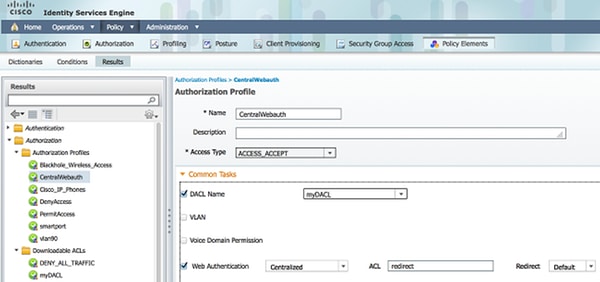
- In the Name field, enter a name for the profile. This example uses CentralWebauth.
- Choose ACCESS_ACCEPT from the Access Type drop-down list.
- Check the Web Authentication check box, and choose Centralized from the drop-down list.
- In the ACL field, enter the name of the ACL on the switch that defines the traffic to be redirected. This examples uses redirect.
- Choose Default from the Redirect drop-down list.
- Check the DACL Name checkbox, and choose myDACL from the drop-down lsit if you decide to use a DACL instead of a static port ACL on the switch.
The Redirect attribute defines whether the ISE sees the default web portal or a custom web portal that the ISE admin created. For example, the redirect ACL in this example triggers a redirection upon HTTP or HTTPS traffic from the client to anywhere. The ACL is defined on the switch later in this configuration example.
Create an Authentication Rule
Complete these steps in order to use the authentication profile to create the authentication rule:
- Under the Policy menu, click Authentication.
This image shows an example of how to configure the authentication policy rule. In this example, a rule is configured that triggers when MAB is detected.
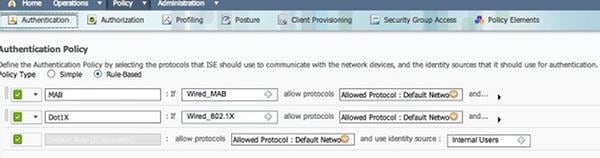
- Enter a name for your authentication rule. This example uses MAB.
- Select the plus (+) icon in the If condition field.
- Choose Compound condition, and choose Wired_MAB.
- Click the arrow located next to and ... in order to expand the rule further.
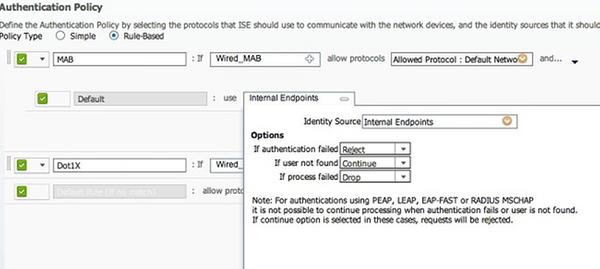
- Click the + icon in the Identity Source field, and choose Internal endpoints.
- Choose Continue from the 'If user not found' drop-down list.
This option allows a device to be authenticated (through webauth) even if its MAC address is not known. Dot1x clients can still authenticate with their credentials and should not be concerned with this configuration.
Create an Authorization Rule
There are now several rules to configure in the authorization policy. When the PC is plugged in, it goes through MAB; it is assumed that the MAC address is not known, so the webauth and ACL are returned. This MAC not known rule is shown in this image and is configured in this section:

Complete these steps in order to create the authorization rule:
- Create a new rule, and enter a name. This example uses MAC not known.
- Click the plus (+) icon in the condition field, and choose to create a new condition.
- Expand the expression drop-down list.
- Choose Network Access, and expand it.
- Click AuthenticationStatus, and choose the Equals operator.
- Choose UnknownUser in the right-hand field.
- On the General Authorization page, choose CentralWebauth (Authorization Profile) in the field to the right of the word then.
This step allows the ISE to continue even though the user (or the MAC) is not known.
Unknown users are now presented with the Login page. However, once they enter their credentials, they are presented again with an authentication request on the ISE; therefore, another rule must be configured with a condition that is met if the user is a guest user. In this example, If UseridentityGroup equals Guest is used, and it is assumed that all guests belong to this group. - Click the actions button located at the end of the MAC not known rule, and choose to insert a new rule above.
Note: It is very important that this new rule comes before the MAC not known rule.
- Enter a name for the new rule. This example uses IS-a-GUEST.
- Choose a condition that matches your guest users.
This example uses InternalUser:IdentityGroup Equals Guest because all guest users are bound to the Guest group (or another group you configured in your sponsor settings). - Choose PermitAccess in the result box (located to the right of the word then).
When the user is authorized on the Login page, ISE restarts a Layer 2 authentication on the switch port, and a new MAB occurs. In this scenario, the difference is that an invisible flag is set for ISE to remember that it was a guest-authenticated user. This rule is 2nd AUTH, and the condition is Network Access:UseCase Equals GuestFlow. This condition is met when the user authenticates via webauth, and the switch port is set again for a new MAB. You can assign any attributes you like. This example assigns a profile vlan90 so that the user is assigned the VLAN 90 in his second MAB authentication. - Click Actions (located at the end of the IS-a-GUEST rule), and choose Insert new rule above.
- Enter 2nd AUTH in the name field.
- In the condition field, click the plus (+) icon, and choose to create a new condition.
- Choose Network Access, and click UseCase.
- Choose Equals as the operator.
- Choose GuestFlow as the right operand.
- On the authorization page, click the plus (+) icon (located next to then) in order to choose a result for your rule.
In this example, a preconfigured profile (vlan90) is assigned; this configuration is not shown in this document.
You can choose a Permit Access option or create a custom profile in order to return the VLAN or attributes that you like.
Enable the IP Renewal (Optional)
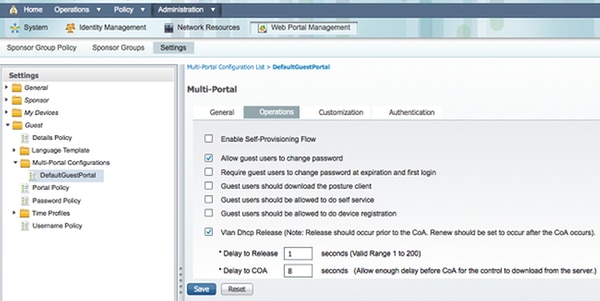
If you assign a VLAN, the final step is for the client PC to renew its IP address. This step is achieved by the guest portal for Windows clients. If you did not set a VLAN for the 2nd AUTH rule earlier, you can skip this step.
If you assigned a VLAN, complete these steps in order to enable IP renewal:
- Click Administration, and click Guest Management.
- Click Settings.
- Expand Guest, and expand Multi-Portal Configuration.
- Click DefaultGuestPortal or the name of a custom portal you may have created.
- Click the Vlan DHCP Releasecheck box.
Note: This option works only for Windows clients.
Switch Configuration (Excerpt)
This section provides an excerpt of the switch configuration. See Switch Configuration (Full) for the full configuration.
This sample shows a simple MAB configuration.
interface GigabitEthernet1/0/12
description ISE1 - dot1x clients - UCS Eth0
switchport access vlan 100
switchport mode access
ip access-group webauth in
authentication order mab
authentication priority mab
authentication port-control auto
mab
spanning-tree portfast
end
VLAN 100 is the VLAN that provides full network connectivity. A default port ACL (named webauth) is applied and defined as shown here:
ip access-list extended webauth
permit ip any any
This sample configuration gives full network access even if the user is not authenticated; therefore, you might want to restrict access to unauthenticated users.
In this configuration, HTTP and HTTPS browsing does not work without authentication (per the other ACL) since ISE is configured to use a redirect ACL (named redirect). Here is the definition on the switch:
ip access-list extended redirect
deny ip any host <ISE ip address>
permit TCP any any eq www
permit TCP any any eq 443
This access list must be defined on the switch in order to define on which traffic the switch will perform the redirection. (It matches on permit.) In this example, any HTTP or HTTPS traffic that the client sends triggers a web redirection. This example also denies the ISE IP address so traffic to the ISE goes to the ISE and does not redirect in a loop. (In this scenario, deny does not block the traffic; it just does not redirect the traffic.) If you use unusual HTTP ports or a proxy, you can add other ports.
Another possibility is to allow HTTP access to some web sites and redirect other web sites. For example, if you define in the ACL a permit for internal web servers only, clients could browse the web without authenticating but would encounter the redirect if they try to access an internal web server.
The last step is to allow CoA on the switch. Otherwise, the ISE cannot force the switch to reauthenticate the client.
aaa server radius dynamic-author
     client <ISE ip address> server-key <radius shared secret>
This command is required for the switch to redirect based on HTTP traffic:
ip http server
This command is required to redirect based on HTTPS traffic:
ip http secure-server
These commands are also important:
radius-server vsa send authentication
radius-server vsa send accounting
If the user is not yet authenticated, the show authentication session int <interface num> returns this output:
01-SW3750-access#show auth sess int gi1/0/12
            Interface:  GigabitEthernet1/0/12
          MAC Address:  000f.b049.5c4b
           IP Address:  192.168.33.201
            User-Name:  00-0F-B0-49-5C-4B
               Status:  Authz Success
               Domain:  DATA
      Security Policy:  Should Secure
      Security Status:  Unsecure
       Oper host mode:  single-host
     Oper control dir:  both
        Authorized By:  Authentication Server
          Vlan Policy:  N/A
              ACS ACL:  xACSACLx-IP-myDACL-51519b43
     URL Redirect ACL:  redirect
         URL Redirect:  https://ISE2.wlaaan.com:8443/guestportal/gateway?
                        sessionId=C0A82102000002D8489E0E84&action=cwa
      Session timeout:  N/A
         Idle timeout:  N/A
    Common Session ID:  C0A82102000002D8489E0E84
      Acct Session ID:  0x000002FA
               Handle:  0xF60002D9

Runnable methods list:

       Method   State
       mab      Authc Success
Note: Despite a successful MAB authentication, the redirect ACL is placed since the MAC address was not known by the ISE.
Switch Configuration (Full)
This section lists the full switch configuration. Some unnecessary interfaces and command lines have been omitted; therefore, this sample configuration should be used for reference only and should not be copied.
Building configuration...

Current configuration : 6885 bytes
!
version 15.0
no service pad
service timestamps debug datetime msec localtime show-timezone
service timestamps log datetime msec localtime show-timezone
no service password-encryption
!
!
boot-start-marker
boot-end-marker
!
enable secret 5 $1$xqtx$VPsZHbpGmLyH/EOObPpla.
!
aaa new-model
!
!
aaa group server radius newGroup
!
aaa authentication login default local
aaa authentication dot1x default group radius
aaa authorization exec default none
aaa authorization network default group radius
!
!
!
!
aaa server radius dynamic-author
client 192.168.131.1 server-key cisco
!
aaa session-id common
clock timezone CET 2 0
system mtu routing 1500
vtp interface Vlan61
udld enable

nmsp enable
ip routing
ip dhcp binding cleanup interval 600
!
!
ip dhcp snooping
ip device tracking
!
!
crypto pki trustpoint TP-self-signed-1351605760
enrollment selfsigned
subject-name cn=IOS-Self-Signed-Certificate-1351605760
revocation-check none
rsakeypair TP-self-signed-1351605760
!
!
crypto pki certificate chain TP-self-signed-1351605760
certificate self-signed 01
  30820245 308201AE A0030201 02020101 300D0609 2A864886 F70D0101 04050030
  31312F30 2D060355 04031326 494F532D 53656C66 2D536967 6E65642D 43657274
  69666963 6174652D 31333531 36303537 3630301E 170D3933 30333031 30303033
  35385A17 0D323030 31303130 30303030 305A3031 312F302D 06035504 03132649
  4F532D53 656C662D 5369676E 65642D43 65727469 66696361 74652D31 33353136
  30353736 3030819F 300D0609 2A864886 F70D0101 01050003 818D0030 81890281
  8100B068 86D31732 E73D2FAD 05795D6D 402CE60A B93D4A88 C98C3F54 0982911D
  D211EC23 77734A5B 7D7E5684 388AD095 67354C95 92FD05E3 F3385391 8AB9A866
  B5925E04 A846F740 1C9AC0D9 6C829511 D9C5308F 13C4EA86 AF96A94E CD57B565
  92317B2E 75D6AB18 04AC7E14 3923D3AC 0F19BC6A 816E6FA4 5F08CDA5 B95D334F
  DA410203 010001A3 6D306B30 0F060355 1D130101 FF040530 030101FF 30180603
  551D1104 11300F82 0D69696C 796E6173 2D333536 302E301F 0603551D 23041830
  16801457 D1216AF3 F0841465 3DDDD4C9 D08E06C5 9890D530 1D060355 1D0E0416
  041457D1 216AF3F0 8414653D DDD4C9D0 8E06C598 90D5300D 06092A86 4886F70D
  01010405 00038181 0014DC5C 2D19D7E9 CB3E8ECE F7CF2185 32D8FE70 405CAA03

dot1x system-auth-control
dot1x critical eapol
!
!
!
errdisable recovery cause bpduguard
errdisable recovery interval 60
!
spanning-tree mode pvst
spanning-tree logging
spanning-tree portfast bpduguard default
spanning-tree extend system-id
spanning-tree vlan 1-200 priority 24576
!
vlan internal allocation policy ascending
lldp run
!
!
!
!
!
!
interface FastEthernet0/2
switchport access vlan 33
switchport mode access
authentication order mab
authentication priority mab
authentication port-control auto
mab
spanning-tree portfast
!
interface Vlan33
ip address 192.168.33.2 255.255.255.0
!
ip default-gateway 192.168.33.1
ip http server
ip http secure-server
!
ip route 0.0.0.0 0.0.0.0 192.168.33.1
!
ip access-list extended MY_TEST
permit ip any any
ip access-list extended redirect
deny   ip any host 192.168.131.1
permit tcp any any eq www
permit tcp any any eq 443
ip access-list extended webAuthList
permit ip any any
!
ip sla enable reaction-alerts
logging esm config
logging trap warnings
logging facility auth
logging 10.48.76.31
snmp-server community c3560public RO
snmp-server community c3560private RW
snmp-server community private RO
radius-server host 192.168.131.1 auth-port 1812 acct-port 1813 key cisco
radius-server vsa send authentication
radius-server vsa send accounting
!
!
!
privilege exec level 15 configure terminal
privilege exec level 15 configure
privilege exec level 2 debug radius
privilege exec level 2 debug aaa
privilege exec level 2 debug
!
line con 0
line vty 0 4
exec-timeout 0 0
password Cisco123
authorization commands 1 MyTacacs
authorization commands 2 MyTacacs
authorization commands 15 MyTacacs
authorization exec MyTacacs
login authentication MyTacacs
line vty 5 15
!
ntp server 10.48.76.33
end
HTTP Proxy Configuration
If you use an HTTP proxy for your clients, it means that your clients:
- Use a unconventional port for HTTP protocol
- Send all their traffic to that proxy
In order to have the switch listen on the unconventional port (for example, 8080), use these commands:
ip http port 8080
ip port-map http port 8080
You also need to configure all clients to keep using their proxy but to not use the proxy for the ISE IP address. All browsers include a feature that allows you to enter host names or IP addresses that should not use the proxy. If you do not add the exception for the ISE, you encounter a loop authentication page.
You also need to modify your redirection ACL to permit on the proxy port (8080 in this example).
Important Note about Switch SVIs
At this time, the switch needs a switch virtual interface (SVI) in order to reply to the client and send the web portal redirection to the client. This SVI does not necessarily have to be on the client subnet/VLAN. However, if the switch has no SVI in the client subnet/VLAN, it has to use any of the other SVIs and send traffic as defined in the client routing table. This typically means traffic is sent to another gateway in the core of the network; this traffic comes back to the access switch inside the client subnet.
Firewalls typically block traffic from and to the same switch, as in this scenario, so redirection might not work properly. Workarounds are to allow this behavior on the firewall or to create an SVI on the access switch in the client subnet.
Important Note about HTTPS Redirection
Switches are able to redirect HTTPS traffic. Thus, if the guest client has a homepage in HTTPS, the redirection occurs correctly.
The whole concept of redirection is based upon the fact that a device (in this case, the switch) spoofs the website IP address. However, a major issue arises when the switch intercepts and redirects HTTPS traffic because the switch can present only its own certificate in the Transport Layer Security (TLS) handshake. Since this is not the same certificate as the website originally requested, most browsers issue major alerts. The browsers correctly handle the redirection and presentation of another certificate as a security concern. There is no workaround for this, and there is no way for the switch to spoof your original website certificate.
Final Result
The client PC plugs in and performs MAB. The MAC address is not known, so ISE pushes the redirection attributes back to the switch. The user tries to go to a website and is redirected.
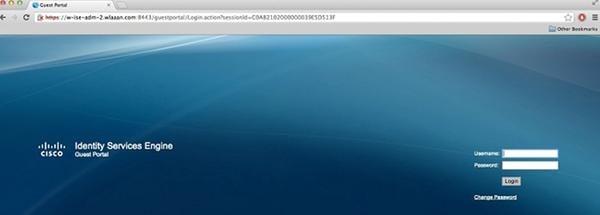
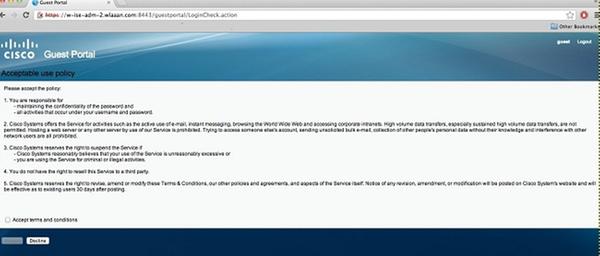
When the authentication of the Login page is successful, the ISE bounces the switchport through Change Of Authorization, which starts again a Layer 2 MAB authentication.
However, the ISE knows that it is a former webauth client and authorizes the client based on the webauth credentials (although this is a Layer 2 authentication).
In the ISE authentication logs, the MAB authentication appears at the bottom of the log. Although it is unknown, the MAC address was authenticated and profiled, and the webauth attributes were returned. Next, authentication occurs with the user's username (that is, the user types his credentials in the Login page). Immediately after authentication, a new Layer 2 authentication occurs with the username as credentials; this authentication step is where you can return attributes such dynamic VLAN.

Verify
There is currently no verification procedure available for this configuration.
Troubleshoot
There is currently no specific troubleshooting information available for this configuration.
Related Information

Revision History
| Revision | Publish Date | Comments |
|---|---|---|
1.0 |
18-Dec-2011
|
Initial Release |
Contributed by Cisco Engineers
- Nicolas DarchisCisco TAC Engineer
 Feedback
Contact Cisco
- Open a Support Case

- (Requires a Cisco Service Contract)