Using Speed Dials
Cisco WebAttendant provides 26 buttons that can be set up for speed dialing. You can program the buttons to
• Speed dial an outside number (only six digits will appear in the button).
•Speed dial an internal directory number for an employee who receives a large volume of calls.
This feature is particularly useful if you have customer support or sales groups in your organization.
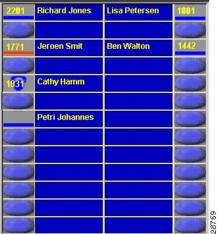
The speed dial area is located in the upper right corner of Cisco WebAttendant. The 26 available speed dial buttons are arranged in two columns. When Cisco WebAttendant is used for the first time, no speed dial buttons are set.
The speed dial area indicates the status of the user's phone using the same icons as in the directory status area, as shown in Figure 4-1.

Note Cisco WebAttendant can only display available or busy status for Cisco IP Phones within your system. A red line (unknown status) will be displayed in the status area for speed dials to outside lines. You can still direct calls to these lines.
Figure 4-1 Speed Dial Area
Setting Speed Dial Buttons
You can set the speed dial buttons by selecting directory numbers from the directory or by using the Button Configuration dialog box.
Using the Directory to Set Speed Dial Buttons
To set a speed dial button using the directory:
Step 1 Select a directory number or name in the directory.
Step 2 Use your mouse to drag the line from the directory and drop it onto an available speed dial button.
The directory number (up to six digits) is displayed in the button and the name (up to 14 characters) is displayed next to the number. The speed dial button has been programmed and is available for use.
Configuring Speed Dial Buttons
To set a speed dial button using the Button Configuration dialog box:
Step 1 Right-click the mouse over the speed dial button you want to configure.
A menu is displayed.
Step 2 Click Button Configuration.
The Button Configuration dialog box is displayed.
Figure 4-2 Button Configuration Dialog Box
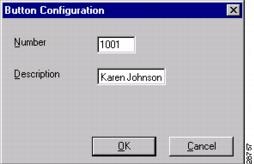
Step 3 In the Number box, enter the telephone number you want to program for this speed dial button, including any access codes for an outside line, such as 9, or a long distance code or area codes, such as 1972 or 972. Only six digits will display on the button.
Only digits can be entered in this field. Do not include dashes or spaces in the phone number.
Step 4 In the Description box, enter a description for the speed dial, such as a name or the complete number. Because the Number displays only six digits, the description can be very important. You can type up to 14 alphanumeric characters.
Step 5 Click OK.
The speed dial button has been programmed and is available for use.
Placing Calls with the Speed Dial Buttons
To place calls using the speed dial buttons:
•Click on a speed dial button to automatically dial that number.
•Drag and drop a speed dial button onto an available Smart Line (SL) button.
 Feedback