Using the Directory
Cisco WebAttendant provides a listing of the telephone extensions at your company. You can use this directory to:
• Look up directory numbers and place calls
•Determine if a phone is in use
The Cisco WebAttendant directory uses the Cisco CallManager user directory database. Any user or resource that is identified in the User area of Cisco CallManager Administration is available in the directory. The Cisco CallManager directory database is maintained by your system administrator. If you need people or resources such as conference rooms added to the directory, ask your system administrator to update the database with this information.
Figure 3-1 shows the directory area of Cisco WebAttendant.
Figure 3-1 Cisco WebAttendant Directory
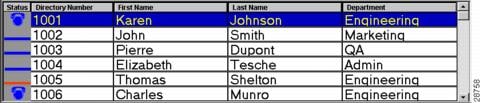
The directory provides the following information:
•Status—Displays a solid blue line when a telephone is available, a blue phone icon if the telephone is busy, and a solid red line if the state is unknown. An unknown state in the directory status area generally means the directory number cannot receive calls.
•Directory Number—Displays the telephone extension.
•First Name, Last Name, and Department columns—Each of these columns displays additional information about a directory number. If any of these fields are blank, the information has not been provided in the User area of Cisco CallManager Administration. Your system administrator can update these fields for you.
Sorting the Directory
You can sort the directory in ascending order by directory number, last name, or first name.
To sort the directory in ascending order, click a column header (Directory Number, Last Name, or First Name).
Locating a Specific Name or Number in the Directory
You can also type in the column header to locate a name or number that you specify.
Perform the following steps to locate a specific name or number in the Directory.
Step 1 Click the Directory Number, First Name, or Last Name column header.
It turns into a white box you can type in.
Step 2 Enter the directory number, last name, or first name in the box, depending on which column header you selected.
You do not have to type the entire name or number.
Step 3 Press Return.
The directory list scrolls to the nearest entry matching the characters you typed.
For example, if you are looking for directory number 4452, click the Directory Number column header. It turns into a white box in which you can enter values. Type 4452, press Enter, and the list will scroll to the nearest entry matching the characters you entered.
As another example, if you are looking for a user with the last name "Clark," click the Last Name column header in the directory and enter the letters "Cla" to scroll the directory to the nearest matching entry.
Using the Directory to Place Calls
To use the directory to place calls:
•Double-click on a directory number in the Directory to automatically dial that number.
•Drag a directory number from the Directory onto an available Smart Line (SL) button.
 Feedback