- Introduction
- Installing Required Software
- Configuring Cisco Business Communications Solution Verified Designs
- Continuing Cisco BCS Verified Designs Configuration Using CLI
- Configuring Security on the Voice Network
- Appendix A: Cisco CallManager Express Bundles
- Appendix B: QCT Utilities
- Appendix C: Cisco BCS Verified Designs Configuration Example
Appendix B: QCT Utilities
This appendix describes QCT utilities.
QCT utilities allow you to perform the following operations:
• Uploading Saved Configurations
Uploading Saved Configurations
QCT allows you to upload previously-saved router configurations. Using QCT, you can browse to a locally-stored router configuration file on your PC and download it to any router.
To upload a saved configuration to your router, perform the following steps.
Step 1 Click Upload Saved Config (see Figure 149):
Figure 149 Upload Saved Config Button

The Upload Configuration to Router window appears (see Figure 150):
Figure 150 Upload Configuration Window
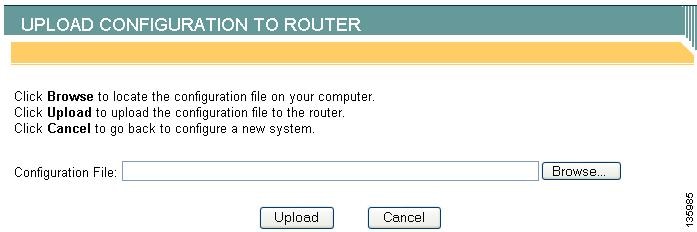
Step 2 Click Browse to locate the configuration file on your PC.
Step 3 In the Choose File dialog that appears, browse to the file's location on your PC and select the configuration file (see Figure 151):
Figure 151 Upload Choose File Dialog
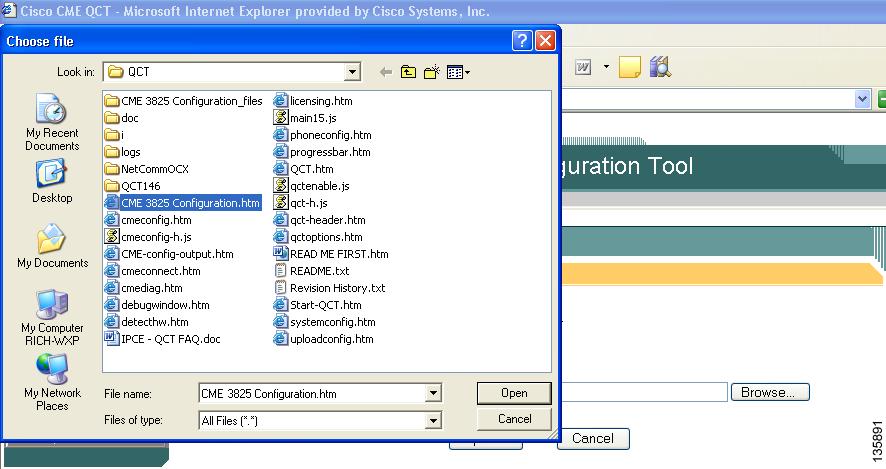
Step 4 Click Open.
The Configuration File field in the Upload Configuration to Router window's shows the file path that you chose (see Figure 152):
Figure 152 Upload Configuration File Path
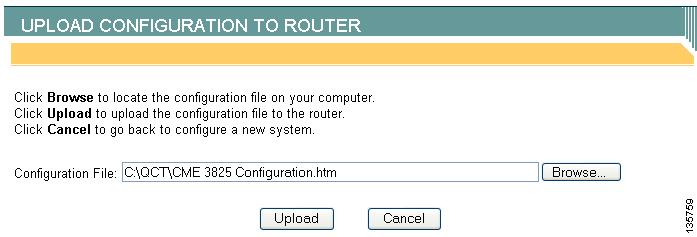
Step 5 Ensure that your router is powered on.
Step 6 Click Upload.
Your router loads with the new configuration.
Configuring QCT Options
The QCT Options window allows you to enable specific diagnostics for your system.

Note Any enabled QCT option will be valid only until you create a new system.
Perform the following steps to configure QCT options.
Step 1 Click the QCT Options button (see Figure 153):
Figure 153 QCT Options Button

The QCT Options window appears (see Figure 154):
Figure 154 QCT Option Window
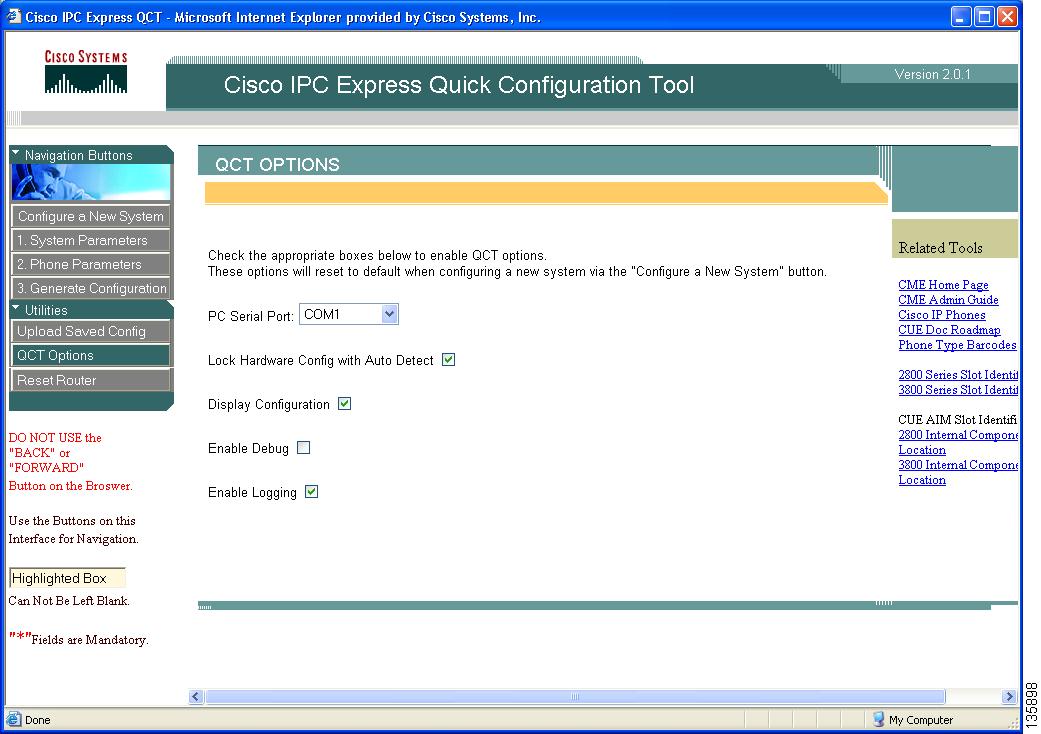
Step 2 Enter the information listed in Table 9.
Table 9 Cisco QCT Options Field Descriptions
|
|
|
|
|---|---|---|
PC Serial Port |
The PC serial COM port from the drop-down menu. |
Allows communications to Cisco IPC Communications Express system. |
Lock Hardware Configuration with Auto Detect |
• • |
After auto-detecting hardware using the Auto Detect Hardware Configuration button, deselecting this checkbox allows changes to the Hardware Configuration section on the System Parameters window. |
Display Configuration |
Enables the display of the configuration on your PC when the Generate Configuration button is pressed. |
|
Enable Debug |
Enables debugging after pushing configuration to router. |
|
Enable Logging |
Enables logging after pushing configuration to router. Log information is stored in a folder named logs inside your locally installed QCT folder (see Figure 155). |
Figure 155 Logs Folder
 Feedback