- Preface
-
- Configuring the Fabric Interconnects
- Configuring Ports and Port Channels
- Configuring Communication Services
- Configuring Authentication
- Configuring Organizations
- Configuring Role-Based Access Control
- Managing Firmware
- Configuring DNS Servers
- Configuring System-Related Policies
- Managing Licenses
- Managing Virtual Interfaces
- Index
- Server and Uplink Ports on the 6100 Series Fabric Interconnect
- Unified Ports on the 6200 Series Fabric Interconnect
- Server Ports
- Uplink Ethernet Ports
- Reconfiguring a Port on a Fabric Interconnect
- Enabling a Port on a Fabric Interconnect
- Disabling a Port on a Fabric Interconnect
- Unconfiguring a Port on a Fabric Interconnect
- Appliance Ports
- FCoE and Fibre Channel Storage Ports
- Uplink Ethernet Port Channels
- Appliance Port Channels
- Fibre Channel Port Channels
- Adapter Port Channels
- Fabric Port Channels
- Configuring Server Ports with the Internal Fabric Manager
Configuring Ports and Port Channels
This chapter includes the following sections:
- Server and Uplink Ports on the 6100 Series Fabric Interconnect
- Unified Ports on the 6200 Series Fabric Interconnect
- Server Ports
- Uplink Ethernet Ports
- Reconfiguring a Port on a Fabric Interconnect
- Enabling a Port on a Fabric Interconnect
- Disabling a Port on a Fabric Interconnect
- Unconfiguring a Port on a Fabric Interconnect
- Appliance Ports
- FCoE and Fibre Channel Storage Ports
- Uplink Ethernet Port Channels
- Appliance Port Channels
- Fibre Channel Port Channels
- Adapter Port Channels
- Fabric Port Channels
- Configuring Server Ports with the Internal Fabric Manager
Server and Uplink Ports on the 6100 Series Fabric Interconnect
Each 6100 series fabric interconnect has a set of ports in a fixed port module that you can configure as either server ports or uplink Ethernet ports. These ports are not reserved. They cannot be used by a Cisco UCS domain until you configure them. You can add expansion modules to increase the number of uplink ports on the fabric interconnect or to add uplink Fibre Channel ports to the fabric interconnect.
You need to create LAN pin groups and SAN pin groups to pin traffic from servers to an uplink port.
 Note |
Ports on the 6100 series fabric interconnect are not unified. For more information on Unified Ports, see Unified Ports. |
Each fabric interconnect can include the following port types:
- Server Ports
-
Server ports handle data traffic between the fabric interconnect and the adapter cards on the servers.
You can only configure server ports on the fixed port module. Expansion modules do not include server ports.
- Uplink Ethernet Ports
-
Uplink Ethernet ports handle Ethernet traffic between the fabric interconnect and the next layer of the network. All network-bound Ethernet traffic is pinned to one of these ports.
By default, Ethernet ports are unconfigured. However, you can configure them to function in the following ways: You can configure uplink Ethernet ports on either the fixed module or an expansion module.
- Uplink Fibre Channel Ports
-
Uplink Fibre Channel ports handle FCoE traffic between the fabric interconnect and the next layer of the storage area network. All network-bound FCoE traffic is pinned to one of these ports.
By default, Fibre Channel ports are uplink. However, you can configure them to function as Fibre Channel storage ports. This is useful in cases where Cisco UCS requires a connection to a Direct-Attached Storage (DAS) device.
You can only configure uplink Fibre Channel ports on an expansion module. The fixed module does not include uplink Fibre Channel ports.
Unified Ports on the 6200 Series Fabric Interconnect
Unified ports are ports on the 6200 series fabric interconnect that can be configured to carry either Ethernet or Fibre Channel traffic. These ports are not reserved. They cannot be used by a Cisco UCS domain until you configure them.
Configurable beacon LEDs indicate which unified ports are configured for the selected port mode.
- Port Modes
- Port Types
- Beacon LEDs for Unified Ports
- Guidelines for Configuring Unified Ports
- Effect of Port Mode Changes on Data Traffic
- Configuring Port Modes for a 6248 Fabric Interconnect
- Configuring Port Modes for a 6296 Fabric Interconnect
- Configuring the Beacon LEDs for Unified Ports
Port Modes
The port mode determines whether a unified port on the fabric interconnect is configured to carry Ethernet or Fibre Channel traffic. The port mode is not automatically discovered by the fabric interconnect; it is configured in Cisco UCS Manager.
Changing the port mode results in the existing port configuration being deleted and replaced by a new logical port. Any objects associated with that port configuration, such as VLANs and VSANS, are removed. There is no restriction on the number of times the port mode can be changed for a unified port.
Port Types
The port type defines the type of traffic carried over a unified port connection.
All of the port types listed are configurable on both the fixed and expansion module, including server ports, which are not configurable on the 6100 series fabric interconnect expansion module, but are configurable on the 6200 series fabric interconnect expansion module.
By default, unified ports changed to Ethernet port mode are set to uplink Ethernet port type. unified ports changed to Fibre Channel port mode are set to the Fibre Channel uplink port type. Fibre Channel ports cannot be unconfigured.
Changing the port type does not require a reboot.
When the port mode is set to Ethernet, you can configure the following port types:
- Server ports
- Ethernet uplink ports
- Ethernet port channel members
- FCoE ports
- Appliance ports
- Appliance port channel members
- SPAN destination ports
-
SPAN source ports
Note
For SPAN source ports, configure one of the port types and then configure the port as SPAN source.
When the port mode is set to Fibre Channel, you can configure the following port types:
Beacon LEDs for Unified Ports
Each port on the 6200 series fabric interconnect has a corresponding beacon LED. When the Beacon LED property is configured, the beacon LEDs illuminate, showing you which ports are configured in a given port mode.
The Beacon LED property can be configured to show you which ports are grouped in one port mode: either Ethernet or Fibre Channel. By default, the Beacon LED property is set to Off.
Note |
For unified ports on the expansion module, the Beacon LED property may be reset to the default value of Off during expansion module reboot. |
Guidelines for Configuring Unified Ports
Consider the following guidelines and restrictions when configuring unified ports:
Hardware and Software Requirements
Unified ports are supported on the 6200 series fabric interconnect with Cisco UCS Manager, version 2.0.
Unified ports are not supported on 6100 series fabric interconnects, even if they are running Cisco UCS Manager, version 2.0.
Port Mode Placement
Because the Cisco UCS Manager GUI interface uses a slider to configure the port mode for unified ports on a fixed or expansion module, it automatically enforces the following restrictions which limits how port modes can be assigned to unified ports. When using the Cisco UCS Manager CLI interface, these restrictions are enforced when you commit the transaction to the system configuration. If the port mode configuration violates any of the following restrictions, the Cisco UCS Manager CLI displays an error:
- Ethernet ports must be grouped together in a block. For each module (fixed or expansion), the Ethernet port block must start with the first port and end with an even numbered port.
- Fibre Channel ports must be grouped together in a block. For each module (fixed or expansion), the first port in the Fibre Channel port block must follow the last Ethernet port and extend to include the rest of the ports in the module. For configurations that include only Fibre Channel ports, the Fibre Channel block must start with the first port on the fixed or expansion module.
- Alternating Ethernet and Fibre Channel ports is not supported on a single module.
Example of a valid configuration— Might include unified ports 1–16 on the fixed module configured in Ethernet port mode and ports 17–32 in Fibre Channel port mode. On the expansion module you could configure ports 1–4 in Ethernet port mode and then configure ports 5–16 in Fibre Channel mode. The rule about alternating Ethernet and Fibre Channel port types is not violated because this port arrangement complies with the rules on each individual module.
Example of an invalid configuration— Might include a block of Fibre Channel ports starting with port 16. Because each block of ports has to start with an odd-numbered port, you would have to start the block with port 17.
Note |
The total number of uplink Ethernet ports and uplink Ethernet port channel members that can be configured on each fabric interconnect is limited to 31. This limitation includes uplink Ethernet ports and uplink Ethernet port channel members configured on the expansion module. |
Effect of Port Mode Changes on Data Traffic
Port mode changes can cause an interruption to the data traffic for the Cisco UCS domain. The length of the interruption and the traffic that is affected depend upon the configuration of the Cisco UCS domain and the module on which you made the port mode changes.
 Tip |
To minimize the traffic disruption during system changes, form a Fibre Channel uplink port-channel across the fixed and expansion modules. |
Impact of Port Mode Changes on an Expansion Module
After you make port mode changes on an expansion module, the module reboots. All traffic through ports on the expansion module is interrupted for approximately one minute while the module reboots.
Impact of Port Mode Changes on the Fixed Module in a Cluster Configuration
A cluster configuration has two fabric interconnects. After you make port changes to the fixed module, the fabric interconnect reboots. The impact on the data traffic depends upon whether or not you have configured the server vNICs to failover to the other fabric interconnect when one fails.
If you change the port modes on the expansion module of one fabric interconnect and then wait for that to reboot before changing the port modes on the second fabric interconnect, the following occurs:
- With server vNIC failover, traffic fails over to the other fabric interconnect and no interruption occurs.
- Without server vNIC failover, all data traffic through the fabric interconnect on which you changed the port modes is interrupted for approximately eight minutes while the fabric interconnect reboots.
However, if you change the port modes on the fixed modules of both fabric interconnects simultaneously, all data traffic through the fabric interconnects are interrupted for approximately eight minutes while the fabric interconnects reboot.
Impact of Port Mode Changes on the Fixed Module in a Standalone Configuration
A standalone configuration has only one fabric interconnect. After you make port changes to the fixed module, the fabric interconnect reboots. All data traffic through the fabric interconnect is interrupted for approximately eight minutes while the fabric interconnect reboots.
Configuring Port Modes for a 6248 Fabric Interconnect
 Caution |
Changing the port mode on either module can cause an interruption in data traffic because changes to the fixed module require a reboot of the fabric interconnect and changes on an expansion module require a reboot of that module. If the Cisco UCS domain has a cluster configuration that is set up for high availability and servers with service profiles that are configured for failover, traffic fails over to the other fabric interconnect and data traffic is not interrupted when the port mode is changed on the fixed module. |
What to Do Next
Configure the port types for the ports. You can right-click on any port in the module display above the slider and configure that port for an available port type.
Configuring Port Modes for a 6296 Fabric Interconnect
Caution |
Changing the port mode on either module can cause an interruption in data traffic because changes to the fixed module require a reboot of the fabric interconnect and changes on an expansion module require a reboot of that module. If the Cisco UCS domain has a cluster configuration that is set up for high availability and servers with service profiles that are configured for failover, traffic fails over to the other fabric interconnect and data traffic is not interrupted when the port mode is changed on the fixed module. |
Configuring the Beacon LEDs for Unified Ports
Complete the following task for each module for which you want to configure beacon LEDs.
Server Ports
Configuring Server Ports
You can only configure server ports on the fixed port module. Expansion modules do not include server ports.
This task describes only one method of configuring ports. You can also configure ports from a right-click menu, from the General tab for the port, or in the LAN Uplinks Manager.
Uplink Ethernet Ports
Configuring Uplink Ethernet Ports
You can configure uplink Ethernet ports on either the fixed module or an expansion module.
This task describes only one method of configuring uplink Ethernet ports. You can also configure uplink Ethernet ports from a right-click menu or from the General tab for the port.
What to Do Next
If desired, change the properties for the default flow control policy and admin speed of the uplink Ethernet port.
Changing the Properties of an Uplink Ethernet Port
Reconfiguring a Port on a Fabric Interconnect
Example: Reconfiguring an Uplink Ethernet Port as a Server Port
Enabling a Port on a Fabric Interconnect
After you enable or disable a port on a fabric interconnect, wait for at least 1 minute before you reacknowledge the chassis. If you reacknowledge the chassis too soon, the pinning of server traffic from the chassis may not be updated with the changes to the port that you enabled or disabled.
Disabling a Port on a Fabric Interconnect
After you enable or disable a port on a fabric interconnect, wait for at least 1 minute before you reacknowledge the chassis. If you reacknowledge the chassis too soon, the pinning of server traffic from the chassis may not be updated with the changes to the port that you enabled or disabled.
Unconfiguring a Port on a Fabric Interconnect
Appliance Ports
Appliance ports are only used to connect fabric interconnects to directly attached NFS storage.
Configuring an Appliance Port
You can configure Appliance ports on either the fixed module or an expansion module.
This task describes only one method of configuring appl ports. You can also configure appliance ports from the General tab for the port.
Modifying the Properties of an Appliance Port
| Step 1 | In the Navigation pane, click the Equipment tab. | ||||||||||||||||||
| Step 2 | On the Equipment tab, expand . | ||||||||||||||||||
| Step 3 | Depending upon the location of the appliance port you want to modify, expand one of the following: | ||||||||||||||||||
| Step 4 | Expand Appliance Ports. | ||||||||||||||||||
| Step 5 | Click the appliance port for which you want to modify the properties. | ||||||||||||||||||
| Step 6 | In the Work pane, click the General tab. | ||||||||||||||||||
| Step 7 |
In the Actions area, click Show Interface. You may need to expand or use the scroll bars in the Properties dialog box to see all the fields. |
||||||||||||||||||
| Step 8 |
In the Properties dialog box, modify the values in one or more of the following fields:
|
||||||||||||||||||
| Step 9 | Click OK. |
FCoE and Fibre Channel Storage Ports
Configuring an FCoE Storage Port
You can configure FCoE storage ports on either the fixed module or an expansion module.
This task describes only one method of configuring FCoE storage ports. You can also configure FCoE storage ports from the General tab for the port.
The Fibre Channel switching mode must be set to Switching for these ports to be valid. The storage ports cannot function in end-host mode.
| Step 1 | In the Navigation pane, click the Equipment tab. |
| Step 2 | On the Equipment tab, expand . |
| Step 3 | Depending upon the location of the ports you want to configure, expand one of the following: |
| Step 4 |
Click one or more of the ports under the Unconfigured Ethernet Ports node. If you want to reconfigure an uplink Ethernet port, server port, or appliance port, expand the appropriate node. |
| Step 5 | Right-click the selected port or ports and choose Configure as FCoE Storage Port. |
| Step 6 | If the Cisco UCS Manager GUI displays a confirmation dialog box, click Yes. |
| Step 7 |
Click OK. The port or ports are configured as FCoE storage ports, removed from the list of unconfigured ports, and added to the FCoE Storage Ports node. |
Configuring a Fibre Channel Storage Port
This task describes only one method of configuring FC storage ports. You can also configure FC storage ports from the General tab for the port.
The Fibre Channel switching mode must be set to Switching for these ports to be valid. The storage ports cannot function in end-host mode.
| Step 1 | In the Navigation pane, click the Equipment tab. |
| Step 2 | On the Equipment tab, expand . |
| Step 3 | Expand the Expansion Module node. |
| Step 4 | Click one or more of the ports under the Uplink FC Ports node. |
| Step 5 | Right-click the selected port or ports and choose Configure as FC Storage Port. |
| Step 6 | If the Cisco UCS Manager GUI displays a confirmation dialog box, click Yes. |
| Step 7 |
Click OK. The port or ports are configured as FC storage ports, removed from the list of uplink FC ports, and added to the Storage FC Ports node. |
Restoring an Uplink Fibre Channel Port
This task describes only one method of restoring an FC storage port to function as an uplink FC port. You can also reconfigure FC storage ports from the General tab for the port.
| Step 1 | In the Navigation pane, click the Equipment tab. |
| Step 2 | On the Equipment tab, expand . |
| Step 3 | Expand the Expansion Module node. |
| Step 4 | Click one or more of the ports under the Storage FC Ports node. |
| Step 5 | Right-click the selected port or ports and choose Configure as FC Uplink Port. |
| Step 6 | If the Cisco UCS Manager GUI displays a confirmation dialog box, click Yes. |
| Step 7 |
Click OK. The port or ports are configured as uplink FC ports, removed from the list of FC storage ports, and added to the Uplink FC Ports node. |
Default Zoning
Zoning allows you to set up access control between hosts and storage devices. When a zone is configured or the configuration is updated, this information is propagated to all the other switches in the fabric.
In Cisco UCS, the zoning configuration is inherited from an upstream switch. You cannot configure zoning or view information about your zoning configuration through Cisco UCS Manager. The only configurable zoning option in Cisco UCS Manager is whether the default zone in a VSAN (nodes not assigned to any zone) permits or denies access among its members.
When default zoning is enabled, all traffic is permitted among members of the default zone.
When default zoning is disabled, all traffic is denied among members of the default zone.
Default zoning is applied on a per-VSAN basis. You cannot enable default zoning at the fabric level.
Note |
Default zoned configurations are not recommended for production deployments, which must always use direct connect Fibre Channel topologies with upstream MDS or Nexus 5000 switches. |
Enabling Default Zoning
| Step 1 | In the Navigation pane, click the SAN tab. | ||||||||||
| Step 2 | In the SAN tab, click the SAN node. | ||||||||||
| Step 3 | In the Work pane, click the VSANs tab. | ||||||||||
| Step 4 |
Click one of the following subtabs, depending upon the type of VSAN for which you want to enable default zoning:
|
||||||||||
| Step 5 |
In the table, double-click the VSAN. Cisco UCS Manager GUI displays the General tab for the VSAN. |
||||||||||
| Step 6 | In the Actions area, click Enable Default Zoning. | ||||||||||
| Step 7 | If the Cisco UCS Manager GUI displays a confirmation dialog box, click Yes. |
Disabling Default Zoning
| Step 1 | In the Navigation pane, click the SAN tab. | ||||||||||
| Step 2 | In the SAN tab, click the SAN node. | ||||||||||
| Step 3 | In the Work pane, click the VSANs tab. | ||||||||||
| Step 4 |
Click one of the following subtabs, depending upon the type of VSAN for which you want to disable default zoning:
|
||||||||||
| Step 5 |
In the table, double-click the VSAN. Cisco UCS Manager GUI displays the General tab for the VSAN. |
||||||||||
| Step 6 | In the Actions area, click Disable Default Zoning. | ||||||||||
| Step 7 | If the Cisco UCS Manager GUI displays a confirmation dialog box, click Yes. |
Uplink Ethernet Port Channels
An uplink Ethernet port channel allows you to group several physical uplink Ethernet ports (link aggregation) to create one logical Ethernet link to provide fault-tolerance and high-speed connectivity. In Cisco UCS Manager, you create a port channel first and then add uplink Ethernet ports to the port channel. You can add up to eight uplink Ethernet ports to a port channel.
Note |
Cisco UCS uses Link Aggregation Control Protocol (LACP), not Port Aggregation Protocol (PAgP), to group the uplink Ethernet ports into a port channel. If the ports on the upstream switch are not configured for LACP, the fabric interconnects treat all ports in an uplink Ethernet port channel as individual ports and therefore forward packets. |
- Creating an Uplink Ethernet Port Channel
- Enabling an Uplink Ethernet Port Channel
- Disabling an Uplink Ethernet Port Channel
- Adding Ports to and Removing Ports from an Uplink Ethernet Port Channel
- Deleting an Uplink Ethernet Port Channel
Creating an Uplink Ethernet Port Channel
| Step 1 | In the Navigation pane, click the LAN tab. |
| Step 2 | On the LAN tab, expand . |
| Step 3 | Expand the node for the fabric interconnect where you want to add the port channel. |
| Step 4 | Right-click the Port Channels node and choose Create Port Channel. |
| Step 5 |
In the Set Port Channel Name page of the Create Port Channel wizard, do the following:
|
| Step 6 |
In the Add Ports page of the Create Port Channel wizard, do the following:
|
| Step 7 | Click Finish. |
Enabling an Uplink Ethernet Port Channel
| Step 1 | In the Navigation pane, click the LAN tab. |
| Step 2 | On the LAN tab, expand . |
| Step 3 | Expand the node for the fabric interconnect that includes the port channel you want to enable. |
| Step 4 | Expand the Port Channels node. |
| Step 5 | Right-click the port channel you want to enable and choose Enable Port Channel. |
| Step 6 | If the Cisco UCS Manager GUI displays a confirmation dialog box, click Yes. |
Disabling an Uplink Ethernet Port Channel
| Step 1 | In the Navigation pane, click the LAN tab. |
| Step 2 | On the LAN tab, expand . |
| Step 3 | Expand the node for the fabric interconnect that includes the port channel you want to disable. |
| Step 4 | Expand the Port Channels node. |
| Step 5 | Right-click the port channel you want to disable and choose Enable Port Channel. |
Adding Ports to and Removing Ports from an Uplink Ethernet Port Channel
| Step 1 | In the Navigation pane, click the LAN tab. |
| Step 2 | On the LAN tab, expand . |
| Step 3 | Click the port channel to which you want to add or remove ports. |
| Step 4 | In the Work pane, click the General tab. |
| Step 5 | In the Actions area, click Add Ports. |
| Step 6 |
In the Add Ports dialog box, do one of the following:
|
| Step 7 | Click OK. |
Deleting an Uplink Ethernet Port Channel
| Step 1 | In the Navigation pane, click the LAN tab. |
| Step 2 | On the LAN tab, expand . |
| Step 3 | Expand the node for the fabric interconnect where you want to delete the port channel. |
| Step 4 | Click the Port Channels node. |
| Step 5 | In the General tab for the Port Channels node, choose the port channel you want to delete. |
| Step 6 | Right-click the port channel and choose Delete. |
Appliance Port Channels
An appliance port channel allows you to group several physical appliance ports to create one logical Ethernet storage link for the purpose of providing fault-tolerance and high-speed connectivity. In Cisco UCS Manager, you create a port channel first and then add appliance ports to the port channel. You can add up to eight appliance ports to a port channel.
- Creating an Appliance Port Channel
- Enabling an Appliance Port Channel
- Disabling an Appliance Port Channel
- Adding Ports to and Removing Ports from an Appliance Port Channel
- Deleting an Appliance Port Channel
Creating an Appliance Port Channel
| Step 1 | In the Navigation pane, click the LAN tab. | ||||||||||||||||
| Step 2 | On the LAN tab, expand . | ||||||||||||||||
| Step 3 | Expand the node for the fabric interconnect where you want to add the port channel. | ||||||||||||||||
| Step 4 | Right-click the Port Channels node and choose Create Port Channel. | ||||||||||||||||
| Step 5 |
In the Set Port Channel Name page of the Create Port Channel wizard, complete the following fields to specify the identity and other properties of the port channel:
|
||||||||||||||||
| Step 6 |
In the VLANs area, do the following:
|
||||||||||||||||
| Step 7 |
(Optional)If you want to add an endpoint, check the Ethernet Target Endpoint check box and complete the following fields:
|
||||||||||||||||
| Step 8 | Click Next. | ||||||||||||||||
| Step 9 |
In the Add Ports page of the Create Port Channel wizard, do the following:
|
||||||||||||||||
| Step 10 | Click Finish. |
Enabling an Appliance Port Channel
| Step 1 | In the Navigation pane, click the LAN tab. |
| Step 2 | On the LAN tab, expand . |
| Step 3 | Expand the node for the fabric interconnect that includes the port channel you want to enable. |
| Step 4 | Expand the Port Channels node. |
| Step 5 | Right-click the port channel you want to enable and choose Enable Port Channel. |
| Step 6 | If the Cisco UCS Manager GUI displays a confirmation dialog box, click Yes. |
Disabling an Appliance Port Channel
| Step 1 | In the Navigation pane, click the LAN tab. |
| Step 2 | On the LAN tab, expand . |
| Step 3 | Expand the node for the fabric interconnect that includes the port channel you want to disable. |
| Step 4 | Expand the Port Channels node. |
| Step 5 | Right-click the port channel you want to disable and choose Disable Port Channel. |
| Step 6 | If the Cisco UCS Manager GUI displays a confirmation dialog box, click Yes. |
Adding Ports to and Removing Ports from an Appliance Port Channel
| Step 1 | In the Navigation pane, click the LAN tab. |
| Step 2 | On the LAN tab, expand . |
| Step 3 | Click the port channel to which you want to add or remove ports. |
| Step 4 | In the Work pane, click the General tab. |
| Step 5 | In the Actions area, click Add Ports. |
| Step 6 |
In the Add Ports dialog box, do one of the following:
|
| Step 7 | Click OK. |
Deleting an Appliance Port Channel
| Step 1 | In the Navigation pane, click the LAN tab. |
| Step 2 | On the LAN tab, expand . |
| Step 3 | Expand the node for the fabric interconnect that includes the port channel you want to enable. |
| Step 4 | Expand the Port Channels node. |
| Step 5 | Right-click the port channel you want to enable and choose Disable Port Channel. |
| Step 6 | If the Cisco UCS Manager GUI displays a confirmation dialog box, click Yes. |
Fibre Channel Port Channels
A Fibre Channel port channel allows you to group several physical Fibre Channel ports (link aggregation) to create one logical Fibre Channel link to provide fault-tolerance and high-speed connectivity. In Cisco UCS Manager, you create a port channel first and then add Fibre Channel ports to the port channel.
You can create up to four Fibre Channel port channels in each Cisco UCS domain. Each Fibre Channel port channel can include a maximum of 16 uplink Fibre Channel ports.
- Creating a Fibre Channel Port Channel
- Enabling a Fibre Channel Port Channel
- Disabling a Fibre Channel Port Channel
- Adding Ports to and Removing Ports from a Fibre Channel Port Channel
- Modifying the Properties of a Fibre Channel Port Channel
- Deleting a Fibre Channel Port Channel
Creating a Fibre Channel Port Channel
| Step 1 | In the Navigation pane, click the SAN tab. |
| Step 2 | On the SAN tab, expand . |
| Step 3 | Expand the node for the fabric where you want to create the port channel. |
| Step 4 | Right-click the FC Port Channels node and choose Create Port Channel. |
| Step 5 |
In the Set Port Channel Name page of the Create Port Channel wizard, do the following:
|
| Step 6 |
In the Add Ports page of the Create Port Channel wizard, do the following:
|
| Step 7 | Click Finish. |
Enabling a Fibre Channel Port Channel
| Step 1 | In the Navigation pane, click the SAN tab. |
| Step 2 | On the SAN tab, expand . |
| Step 3 | Click the port channel you want to enable. |
| Step 4 | In the Work pane, click the General tab. |
| Step 5 | In the Actions area, click Enable Port Channel. |
| Step 6 | If the Cisco UCS Manager GUI displays a confirmation dialog box, click Yes. |
Disabling a Fibre Channel Port Channel
| Step 1 | In the Navigation pane, click the SAN tab. |
| Step 2 | On the SAN tab, expand . |
| Step 3 | Click the port channel you want to disable. |
| Step 4 | In the Work pane, click the General tab. |
| Step 5 | In the Actions area, click Disable Port Channel. |
| Step 6 | If the Cisco UCS Manager GUI displays a confirmation dialog box, click Yes. |
Adding Ports to and Removing Ports from a Fibre Channel Port Channel
| Step 1 | In the Navigation pane, click the SAN tab. |
| Step 2 | On the SAN tab, expand . |
| Step 3 | Click the port channel to which you want to add or remove ports. |
| Step 4 | In the Work pane, click the General tab. |
| Step 5 | In the Actions area, click Add Ports. |
| Step 6 |
In the Add Ports dialog box, do one of the following:
|
| Step 7 | Click OK. |
Modifying the Properties of a Fibre Channel Port Channel
Note |
If you are connecting two Fibre Channel port channels, the admin speed for both port channels must match for the link to operate. If the admin speed for one or both of the Fibre Channel port channels is set to auto, Cisco UCS adjusts the admin speed automatically. |
| Step 1 | In the Navigation pane, click the SAN tab. | ||||||||
| Step 2 | On the SAN tab, expand . | ||||||||
| Step 3 | Click the port channel that you want to modify. | ||||||||
| Step 4 | In the Work pane, click the General tab. | ||||||||
| Step 5 |
In the Actions area, change the values in one or more of the following fields:
|
||||||||
| Step 6 | Click Save Changes. |
Deleting a Fibre Channel Port Channel
| Step 1 | In the Navigation pane, click the LAN tab. |
| Step 2 | On the SAN tab, expand . |
| Step 3 | Right-click the port channel you want to delete and choose Delete. |
| Step 4 | If the Cisco UCS Manager GUI displays a confirmation dialog box, click Yes. |
Adapter Port Channels
An adapter port channel groups all the physical links from a Cisco UCS Virtual Interface Card (VIC) to an IOM into one logical link.
Adapter port channels are created and managed internally by Cisco UCS Manager when it detects that the correct hardware is present. Adapter port channels cannot be configured manually. Adapter port channels are viewable using the Cisco UCS Manager GUI or Cisco UCS Manager CLI
Viewing Adapter Port Channels
| Step 1 | In the Navigation pane, click the Equipment tab. |
| Step 2 | On the Equipment tab, expand |
| Step 3 | Click the adapter for which you want to view the adapter port channels. |
| Step 4 | In the Work pane, click the DCE Interfaces tab. |
| Step 5 | To view details of the adapter port channel, click the link in the Port Channel column. |
Fabric Port Channels
Fabric port channels allow you to group several of the physical links from an IOM to a fabric interconnect into one logical link for redundancy and bandwidth sharing. As long as one link in the fabric port channel remains active, the fabric port channel continues to operate.
If the correct hardware is connected, fabric port channels are created by Cisco UCS Manager in the following ways:
- During chassis discovery according to the settings configured in the chassis discovery policy.
- After chassis discovery according to the settings configured in the chassis connectivity policy for a specific chassis.
For each IOM there is a single fabric port channel. Each uplink connecting an IOM to a fabric interconnect can be configured as a discrete link or included in the port channel, but an uplink cannot belong to more than one fabric port channel. For example, if a chassis with two IOMs is discovered and the chassis discovery policy is configured to create fabric port channels, Cisco UCS Manager creates two separate fabric port channels: one for the uplinks connecting IOM-1 and another for the uplinks connecting IOM-2. No other chassis can join these fabric port channels. Similarly, uplinks belonging to the fabric port channel for IOM-1 cannot join the fabric port channel for IOM-2.
- Cabling Considerations for Fabric Port Channels
- Configuring a Fabric Port Channel
- Viewing Fabric Port Channels
- Enabling or Disabling a Fabric Port Channel Member Port
Cabling Considerations for Fabric Port Channels
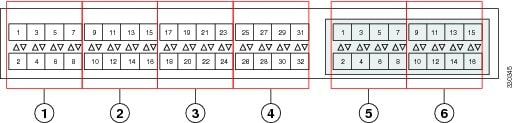
When you configure the links between the Cisco UCS 2200 Series IOM and a Cisco UCS 6200 series fabric interconnect in fabric port channel mode, the available VIF namespace on the adapter varies depending on where the IOM uplinks are connected to the fabric interconnect ports.
Inside the 6248 fabric interconnect there are six sets of eight contiguous ports, with each set of ports managed by a single chip. When uplinks are connected such that all of the uplinks from an IOM are connected to a set of ports managed by a single chip, Cisco UCS Manager maximizes the number of VIFs used in service profiles deployed on the blades in the chassis. If uplink connections from an IOM are distributed across ports managed by separate chips, the VIF count is decreased.
Caution |
Adding or removing links from a fabric port channel is disruptive and may affect the available amount of VIF namespace. |
For high availability cluster mode applications, symmetric cabling configurations are strongly recommended. If the cabling is asymmetric, the maximum number of VIFs available is the smaller of the two cabling configurations.
For more information on the maximum number of VIFs for your Cisco UCS environment, see the configuration limits document for your for your hardware and software configuration.
Configuring a Fabric Port Channel
| Step 1 | To include all links from the IOM to the fabric interconnect in a fabric port channel during chassis discovery, set the link grouping preference in the chassis discovery policy to port channel. |
| Step 2 | To include links from individual chassis in a fabric port channel during chassis discovery, set the link grouping preference in the chassis connectivity policy to port channel. |
| Step 3 | After chassis discovery, enable or disable additional fabric port channel member ports. |
What to Do Next
To add or remove chassis links from a fabric port channel after making a change to the chassis discovery policy or the chassis connectivity policy, reacknowledge the chassis. Chassis reacknowledgement is not required to enable or disable chassis member ports from a fabric port channel
Viewing Fabric Port Channels
| Step 1 | In the Navigation pane, click the Equipment tab. |
| Step 2 | On the Equipment tab, expand . |
| Step 3 | Click the IOM for which you want to view the fabric port channels. |
| Step 4 | In the Work pane, click the Fabric Ports tab. |
| Step 5 | To view details of the fabric port channel, click the link in the Port Channel column. |
Enabling or Disabling a Fabric Port Channel Member Port
| Step 1 | In the Navigation pane, click the LAN tab. |
| Step 2 | On the LAN tab, expand . |
| Step 3 | Expand the port channel for which you want to enable or disable a member port. |
| Step 4 | Click the ethernet interface for the member port you want to enable or disable. |
| Step 5 | In the Work pane, click the General tab. |
| Step 6 | In the Actions area, click one of the following: |
| Step 7 | If the Cisco UCS Manager GUI displays a confirmation dialog box, click Yes. |
Configuring Server Ports with the Internal Fabric Manager
Internal Fabric Manager
The Internal Fabric Manager provides a single interface where you can configure server ports for a fabric interconnect in a Cisco UCS domain. The Internal Fabric Manager is accessible from the General tab for that fabric interconnect.
Some of the configuration that you can do in the Internal Fabric Manager can also be done in nodes on the Equipment tab, on the LAN tab, or in the LAN Uplinks Manager.
Launching the Internal Fabric Manager
| Step 1 | In the Navigation pane, click the Equipment tab. |
| Step 2 | On the Equipment tab, expand . |
| Step 3 | Click Fixed Module. |
| Step 4 |
In the Work pane, click Internal Fabric Manager in the Actions area. The Internal Fabric Manager opens in a separate window. |
Configuring a Server Port with the Internal Fabric Manager
| Step 1 | In the Internal Fabric Manager, click the down arrows to expand the Unconfigured Ports area. |
| Step 2 | Right-click the port that you want to configure and choose Configure as Server Port. |
| Step 3 | If the Cisco UCS Manager GUI displays a confirmation dialog box, click Yes. |
| Step 4 | If you have completed all tasks in the Internal Fabric Manager, click OK. |
Unconfiguring a Server Port with the Internal Fabric Manager
| Step 1 | In the Internal Fabric Manager, click the server port in the Server Ports table. |
| Step 2 | Click Unconfigure Port. |
| Step 3 | If the Cisco UCS Manager GUI displays a confirmation dialog box, click Yes. |
| Step 4 | If you have completed all tasks in the Internal Fabric Manager, click OK. |
Enabling a Server Port with the Internal Fabric Manager
| Step 1 | In the Internal Fabric Manager, click the server port in the Server Ports table. |
| Step 2 | Click Enable Port. |
| Step 3 | If the Cisco UCS Manager GUI displays a confirmation dialog box, click Yes. |
| Step 4 | If you have completed all tasks in the Internal Fabric Manager, click OK. |
Disabling a Server Port with the Internal Fabric Manager
| Step 1 | In the Internal Fabric Manager, click the server port in the Server Ports table. |
| Step 2 | Click Disable Port. |
| Step 3 | If the Cisco UCS Manager GUI displays a confirmation dialog box, click Yes. |
| Step 4 | If you have completed all tasks in the Internal Fabric Manager, click OK. |
 Feedback