- What's in This Guide
- Using the Cisco TelePresence System Administration
- Device Information
- Configuring the Cisco TelePresence System
- Troubleshooting the CTS 500
- Troubleshooting the CTS 500-32
- Troubleshooting the CTS 1000
- Troubleshooting the CTS 1100
- Troubleshooting the CTS 1300
- Troubleshooting the TX1300 47
- Troubleshooting the TX1310 65
- Troubleshooting the CTS 3000 and CTS 3200
- Troubleshooting the CTS 3010 and CTS 3210
- Troubleshooting the TX9000 and TX9200
- Monitoring the Cisco TelePresence System
- Satellite Licenses for the Cisco TelePresence System
- Glossary
- Index
Accessing the Device Information Window
The Device Information window is the first thing you see when you log on to the Cisco TelePresence System Administration interface. It is from this window that you can access configuration, troubleshooting, and monitoring tasks for the Cisco TelePresence System (CTS) as well as view information about the devices installed on your system.
To access the Cisco TelePresence System Administration interface for the first time, complete the steps in Logging into the Cisco Unified CM Administrator section of Cisco Unified Communications Manager Configuration Guide for the Cisco TelePresence System.
To view information about the Cisco TelePresence devices on your system:
Step 1 Log in to the Cisco TelePresence System Administration interface by completing the following steps:
a. Open an Internet Explorer browser window and type in the IP address of the system in the URL field and click
Enter
. The Cisco TelePresence Administration Login Screen appears, as shown in Figure 1-1.

Note If you need to obtain the IP address, do the following:
1. On the IP phone, locate “Manual” at the bottom of the screen and press the Manual soft key.
2. Locate “Info” at the bottom of the screen and press the Info soft key.
3. Scroll down to the IP Address listing and copy the address.
Figure 1-1 Cisco TelePresence System Administration Login Screen
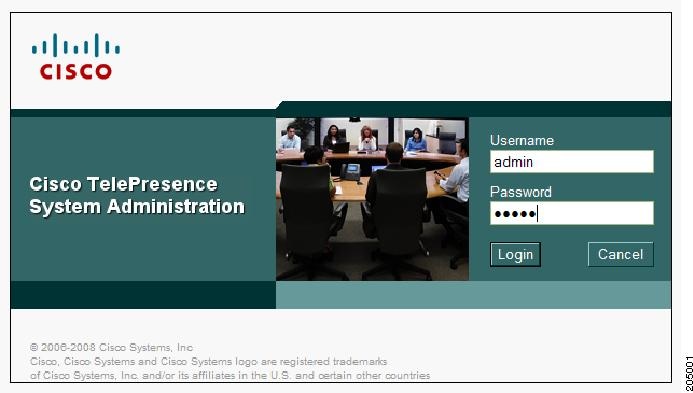
b. In the Admin field, type
admin
.
c. In the Password field, type
cisco
.
Note You can change the default password in Unified CM. See the Cisco Unified Communications Manager Configuration Guide for the Cisco TelePresence System.
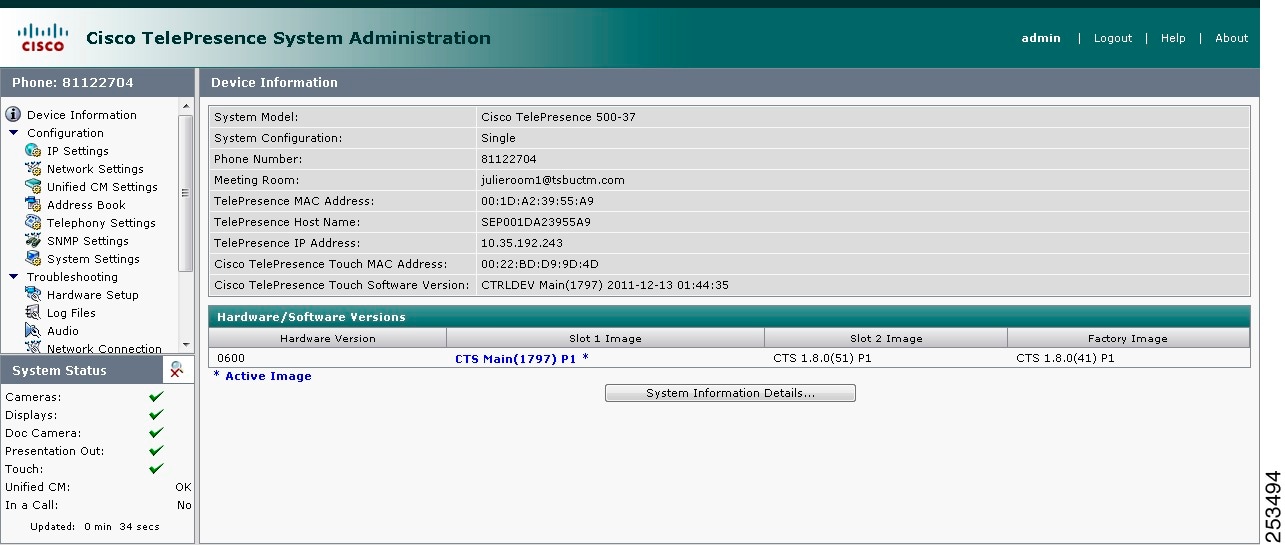
The Device Information window appears, as shown in Figure 1-2.
Figure 1-2 Device Information Screen
Step 2 View the information in the following sections within the Device Information window:
Device Information Fields
The Device Information area contains details about the settings that were configured in the CTS and the Unified CM. The information in Table 1-1 describes setting descriptions in the Device Information fields.
Note The Cisco TelePresence System device type must be specifically selected before you can upgrade to CTS Software Release 1.9.0 and later releases.
Cisco TelePresence System model can be one of the following: |
|
Indicates the number of high-definition displays for this system. |
|
Name of the meeting room in which this particular CTS is located as defined in Unified CM. |
|
MAC address of the Cisco TelePresence Touch 12, if your system uses the touch device instead of the Cisco Unified IP phone for call control. |
|
Software version used by the Cisco TelePresence Touch 12, if your system uses the touch device instead of the Cisco Unified IP phone for call control. |
|
Version of the operating system software installed on this IP phone. |
Hardware/Software Versions
Version information is collected from the hardware and software versions currently loaded in the system. In the Hardware/Software Versions area, data in bold blue text (with an asterisk “*”) indicates which software image is currently running. Table 1-2 describes the hardware and software versions information fields.
System Information and Status Tabs
Information provided in the System Information Details window is used by Cisco technical support personnel to assist in troubleshooting your system.
To obtain a detailed report about the system:
Step 1 Log in to the Cisco TelePresence System Administration page. The Device Information window appears.
Step 2 Click the
System Information Details
bar. A new window opens.
Step 3 Click the following tabs in the new window:
Step 4 Click Close to close the window.
System Information Details
Detailed system information is displayed per codec:
- One codec—For systems with one codec, all information displayed is for the system’s single codec.
- Three codecs—For systems with three codecs, hardware and software information is displayed for left, center, and right codecs.
- Presentation codec—For systems that include a presentation codec, hardware and software information for the presentation codec is also displayed.
Table 1-3 describes the fields found in the System Information Details window.
Amount of time the system has been running since last reboot. |
|
Version number of the application that controls the boot process. |
|
Camera product identification number.1 |
|
Camera hardware number. 1 |
|
Camera firmware version number. 1 |
|
Camera hardware version number. 1 |
|
Time at which the camera firmware version was built. 1 |
|
Document camera serial number.2 |
|
Document camera hardware version number. 2 |
|
Document camera model number. 2 |
|
Version number of the boot loader for AppCode. BootCode also provides upgrade feature for AppCode. |
|
Version number for AppCode. AppCode provides monitoring, managing control, and diagnostic functionality. |
|
Auxiliary camera (document camera or VGA input device) device identification number. |
|
Auxiliary camera (document camera or VGA input device) revision number. |
|
Audio DSP software version.3 |
|
Type of audio extension board. The board type is either 0xAE or is disconnected. |
|
CTS 500 Series and CTS 1300 only. Unique device identification (UDI) containing serial numbers unique to that printed circuit board (PCB). |
|
CTS 500 Series and CTS 1300 only. Unique device UDI containing part numbers unique to that PCB. |
|
CTS 500 Series and CTS 1300 only. Unique UDI containing hardware revision information unique to that PCB. |
|
Indicates whether Power over Ethernet (PoE) Reset feature is available. |
|
Security certificate for encryption defined by Cisco Root Certificate Authority. |
|
Security certificate obtained through Certificate Authority Proxy Function (CAPF), which supersedes the manufacturing installed security certificate. |
|
Auxiliary control unit unique device identifier version identification. |
|
Auxiliary control unit unique device identifier product identification number. |
|
Auxiliary control unit unique device identifier serial number |
|
Status Details
Detailed status information is displayed per codec:
- One codec—For systems with one codec, all information displayed is for the system’s single codec.
- Three codecs—For systems with three codecs, hardware and software information is displayed for left, center, and right codecs.
- Presentation codec—For systems that include a presentation codec, hardware and software information for the presentation codec is also displayed.

Tip You can also view this window by returning to the Device Information window and clicking the magnifying glass icon in the upper right corner of the Status pane, which is in the lower left corner of the screen. See Figure 1-3 for an example of the magnifying glass icon and the Status pane.
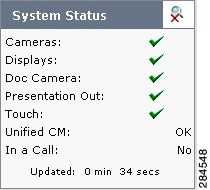
Table 1-4 contains descriptions of the Status Details fields. CTS displays a red X next to devices that are not operational or in error.
|
Note CTS 1300 displays information for Center, Left, and Right cameras. Note CTS 1300 displays information for the following microphones: – Positional (Center, Left, and Right)
– Note The document camera is not available on the CTS 1300.
|
|
|
Note Further status information is located in the Time Since Last Update and Microphone Status sections at the bottom of the Status Details page. |
|
Time Since Last Update
A running timer is located at the bottom of the Status Details page that displays elapsed time since last update.
Microphone Status
A roadmap of microphone status information icons is displayed at the bottom of the Status Details page.

|
|

|
|

|
|

|
Note To determine individual microphone and speaker functionality, use the hardware troubleshooting interface for your system. See Where to Go Next to locate the troubleshooting support document for your Cisco TelePresence system.
Where to Go Next
Proceed to the following Cisco TelePresence system administration tasks from the Device Information window:
 Feedback