Catalyst 6500 Series Switch Content Switching Module (CSM) Installation and Configuration Note Software Release 1.2
Available Languages
Table Of Contents
Catalyst 6000 Family Content Switching Module Installation and Configuration Note
Client-to-CSM-to-Server Traffic Flow
Installing the Content Switching Module
Using the Command-Line Interface
Upgrading to a New Software Release
Upgrading from the Supervisor Engine Bootflash
Configuring the Content Switching Module
Configuring Dynamic Feedback Protocol
Configuring Redirect Virtual Servers
Writing and Restoring Configurations
Single Subnet (Bridge) Mode Configuration
Secure (Router) Mode Configuration
Configuring Probes for Health Monitoring
Commands Available to all Probe Configurations
Configuring Route Health Injection
Routing to VIP Addresses Without RHI
Routing to VIP Addresses With RHI
Understanding How the CSM Determines VIP Availability
Understanding Propagation of VIP Availability Information
Configuring RHI for Virtual Servers
Regulatory Standards Compliance
Safety Information Referral Warning
Blank Faceplate Installation Requirement Warning
Obtaining Technical Assistance
Contacting TAC by Using the Cisco TAC Website
Catalyst 6000 Family Content Switching Module Installation and Configuration Note
Product Number: WS-X6066-SLB-APC
This publication contains the procedures for installing and configuring the Catalyst 6000 family Content Switching Module (CSM).
This publication does not contain the instructions to install the Catalyst 6000 family switch chassis. For information on installing the switch chassis, refer to the Catalyst 6000 Family Installation Guide.

Note
For translations of the warnings in this publication, see the "Translated Safety Warnings" section.
Contents
This publication consists of these sections:
•
•
•
•
•
•
•
•
Overview
The CSM provides high-performance connections between network devices and server farms (groups of real servers) based on Layer 4 through 7 packet information. Clients connect to the CSM by supplying the virtual IP address (VIP) of the virtual server. The CSM is configured to handle VIP address connections. When a client initiates a connection to the virtual server, the CSM chooses a real server (a physical device that is assigned to a server farm) for the connection based on configured load-balancing algorithms and policies.
Representing server farms as virtual servers facilitates scalability and availability. The addition of new servers and the removal or failure of existing servers can occur at any time without affecting the virtual server's availability.
Sticky connections limit traffic to individual servers. These connections are configured so that multiple connections from the same client are stuck to the same real server using source IP addresses, source IP subnets, cookies, secure socket layer (SSL), or redirected using the Hypertext Transfer Protocol (HTTP) requests. Policies manage traffic by defining where to send client requests for information Configuring server load balancing requires that you know the following:
•
•
•
•
Note
Note

Caution
Caution
These sections describe the CSM:
•
Features
Table 1 describes the features of the CSM.
Table 1 Content Switching Module Features
Management
Standard Cisco IOS command-line interface
Management interface integrated with host platform
Load-Balancing Algorithms
Weighted round-robin
Weighted least connections
Connection high/low watermarks
Source address-based hashing algorithm
Flow and URL Identification
URL regular expression match
Cookie regular expression match
SSL1 session ID match
Source IP address
Standard ACLs
Security
Source IP address and URL expression match and AC entry match
Statistics
Packets through normal and special switching
Connections created, established, destroyed, current, and timed out
Failed server connections
Layer 4 load-balanced decisions and rejected connections
Layer 7 load-balanced decisions and rejected connections
Layer 4 and Layer 7 rejected connections
Checksum failures
Redirect and FTP connections
MAC frames
Health Monitoring
TCP, HTTP, ICMP, Telnet, FTP
Other Features
SSL session ID, cookie and source IP address-based sticky connections
Fragmented IP frames support
MTU2 of 9000
Load and availability reporting supporting remote monitoring and management
High availability preventing service disruptions
Redundant modules configured for fault-tolerance support
1 SSL = Secure Socket Layer
2 MTU = Maximum Transmission Unit
Front Panel Description
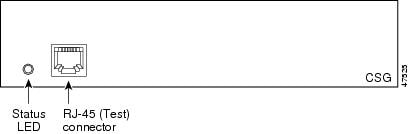
The CSM front panel features are shown in Figure 1.
Figure 1 Content Switching Module Front Panel
Note
Status LED
When the CSM powers up, it initializes various hardware components and communicates with the supervisor engine. The Status LED on the CSM shows the dialog with the supervisor engine and the results of the initialization.
Note
During the normal initialization sequence, the status LED changes from Off to Red, Orange, and then Green. Table 2 describes the status LED operation.
Table 2 Content Switching Module Status LED
Off
•
•
•
–
–
Red
•
•
Orange
•
•
•
•
Green
•
Green to Orange
•
1 Enter the show environment temperature mod command to display the temperature of each of four sensors on the CSM.
2 CLI = command-line interface.
RJ-45 Connector
The RJ-45 connector on the front panel provides a connection point for a management station or test device. The RJ-45 connector is covered by a removable plate. Typically, this connector is used by field engineers to perform testing and to obtain dump information.
Operation Mode
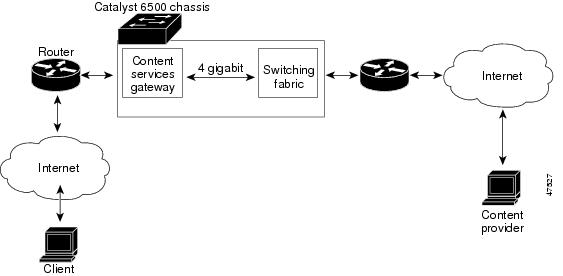
Clients and servers communicate through the CSM using Layer 2 and Layer 3 technology in a specific VLAN configuration. (See Figure 2.) Clients connect to the client side VLAN and servers connect to the server side VLAN. Servers and clients can exist on different subnets. Servers can also be located one or more Layer 3 hops away and connect to the server-side VLAN through routers.
A client sends a request that arrives on one of the module's VIP addresses. The CSM forwards this request to a server that can satisfy the request. The server then forwards the response to the CSM. The CSM forwards the response to the client.
When the client-side and server-side VLANs are on the same subnets, you can configure the CSM in single subnet (bridge) mode. For more information, see the "Single Subnet (Bridge) Mode Configuration" section.
When the client- and server-side VLANs are on different subnets, you can configure the CSM to operate in a secure (router) mode. For more information, see the "Secure (Router) Mode Configuration" section.
You can set up a fault-tolerant configuration in either the secure (router) or single subnet (bridged) mode using redundant CSMs. For more information, see the "Fault-Tolerant Configuration" section. Using multiple VLANs, single subnet (bridge) mode and secure (router) mode can coexist in the same CSM.
Figure 2 Content Switching Module and Servers
Client-to-CSM-to-Server Traffic Flow
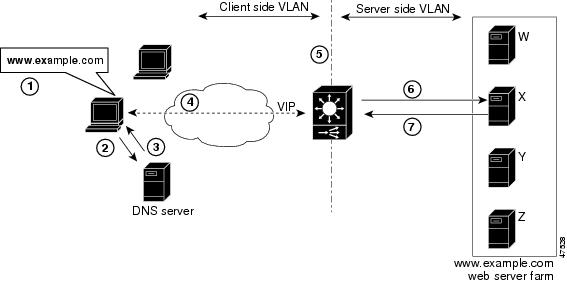
This section describes how the traffic flows between the client and server in a CSM environment. (See Figure 3.)
Figure 3 Client-to-Content Switching Module-to-Server Traffic Flow
Note
When you enter a request for information by entering a URL, the traffic flow is as follows:
Step 1
Step 2
Step 3
Step 4
Step 5
Step 6
Safety Overview
Safety warnings appear throughout this publication in procedures that, if performed incorrectly, may harm you. A warning symbol precedes each warning statement.
WarningWaarschuwing
Dit waarschuwingssymbool betekent gevaar. U verkeert in een situatie die lichamelijk letsel kan veroorzaken. Voordat u aan enige apparatuur gaat werken, dient u zich bewust te zijn van de bij elektrische schakelingen betrokken risico's en dient u op de hoogte te zijn van standaard maatregelen om ongelukken te voorkomen. Voor vertalingen van de waarschuwingen die in deze publicatie verschijnen, kunt u het gedeelte "Translated Safety Warnings" (Vertalingen van veiligheidsvoorschriften) raadplegen in dit document.
Varoitus
Tämä varoitusmerkki merkitsee vaaraa. Olet tilanteessa, joka voi johtaa ruumiinvammaan. Ennen kuin työskentelet minkään laitteiston parissa, ota selvää sähkökytkentöihin liittyvistä vaaroista ja tavanomaisista onnettomuuksien ehkäisykeinoista. Tässä julkaisussa esiintyvien varoitusten käännökset löydät tämän asiakirjan "Translated Safety Warnings" (käännetyt turvallisuutta koskevat varoitukset).
Attention
Ce symbole d'avertissement indique un danger. Vous vous trouvez dans une situation pouvant causer des blessures ou des dommages corporels. Avant de travailler sur un équipement, soyez conscient des dangers posés par les circuits électriques et familiarisez-vous avec les procédures couramment utilisées pour éviter les accidents. Pour prendre connaissance des traductions d'avertissements figurant dans cette publication, consultez la section « Translated Safety Warnings » (Traduction des avis de sécurité) de ce document.
Warnung
Dieses Warnsymbol bedeutet Gefahr. Sie befinden sich in einer Situation, die zu einer Körperverletzung führen könnte. Bevor Sie mit der Arbeit an irgendeinem Gerät beginnen, seien Sie sich der mit elektrischen Stromkreisen verbundenen Gefahren und der Standardpraktiken zur Vermeidung von Unfällen bewußt. Übersetzungen der in dieser Veröffentlichung enthaltenen Warnhinweise finden Sie im Abschnitt "Translated Safety Warnings" (Übersetzung der Warnhinweise) in diesem Dokument.
Avvertenza
Questo simbolo di avvertenza indica un pericolo. La situazione potrebbe causare infortuni alle persone. Prima di lavorare su qualsiasi apparecchiatura, occorre conoscere i pericoli relativi ai circuiti elettrici ed essere al corrente delle pratiche standard per la prevenzione di incidenti. La traduzione delle avvertenze riportate in questa pubblicazione si trova nella documento "Translated Safety Warnings" (Traduzione delle avvertenze di sicurezza) nel presente documento.
Advarsel
Dette varselsymbolet betyr fare. Du befinner deg i en situasjon som kan føre til personskade. Før du utfører arbeid på utstyr, må du vare oppmerksom på de faremomentene som elektriske kretser innebærer, samt gjøre deg kjent med vanlig praksis når det gjelder å unngå ulykker. Hvis du vil se oversettelser av de advarslene som finnes i denne publikasjonen, kan du se i avsnittet "Translated Safety Warnings" [Oversatte sikkerhetsadvarsler] i dette dokumentet.
Aviso
Este símbolo de aviso indica perigo. Encontra-se numa situação que lhe poderá causar danos físicos. Antes de começar a trabalhar com qualquer equipamento, familiarize-se com os perigos relacionados com circuitos eléctricos, e com quaisquer práticas comuns que possam prevenir possíveis acidentes. Para ver as traduções dos avisos que constam desta publicação, consulte a secção "Translated Safety Warnings" - "Traduções dos Avisos de Segurança" neste documento.
¡Advertencia!
Este símbolo de aviso significa peligro. Existe riesgo para su integridad física. Antes de manipular cualquier equipo, considerar los riesgos que entraña la corriente eléctrica y familiarizarse con los procedimientos estándar de prevención de accidentes. Para ver una traducción de las advertencias que aparecen en esta publicación, consultar la sección titulada "Translated Safety Warnings" que aparece en este documento.
Varning!
Denna varningssymbol signalerar fara. Du befinner dig i en situation som kan leda till personskada. Innan du utför arbete på någon utrustning måste du vara medveten om farorna med elkretsar och känna till vanligt förfarande för att förebygga skador. Om du vill se översättningar av de varningar som visas i denna publikation, se avsnittet "Translated Safety Warnings" [Översatta säkerhetsvarningar] i detta dokument.
WarningSystem Requirements
Before you install the CSM into the Catalyst 6000 family switch, make sure your Catalyst 6000 family switch meets the hardware and software requirements listed in this section.
Caution
Caution
Memory Requirements
The CSM memory is not configurable.
Hardware Supported
Before you can use the CSM, you must have a Supervisor Engine 1A with an MSFC and a Policy Feature Card (PFC), or a Supervisor Engine 2 with an MSFC, and any module with ports to connect server and client networks. The PFC is required for the VLAN access control list (VACL) capture functionality.
Caution
Environmental Requirements
The CSM operates in temperatures from 0o to 40o C (32o to 104o F). The module can withstand, without damage, nonoperating temperatures from -40o to 70o C (-40o to 158o F).
The CSM can operate in relative humidity from 10 to 90 percent (noncondensing) and can withstand, without damage, nonoperating relative humidity of 5 to 95 percent (noncondensing).
Power Requirements
You can place the CSM in any slot in the Catalyst 6000 family chassis except for the slots occupied by the supervisor engine and the standby supervisor engine. The CSM operates on power supplied by the chassis.
Note
Software Requirements
Catalyst 6000 family CSM software release 1.1(1) requires Cisco IOS Release 12.1(6)E or 12.1(7)E.
Catalyst 6000 family CSM software release 1.2(1) requires Cisco IOS Release 12.1(8a)E or later only.
Required Tools
This section describes the tools and requirements you need to install the CSM.
Note
These tools are required to install the CSM into the Catalyst 6000 family switch:
•
•
•
Caution
Installing the Content Switching Module
To install the CSM into the Catalyst 6000 family switch, perform the steps in the following sections:
Preparing to Install the CSM
Before installing the CSM, make sure that the following are available:
•
•
•
Installing the CSM
This section describes how to install the CSM into the Catalyst 6000 family switch.
Note
To install the CSM into the Catalyst 6000 family switch, perform these steps:
Step 1
WarningStep 2
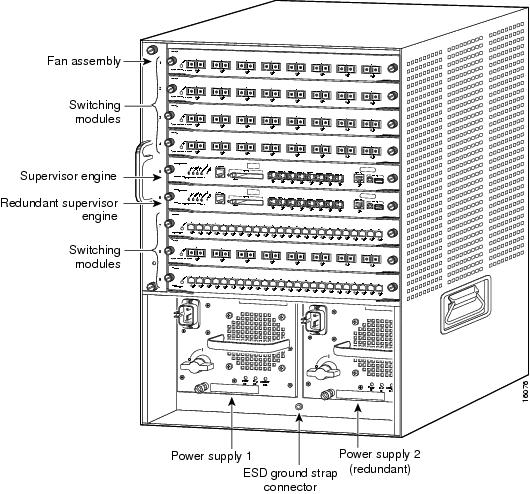
Note
Figure 4 Slot Numbers on Catalyst 6000 Family Switches
Step 3
Note
Step 4
Step 5
Step 6
Step 7
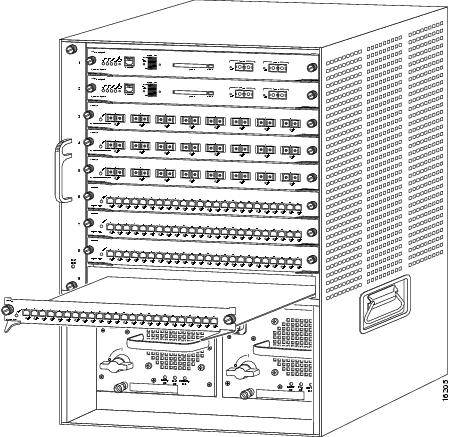
Figure 5 Installing Modules in the Catalyst 6000 Family Switch
Step 8
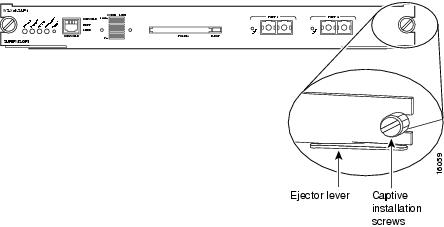
Figure 6 Ejector Levers and Captive Installation Screws
Step 9
Caution
Note
Step 10
This completes the CSM installation procedure.
Verifying the Installation
When you install the CSM into the Catalyst 6000 family switch, the module goes through a boot sequence that requires no intervention. At the successful conclusion of the boot sequence, the green status LED will illuminate and remain on.
Using the Command-Line Interface
The software interface for the CSM is the Cisco IOS interface. To understand the Cisco IOS command-line interface and Cisco IOS command modes, refer to Chapter 2 in the Catalyst 6000 Family IOS Software Configuration Guide.
Note
Router(config-slb-vlan-server)# may appear as Router(config-slb-vlan-serve)#
Accessing Online Help
In any command mode, you can get a list of available commands by entering a question mark (?) as follows:
Router> ?or
Router(config)# ip slb ?
Note
Upgrading to a New Software Release
This section describes the three methods on how to upgrade the CSM:
•
Note
During the upgrade, enter all commands on a console connected to the supervisor engine. Enter each configuration command on a separate line. To complete the upgrade, enter the exit command to return to the supervisor engine prompt.
Caution
Upgrading from the Supervisor Engine Bootflash
Upgrade the CSM from the supervisor engine bootflash as follows:
Note
Step 1
Router>Router> enableRouter# conf tRouter(config)# tftp-server sup-bootflash:c6slb-apc.revision-num.binRouter(config)Step 2
Router# session CSM-slot-number 0Step 3
CSM> upgrade 127.0.0.zz c6slb-apc.revision-num.binwhere
zz = 12 if the supervisor engine is installed in chassis slot 1
zz = 22 if the supervisor engine is installed in chassis slot 2
Note
Step 4
Router# config tRouter(config)# power cycle module slot-number
Upgrading from a PCMCIA Card
Upgrade the CSM from a removable Flash (PCMCIA) card inserted in the supervisor engine as follows:
Step 1
Router>Router> enableRouter# conf tRouter(config)# tftp-server slotx:c6slb-apc.revision-num.binwhere
x = 0 if the PCMCIA card is installed in supervisor engine PCMCIA slot 0.
Step 2
Router# session CSM-slot-number 0Step 3
CSM> upgrade slot0: c6slb-apc.revision-num.bin
Note
Step 4
router# config tRouter (config)# power cycle module slot-number
Upgrading Over the Network
Upgrade the CSM from an external TFTP server as follows:
Step 1
Note
Step 2
Step 3
Step 4
Step 5
Step 6
Step 7
Step 8
Configuring the Content Switching Module
This section describes how to configure load balancing on the CSM. Before you configure the CSM, the switch must meet these prerequisites:
Caution
•
•
This example shows how to enable the csm mode:
Router(config)# ip slb mode ?csm SLB in Application Processor Complex boardrp SLB in IOS systemRouter(config)# ip slb mode csm•
This example shows how to configure VLANs:
Router>Router> enableRouter# vlan databaseRouter(vlan)# vlan 130VLAN 130 added:Name: VLAN130Router(vlan)# vlan 150VLAN 150 added:Name: VLAN150Router(vlan)# exit•
This example shows how to configure a physical interface as a Layer 2 interface and assign it to a VLAN:
Router>Router> enableRouter# configRouter(config)# interface 3/1Router(config-if)# switchportRouter(config-if)# switchport access vlan 150Router(config-if)# no shutdownRouter(vlan)# exitIf the Multilayer Switch Function Card (MSFC) is used on the next hop router on either the client or the server side VLAN, then the corresponding Layer 3 VLAN interface must be configured.
Caution
This example shows how to configure the Layer 3 VLAN interface:
Router>Router> enableRouter# configRouter(config)# interface vlan 130Router(config-if)# ip address 10.10.1.10 255.255.255.0Router(config-if)# no shutdownRouter(vlan)# exitFigure 7 shows an overview of the configuration process. Required and optional operations are shown.
Note
Figure 7 Configuration Overview
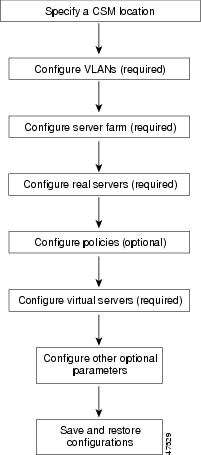
Configure the required parameters in the following sections:
After you configure the required load-balancing parameters on the CSM, you may configure the optional parameters in the following sections:
•
•
To save or restore your configurations or to work with advanced configurations, refer to the following sections:
•
•
•
Configuring VLANs
The CSM requires configuration for client-side and server-side VLANs when you install the module in a Catalyst 6500 series switch.
Note
The CSM dynamically allocates one client gateway to the active router for a total of two client gateways for an HSRP group. You can configure a maximum of three HSRP groups on the client side of the CSM; fewer if other routers exist on the client-side.
You need to create both a client- and server-side VLAN. (See Figure 8.)
Figure 8 Configuring VLANs
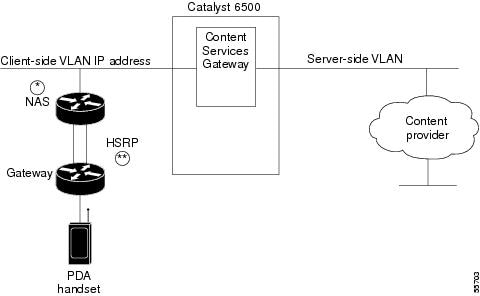
See Figure 8 for the following notes:
Note
Note
Configuring Client-Side VLANs
To configure client-side VLANs, perform this task:
Caution
Step 1
Configure the client-side VLANs and enter the client VLAN mode1 .
Step 2
Configure an IP address to the CSM used by probes and ARP requests on this particular VLAN2 .
Step 3
Configure the gateway IP address. Enter this command only in the client submode.
1 Enter the exit command to leave a mode or submode. Enter the end command to return to the menu's top level.
2 The no form of this command restores the defaults.
This example shows how to configure the CSM for client-side VLANs:
Router(config)# ip slb vlan 130 clientRouter(config-slb-vlan-client)# ip addr 123.44.50.6 255.255.255.0Router(config-slb-vlan-client)# gateway 123.44.50.1Router(config-slb-vlan-client)# exitRouter# show ip slb VLANConfiguring Server-Side VLANs
To configure server-side VLANs, perform this task:
Step 1
Configure the server-side VLANs and enter the server VLAN mode1 .
Step 2
Configure a static route to reach the real servers in case they are more than one Layer 3 hop away from the CSM.
Step 3
Optionally, you can configure multiple IP addresses to the CSM to place the module in a different IP network than real servers without using a router. Use this command only in the server submode.
Step 4
Configure an IP address for the server VLAN2 .
Step 5
Router # show ip slb vlanDisplay the client-side and server-side VLAN configurations.
1 Enter the exit command to leave a mode or submode. Enter the end command to return to the menu's top level.
2 The no form of this command restores the defaults.
This example shows how to configure the CSM for server-side VLANs:
Router(config)# ip slb vlan 150 serverRouter(config-slb-vlan-server)# ip addr 123.46.50.6 255.255.255.0Router(config-slb-vlan-server)# route 123.50.0.0 255.255.0.0 gateway 123.44.50.1Router(config-slb-vlan-server)# alias 123.60.7.6 255.255.255.0Router(config-slb-vlan-server)# exitConfiguring Server Farms
A server farm or server pool is a collection of servers that contain the same content. You specify the server farm name when you configure the server farm and add servers to it, and when you bind the server farm to a virtual server. Configuring server farms requires naming the server farm, configuring a load-balancing algorithm (predictor) and other attributes of the farm, setting or specifying a set of real servers (see the "Configuring Real Servers" section), and setting or specifying the attributes of the real servers.
When you configure server farms, you must perform the following:
•
•
•
•
To configure server farms, perform this task:
Step 1
Create and name a server farm and enter the server farm configuration mode1 2 .
Step 2
Configure the load-balancing prediction algorithm2. If not specified, the default is roundrobin.
Step 3
Enable the NAT mode, client2. Refer to the "Configuring Client NAT Pools" section3 .
Step 4
Router(config-slb-sfarm)# probe probe-nameAssociate the server farm to a probe that can be defined by the probe command2, 3.
Step 5
Router(config-slb-sfarm)# bindid bind-idBind a single physical server to multiple server farms and report a different weight for each one2. The bindid is used by DFP3.
Step 6
Display information about one or all server farms.
1 Enter the exit command to leave a mode or submode. Enter the end command to return to the menu's top level.
2 The no form of this command restores the defaults.
3 This step is optional.
This example shows how to configure a server farm, named p1_nat, using the least-connections (leastconns) algorithm. The least-connections algorithm specifies which real server handles the next new connection for this server farm.
Router(config)# ip slb serverfarm pl_natRouter(config-slb-sfarm)# predictor leastconnsConfiguring Real Servers
Real servers are physical devices assigned to a server farm. Real servers provide the services that are load balanced. When the server receives a client request, it pulls matching information from a disk and sends it to the CSM for forwarding to the client.
You configure the real server in the real server configuration mode by specifying the server IP address and port when you assign it to a server farm. You enter the real server configuration mode from the serverfarm mode where you are adding the real server.
To configure real servers, perform this task:
Step 1
Identify a real server as a member of the server farm and enter the real server configuration mode. An optional translation port can also be configured1 , 2 .
Step 2
Router(config-slb-real)# weight weighting-value(Optional) Set the weighting value for the virtual server predictor algorithm to assign the server's workload capacity relative to the other servers in the server farm if the round robin or least connection is selected2.
Step 3
Router(config-slb-real)# maxconns max-conns(Optional) Set the maximum number of active connections on the real server2. When the specified maximum is reached, no more new connections are sent to that real server until the number of active connections drops below the minimum threshold.
Step 4
Router(config-slb-real)# minconns min-conns(Optional) Set the minimum connection threshold2.
Step 5
Router(config-slb-real)# inserviceEnable the real server for use by the CSM2.
Note
Step 6
(Optional) Display information about configured real servers. The vserver option limits the display to real servers associated with a particular virtual server. The detail option displays detailed real server information.
Step 7
Display active connections to the CSM. The sfarm option limits the display to connections associated with a particular server farm. The client option limits the display to connections for a particular client. The detail option displays detailed connection information.
1 Enter the exit command to leave a mode or submode. Enter the end command to return to the menu's top level.
2 The no form of this command restores the defaults.
This example shows how to create real servers:
Router(config)# ip slb serverfarm serverfarmRouter(config-slb-sfarm)# real 10.8.0.7Router(config-slb-real)# inserviceRouter(config-slb-sfarm)# real 10.8.0.8Router(config-slb-real)# inserviceRouter(config-slb-sfarm)# real 10.8.0.9Router(config-slb-real)# inserviceRouter(config-slb-sfarm)# real 10.8.0.10Router(config-slb-real)# inserviceRouter(config-slb-real)# endRouter# show ip slb real detailRouter# show ip slb conns detailConfiguring Policies
Policies are access rules that traffic must match when balancing to a server farm. They provide the means for the CSM to balance Layer 7 traffic. Multiple policies can be assigned to one virtual server, creating multiple access rules for that virtual server. When configuring policies, you first specify access rules by URL maps, client-groups, and sticky groups, and then you combine these access rules under a particular policy.
Note
When the CSM is able to match policies, it selects the policy that appears first in the policy list. Policies are located in the policy list in the sequence in which they were bound to the virtual server. You can reorder the policies in the list by removing policies and reentering them in the correct order. Enter the no slb-policy policy name and the slb-policy policy name commands in the ip slb vserver submode to remove and enter policies.
Caution
To configure load-balancing policies, perform this task:
Step 1
Create the policy and enter the policy submode to configure the policy attributes1 .
Step 2
Router(config-slb-policy)# url-map url-map-nameConfigure a list of URLs with a policy2 . You must have previously created and configured the URL maps and cookie maps with the ip slb map command. See the "Configuring Maps" section.
Step 3
Router(config-slb-policy)# cookie-map cookie-map-nameConfigure a list of cookies with a policy2.
Step 4
Associate this policy to a specific sticky group2.
Step 5
Configure a client filter associated with a policy. Only standard IP access lists are used to define a client filter. Refer to the Catalyst 6000 Family Software Configuration Guide for information about configuring access lists.
Step 6
Configure the server farm serving a particular load-balancing policy. Only one server farm can be configured per policy2.
Step 7
Mark traffic with a dscp-value if packets matched with the load-balancing policy2.
1 Enter the exit command to leave a mode or submode. Enter the end command to return to the menu's top level.
2 The no form of this command restores the defaults.
This example shows how to configure load-balancing policies and associate them to virtual servers:
Router(config)# ip slb policy policy_sticky_ckRouter(config-slb-policy)# serverfarm pl_stickyRouter(config-slb-policy)# url-map map1Router(config-slb-policy)# exitRouter(config)# ip slb vserver vs_sticky_ckRouter(config-slb-vserver)# slb-policy policy_sticky_ckConfiguring Maps
You configure maps to define multiple URLs and cookies into groups that can be associated with a policy when you configure the policy. (See the "Configuring Policies" section.)
To add a URL map, perform this task:
Step 1
Configure multiple URLs into a URL map in the URL map submode. Regular expressions for URLs (for example url1 and url2) are based on UNIX filename specifications1 , 2 . See Table 3 for more information.
Step 2
Match the URL map with the URL path2.
1 Enter the exit command to leave a mode or submode. Enter the end command to return to the menu's top level.
2 The no form of this command restores the defaults.
Step 1
Configure multiple cookies into a cookie map1 .
Step 2
Configure multiple cookies1.
1 The no form of this command restores the defaults.
To add a cookie map, perform this task:
This example shows how to configure maps and associate them with a policy:
Router(config)# ip slb map url_1 urlRouter(config-slb-map-url)# match protocol http url /url1Router(config-slb-map-url)# exitRouter(config)# ip slb map url_2 urlRouter(config-slb-map-url)# match protocol http url /url/url/urlRouter(config-slb-map-url)# match protocol http url /reg/*long.*Router(config-slb-map-url)# exitRouter(config)# ip slb serverfarm pl_url_url_1Router(config-slb-sfarm)# real 10.8.0.26Router(config-slb-real)# inserviceRouter(config-slb-real)# exitRouter(config-slb-sfarm)# exitRouter(config)# ip slb policy policy_url_1Router(config-slb-policy)# serverfarm pl_url_url_1Router(config-slb-policy)# url-map url_1Router(config-slb-policy)# exitRouter(config)# ip slb serverfarm pl_url_url_2Router(config-slb-sfarm)# real 10.8.0.27Router(config-slb-real)# inserviceRouter(config-slb-real)# exitRouter(config-slb-sfarm)# exitRouter(config)# ip slb policy policy_url_2Router(config-slb-policy)# serverfarm pl_url_url_2Router(config-slb-policy)# url-map url_2Router(config-slb-policy)# exitRouter(config)# ip slb vserver vs_url_urlRouter(config-slb-vserver)# virtual 10.8.0.145 tcp 80Router(config-slb-vserver)# slb-policy policy_url_1Router(config-slb-vserver)# slb-policy policy_url_2Router(config-slb-vserver)# inserviceRouter(config-slb-vserver)# exitConfiguring Sticky Groups
Configuring a sticky group involves configuring the attributes of that group and associating it with a policy.
To configure sticky groups, perform this task:
Ensure that connections from the same client matching the same policy use the same real server1 . Sticky time specifies the period of time that the sticky information is kept. The default sticky time value is 0 minutes. You must change this timer to activate the sticky time.
1 The no form of this command restores the defaults.
This example shows how to configure a sticky group and associate it with a policy:
Router(config)# ip slb serverfarm pl_stickRouter(config-slb-sfarm)# real 10.8.0.18Router(config-slb-real)# inserviceRouter(config-slb-sfarm)# real 10.8.0.19Router(config-slb-real)# inserviceRouter(config-slb-real)# exitRouter(config-slb-sfarm)# exitRouter(config)# ip slb sticky 1 cookie foo timeout 100Router(config)# ip slb policy policy_sticky_ckRouter(config-slb-policy)# serverfarm pl_stickRouter(config-slb-policy)# sticky-group 1Router(config-slb-policy)# exitRouter(config)# ip slb vserver vs_sticky_ckRouter(config-slb-vserver)# virtual 10.8.0.125 tcp 90Router(config-slb-vserver)# slb-policy policy_sticky_ckRouter(config-slb-vserver)# inserviceRouter(config-slb-vserver)# exitConfiguring Virtual Servers
Virtual servers represent groups of real servers and are associated with real server farms through policies. Configuring virtual servers requires setting the attributes of the virtual server specifying the default server farm (default policy) and eventually associating other server farms through a list of policies.
Note
Configure the virtual server in the virtual server configuration submode.
To configure virtual servers, perform this task:
Step 1
Identify the virtual server and enter the virtual server configuration mode1 , 2 .
Step 2
Set the IP address for the virtual server optional port number or name and the connection coupling and type2.
Step 3
Note
Associate the default server farm with the virtual server2. The default server farm (default policy) is used if a request does not match any slb policy or if there are no policies associated with the virtual server.
Step 4
Router(config-slb-vserver)# sticky duration(Optional) Configure connections from the client to use the same real server2. The default is sticky on.
Step 5
(Optional) Restrict which clients are allowed to use the virtual server2.
Step 6
(Optional) Associate content switching policies with a virtual server2. Policies are processed in the order in which they are entered in the virtual server configuration. See the "Configuring Policies" section.
Step 7
Router(config-slb-vserver)# inserviceEnable the virtual server for use by the CSM2.
Step 8
Display information for virtual servers defined for Content Switching.
1 Enter the exit command to leave a mode or submode. Enter the end command to return to the menu's top level.
2 The no form of this command restores the defaults.
This example shows how to configure a virtual server named barnett, associate it with the server farm named bosco, and configure a sticky connection with a duration of 50 seconds to sticky group 12:
Router(config)# ip slb vserver barnettRouter(config-slb-vserver)# virtual 12.3.23.4 tcp 34Router(config-slb-vserver)# serverfarm boscoRouter(config-slb-vserver)# sticky 50 group 12Router(config-slb-vserver)# endRouter# show ip slb vserversConfiguring TCP Parameters
Transmission Control Protocol (TCP) is a connection-oriented protocol that uses known protocol messages for activating and deactivating TCP sessions. In server load balancing, when adding or removing a connection from the connection database, the Finite State Machine correlates TCP signals such as SYN, SYN/ACK, FIN, and RST. When adding connections, these signals are used for detecting server failure and recovery and for determining the number of connections per server.
Note
To configure TCP parameters, perform this task:
Step 1
Identify the virtual server and enter the virtual server configuration mode1 ,2 .
Step 2
Router(config-slb-vserver)# idle durationConfigure the amount of time (in seconds) connection information is maintained in the absence of packet activity for a connection2.
1 Enter the exit command to leave a mode or submode. To return to the Router (config)> top level of the menu, enter the end command.
2 The no form of this command restores the defaults.
This example shows how to configure TCP parameters for virtual servers:
Router(config)# ip slb vserver barnettRouter(config-slb-vserver)# idle 10Configuring Dynamic Feedback Protocol
Configuring the Dynamic Feedback Protocol (DFP) allows servers to provide feedback to the CSM to enhance load balancing. The DFP mechanism in server load balancing allows host agents (residing on the physical server) to dynamically report the change in status of the host systems providing a virtual service.
To configure DFP, perform this task:
Step 1
Configure DFP manager, supply an optional password, and enter the DFP agent submode1 , 2 .
Step 2
Router(config-slb-dfp)# agent ip-address port [activity-timeout | retry-count | retry-interval]Configure time intervals between keepalive messages, number of consecutive connection attempts or invalid DFP reports, and the interval between connection attempts2.
Step 3
Display DFP manager and agent information.
1 Enter the exit command to leave a mode or submode. Enter the end command to return to the menu's top level.
2 The no form of this command restores the defaults.
Note
This example shows how to configure the dynamic feedback protocol without a password or agent:
Router(config)# ip slb dfp password passwordRouter(config-slb-dfp)# agent 123.234.34.55 5 6 10 20Router(config-slb-dfp)# exitConfiguring Redirect Virtual Servers
The redirect-vserver command is a server farm submode command that allows you to configure virtual servers dedicated to real servers. This mapping provides connection persistence for clients to real servers across TCP sessions.
To configure redirect virtual servers, perform this task:
Step 1
Router(config-slb-sfarm)# redirect-vserver nameConfigure virtual servers dedicated to real servers and enter the redirect server submode1 , 2 .
Step 2
Configure the relocation string to be sent in response to HTTP requests to the host name. Only the beginning of the relocation string can be specified. The remaining portion is taken from the original HTTP request2.
Step 3
Configure the relocation string sent in response to HTTP requests in the event that the redirect server is out of service. Only the beginning of the relocation string can be specified. The remaining portion is taken from the original HTTP request2.
Step 4
Configure the redirect virtual server IP address and port2.
Step 5
Router(config-redirect-v)# idle durationSet the CSM connection idle timer for the redirect virtual server2.
Step 6
Configure the combination of the ip-address and network-mask used to restrict which clients are allowed to access the redirect virtual server2.
Step 7
Router(config-redirect-v)# inserviceEnable the redirect virtual server and begin advertisements2.
Step 8
Show all redirect servers configured.
1 Enter the exit command to leave a mode or submode. Enter the end command to return to the menu's top level.
2 The no form of this command restores the defaults.
This example shows how to configure redirect virtual servers to specify virtual servers to real servers in a server farm:
Router (config)# ip slb serverfarm FARM1Router (config-slb-sfarm)# redirect-vserver REDIR_1Router (config-slb-redirect-)# webhost relocation relo 301Router (config-slb-redirect-)# virtual 172.1.2.30 tcp wwwRouter (config-slb-redirect-)# inserviceRouter (config-slb-redirect-)# exitRouter (config-slb-sfarm)# redirect-vserver REDIR_2Router (config-slb-redirect-)# webhost relocation relo 301Router (config-slb-redirect-)# virtual 172.1.2.31 tcp wwwRouter (config-slb-redirect-)# inserviceRouter (config-slb-redirect-)# exitRouter (config-slb-sfarm)# real 10.8.0.8Router (config-slb-real)# redirect-vserver REDIR_1Router (config-slb-real)# inserviceRouter (config-slb-sfarm)# real 10.8.0.9Router (config-slb-real)# redirect-vserver REDIR_2Router (config-slb-real)# inserviceRouter (config-slb-real)# endRouter# show ip slb serverfarm detailConfiguring Client NAT Pools
When you configure client Network Address Translation (NAT) pools, NAT converts the source IP address of the client requests into an IP address on the server-side VLAN. Use the NAT pool name in the server farm submode, using the nat command, to specify which connections need to be client NATed.
To configure client NAT pools, perform this task:
Step 1
Configure a content switching NAT. You must create at least one client address pool to use this command1 , 2 .
Step 2
Router(config)# ip slb serverfarm serverfarm-nameEnter the server farm submode to apply the client NAT.
Step 3
Router(config-slb-serverfarm)# nat
clientpool-name
Associate the configured NAT pool with the server farm.
Step 4
Display the NAT configuration.
1 Enter the exit command to leave a mode or submode. Enter the end command to return to the menu's top level.
2 The no form of this command restores the defaults.
This example shows how to configure client NAT pools:
Router(config)# ip slb natpool pool1 102.36.445.2 102.36.16.8 netmask 255.255.255.0Router(config)# ip slb serverfarm farm1Router(config-slb-sfarm)# nat client pool1Configuring Server NAT
Server NAT allows you to support connections initiated by real servers and to provide a default configuration used for servers initiating connections that do not have matching entries in the server NAT configuration.
To configure NAT for the server, perform this task:
Configure the server-originated connections. Options include dropping them, NATing them with a given IP address, or NATing them with the virtual IP address that they are associated with1 , 2 .
Note
1 Enter the exit command to leave a mode or submode. Enter the end command to return to the menu's top level.
2 The no form of this command restores the defaults.
Writing and Restoring Configurations
For information about saving and restoring configurations, refer to the Catalyst 6000 Family IOS Software Configuration Guide.
Configuration Examples
Caution
These examples show how to configure Content Switching in the following configurations:
•
•
Single Subnet (Bridge) Mode Configuration
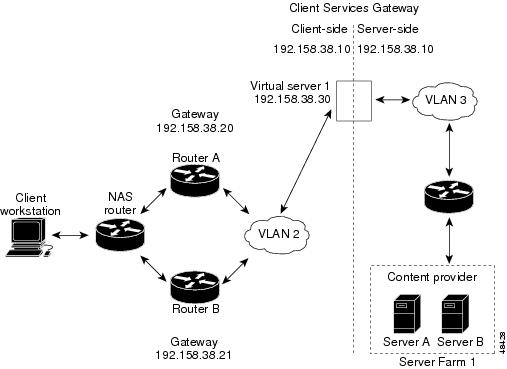
In the single subnet (bridge) mode configuration, the client- and server-side VLANs are on the same subnets. Figure 9 shows how the single subnet (bridge) mode configuration is set up.
Figure 9 Single Subnet (Bridge) Mode Configuration
Note
Note
To configure Content Switching for the single subnet (bridge) mode, perform this task:
Step 1
Router(config)# vlan databaseEnter the VLAN mode1 .
Step 2
Router(vlan)# vlan 2Configure a client-side VLAN2 .
Step 3
Router(vlan)# vlan 3Configure a server-side VLAN.
Step 4
Exit to have the configuration take effect.
Step 5
Router(config)# ip slb vlan 2 clientCreate the client-side VLAN 2 and enter the SLB VLAN mode1.
Step 6
Router(config-slb-vlan-client)# ip
addr 192.158.38.10 255.255.255.0
Assign the CSM IP address on VLAN 2.
Step 7
Define the client-side VLAN gateway to Router A.
Step 8
Define the client-side VLAN gateway to Router B.
Step 9
Create the server-side VLAN 3 and enter the SLB VLAN mode.
Step 10
Router(config-slb-vlan-client)# ip addr 192.158.38.10 255.255.255.0Assign the CSM IP address on VLAN 3.
Step 11
Router(config-slb-vlan-client)# exitLeave the submode.
Step 12
Router(config)# ip slb vserver VIP1Create a virtual server and enter the SLB vserver mode.
Step 13
Router(config-slb-vserver)# virtual 192.158.38.30 tcp wwwCreate a virtual IP address.
Step 14
Associate the virtual server with the server farm.
Note
1 Enter the exit command to leave a mode or submode. Enter the end command to return to the menu's top level.
2 The no form of this command restores the defaults.
Note
Secure (Router) Mode Configuration
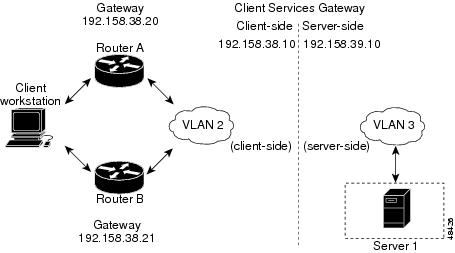
In secure (router) mode, the client- and server-side VLANs are on different subnets. Figure 10 shows how the secure (router) mode configuration is set up.
Figure 10 Secure (Router) Mode Configuration
Note
To configure Content Switching in secure (router) mode, perform this task:
Step 1
Router(config)# vlan databaseEnter the VLAN mode1 .
Step 2
Router(vlan)# vlan 2Configure a client-side VLAN2 .
Step 3
Router(vlan)# vlan 3Configure a server-side VLAN.
Step 4
Exit to have the configuration take effect.
Step 5
Router(config)# ip slb vlan 2 clientCreate the client-side VLAN 2 and enter the SLB VLAN mode.
Step 6
Router(config-slb-vlan-client)# ip addr 192.158.38.10 255.255.255.0Assign the CSM IP address on VLAN 2.
Step 7
Router(config-slb-vlan-client)#
gateway 192.158.38.20
Define the client-side VLAN gateway to Router A.
Step 8
Router(config-slb-vlan-client)#
gateway 192.158.38.21
Define the client-side VLAN gateway to Router B.
Step 9
Create the server-side VLAN 3 and enter the SLB VLAN mode.
Step 10
Router(config-slb-vlan-server)# ip addr 192.158.39.10 255.255.255.0Assign the CSM IP address on VLAN 3.
Step 11
Router(config-slb-vlan-server)# exitExit the submode.
Step 12
Router(config)# ip slb vserver VIP1Create a virtual server and enter the SLB vserver mode.
Step 13
Router(config-slb-vserver)# virtual 192.158.38.30 tcp wwwCreate a virtual IP address.
Step 14
Associate the virtual server with the server farm.
Note
1 Enter the exit command to leave a mode or submode. Enter the end command to return to the menu's top level.
2 The no form of this command restores the defaults.
Note
Fault-Tolerant Configuration
This section describes a fault-tolerant configuration. In this configuration, two separate Catalyst 6000 family chassis each contain a CSM.
Note
In the secure (router) mode, the client- and server-side VLANs provide the fault-tolerant (redundant) connection paths between the CSM and the routers on the client side and the servers on the server side. In a redundant configuration, two CSMs perform primary and secondary roles. Each CSM contains the same VLAN, IP, virtual server, server pool, and real server information. From the client-side and server-side networks, each CSM is configured identically. The network sees the fault-tolerant configuration as a single CSM.
Configuring fault-tolerance requires the following:
•
•
•
•
•
•
Figure 11 shows the QoS configuration topology.
Figure 11 QoS Configuration Topology
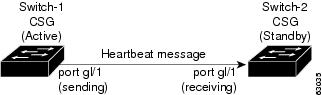
Without this configuration, 802.1Q priority information is not preserved in packets traversing through to the switch. Heartbeat messages sent from the primary to the secondary CSM must contain this priority information so that they will be transmitted without delay. When an excessive delay occurs, an unnecessary takeover might occur.
You can overcome this limitation by configuring the sending port g1/1 to retain priority information upon transmission, and the receiving port g1/1 to trust the Class of Service (CoS) (Priority Bits) for the incoming packets.
Note
To configure QoS for fault-tolerance, enter the following commands:
Router>Router> enableRouter# configure terminalRouter(config)#Router(config)# class-map match-any VenusRouter(config-cmap)# match access-group name VenusRouter(config-cmap)#Router(config-cmap)# exitRouter(config)# policy-map VenusRouter(config-pmap)# class VenusRouter(config-pmap-c)# trust cosRouter(config-pmap-c)# exitRouter(config-pmap)# exitRouter(config)#Router(config)# mls qosRouter(config)#Router(config)# mac access-list extended VenusRouter(config-ext-macl)# permit any anyRouter(config-ext-macl)# exitRouter(config)# int GigabitEthernet 2/1Router(config-if)# no ip addressRouter(config-if)# service-policy input VenusRouter(config-if)# switchportRouter(config-if)# switchport access vlan 200Router(config-if)# switchport trunk encapsulation dot1qRouter(config-if)# switchport trunk allowed vlan 1,200,1002-1005Router(config-if)# switchport mode trunkRouter(config-if)# no cdp enableRouter(config-if)# endRouter# !In the fault-tolerant configuration, the following rules apply:
VLAN name
X
VLAN address
X
Gateway1 address
X
Virtual server name
X
Virtual IP address
X
Alias IP addresses
X
Redundancy group name
X
Redundancy VLAN ID
X
1 Server default gateways must point to the alias IP address.
Because each CSM has a different IP address on the client- and server-side VLAN, the CSM can issue health monitor probes (see the "Configuring Probes for Health Monitoring" section for health monitoring information) to the network and receive responses. Both the primary and secondary CSMs send probes while operational. In the event that the passive CSM assumes control, it knows the status of the servers because of the probe responses it has received.
Enter the backup or no backup commands in the ip slb ft configuration mode to enable or disable sticky connection backup for the CSMs. Configuring fault-tolerant sticky connections requires the following:
•
•
If no router is present on the server-side VLAN, then each server's default route points to the aliased IP address.
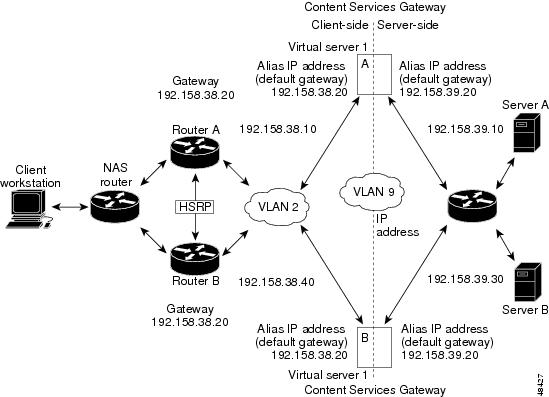
Figure 12 shows how the secure (router) mode fault-tolerant configuration is set up.
Figure 12 Fault-Tolerant Configuration
Note
To configure the primary (A) CSM for fault tolerance, perform this task (see Figure 12):
Step 1
Router(config)# ip slb vlan 2 clientCreate the client-side VLAN 2 and enter the SLB VLAN mode1 .
Step 2
Router(config-slb-vlan-client)# ip
addr 192.158.38.10 255.255.255.0
Assign the Content Switching IP address on VLAN 1.
Step 3
Router(config-slb-vlan-client)# gateway 192.158.38.20 255.255.255.0Define the client-side VLAN gateway to Router A and Router B HSRP address.
Step 4
Router(config)# ip slb vserver vip1Create a virtual server and enter the SLB vserver mode.
Step 5
Router(config-slb-vserver)# virtual
192.158.38.30 tcp www
Create a virtual IP address.
Step 6
Create the server-side VLAN 3 and enter the SLB VLAN mode.
Step 7
Router(config-slb-vserver)# ip addr 192.158.39.10 255.255.255.0Assign the CSM IP address on VLAN 2.
Step 8
Router(config-slb-vserver)# alias ip addr 192.158.39.20 255.255.255.0Assign the default route for VLAN 2.
Step 9
Define VLAN 9 as a fault-tolerant VLAN.
Step 10
Create the Content Switching primary and secondary (A/B) group VLAN 9.
Step 11
Router(config)# vlan databaseEnter the VLAN mode1.
Step 12
Router(vlan)# vlan 2Configure a client-side VLAN22 .
Step 13
Router(vlan)# vlan 3Configure a server-side VLAN3.
Step 14
Router(vlan)# vlan 9Configure a fault-tolerant VLAN9.
Step 15
Enter the exit command to have the configuration take affect.
1 xEnter the exit command to leave a mode or submode. Enter the end command to return to the menu's top level.
2 The no form of this command restores the defaults.
To configure the secondary (B) CSM for fault tolerance, perform this task (see Figure 12):
Step 1
Create the client-side VLAN 2 and enter the SLB VLAN mode1 .
Step 2
Router(config-slb-vlan-client)# ip addr 192.158.38.40 255.255.255.0Assign the Content Switching IP address on VLAN 2.
Step 3
Define VLAN 9 as a fault-tolerant VLAN.
Step 4
Router(config-slb-vlan-client)# gateway
192.158.38.20
Define the client-side VLAN gateway.
Step 5
Router(config)# ip slb vserver vip1Create a virtual server and enter the SLB vserver mode.
Step 6
Router(config-slb-vserver)# virtual
192.158.38.30 tcp www
Create a virtual IP address.
Step 7
Create the server-side VLAN 3 and enter the SLB VLAN mode.
Step 8
Router(config-slb-vserver)# ip addr
192.158.39.30 255.255.255.0
Assign the CSM IP address on VLAN 3.
Step 9
Router(config-slb-vserver)# alias
192.158.39.20 255.255.255.0
Assign the default route for VLAN 2.
Step 10
Create the CSM primary and secondary (A/B) group VLAN 9.
1 Enter the exit command to leave a mode or submode. Enter the end command to return to the menu's top level.
Configuring HSRP
This section provides an overview of a Hot Standby Router Protocol (HSRP) configuration (see Figure 13) and describes how to configure the CSMs with HSRP and CSM failover on the Catalyst 6000 family switches.
HSRP Configuration Overview
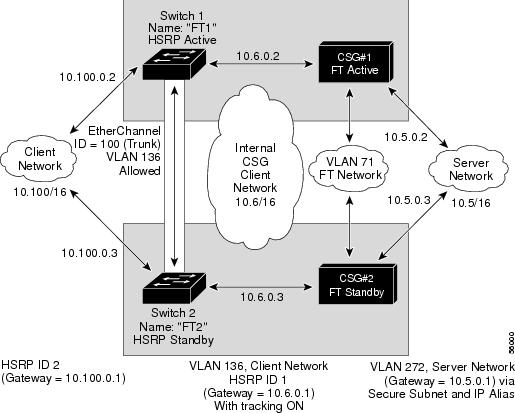
The figure shows two Catalyst 6000 switches, Switch 1 and Switch 2, are configured to route from a client-side network (10.100/16) to an internal CSM client network (10.6/16, VLAN 136) through an HSRP gateway (10.100.0.1).
•
•
Note
In the example configuration, two CSMs (one in Switch 1 and one in Switch 2) are configured to forward traffic between a client -side and a server-side VLAN:
•
Note
•
The actual servers on the server network (10.5/1) point at the CSM server network through an aliased gateway (10.5.0.1), allowing the servers to run a secure subnet.
In the example configuration, an EtherChannel is set up with trunking enabled, allowing traffic on the internal CSM Client network to travel between the two Catalyst 6000 family switches. The setup is shown in Figure 13.
Note
Figure 13 HSRP Configuration
Creating the HSRP Gateway
This procedure describes how to create an HSRP gateway for the client-side network. The gateway is HSRP ID 2 for the client-side network.
Note
Step 1
interface FastEthernet3/6ip address 10.100.0.2 255.255.0.0standby 2 priority 110 preemptstandby 2 ip 10.100.0.1Step 2
interface FastEthernet3/6ip address 10.100.0.3 255.255.0.0standby 2 priority 100 preemptstandby 2 ip 10.100.0.1
Configuring CSM VLANs
This section describes how to create a fault-tolerant HSRP secure-mode configuration. To create a nonsecure-mode configuration, enter the commands described with these exceptions:
•
•
Step 1
ip slb mode csmip slb vlan 136 clientip address 10.6.0.245 255.255.0.0gateway 10.6.0.1ip slb vlan 272 serverip address 10.5.0.2 255.255.0.0alias 10.5.0.1 255.255.0.0ip slb vlan 71 ftip slb ft group 88 vlan 71priority 30preemptinterface Vlan136ip address 10.6.0.2 255.255.0.0standby 1 priority 100 preemptstandby 1 ip 10.6.0.1standby 1 track Fa3/6 10Step 2
ip slb mode csmip slb vlan 136 clientip address 10.6.0.246 255.255.0.0gateway 10.6.0.1ip slb vlan 272 serverip address 10.5.0.3 255.255.0.0alias 10.5.0.1 255.255.0.0ip slb vlan 71 ftip slb ft group 88 vlan 71priority 20preemptinterface Vlan136ip address 10.6.0.3 255.255.0.0standby 1 priority 100 preemptstandby 1 ip 10.6.0.1standby 1 track Fa3/6 10
Note
Step 3
interface Port-channel100switchportswitchport trunk encapsulation dot1qswitchport trunk allowed vlan 136
Note
To prevent problems, remove the SERVER and FT CSM VLAN's, for example:swtichport trunk remove vlan 71switchport trunk remove vlan 272Step 4
interface FastEthernet3/25switchportchannel-group 100 mode on
Configuring Probes for Health Monitoring
Configuring probes to the real servers allows you to determine if the real servers are operating correctly. A real server's health is categorized as follows:
•
•
•
The CSM supports probes used to monitor real servers. Configuring a probe involves the following:
•
•
•
The CSM supports a variety of probe types that monitor real servers, including FTP, DNS, or HTTP.
Note
To set up a probe, you must configure it by naming the probe and specifying the probe type while in probe submode.
After configuring a probe, you must associate it with a server farm for the probe to take effect. All servers in the server farm receive probes of the probe types that are associated with that server farm. You can associate one or more probe types with a server farm.
Note
After you configure a probe, associate single or multiple probes with a server farm. All servers in the server farm receive probes of the probe types that are associated with that pool.
Note
To specify a probe type and name, perform this task:
Router(config)# ip slb probe
probe-name [http | icmp |
telnet | tcp | ftp | smtp |
dns]
Specify a probe type and a name1 .
•
•
•
•
•
•
•
•
Display all probes and their configuration.
1 The no form of this command removes the probe type from the configuration.
Note
This example shows how to configure a probe:
Router(config)# ip slb probe probe1 tcpRouter(config-slb-probe-tcp)# interval 120Router(config-slb-probe-tcp)# retries 3Router(config-slb-probe-tcp)# failed 300Router(config-slb-probe-tcp)# open 10Router(config-slb-probe-tcp)# receive 10Commands Available to all Probe Configurations
These commands are common to all probe types:
Router(config-slb-probe)#
interval seconds
Set the interval between probes in seconds (from the end of the previous probe to the beginning of the next probe)1 .
Range = 5-65535
Default = 120 seconds
Router(config-slb-probe)#
retries retry-count
Set the number of failed probes that are allowed before marking the server as failed1.
Range = 0-65535
Default = 3
Router(config-slb-probe)#
failed failed-interval
Set the time, in seconds, to wait before probing a failed server1.
Range = 5-65535
Default = 300 seconds
Router(config-slb-probe)# open
open-timeout
Set the maximum time to wait for a TCP connection. This command is not used for any non-TCP health checks (ICMP or DNS1).
Range = 1-65535
Default = 10 seconds
Router(config-slb-probe)#
receive receive-timeout
Set the maximum time in seconds to wait for a reply from the real server1.
Range = 1-65535
Default = 10 seconds
1 The no form of this command restores the defaults.
HTTP Probe
An HTTP probe establishes an HTTP connection to a real server and then sends an HTTP request and verifies the response. The ip slb probe probe-name http command places the user in HTTP probe configuration submode.
To configure an HTTP probe, perform this task:
Step 1
Configure an HTTP probe and enter the HTTP probe submode1.
Step 2
Configure basic authentication values for the HTTP SLB probe1 .
Step 3
Configure a status code to expect from the HTTP probe. You can configure multiple status ranges by entering one expect command at a time1.
min-number—If you do not specify a max-number, this number is taken as a single status code. If you specify a max-number, this number is taken as the minimum status code of a range.
max-number—The maximum status code in a range. The default range is 0-999. (Any response from the server is considered valid.)
Note
Step 4
Configure a header field for the HTTP probe. Multiple header fields may be specified1.
Step 5
Configure the request method used by an HTTP probe1:
•
•
•
Note
1 The no form of this command restores the defaults.
ICMP Probe
An ICMP probe sends an ICMP echo (for example, ping) to the real server. The ip slb probe icmp command enters the ICMP probe configuration mode. All the common ip slb probe commands are supported except open, which is ignored.
Step 1
Router(config)# ip slb probe probe-name icmpConfigure an ICMP probe and enter the ICMP probe submode1 .
Step 2
Configure the intervals to wait between probes of a failed server and between probes. Also, specify the time to make a TCP connection, to receive a reply from the server, and to limit the number of retries before considering the real server as failed.
1 The no form of this command restores the defaults.
TCP Probe
A TCP probe establishes and removes connections. The ip slb probe tcp command enters the TCP probe configuration mode. All the common ip slb probe commands are supported.
Step 1
Router(config)# ip slb probe probe-name tcpConfigure a TCP probe and enter the TCP probe submode1 .
Step 2
Configure the intervals to wait between probes of a failed server and between probes. Also, specify the time to make a TCP connection, to receive a reply from the server, and to limit the number of retries before considering the real server as failed.
1 The no form of this command restores the defaults.
FTP, SMTP, and Telnet Probe
An FTP, SMTP, or Telnet probe establishes a connection to the real server and verifies that a greeting from the application was received. The ip slb probe (ftp, smtp, or telnet) command enters the corresponding probe configuration mode. All the ip slb probe common options are supported. Multiple status ranges are supported, one command at a time.
To configure a status code to expect from the FTP, SMTP, or Telnet probe, perform this task:
Step 1
Configure an FTP, SMTP, or Telnet probe and enter the FTP, SMTP, or Telnet probe submode1 .
Step 2
Router(config-slb-probe-ftp)# [expect status
min-number [max-number] | failed | interval
| retries | receive]
Configure the intervals to wait between probes of a failed server and between probes. Also, specify the time to make a TCP connection, to receive a reply from the server, and to limit the number of retries before considering the real server as failed.
1 The no form of this command restores the defaults.
DNS Probe Submode
A DNS probe sends a domain name resolve request to the real server and verifies the returned IP address. The ip slb probe dns command places the user in DNS probe configuration submode. All the ip slb probe common options are supported except open, which is ignored.
To specify the domain name resolve request, perform this task:
Step 1
Router(config)# ip slb probe probe-name dnsConfigure an DNS probe and enter the tcp probe submode1 .
Step 2
Configure times to wait between probes to make a DNS connection, to receive a reply from the server, and to limit the number of retries before considering the real server as failed.
1 The no form of this command restores the defaults.
Configuring Route Health Injection
These sections describe the route health injection (RHI):
•
Understanding RHI
These sections describe the RHI:
•
•
•
•
RHI Overview
RHI allows the CSM to advertise the availability of a VIP address throughout the network. Multiple CSM devices with identical VIP addresses and services can exist throughout the network. One CSM can override the load-balancing services over the other devices if the services are no longer available on the other devices, or one CSM can provide the services because it is logically closer to the client systems than other server load-balancing devices.
Note
To enable RHI, configure the CSM to do the following:
•
•
Note
The MSFC periodically propagates the VIP address availability information that RHI provides.
Note
Routing to VIP Addresses Without RHI
Without RHI, traffic reaches the VIP address by following a route to the client VLAN to which the VIP address belongs. When the CSM powers on, the MSFC creates routes to client VLANs in its routing table and shares this route information with other routers. To reach the VIP, the client systems rely on the router to send the requests to the network subnet address where the individual VIP address lives.
If the subnet or segment is reachable but the virtual servers on the CSM at this location are not operating, the requests fail. Other CSM devices can be at different locations. However, the routers only send the requests based on the logical distance to the subnet.
Without RHI, traffic is sent to the VIP address without any verification that the VIP address is available. The real servers attached to the VIP might not be active.
Note
Routing to VIP Addresses With RHI
With RHI, the CSM sends advertisements to the MSFC when VIP addresses become available and withdraws advertisements for VIP addresses that are no longer available. The router looks in the routing table to find the path information it needs to send the request from the client to the VIP address. When the RHI feature is turned on, the advertised VIP address information is the most specific match. The request for the client is sent through the path where it reaches the CSM with active VIP services.
When multiple instances of a VIP address exist, a client router receives the information it needs (availability and hop count) for each instance of a VIP address, allowing it to determine the best available route to that VIP address. The router picks the path where the CSM is logically closer to the client system.
Note
Understanding How the CSM Determines VIP Availability
For the CSM to determine if a VIP is available, you must configure a probe (HTTP, ICMP, Telnet, TCP, FTP, SMTP, or DNS) and associate it with a server farm. With probes configured, the CSM performs these checks:
•
•
•
•
Understanding Propagation of VIP Availability Information
With RHI, the CSM sends advertise messages to the MSFC containing the available VIP addresses. The MSFC adds an entry in its routing table for each VIP address it receives from the CSM. The routing protocol running on the MSFC sends routing table updates to other routers. When a VIP address becomes unavailable, its route is no longer advertised, the entry times out, and the routing protocol propagates the change.
Note
Configuring RHI for Virtual Servers
Step 1
Step 2
Step 3
Step 4
Router(config)# ip slb vserver virtual_server_nameRouter(config-slb-vserver)# advertise active
This example shows how to enable RHI for the virtual server named vserver1.
Router(config)# ip slb vserver vserver1Router(config-slb-vserver)# advertise activeRegulatory Standards Compliance
Catalyst 6000 family switching modules, when installed in a system, comply with the standards listed in Table 4.
Table 4 Regulatory Standards Compliance
Compliance
CE1 Marking
Safety
UL2 1950, CSA3 -C22.2 No. 950, EN4 60950, IEC5 950, TS6 001, AS/NZS7 3260
EMC
FCC8 Part 15 (CFR9 47) Class A, ICES10 -003 Class A, EN55022 Class A, CISPR22 Class A, AS/NZS 3548 Class A, and VCCI Class A, EN55024, EN300 386, EH50082-1, EN55022 Class B, CISPR22 Class B, VCCI Class B, AS/NZ 3548 Class B
1 CE = European Compliance
2 UL = Underwriters Laboratory
3 CSA = Canadian Standards Association
4 EN = European Norm
5 IEC = International Electrotechnical Commission
6 TS = Technical Specification
7 AS/NZS = Standards Australia/Standards New Zealand
8 FCC = Federal Communications Commission
9 CFR = Code of Federal Regulations
10 ICES = Interference-Causing Equipment Standard
Translated Safety Warnings
Safety Information Referral Warning
Wrist Strap Warning
WarningWaarschuwing
Draag tijdens deze procedure aardingspolsbanden om te vermijden dat de kaart beschadigd wordt door elektrostatische ontlading. Raak het achterbord niet rechtstreeks aan met uw hand of met een metalen werktuig, omdat u anders een elektrische schok zou kunnen oplopen.
Varoitus
Käytä tämän toimenpiteen aikana maadoitettuja rannesuojia estääksesi kortin vaurioitumisen sähköstaattisen purkauksen vuoksi. Älä kosketa taustalevyä suoraan kädelläsi tai metallisella työkalulla sähköiskuvaaran takia.
Attention
Lors de cette procédure, toujours porter des bracelets antistatiques pour éviter que des décharges électriques n'endommagent la carte. Pour éviter l'électrocution, ne pas toucher le fond de panier directement avec la main ni avec un outil métallique.
Warnung
Zur Vermeidung einer Beschädigung der Karte durch elektrostatische Entladung während dieses Verfahrens ein Erdungsband am Handgelenk tragen. Bei Berührung der Rückwand mit der Hand oder einem metallenen Werkzeug besteht Elektroschockgefahr.
Avvertenza
Durante questa procedura, indossare bracciali antistatici per evitare danni alla scheda causati da un'eventuale scarica elettrostatica. Non toccare direttamente il pannello delle connessioni, né con le mani né con un qualsiasi utensile metallico, perché esiste il pericolo di folgorazione.
Advarsel
Bruk jordingsarmbånd under prosedyren for å unngå ESD-skader på kortet. Unngå direkte berøring av bakplanet med hånden eller metallverktøy, slik at di ikke får elektrisk støt.
Aviso
Durante este procedimento e para evitar danos ESD causados à placa, use fitas de ligação à terra para os pulsos. Para evitar o risco de choque eléctrico, não toque directamente na parte posterior com a mão ou com qualquer ferramenta metálica.
¡Advertencia!
Usartiras conectadas a tierra en las muñecas durante este procedimiento para evitar daños en la tarjeta causados por descargas electrostáticas. No tocar el plano posterior con las manos ni con ninguna herramienta metálica, ya que podría producir un choque eléctrico.
Varning!
Använd jordade armbandsremmar under denna procedur för att förhindra elektrostatisk skada på kortet. Rör inte vid baksidan med handen eller metallverktyg då detta kan orsaka elektrisk stöt.
Blank Faceplate Installation Requirement Warning
WarningWaarschuwing
Lege vlakplaten (vulpanelen) vervullen drie belangrijke functies: ze voorkomen blootstelling aan gevaarlijke voltages en elektrische stroom binnenin het chassis; ze beperken elektromagnetische storing hetgeen andere apparaten kan storen en ze leiden een stroom van koellucht door het chassis. Bedien het systeem niet tenzij alle kaarten en vlakplaten zich op hun plaats bevinden.
Varoitus
Tyhjillä kansilaatoilla (peitelevyillä) on kolme tehtävää: ne suojaavat vaarallisilta asennuspohjan sisäisiltä jännitteiltä ja virroilta; suojaavat sähkömagneettiselta häiriöltä (EMI), joka voi haitata muiden laitteiden toimintaa; ja ohjaavat jäähdytysilmavirran asennuspohjan läpi. Laitetta ei saa käyttää, jos kaikki kortit ja peitelevyt eivät ole paikoillaan.
Attention
Les caches blancs remplissent trois fonctions importantes : ils évitent tout risque de choc électrique à l'intérieur du châssis, ils font barrage aux interférences électromagnétiques susceptibles d'altérer le fonctionnement des autres équipements et ils dirigent le flux d'air de refroidissement dans le châssis. Il est vivement recommandé de vérifier que tous les caches et plaques de protection sont en place avant d'utiliser le système.
Warnung
Unbeschriftete Aufspannplatten (Füllpaneelen) erfüllen drei wichtige Funktionen : sie schützen vor gefährlichen Spannungen und Elektrizität im Innern der Chassis; sie halten elektromagnetische Interferenzen (EMI) zurück, die andere Geräte stören könnten; und sie lenken die Kühlluft durch das Chassis. Nehmen Sie das System nur in Betrieb, wenn alle Karten und Aufspannplatten an vorgesehener Stelle odnungsgemäß installiert sind.
Avvertenza
Le piastre di protezione (panelli di riempimento) hanno tre funzioni molto importanti:Impediscono di esporvi ai voltaggi e le tensioni elettriche pericolose del chassis; trattengono le interferenze elettromagnetiche (EMI) che possono scombussolare altri apparati; e avviano il flusso d'aria di raffreddamento attraverso il chassis. Non operate il sistema se le schede e i pannelli non sono in posizione.
Advarsel
Blanke ytterplater (deksler) har tre viktige funksjoner: De forhindrer utsettelse for farlig spenning og strøm inni kabinettet; de inneholder elektromagnetisk forstyrrelse (EMI) som kan avbryte annet utstyr, og de dirigerer luftavkjølingsstrømmen gjennom kabinettet. Betjen ikke systemet med mindre alle kort og ytterplater sitter på plass.
Aviso
As placas em bruto (painéis de enchimento) desempenham três funções importantes: evitam a exposição a voltagens e correntes perigosas no interior do chassi; protegem de interferências electromagnéticas (IEM) passíveis de afectar outro equipamento; e orientam o fluxo do ar de refrigeração através do chassi. Não pôr o sistema a funcionar sem que todos os cartões e placas estejam no devido lugar.
¡Advertencia!
Los platos en blanco (paneles de relleno) ofrecen tres funciones importantes: previenen la exposición a voltajes peligrosos y corrientes dentro del chasis; contienen interferencias electromagnéticas (EMI) que pueden interrumpir otros equipos; y dirigen el flujo de aire refrigerante a través del chasis. No opere el sistema a menos que todas las tarjetas y platos estén en su lugar.
Varning!
Tomma planskivor (fyllnadspaneler) fyller tre viktiga funktioner: de förhindrar utsättning för farliga spänningar och elströmmar inuti chassit; de förhindrar elektromagnetisk störning (EMI) som skulle kunna rubba annan utrustning; samt de riktar flödet av kylluft genom chassit. Använd inte systemet om inte alla kort och planskivor finns på plats.
Qualified Personnel Warning
WarningWaarschuwing
Installatie en reparaties mogen uitsluitend door getraind en bevoegd personeel uitgevoerd worden.
Varoitus
Ainoastaan koulutettu ja pätevä henkilökunta saa asentaa tai vaihtaa tämän laitteen.
Avertissement
Tout installation ou remplacement de l'appareil doit être réalisé par du personnel qualifié et compétent.
Achtung
Gerät nur von geschultem, qualifiziertem Personal installieren oder auswechseln lassen.
Avvertenza
Solo personale addestrato e qualificato deve essere autorizzato ad installare o sostituire questo apparecchio.
Advarsel
Kun kvalifisert personell med riktig opplæring bør montere eller bytte ut dette utstyret.
Aviso
Este equipamento deverá ser instalado ou substituído apenas por pessoal devidamente treinado e qualificado.
¡Atención!
Estos equipos deben ser instalados y reemplazados exclusivamente por personal técnico adecuadamente preparado y capacitado.
Varning
Denna utrustning ska endast installeras och bytas ut av utbildad och kvalificerad personal.
Related Documentation
For more detailed installation and configuration information, refer to the following publications:
•
•
•
•
•
•
•
•
•
http://www.cisco.com/public/sw-center/netmgmt/cmtk/mibs.shtml
•
Obtaining Documentation
The following sections provide sources for obtaining documentation from Cisco Systems.
World Wide Web
You can access the most current Cisco documentation on the World Wide Web at the following sites:
•
•
•
Documentation CD-ROM
Cisco documentation and additional literature are available in a CD-ROM package, which ships with your product. The Documentation CD-ROM is updated monthly and may be more current than printed documentation. The CD-ROM package is available as a single unit or as an annual subscription.
Ordering Documentation
Cisco documentation is available in the following ways:
•
http://www.cisco.com/cgi-bin/order/order_root.pl
•
http://www.cisco.com/go/subscription
•
Documentation Feedback
If you are reading Cisco product documentation on the World Wide Web, you can submit technical comments electronically. Click Feedback in the toolbar and select Documentation. After you complete the form, click Submit to send it to Cisco.
You can e-mail your comments to bug-doc@cisco.com.
To submit your comments by mail, for your convenience many documents contain a response card behind the front cover. Otherwise, you can mail your comments to the following address:
Cisco Systems, Inc.
Document Resource Connection
170 West Tasman Drive
San Jose, CA 95134-9883We appreciate your comments.
Obtaining Technical Assistance
Cisco provides Cisco.com as a starting point for all technical assistance. Customers and partners can obtain documentation, troubleshooting tips, and sample configurations from online tools. For Cisco.com registered users, additional troubleshooting tools are available from the TAC website.
Cisco.com
Cisco.com is the foundation of a suite of interactive, networked services that provides immediate, open access to Cisco information and resources at anytime, from anywhere in the world. This highly integrated Internet application is a powerful, easy-to-use tool for doing business with Cisco.
Cisco.com provides a broad range of features and services to help customers and partners streamline business processes and improve productivity. Through Cisco.com, you can find information about Cisco and our networking solutions, services, and programs. In addition, you can resolve technical issues with online technical support, download and test software packages, and order Cisco learning materials and merchandise. Valuable online skill assessment, training, and certification programs are also available.
Customers and partners can self-register on Cisco.com to obtain additional personalized information and services. Registered users can order products, check on the status of an order, access technical support, and view benefits specific to their relationships with Cisco.
To access Cisco.com, go to the following website:
http://www.cisco.com
Technical Assistance Center
The Cisco TAC website is available to all customers who need technical assistance with a Cisco product or technology that is under warranty or covered by a maintenance contract.
Contacting TAC by Using the Cisco TAC Website
If you have a priority level 3 (P3) or priority level 4 (P4) problem, contact TAC by going to the TAC website:
http://www.cisco.com/tac
P3 and P4 level problems are defined as follows:
•
•
In each of the above cases, use the Cisco TAC website to quickly find answers to your questions.
To register for Cisco.com, go to the following website:
http://www.cisco.com/register/
If you cannot resolve your technical issue by using the TAC online resources, Cisco.com registered users can open a case online by using the TAC Case Open tool at the following website:
http://www.cisco.com/tac/caseopen
Contacting TAC by Telephone
If you have a priority level 1(P1) or priority level 2 (P2) problem, contact TAC by telephone and immediately open a case. To obtain a directory of toll-free numbers for your country, go to the following website:
http://www.cisco.com/warp/public/687/Directory/DirTAC.shtml
P1 and P2 level problems are defined as follows:
•
•

 Feedback
Contact Cisco
- Open a Support Case

- (Requires a Cisco Service Contract)