Table Of Contents
Catalyst 6500 Series 8-Port T1/E1 PSTN Interface Module Installation Note
Contents
Safety Overview
Features
Hot Swapping
Power Management
Environmental Monitoring
Front Panel Description
Status LED
Link LEDs
RJ-48 Connector
Specifications
Installing the 8-Port E1/T1 PSTN Interface Module
Required Tools
Removing the 8-Port E1/T1 PSTN Interface Module
Installing the 8-Port PSTN Interface Module
Connecting a Cable to the 8-Port PSTN Interface Module Port
What to Do After Installing the 8-Port T1/E1 PSTN Interface Module
Obtaining Documentation and Submitting a Service Request
Catalyst 6500 Series 8-Port T1/E1 PSTN Interface Module Installation Note
Product Numbers: WS-X6608-E1 and WS-X6608-T1
This publication describes how to install the Catalyst 6500 series 8-port T1/E1 PSTN interface modules.
Contents
This publication consists of the following sections:
• Safety Overview
•Front Panel Description
•Specifications
•Installing the 8-Port E1/T1 PSTN Interface Module
•Connecting a Cable to the 8-Port PSTN Interface Module Port
•What to Do After Installing the 8-Port T1/E1 PSTN Interface Module
•Obtaining Documentation and Submitting a Service Request
Safety Overview
Safety warnings appear throughout this publication in procedures that may harm you if performed incorrectly. A warning symbol precedes each warning statement.
Note For a complete description of safety and compliance requirements, refer to the Regulatory Compliance and Safety Information for the Catalyst 6500 Series Switches document.
|
Warning |
IMPORTANT SAFETY INSTRUCTIONS This warning symbol means danger. You are in a situation that could cause bodily injury. Before you work on any equipment, be aware of the hazards involved with electrical circuitry and be familiar with standard practices for preventing accidents. To see translations of the warnings that appear in this publication, refer to the translated safety warnings that accompanied this device. Note: SAVE THESE INSTRUCTIONS Note: This documentation is to be used in conjunction with the specific product installation guide that shipped with the product. Please refer to the Installation Guide, Configuration Guide, or other enclosed additional documentation for further details. |
Waarschuwing |
BELANGRIJKE VEILIGHEIDSINSTRUCTIES Dit waarschuwingssymbool betekent gevaar. U verkeert in een situatie die lichamelijk letsel kan veroorzaken. Voordat u aan enige apparatuur gaat werken, dient u zich bewust te zijn van de bij elektrische schakelingen betrokken risico's en dient u op de hoogte te zijn van de standaard praktijken om ongelukken te voorkomen. Voor een vertaling van de waarschuwingen die in deze publicatie verschijnen, dient u de vertaalde veiligheidswaarschuwingen te raadplegen die bij dit apparaat worden geleverd. Opmerking BEWAAR DEZE INSTRUCTIES. Opmerking Deze documentatie dient gebruikt te worden in combinatie met de installatiehandleiding voor het specifieke product die bij het product wordt geleverd. Raadpleeg de installatiehandleiding, configuratiehandleiding of andere verdere ingesloten documentatie voor meer informatie. |
Varoitus |
TÄRKEITÄ TURVALLISUUTEEN LIITTYVIÄ OHJEITA Tämä varoitusmerkki merkitsee vaaraa. Olet tilanteessa, joka voi johtaa ruumiinvammaan. Ennen kuin työskentelet minkään laitteiston parissa, ota selvää sähkökytkentöihin liittyvistä vaaroista ja tavanomaisista onnettomuuksien ehkäisykeinoista. Tässä asiakirjassa esitettyjen varoitusten käännökset löydät laitteen mukana toimitetuista ohjeista. Huomautus SÄILYTÄ NÄMÄ OHJEET Huomautus Tämä asiakirja on tarkoitettu käytettäväksi yhdessä tuotteen mukana tulleen asennusoppaan kanssa. Katso lisätietoja asennusoppaasta, kokoonpano-oppaasta ja muista mukana toimitetuista asiakirjoista. |
Attention |
IMPORTANTES INFORMATIONS DE SÉCURITÉ Ce symbole d'avertissement indique un danger. Vous vous trouvez dans une situation pouvant causer des blessures ou des dommages corporels. Avant de travailler sur un équipement, soyez conscient des dangers posés par les circuits électriques et familiarisez-vous avec les procédures couramment utilisées pour éviter les accidents. Pour prendre connaissance des traductions d'avertissements figurant dans cette publication, consultez les consignes de sécurité traduites qui accompagnent cet appareil. Remarque CONSERVEZ CES INFORMATIONS Remarque Cette documentation doit être utilisée avec le guide spécifique d'installation du produit qui accompagne ce dernier. Veuillez vous reporter au Guide d'installation, au Guide de configuration, ou à toute autre documentation jointe pour de plus amples renseignements. |
Warnung |
WICHTIGE SICHERHEITSANWEISUNGEN Dieses Warnsymbol bedeutet Gefahr. Sie befinden sich in einer Situation, die zu einer Körperverletzung führen könnte. Bevor Sie mit der Arbeit an irgendeinem Gerät beginnen, seien Sie sich der mit elektrischen Stromkreisen verbundenen Gefahren und der Standardpraktiken zur Vermeidung von Unfällen bewusst. Übersetzungen der in dieser Veröffentlichung enthaltenen Warnhinweise sind im Lieferumfang des Geräts enthalten. Hinweis BEWAHREN SIE DIESE SICHERHEITSANWEISUNGEN AUF Hinweis Dieses Handbuch ist zum Gebrauch in Verbindung mit dem Installationshandbuch für Ihr Gerät bestimmt, das dem Gerät beiliegt. Entnehmen Sie bitte alle weiteren Informationen dem Handbuch (Installations- oder Konfigurationshandbuch o. Ä.) für Ihr spezifisches Gerät. |
Figyelem! |
FONTOS BIZTONSÁGI ELÕÍRÁSOK Ez a figyelmezetõ jel veszélyre utal. Sérülésveszélyt rejtõ helyzetben van. Mielõtt bármely berendezésen munkát végezte, legyen figyelemmel az elektromos áramkörök okozta kockázatokra, és ismerkedjen meg a szokásos balesetvédelmi eljárásokkal. A kiadványban szereplõ figyelmeztetések fordítása a készülékhez mellékelt biztonsági figyelmeztetések között található. Megjegyzés ÕRIZZE MEG EZEKET AZ UTASÍTÁSOKAT! Megjegyzés Ezt a dokumentációt a készülékhez mellékelt üzembe helyezési útmutatóval együtt kell használni. További tudnivalók a mellékelt Üzembe helyezési útmutatóban (Installation Guide), Konfigurációs útmutatóban (Configuration Guide) vagy más dokumentumban találhatók. |
Avvertenza |
IMPORTANTI ISTRUZIONI SULLA SICUREZZA Questo simbolo di avvertenza indica un pericolo. La situazione potrebbe causare infortuni alle persone. Prima di intervenire su qualsiasi apparecchiatura, occorre essere al corrente dei pericoli relativi ai circuiti elettrici e conoscere le procedure standard per la prevenzione di incidenti. Per le traduzioni delle avvertenze riportate in questo documento, vedere le avvertenze di sicurezza che accompagnano questo dispositivo. Nota CONSERVARE QUESTE ISTRUZIONI Nota La presente documentazione va usata congiuntamente alla guida di installazione specifica spedita con il prodotto. Per maggiori informazioni, consultare la Guida all'installazione, la Guida alla configurazione o altra documentazione acclusa. |
Advarsel |
VIKTIGE SIKKERHETSINSTRUKSJONER Dette varselssymbolet betyr fare. Du befinner deg i en situasjon som kan forårsake personskade. Før du utfører arbeid med utstyret, bør du være oppmerksom på farene som er forbundet med elektriske kretssystemer, og du bør være kjent med vanlig praksis for å unngå ulykker. For å se oversettelser av advarslene i denne publikasjonen, se de oversatte sikkerhetsvarslene som følger med denne enheten. Merk TA VARE PÅ DISSE INSTRUKSJONENE Merk Denne dokumentasjonen skal brukes i forbindelse med den spesifikke installasjonsveiledningen som fulgte med produktet. Vennligst se installasjonsveiledningen, konfigureringsveiledningen eller annen vedlagt tilleggsdokumentasjon for detaljer. |
Aviso |
INSTRUÇÕES IMPORTANTES DE SEGURANÇA Este símbolo de aviso significa perigo. O utilizador encontra-se numa situação que poderá ser causadora de lesões corporais. Antes de iniciar a utilização de qualquer equipamento, tenha em atenção os perigos envolvidos no manuseamento de circuitos eléctricos e familiarize-se com as práticas habituais de prevenção de acidentes. Para ver traduções dos avisos incluídos nesta publicação, consulte os avisos de segurança traduzidos que acompanham este dispositivo. Nota GUARDE ESTAS INSTRUÇÕES Nota Esta documentação destina-se a ser utilizada em conjunto com o manual de instalação incluído com o produto específico. Consulte o manual de instalação, o manual de configuração ou outra documentação adicional inclusa, para obter mais informações. |
¡Advertencia! |
INSTRUCCIONES IMPORTANTES DE SEGURIDAD Este símbolo de aviso indica peligro. Existe riesgo para su integridad física. Antes de manipular cualquier equipo, considere los riesgos de la corriente eléctrica y familiarícese con los procedimientos estándar de prevención de accidentes. Vea las traducciones de las advertencias que acompañan a este dispositivo. Nota GUARDE ESTAS INSTRUCCIONES Nota Esta documentación está pensada para ser utilizada con la guía de instalación del producto que lo acompaña. Si necesita más detalles, consulte la Guía de instalación, la Guía de configuración o cualquier documentación adicional adjunta. |
Varning! |
VIKTIGA SÄKERHETSANVISNINGAR Denna varningssignal signalerar fara. Du befinner dig i en situation som kan leda till personskada. Innan du utför arbete på någon utrustning måste du vara medveten om farorna med elkretsar och känna till vanliga förfaranden för att förebygga olyckor. Se översättningarna av de varningsmeddelanden som finns i denna publikation, och se de översatta säkerhetsvarningarna som medföljer denna anordning. OBS! SPARA DESSA ANVISNINGAR OBS! Denna dokumentation ska användas i samband med den specifika produktinstallationshandbok som medföljde produkten. Se installationshandboken, konfigurationshandboken eller annan bifogad ytterligare dokumentation för närmare detaljer. |
|
|
|
|
|
|
Features
The Catalyst 6500 series 8-port T1/E1 PSTN interface module is a high-density, 8-port, T1/E1 Voice over IP (VoIP) module that can support digital T1/E1 connectivity to the Public Switched Telephone Network (PSTN) or transcoding and conferencing. Each configured port requires an IP address, is registered with Cisco CallManager, and is managed by Cisco CallManager.
The module software is downloaded from a TFTP server. Depending upon which software you download, the ports can serve as T1/E1 interfaces or support transcoding and conferencing.
Features unique to the 8-port PSTN interface module are listed in Table 1. Fax and modem transport parameters are listed in Table 2. Features that the 8-port PSTN interface module shares with other Catalyst 6500 series modules are described in these sections:
•Hot Swapping
•Power Management
•Environmental Monitoring
Table 1 8-Port T1/E1 PSTN Interface Module Features
|
Digital Signal Processing Per T1/E1 Port
|
G.711 to G.723 and G.729a transcoding (maximum of 8 x 32 channels of transcoding) |
Conference bridging, meet-me, and ad-hoc conference modes (maximum of 8 x 16 channels of conferencing |
Comfort noise generation |
Silence suppression, voice activity detection |
Fax pass-through |
Line echo cancellation |
Common Channel Signaling (CCS) •For T1: 23 DS0 channels for voice traffic; 24th channel is used for signaling •For E1: 29 DS0 channels for voice traffic; 16th channel is reserved for signaling Any channel can be configured for CCS |
ISDN Primary Rate Interface (PRI) signaling: Each interface supports 23 channels for T1 and 30 channels for E1. The default mode is for the 24th T1 channel or 16th E1 channel to be reserved for signaling. Both network side and user side operation modes are supported. |
Channel-associated signaling (CAS) |
|
Digital Signaling Per T1/E1 Port
|
T1 binary 8-zero substitution/alternate mark inversion (B8ZS/AMI) line coding, u-law or a-law coding. E1 HDB3 line coding. |
T1 line bit rate: 1.544 Mbps |
E1 line bit rate: 2.048 Mbps |
Framing format: D4 superframe and extended superframe |
|
Link Management
|
Facilities Data Link (FDL) is a link management protocol used to help diagnose problems and gather statistics on T1 lines. |
Table 2 Fax and Modem Transport Parameters
|
Parameter Name
|
Description
|
Default
|
Fax pass-through |
Allows fax and modem signals to be transported over a voice channel through a packet network with encoding appropriate for fax or modem signals. |
Disabled |
Fax relay enable |
Enables/disables fax relay support in the gateway. Enabling this parameter will result in the gateway attempting fax relay negotiation as part of the call setup. If it is enabled but the far end does not support fax relay, the fax call will switch to pass-through mode. |
Checkbox checked |
Fax error correction mode (ECM) override |
ECM is a feature present in some higher-end fax models that enables fax pages to be transmitted error free. If ECM is enabled, the transmission has a low tolerance to jitter and packet loss. This results in a higher number of failed fax calls. For better reliability (even with higher packet loss), ECM needs to be disabled. ECM is disabled by enabling the checkbox. |
Checkbox checked |
Maximum fax rate |
Defines the maximum fax transmission rate to be used during the fax call. This can be used to restrict the bandwidth utilized for fax transmission. |
14400 |
Fax payload size |
Configures the size of the fax payload (fax data) carried over real-time transport protocol (RTP). The value can range between 20 and 48. |
20 |
Nonstandard facilities country code |
Overrides the country code passed by the fax machine with the value defined. Setting the value to default (65535) results in the gateway passing the country code values received from the fax machine to the far end. If the value is not the default, then the gateway will pass the configured value as the country code to the far end. It will suppress the actual country code passed by the Fax machine. Country code can be received by the gateway from the far end through ISDN. For details about the nonstandard facilities country code, refer to the T.35 specification. |
65535 |
Nonstandard facilities vendor code |
Overrides the vendor/provider code passed by the fax machine with the value defined. Setting the value to default (65535) results in the gateway passing the vendor code values received from the fax machine to the far end. If the value is not the default, the gateway passes the configured value as the vendor code to the far end. It will suppress the actual vendor code passed by the fax machine. The vendor code can be received by the gateway from the far end through ISDN. For details about the nonstandard facilities vendor code, refer to the T.35 specification. |
65535 |
Fax/Modem Packet Redundancy |
Enables packet redundancy support for fax and modem calls. Packet redundancy support results in retransmission of packets in case of problems. Enabling redundancy can have a negative impact on the performance. |
Checkbox unchecked |
V.21 Flag Sequence Detection Count |
Specifies the number of V.21 flag sequences that need to be detected in order to determine if an incoming fax tone is valid. Increase this value when there are line disturbances that require the gateway to wait for a longer period of time to confirm a fax call. |
4 |
Initial Playout Delay |
Sets up the initial voice playout delay parameters. The values defined have an impact on the size of the jitter buffer used. Modify this parameter if there are issues related to voice quality (robotic voice, for example). |
40 |
Minimum Playout Delay |
Sets up the minimum voice playout delay parameters. The values defined have an impact on the size of the jitter buffer used. Modify this parameter if there are issues related to voice quality (robotic voice, for example). |
20 |
Maximum Playout Delay |
Sets up the maximum voice playout delay parameters. The values defined have an impact on the size of the jitter buffer used. Modify this parameter if there are issues related to voice quality (robotic voice, for example). |
150 |
Named service event (NSE) type |
NSE type attempts to standardize the transfer of tones over real-time transport protocol (RTP). Two NSE standards exist in Cisco products: one for Cisco IOS gateways and one for non-Cisco IOS gateways. The Catalyst 6500 series switch 8-port T1/E1 PSTN interface module supports both standards. You need to configure the right NSE type based on the network setup. If the module needs to talk to a Cisco IOS gateway (a VG200 or AS5300 for example), set this option to IOS Gateway. If the gateways need to talk to other non-Cisco IOS gateways (such as a WS-X6624-FXS, VG248, or another WS-X6608-E1/WS-X6608-T1), set this option to non-IOS Gateway. |
Non-IOS Gateway |

Note To configure the 8-port T1/E1 PSTN interfaces, refer to the "Configuring a Voice-over-IP Network" section of the Catalyst 6500 Series Software Configuration Guide. To configure the interfaces to work with Cisco CallManager, refer to the most current version of the Call Manager administration guide.
Hot Swapping
Hot swapping lets you remove and replace the 8-port PSTN interface module while the system is operating. When the system detects that a module has been installed or removed, it automatically runs diagnostic and discovery routines, acknowledges the presence or absence of the module, and resumes system operation without any user intervention.
Power Management
Because the Catalyst 6500 series modules have different power requirements, certain switch configurations require more power than a single power supply can provide. Although the power management feature allows you to power all installed modules with two power supplies, redundancy is not supported in this configuration.
For detailed information on power management, refer to the Catalyst 6500 Series Switch Software Configuration Guide.
Environmental Monitoring
Environmental monitoring of chassis components provides early warning indications of possible component failure to ensure safe and reliable system operation and avoid network interruptions.
For detailed information on environmental monitoring, refer to the Catalyst 6500 Series Switch Software Configuration Guide.
Front Panel Description
The 8-port PSTN interface module front panel features (see Figure 1) are described in the following sections.
Figure 1 8-Port PSTN Interface Module
Status LED
When the 8-port PSTN interface module powers up, it initializes various hardware components and communicates with the supervisor engine. The STATUS LED on the module is described in Table 3. For detailed information on the supervisor engine LEDs, refer to the Catalyst 6500 Series Switch Module Installation Guide.
Table 3 8-Port PSTN Interface Module Status LED
|
Color
|
Description
|
Off |
The module is not receiving power. The module was powered down due to lack of power (the module is listed as power-deny in the show module status field) |
Red |
The module is resetting (the switch has just been powered on or the module has been hot inserted) |
| |
The module processor detected a fatal error during its diagnostics |
| |
Overtemperature condition (major threshold exceeded) |
Orange |
The module is booting or running diagnostics |
| |
The supervisor engine has disabled the module |
| |
Overtemperature condition (minor threshold exceeded) |
Green |
The module is operational |
Link LEDs
The Link LEDs show port and link status for each of the eight ports as described in Table 4.
Table 4 8-Port PSTN Interface Module Link LEDs
|
Color
|
Description
|
Green |
The link is OK. |
Red |
No carrier is detected or an AIS signal is received. |
Yellow |
The frame sync is lost or an RAI signal is received. |
Flashing yellow |
The span is in loopback. |
Off |
The registration with Cisco CallManager is lost. |
RJ-48 Connector
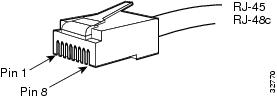
The RJ-48c connector on the module front panel allows you to attach the Catalyst 6500 series switch to PBX and PSTN T1/E1 interfaces (see Figure 2).
Figure 2 RJ-45 and RJ-48c Interface Cable Connectors
.
Note The terms RJ-45 connector and RJ-48c connector are sometimes used interchangeably. The RJ-48c is the jack or receptacle; the RJ-45 is the plug.
Specifications
The 8-port PSTN interface module specifications are listed inTable 5.
Table 5 8-Port PSTN Interface Module Specifications
|
Specifications
|
Description
|
Environmental Conditions |
|
Operating Temperature |
32° to 104°F (0° to 40°C) |
Nonoperating Temperature |
-40° to 167°F (-40° to 75°C) |
Humidity |
10 to 90%, noncondensing |
Dimensions (H x W x D) |
1.2 x 14.4 x 16 in. (30 x 356 x 406 mm) |
Weight |
Approximately 3 lb (1.36 kg) |
Line bit rate |
T1: 1.544 Mbps
E1: 2.048 Mbps |
Line code |
T1: AMI/B8ZS
E1: HDB3 |
Input level |
+1 dB to -24 dB |
Output level |
0, -7.5, or -15 dB |
Software requirements |
Catalyst 6500 series supervisor engine software release 5.5 or later |
| |
Cisco CallManager software release 3.0 or later |
Installing the 8-Port E1/T1 PSTN Interface Module
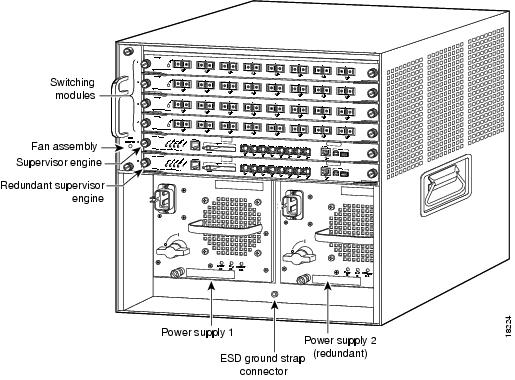
Slot 1 on the Catalyst 6500 series switch is reserved for the supervisor engine (see Figure 3). If you are using a redundant supervisor engine, it would go in slot 2; otherwise, slot 2 can be used for other modules. The 8-port PSTN interface module can be installed in any of the other slots.
Figure 3 Catalyst 6005/6505 Switch Chassis
Warning Only trained and qualified personnel should be allowed to install, replace, or service this equipment.
The section is divided into the following topics.
•Required Tools
•Removing the 8-Port E1/T1 PSTN Interface Module
•Installing the 8-Port PSTN Interface Module
Required Tools
These tools are required to install the 8-Port E1/T1 PSTN interface module in the Catalyst 6500 series switches:
•Number 1 and number 2 Phillips screwdrivers for the captive installation screws
•Antistatic mat or antistatic foam
•Wrist strap or other grounding device
Removing the 8-Port E1/T1 PSTN Interface Module
Caution
During this procedure, wear grounding wrist straps to avoid ESD damage to the module. Do not directly touch the backplane with your hand or any metal tool, or you could shock yourself.
Caution
To prevent ESD damage, handle the module by the carrier edges only.
To remove the module from a Catalyst 6500 series switch, perform these steps:
Step 1 Disconnect any network interface cables attached to the ports on the module you intend to remove.
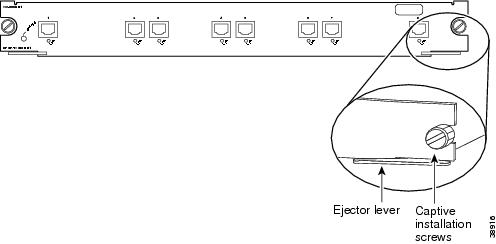
Step 2 Loosen the captive installation screws, as shown in Figure 4.
Figure 4 Ejector Levers and Captive Installation Screws
Step 3 Grasp the left and right ejector levers and simultaneously pivot the levers outward to release the module from the backplane connector. Figure 4 shows a close-up of the right ejector lever.
Step 4 Grasp the module front panel with one hand and place your other hand under the carrier to support and guide it out of the slot. Do not touch the printed circuit boards or connector pins.
Step 5 Carefully pull the module straight out of the slot, keeping your other hand under the carrier to guide it.
Step 6 Place the module on an antistatic mat or antistatic foam, or immediately install it in another slot.
Step 7 If the slot is to remain empty, install a module filler plate (part number 800-00292-01) to keep dust out of the chassis, to maintain proper airflow through the module compartment, and to prevent exposure to hazardous voltages and current.
Warning Blank faceplates and cover panels serve three important functions: they prevent exposure to hazardous voltages and currents inside the chassis; they contain electromagnetic interference (EMI) that might disrupt other equipment; and they direct the flow of cooling air through the chassis. Do not operate the system unless all cards, faceplates, front covers, and rear covers are in place.
Caution
Before connecting system power or turning on the switch, ensure that the system is connected to a supplementary ground. For complete instructions on connecting the supplementary ground, refer to the
Catalyst 6500 Series Switch Installation Guide.
Installing the 8-Port PSTN Interface Module
Follow these steps to install the 8-port PSTN interface module:
Step 1 Connect an ASCII terminal or a PC running terminal emulation software to the console port on the supervisor engine.
Step 2 Choose a slot for the new PSTN interface module. Ensure that you have enough clearance to accommodate any interface equipment that you will connect directly to the module ports. If possible, place modules between empty slots that contain only switching-module filler plates.
Step 3 Remove the module from its antistatic packaging.
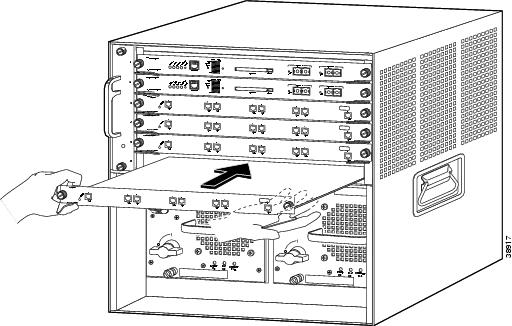
Step 4 Guide the module into the slot, aligning the sides of the module with the guides in the slot (see Figure 5). Avoid touching the components on the board.
Figure 5 Installing the 8-Port PSTN Interface Module in the Chassis
Step 5 While keeping the module oriented horizontally, carefully slide it into the slot until its front panel contacts the ejector levers (see Figure 4).
Step 6 Using the thumb and forefinger of each hand, simultaneously push the left lever and the right lever in to seat the module all the way into the backplane connector.
Caution
Always use the ejector levers when installing or removing modules. A module that is partially seated in the backplane causes the system to halt.
Step 7 Use a screwdriver to tighten the captive installation screws on the left and right sides of the module (see Figure 4).
Step 8 Check the status of the module as follows:
a. After the module has booted and run diagnostics, ensure that the Status LED on the module is green (module operational).
b. Enter the show module command at the Cat6500> prompt to verify that the system acknowledges the new module and reports it as ok in the screen display.
Connecting a Cable to the 8-Port PSTN Interface Module Port
Use a standard RJ-45 plug and Category 5 cable to connect to the RJ-48c module connector. A RJ-45 connector is shown in Figure 6.
Warning To reduce the risk of fire, use only No. 26 AWG or larger telecommunication line cord.
Figure 6 RJ-45 and RJ-48c Interface Cable Connectors
Note The terms RJ-45 connector and RJ-48c connector are sometimes used interchangeably. The RJ-48c is the jack or receptacle; the RJ-45 is the plug.
What to Do After Installing the 8-Port T1/E1 PSTN Interface Module
After you have installed the 8-port T1/E1 PSTN interface module, refer to the Catalyst 6500 Series Switch Software Configuration Guide for complete configuration details. Note that all signaling configuration is done through Cisco CallManager; refer to the applicable Cisco CallManager documentation.
Obtaining Documentation and Submitting a Service Request
For information on obtaining documentation, submitting a service request, and gathering additional information, see the monthly What's New in Cisco Product Documentation, which also lists all new and revised Cisco technical documentation, at:
http://www.cisco.com/en/US/docs/general/whatsnew/whatsnew.html
Subscribe to the What's New in Cisco Product Documentation as a Really Simple Syndication (RSS) feed and set content to be delivered directly to your desktop using a reader application. The RSS feeds are a free service and Cisco currently supports RSS Version 2.0.
This document is to be used in conjunction with the Catalyst 6500 Series Switch Module Installation Guide.
CCIP, CCSP, the Cisco Arrow logo, the Cisco Powered Network mark, Cisco Unity, Follow Me Browsing, FormShare, and StackWise are trademarks of Cisco Systems, Inc.; Changing the Way We Work, Live, Play, and Learn, and iQuick Study are service marks of Cisco Systems, Inc.; and Aironet, ASIST, BPX, Catalyst, CCDA, CCDP, CCIE, CCNA, CCNP, Cisco, the Cisco Certified Internetwork Expert logo, Cisco IOS, the Cisco IOS logo, Cisco Press, Cisco Systems, Cisco Systems Capital, the Cisco Systems logo, Empowering the Internet Generation, Enterprise/Solver, EtherChannel, EtherSwitch, Fast Step, GigaStack, Internet Quotient, IOS, IP/TV, iQ Expertise, the iQ logo, iQ Net Readiness Scorecard, LightStream, MGX, MICA, the Networkers logo, Networking Academy, Network Registrar, Packet, PIX, Post-Routing, Pre-Routing, RateMUX, Registrar, ScriptShare, SlideCast, SMARTnet, StrataView Plus, Stratm, SwitchProbe, TeleRouter, The Fastest Way to Increase Your Internet Quotient, TransPath, and VCO are registered trademarks of Cisco Systems, Inc. and/or its affiliates in the U.S. and certain other countries.
All other trademarks mentioned in this document or Web site are the property of their respective owners. The use of the word partner does not imply a partnership relationship between Cisco and any other company. (0304R)
Copyright © 2000-2003 Cisco Systems, Inc. All rights reserved.






 Feedback