Table Of Contents
Cisco Clock Module (WS-C6K-CL and WS-C6513-CL) and VTT Module (WS-C6K-VTT) Installation Note
Checking the VTT Module and Clock Module
Replacing the VTT Modules and Clock Modules
Removing the Front Panel Safety Cover
Locating the VTT Modules and Clock Modules
Obtaining Technical Assistance
Cisco Technical Support Website
Definitions of Service Request Severity
Obtaining Additional Publications and Information
Cisco Clock Module (WS-C6K-CL and WS-C6513-CL) and VTT Module (WS-C6K-VTT) Installation Note
Product Numbers:
WS-C6K-VTT=
WS-C6K-CL=
WS-C6513-CL=This publication describes how to check the status of the voltage termination (VTT) modules and clock modules and describes how to remove and install the modules on the following Catalyst 6500 series switches and Cisco 7600 series routers:
Note
For information on replacing the clock module on the Catalyst 6503 and 6509-NEB-A switches, and the Cisco 7603, 7606, and 7609 (CISCO7609) routers, refer to the Cisco Clock Module CLK-7600 Installation Note at this URL:
http://www.cisco.com/univercd/cc/td/doc/product/core/cis7600/hardware/78_15002.htm
Contents
This publication consists of the following sections:
•
Checking the VTT Module and Clock Module
•
Replacing the VTT Modules and Clock Modules
•
Obtaining Technical Assistance
•
Obtaining Additional Publications and Information
Parts List
The following parts are included in the replacement kit:
•
WS-C6K-VTT=
–
Three VTT modules
–
One disposable grounding wrist strap
–
One bag of spare module screws (silver)
–
One bag of spare front panel screws (black)
•
WS-C6K-CL= and WS-C6513-CL=
–
One clock module
–
One disposable grounding wrist strap
–
One bag of spare module screws (silver)
–
One bag of spare front panel screws (black)
Required Tools
These tools are required to perform the installation:
•
Number 1 Phillips screwdriver
•
Your own ESD-prevention equipment or the disposable grounding wrist strap included with all upgrade kits, field-replaceable units (FRUs), and spares
Safety Overview
Safety warnings appear throughout this publication in procedures that may harm you if performed incorrectly. A warning symbol precedes each warning statement.
Warning
Only trained and qualified personnel should be allowed to install, replace, or service this equipment.
Checking the VTT Module and Clock Module
To check the status of your module, do one of the following:
•
On systems running Catalyst software, enter the show environment command.
This example shows how to check the status of the VTT modules and clock modules on a system running Catalyst software:
Console> show environmentEnvironmental Status (. = Pass, F = Fail, U = Unknown, N = Not Present)PS1:. PS2:N PS1 Fan:. PS2 Fan:NChassis-Ser-EEPROM:. Fan:.Clock(A/B):B Clock A:F Clock B:.VTT1:. VTT2:F VTT3:.Console>The above example shows a failure with clock module A and VTT module 2.
•
On systems running Cisco IOS software, enter the show environment status command.
This example shows how to check the status of the VTT modules and clock modules on a system running Cisco IOS software:
Router> show environment statusbackplane:operating clock count:1operating VTT count:2...VTT 1:VTT 1 OK: OKVTT 2:VTT 2 OK: not OKVTT 3:VTT 3 OK: OKclock 1:clock 1 OK: not OK, clock 1 clock-inuse: not-in-useclock 2:clock 2 OK: OK, clock 2 clock-inuse: in-use...Router>The above example shows a failure with clock module A (clock 1) and VTT module 2.
Replacing the VTT Modules and Clock Modules
This section consists of these subsections:
•
Removing the Front Panel Safety Cover
•
Locating the VTT Modules and Clock Modules
Removing the Front Panel Safety Cover
To replace the VTT modules or clock module, you must first shut down the switch and remove the front (non-module) panel safety cover of the switch chassis.
CautionAlways use an ESD wrist strap when handling modules or coming into contact with internal components.
To remove the front panel safety cover, perform these steps:
Step 1
On any modules running Cisco IOS software, save the running configuration.
Step 2
Shut down the switch and unplug all power cords to all power supplies.
Warning
Before working on a system that has an on/off switch, turn OFF the power and unplug the power cord.
Step 3
Use a Phillips screwdriver to remove the front panel screws:
•
16 screws on the Catalyst 6006 and 6506 chassis
•
18 screws on the Catalyst 6009 and 6509 chassis
•
8 screws on the Catalyst 6509-NEB and Cisco 7609 (OSR-7609) chassis (4 on the top, 4 on the bottom)
•
20 screws on the Catalyst 6509-NEB-A and Cisco 7609 (CISCO7609) chassis
•
22 screws on the Catalyst 6513 and Cisco 7613 chassis
Locating the VTT Modules and Clock Modules
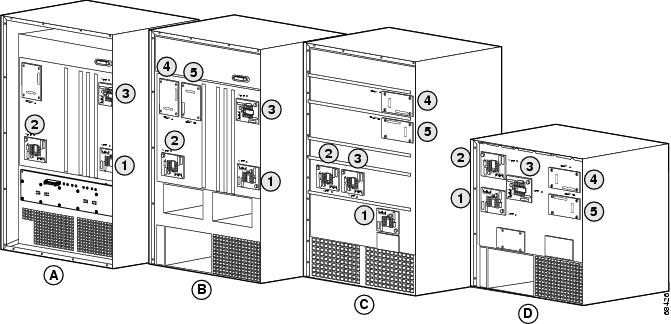
See Figure 1 for the location of the VTT modules and clock modules on the Catalyst 6500 series switches, and the Cisco 7609 (OSR-7609 and CISCO7609) and 7613 routers.
Note
Do not use the WS-C6K-CL= clock module in the Catalyst 6509-NEB-A switch and Cisco 7609 router (CISCO7609). Instead, use the CLK-7600= clock module. For more information, refer to the Cisco Clock Module CLK-7600 Installation Note at this URL:
http://www.cisco.com/univercd/cc/td/doc/product/core/cis7600/hardware/78_15002.htm
Note
The location of the VTT modules and clock modules is the same on the Catalyst 6006, 6009, 6506, and 6509 switches.
Figure 1 VTT Module and Clock Module Location
Replacing the VTT Module
Note
The manufacturing assembly number for the VTT modules on Catalyst 6500 series switches that were shipped since December 2001 is 73-4354-02 Rev A0. If the VTT modules installed on your switch do not have this manufacturing assembly number, you must replace all three VTT modules, regardless of the failure.
If all VTT module manufacturing assembly numbers are 73-4354-02 Rev A0, replace only the failed module.
CautionAlways use an ESD wrist strap when handling modules or coming into contact with internal components.
Note
Note the position of the VTT module before you remove it from the switch chassis because you must install the new VTT module in the same position.
To replace the VTT module, perform these steps:
Step 1
Remove the two screws that secure the VTT module.
Step 2
Gently lift and remove the VTT module, placing it on an antistatic mat or foam.
Step 3
Remove the new VTT from the antistatic bag.
Step 4
Hold the module with the connector away from you.
Step 5
Carefully press the module onto the connector.
Step 6
Replace the two securing screws.
Step 7
Repeat Step 1 through Step 6 to install any additional VTT modules.
Step 8
Replace the front panel safety cover and power up the switch.
Warning
The safety cover is an integral part of the product. Do not operate the unit without the safety cover installed. Operating the unit without the cover in place will invalidate the safety approvals and pose a risk of fire and electrical hazards.
Step 9
Enter the show environment or show environment status command to verify the status of the replaced module.
This example shows that the VTT module is functioning properly:
Console> show environmentEnvironmental Status (. = Pass, F = Fail, U = Unknown, N = Not Present)PS1:. PS2:N PS1 Fan:. PS2 Fan:NChassis-Ser-EEPROM:. Fan:.Clock(A/B):A Clock A:. Clock B:.VTT1:. VTT2:. VTT3:.Console>
Replacing the Clock Module
CautionAlways use an ESD wrist strap when handling modules or coming into contact with internal components.
Note
Note the position of the clock module before you remove it from the switch chassis because you must install the new clock module in the same position.
To replace the clock module, perform these steps:
Step 1
Remove the four screws that secure the clock module.
Step 2
Gently lift and remove the module, placing it on an antistatic mat or foam.
Step 3
Remove the new clock from the antistatic bag.
Step 4
Hold the module with the connector away from you.
Step 5
Carefully press the module onto the connector.
Step 6
Replace the four securing screws.
Step 7
Repeat Step 1 through Step 6 to install any additional clock modules.
Step 8
Replace the front panel safety cover and power up the switch.
Warning
The safety cover is an integral part of the product. Do not operate the unit without the safety cover installed. Operating the unit without the cover in place will invalidate the safety approvals and pose a risk of fire and electrical hazards.
Step 9
Enter the show environment command to verify the status of the replaced module.
This example shows that the clock module is functioning properly:
Console> show environmentEnvironmental Status (. = Pass, F = Fail, U = Unknown, N = Not Present)PS1:. PS2:N PS1 Fan:. PS2 Fan:NChassis-Ser-EEPROM:. Fan:.Clock(A/B):A Clock A:. Clock B:.VTT1:. VTT2:. VTT3:.Console>
Related Documentation
For additional information on Catalyst 6500 series switches and command-line interface (CLI) commands, refer to the following publications:
•
Regulatory Compliance and Safety Information for the Catalyst 6500 Series Switches
•
Catalyst 6000 Series Switch Installation Guide
•
Catalyst 6500 Series Switch Installation Guide
•
Catalyst 6500 Series Switch Module Installation Guide
•
Catalyst 6500 Series Software Configuration Guide
•
Catalyst 6500 Series Command Reference
•
Catalyst 6500 Series Cisco IOS Software Configuration Guide
•
Catalyst 6500 Series Cisco IOS Command Reference
•
Cisco Clock Module CLK-7600 Installation Note
Obtaining Documentation
Cisco documentation and additional literature are available on Cisco.com. Cisco also provides several ways to obtain technical assistance and other technical resources. These sections explain how to obtain technical information from Cisco Systems.
Cisco.com
You can access the most current Cisco documentation at this URL:
http://www.cisco.com/univercd/home/home.htm
You can access the Cisco website at this URL:
You can access international Cisco websites at this URL:
http://www.cisco.com/public/countries_languages.shtml
Ordering Documentation
You can find instructions for ordering documentation at this URL:
http://www.cisco.com/univercd/cc/td/doc/es_inpck/pdi.htm
You can order Cisco documentation in these ways:
•
Registered Cisco.com users (Cisco direct customers) can order Cisco product documentation from the Ordering tool:
http://www.cisco.com/en/US/partner/ordering/index.shtml
•
Nonregistered Cisco.com users can order documentation through a local account representative by calling Cisco Systems Corporate Headquarters (California, USA) at 408 526-7208 or, elsewhere in North America, by calling 800 553-NETS (6387).
Documentation Feedback
You can send comments about technical documentation to bug-doc@cisco.com.
You can submit comments by using the response card (if present) behind the front cover of your document or by writing to the following address:
Cisco Systems
Attn: Customer Document Ordering
170 West Tasman Drive
San Jose, CA 95134-9883We appreciate your comments.
Obtaining Technical Assistance
For all customers, partners, resellers, and distributors who hold valid Cisco service contracts, Cisco Technical Support provides 24-hour-a-day, award-winning technical assistance. The Cisco Technical Support Website on Cisco.com features extensive online support resources. In addition, Cisco Technical Assistance Center (TAC) engineers provide telephone support. If you do not hold a valid Cisco service contract, contact your reseller.
Cisco Technical Support Website
The Cisco Technical Support Website provides online documents and tools for troubleshooting and resolving technical issues with Cisco products and technologies. The website is available 24 hours a day, 365 days a year at this URL:
http://www.cisco.com/techsupport
Access to all tools on the Cisco Technical Support Website requires a Cisco.com user ID and password. If you have a valid service contract but do not have a user ID or password, you can register at this URL:
http://tools.cisco.com/RPF/register/register.do
Submitting a Service Request
Using the online TAC Service Request Tool is the fastest way to open S3 and S4 service requests. (S3 and S4 service requests are those in which your network is minimally impaired or for which you require product information.) After you describe your situation, the TAC Service Request Tool automatically provides recommended solutions. If your issue is not resolved using the recommended resources, your service request will be assigned to a Cisco TAC engineer. The TAC Service Request Tool is located at this URL:
http://www.cisco.com/techsupport/servicerequest
For S1 or S2 service requests or if you do not have Internet access, contact the Cisco TAC by telephone. (S1 or S2 service requests are those in which your production network is down or severely degraded.) Cisco TAC engineers are assigned immediately to S1 and S2 service requests to help keep your business operations running smoothly.
To open a service request by telephone, use one of the following numbers:
Asia-Pacific: +61 2 8446 7411 (Australia: 1 800 805 227)
EMEA: +32 2 704 55 55
USA: 1 800 553 2447For a complete list of Cisco TAC contacts, go to this URL:
http://www.cisco.com/techsupport/contacts
Definitions of Service Request Severity
To ensure that all service requests are reported in a standard format, Cisco has established severity definitions.
Severity 1 (S1)—Your network is "down," or there is a critical impact to your business operations. You and Cisco will commit all necessary resources around the clock to resolve the situation.
Severity 2 (S2)—Operation of an existing network is severely degraded, or significant aspects of your business operation are negatively affected by inadequate performance of Cisco products. You and Cisco will commit full-time resources during normal business hours to resolve the situation.
Severity 3 (S3)—Operational performance of your network is impaired, but most business operations remain functional. You and Cisco will commit resources during normal business hours to restore service to satisfactory levels.
Severity 4 (S4)—You require information or assistance with Cisco product capabilities, installation, or configuration. There is little or no effect on your business operations.
Obtaining Additional Publications and Information
Information about Cisco products, technologies, and network solutions is available from various online and printed sources.
•
Cisco Marketplace provides a variety of Cisco books, reference guides, and logo merchandise. Visit Cisco Marketplace, the company store, at this URL:
http://www.cisco.com/go/marketplace/
•
The Cisco Product Catalog describes the networking products offered by Cisco Systems, as well as ordering and customer support services. Access the Cisco Product Catalog at this URL:
http://cisco.com/univercd/cc/td/doc/pcat/
•
Cisco Press publishes a wide range of general networking, training and certification titles. Both new and experienced users will benefit from these publications. For current Cisco Press titles and other information, go to Cisco Press at this URL:
•
Packet magazine is the Cisco Systems technical user magazine for maximizing Internet and networking investments. Each quarter, Packet delivers coverage of the latest industry trends, technology breakthroughs, and Cisco products and solutions, as well as network deployment and troubleshooting tips, configuration examples, customer case studies, certification and training information, and links to scores of in-depth online resources. You can access Packet magazine at this URL:
•
iQ Magazine is the quarterly publication from Cisco Systems designed to help growing companies learn how they can use technology to increase revenue, streamline their business, and expand services. The publication identifies the challenges facing these companies and the technologies to help solve them, using real-world case studies and business strategies to help readers make sound technology investment decisions. You can access iQ Magazine at this URL:
http://www.cisco.com/go/iqmagazine
•
Internet Protocol Journal is a quarterly journal published by Cisco Systems for engineering professionals involved in designing, developing, and operating public and private internets and intranets. You can access the Internet Protocol Journal at this URL:
•
World-class networking training is available from Cisco. You can view current offerings at this URL:
http://www.cisco.com/en/US/learning/index.html
This document is to be used in conjunction with the documents listed in the "Related Documentation" section.
Copyright © 2003-2004 Cisco Systems, Inc. All rights reserved.


