- New and Changed Information
- Preface
- Overview
- Installing and Launching the DCNM Server
- Installing and Launching the DCNM Client
- Using the DCNM Client
- Administering DCNM Authentication Settings
- Administering Device Discovery
- Administering Devices and Credentials
- Administering DCNM Licensed Devices
- Working with Topology
- Managing Events
- Working with Inventory
- Configuring SPAN
- Managing Device Operating Systems
- Working with Configuration Change Management
- Administering Auto-Synchronization with Devices
- Administering Statistical Data Collection
- Administering DCNM Server Log Settings
- Maintaining the DCNM Database
- Troubleshooting DCNM
- Information About Statistical Data Collection
- Licensing Requirements for Statistical Data Collection
- Prerequisites for Statistical Data Collection
- Guidelines and Limitations for Statistical Data Collection
- Configuring Statistical Data Collection
- Viewing the Status of Statistical Data Collectors
- Field Descriptions for Statistical Data Collection
- Additional References
- Feature History for Statistical Data Collection
Administering Statistical Data Collection
This chapter describes how to administer Statistical Data Collection in the Cisco Data Center Network Manager (DCNM).
This chapter includes the following sections:
- Information About Statistical Data Collection
- Licensing Requirements for Statistical Data Collection
- Prerequisites for Statistical Data Collection
- Guidelines and Limitations for Statistical Data Collection
- Configuring Statistical Data Collection
- Viewing the Status of Statistical Data Collectors
- Field Descriptions for Statistical Data Collection
- Additional References
- Feature History for Statistical Data Collection
Information About Statistical Data Collection
You can use the Statistical Data Collection feature to control the statistics monitoring processes that you have created for one of the many device configuration features that support statistics.
When you choose Statistical Data Collection on the Feature Selector pane, the content pane shows information about each statistical collection and allows you to control them. You can also use this feature to purge old data from the statistical database.
You can configure the length of time that Cisco Data Center Network Manager (DCNM) waits before retrieving statistical data from devices that it is monitoring. By default, Cisco DCNM retrieves statistical data from monitored devices every 30 seconds. You can increase the length of time to a maximum of 4 minutes. For more information, see the “Configuring the Default Frequency of Statistical Data Retrieval” section.
This section includes the following topics:
Automatic and Manual Purging of Statistical Data
You can use the Statistical Data Collection feature to delete unwanted statistical data. Cisco DCNM supports automatic purging of statistical data. You can configure the following aspects of automatic statistical data purging:
- Days of the week and time of day that automatic purging occurs.
- Whether Cisco DCNM determines which statistical data to purge by the age of the data or by a maximum number of database entries.
- Whether Cisco DCNM deletes the statistical data entries that it purges or consolidates them into one entry.
Licensing Requirements for Statistical Data Collection
The following table shows the licensing requirements for this feature:
Real-time monitoring requires no license. Cisco DCNM requires a LAN Enterprise license for the following features: For information about obtaining and installing a Cisco DCNM LAN Enterprise license, see the “Installing Licenses” section. |
Prerequisites for Statistical Data Collection
Statistical data collection has the following prerequisites:
- The Cisco DCNM server must be able to connect to the devices.
- The Cisco NX-OS device must be running a supported version of Cisco NX-OS.
- The Cisco NX-OS device must have the minimal configuration that is required to enable device discovery to succeed. For more information, see the “Cisco NX-OS Device Preparation” section.
Guidelines and Limitations for Statistical Data Collection
The Statistical Data Collection feature has the following configuration guidelines and limitations:
- Collections are created by starting monitoring for a new chart. For more information, see the “Starting Statistical Monitoring for a Chart” section.
- For the Statistical Data Collection feature, the Cisco DCNM client does not automatically update the information shown in the Summary pane. To ensure that you are viewing current information, from the menu bar, choose View > Refresh .
- When you start statistical monitoring for one or more charts and then close the Cisco DCNM client, a dialog box prompts you to decide whether to stop the collections or let them run. We recommend that you stop any unnecessary collections when you log out of the Cisco DCNM client. This practice conserves database space and decreases server load.
- We recommend that you configure automatic purging of statistical data to ensure that the Cisco DCNM database size does not grow too large.
Configuring Statistical Data Collection
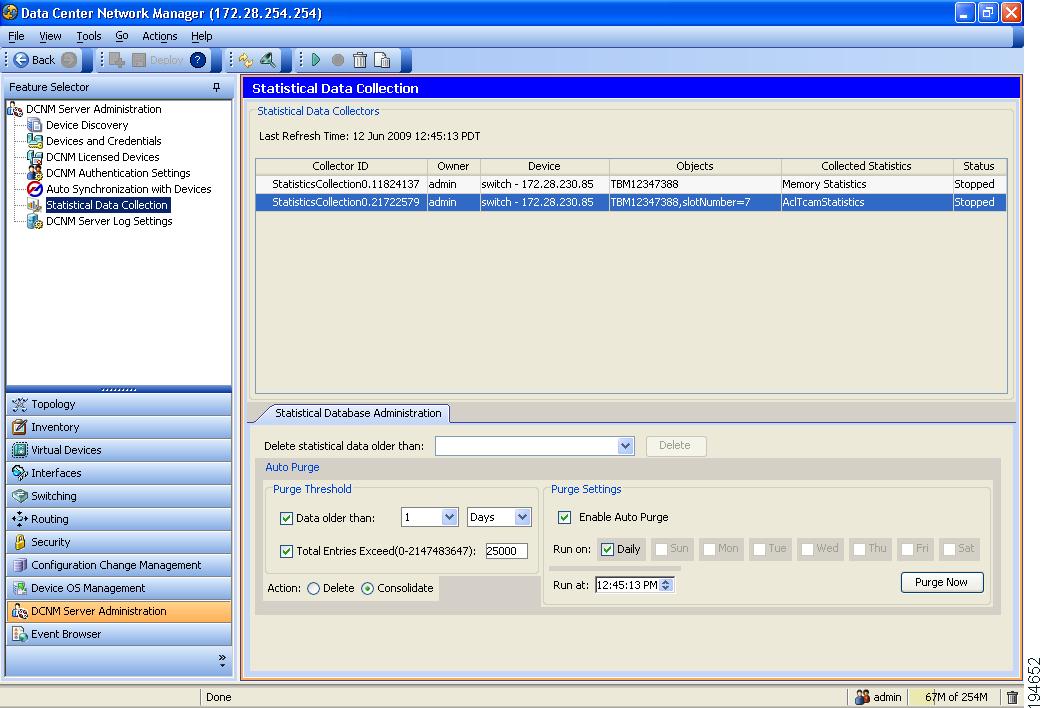
Figure 16-1 shows the Statistical Data Collection content pane.
Figure 16-1 Statistical Data Collection Content Pane
This section includes the following topics:
- Starting and Stopping Statistical Data Collection
- Deleting Statistical Data from a Collection
- Deleting a Collection
- Deleting Data from the Statistics Database
- Enabling and Disabling Automatic Statistical Data Purging
- Configuring Automatic Statistical Data Purge Settings
- Purging Statistical Data Now
Starting and Stopping Statistical Data Collection
You can use the Statistical Data Collection feature to start and stop a statistical data collection process. Each collection process represents a statistical monitoring process that you created by starting monitoring for a device configuration feature.
DETAILED STEPS
To start or stop a collection process, follow these steps:
Step 1 From the Feature Selector pane, choose DCNM Server Administration > Statistical Data Collection .
A table of statistical data collectors appears in the Contents pane. Each row corresponds to a collector for a particular device. The Status field displays whether the collector is running or is stopped.
Step 2 Click the collector that you want to start or stop.
Step 3 Do one of the following:
You do not need to save your changes.
Deleting Statistical Data from a Collection
You can delete statistical data from a collection. This feature allows you to delete all the data from a collection without affecting data from other collections and without deleting the collection itself. Each collection process represents a statistical monitoring process that you created by starting monitoring for a device configuration feature.
DETAILED STEPS
To delete statistical data from a collection, follow these steps:
Step 1 From the Feature Selector pane, choose DCNM Server Administration > Statistical Data Collection .
A table of statistical data collectors appears in the Contents pane. Each row corresponds to a collector for a particular device. Devices are listed alphabetically. The Status field displays whether the collector is running or is stopped.
Step 2 Right-click the collection.
Step 3 From the menu bar, choose Actions > Delete Statistical Data .
Cisco DCNM deletes all statistical data from the collection.
Deleting a Collection
You can delete a collection of statistical data from a specific device. Each collection process represents a statistical monitoring process that you created by starting monitoring for a device configuration feature.

Note If you want to delete all data from a collections rather than deleting the collection itself, perform the steps in the “Deleting Statistical Data from a Collection” section.
DETAILED STEPS
To delete a collection of statistical data from a device, follow these steps:
Step 1 From the Feature Selector pane, choose DCNM Server Administration > Statistical Data Collection .
A table of statistical data collectors appears in the Contents pane. Devices are listed alphabetically. Each row corresponds to a collection of statistical data for a particular device.
Step 2 Click the collection of data that you want to delete.
Step 3 From the menu bar, choose Actions > Delete Collection .
You do not need to save your changes.
Deleting Data from the Statistics Database
You can delete statistical data from the statistics database.
Note If you want to delete all data from a specific collection rather than deleting old data from all collections, perform the steps in the “Deleting a Collection” section.
BEFORE YOU BEGIN
Determine the date and time of the newest statistical data that you want to delete. When you follow the steps in this procedure, Cisco DCNM deletes all statistics that are older than the date and time that you select.
DETAILED STEPS
To delete data from the statistics database, follow these steps:
Step 1 From the Feature Selector pane, choose DCNM Server Administration > Statistical Data Collection .
The Statistics Database area appears in the Contents pane, below the table of statistical data collectors.
Step 2 From the Delete statistical data older than drop-down list, select the date and time of the newest statistics that you want to delete and click OK .
Cisco DCNM deletes all statistics older than the date and time that you specified.
Enabling and Disabling Automatic Statistical Data Purging
You can enable or disable the automatic purging of statistical data from the Cisco DCNM statistics database.
DETAILED STEPS
To enable or disable automatic statistical data purging, follow these steps:
Step 1 From the Feature Selector pane, choose DCNM Server Administration > Statistical Data Collection .
The Statistical Database Administration tab appears in the Details pane, below the table of statistical data collectors.
Step 2 Under Purge Settings, do one of the following:
Step 3 From the menu bar, choose File > Deploy to save your changes to the Cisco DCNM server.
Configuring Automatic Statistical Data Purge Settings
You can configure when automatic statistical data purging occurs and the criteria that Cisco DCNM uses to determine which statistical data to purge.
BEFORE YOU BEGIN
Determine when you want automatic statistical data purging to occur. We recommend that automatic statistical data purging occur when Cisco DCNM usage is low.
If you perform backups of your Cisco DCNM databases, consider scheduling automatic statistical data purging after database backups have occurred, to ensure that you retain a record of all statistical data.
Determine what criteria you want Cisco DCNM to use to determine which statistical data to purge. The two criteria available are as follows:
- Age of statistical data—Cisco DCNM can purge all statistical data entries that are older than a specific number of days, weeks, or months.
- Number of statistical data entries in the database—When the number of statistical data entries in the database exceeds the maximum number that you specify, Cisco DCNM can purge the oldest statistical data entries first until the maximum number is not exceeded.
If you enable both criteria, Cisco DCNM applies them independently of each other.
DETAILED STEPS
To configure automatic statistical data purge settings, follow these steps:
Step 1 From the Feature Selector pane, choose DCNM Server Administration > Statistical Data Collection .
The Statistical Database Administration tab appears in the Details pane, below the table of statistical data collectors.
Step 2 Under Purge Threshold, configure the criteria that Cisco DCNM uses to determine which statistical data to purge. You can configure either or both of the criteria in the following table:
Step 3 Configure the action that you want Cisco DCNM to take on statistical database entries that meet the purge criteria. You can choose one of the following:
Step 4 Under Purge Settings, follow these steps to configure when you want automatic purging to occur:
a. Check the days-of-the-week check boxes to specify which days of the week that you want automatic purging to occur.
b. Use the Run at box to configure the exact time on the specified days that you want automatic statistical data purging to occur.
Step 5 (Optional) If you want to enable automatic statistical data purging, check Enable Auto Purge .
Step 6 From the menu bar, choose File > Deploy to save your changes to the Cisco DCNM server.
Purging Statistical Data Now
You can purge statistical data on demand, using the automatic statistical data purge settings to determine which statistical data are purged.

Tip If you want to delete statistical data on demand, based on the exact age of the statistical data entries, see the “Deleting Data from the Statistics Database” section.
BEFORE YOU BEGIN
Ensure that the automatic statistical data purge settings are configured as needed. For more information, see the “Configuring Automatic Statistical Data Purge Settings” section.
DETAILED STEPS
To purge statistical data from the statistical database now, follow these steps:
Step 1 From the Feature Selector pane, choose DCNM Server Administration > Statistical Data Collection .
The Statistical Database Administration tab appears in the Details pane, below the table of statistical data collectors.
Step 2 Under Purge Settings, click Purge Now .
Cisco DCNM deletes statistical data, using the automatic statistical data purge settings to determine which statistical data entries to purge.
Viewing the Status of Statistical Data Collectors
To view the status of statistical data collectors, from the Feature Selector pane, choose DCNM Server Administration > Statistical Data Collection .
Collector status and other information appear in the Statistical Data Collectors area in the Contents pane. For information about the fields that appear, see the “Field Descriptions for Statistical Data Collection” section.
Field Descriptions for Statistical Data Collection
This section includes the following field descriptions for the Statistical Data Collection feature:
Summary Pane
Statistical Database Administration Tab
Additional References
For additional information related to administering statistical data collection, see the following sections:
Feature History for Statistical Data Collection
Table 16-3 lists the release history for this feature.
 Feedback