- Index
- Preface
- Product Overview
-
- Configuring Ethernet Interfaces
- Configuring VLANs
- Configuring Private VLANs
- Configuring Rapid PVST+
- Configuring Multiple Spanning Tree
- Configuring STP Extensions
- Configuring Port Channels
- Configuring Access and Trunk Interfaces
- Configuring the MAC Address Table
- Configuring IGMP Snooping
- Configuring Traffic Storm Control
-
- Configuring Fibre Channel Interfaces
- Configuring Domain Parameters
- Configuring N-Port Virtualization
- Configuring VSAN Trunking
- Configuring SAN PortChannels
- Configuring and Managing VSANs
- Configuring and Managing Zones
- Distributing Device Alias Services
- Configuring Fibre Channel Routing Services and Protocols
- Managing FLOGI, Name Server, FDMI, and RSCN Databases
- Discovering SCSI Targets
- Advanced Features and Concepts
- Configuring FC-SP and DHCHAP
- Configuring Port Security
- Configuring Fabric Binding
- Configuring Fabric Configuration Servers
- Configuring Port Tracking
Configuring Ethernet Interfaces
This section describes the configuration of the Ethernet interfaces on a Cisco Nexus 5000 Series switch. It includes the following sections:
Information About Ethernet Interfaces
The Ethernet ports can operate as standard Ethernet interfaces connected to servers or to a LAN.
The Ethernet interfaces also support Fibre Channel over Ethernet (FCoE). FCoE allows the physical Ethernet link to carry both Ethernet and Fibre Channel traffic. For additional information, see Chapter 1, “Configuring FCoE” and Chapter1, “Configuring Virtual Interfaces”
On a Cisco Nexus 5000 Series switch, the Ethernet interfaces are enabled by default.
This section includes the following topics:
- About the Interface Command
- Unidirectional Link Detection Parameter
- Interface Speed
- About the Debounce Timer Parameters
- About MTU Configuration
About the Interface Command
You can enable the various capabilities of the Ethernet interfaces on a per-interface basis using the interface command. When you enter the interface command, you specify the following information:
– Slot 1 includes all the fixed ports.
– Slot 2 includes the ports on the upper expansion module (if populated).
– Slot 3 includes the ports on the lower expansion module (if populated),
Unidirectional Link Detection Parameter
UDLD Overview
The Cisco-proprietary Unidirectional Link Detection (UDLD) protocol allows ports that are connected through fiber-optic or copper (for example, Category 5 cabling) Ethernet cables to monitor the physical configuration of the cables and detect when a unidirectional link exists. When the switch detects a unidirectional link, UDLD shuts down the affected LAN port and alerts the user. Unidirectional links can cause a variety of problems, including spanning tree topology loops.
UDLD is a Layer 2 protocol that works with the Layer 1 protocols to determine the physical status of a link. At Layer 1, autonegotiation takes care of physical signaling and fault detection. UDLD performs tasks that autonegotiation cannot perform, such as detecting the identities of neighbors and shutting down misconnected LAN ports. When you enable both autonegotiation and UDLD, Layer 1 and Layer 2 detections work together to prevent physical and logical unidirectional connections and the malfunctioning of other protocols.
A unidirectional link occurs whenever traffic transmitted by the local device over a link is received by the neighbor but traffic transmitted from the neighbor is not received by the local device. If one of the fiber strands in a pair is disconnected, as long as autonegotiation is active, the link does not stay up. In this case, the logical link is undetermined, and UDLD does not take any action. If both fibers are working normally at Layer 1, then UDLD at Layer 2 determines whether those fibers are connected correctly and whether traffic is flowing bidirectionally between the correct neighbors. This check cannot be performed by autonegotiation, because autonegotiation operates at Layer 1.
A Cisco Nexus 5000 Series switch periodically transmits UDLD frames to neighbor devices on LAN ports with UDLD enabled. If the frames are echoed back within a specific time frame and they lack a specific acknowledgment (echo), the link is flagged as unidirectional and the LAN port is shut down. Devices on both ends of the link must support UDLD in order for the protocol to successfully identify and disable unidirectional links.

Note By default, UDLD is locally disabled on copper LAN ports to avoid sending unnecessary control traffic on this type of media.
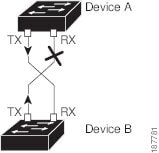
Figure 1-1 shows an example of a unidirectional link condition. Device B successfully receives traffic from device A on the port. However, device A does not receive traffic from device B on the same port. UDLD detects the problem and disables the port.
Figure 1-1 Unidirectional Link
Default UDLD Configuration
Table 1-1 shows the default UDLD configuration.
|
|
|
|---|---|
For information on configuring the UDLD for the device and its port, see the “Configuring the UDLD Mode” section.
UDLD Aggressive and Nonaggressive Modes
UDLD aggressive mode is disabled by default. You can configure UDLD aggressive mode only on point-to-point links between network devices that support UDLD aggressive mode. If UDLD aggressive mode is enabled, when a port on a bidirectional link that has a UDLD neighbor relationship established stops receiving UDLD frame, UDLD tries to reestablish the connection with the neighbor. After eight failed retries, the port is disabled.
To prevent spanning tree loops, nonaggressive UDLD with the default interval of 15 seconds is fast enough to shut down a unidirectional link before a blocking port transitions to the forwarding state (with default spanning tree parameters).
When you enable the UDLD aggressive mode, the following occurs:
- One side of a link has a port stuck (both transmission and receive)
- One side of a link remains up while the other side of the link is down
In these cases, the UDLD aggressive mode disables one of the ports on the link, which prevents traffic from being discarded.
Interface Speed
A Cisco Nexus 5000 Series switch has a number of fixed 10-Gigabit ports, each equipped with SFP+ interface adapters. The Nexus 5010 switch has 20 fixed ports, the first eight of which are switchable 1-Gigabit/10-Gigabit ports. The Nexus 5020 switch has 40 fixed ports, the first 16 of which are switchable 1-Gigabit/10-Gigabit ports.
About the Debounce Timer Parameters
The port debounce time is the amount of time that an interface waits to notify the supervisor of a link going down. During this time, the interface waits to see if the link comes back up. The wait period is a time when traffic is stopped.
You can enable the debounce timer for each interface and specify the delay time in milliseconds.
 When you enable the port debounce timer the link up and link down detections are delayed, resulting in a loss of traffic during the debounce period. This situation might affect the convergence and reconvergence of some protocols.
About MTU Configuration
A per-physical Ethernet interface maximum transmission unit (MTU) is not supported. Instead, MTU is set according to the QoS classes. You modify MTU by setting Policy and Class maps. See Chapter 1, “Configuring QoS” for more details.
When you show the interface settings, an MTU of 1500 is displayed for physical Ethernet interfaces and a receive data field size of 2112 is displayed for Fibre Channel interfaces.
Configuring Ethernet Interfaces
This section shows how to configure Ethernet interfaces. It includes the following topics:
- Configuring the UDLD Mode
- Configuring Interface Speed
- Configuring the CDP Parameter
- Configuring the Debounce Timer
- Configuring the Description Parameter
- Disabling and Restarting Ethernet Interfaces
Configuring the UDLD Mode
You can configure normal or aggressive unidirectional link detection (UDLD) modes for Ethernet interfaces on devices configured to run UDLD. Before you can enable a UDLD mode for an interface, you must make sure that UDLD is already enabled on the device that includes the interface. UDLD must also be enabled on the other linked interface and its device.
To use the normal UDLD mode, you must configure one of the ports for normal mode and configure the other port for the normal or aggressive mode. To use the aggressive UDLD mode, you must configure both ports for the aggressive mode.
Note Before you begin UDLD must be enabled for the other linked port and its device.
|
|
|
|
|---|---|---|
Specifies an interface to configure, and enters interface configuration mode. |
||
Enables the normal UDLD mode, disables UDLD, or enables the aggressive UDLD mode. |
||
This example shows how to enable the UDLD for the switch:
switch(config)# feature udld
This example shows how to enable the normal UDLD mode for an Ethernet port:
switch(config)# interface ethernet 1/4
switch(config-if)# udld enable
This example shows how to enable the aggressive UDLD mode for an Ethernet port:
switch(config)# interface ethernet 1/4
switch(config-if)# udld aggressive
This example shows how to disable UDLD for an Ethernet port:
switch(config)# interface ethernet 1/4
switch(config-if)# udld disable
This example shows how to disable UDLD for the switch:
switch(config)# no feature udld
Configuring Interface Speed
The first eight ports of a Nexus 5010 switch and the first 16 ports of a Nexus 5020 switch are switchable 1-Gigabit/10-Gigabit ports. The default interface speed is 10-Gigabit. To configure these ports for 1-Gigabit Ethernet, insert a 1-Gigabit Ethernet SFP transceiver into the applicable port then set its speed with the speed command.
To configure a 1-Gigabit Ethernet port, perform this task:
|
|
|
|
|---|---|---|
Enters interface configuration mode for the specified interface. This interface must have a 1-Gigabit Ethernet SFP+ transceiver inserted into it. |
||
The following example shows how to set the speed for a 1-Gigabit Ethernet port:
switch(config)# interface ethernet 1/4
switch(config-if)# speed 1000
This command can only be applied to a physical Ethernet interface.
Note If the interface and transceiver speed is mismatched, this shows as "SFP validation failed" when you run the show interface ethernet slot/port command. For example, if you insert 1-Gigabit SFP transceiver into a port without configuring speed 1000 you will get this error. By default, all ports are 10-Gigabit.
Configuring the CDP Parameter
You can enable or disable the Cisco Discovery Protocol (CDP) for Ethernet interfaces. This protocol works only when you have it enabled on both interfaces on the same link.
To enable or disable CDP for an interface, perform this task:
|
|
|
|
|---|---|---|
Enters interface configuration mode for the specified interface. |
||
Enables CDP for the interface. To work correctly, this parameter must be enabled for both interfaces on the same link. |
||
The following example shows how to enable CDP for an Ethernet port:
switch(config)# interface ethernet 1/4
switch(config-if)# cdp enable
This command can only be applied to a physical Ethernet interface.
Configuring the Debounce Timer
You can enable the debounce timer for Ethernet ports by specifying a debounce time (in milliseconds) or disable the timer by specifying a debounce time of 0.
You can show the debounce times for all of the Ethernet ports by using the show interface debounce command.
To enable or disable the debounce timer, perform this task:
|
|
|
|
|---|---|---|
Enters interface configuration mode for the specified interface. |
||
Enables the debounce timer for the amount of time (1 to 5000 milliseconds) specified. |
This example shows how to enable the debounce timer and set the debounce time to 1000 milliseconds for an Ethernet interface:
switch(config)# interface ethernet 1/4
switch(config-if)# link debounce time 1000
This example shows how to disable the debounce timer for an Ethernet interface:
switch(config)# interface ethernet 1/4
switch(config-if)# link debounce time 0
This command can only be applied to a physical Ethernet interface.
Configuring the Description Parameter
To provide textual interface descriptions for the Ethernet ports, perform this task:
|
|
|
|
|---|---|---|
|
|
||
|
|
Enters interface configuration mode for the specified interface. |
|
|
|
This example shows how to set the interface description to “Server 3 Interface”.
switch(config)# interface ethernet 1/3
switch(config-if)# description Server 3 Interface
Disabling and Restarting Ethernet Interfaces
You can shut down and restart an Ethernet interface. This action disables all of the interface functions and marks the interface as being down on all monitoring displays. This information is communicated to other network servers through all dynamic routing protocols. When shut down, the interface is not included in any routing updates.
To disable an interface, perform this task:
|
|
|
|
|---|---|---|
Enters interface configuration mode for the specified interface. |
||
The following example shows how to disable an Ethernet port:
switch(config)# interface ethernet 1/4
switch(config-if)# shutdown
To restart an interface, perform this task:
|
|
|
|---|---|
The following example shows how to restart an Ethernet interface:
switch(config)# interface ethernet 1/4
switch(config-if)# no shutdown
Displaying Interface Information
To view configuration information about the defined interfaces, perform one of these tasks:
The show interface command is invoked from EXEC mode and displays the interface configurations. Without any arguments, this command displays the information for all the configured interfaces in the switch.
The following example shows how to display the physical Ethernet interface:
Ethernet1/1 is up
Hardware is 1000/10000 Ethernet, address is 000d.eca3.5f08 (bia 000d.eca3.5f08)
MTU 1500 bytes, BW 10000000 Kbit, DLY 10 usec,
reliability 255/255, txload 190/255, rxload 192/255
Encapsulation ARPA
Port mode is trunk
full-duplex, 10 Gb/s, media type is 1/10g
Input flow-control is off, output flow-control is off
Auto-mdix is turned on
Rate mode is dedicated
Switchport monitor is off
Last clearing of "show interface" counters never
5 minute input rate 942201806 bytes/sec, 14721892 packets/sec
5 minute output rate 935840313 bytes/sec, 14622492 packets/sec
Rx
129141483840 input packets 0 unicast packets 129141483847 multicast packets
0 broadcast packets 0 jumbo packets 0 storm suppression packets
8265054965824 bytes
0 No buffer 0 runt 0 Overrun
0 crc 0 Ignored 0 Bad etype drop
0 Bad proto drop
Tx
119038487241 output packets 119038487245 multicast packets
0 broadcast packets 0 jumbo packets
7618463256471 bytes
0 output CRC 0 ecc
0 underrun 0 if down drop 0 output error 0 collision 0 deferred
0 late collision 0 lost carrier 0 no carrier
0 babble
0 Rx pause 8031547972 Tx pause 0 reset
The following example shows how to display the physical Ethernet capabilities:
Ethernet1/1
Model: AGD11342302
Type: 10Gbase-SR
Speed: 1000,10000
Duplex: full
Trunk encap. type: 802.1Q
Channel: no
Broadcast suppression: percentage(0-100)
Flowcontrol: rx-(off/on),tx-(off/on)
Rate mode: none
QOS scheduling: rx-(6q1t),tx-(1p6q0t)
CoS rewrite: no
ToS rewrite: no
SPAN: yes
UDLD: yes
Link Debounce: yes
Link Debounce Time: yes
MDIX: no
The following example shows how to display the physical Ethernet transceiver:
Ethernet1/3
sfp is present
name is CISCO-AVAGO
part number is SFBR-7700SDZ B4 R
revision is B4 R
serial number is AGD1134229V 070823
nominal bitrate is 0 MBits/sec
Link length supported for 50/125mm fiber is 0 m(s)
Link length supported for 62.5/125mm fiber is 0 m(s)
cisco id is --
cisco extended id number is 4
The following example shows how to display a brief interface status (some of the output has been removed for brevity):
--------------------------------------------------------------------------------
Ethernet VLAN Type Mode Status Reason Speed Port
Interface Ch #
--------------------------------------------------------------------------------
Eth1/1 200 eth trunk up none 10G(D) --
Eth1/2 1 eth trunk up none 10G(D) --
Eth1/3 300 eth access down SFP not inserted 10G(D) --
Eth1/4 300 eth access down SFP not inserted 10G(D) --
Eth1/5 300 eth access down Link not connected 1000(D) --
Eth1/6 20 eth access down Link not connected 10G(D) --
Eth1/7 300 eth access down SFP not inserted 10G(D) --
...
The following example shows how to display the link debounce status (some of the output has been removed for brevity):
--------------------------------------------------------------------------------
Port Debounce time Value(ms)
--------------------------------------------------------------------------------
...
Eth1/1 enable 100
Eth1/2 enable 100
Eth1/3 enable 100
...
The following example shows how to display the CDP neighbors:
Capability Codes: R - Router, T - Trans-Bridge, B - Source-Route-Bridge
S - Switch, H - Host, I - IGMP, r - Repeater,
V - VoIP-Phone, D - Remotely-Managed-Device,
s - Supports-STP-Dispute
Device ID Local Intrfce Hldtme Capability Platform Port ID
d5-switch-9.qa. Eth1/40 148 R S I WS-C6506-E Ten4/2
dist-row-d mgmt0 147 R S I WS-C3560G-48T Gig0/34
Default Physical Ethernet Settings
The following table lists the default settings for all physical Ethernet interfaces:
|
|
|
|---|---|
MTU1 |
|
|
1.MTU cannot be changed per-physical Ethernet interface. You modify MTU by selecting maps of QoS classes. See “Configuring QoS,” for additional information. |
 Feedback