Cisco ASA IPS Module Quick Start Guide
Available Languages
Table Of Contents
Information About the IPS Module on the ASA
Connecting the ASA IPS Management Interface
ASA 5510, ASA 5520, ASA 5540, ASA 5580, ASA 5585-X (Physical Module)
ASA 5512-X through ASA 5555-X (Software Module)
Launching the Adaptive Security Device Manager (ASDM) on the ASA
(ASA 5512-X through ASA 5555-X) License Requirements
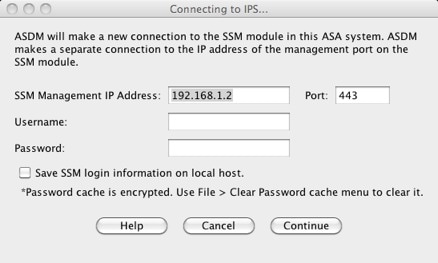
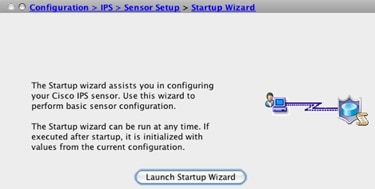
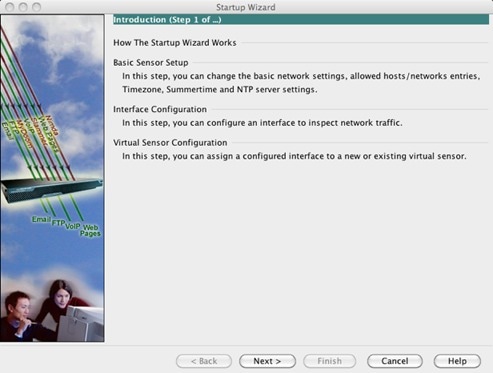
Configuring Basic IPS Module Network Settings
(ASA 5512-X through ASA 5555-X; May Be Required) Booting the Software Module
Configuring the IPS Security Policy
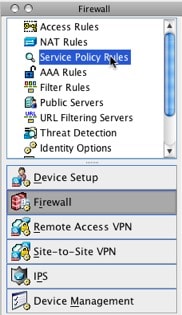
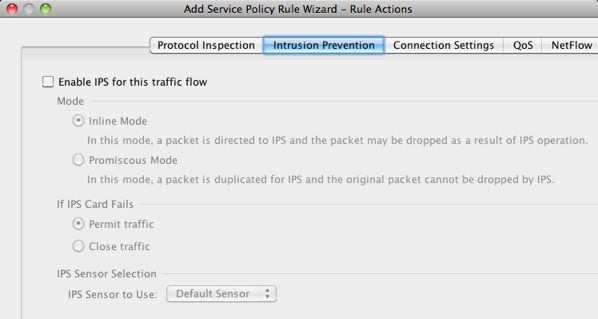
Redirecting Traffic to the IPS Module
Quick Start Guide
Cisco ASA IPS Module
Revised: October 11, 20121 Information About the IPS Module on the ASA
The IPS module might be a physical module or a software module, depending on your ASA model. For ASA model software and hardware compatibility with the IPS module, see the Cisco ASA Compatibility at http://www.cisco.com/en/US/docs/security/asa/compatibility/asamatrx.html.
The IPS module runs advanced IPS software that provides proactive, full-featured intrusion prevention services to stop malicious traffic, including worms and network viruses, before they can affect your network.
The IPS module runs a separate application from the ASA. The IPS module might include an external management interface so you can connect to the IPS module directly; if it does not have a management interface, you can connect to the IPS module through the ASA interface. Any other interfaces on the IPS module, if available for your model, are used for ASA traffic only.
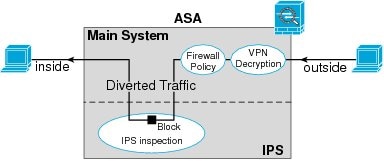
Traffic goes through the firewall checks before being forwarded to the IPS module. When you identify traffic for IPS inspection on the ASA, traffic flows through the ASA and the IPS module as follows. Note: This example is for "inline mode." See the ASA configuration guide for information about "promiscuous mode," where the ASA only sends a copy of the traffic to the IPS module.
1.
Traffic enters the ASA.
2.
3.
4.
5.
6.
7.
8.
The following figure shows the traffic flow when running the IPS module in inline mode. In this example, the IPS module automatically blocks traffic that it identified as an attack. All other traffic is forwarded through the ASA.
2 Connecting the ASA IPS Management Interface
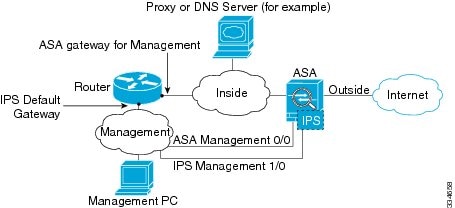
In addition to providing management access to the IPS module, the IPS management interface needs access to an HTTP proxy server or a DNS server and the Internet so it can download global correlation, signature updates, and license requests. This section describes recommended network configurations. Your network may differ.
ASA 5510, ASA 5520, ASA 5540, ASA 5580, ASA 5585-X (Physical Module)
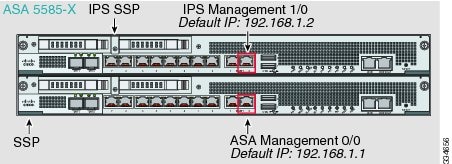
The IPS module includes a separate management interface from the ASA.
If you have an inside router
If you have an inside router, you can route between the management network, which can include both the ASA Management 0/0 and IPS Management 1/0 interfaces, and the ASA inside network. Be sure to also add a route on the ASA to reach the Management network through the inside router.
If you do not have an inside router
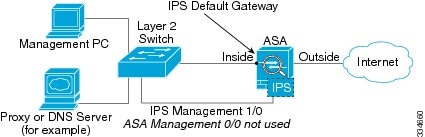
If you have only one inside network, then you cannot also have a separate management network, which would require an inside router to route between the networks. In this case, you can manage the ASA from the inside interface instead of the Management 0/0 interface. Because the IPS module is a separate device from the ASA, you can configure the IPS Management 1/0 address to be on the same network as the inside interface.
ASA 5512-X through ASA 5555-X (Software Module)
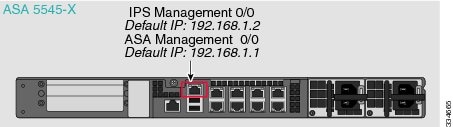
These models run the IPS module as a software module, and the IPS management interface shares the Management 0/0 interface with the ASA.
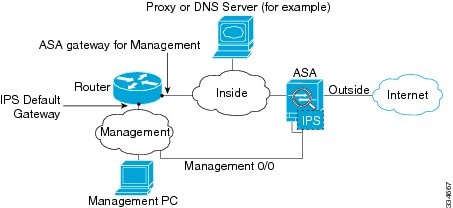
If you have an inside router
If you have an inside router, you can route between the Management 0/0 network, which includes both the ASA and IPS management IP addresses, and the inside network. Be sure to also add a route on the ASA to reach the Management network through the inside router.
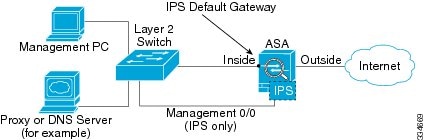
If you do not have an inside router
If you have only one inside network, then you cannot also have a separate management network. In this case, you can manage the ASA from the inside interface instead of the Management 0/0 interface. If you remove the ASA-configured name from the Management 0/0 interface, you can still configure the IPS IP address for that interface. Because the IPS module is essentially a separate device from the ASA, you can configure the IPS management address to be on the same network as the inside interface.

Note
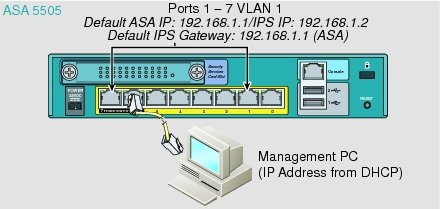
ASA 5505
The ASA 5505 does not have a dedicated management interface. You must use an ASA VLAN to access an internal management IP address over the backplane. Connect the management PC to one of the following ports: Ethernet 0/1 through 0/7, which are assigned to VLAN 1.
3 Launching the Adaptive Security Device Manager (ASDM) on the ASA
The default ASA configuration lets you connect to the default management IP address (192.168.1.1). Depending on your network, you might need to change the ASA management IP address, or even configure additional ASA interfaces for ASDM access (see the "Connecting the ASA IPS Management Interface" section). For the ASA 5512-X through ASA 5555-X, if you do not have a separate management network (see the "If you do not have an inside router" section), you need to configure an inside interface for management, and you need to remove the name from the Management 0/0 interface. To change interface and management settings, see the ASA configuration guide.
Step 1
Step 2
Step 3
Step 4
Step 5
4 (ASA 5512-X through ASA 5555-X) License Requirements
For the ASA 5512-X through the ASA 5555-X, the ASA requires the IPS Module license. For a failover pair, each unit requires this license. To view your current licenses, in ASDM choose Home > Device Dashboard > Device Information > Device License. For more information about ASA licenses, see the licensing chapter in the configuration guide.
5 Configuring Basic IPS Module Network Settings
ASA 5510 and Higher
Use the ASDM Startup Wizard to configure basic IPS network settings. These settings are saved to the IPS configuration, not the ASA configuration.
Step 1
Step 2
Note
Step 3
–
–
–
–
–
–
Step 4
a.
b.
c.
Step 5
Step 6
Step 7
ASA 5505
Use ASDM to configure basic IPS network configuration. These settings are saved to the IPS configuration, not the ASA configuration.
Step 1
Step 2
a.
b.
c.
d.
Step 3
a.
b.
c.
Step 4
a.
b.
Step 5
Step 6
6 (ASA 5512-X through ASA 5555-X; May Be Required) Booting the Software Module
Your ASA typically ships with IPS module software present on Disk0. If the module is not running, or if you are adding the IPS module to an existing ASA, you must boot the module software.
Step 1
•
For example, look for a filename like IPS-SSP_5512-K9-sys-1.1-a-7.1-4-E4.aip. Note the filename; you will need this filename later in the procedure.
•
http://www.cisco.com/cisco/software/navigator.html?mdfid=282164240
Choose Tools > File Management, then choose File Transfer > Between Local PC and Flash to upload the new image to disk0. Note the filename; you will need this filename later in the procedure.
Step 2
Step 3
sw-module module ips recover configure image disk0:file_pathFor example, using the filename in the example in Step 1, enter:
sw-module module ips recover configure image
disk0:IPS-SSP_5512-K9-sys-1.1-a-7.1-4-E4.aip
Step 4
sw-module module ips recover bootStep 5
show module ips detailsThe Status field in the output indicates the operational status of the module. A module operating normally shows a status of "Up." While the ASA transfers an application image to the module, the Status field in the output reads "Recover." When the ASA completes the image transfer and restarts the module, the newly transferred image is running.
7 Configuring the IPS Security Policy
Step 1
Step 2
Step 3
Step 4
Step 5
Step 6
8 Redirecting Traffic to the IPS Module
All traffic sent over the backplane to the IPS module has the IPS security policy applied. Perform the following steps to determine what traffic to send to the IPS module:
Step 1
Step 2
Step 3
Step 4
Step 5
Step 6
Step 7
Step 8
Step 9
Step 10
9 Where to Go Next
•
http://www.cisco.com/en/US/products/hw/vpndevc/ps4077/products_documentation_roadmaps_list.html
•
 Feedback
Contact Cisco
- Open a Support Case

- (Requires a Cisco Service Contract)