Cisco 12000 Series ATM Line Card Installation and Configuration
Available Languages
Table Of Contents
ATM Line Card Installation and Configuration
Cisco IOS Software Release Requirements
Hardware Revision Requirements
1-port OC-12c/STM-4c ATM Line Card Overview
4-port OC-3c/STM-1 ATM Line Card Overview
4-port OC-12c/STM-4c ATM Line Card Overview
8-port OC-3c/STM-1 ATM Line Card Overview
4-port OC-12c/STM-4c ISE and 4-port OC-3c/STM-1 ISE ATM Line Card Overview
Preventing Electrostatic Discharge
Removing and Installing a Line Card
Guidelines for Line Card Removal and Installation
Line Card Cable-Management Bracket
Removing a Line Card Cable-Management Bracket
Installing a Line Card Cable-Management Bracket
ATM Line Card Power Budget and Signal Specifications
1-port OC-12c/STM-4c ATM Line Card Power Specifications
4-port OC-3c/STM-1 ATM Line Card Power Specifications
4-port OC-12c/STM-4c ATM Line Card Power Specifications
8-port OC-3c/STM-1 ATM Line Card Power Specifications
4-port OC-12c/STM-4c ISE ATM Line Card Power Specifications
4-port OC-3c/STM-1 ISE ATM Line Card Power Specifications
Fiber-Optic Network Interface Cables
Verifying and Troubleshooting Line Card Installation
Troubleshooting the Installation
Configuring and Troubleshooting Interfaces
Using show Commands to Check Status
Using the show version Command
Using the show interfaces Command
Using the show running-config Command
Advanced Line Card Troubleshooting
Checking the Current Status of the Line Card
Line Card Diagnostics Using Cisco IOS Software Release 12.0(22)S and Later
Line Card Diagnostics Using Cisco IOS Software Releases Prior to 12.0(22)S
Engine 0 and Engine 1 Line Card Memory Locations
Engine 2 Line Card Memory Locations
ISE Line Card Memory Locations
ATM Line Card Route Memory Options
ATM Line Card Packet Memory Options
Removing and Installing Line Card Memory
Checking the Installation of Line Card Memory
Regulatory, Compliance, and Safety Information
Translated Safety Warnings and Agency Approvals
Electromagnetic Compatibility Regulatory Statements
Class A Notice for Taiwan and Other Traditional Chinese Markets
ATM Line Card Installation and Configuration
This hardware installation and configuration note contains instructions for installing, configuring, and troubleshooting Asynchronous Transfer Mode (ATM) line cards on supported Cisco 12000 series routers.
Contents
This installation and configuration note includes the following sections:
•
Removing and Installing a Line Card
•
•
•
•
Important Information
This section contains important information about the following:
•
•
•
ATM Line Card Product Numbers
Table 1 lists the Cisco product numbers to which this publication applies.
Router Hardware Installation
For hardware installation and configuration information for Cisco 12000 series routers, refer to the installation and configuration guide for your router. The guide includes information on the router switch fabric and its affect on operation of the line card, as well as line card slot locations and other requirements.
Supported Platforms
The ATM line card is supported on all Cisco 12000 series routers.

Note
Cisco IOS Software Release Requirements
For software configuration information, refer to the Cisco IOS software configuration and command reference publications for the installed Cisco IOS software release. Also, refer to the Cisco IOS software release notes for additional information.
Table 2 lists the Cisco IOS releases and other software components that are compatible with the various ATM line cards.
The show version and show hardware commands display the current hardware configuration of the router, including the system software version that is currently loaded and running. For complete descriptions of show commands, refer to the Cisco IOS Configuration Fundamentals Configuration Guide and the Cisco IOS Configuration Fundamentals Command Reference for the installed Cisco IOS Release and see the "Using show Commands to Check Status" section.
Hardware Revision Requirements
To ensure compatibility with the software, your ATM line card should have a specific hardware revision number. This number is printed on a label affixed to the component side of the card. The hardware revision number can also be displayed using the show version command.
Table 3 lists the hardware revision numbers for all ATM line cards.
Table 3 ATM Line Card Hardware Revision Numbers
1-port OC-12c/STM-4c
73-2526-04 rev. A0 for multimode
73-2525-04 rev A0 for single-mode4-port OC-3c/STM-1
78-3034-02 rev. A0 for multimode
73-3033-02 rev. A0 for single-mode4-port OC-12c/STM-4c
800-05669-02 rev. A0, 73-3983-05 rev. A0 for multimode
800-05606-02 rev. A0, 73-3984-05 rev. A0 for single-mode8-port OC-3c/STM-1
73-7919-02 for multimode
73-7920-02 for single-mode4-port OC-3c/STM-1 ISE
800-24352-01 for multimode
800-24341-01 for single-mode4-port OC-12c/STM-4c ISE
800-20757-01 for multimode
800-20368-01 for single-mode
1 Hardware revision numbers that are higher than those listed are also compatible. These are the minimum required numbers.
Related Documentation
This publication describes the basic installation and configuration of a ATM line card. For complete software and ATM configuration information, refer to the following publications:
•
•
•
•
•
•
•
See the "Obtaining Documentation" section for information on how to obtain these publications.
Product Overviews
This section includes product overview information for each ATM line card:
•
•
•
•
•
1-port OC-12c/STM-4c ATM Line Card Overview
The 1-port OC-12c/STM-4c ATM line card provides the Cisco 12000 series router with one 622-Mbps ATM interface. The card interfaces to the router's switch fabric and provides one OC-12c/STM-4c duplex SC single-mode or multimode SONET/SDH connection. This connection is concatenated, which provides for increased efficiency by eliminating the need to partition the bandwidth.
Figure 1 illustrates the single-mode, intermediate-range 1-port OC-12c/STM-4c ATM line card.
Figure 1 1-port OC-12c/STM-4c ATM Line Card—Single-Mode

4-port OC-3c/STM-1 ATM Line Card Overview
The 4-port OC-3c/STM-1 ATM line card interfaces with the switch fabric of the Cisco 12000 Series Router. It provides four 155-Mbps OC-3c/STM-1c duplex SC single-mode or multimode SONET/SDH connections. This connection is concatenated, which provides for increased efficiency by eliminating the need to partition the bandwidth.
Figure 2 shows the single-mode, intermediate-range 4-port OC-3c/STM-1 ATM line card.
Figure 2 4-port OC-3c/STM-1 ATM Line Card

4-port OC-12c/STM-4c ATM Line Card Overview
The 4-port OC-12c/STM-4c ATM line card provides the Cisco 12000 Series Router with four 622-Mbps ATM interfaces. The card interfaces to the router's switch fabric and provides four OC-12c/STM-4c SC connectors for duplex single-mode or multimode SONET/SDH connections.
Figure 3 illustrates the single-mode, intermediate-range 4-port OC-12c/STM-4c ATM line card. There are four ports, numbered 0 to 3, on each line card. Each port has a set of status LEDs. Each SONET connection is concatenated, which provides for increased efficiency by eliminating the need to partition the bandwidth.
Figure 3 4-port OC-12c/STM-4c ATM Line Card—Intermediate-Range

8-port OC-3c/STM-1 ATM Line Card Overview
The 8-port OC-3c/STM-1 ATM line card supports traffic shaping, and delivers line rate OC-3c/STM-1 bandwidth while performing traffic shaping and per-virtual circuit (VC) queueing. It also supports per-VC Modified Deficit Round Robin (MDRR) and per-VC low latency queueing (LLQ).
MDRR is implemented on a per-VC basis, with up to eight queues per VC. One of the queues is a low latency queue. Both per-VC WRED and per-VC MDRR are performed in hardware.
The 8-port OC-3c/STM-1 ATM line card provides the Cisco 12000 Series Router with eight 155 Mbps ATM interfaces. The card interfaces to the router's switch fabric and provides eight OC-3c/STM-1 SC connectors for duplex single-mode or multimode SONET/SDH connections.
Figure 4 shows the single-mode, intermediate-range 8-port OC-3c/STM-1 ATM line card.
Figure 4 8-port OC-3c/STM-1 ATM Line Card

4-port OC-12c/STM-4c ISE and 4-port OC-3c/STM-1 ISE ATM Line Card Overview
The 4-port ISE ATM line cards provide the Cisco 12000 series routers with an ATM line card that offers the IP services engine or Engine 3 features, including extensive traffic queuing, shaping, and congestion management features, at a sustained full duplex throughput of 5.66 million cells per second (4-port OC-12c/STM-4c ISE ATM line card) or 1.41 million cells per second (4-port OC-3c/STM-1 ISE ATM line card). The 4-port ISE ATM line card is available with either OC-12c/STM-4c or OC-3c/STM-1 interfaces. Except for the speed of the interfaces, these line cards provide identical functionality, and are referred to throughout this document as the 4-port ISE ATM line cards.
The 4-port ISE ATM line card delivers a robust set of edge packet processing features such as ACL, ExACL, CAR, NetFlow, and Multicast with incorporated MDRR, WRED and backpressure congestion avoidance mechanism. This line card brings enhanced Layer 3 processing and high bandwidth ATM capabilities to the Cisco 12000 series router.
In addition, the 4-port ISE ATM line cards provide Layer 2 AToM tunneling with cell relay and cell packing on VCs, VPs, and interfaces; ATM traffic shaping and policing; and Layer 2 and Layer 3 configurations on the same port.
The line cards consist of two boards: a generic IP services engine motherboard that contains the Engine 3 chip set and fabric interface and a physical layer interface module (PLIM)-specific card providing the four optic interfaces.
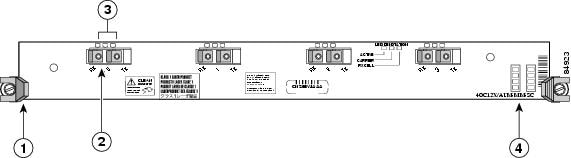
Figure 5 shows the front view of the 4-port ISE ATM line card.
Figure 5 4-port ISE ATM Line Card
Preparing for Installation
Before you begin the installation process, review the important information in the following sections:
•
Safety Guidelines
Before you perform any procedure in this publication, review the safety guidelines in this section to avoid injuring yourself or damaging the equipment.
The following guidelines are for your safety and to protect equipment. The guidelines do not include all hazards. Be alert.
Note
•
•
•
Preventing Electrostatic Discharge
Electrostatic discharge (ESD) damage, which can occur when electronic cards or components are improperly handled, results in complete or intermittent failures. Electromagnetic interference (EMI) shielding is an integral component of the line card. Cisco recommends using an ESD-preventive strap whenever you are handling network equipment or one of its components.
The following are guidelines for preventing ESD damage:
•
•
•
•

Warning
Required Tools and Equipment
You need the following tools and parts to remove and install ATM line cards:
•
•
•
See the "Fiber-Optic Network Interface Cables" section for cable details.
Removing and Installing a Line Card
This section describes the procedures for removing and installing a line card and includes the following sections:
•
Note

Caution
After removing and inserting a line card into the same slot, allow at least 60 seconds before removing or inserting another line card.
Guidelines for Line Card Removal and Installation
Guidelines for line card removal and installation include the following:
•
Note
•
Caution
After removing and inserting a line card into the same slot, allow at least 60 seconds before removing or inserting another line card.
•
Caution
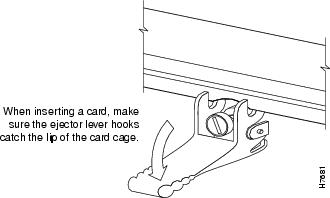
When you install a line card, always use the ejector levers to ensure that the card is correctly aligned with the backplane connector; the connector pins should make contact with the backplane in the correct order, indicating that the card is fully seated in the backplane. If a card is only partially seated in the backplane, the router will hang and subsequently crash.
•
For line card configuration information, see the "Configuring and Troubleshooting Interfaces" section.
Removing a Line Card
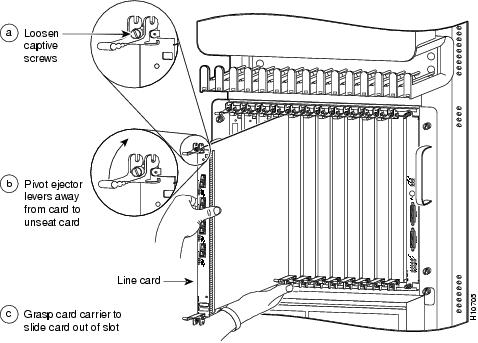
If you are replacing a failed line card, remove the existing line card first, then install the new line card in the same slot. To remove a line card, use Figure 6 as a reference and follow these steps:
Step 1
Step 2
Step 3
Step 4
Figure 6 Line Card Removal and Installation
Caution
Step 5
Step 6
Step 7
Step 8
Step 9
Note
Note
Removing the Blank Filler
This procedure only applies to 4-port ISE ATM line cards in Cisco 12008 and Cisco 12012 routers.
Because the 4-port ISE ATM line card is wider than the line card slots in the Cisco 12008 and Cisco 12012 Routers, the line card uses the space of two slots. The blank filler (part number: 4OC12X/ATM-BLANK) is used to fill the remaining area not used in the second slot, thereby providing proper ventilation for the line card and protecting the chassis and line card from damage.
The blank filler is removed after the ATM line card has been removed.
Caution
To remove the blank filler, follow these steps:
Step 1
Step 2
This completes the procedure for removing the blank filler. The router slot can now be used to install any line card.
Installing a Blank Filler
This procedure only applies to 4-port ISE ATM line cards in Cisco 12008 and Cisco 12012 routers.
Because the 4-port ISE ATM line card is wider than the line card slots in the Cisco 12008 and Cisco 12012 routers, the 4-port ISE ATM line card uses the space of two line card slots. The blank filler is used to fill the remaining area not used in the second slot, thereby providing proper ventilation for the line card and protecting the chassis and line card from damage.
The ATM line card can be installed into any available pair of slots in the Cisco 12008 or Cisco 12012 router. The blank filler is installed into the rightmost slot of the pair to be used by the line card.
Caution
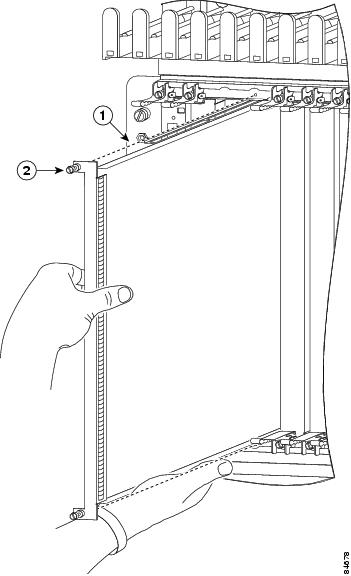
To install a blank filler, follow these steps:
Step 1
Step 2
Figure 7 Inserting and Removing the Blank Filler
Step 3
Step 4
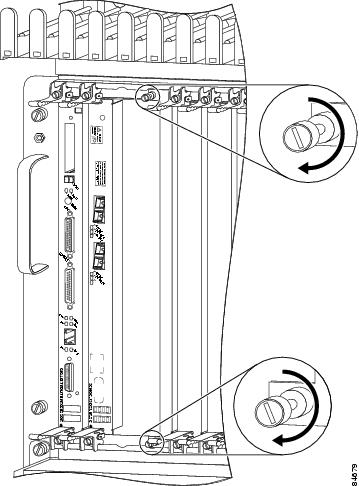
To ensure that there is adequate space for the ATM line card, tighten the captive installation screws on the blank filler before you insert the line card.
Caution
Figure 8 Fastening Captive Screw on Blank Filler
Installing a Line Card
A line card slides into almost any available line card slot and connects directly to the backplane. If you install a new line card, you must first remove the line card blank from the available slot.
Note
Note
Caution
To install a line card, follow these steps:
Step 1
Step 2
Note
Caution
Step 3
Step 4
Figure 9 Ejector Levers
Caution
Step 5
Step 6
Caution
Step 7
Step 8
Note
For information on installing interface cables, see the "Cabling and Specifications" section.
For information on installing a blank filler before installing the 4-port ISE ATM line card, see the "Installing a Blank Filler" section.
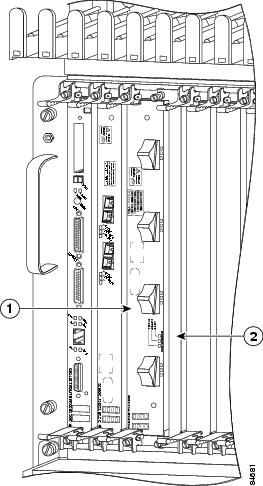
When the 4-port ISE ATM line card is installed in a Cisco 12008 or Cisco 12012 router together with the blank filler, it will appear as in Figure 10.
Figure 10 4-port ISE ATM Line Card Installed with Blank Filler
Line Card Cable-Management Bracket
Note
Cisco 12000 Series Routers include a cable-management system that organizes the interface cables entering and exiting the router, keeping them out of the way and free of sharp bends.
Caution
The cable-management system consists of two separate components:
1.
2.
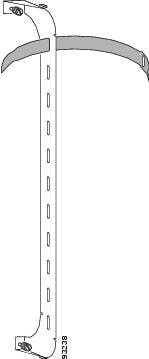
This section describes the line card cable-management bracket. Figure 11 shows the single-port line card cable-management bracket; Figure 12 shows the multiport line card cable-management bracket.
Figure 11 Single-Port Line Card Cable-Management Bracket
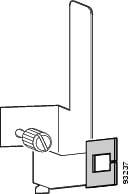
Figure 12 Multiport Line Card Cable-Management Bracket
Note
Caution
Removing and installing the line card cable-management bracket is described in the following procedures:
•
•
Removing a Line Card Cable-Management Bracket
To remove a line card cable-management bracket, follow these steps:
Step 1
Step 2
Step 3
Note
Step 4
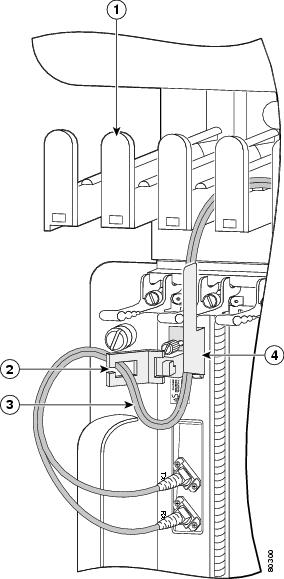
For single-port line card cable-management brackets, carefully remove the interface cable from the cable clip. (See Figure 14.) Avoid any kinks or sharp bends in the cable.
Step 5
Step 6
For single-port line card cable-management brackets, loosen the captive installation screw on the cable-management bracket and remove the bracket from the line card.
Figure 13 Multiport Line Card Cable-Management Installation and Removal
(4-Port OC-48c/STM-16c DPT Line Card Shown)
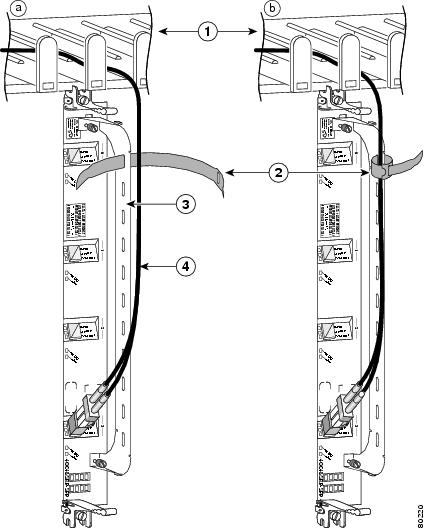
Figure 14 Single-Port Line Card Cable-Management Bracket Installation and Removal (1-Port OC-192c/STM-64c DPT Line Card Shown)
Installing a Line Card Cable-Management Bracket
To install a line card cable-management bracket, follow these steps:
Step 1
Step 2
a.
b.
c.
Step 3
For single-port line card cable-management brackets, carefully press the interface cable onto the cable clip. (See Figure 14.) Avoid any kinks or sharp bends in the cable.
Cabling and Specifications
The following sections provide specifications for the ATM line card:
•
•
ATM Line Card Power Budget and Signal Specifications
The 4-port ISE ATM line card uses both single-mode and multimode fiber-optic cable. Signals can travel farther through single-mode fiber than through multimode fiber. The maximum distance for installations is determined by the amount of light loss in the fiber path. If your environment requires the light to travel close to the typical maximum distances, you should use an optical time domain reflectometer (OTDR) to measure the power loss.
The following sections describe the power budget and signal specifications for the optics used in each ATM line card:
•
•
•
•
•
•
1-port OC-12c/STM-4c ATM Line Card Power Specifications
The 1-port OC-12c/STM-4c ATM line card provides the Cisco 12000 series router with a single 622-Mbps ATM interface. Table 4 lists the power ratings and distances of the interface. The distance in a given case depends on the quality of the fiber attached to the transceiver.
4-port OC-3c/STM-1 ATM Line Card Power Specifications
The 4-port OC-3c/STM-1 ATM line card provides the Cisco 12000 series router with four 155-Mbps OC-3c/STM-1c duplex SC single-mode or multimode SONET/SDH ATM interfaces. Table 5 lists the power ratings and distances of these interfaces. The actual distance in any given case depends on the quality of the fiber attached to the transceiver.
4-port OC-12c/STM-4c ATM Line Card Power Specifications
The 4-port OC-12c/STM-4c ATM line card provides the Cisco 12000 Series Router with four 622-Mbps ATM interfaces. Table 6 lists the power ratings and distances of these interfaces. The actual distance in any given case depends on the quality of the fiber attached to the transceiver.
8-port OC-3c/STM-1 ATM Line Card Power Specifications
The 8-port OC-3c/STM-1 ATM line card provides the Cisco 12000 Series Router with eight 155 Mbps ATM interfaces. Table 7 lists the power ratings and distances of these interfaces. The actual distance in any given case depends on the quality of the fiber attached to the transceiver.
4-port OC-12c/STM-4c ISE ATM Line Card Power Specifications
The 4-port OC-12c/STM-4c ISE ATM line card provides the Cisco 12000 Series Router with four 622-Mbps ATM interfaces. Table 8 lists the power ratings and distances of these interfaces. The actual distance in any given case depends on the quality of the fiber attached to the transceiver.
4-port OC-3c/STM-1 ISE ATM Line Card Power Specifications
The 4-port OC-3c/STM-1 ISE ATM line card provides the Cisco 12000 Series Router with four 155-Mbps ATM interfaces. Table 9 lists the power ratings and distances of these interfaces. The actual distance in any given case depends on the quality of the fiber attached to the transceiver.
Fiber-Optic Network Interface Cables
The ATM line cards have SC-type fiber-optic interface connectors. Use a multimode or single-mode fiber-optic interface cable, as appropriate, to connect the fiber-optic interfaces in the ATM line card in your Cisco 12000 series router to another router or switch. In general, multimode cables are gray or orange, and single-mode cables are yellow.
Note
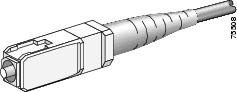
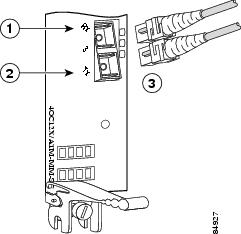
You can use either one duplex SC-type connector (Figure 15) or two simplex SC-type connectors (Figure 16).
Figure 15 Duplex SC Cable Connector
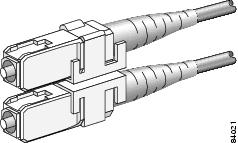
Figure 16 Simplex SC Cable Connector
Attach either one duplex fiber cable or two simplex fiber cables per port between the line card and the device to which the line card is connected. Observe the transmit (TX) and receive (RX) cable relationship shown in Figure 17.
Note
Figure 17 Attaching Fiber Cables
Note
Warning
Warning
Warning
Verifying and Troubleshooting Line Card Installation
The following sections describe how to verify and troubleshoot line card installation:
•
Initial Boot Process
During a typical line card boot process, the following events occur:
1.
2.
3.
To verify that the line card is working properly, perform the following operational checks:
•
•
If one of these conditions is not met, refer to the "Advanced Line Card Troubleshooting" section to identify any possible problems.
Status LEDs
Each 4-port ISE ATM line card provides the following two types of LEDs (see Figure 5) for monitoring the operating status of the line card:
•
–
–
–
•
The status LEDs are described in Table 10.
The RX Cell LED flashes when data is being received.
The status LEDs on the line card might not go on until you configure the line card interfaces (or turned them on if they were shut down). To verify correct operation of each interface, complete the configuration procedures for the line card (see the "Configuring and Troubleshooting Interfaces" section).
Alphanumeric LEDs
ATM line cards have two four-digit alphanumeric LED displays at one end of the faceplate, near the ejector lever, that display a sequence of messages indicating the state of the card. In general, the LEDs do not turn on until the RP recognizes and powers up the card. As it boots, the line card displays a sequence of messages similar to those in Table 11.
Note
Table 11 Alphanumeric LED Messages During a Typical Initialization Sequence
MROM
nnnnMBus microcode execute; nnnn is the microcode version number.
MBus controller
LMEM
TESTLow memory on the line card is being tested.
Line card ROM monitor
LROM
RUNLow memory test has been completed.
Line card ROM monitor
BSS
INITMain memory is being initialized.
Line card ROM monitor
RST
SAVEContents of the reset reason register are being saved.
Line card ROM monitor
IO
RSTReset I/O register is being accessed.
Line card ROM monitor
EXPT
INITInterrupt handlers are being initialized.
Line card ROM monitor
TLB
INITTLB is being initialized.
Line card ROM monitor
CACH
INITCPU data and instruction cache is being initialized.
Line card ROM monitor
MEM
INITSize of the main memory on the line card is being discovered.
Line card ROM monitor
LROM
RDYROM is ready for the download attempt.
Line card ROM monitor
ROMI
GETROM image is being loaded into line card memory.
RP IOS software
ROM
VGET2ROM image is receiving a response.
RP IOS software
FABI
WAITLine card is waiting for the fabric downloader to load.3
RP IOS software
FABM
WAIT2Line card is waiting for the fabric manager to report that the fabric is usable.
RP IOS software
FABL
DNLDFabric downloader is being loaded into line card memory.
RP IOS software
FABL
STRTFabric downloader is being launched.
RP IOS software
FABL
RUNFabric downloader has been launched and is running.
RP IOS software
IOS
DNLDCisco IOS software is being downloaded into line card memory.
RP IOS software
IOS
FABW2Cisco IOS software is waiting for the fabric to be ready.
RP IOS software
IOS
VGET2Line card is obtaining the Cisco IOS version.
RP IOS software
IOS
RUNLine card is enabled and ready for use.
RP IOS software
IOS
STRTCisco IOS software is being launched.
RP IOS software
IOS
TRANCisco IOS software is transitioning to active.
RP IOS software
IOS
UPCisco IOS software is running.
RP IOS software
1 The entire LED sequence shown in Table 11 might occur too quickly for you to read; therefore, this sequence is provided in this tabular form as a baseline for how a line card should function at startup.
2 This LED sequence only appears in Cisco IOS release 12.0(24)S or later.
3 The fabric downloader loads the Cisco IOS software image onto the line card.
Table 12 lists other messages displayed on the line card alphanumeric LED displays.
Table 12 Other Alphanumeric LED Messages
MAL
FUNCLine card malfunction reported by field diagnostics.
RP
MISM
ATCH1Line card type mismatch in paired slots.
RP
PWR
STRT1Line card has been newly powered on.
RP
PWR
ONLine card is powered on.
RP
IN
RSETIn reset.
RP
RSET
DONEReset complete.
RP
MBUS
DNLDMBus agent downloading.
RP
MBUS
DONEMBus agent download complete.
RP
ROMI
DONEAcquisition of ROM image complete.
RP
MSTR
WAITWaiting for mastership determination.
RP
CLOK
WAITWaiting for slot clock configuration.
RP
CLOK
DONESlot clock configuration done.
RP
FABL
LOADLoading fabric downloader2 complete.
RP
IOS
LOADDownloading of Cisco IOS software is complete.
RP
BMA
ERRCisco IOS software BMA error.
RP
FIA
ERRCisco IOS fabric interface ASIC configuration error.
RP
CARV
ERRBuffer carving failure.
RP
DUMP
REQLine card requesting a core dump.
RP
DUMP
RUNLine card dumping core.
RP
DUMP
DONELine card core dump complete.
RP
DIAG
MODEDiagnostic mode.
RP
DIAG
LOADDownloading field diagnostics over the MBus.
RP
DIAG
F_LDDownloading field diagnostics over the fabric.
RP
DIAG
STRTLaunching field diagnostics.
RP
DIAG
HALTCancel field diagnostics.
RP
DIAG
TESTRunning field diagnostics tests.
RP
DIAG
PASS1Field diagnostics were completed successfully.
RP
POST
STRTLaunching power-on self-test (POST).
RP
UNKN
STATUnknown state.
RP
ADMN
DOWNLine card is administratively down.
RP
SCFG
PRES1Incorrect hw-module slot srp command entered.
RP
SCFG1
REDQRequired hw-module slot srp command not entered.
RP
1 This LED sequence only appears in Cisco IOS release 12.0(24)S or later.
2 The fabric downloader loads the Cisco IOS software image onto the line card.
Troubleshooting the Installation
Note
If the Active LED (Link LED or status LED for line cards with no Active LED) or the alphanumeric display LEDs on a line card do not go on, there is either a problem with the line card installation or a hardware failure. To verify that the line card is installed correctly, follow these steps:
Step 1
Step 2
a.
b.
c.
After the line card reinitializes, the Active LED on the line card should go on. If the Active LED goes on, the installation is complete; if the Active LED does not go on, proceed to the next step.
Step 3
•
•
Step 4
For more information on troubleshooting and diagnostics, refer to the installation and configuration guide that came with your Cisco 12000 series router.
Configuring and Troubleshooting Interfaces
The following sections provide procedures for configuring and troubleshooting the ATM line card.
•
•
•
•
Initial Configuration
To display current port configuration information, use the show running-config command. During power-on, the interface on a new ATM line card is shut down. To enable the interface, you must enter a no shutdown command in configuration mode. When the ATM line card is enabled (taken out of shutdown) with no additional configuration commands applied, the default interface configuration file parameters listed in Table 13 are used.
To enter a no shutdown command for the ATM line card interface or to change the configuration of the interface, you must enter configuration mode by using the configure privileged EXEC command.
Configuring an Interface
After you verify that the new ATM line card is installed correctly, use the configure command to configure the new interface. Be prepared with the information that you will need, such as the interface IP address.
The following procedure is for creating a basic configuration—enabling an interface and specifying IP routing. You might also need to enter other configuration subcommands, depending on the requirements for your router configuration.
(For descriptions of configuration subcommands and the configuration options available, refer to the appropriate software publications in the "Cisco IOS Software Release Requirements" section.)
A Cisco 12000 Series Router identifies an interface address by its line card slot number and port number, in the format slot/port. The ATM interfaces on the line card are numbered starting from 0: a one-port card has only port 0, while a four-port card has ports 0 to 3. For example, the slot/port address of the first ATM interface on a ATM line card installed in line card slot 2 is 2/0.
Before you can use the configure command, you must enter the privileged level of the EXEC command interpreter with the enable command. The router will prompt you for a password if one is set.
Use the following procedure to configure the ATM line card. Press the Return key after each configuration step unless otherwise noted.
Step 1
Router# show versionStep 2
Router# show interfaceStep 3
Router# configure terminalStep 4
For example, to configure port 3 of an ATM line card in interface processor slot 1, enter the interface atm command as follows:
Router(config)# interface atm 1/3Step 5
Router(config-if)# ip address 10.1.2.3 255.255.255.0Step 6
Router(config-if)# pvc 1/17
Note
Step 7
Router(config-if)# no shutdownThe no shutdown command passes an enable command to the ATM line card, which then begins segmentation and reassembly (SAR) operations. It also causes the line card to configure itself based on the most recent configuration commands received by the line card.
Note
Note
Step 8
Step 9
Router# copy running-config startup-configThe router displays an OK message when the configuration is stored.
After you have completed your configuration, you can check it using show commands. For an explanation of show commands, see the "Using show Commands to Check Status" section.
Using show Commands to Check Status
Each Cisco 12000 Series Router line card maintains information about its configuration, traffic, errors, and so on. You can display this information by using the show commands. Descriptions and examples of the show commands are presented in the following sections:
•
•
•
Using the show version Command
Use the show version command to display the configuration of the router hardware (the number of each line card type installed), the Cisco IOS software release, the names and sources of configuration files, and the boot images.
Using the show gsr Command
Use the show gsr command to display information about the hardware modules installed in the Cisco 12000 series router. In the following example, the show gsr command shows a ATM line card installed in slot 2 of the router.
Router#show gsrUsing the show interfaces Command
The following commands display information about the router interfaces: show interfaces, show interfaces pos slot/port, and show interfaces atm slot/port. The following example of the show interfaces atm slot/port command uses port 0 of an 8-port OC-3 STM-1 ATM line card installed in slot 2 of the router:
Router# show interfaces atm 2/0Using the show running-config Command
Use the show running-config command to display the currently running configuration in RAM:
Router# show running-configUsing ATM show Commands
You can use the following ATM show commands to display the current state of the ATM network and the connected virtual circuits:
•
Router# show atm interface atm slot/port•
Router# show atm traffic•
Router# show atm pvcRouter# show atm vcATM Configuration Example
The following example is of a typical ATM configuration for a PVC:
interface ATM2/0no ip addressno ip directed-broadcastatm clock INTERNALno atm enable-ilmi-trapno atm ilmi-keepalive!interface ATM2/0.1 point-to-pointip address 1.1.0.13 255.255.255.0no ip directed-broadcastno atm enable-ilmi-trappvc 0/100!interface ATM2/0.2 point-to-pointip address 1.1.1.13 255.255.255.0no ip directed-broadcastno atm enable-ilmi-trappvc 0/101ubr 3500!For additional configuration examples, refer to the appropriate Cisco IOS software configuration publications listed in the "Important Information" section.
Advanced Line Card Troubleshooting
This section provides advanced troubleshooting information in the event of a line card failure. It also provides pointers for identifying whether or not the failure is hardware related. This section does not include any software-related failures, except for those that are often mistaken for hardware failures.
Note
By reading this section and by following the troubleshooting steps, you should be able to determine the nature of the problems you are having with your line card. The first step is to identify the cause of the line card failure or console errors that you are seeing. To discover which card may be at fault, it is essential to collect the output from the following commands:
•
•
•
•
•
Along with these show commands, you should also gather the following information:
•
•
Note
Note
Output Examples
The following are examples of system output that you may see if your Cisco 12000 series router line card fails. Key data in the output is underlined.
show context summary Output
Router# show context summaryCRASH INFO SUMMARYSlot 0 : 0 crashesSlot 1 : 1 crashes1 . crash at 10:36:20 UTC Wed Dec 19 2001Slot 2 : 0 crashesSlot 3 : 0 crashesSlot 4 : 0 crashesSlot 5 : 0 crashesSlot 6 : 0 crashes(remainder of output omitted)show logging Output
Router# show loggingSyslog logging: enabled (2 messages dropped, 0 messages rate.limited, 0 flushes,0 overruns)Console logging: level debugging, 24112 messages loggedMonitor logging: level debugging, 0 messages loggedBuffer logging: level debugging, 24411 messages loggedLogging Exception size (4096 bytes)Trap logging: level informational, 24452 message lines logged5d16h: %LCINFO.3.CRASH: Line card in slot 1 crashed5d16h: %GRP.4.RSTSLOT: Resetting the card in the slot: 1,Event: 385d16h: %IPCGRP.3.CMDOP: IPC command 35d16h: %CLNS.5.ADJCHANGE: ISIS: Adjacency to malachim2 (GigabitEthernet1/0) Up,n8 (slot1/0): linecard is disabled.Traceback= 602ABCA8 602AD8B8 602B350C 602B3998 6034312C 60342290 601A2BC4 601A2BB05d16h: %LINK.5.CHANGED: Interface GigabitEthernet1/0, changed state toadministratively down5d16h: %LINEPROTO.5.UPDOWN: Line protocol on Interface GigabitEthernet1/0,changed state to down5d16h: %GRP.3.CARVE_INFO: Setting mtu above 8192 may reduce available bufferson Slot: 1.SLOT 1:00:00:09: %SYS.5.RESTART: System restarted ..(remainder of output omitted)show diag slot Output
Router# show diag 1SLOT 1 (RP/LC 1 ): 3 Port Gigabit EthernetMAIN: type 68, 800.6376.01 rev E0 dev 0HW config: 0x00 SW key: 00.00.00PCA: 73.4775.02 rev E0 ver 2HW version 2.0 S/N CAB0450G8FXMBUS: Embedded AgentTest hist: 0x00 RMA#: 00.00.00 RMA hist: 0x00DIAG: Test count: 0x00000001 Test results: 0x00000000FRU: Linecard/Module: 3GE.GBIC.SC=Route Memory: MEM.GRP/LC.64=Packet Memory: MEM.LC1.PKT.256=L3 Engine: 2 . Backbone OC48 (2.5 Gbps)MBUS Agent Software version 01.46 (RAM) (ROM version is 02.10)Using CAN Bus AROM Monitor version 10.06Fabric Downloader version used 05.01 (ROM version is 05.01)Primary clock is CSC 0 Board is analyzedBoard State is Line Card Enabled (IOS RUN )Insertion time: 00:00:10 (5d16h ago)DRAM size: 67108864 bytesFrFab SDRAM size: 134217728 bytes, SDRAM pagesize: 8192 bytesToFab SDRAM size: 134217728 bytes, SDRAM pagesize: 8192 bytes1 crash since restartshow context slot Output
Router# show context slot 2CRASH INFO: Slot 2, Index 1, Crash at 12:24:22 MET Wed Nov 28 2001VERSION:GS Software (GLC1.LC.M), Version 12.0(18)S1, EARLY DEPLOYMENT RELEASE SOFTWARE (fc1)TAC Support: http://www.cisco.com/tacCompiled Fri 07.Sep.01 20:13 by nmasaCard Type: 3 Port Gigabit Ethernet, S/NSystem exception: SIG=23, code=0x24, context=0x4103FE84System restarted by a Software forced crashSTACK TRACE:.Traceback= 400BEB08 40599554 4004FB64 4005B814 400A1694 400A1680CONTEXT:$0 : 00000000, AT : 41040000, v0 : 00000032, v1 : 4103FC00a0 : 4005B0A4, a1 : 41400A20, a2 : 00000000, a3 : 00000000t0 : 41D75220, t1 : 8000D510, t2 : 00000001, t3 : FFFF00FFt4 : 400C2670, t5 : 00040000, t6 : 00000000, t7 : 4150A398s0 : 0000003C, s1 : 00000036, s2 : 4103C4D0, s3 : 41D7EC60s4 : 00000000, s5 : 00000001, s6 : 41027040, s7 : 00000000t8 : 41A767B8, t9 : 00000000, k0 : 415ACE20, k1 : 400C4260GP : 40F0DD00, SP : 41D7EC48, s8 : 4102D120, ra : 40599554EPC : 0x400BEB08, SREG : 0x3400BF03, Cause : 0x00000024ErrorEPC : 0x400C6698, BadVaddr : 0xFFBFFFFB.Process Traceback= No Extra TracebackSLOT 2:00:00:09: %SYS.5.RESTART: System restarted ..(remainder of output omitted)The type of failure that has occurred in the show context slot 2 example is identified by the underlined SIG= value. The three most common types of line card failures are:
•
•
•
In the example above, the line card has failed and has caused a reload because of a software forced crash exception. Once you have determined the cause and collected the necessary output, you can check for any caveats in your Cisco IOS software release using the Bug Toolkit (available to registered Cisco.com users only).
Checking the Current Status of the Line Card
Once you have determined if the problems are caused by system errors in the log or an actual crash, it is important to check the current status of the line card to see if it has recovered from the failure. The status of individual line cards can be identified either by examining the alphanumeric LEDs located on the front of the line card, or by issuing the show led command.
show led Output
Router# show ledSLOT 1 : RUN IOSSLOT 6 : DNLD FABLSLOT 7 : RP ACTVSLOT 10 : RUN IOSSLOT 11 : RUN IOSSLOT 13 : RUN IOSSLOT 14 : RUN IOS
Note
If the alphanumeric LEDs on the line card display anything other than IOS RUN, or the RP is neither the active Master/Primary nor the Slave/Secondary, there is a problem and the line card has not fully loaded correctly. Before replacing the line card, try fixing the problem by following these steps:
Step 1
Step 2
or
Step 3
Fabric Ping Failure
Fabric ping failures occur when either a line card or the secondary RP fails to respond to a fabric ping request from the primary RP over the switch fabric. Such failures are a problem symptom that should be investigated. They are indicated by the following error messages:
%GRP-3-FABRIC_UNI: Unicast send timed out (1)%GRP-3-COREDUMP: Core dump incident on slot 1, error: Fabric ping failure%LCINFO-3-CRASH: Line card in slot 1 crashedYou can find more information about this issue on Cisco.com in the Troubleshooting Fabric Ping Timeouts and Failures on the Cisco 12000 Series Internet Router publication.
Error Messages
If you receive any error message related to a line card, you can use the Error Message Decoder Tool (on Cisco.com) to find the meaning of this error message. Some errors point to a hardware issue, while others indicate a Cisco IOS software caveat or a hardware issue on another part of the router. This publication does not cover all these messages.
Note
FPGA Error Messages
If the line card does not boot and you receive an error message indicating that there is a problem with the Field-Programmable Gate Array (FPGA) image (or if the line card alphanumeric LED display remains frozen in IOS STRT state), you need to upgrade the FPGA image using the update-fpga option in the diag command.
Note
When the Cisco IOS image boots, it verifies that a compatible FPGA image is running on the router. The major version number of the FPGA image must be the same as that expected by the Cisco IOS image; the minor version number on the FPGA image must be the same as or greater than the minor version number expected by the Cisco IOS image. For example, if the Cisco IOS image expects a minimum FPGA image of 03.02, the software will verify that the actual major version number of the FPGA image in the line card bootflash is 03, and that the minor version number is 02 or above.
Example error messages indicating an FPGA problem appear as follows:
Error Message    No FPGA image available for slot0. Please run field diagnostics image
on slot0 to upgrade the FPGA image.
Explanation There is currently no valid FPGA image in the bootflash of the line card. You must load a valid FPGA image to the line card bootflash.
Error Message    FPGA image not appropriate or corrupted for slot0. Please run field
diagnostics on slot0 to upgrade the FPGA image.
Explanation The FPGA image currently loaded in the line card bootflash is not compatible with the Cisco IOS software release currently running on the router or is corrupted. Upgrade the FPGA image to the correct version.
Note
Line Card Diagnostics Using Cisco IOS Software Release 12.0(22)S and Later
Note
Line card field diagnostic software is designed to identify any faulty line card within a Cisco 12000 Series Router. Before Cisco IOS Software Release 12.0(22)S, the field diagnostic software was imbedded within the Cisco IOS software. Starting with Cisco IOS Software Release 12.0(22)S, this software is unbundled from the main image and must be downloaded from Cisco.com using the IOS Upgrade Planner.
Cisco initiated this change to accommodate users with 20-MB Flash memory cards. Field diagnostics are now stored and maintained as a separate image under the following name:
c12k-fdiagsbflc-mz-xxx-xx.s (where xxx-xx is the version number)
This image must be available on a separate Flash memory card, Flash disk, or TFTP boot server in order to load line card field diagnostics. The latest version is always available on Cisco.com. RP and fabric tests remain embedded within the main Cisco IOS software image.
While the diagnostic test is running, the line card does not function normally and cannot pass any traffic for the duration of the testing (5 to 20 minutes depending upon the complexity of the line card). Without the verbose keyword, the command provides a truncated output message. When communicating with the Cisco TAC, the verbose mode is helpful in identifying specific problems. The output of the diagnostic test without the verbose command appears like the following example:
Router# diag 7 tftp://223.255.254.254/diagnostic/award/c12k.fdiagsbflc.mz.120-25.sRunning DIAG config checkFabric Download for Field Diags chosen: If timeout occurs, try 'mbus' option.Runnning Diags will halt ALL activity on the requested slot. [confirm]Launching a Field Diagnostic for slot 7Downloading diagnostic tests to slot 7 via fabric (timeout set to 300 sec.)5d20h: %GRP.4.RSTSLOT: Resetting the card in the slot: 7,Event:EV_ADMIN_FDIAGLoading diagnostic/award/c12k.fdiagsbflc.mz.120-25.s from 223.255.254.254(via Ethernet0): !!!!!!!!!!!!!!!!!!!!!!!!!!!!!!!!!!!!!!!!!!!!!!!!!5d20h: Downloading diags from tftp file tftp://223.255.254.254/diagnostic/award/c12k.fdiagsbflc.mz.120-25.s!!!!!!!!!!!!!!!!!!!!!!!!!!!!!!!!!!!!!!!!!!!!!!!![OK . 13976524 bytes]FD 7> *****************************************************FD 7> GSR Field Diagnostics V6.05FD 7> Compiled by award on Tue Jul 30 13:00:41 PDT 2002FD 7> view: award.conn_isp.FieldDiagReleaseFD 7> *****************************************************Executing all diagnostic tests in slot 7(total/indiv. timeout set to 2000/600 sec.)FD 7> BFR_CARD_TYPE_OC12_4P_POS testing...FD 7> Available test types 2FD 7> 1FD 7> Completed f_diags_board_discovery() (0x1)FD 7> Test list selection received: Test ID 1, Device 0FD 7> running in slot 7 (30 tests from test list ID 1)FD 7> Skipping MBUS_FDIAG command from slot 2FD 7> Just into idle stateField Diagnostic ****PASSED**** for slot 7Shutting down diags in slot 7Board will reload(remainder of output omitted)The line card reloads automatically only after passing the test. If the line card fails the test, it will not reload automatically. You can manually reload the line card by using the hw-module slot slot reload command.
Field diagnostic results are stored in an electrically erasable programmable read-only memory (EEPROM) on the line card. It is possible to view the results of the last diagnostic test performed on the line card by executing the diag slot previous command.
There are some caveats that exist that cause diagnostic tests to fail, even though the line card is not faulty. As a precaution, if the line card fails and had been replaced previously, you should review this output with the Cisco TAC.
Line Card Diagnostics Using Cisco IOS Software Releases Prior to 12.0(22)S
Note
Line card field diagnostic software is bundled with the main Cisco IOS software to enable you to test whether a suspect line card is faulty. To use this feature, you must be in privileged enable mode, and issue the diag slot [verbose] command.
While the diagnostic test is running, the line card does not function normally and cannot pass any traffic for the duration of the testing. Without the verbose keyword, the command provides a truncated output message. When communicating with the Cisco TAC, the verbose mode is helpful in identifying specific problems. The output of the diagnostic test without the verbose command appears like the following example:
Router#diag 3Running DIAG config checkRunning Diags will halt ALL activity on the requested slot[confirm]Router#Launching a Field Diagnostic for slot 3Downloading diagnostic tests to slot 3 (timeout set to 600 sec.)*Nov 18 22:20:40.237: %LINK.5.CHANGED: Interface GigabitEthernet3/0,changed state to administratively downField Diag download COMPLETE for slot 3FD 3> *****************************************************FD 3> GSR Field Diagnostics V4.0FD 3> Compiled by award on Thu May 18 13:43:04 PDT 2000FD 3> view: award.conn_isp.FieldDiagReleaseFD 3> *****************************************************FD 3> BFR_CARD_TYPE_1P_GE testing...FD 3> running in slot 3 (83 tests)Executing all diagnostic tests in slot 3(total/indiv. timeout set to 600/200 sec.)Field Diagnostic: ****TEST FAILURE**** slot 3: last test run 51,Fabric Packet Loopback, error 3Shutting down diags in slot 3slot 3 done, will not reload automaticallyThe line card reloads automatically only after passing the test. In the example above, the line card failed the test and did not reload automatically. You can manually reload the line card by using the hw-module slot slot reload command.
Field diagnostic results are stored in an EEPROM on the line card. It is possible to view the results of the last diagnostic test performed on the line card by executing the diag slot previous command.
There are some caveats that exist that cause diagnostic tests to fail, even though the line card is not faulty. As a precaution, if the line card fails and had been replaced previously, you should review this output with the Cisco TAC.
Line Card Memory
Caution
ATM line cards include the following types of memory:
•
•
•
•
Line card memory configurations and memory socket locations differ, depending on the line card engine type. Table 14 lists the ATM line card engine types:
Line Card Memory Locations
The following sections contain general line card memory information for each ATM line card:
•
•
•
•
•
Memory removal and installation instructions are found in the "Removing and Installing Line Card Memory" section.
Engine 0 and Engine 1 Line Card Memory Locations
Figure 18 shows the dual in-line memory module (DIMM) socket locations on an Engine 0 or Engine 1 line card. This line card is equipped with six DIMM sockets:
•
•
Figure 18 Engine 0 and Engine 1 Line Card Memory Locations
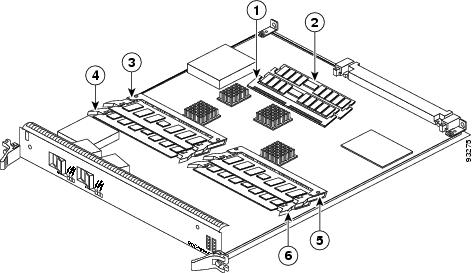
Route memory DIMM0
Packet memory RX DIMM1
Route memory DIMM1
Packet memory TX DIMM0
Packet memory RX DIMM0
Packet memory TX DIMM1
Engine 2 Line Card Memory Locations
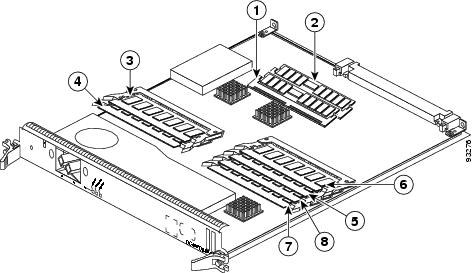
Figure 19 shows the DIMM socket locations on an Engine 2 line card. This line card is equipped with eight DIMM sockets:
•
•
•
•
Figure 19 Engine 2 Line Card Memory Locations
ISE Line Card Memory Locations
Figure 20 shows the small outline memory DIMM (SODIMM) socket locations for route memory on an ATM ISE line card.
Figure 20 ATM ISE Line Card Memory Locations
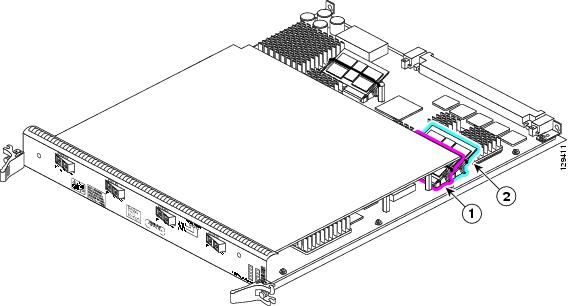
There are two route memory sockets on ATM ISE (Engine 3) line cards that support the addition of route memory modules. Table 15 describes the various memory upgrade options.
Table 15 ATM ISE Line Card Memory Upgrade Options
Quad OC-12c/STM-4c ATM
Quad OC-3c/STM-1c ATM
•
•
•
•
1 To upgrade beyond 2 x 512 MB modules, contact the Cisco Technical Assistance Center (TAC) for instructions.
2 Do not mix memory sizes. Both DIMMs must be the same size memory.
3 Requires Cisco IOS Release 12.0(31)S or later.
Verifying Memory Installation
To determine whether you have two 256-Mbyte memory modules installed or one 512-Mbyte memory module installed, attach to the line card and use the show hardware command. The DRAM DIMM information is indicated in bold in the following example:
Router# attach 3Entering Console for 4 Port GigabitEthernet in Slot: 3Type exit to end this sessionPress RETURN to get started!LC-Slot3# show hardwareCisco Internetwork Operating System Software IOS (tm) GS Software (GLC1-LC-M), Experimental Version12.0(20050203:211853) [samson-1g_cli_ci 144] Copyright (c) 1986-2005 by cisco Systems, Inc.Compiled Wed 16-Feb-05 13:17 by samsonImage text-base: 0x40010FC8, data-base: 0x41400000ROM: System Bootstrap, Version 12.0(20030207:104405) [jkuzma-rommon 1.8] RELEASE SOFTWARELC-Slot3 uptime is 5 minutesRunning default softwarecisco GE-4 (R7000) processor (revision 0x02) with 524289K bytes of memory.R7000 CPU at 400Mhz, Implementation 39, Rev 3.3, 256KB L2 Cache Last reset from power-on4 GigabitEthernet/IEEE 802.3 interface(s)DRAM DIMM Slot 1: 256M found, Slot 2: 256M foundConfiguration register is 0x0In this example, two 256-Mbyte memory modules are installed and therefore the memory is not user upgradable.
ATM Line Card Route Memory Options
Route memory runs the Cisco IOS software image and stores updated network routing tables downloaded from the route processor (RP). Table 16 lists the available route memory configurations and associated product numbers of the memory modules used for upgrading route memory on ATM line cards.
Table 16 Route Memory Configurations for ATM Line Cards
64 MB
MEM-GRP/LC-64=1
1 64-MB DIMM
DIMM0 or DIMM1
128 MB
MEM-DFT-GRP/LC-1282
1 128-MB DIMM
DIMM0 or DIMM1
128 MB
MEM-GRP/LC-128=3
1 128-MB DIMM
DIMM0 or DIMM1
256 MB
MEM-GRP/LC-256=
2 128-MB DIMMs
DIMM0 and DIMM1
512 MB
MEM-LC-ISE-512=4
2 256-MB SODIMM
SODIMM0 and SODIMM1
512 MB
MEM-LC-ISE-512A=
1 512-MB SODIMM
SODIMM0
1 GB
MEM-ISE-512A-2PK=
2 512-MB SODIMM
SODIMM0 and SODIMM1
1 This option adds a second 64-MB DIMM for a total of 128 MB for line cards that are equipped with 64 MB.
2 Standard (default) DIMM configuration for the processor on Engine 0 and Engine 2 line cards.
3 This option allows you to order a spare module or add a second 128-MB DIMM for a total of 256 MB for line cards that are already equipped with one 128-MB DIMM.
4 Standard (default) route memory configuration for the processor on ATM ISE line cards is 512-MB.
ATM Line Card Packet Memory Options
Line card packet memory temporarily stores data packets awaiting switching decisions by the line card processor. Once the line card processor makes the switching decisions, the packets are propagated into the router switch fabric for transmission to the appropriate line card.
Caution
Table 17 lists the packet memory options for the Engine 0 and Engine 2 line cards.
Table 17 ATM Line Card Packet Memory Options
Engine 0
128 MB
MEM-LC-PKT-128=
2 RX 32-MB DIMMs
2 TX 32-MB DIMMsRX DIMM0 and RX DIMM1
TX DIMM0 and TX DIMM1Engine 2
256 MB
MEM-LC1-PKT-256=
2 RX 64-MB DIMMs
2 TX 64-MB DIMMsRX DIMM0 and RX DIMM1
TX DIMM0 and TX DIMM1Engine 2
512 MB (upgrade)
MEM-PKT-512-UPG=
2 RX 128-MB DIMMs
2 TX 128-MB DIMMsRX DIMM0 and RX DIMM1
TX DIMM0 and TX DIMM1
1 The DIMMs installed in a given buffer (either receive or transmit) must be the same type and size, but the individual receive and transmit buffers can operate with different memory capacities.
Removing and Installing Line Card Memory
Before you begin the memory replacement procedures in this section, ensure that you have the proper tools and equipment at hand, and that you are using appropriate ESD-prevention equipment and techniques. Before removing or installing memory, observe the following guidelines:
•
–
–
–
•
–
–
–
–
Caution
This section contains the following procedures:
•
Refer to Figure 18, Figure 19 and Figure 20 for the location of the memory on your line card.
Removing a DIMM
To remove a DIMM from a line card, follow these steps:
Step 1
Step 2
Step 3
Note
Figure 21 DIMM Socket with Dual Release Levers
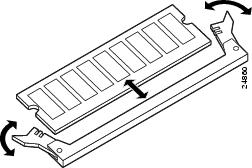
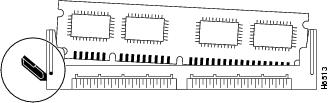
Figure 22 DIMM Socket with Single Release Lever
Step 4
•
or
•
Caution
Step 5
Step 6
Step 7
Installing a DIMM
This section contains instructions for installing DIMM memory into a line card.
Note
To install DIMMs in a line card, follow these steps:
Step 1
Step 2
Caution
Step 3
Step 4
Step 5
If necessary, rock the DIMM back and forth gently to align it in the socket.
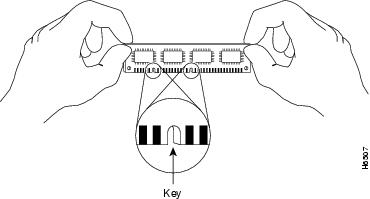
Figure 23 Handling a DIMM
Caution
Step 6
Step 7
If the module appears misaligned, carefully remove it and reseat it, ensuring that the release lever is flush against the side of the DIMM socket.
Step 8
Removing a SODIMM
Use the following procedure to remove a SODIMM.
Caution
Step 1
Step 2
Step 3
Step 4
— Save the retaining clip.
Note
Caution
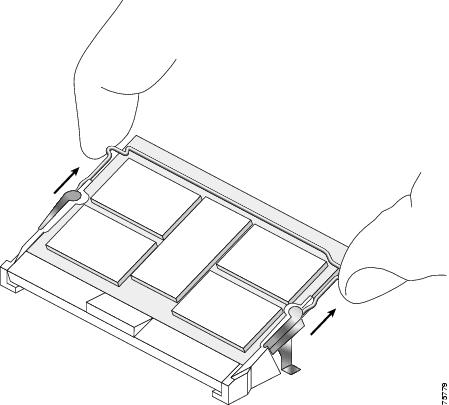
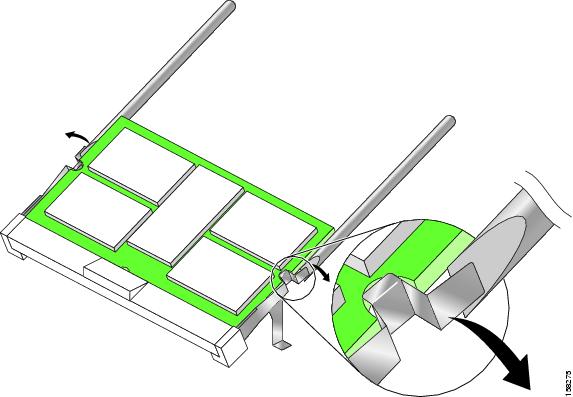
Figure 24 Remove Retaining Clip from Memory Module Socket
Step 5
a.
b.
Caution
Caution
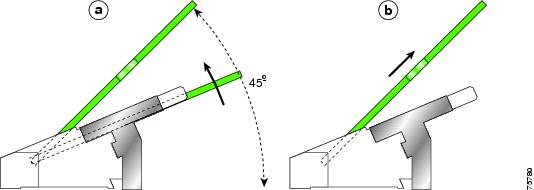
Figure 25 Using the DIMM Removal Tools to Release the SODIMM
Step 6
Caution
Figure 26 Removing a 144-pin SODIMM Module
Caution
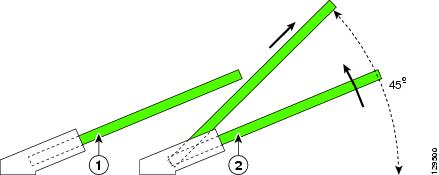
Figure 27 Removing the SODIMM1 Memory Module
Step 7
Installing a SODIMM
Use the following procedure to install a SODIMM.
Note
Step 1
Step 2
Step 3
Note
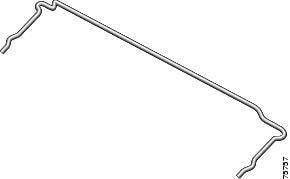
Figure 28 SODIMM Socket Retaining Clip
Caution
Step 4
Step 5
Caution
Step 6
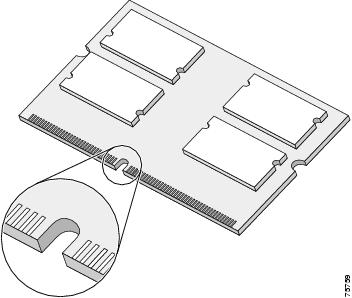
Figure 29 SODIMM with Key in Face-Up Position
Step 7
Note
Step 8
Caution
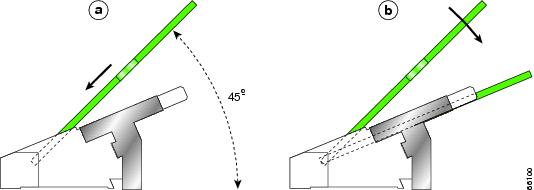
Be sure your index fingers are located on the outer corners of the SODIMM to maintain even pressure when the module is being seated in the socket.
Figure 30 Inserting a 144-pin SODIMM Module
Step 9
Caution
Step 10
Step 11
Step 12
Figure 31 Inserting the Retaining Clip
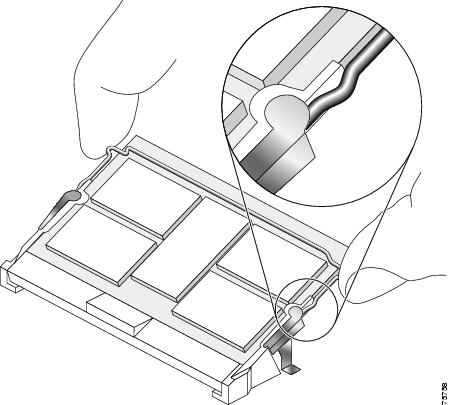
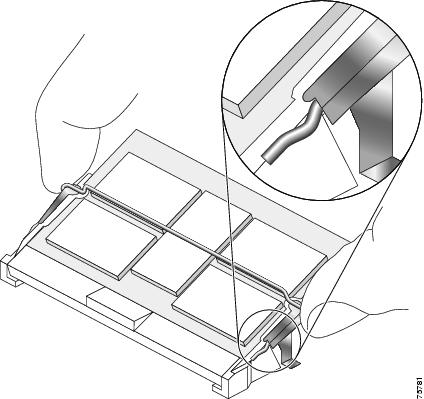
The clip is properly installed when the clip detente protrudes below the strain relief and plastic latch (Figure 32).
Figure 32 Retaining Clip Installed into Module Latch
Checking the Installation of Line Card Memory
After you install line card memory and reinstall the line card in the router, the router reinitializes the line card and detects the memory change as part of the reinitialization cycle. The time required for the router to initialize can vary with different router configurations and memory configurations.
If the line card does not reinitialize properly after you upgrade memory, or if the console terminal displays a checksum or memory error, verify that you installed the correct DIMMs and that they are installed correctly on the line card.
To check the installation of line card memory, follow these steps:
Step 1
Step 2
Step 3
If the router fails to restart properly after several attempts and you are unable to resolve the problem, access Cisco.com or contact your Cisco service representative for assistance. Before calling, however, make note of any console error messages, unusual LED states, or other router indications or behaviors that might help to resolve the problem.
Regulatory, Compliance, and Safety Information
This section includes regulatory, compliance, and safety information in the following sections:
•
•
Translated Safety Warnings and Agency Approvals
The complete list of translated safety warnings and agency approvals is available in the Regulatory Compliance and Safety Information for Cisco 12000 Series Routers publication (Document Number 78-4347-xx).
Electromagnetic Compatibility Regulatory Statements
FCC Class A Compliance
This equipment has been tested and found to comply with the limits for a Class A digital device, pursuant to part 15 of the FCC rules. These limits are designed to provide reasonable protection against harmful interference when the equipment is operated in a commercial environment. This equipment generates, uses, and can radiate radio-frequency energy and, if not installed and used in accordance with the instruction manual, may cause harmful interference to radio communications. Operation of this equipment in a residential area is likely to cause harmful interference, in which case users will be required to correct the interference at their own expense.
Modifying the equipment without Cisco's authorization may result in the equipment no longer complying with FCC requirements for Class A digital devices. In that event, your right to use the equipment may be limited by FCC regulation and you may be required to correct any interference to radio or television communication at your own expense.
You can determine whether your equipment is causing interference by turning it off. If the interference stops, it was probably caused by the Cisco equipment or one of its peripheral devices. If the equipment causes interference to radio or television reception, try to correct the interference by using one or more of the following measures:
•
•
•
•
CISPR 22
This apparatus complies with CISPR 22/EN55022 Class B radiated and conducted emissions requirements.
Canada
English Statement of Compliance
This class A digital apparatus complies with Canadian ICES-003.
French Statement of Compliance
Cet appareil numérique de la classe A est conforme à la norme NMB-003 du Canada.
Europe—EU
This apparatus complies with EN55022 Class B and EN55024 standards when used as ITE/TTE equipment, and EN300386 for Telecommunications Network Equipment (TNE) in both installation environments, telecommunication centers and other indoor locations.
VCCI Class A Notice for Japan
Class A Notice for Hungary
Class A Notice for Taiwan and Other Traditional Chinese Markets
Class A Notice for Korea
Obtaining Documentation
For information on obtaining documentation and support, providing documentation feedback, security guidelines, and recommended aliases and general Cisco documents, see the monthly What's New in Cisco Product Documentation. After the list of new and revised Cisco technical documentation, click the links beginning with Obtaining Documentation in the table of contents at:
http://www.cisco.com/en/US/docs/general/whatsnew/whatsnew.html
Any Internet Protocol (IP) addresses used in this document are not intended to be actual addresses. Any examples, command display output, and figures included in the document are shown for illustrative purposes only. Any use of actual IP addresses in illustrative content is unintentional and coincidental.
© 2007 Cisco Systems, Inc. All rights reserved.
1 DIMM removal tools can be ordered from Cisco (Product ID: MEM-ISE-ATM-TOOL). There is no cost for this tool.









 Feedback
Contact Cisco
- Open a Support Case

- (Requires a Cisco Service Contract)