- Signalling Overview
- Configuring RSVP
- Control Plane DSCP Support for RSVP
- Configuring RSVP Support for Frame Relay
- RSVP Scalability Enhancements
- RSVP Support for ATM/PVCs
- RSVP Local Policy Support
- RSVP Refresh Reduction and Reliable Messaging
- RSVP Support for RTP Header Compression, Phase 1
- RSVP Message Authentication
- RSVP---Previous Hop Overwrite
- RSVP Application ID Support
- RSVP Fast Local Repair
- RSVP Interface-Based Receiver Proxy
- RSVP--VRF Lite Admission Control
- Configuring RSVP Support for LLQ
- Configuring RSVP-ATM QoS Interworking
- Configuring COPS for RSVP
- RSVP Aggregation
- MPLS TE---Tunnel-Based Admission Control (TBAC)
- Configuring Subnetwork Bandwidth Manager
- Finding Feature Information
- Contents
- How to Configure RSVP Support for Frame Relay
- Enabling Frame Relay Encapsulation on an Interface
- Configuring a Virtual Circuit
- Enabling Frame Relay Traffic Shaping on an Interface
- Enabling Enhanced Local Management Interface
- Enabling RSVP on an Interface
- Specifying a Traffic Shaping Map Class for an Interface
- Defining a Map Class with WFQ and Traffic Shaping Parameters
- Specifying the CIR
- Specifying the Minimum CIR
- Enabling WFQ
- Enabling FRF.12
- Configuring a Path
- Configuring a Reservation
- Verifying RSVP Support for Frame Relay
- Monitoring and Maintaining RSVP Support for Frame Relay
- Configuration Examples for Configuring RSVP Support for Frame Relay
- Additional References
Configuring RSVP Support for Frame Relay
This chapter describes the tasks for configuring the RSVP Support for Frame Relay feature.
Finding Feature Information
Your software release may not support all the features documented in this module. For the latest feature information and caveats, see the release notes for your platform and software release.
Use Cisco Feature Navigator to find information about platform support and Cisco software image support. To access Cisco Feature Navigator, go to http://www.cisco.com/go/cfn. An account on Cisco.com is not required.
Contents
• How to Configure RSVP Support for Frame Relay
•Configuration Examples for Configuring RSVP Support for Frame Relay
How to Configure RSVP Support for Frame Relay
•Enabling Frame Relay Encapsulation on an Interface (Required)
•Configuring a Virtual Circuit (Required)
•Enabling Frame Relay Traffic Shaping on an Interface (Required)
•Enabling Enhanced Local Management Interface (Optional)
•Enabling RSVP on an Interface (Required)
•Specifying a Traffic Shaping Map Class for an Interface (Required)
•Defining a Map Class with WFQ and Traffic Shaping Parameters (Required)
•Specifying the CIR (Required)
•Specifying the Minimum CIR (Optional)
•Enabling WFQ (Required)
•Enabling FRF.12 (Required)
•Configuring a Path (Optional)
•Configuring a Reservation (Optional)
•Verifying RSVP Support for Frame Relay (Optional)
•Monitoring and Maintaining RSVP Support for Frame Relay (Optional)
Enabling Frame Relay Encapsulation on an Interface
Configuring a Virtual Circuit
|
|
|
|---|---|
Router(config-if)# frame-relay interface-dlci dlci |
Assigns a data-link connection identifier (DLCI) to a specified Frame Relay subinterface on a router or access server. |
Enabling Frame Relay Traffic Shaping on an Interface
Enabling Enhanced Local Management Interface
|
|
|
|---|---|
Router(config-if)# frame-relay lmi-type |
Selects the LMI type. |
Enabling RSVP on an Interface
|
|
|
|---|---|
Router(config-if)# ip rsvp bandwidth |
Enables RSVP on an interface. |
Specifying a Traffic Shaping Map Class for an Interface
|
|
|
|---|---|
Router(config-if)# frame-relay class name |
Associates a map class with an interface or subinterface. |
Defining a Map Class with WFQ and Traffic Shaping Parameters
|
|
|
|---|---|
Router(config)# map-class frame-relay map-class-name |
Defines parameters for a specified class. |
Specifying the CIR
|
|
|
|---|---|
Router(config-map-class)# frame-relay cir {in | out} bps |
Specifies the maximum incoming or outgoing CIR for a Frame Relay VC. |
Specifying the Minimum CIR
Enabling WFQ
|
|
|
|---|---|
Router(config-map-class)# frame-relay fair-queue |
Enables WFQ on a PVC. |
Enabling FRF.12
|
|
|
|---|---|
Router(config-map-class)# frame-relay fragment fragment-size |
Enables Frame Relay fragmentation on a PVC. |
Configuring a Path
Configuring a Reservation
Verifying RSVP Support for Frame Relay
Multipoint Configuration
To verify RSVP support for Frame Relay in a multipoint configuration, perform the following steps:
Step 1 Enter the show ip rsvp installed command to display information about interfaces and their admitted reservations. The output in the following example shows that serial subinterface 3/0.1 has two reservations:
Router# show ip rsvp installed
RSVP:Serial3/0
BPS To From Protoc DPort Sport Weight Conversation
RSVP:Serial3/0.1
BPS To From Protoc DPort Sport Weight Conversation
40K 145.20.22.212 145.10.10.211 UDP 10 10 0 24
50K 145.20.21.212 145.10.10.211 UDP 10 10 6 25

Note Weight 0 is assigned to voice-like flows, which proceed to the priority queue.
Step 2 Enter the show ip rsvp installed detail command to display additional information about interfaces, subinterfaces, DLCI PVCs, and their current reservations.
Note In the following output, the first flow gets a reserved queue with a weight > 0, and the second flow gets the priority queue with a weight = 0.
Router# show ip rsvp installed detail
RSVP:Serial3/0 has the following installed reservations
RSVP:Serial3/0.1 has the following installed reservations
RSVP Reservation. Destination is 145.20.21.212, Source is 145.10.10.211,
Protocol is UDP, Destination port is 10, Source port is 10
Reserved bandwidth:50K bits/sec, Maximum burst:1K bytes, Peak rate:50K bits/sec
QoS provider for this flow:
WFQ on FR PVC dlci 101 on Se3/0: RESERVED queue 25. Weight:6
Data given reserved service:0 packets (0M bytes)
Data given best-effort service:0 packets (0 bytes)
Reserved traffic classified for 68 seconds
Long-term average bitrate (bits/sec):0M reserved, 0M best-effort
RSVP Reservation. Destination is 145.20.22.212, Source is 145.10.10.211,
Protocol is UDP, Destination port is 10, Source port is 10
Reserved bandwidth:40K bits/sec, Maximum burst:1K bytes, Peak rate:40K bits/sec
QoS provider for this flow:
WFQ on FR PVC dlci 101 on Se3/0: PRIORITY queue 24. Weight:0
Data given reserved service:0 packets (0M bytes)
Data given best-effort service:0 packets (0 bytes)
Reserved traffic classified for 707 seconds
Long-term average bitrate (bits/sec):0M reserved, 0M best-effort
Point-to-Point Configuration
To verify RSVP support for Frame Relay in a point-to-point configuration, perform the following steps:
Step 1 Enter the show ip rsvp installed command to display information about interfaces and their admitted reservations. The output in the following example shows that serial subinterface 3/0.1 has one reservation, and serial subinterface 3/0.2 has one reservation.
Router# show ip rsvp installed
RSVP:Serial3/0
BPS To From Protoc DPort Sport
RSVP:Serial3/0.1
BPS To From Protoc DPort Sport
50K 145.20.20.212 145.10.10.211 UDP 10 10
RSVP:Serial3/0.2
BPS To From Protoc DPort Sport
10K 145.20.21.212 145.10.10.211 UDP 11 11
Note Weight 0 is assigned to voice-like flows, which proceed to the priority queue.
Step 2 Enter the show ip rsvp installed detail command to display additional information about interfaces, subinterfaces, DLCI PVCs, and their current reservations.
Note In the following output, the first flow with a weight > 0 gets a reserved queue and the second flow with a weight = 0 gets the priority queue.
Router# show ip rsvp installed detail
RSVP:Serial3/0 has the following installed reservations
RSVP:Serial3/0.1 has the following installed reservations
RSVP Reservation. Destination is 145.20.20.212, Source is 145.10.10.211,
Protocol is UDP, Destination port is 10, Source port is 10
Reserved bandwidth:50K bits/sec, Maximum burst:1K bytes, Peak rate:50K bits/sec
QoS provider for this flow:
WFQ on FR PVC dlci 101 on Se3/0: RESERVED queue 25. Weight:6
Data given reserved service:415 packets (509620 bytes)
Data given best-effort service:0 packets (0 bytes)
Reserved traffic classified for 862 seconds
Long-term average bitrate (bits/sec):4724 reserved, 0M best-effort
RSVP Reservation. Destination is 145.20.20.212, Source is 145.10.10.211,
Protocol is UDP, Destination port is 11, Source port is 11
Reserved bandwidth:10K bits/sec, Maximum burst:1K bytes, Peak rate:10K bits/sec
QoS provider for this flow:
WFQ on FR PVC dlci 101 on Se3/0: PRIORITY queue 24. Weight:0
Data given reserved service:85 packets (104380 bytes)
Data given best-effort service:0 packets (0 bytes)
Reserved traffic classified for 875 seconds
Long-term average bitrate (bits/sec):954 reserved, 0M best-effort
RSVP:Serial3/0.2 has the following installedreservations
RSVP Reservation. Destination is 145.20.21.212, Source is 145.10.10.211,
Protocol is UDP, Destination port is 11, Source port is 11
Reserved bandwidth:10K bits/sec, Maximum burst:1K bytes, Peak rate:10Kbits/sec
QoS provider for this flow:
WFQ on FR PVC dlci 101 on Se3/0:PRIORITY queue 24. Weight:0
Data given reserved service:85 packets (104380 bytes)
Data given best-effort service:0 packets (0 bytes)
Reserved traffic classified for 875 seconds
Long-term average bitrate (bits/sec):954 reserved, 0M best-effort
Monitoring and Maintaining RSVP Support for Frame Relay
Configuration Examples for Configuring RSVP Support for Frame Relay
•Example: Multipoint Configuration
•Example: Point-to-Point Configuration
Example: Multipoint Configuration
Figure 1 shows a multipoint interface configuration commonly used in Frame Relay environments in which multiple PVCs are configured on the same subinterface at router R1.
Figure 1 Multipoint Interface Configuration
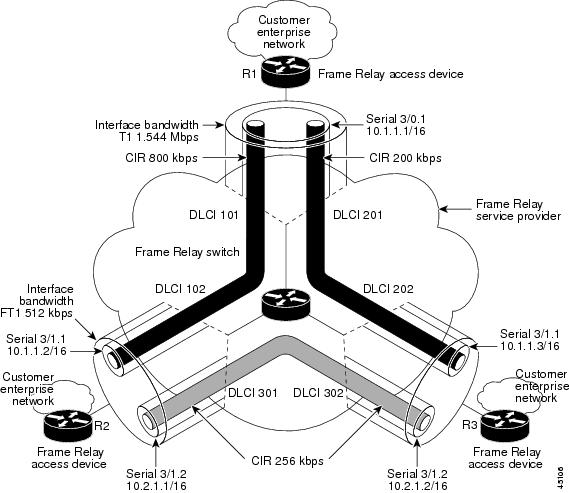
RSVP performs admission control based on the minCIR of DLCI 101 and DLCI 201. The congestion point is not the 10.1.1.1/16 subinterface, but the CIR of DLCI 101 and DLCI 201.
The following example is a sample output for serial interface 3/0:
interface Serial3/0
no ip address
encapsulation frame-relay
no fair-queue
frame-relay traffic-shaping
frame-relay lmi-type cisco
ip rsvp bandwidth 350 350
!
interface Serial3/0.1 multipoint
ip address 10.1.1.1 255.255.0.0
frame-relay interface-dlci 101
class fr-voip
frame-relay interface-dlci 201
class fast-vcs
ip rsvp bandwidth 350 350
ip rsvp pq-profile 6000 2000 ignore-peak-value
!
!
map-class frame-relay fr-voip
frame-relay cir 800000
frame-relay bc 8000
frame-relay mincir 128000
frame-relay fragment 280
no frame-relay adaptive-shaping
frame-relay fair-queue
!
map-class frame-relay fast-vcs
frame-relay cir 200000
frame-relay bc 2000
frame-relay mincir 60000
frame-relay fragment 280
no frame-relay adaptive-shaping
frame-relay fair-queue
!
Note When FRTS is enabled, the Frame Relay Committed Burst (Bc) value (in bits) should be configured to a maximum of 1/100th of the CIR value (in bits per second). This configuration ensures that the FRTS token bucket interval (Bc/CIR) does not exceed 10 Ms, and that voice packets are serviced promptly.
Example: Point-to-Point Configuration
Figure 2 shows a point-to-point interface configuration commonly used in Frame Relay environments in which one PVC per subinterface is configured at router R1.
Figure 2 Sample Point-to-Point Interface Configuration
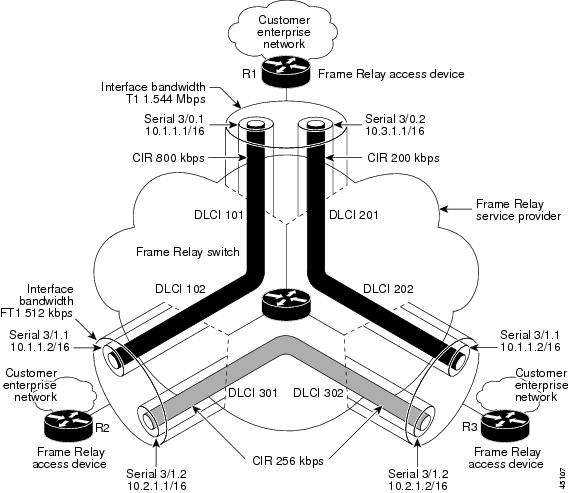
Notice that the router interface bandwidth for R1 is T1 (1.544 Mbps), whereas the CIR value of DLCI 201 toward R3 is 256 kbps. For traffic flows from R1 to R3 over DLCI 201, the congestion point is the CIR for DLCI 201. As a result, RSVP performs admission control based on the minCIR and reserves resources, including queues and bandwidth, on the WFQ system that runs on each DLCI.
The following example is sample output for serial interface 3/0:
interface Serial3/0
no ip address
encapsulation frame-relay
no fair-queue
frame-relay traffic-shaping
frame-relay lmi-type cisco
ip rsvp bandwidth 500 500
!
interface Serial3/0.1 point-to-point
ip address 10.1.1.1 255.255.0.0
frame-relay interface-dlci 101
class fr-voip
ip rsvp bandwidth 350 350
!
interface Serial3/0.2 point-to-point
ip address 10.3.1.1 255.255.0.0
frame-relay interface-dlci 201
class fast-vcs
ip rsvp bandwidth 150 150
ip rsvp pq-profile 6000 2000 ignore-peak-value
!
!
map-class frame-relay fr-voip
frame-relay cir 800000
frame-relay bc 8000
frame-relay mincir 128000
frame-relay fragment 280
no frame-relay adaptive-shaping
frame-relay fair-queue
Note When FRTS is enabled, the Frame Relay Committed Burst (Bc) value (in bits) should be configured to a maximum of 1/100th of the CIR value (in bits per second). This configuration ensures that the FRTS token bucket interval (Bc/CIR) does not exceed 10 Ms, and that voice packets are serviced promptly.
Additional References
Related Documents
|
|
|
|---|---|
Cisco IOS commands |
|
RSVP commands: complete command syntax, command mode, command history, defaults, usage guidelines, and examples |
|
Overview on RSVP |
Standards
|
|
|
|---|---|
No new or modified standards are supported by this feature, and support for existing standards has not been modified by this feature. |
— |
MIBs
RFCs
|
|
|
|---|---|
No new or modified RFCs are supported, and support for existing RFCs has not been modified. |
— |
 Feedback