Configuring Cisco License Call Home
Available Languages
Table Of Contents
Configuring Cisco License Call Home
Finding Feature Information in This Module
Prerequisites for Cisco License Call Home
Restrictions for Cisco License Call Home
Information About Cisco License Call Homes
Cisco License Call Home Interface
How to Configure Cisco License Call Home
Installing Licenses or Upgrading Software by Using Cisco License Call Home
Rehosting a License by Using Cisco License Call Home
Requesting a License Resend by Using Cisco License Call Home
Configuration Examples for Cisco License Call Home
Example: Installing Licenses or Upgrading Software by Using Cisco License Call Home
Example: Rehosting a License by Using Cisco License Call Home
Example: Requesting a License Resend by Using Cisco License Call Home
Feature Information for Cisco License Call Home
Configuring Cisco License Call Home
First Published: July 5, 2008Last Updated: October 2, 2009The Cisco License Call Home feature provides a robust set of commands that communicate with the Cisco licensing infrastructure, makes connections and data transfers, and provides interactive prompts to help you install and maintain software licenses. This module describes the tasks and the commands used to activate software by using the Cisco License Call Home feature, license keys, and Cisco EXEC commands. When you activate software from a Cisco device, you can license software without the need for additional application software.
Finding Feature Information in This Module
Your software release might not support all the features documented in this module. For the latest feature information and caveats, see the release notes for your platform and software release. To find information about the features documented in this module, and to see a list of the releases in which each feature is supported, see the "Feature Information for Cisco License Call Home" section.
Use Cisco Feature Navigator to find information about platform support and Cisco software image support. To access Cisco Feature Navigator, go to http://www.cisco.com/go/cfn. An account on Cisco.com is not required.
Contents
•
Prerequisites for Cisco License Call Home
•
•
•
•
•
Prerequisites for Cisco License Call Home
•
•
Restrictions for Cisco License Call Home
•
•
Information About Cisco License Call Homes
•
Cisco License Call Home Interface
The Cisco License Call Home feature allows a Cisco device to communicate with the Cisco licensing infrastructure that provides license generation, fulfillment, and support. The Cisco License Call Home feature uses a secured Internet connection to retrieve licensing information. This feature provides a robust set of commands that makes connections, transfers data, and provides interactive prompts to help you install and maintain software licenses. Once you purchase a product authorization key (PAK), Cisco License Call Home commands enable you to easily perform these tasks:
•
•
•
Figure 1 shows how the Cisco License Call Home feature interfaces to the Cisco licensing back-end system. The architecture shown in Figure 1 allows the use of the License Call Home EXEC commands to communicate with the Cisco licensing infrastructure and to perform administrative license operations.
Figure 1 Cisco License Call Home Interface
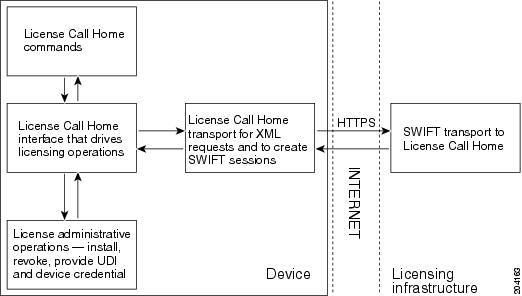
The Cisco License Call Home feature works as a client-server model with each transaction completed as a separate connection to the Cisco licensing infrastructure. The Cisco License Call Home feature displays prompts to obtain required information and then connects to the Cisco licensing back end to interact with the Cisco licensing infrastructure. A Cisco License Call Home EXEC command initiates a request, and the Cisco licensing infrastructure provides the response. The processes designed into the Cisco License Call Home architecture manage the transport of information that provides the URL required to connect to the Cisco licensing infrastructure over the Internet and to create a session.
How to Configure Cisco License Call Home
•
•
•
Installing Licenses or Upgrading Software by Using Cisco License Call Home
Perform this task to install a license or upgrade software by using the Cisco License Call Home feature.
SUMMARY STEPS
1.
2.
3.
4.
5.
DETAILED STEPS
Rehosting a License by Using Cisco License Call Home
Perform this task to rehost (revoke and transfer) a license by using the Cisco License Call Home feature. The rehost operation is performed by using a source and a target unique device identifier (UDI).
SUMMARY STEPS
1.
2.
3.
4.
DETAILED STEPS
Step 1
enable
Example:Router> enable
Enables privileged EXEC mode.
•
Step 2
license call-home revoke udi target-udi output-of-rehosted-license-url
Example:Router# license call-home revoke udi AS54XM-AC-RPS:JAE0948QT6R flash:licensetargetudi.xml
Revokes and transfers a license by using source and target UDIs. Sends the rehost ticket to the Cisco licensing infrastructure with the target UDI, converts it to a license file, and stores it in the URL specified.
•
Step 3
show license detail
Example:Router# show license detail
Verifies that the license has been transferred.
Step 4
license install stored-location-url
(Optional) Installs the revoked license.
•
Requesting a License Resend by Using Cisco License Call Home
Perform this task to retrieve all licenses this device owns (device from which this command is run) by using the license call-home resend command.
SUMMARY STEPS
1.
2.
3.
DETAILED STEPS
Step 1
enable
Example:Router> enable
Enables privileged EXEC mode.
•
Step 2
license call-home resend dest-lic-location
Example:Router# license call-home resend flash:licenseresend.lic
Obtains all licenses this device owns and stores them in the specified location.
Step 3
license install stored-location-url
(Optional) Installs the revoked license.
•
Configuration Examples for Cisco License Call Home
•
•
•
Example: Installing Licenses or Upgrading Software by Using Cisco License Call Home
The following example shows how to use the license call-home install pak command to install a license by using the Cisco License Call Home feature. The command also displays prompts for mandatory information. The show license feature command is used to verify the installation.
Router# license call-home install pak 3XPXR9E7D30CCO User name: User1CCO password : ************Pak Number : 3XPXR9E7D30Pak Fulfillment type: SINGLE1. SKU Name : GatekeeperSKU Type : ProductDescription : GatekeeperOrdered Qty : 1Available Qty : 1Feature List :Feature name: gatekeeper Count: UncountedPlatform Supported : N/A5400535028003800Do you want to install the above listed SKU(s)? [yes/no]: yesPlease enter the user's detail:First Name : First-nameLast Name : Last-nameTitle : Software EngineerCompany Name : Cisco SystemsAddress1 : 510 McCarthy Blvd.Address2 [Optional]:City : MilpitasState : CAProvince [Optional]:Zipcode : 95134Country : USAPhone : 408 526-4000Fax [Optional]:Email : User1@cisco.comInstalling...Feature:gatekeeper...SuccessfulRouter# show license feature
Feature name Enforcement Evaluation Subscription Enabledgsmamrnb-codec-pack yes yes no noRouter#Example: Rehosting a License by Using Cisco License Call Home
The following example shows how to use the license call-home revoke udi command to revoke and transfer a license by using source and target UDIs. The command also displays prompts for mandatory information. The show license detail command is used to verify that the license has been transferred.
Router# license call-home revoke udi AS54XM-AC-RPS:JAE0948QT6R flash:licensetargetudi.xmlCCO User name: User1CCO password : ************Retrieving the sku from swift ............................1. SKU Name : GatekeeperSKU Type : ProductDescription :Ordered Qty : 1Available Qty : 1Feature List :Feature name: gatekeeper Count: UncountedPlatform Supported : N/A54005350280038003. SKU Name : GatekeeperSKU Type : ProductDescription :Ordered Qty : 1Available Qty : 1Feature List :Feature name: gatekeeper Count: UncountedPlatform Supported : N/A54005350280038004. SKU Name : GSMAMRNBSKU Type : ProductDescription : Transfer this feature setOrdered Qty : 1Available Qty : 1Feature List :Feature name: gsmamrnb-codec-pac Count: UncountedPlatform Supported : 540053505. All of the abovePlease select the sku number you want to revoke : 4Retrieving the permission ticket from swift .............Installing permission ticket and retrieving rehost ticket........Done
Router# show license detailIndex: 1 Feature: gsmamrnb-codec-pack Version: 1.0License Type: EvaluationLicense State: Active, Not in Use, EULA acceptedEvaluation total period: 8 weeks 4 daysEvaluation period left: 8 weeks 4 daysLock type: Non Node lockedVendor infoLicense Addition: AdditiveLicense Generation version 135266304License Priority: LowStore Index: 0Store Name: Evaluation License StorageExample: Requesting a License Resend by Using Cisco License Call Home
The following examples shows how to use the license call-home resend command to obtain all licenses this device owns and store them in the specified location:
Router# license call-home resend flash:licenseresend.licCCO User name: User1CCO password : ************Email Address: User1@cisco.comGetting Licenses from SWIFT ..........Saving it to flash:licenseresend.lic.....DoneAdditional References
Related Documents
Standards
MIBs
None
To locate and download MIBs for selected platforms, Cisco IOS releases, and feature sets, use Cisco MIB Locator found at this URL:
RFCs
Technical Assistance
Feature Information for Cisco License Call Home
Table 1 lists the features in this module and provides links to specific configuration information.
Use Cisco Feature Navigator to find information about platform support and software image support. Cisco Feature Navigator enables you to determine which software images support a specific software release, feature set, or platform. To access Cisco Feature Navigator, go to http://www.cisco.com/go/cfn. An account on Cisco.com is not required.

Note
Cisco and the Cisco Logo are trademarks of Cisco Systems, Inc. and/or its affiliates in the U.S. and other countries. A listing of Cisco's trademarks can be found at www.cisco.com/go/trademarks. Third party trademarks mentioned are the property of their respective owners. The use of the word partner does not imply a partnership relationship between Cisco and any other company. (1005R)
Any Internet Protocol (IP) addresses and phone numbers used in this document are not intended to be actual addresses and phone numbers. Any examples, command display output, network topology diagrams, and other figures included in the document are shown for illustrative purposes only. Any use of actual IP addresses or phone numbers in illustrative content is unintentional and coincidental.
© 2008-2010 Cisco Systems, Inc. All rights reserved.
 Feedback