![]() |
Cisco IOS Flexible NetFlow Command Reference
|
||||||||||||||||||||||||||||||||||||||||||||||||||||||||||||||||||||||||||||||||||||||||||||||||||||||||||||||||||||||||||||||||||||||||||||||||||||||||||||||||||||||||||||||||||||||||||||||||||||||||||||||||||||||||||||||||||||||||||||||||||||||||||||||||||||||||||||||||||||||||||||||||||||||||||||||||||||||||||||||||||||||||||||||||||||||||||||||||||||||||||||||||||||||||||||||||||||||||||||||||||||||||||||||||||||||||||||||||||||||||||||||||||||||||||||||||||||||||||||||||||||||||||||||||||||||||||||||||||||||||||||||||||||||||||||||||||||||||||||||||||||||||||||||||||||||||||||||||||||||||||||||||||||||||||||||||||||||||||||||||||||||||||||||||||||||||||||||||||||||||||||||||||||||||||||||||||||||||||||||||||||||||||||||||||||||||||||||||||||||||||||||||||||||||||||||||||||||||||||||||||||||||||||||||||||||||||||||||||||||||||||||||||||||||||||||||||||||||||||||||||||||||||||||||||||||||||||||||||||||||||||||||||||||||||||||||||||||||||||||||||||||||||||||||||||||||||||||||||||||
cache (Flexible NetFlow) through match flow
![]() |
|||||||||||||||||||||||||||||||||||||||||||||||||||||||||||||||||||||||||||||||||||||||||||||||||||||||||||||||||||||||||||||||||||||||||||||||||||||||||||||||||||||||||||||||||||||||||||||||||||||||||||||||||||||||||||||||||||||||||||||||||||||||||||||||||||||||||||||||||||||||||||||||||||||||||||||||||||||||||||||||||||||||||||||||||||||||||||||||||||||||||||||||||||||||||||||||||||||||||||||||||||||||||||||||||||||||||||||||||||||||||||||||||||||||||||||||||||||||||||||||||||||||||||||||||||||||||||||||||||||||||||||||||||||||||||||||||||||||||||||||||||||||||||||||||||||||||||||||||||||||||||||||||||||||||||||||||||||||||||||||||||||||||||||||||||||||||||||||||||||||||||||||||||||||||||||||||||||||||||||||||||||||||||||||||||||||||||||||||||||||||||||||||||||||||||||||||||||||||||||||||||||||||||||||||||||||||||||||||||||||||||||||||||||||||||||||||||||||||||||||||||||||||||||||||||||||||||||||||||||||||||||||||||||||||||||||||||||||||||||||||||||||||||||||||||||||||||||||||||||||
Contents
cache (Flexible NetFlow) through match flow cache (Flexible NetFlow)To configure a flow cache parameter for a Flexible NetFlow flow monitor, use the cache command in Flexible NetFlow flow monitor configuration mode. To remove a flow cache parameter for a Flexible NetFlow flow monitor, use the no form of this command.
cache
{entries number | timeout {active seconds | inactive seconds | update seconds | event transaction-end} | type {immediate | normal | permanent}}
no
cache
{entries | timeout {active | inactive | update | event transaction-end} | type}
Syntax Description
Command DefaultThe default Flexible NetFlow flow monitor flow cache parameters are used. The following flow cache parameters for a Flexible NetFlow flow monitor are enabled:
Command History
Usage GuidelinesEach flow monitor has a cache that it uses to store all the flows it monitors. Each cache has various configurable elements, such as the number of entries and the time that a flow is allowed to remain in it. When a flow times out, it is removed from the cache and sent to any exporters that are configured for the corresponding flow monitor. If a cache is already active (that is, you have applied the flow monitor to at least one interface in the router), your changes to the record, cache type, and cache size parameters will not take effect until you either reboot the router or remove the flow monitor from every interface and then reapply it. Therefore whenever possible you should customize the record, cache type, and cache size parameters for the cache before you apply the flow monitor to an interface. You can modify the timers, flow exporters, and statistics parameters for a cache while the cache is active. cache entries This command controls the size of the cache. Cache size should be based on a number of factors, including the number of flows expected, the time the flows are expected to last (based on the configured key fields and the traffic), and the timeout values configured for the cache. The size should be large enough to minimize emergency expiry. Emergency expiry is caused by the Flexible NetFlow cache becoming full. When the Flexible NetFlow cache becomes full, the router performs "emergency expiry" where a number of flows are immediately aged, expired from the Flexible NetFlow cache, and exported in order to free up space for more flows. For a permanent cache (flows never expire), the number of entries should be large enough to accommodate the number of flows expected for the entire duration of the cache entries. If more flows occur than there are cache entries, the excess flows are not recorded in the cache. For an immediate cache (flows expire immediately), the number of entries simply controls the amount of history that is available for previously seen packets. cache timeout active This command controls the aging behavior of the normal type of cache. If a flow has been active for a long time, it is usually desirable to age it out (starting a new flow for any subsequent packets in the flow). This age out process allows the monitoring application that is receiving the exports to remain up to date. By default this timeout is 1800 seconds (30 minutes), but it can be adjusted according to system requirements. A larger value ensures that long-lived flows are accounted for in a single flow record; a smaller value results in a shorter delay between starting a new long-lived flow and exporting some data for it. cache timeout inactive This command controls the aging behavior of the normal type of cache. If a flow has not seen any activity for a specified amount of time, that flow will be aged out. By default, this timeout is 15 seconds, but this value can be adjusted depending on the type of traffic expected. If a large number of short-lived flows is consuming many cache entries, reducing the inactive timeout can reduce this overhead. If a large number of flows frequently get aged out before they have finished collecting their data, increasing this timeout can result in better flow correlation. cache timeout update This command controls the periodic updates sent by the permanent type of cache. This behavior is similar to the active timeout, except that it does not result in the removal of the cache entry from the cache. By default this timer value is 1800 seconds (30 minutes). cache timeou t event transaction-end To use this command, you must configure the matchconnectiontransactionid command and the matchapplicationname command for the flow record. This command causes the record to be generated and exported in the NetFlow cache at the end of a transaction. A transaction is a set of logical exchanges between endpoints. There is normally one transaction within a flow. cache type immediate This command specifies the immediate cache type. This type of cache will age out every record as soon as it is created, with the result that every flow contains just one packet. The commands that display the cache contents will provide a history of the packets seen. The use of this cache type is appropriate when very small flows are expected and a minimum amount of latency between analyzing a packet and exporting a report is desired. We recommend using this command when you are sampling packet chunks because the number of packets per flow is typically very low.
cache type normal This command specifies the normal cache type. This is the default cache type. The entries in the cache will be aged out according to the timeoutactiveseconds and timeoutinactiveseconds settings. When a cache entry is aged out, it is removed from the cache and exported via any exporters configured for the monitor associated with the cache. cache type permanent This command specifies the permanent cache type. This type of cache never ages out any flows. This cache type is useful when the number of flows you expect to see has a limit and there is a need to keep long-term statistics on the router. For example, if the only key field is IP TOS, a limit of 256 flows can be seen, so to monitor the long-term usage of the IP TOS field, a permanent cache can be used. Update messages are exported via any exporters configured for the monitor associated with this cache in accordance with the timeoutupdateseconds setting.
ExamplesThe following example shows how to configure the number of entries for the flow monitor cache: Router(config)# flow monitor FLOW-MONITOR-1 Router(config-flow-monitor)# cache entries 16 The following example shows how to configure the active timeout for the flow monitor cache: Router(config)# flow monitor FLOW-MONITOR-1 Router(config-flow-monitor)# cache timeout active 4800 The following example shows how to configure the inactive timer for the flow monitor cache: Router(config)# flow monitor FLOW-MONITOR-1 Router(config-flow-monitor)# cache timeout inactive 3000 The following example shows how to configure the permanent cache update timeout: Router(config)# flow monitor FLOW-MONITOR-1 Router(config-flow-monitor)# cache timeout update 5000 The following example shows how to configure a normal cache: Router(config)# flow monitor FLOW-MONITOR-1 Router(config-flow-monitor)# cache type normal The following example shows how to configure a permanent cache: Router(config)# flow monitor FLOW-MONITOR-1 Router(config-flow-monitor)# cache type permanent The following example shows how to configure an immediate cache: Router(config)# flow monitor FLOW-MONITOR-1 Router(config-flow-monitor)# cache type immediate clear flow exporterTo clear the statistics for a Flexible NetFlow flow exporter, use the clearflowexporter command in privileged EXEC mode. Command History
clear flow monitorTo clear a Flexible NetFlow flow monitor, flow monitor cache, or flow monitor statistics and to force the export of the data in the flow monitor cache, use the clearflowmonitorcommand in privileged EXEC mode. Syntax Description
Command History
Usage Guidelinescache This keyword removes all entries from the flow monitor cache. These entries will not be exported and the data gathered in the cache will be lost.
force-export This keyword removes all entries from the flow monitor cache and exports them via all flow exporters assigned to the flow monitor. This action can result in a short-term increase in CPU usage. Use with caution.
statistics This keyword clears the statistics for this flow monitor.
ExamplesThe following example clears the statistics and cache entries for the flow monitor named FLOW-MONITOR-1: Router# clear flow monitor name FLOW-MONITOR-1 The following example clears the statistics and cache entries for the flow monitor named FLOW-MONITOR-1 and forces an export: Router# clear flow monitor name FLOW-MONITOR-1 force-export The following example clears the cache for the flow monitor named FLOW-MONITOR-1 and forces an export: Router# clear flow monitor name FLOW-MONITOR-1 cache force-export The following example clears the statistics for the flow monitor named FLOW-MONITOR-1: Router# clear flow monitor name FLOW-MONITOR-1 statistics clear samplerTo clear the statistics for a Flexible NetFlow flow sampler, use the clearsampler command in privileged EXEC mode. Command History
collect application nameTo configure the use of the application name as a nonkey field for a flow record, use the collect application name command in flow record configuration mode. To disable the use of the application name as a nonkey field for a flow record, use the no form of this command. Usage GuidelinesThis command can be used with both Flexible NetFlow and Performance Monitor. These products use different commands to enter the configuration mode in which you issue this command, however the mode prompt is the same for both products. For Performance Monitor, you must first enter the flow record type performance-monitor command before you can use this command. Because the mode prompt is the same for both products, here we refer to the command mode for both products as flow record configuration mode. However, for Flexible NetFlow, the mode is also known as Flexible NetFlow flow record configuration mode; and for Performance Monitor, the mode is also known as Performance Monitor flow record configuration mode. A flow record requires at least one key field before it can be used in a flow monitor. The key fields differentiate flows, with each flow having a unique set of values for the key fields. The key fields are defined using the match command. ExamplesThe following example configures the application name as a nonkey field: Router(config)# flow record FLOW-RECORD-1 Router(config-flow-record)# collect application name Cisco Performance Monitor in Cisco IOS Release 15.2(2)T and XE 3.5SThe following example configures the application name as a nonkey field: Router(config)# flow record type performance-monitor RECORD-1 Router(config-flow-record)# collect application name Related Commands
collect connectionTo configure various connection information fields as a nonkey field for a flow record, use the collect connection command in flow record configuration mode. To disable the use of the connection information fields as a nonkey field for a flow record, use the no form of this command.
collect
connection
{initiator | new-translations | sum-duration}
no
collect
connection
{initiator | new-translations | sum-duration}
Syntax Description
Usage GuidelinesThis command can be used with both Flexible NetFlow and Performance Monitor. These products use different commands to enter the configuration mode in which you issue this command, however the mode prompt is the same for both products. For Performance Monitor, you must first enter the flow record type performance-monitor command before you can use this command. Because the mode prompt is the same for both products, here we refer to the command mode for both products as flow record configuration mode. However, for Flexible NetFlow, the mode is also known as Flexible NetFlow flow record configuration mode; and for Performance Monitor, the mode is also known as Performance Monitor flow record configuration mode. The initiator keyword provides the following information about the direction of the flow.
For the new-translations and sum-duration keywords, the observation period can be specified by the start and end timestamps for the flow. The Flexible NetFlow collect commands are used to configure nonkey fields for the flow monitor record and to enable capturing the values in the fields for the flow created with the record. The values in nonkey fields are added to flows to provide additional information about the traffic in the flows. A change in the value of a nonkey field does not create a new flow. In most cases the values for nonkey fields are taken from only the first packet in the flow. ExamplesThe following example configures information about the direction of the flow as a nonkey field: Router(config)# flow record FLOW-RECORD-1 Router(config-flow-record)# collect connections initiator collect counterTo configure the number of bytes or packets in a flow as a nonkey field for a flow record, use the collect counter command in flow record configuration mode. To disable the use of the number of bytes or packets in a flow (counters) as a nonkey field for a flow record, use the no form of this command.
collect
counter
{bytes [long | replicated [long] | squared long] | packets [long | replicated [long] ]}
no
collect
counter
{bytes [long | replicated [long] | squared long] | packets [long | replicated [long] ]}
Cisco Performance Monitor in Cisco IOS Release 15.1(3)T and 12.2(58)SE
collect
counter
{bytes [long | rate] | packets [dropped [long] | long]}
no
collect
counter
{bytes [long | rate] | packets [dropped [long] | long]}
Cisco Catalyst 6500 Switches in Cisco IOS Release 12.2(50)SY
collect
counter
{bytes [long] | packets [long] }
no
collect
counter
{bytes [long] | packets [long] }
Syntax Description
Command History
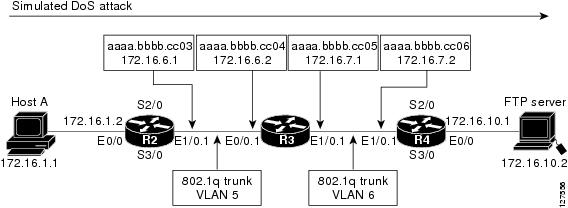
Usage GuidelinesThis command can be used with both Flexible NetFlow and Performance Monitor. These products use different commands to enter the configuration mode in which you issue this command, however the mode prompt is the same for both products. For Flexible NetFlow, the mode is also known as Flexible NetFlow flow record configuration mode. For Performance Monitor, the mode is also known as Performance Monitor flow record configuration mode. Here we refer to them both as flow record configuration mode. The Flexible NetFlow and Performance Monitor collect commands are used to configure nonkey fields for the flow monitor record and to enable capturing the values in the fields for the flow created with the record. The values in nonkey fields are added to flows to provide additional information about the traffic in the flows. A change in the value of a nonkey field does not create a new flow. In most cases the values for nonkey fields are taken from only the first packet in the flow. Cisco Performance Monitor in Cisco IOS Release 15.1(3)T and 12.2(58)SE The rate and droppedkeywords were added and the replicated and squaredlongkeywords are not available. You must first enter theflowrecordtypeperformance-monitor command. collect counter bytes This command configures a 32-bit counter for the number of bytes seen in a flow. collect counter packets This command configures a 32-bit counter that is incremented for each packet seen in the flow. For extremely long flows it is possible for this counter to restart at 0 (wrap) when it reaches the limit of approximately 4 billion packets. On detection of a situation that would cause this counter to restart at 0, a flow monitor with a normal cache type exports the flow and starts a new flow. collect counter packets long This command configures a 64-bit counter that will be incremented for each packet seen in the flow. It is unlikely that a 64-bit counter will ever restart at 0. collect counter bytes squared long This counter can be used in conjunction with the byte and packet counters in order to calculate the variance of the packet sizes. Its value is derived from squaring each of the packet sizes in the flow and adding the results. This value can be used as part of a standard variance function. The variance and standard deviation of the packet sizes for the flow can be calculated with the following formulas: cbs: value from the counterbytessquared field pkts: value from the counterpackets field bytes: value from the counterbytes field Variance = (cbs/pkts) - (bytes/pkts)2 Standard deviation = square root of Variance Example 1: Packet sizes of the flow: 100, 100, 100, 100 Counter packets: 4 Counter bytes: 400, mean packet size = 100 Counter bytes squared: 40,000 Variance = (40,000/4) - (400/4)2 = 0 Standard Deviation = 0 Size = 100 +/- 0 Example 2: Packet sizes of the flow: 50, 150, 50, 150 Counter packets: 4 Counter bytes: 400, mean packet size = 100 Counter bytes squared: 50,000 Variance = (50,000/4) - (400/4)2 = 2500 Standard deviation = 50 Size = 100 +/- 50 ExamplesThe following example configures the total number of bytes in the flows as a nonkey field: Router(config)# flow record FLOW-RECORD-1 Router(config-flow-record)# collect counter bytes The following example configures the total number of bytes in the flows as a nonkey field using a 64-bit counter: Router(config)# flow record FLOW-RECORD-1 Router(config-flow-record)# collect counter bytes long The following example configures the sum of the number of bytes of each packet in the flow squared as a nonkey field: Router(config)# flow record FLOW-RECORD-1 Router(config-flow-record)# collect counter bytes squared long The following example configures the total number of packets from the flows as a nonkey field: Router(config)# flow record FLOW-RECORD-1 Router(config-flow-record)# collect counter packets The following example configures the total number of packets from the flows as a nonkey field using a 64-bit counter: Router(config)# flow record FLOW-RECORD-1 Router(config-flow-record)# collect counter packets long Cisco Performance Monitor in Cisco IOS Release 15.1(3)T and 12.2(58)SEThe following example configures the total number of packets from the flows as a nonkey field using a 64-bit counter: Router(config)# flow record type performance-monitor RECORD-1 Router(config-flow-record)# collect counter packets long collect datalink dot1q vlanTo configure the 802.1Q (dot1q) VLAN ID as a non-key field for a Flexible NetFlow flow record, use the collectdatalinkdot1qvlan command in Flexible NetFlow flow record configuration mode. To disable the use of the 802.1Q VLAN ID value as a nonkey field for a Flexible NetFlow flow record, use the no form of this command. Usage GuidelinesThe input and output keywords of the collectdatalinkdot1qvlan command are used to specify the observation point that is used by the collectdatalinkdot1qvlan command to capture the 802.1q VLAN IDs from network traffic. For example, when you configure a flow record with the collectdatalinkdot1qvlaninput command to monitor the simulated denial of service (DoS) attack in the figure below and apply the flow monitor to which the flow record is assigned in either input (ingress) mode on interface Ethernet 0/0.1 on R3 or output (egress) mode on interface Ethernet 1/0.1 on R3, the observation point is always Ethernet 0/0.1 on R3. The 802.1q VLAN ID that is collected is 5. The observation point of collect commands that do not have the input and/or output keywords is always the interface to which the flow monitor that contains the flow record with the collect commands is applied. collect datalink macTo configure the use of MAC addresses as a nonkey field for a Flexible NetFlow flow record, use the collectdatalinkmac command in Flexible NetFlow flow record configuration mode. To disable the use of Layer 2 MAC addresses as a non-key field for a Flexible NetFlow flow record, use the no form of this command.
collect datalink mac
{destination | source}
address
{input | output}
no collect datalink mac
{destination | source}
address
{input | output}
Usage GuidelinesThis command can be used with both Flexible NetFlow and Performance Monitor. These products use different commands to enter the configuration mode in which you issue this command, however the mode prompt is the same for both products. For Performance Monitor, you must first enter the flow record type performance-monitorcommand before you can use this command. Because the mode prompt is the same for both products, here we refer to the command mode for both products as flow record configuration mode. However, for Flexible NetFlow, the mode is also known as Flexible NetFlow flow record configuration mode; and for Performance Monitor, the mode is also known as Performance Monitor flow record configuration mode. The collect commands are used to configure nonkey fields for the flow monitor record and to enable capturing the values in the fields for the flow created with the record. The values in nonkey fields are added to flows to provide additional information about the traffic in the flows. A change in the value of a nonkey field does not create a new flow. In most cases the values for nonkey fields are taken from only the first packet in the flow. The input and output keywords of the collectdatalinkmac command are used to specify the observation point that is used by the collectdatalinkmac command to capture the MAC addressees from network traffic. For example, when you configure a flow record with the collectdatalinkmacdestinationaddressinputcommand to monitor the simulated denial of service (DoS) attack in the figure below and apply the flow monitor to which the flow record is assigned in either input (ingress) mode on interface Ethernet 0/0.1 on R3 or output (egress) mode on interface Ethernet 1/0.1 on R3, the observation point is always Ethernet 0/0.1 on R3. The destination MAC address that is collected is aaaa.bbbb.cc04. When the destination output mac address is configured, the value is the destination mac address of the output packet, even if the monitor the flow record is applied to is input only. When the destination input mac address is configured, the value is the destination mac address of the input packet, even if the monitor the flow record is applied to is output only. When the source output mac address is configured, the value is the source mac address of the output packet, even if the monitor the flow record is applied to is input only. When the source input mac address is configured, the value is the source mac address of the input packet, even if the monitor the flow record is applied to is output only. ExamplesThe following example configures the use of the destination MAC address of packets that are received by the router as a nonkey field for a Flexible NetFlow flow record: Router(config)# flow record FLOW-RECORD-1 Router(config-flow-record)# collect datalink mac destination address input The following example configures the use of the source MAC addresses of packets that are transmitted by the router as a nonkey field for a Flexible NetFlow flow record: Router(config)# flow record FLOW-RECORD-1 Router(config-flow-record)# collect datalink mac source address output Cisco Performance Monitor in Cisco IOS Release 15.2(2)TThe following example configures the use of the source MAC addresses of packets that are transmitted by the router as a nonkey field for a Performance Monitor flow record: : Router(config)# flow record type performance-monitor RECORD-1 Router(config-flow-record)# collect datalink mac source address output collect flowTo configure the flow direction, the flow sampler ID number, or reason why the flow ended as a nonkey field for a flow record, use the collect flow command in flow record configuration mode. To disable the use of the flow direction and the flow sampler ID number as a nonkey field for a flow record, use the no form of this command.
collect
flow
{direction | sampler}
no
collect
flow
{direction | sampler}
Cisco IOS Release 15.1(4)M1
collect
flow
direction
no
collect
flow
direction
Command DefaultThe flow direction and the flow sampler ID number are not configured as nonkey fields. Command History
Usage GuidelinesThis command can be used with both Flexible NetFlow and Performance Monitor. These products use different commands to enter the configuration mode in which you issue this command, however the mode prompt is the same for both products. For Flexible NetFlow, the mode is also known as Flexible NetFlow flow record configuration mode. For Performance Monitor, the mode is also known as Performance Monitor flow record configuration mode. Here we refer to them both as flow record configuration mode. The Flexible NetFlow and Performance Monitor collect commands are used to configure nonkey fields for the flow monitor record and to enable capturing the values in the fields for the flow created with the record. The values in nonkey fields are added to flows to provide additional information about the traffic in the flows. A change in the value of a nonkey field does not create a new flow. In most cases the values for nonkey fields are taken from only the first packet in the flow. collect flow direction This field indicates the direction of the flow. This is of most use when a single flow monitor is configured for input and output flows. It can be used to find and eliminate flows that are being monitored twice, once on input and once on output. This field may also be used to match up pairs of flows in the exported data when the two flows are flowing in opposite directions. collect flow sampler This field contains the ID of the flow sampler used to monitor the flow. This is useful when more than one flow sampler is being used with different sampling rates. The flow exporter option sampler-table command exports options records with mappings of the flow sampler ID to sampling rate so the collector can calculate the scaled counters for each flow. ExamplesThe following example configures the ID of the flow sampler that is assigned to the flow as a nonkey field: Router(config)# flow record FLOW-RECORD-1 Router(config-flow-record)# collect flow sampler collect interfaceTo configure the input and output interface as a nonkey field for a flow record, use the collect interface command in flow record configuration mode. To disable the use of the input and output interface as a nonkey field for a flow record, use the no form of this command.
collect
interface
{input | output}
no
collect
interface
{input | output}
Cisco Catalyst 6500 Switches in Cisco IOS Release 12.2(50)SY
collect
interface
{input [physical] | output}
[snmp]
no
collect
interface
{input [physical] | output}
[snmp]
Command History
Usage GuidelinesThis command can be used with both Flexible NetFlow and Performance Monitor. These products use different commands to enter the configuration mode in which you issue this command, however the mode prompt is the same for both products. For Flexible NetFlow, the mode is also known as Flexible NetFlow flow record configuration mode. For Performance Monitor, the mode is also known as Performance Monitor flow record configuration mode. Here we refer to them both as flow record configuration mode. The Flexible NetFlow and Performance Monitor collect commands are used to configure nonkey fields for the flow monitor record and to enable capturing the values in the fields for the flow created with the record. The values in nonkey fields are added to flows to provide additional information about the traffic in the flows. A change in the value of a nonkey field does not create a new flow. In most cases the values for nonkey fields are taken from only the first packet in the flow. Cisco Performance Monitor in Cisco IOS Release 15.1(3)T and 12.2(58)SE You must first enter theflowrecordtypeperformance-monitor command. ExamplesThe following example configures the input interface as a nonkey field: Router(config)# flow record FLOW-RECORD-1 Router(config-flow-record)# collect interface inpu The following example configures the output interface as a nonkey field: Router(config)# flow record FLOW-RECORD-1 Router(config-flow-record)# collect interface output collect ipv4To configure one or more of the IPv4 fields as a nonkey field for a flow record, use the collectipv4 command in flow record configuration mode. To disable the use of one or more of the IPv4 fields as a nonkey field for a flow record, use the no form of this command.
collect
ipv4
{dscp | header-length | id | option map | precedence | protocol | tos | version}
no
collect
ipv4
{dscp | header-length | id | option map | precedence | protocol | tos | version}
Cisco Performance Monitor in Cisco IOS Release 15.1(3)T and 12.2(58)SE
collect
ipv4
dscp
no
collect
ipv4
dscp
Syntax Description
Command History
Usage GuidelinesThis command can be used with both Flexible NetFlow and Performance Monitor. These products use different commands to enter the configuration mode in which you issue this command, however the mode prompt is the same for both products. For Flexible NetFlow, the mode is also known as Flexible NetFlow flow record configuration mode. For Performance Monitor, the mode is also known as Performance Monitor flow record configuration mode. Here we refer to them both as flow record configuration mode. The Flexible NetFlow and Performance Monitor collect commands are used to configure nonkey fields for the flow monitor record and to enable capturing the values in the fields for the flow created with the record. The values in nonkey fields are added to flows to provide additional information about the traffic in the flows. A change in the value of a nonkey field does not create a new flow. In most cases the values for nonkey fields are taken from only the first packet in the flow. Cisco Performance Monitor in Cisco IOS Release 15.1(3)T and 12.2(58)SE Only the the dscp keyword is available. You must first enter theflowrecordtypeperformance-monitor command. ExamplesThe following example configures the DSCP field as a nonkey field: Router(config)# flow record FLOW-RECORD-1 Router(config-flow-record)# collect ipv4 dscp collect ipv4 destinationTo configure the IPv4 destination address as a nonkey field for a flow record, use the collectipv4destination command in flow record configuration mode. To disable the use of an IPv4 destination address field as a nonkey field for a flow record, use the no form of this command.
collect
ipv4
destination
{address | {mask | prefix} [minimum-mask mask]}
no
collect
ipv4
destination
{address | {mask | prefix} [minimum-mask mask]}
Cisco Performance Monitor in Cisco IOS Release 15.1(3)T and 12.2(58)SE
collect ipv4 destination mask
[minimum-mask mask]
no collect ipv4 destination mask
[minimum-mask mask]
Cisco Catalyst 6500 Switches in Cisco IOS Release 12.2(50)SY
collect
ipv4
destination
{mask | prefix}
no
collect
ipv4
destination
{mask | prefix}
Syntax Description
Command History
Usage GuidelinesThis command can be used with both Flexible NetFlow and Performance Monitor. These products use different commands to enter the configuration mode in which you issue this command, however the mode prompt is the same for both products. For Flexible NetFlow, the mode is also known as Flexible NetFlow flow record configuration mode. For Performance Monitor, the mode is also known as Performance Monitor flow record configuration mode. Here we refer to them both as flow record configuration mode. The Flexible NetFlow and Performance Monitor collect commands are used to configure nonkey fields for the flow monitor record and to enable capturing the values in the fields for the flow created with the record. The values in nonkey fields are added to flows to provide additional information about the traffic in the flows. A change in the value of a nonkey field does not create a new flow. In most cases the values for nonkey fields are taken from only the first packet in the flow. Cisco Performance Monitor in Cisco IOS Release 15.1(3)T and 12.2(58)SE Only the maskandminimum-maskkeywords are available. You must first enter theflowrecordtypeperformance-monitor command. ExamplesThe following example configures the IPv4 destination address prefix from the flows that have a prefix of 16 bits as a nonkey field: Router(config)# flow record FLOW-RECORD-1 Router(config-flow-record)# collect ipv4 destination prefix minimum-mask 16 Cisco Performance Monitor in Cisco IOS Release 15.1(3)T and 12.2(58)SEThe following example configures the IPv4 destination address prefix from the flows that have a prefix of 16 bits as a nonkey field: Router(config)# flow record type performance-monitor RECORD-1 Router(config-flow-record)# collect ipv4 destination prefix minimum-mask 16 collect ipv4 fragmentationTo configure the IPv4 fragmentation flags and the IPv4 fragmentation offset as a nonkey field for a flow record, use the collect ipv4 fragmentation command in flow record configuration mode. To disable the use of the IPv4 fragmentation flags and the IPv4 fragmentation offset as a nonkey field for a flow record, use the no form of this command. Syntax Description
Command DefaultThe IPv4 fragmentation flags and the IPv4 fragmentation offset are not configured as nonkey fields. Command History
Usage GuidelinesThe Flexible NetFlow collect commands are used to configure nonkey fields for the flow monitor record and to enable capturing the values in the fields for the flow created with the record. The values in nonkey fields are added to flows to provide additional information about the traffic in the flows. A change in the value of a nonkey field does not create a new flow. In most cases the values for nonkey fields are taken from only the first packet in the flow. collect ipv4 fragmentation flags This field collects the "don't fragment" and "more fragments" flags. Bit 0: reserved, must be zero. Bit 1: (DF) 0 = May Fragment, 1 = Don't Fragment Bit 2: (MF) 0 = Last Fragment, 1 = More Fragments Bits 3-7: (DC) Don't Care, value is irrelevant
0 1 2 3 4 5 6 7
+---+---+---+---+---+---+---+---+
| | D | M | D | D | D | D | D |
| 0 | F | F | C | C | C | C | C |
+---+---+---+---+---+---+---+---+
For more information on IPv4 fragmentation flags, see RFC 791 Internet Protocol at the following URL: http://www.ietf.org/rfc/rfc791.txt . ExamplesThe following example configures the IPv4 fragmentation flags as a nonkey field: Router(config)# flow record FLOW-RECORD-1 Router(config-flow-record)# collect ipv4 fragmentation flags collect ipv4 sectionTo configure a section of an IPv4 packet as a nonkey field for a flow record, use the collect ipv4 section command in flow record configuration mode. To disable the use of a section of an IPv4 packet as a nonkey field for a flow record, use the no form of this command.
collect
ipv4
section
{header size header-size | payload size payload-size}
no
collect
ipv4
section
{header size header-size | payload size payload-size}
Syntax Description
Command History
Usage GuidelinesThe Flexible NetFlow collect commands are used to configure nonkey fields for the flow monitor record and to enable capturing the values in the fields for the flow created with the record. The values in nonkey fields are added to flows to provide additional information about the traffic in the flows. A change in the value of a nonkey field does not create a new flow. In most cases the values for nonkey fields are taken from only the first packet in the flow. It is recommended that you configure both header size and payload size so that you know how much data is going to be captured. collect ipv4 section header This command causes the first IPv4 header to be copied into the flow record for this flow. Only the configured size in bytes will be copied and part of the payload will also be captured if the configured size is larger than the size of the header.
collect ipv4 section payload This command results in a copy of the first IPv4 payload being put into the flow record for this flow. Only the configured size in bytes will be copied and may end in a series of 0's if the configured size is greater than the size of the payload.
ExamplesThe following example configures the first eight bytes from the IP header of the packets in the flows as a non-key field: Router(config)# flow record FLOW-RECORD-1 Router(config-flow-record)# collect ipv4 section header size 8 The following example configures the first 16 bytes from the payload of the packets in the flows as a non-key field: Router(config)# flow record FLOW-RECORD-1 Router(config-flow-record)# collect ipv4 section payload size 16 Cisco Performance Monitor in Cisco IOS Release 15.2(2)T and XE 3.5SThe following example configures the first 16 bytes from the payload of the packets in the flows as a nonkey field: Router(config)# flow record type performance-monitor RECORD-1 Router(config-flow-record)# collect ipv4 section payload size 16 collect ipv4 sourceTo configure the IPv4 source address as a nonkey field for a flow record, use the collectipv4source command in flow record configuration mode. To disable the use of the IPv4 source address field as a nonkey field for a flow record, use the no form of this command.
collect
ipv4
source
{address | {mask | prefix} [minimum-mask mask]}
no
collect
ipv4
source
{address | {mask | prefix} [minimum-mask mask]}
Cisco Performance Monitor in Cisco IOS Release 15.1(3)T and 12.2(58)SE
collect ipv4 source mask
[minimum-mask mask]
no collect ipv4 source mask
[minimum-mask mask]
Cisco Catalyst 6500 Switches in Cisco IOS Release 12.2(50)SY
collect
ipv4
source
{mask | prefix}
no
collect
ipv4
source
{mask | prefix}
Syntax Description
Command History
Usage GuidelinesThis command can be used with both Flexible NetFlow and Performance Monitor. These products use different commands to enter the configuration mode in which you issue this command, however the mode prompt is the same for both products. For Flexible NetFlow, the mode is also known as Flexible NetFlow flow record configuration mode. For Performance Monitor, the mode is also known as Performance Monitor flow record configuration mode. Here we refer to them both as flow record configuration mode. The Flexible NetFlow and Performance Monitor collect commands are used to configure nonkey fields for the flow monitor record and to enable capturing the values in the fields for the flow created with the record. The values in nonkey fields are added to flows to provide additional information about the traffic in the flows. A change in the value of a nonkey field does not create a new flow. In most cases the values for nonkey fields are taken from only the first packet in the flow. Cisco Performance Monitor in Cisco IOS Release 15.1(3)T and 12.2(58)SE Only the maskandminimum-maskkeywords are available. You must first enter theflowrecordtypeperformance-monitor command. collect ipv4 source prefix minimum-mask The source address prefix is the network part of an IPv4 source address. The optional minimum mask allows more information to be gathered about large networks. collect ipv4 source mask minimum-mask The source address mask is the number of bits that make up the network part of the source address. The optional minimum mask allows a minimum value to be configured. This command is useful when there is a minimum mask configured for the source prefix field and the mask is to be used with the prefix. In this case, the values configured for the minimum mask should be the same for the prefix and mask fields. Alternatively, if the collector is aware of the minimum mask configuration of the prefix field, the mask field can be configured without a minimum mask so that the true mask and prefix can be calculated. ExamplesThe following example configures the IPv4 source address prefix from the flows that have a prefix of 16 bits as a nonkey field: Router(config)# flow record FLOW-RECORD-1 Router(config-flow-record)# collect ipv4 source prefix minimum-mask 16 Cisco Performance Monitor in Cisco IOS Release 15.1(3)T and 12.2(58)SEThe following example configures the IPv4 source address prefix from the flows that have a prefix of 16 bits as a nonkey field: Router(config)# flow record type performance-monitor RECORD-1 Router(config-flow-record)# collect ipv4 source prefix minimum-mask 16 collect ipv4 total-lengthTo configure the IPv4 total-length field as a nonkey field for a flow record, use the collect ipv4 total-length command in flow record configuration mode. To disable the use of the IPv4 total-length field as a nonkey field for a flow record, use the no form of this command. Syntax Description
Command History
Usage GuidelinesThe Flexible NetFlow collect commands are used to configure nonkey fields for the flow monitor record and to enable capturing the values in the fields for the flow created with the record. The values in nonkey fields are added to flows to provide additional information about the traffic in the flows. A change in the value of a nonkey field does not create a new flow. In most cases the values for nonkey fields are taken from only the first packet in the flow. collect ipv4 total-length [minimum | maximum] This command is used to collect the lowest and highest IPv4 total length values seen in the lifetime of the flow. Configuring this command results in more processing than is needed to simply collect the first total length value seen using the collect ipv4 total-length command. ExamplesThe following example configures total-length value as a nonkey field: Router(config)# flow record FLOW-RECORD-1 Router(config-flow-record)# collect ipv4 total-length The following example configures minimum total-length value seen in the flows as a nonkey field: Router(config)# flow record FLOW-RECORD-1 Router(config-flow-record)# collect ipv4 total-length minimum collect ipv4 ttlTo configure the IPv4 time-to-live (TTL) field as a nonkey field for a flow record, use the collectipv4ttl command in flow record configuration mode. To disable the use of the IPv4 TTL field as a nonkey field for a flow record, use the no form of this command. Syntax Description
Command History
Usage GuidelinesThis command can be used with both Flexible NetFlow and Performance Monitor. These products use different commands to enter the configuration mode in which you issue this command, however the mode prompt is the same for both products. For Flexible NetFlow, the mode is also known as Flexible NetFlow flow record configuration mode. For Performance Monitor, the mode is also known as Performance Monitor flow record configuration mode. Here we refer to them both as flow record configuration mode. The Flexible NetFlow and Performance Monitor collect commands are used to configure nonkey fields for the flow monitor record and to enable capturing the values in the fields for the flow created with the record. The values in nonkey fields are added to flows to provide additional information about the traffic in the flows. A change in the value of a nonkey field does not create a new flow. In most cases the values for nonkey fields are taken from only the first packet in the flow. Cisco Performance Monitor in Cisco IOS Release 15.1(3)T and 12.2(58)SE You must first enter theflowrecordtypeperformance-monitor command. collect ipv4 ttl [minimum | maximum] This command is used to collect the lowest and highest IPv4 TTL values seen in the lifetime of the flow. Configuring this command results in more processing than is needed to simply collect the first TTL value seen using the collectipv4ttl command. ExamplesThe following example configures the largest value for IPv4 TTL seen in the flows as a nonkey field: Router(config)# flow record FLOW-RECORD-1 Router(config-flow-record)# collect ipv4 ttl maximum The following example configures the smallest value for IPv4 TTL seen in the flows as a nonkey field Router(config)# flow record FLOW-RECORD-1 Router(config-flow-record)# collect ipv4 ttl minimum collect ipv6To configure one or more of the IPv6 fields as a nonkey field for a flow record, use the collect ipv6 command in flow record configuration mode. To disable the use of one or more of the IPv6 fields as a nonkey field for a flow record, use the no form of this command.
collect
ipv6
{dscp | flow-label | next-header | payload-length | precedence | protocol | traffic-class | version}
no
collect
ipv6
{dscp | flow-label | next-header | payload-length | precedence | protocol | traffic-class | version}
Syntax Description
Command History
Usage GuidelinesThis command can be used with both Flexible NetFlow and Performance Monitor. These products use different commands to enter the configuration mode in which you issue this command, however the mode prompt is the same for both products. For Performance Monitor, you must first enter the flow record type performance-monitor command before you can use this command. Because the mode prompt is the same for both products, here we refer to the command mode for both products as flow record configuration mode. However, for Flexible NetFlow, the mode is also known as Flexible NetFlow flow record configuration mode; and for Performance Monitor, the mode is also known as Performance Monitor flow record configuration mode. The Flexible NetFlow collect commands are used to configure nonkey fields for the flow monitor record and to enable capturing the values in the fields for the flow created with the record. The values in nonkey fields are added to flows to provide additional information about the traffic in the flows. A change in the value of a nonkey field does not create a new flow. In most cases the values for nonkey fields are taken from only the first packet in the flow. ExamplesThe following example configures the IPv6 DSCP field as a nonkey field: Router(config)# flow record FLOW-RECORD-1 Router(config-flow-record)# collect ipv6 dscp collect ipv6 destinationTo configure the IPv6 destination address as a nonkey field for a flow record, use the collect ipv6 destination command in flow record configuration mode. To disable the use of an IPv6 destination address field as a nonkey field for a flow record, use the no form of this command.
collect
ipv6
destination
{address | {mask | prefix} [minimum-mask mask]}
no
collect
ipv6
destination
{address | {mask | prefix} [minimum-mask mask]}
Command Syntax on Cisco Catalyst 6500 Switches running Cisco IOS Release 12.2(50)SY
collect
ipv6
destination
{mask | prefix}
no
collect
ipv6
destination
{mask | prefix}
Syntax Description
Command History
Usage GuidelinesThis command can be used with both Flexible NetFlow and Performance Monitor. These products use different commands to enter the configuration mode in which you issue this command, however the mode prompt is the same for both products. For Performance Monitor, you must first enter the flow record type performance-monitor command before you can use this command. Because the mode prompt is the same for both products, here we refer to the command mode for both products as flow record configuration mode. However, for Flexible NetFlow, the mode is also known as Flexible NetFlow flow record configuration mode; and for Performance Monitor, the mode is also known as Performance Monitor flow record configuration mode. The Flexible NetFlow collect commands are used to configure nonkey fields for the flow monitor record and to enable capturing the values in the fields for the flow created with the record. The values in nonkey fields are added to flows to provide additional information about the traffic in the flows. A change in the value of a nonkey field does not create a new flow. In most cases the values for nonkey fields are taken from only the first packet in the flow. ExamplesThe following example configures the IPv6 destination address prefix from the flows that have a prefix of 16 bits as a nonkey field: Router(config)# flow record FLOW-RECORD-1 Router(config-flow-record)# collect ipv6 destination prefix minimum-mask 16 Cisco Performance Monitor in Cisco IOS Release 15.2(2)T and XE 3.5SThe following example configures the IPv6 destination address prefix from the flows that have a prefix of 16 bits as a nonkey field: Router(config)# flow record type performance-monitor RECORD-1 Router(config-flow-record)# collect ipv6 destination prefix minimum-mask 16 collect ipv6 extension mapTo configure the bitmap of the IPv6 extension header map as a nonkey field for a flow record, use the collect ipv6 extension map command in flow record configuration mode. To disable the use of the IPv6 bitmap of IPv6 extension header map as a nonkey field for a flow record, use the no form of this command. Command DefaultThe use of the bitmap of the IPv6 extension header map is not configured as a nonkey field. Command History
Usage GuidelinesThis command can be used with both Flexible NetFlow and Performance Monitor. These products use different commands to enter the configuration mode in which you issue this command, however the mode prompt is the same for both products. For Performance Monitor, you must first enter the flow record type performance-monitor command before you can use this command. Because the mode prompt is the same for both products, here we refer to the command mode for both products as flow record configuration mode. However, for Flexible NetFlow, the mode is also known as Flexible NetFlow flow record configuration mode; and for Performance Monitor, the mode is also known as Performance Monitor flow record configuration mode. The Flexible NetFlow collect commands are used to configure nonkey fields for the flow monitor record and to enable capturing the values in the fields for the flow created with the record. The values in nonkey fields are added to flows to provide additional information about the traffic in the flows. A change in the value of a nonkey field does not create a new flow. In most cases the values for nonkey fields are taken from only the first packet in the flow. Bitmap of the IPv6 Extension Header Map The bitmap of IPv6 extension header map is made up of 32 bits.
0 1 2 3 4 5 6 7
+-----+-----+-----+-----+-----+-----+-----+-----+
| Res | FRA1| RH | FRA0| UNK | Res | HOP | DST |
+-----+-----+-----+-----+-----+-----+-----+-----+
8 9 10 11 12 13 14 15
+-----+-----+-----+-----+-----+-----+-----+-----+
| PAY | AH | ESP | Reserved |
+-----+-----+-----+-----+-----+-----+-----+-----+
16 17 18 19 20 21 22 23
+-----+-----+-----+-----+-----+-----+-----+-----+
| Reserved |
+-----+-----+-----+-----+-----+-----+-----+-----+
24 25 26 27 28 29 30 31
+-----+-----+-----+-----+-----+-----+-----+-----+
| Reserved |
+-----+-----+-----+-----+-----+-----+-----+-----+
0 Res Reserved
1 FRA1 Fragmentation header - not first fragment
2 RH Routing header
3 FRA0 Fragment header - first fragment
4 UNK Unknown Layer 4 header
(compressed, encrypted, not supported)
5 Res Reserved
6 HOP Hop-by-hop option header
7 DST Destination option header
8 PAY Payload compression header
9 AH Authentication Header
10 ESP Encrypted security payload
11 to 31 Reserved
For more information on IPv6 headers, refer to RFC 2460 Internet Protocol, Version 6 (IPv6) at the following URL: http://www.ietf.org/rfc/rfc2460.txt . ExamplesThe following example configures the bitmap of IPv6 extension header map as a nonkey field: Router(config)# flow record FLOW-RECORD-1 Router(config-flow-record)# collect ipv6 extension map collect ipv6 fragmentationTo configure one or more of the IPv6 fragmentation fields as a nonkey field for a flow record, use the collect ipv6 fragmentation command in flow record configuration mode. To disable the use one or more of the IPv6 fragmentation fields as a nonkey field for a flow record, use the no form of this command.
collect
ipv6
fragmentation
{flags | id | offset}
no
collect
ipv6
fragmentation
{flags | id | offset}
Syntax Description
Command DefaultThe use of one or more of the IPv6 fragmentation fields is not configured as a nonkey field. Command History
Usage GuidelinesThis command can be used with both Flexible NetFlow and Performance Monitor. These products use different commands to enter the configuration mode in which you issue this command, however the mode prompt is the same for both products. For Performance Monitor, you must first enter the flow record type performance-monitor command before you can use this command. Because the mode prompt is the same for both products, here we refer to the command mode for both products as flow record configuration mode. However, for Flexible NetFlow, the mode is also known as Flexible NetFlow flow record configuration mode; and for Performance Monitor, the mode is also known as Performance Monitor flow record configuration mode. The Flexible NetFlow collect commands are used to configure nonkey fields for the flow monitor record and to enable capturing the values in the fields for the flow created with the record. The values in nonkey fields are added to flows to provide additional information about the traffic in the flows. A change in the value of a nonkey field does not create a new flow. In most cases the values for nonkey fields are taken from only the first packet in the flow. ExamplesThe following example configures the IPv6 fragmentation flags field as a nonkey field: Router(config)# flow record FLOW-RECORD-1 Router(config-flow-record)# collect ipv6 fragmentation flags collect ipv6 hop-limitTo configure the IPv6 hop limit as a nonkey field for a flow record, use the collect ipv6 hop-limit command in flow record configuration mode. To disable the use of the IPv6 hop limit field as a nonkey field for a flow record, use the no form of this command. Syntax Description
Command History
Usage Guidelinescollect ipv6 hop-limit [minimum | maximum] This command can be used with both Flexible NetFlow and Performance Monitor. These products use different commands to enter the configuration mode in which you issue this command, however the mode prompt is the same for both products. For Performance Monitor, you must first enter the flow record type performance-monitor command before you can use this command. Because the mode prompt is the same for both products, here we refer to the command mode for both products as flow record configuration mode. However, for Flexible NetFlow, the mode is also known as Flexible NetFlow flow record configuration mode; and for Performance Monitor, the mode is also known as Performance Monitor flow record configuration mode. This command is used to collect the lowest and highest IPv6 hop limit values seen in the lifetime of the flow. Configuring this command results in more processing than is needed to simply collect the first hop limit value seen using the collect ipv6 hop-limit command. ExamplesThe following example configures the IPv6 maximum hop limit from the flows as a nonkey field: Router(config)# flow record FLOW-RECORD-1 Router(config-flow-record)# collect ipv6 hop-limit maximum collect ipv6 lengthTo configure one or more of the IPv6 length fields as a nonkey field for a flow record, use the collect ipv6 lengthcommand in flow record configuration mode. To disable the use of one or more of the IPv6 length fields as a nonkey field for a flow record, use the no form of this command.
collect
ipv6
length
{header | payload | total [maximum] [minimum] }
no
collect
ipv6
length
{header | payload | total [maximum] [minimum] }
Syntax Description
Command History
Usage Guidelinescollect ipv6 length [minimum | maximum] This command can be used with both Flexible NetFlow and Performance Monitor. These products use different commands to enter the configuration mode in which you issue this command, however the mode prompt is the same for both products. For Performance Monitor, you must first enter the flow record type performance-monitor command before you can use this command. Because the mode prompt is the same for both products, here we refer to the command mode for both products as flow record configuration mode. However, for Flexible NetFlow, the mode is also known as Flexible NetFlow flow record configuration mode; and for Performance Monitor, the mode is also known as Performance Monitor flow record configuration mode. This command is used to collect the lowest and highest IPv6 length values seen in the lifetime of the flow. Configuring this command results in more processing than is needed to simply collect the length value seen using the collect ipv6 length command. ExamplesThe following example configures the length of the IPv6 header, not including any extension headers, in bytes as a nonkey field: Router(config)# flow record FLOW-RECORD-1 Router(config-flow-record)# collect ipv6 length header Cisco Performance Monitor in Cisco IOS Release 15.2(2)T and XE 3.5SThe following example configures the length of the IPv6 header, not including any extension headers, in bytes as a nonkey field: Router(config)# flow record type performance-monitor RECORD-1 Router(config-flow-record)# collect ipv6 length header collect ipv6 sectionTo configure a section of an IPv6 packet as a nonkey field for a flow record, use the collect ipv6 section command in flow record configuration mode. To disable the use of a section of an IPv6 packet as a nonkey field for a flow record, use the no form of this command.
collect
ipv6
section
{header size header-size | payload size payload-size}
no
collect
ipv6
section
{header size header-size | payload size payload-size}
Syntax Description
Command History
Usage GuidelinesThis command can be used with both Flexible NetFlow and Performance Monitor. These products use different commands to enter the configuration mode in which you issue this command, however the mode prompt is the same for both products. For Performance Monitor, you must first enter the flow record type performance-monitor command before you can use this command. Because the mode prompt is the same for both products, here we refer to the command mode for both products as flow record configuration mode. However, for Flexible NetFlow, the mode is also known as Flexible NetFlow flow record configuration mode; and for Performance Monitor, the mode is also known as Performance Monitor flow record configuration mode. The Flexible NetFlow collect commands are used to configure nonkey fields for the flow monitor record and to enable capturing the values in the fields for the flow created with the record. The values in nonkey fields are added to flows to provide additional information about the traffic in the flows. A change in the value of a nonkey field does not create a new flow. In most cases the values for nonkey fields are taken from only the first packet in the flow. It is recommended that you configure both header size and payload size so that you know how much data is going to be captured. collect ipv6 section header This command causes a copy of the first IPv6 header to be put into the flow record for this flow. Only the configured size in bytes will be copied, and part of the payload will also be captured if the configured size is larger than the size of the header.
collect ipv6 section payload This command causes a copy of the first IPv6 payload to be put into the flow record for this flow. Only the configured size in bytes will be copied, and it may end in a series of zeros if the configured size is smaller than the size of the payload.
ExamplesThe following example configures the first eight bytes from the IPv6 header of the packets in the flows as a nonkey field: Router(config)# flow record FLOW-RECORD-1 Router(config-flow-record)# collect ipv6 section header size 8 The following example configures the first 16 bytes from the payload of the IPv6 packets in the flows as a nonkey field: Router(config)# flow record FLOW-RECORD-1 Router(config-flow-record)# collect ipv6 section payload size 16 Cisco Performance Monitor in Cisco IOS Release 15.2(2)T and XE 3.5SThe following example configures the first 16 bytes from the payload of the IPv6 packets in the flows as a nonkey field: Router(config)# flow record type performance-monitor RECORD-1 Router(config-flow-record)# collect ipv6 section payload size 16 collect ipv6 sourceTo configure the IPv6 source address as a nonkey field for a flow record, use the collect ipv6 source command in flow record configuration mode. To disable the use of the IPv6 source address field as a nonkey field for a flow record, use the no form of this command.
collect
ipv6
source
{address | {mask | prefix} [minimum-mask mask]}
no
collect
ipv6
source
{address | {mask | prefix} [minimum-mask mask]}
Cisco Catalyst 6500 Switches in Cisco IOS Release 12.2(50)SY
collect
ipv6
source
{mask | prefix}
no
collect
ipv6
source
{mask | prefix}
Syntax Description
Command History
Usage GuidelinesThis command can be used with both Flexible NetFlow and Performance Monitor. These products use different commands to enter the configuration mode in which you issue this command, however the mode prompt is the same for both products. For Performance Monitor, you must first enter the flow record type performance-monitor command before you can use this command. Because the mode prompt is the same for both products, here we refer to the command mode for both products as flow record configuration mode. However, for Flexible NetFlow, the mode is also known as Flexible NetFlow flow record configuration mode; and for Performance Monitor, the mode is also known as Performance Monitor flow record configuration mode. The Flexible NetFlow collect commands are used to configure nonkey fields for the flow monitor record and to enable capturing the values in the fields for the flow created with the record. The values in nonkey fields are added to flows to provide additional information about the traffic in the flows. A change in the value of a nonkey field does not create a new flow. In most cases the values for nonkey fields are taken from only the first packet in the flow. collect IPv6 source prefix minimum mask The source address prefix field is the network part of the source address. The optional minimum mask allows more information to be gathered about large networks. collect IPv6 source mask minimum mask The source address mask is the number of bits that make up the network part of the source address. The optional minimum mask allows a minimum value to be configured. This command is useful when there is a minimum mask configured for the source prefix field and the mask is to be used with the prefix. In this case, the values configured for the minimum mask should be the same for the prefix and mask fields. Alternatively, if the collector is aware of the minimum mask configuration of the prefix field, the mask field can be configured without a minimum mask so that the true mask and prefix can be calculated. ExamplesThe following example configures the IPv6 source address prefix from the flows that have a prefix of 16 bits as a nonkey field: Router(config)# flow record FLOW-RECORD-1 Router(config-flow-record)# collect ipv6 source prefix minimum-mask 16 Cisco Performance Monitor in Cisco IOS Release 15.2(2)T and XE 3.5SThe following example configures the IPv6 source address prefix from the flows that have a prefix of 16 bits as a nonkey field: Router(config)# flow record type performance-monitor RECORD-1 Router(config-flow-record)# collect ipv6 source prefix minimum-mask 16 collect routingTo configure one or more of the routing attributes as a nonkey field for a flow record, use the collectroutingcommand in flow record configuration mode. To disable the use of one or more of the routing attributes as a nonkey field for a flow record, use the no form of this command.
collect routing
{{destination | source} {as[4-octet]} [peer[4-octet] | traffic-index] forwarding-status next-hop address {ipv4 | ipv6} [bgp] | vrf
input}
no collect routing
{{destination | source} {as[4-octet]} [peer[4-octet] | traffic-index] forwarding-status next-hop address {ipv4 | ipv6} [bgp] | vrf
input}
Cisco Performance Monitor in Cisco IOS Release 15.1(3)T and 12.2(58)SE
collect
routing
forwarding-status
[reason]
no
collect
routing
forwarding-status
[reason]
Cisco Catalyst 6500 Switches in Cisco IOS Release 12.2(50)SY
collect
routing
{{destination | source} as [peer] | forwarding-status | next-hop address {ipv4 | ipv6} [bgp] }
no
collect
routing
{{destination | source} as [peer] | forwarding-status | next-hop address {ipv4 | ipv6} [bgp] }
Syntax Description
Command History
Usage GuidelinesThis command can be used with both Flexible NetFlow and Performance Monitor. These products use different commands to enter the configuration mode in which you issue this command, however the mode prompt is the same for both products. For Flexible NetFlow, the mode is also known as Flexible NetFlow flow record configuration mode. For Performance Monitor, the mode is also known as Performance Monitor flow record configuration mode. Here we refer to them both as flow record configuration mode. The Flexible NetFlow and Performance Monitor collect commands are used to configure nonkey fields for the flow monitor record and to enable capturing the values in the fields for the flow created with the record. The values in nonkey fields are added to flows to provide additional information about the traffic in the flows. A change in the value of a nonkey field does not create a new flow. In most cases the values for nonkey fields are taken from only the first packet in the flow. Cisco Performance Monitor in Cisco IOS Release 15.1(3)T and 12.2(58)SE The reason keywordwas added and only the forwarding-statuskeyword is available. You must first enter theflowrecordtypeperformance-monitor command. collect routing source as [peer] This command collects the 16-bit autonomous system number based on a lookup of the router's routing table using the source IP address. The optional peer keyword provides the expected next network, as opposed to the originating network. collect routing source as 4-octet [peer 4-octet] This command collects the 32-bit autonomous system number based on a lookup of the router's routing table using the source IP address. The optional peer keyword provides the expected next network, as opposed to the originating network. collect routing destination as [peer] This command collects the 16-bit autonomous system number based on a lookup of the router's routing table using the destination IP address. The optional peer keyword provides the expected next network as opposed to the destination network. collect routing destination as 4-octet [peer 4-octet] This command collects the 32-bit autonomous system number based on a lookup of the router's routing table using the destination IP address. The peer keyword will provide the expected next network as opposed to the destination network. collect routing destination traffic-index This command collects the traffic-index field based on the destination autonomous system for this flow. The traffic-index field is a value propagated through BGP. This command is not supported for IPv6. collect routing source traffic-index This command collects the traffic-index field based on the source autonomous system for this flow. The traffic-index field is a value propagated through BGP. This command is not supported for IPv6. collect routing forwarding-status This command collects a field to indicate if the packets were successfully forwarded. The field is in two parts and may be up to 4 bytes in length. For the releases specified in the Command History table, only the status field is used:
+-+-+-+-+-+-+-+-+
| S | Reason |
| t | codes |
| a | or |
| t | flags |
| u | |
| s | |
+-+-+-+-+-+-+-+-+
0 1 2 3 4 5 6 7
Status:
00b=Unknown, 01b = Forwarded, 10b = Dropped, 11b = Consumed
collect routing vrf input This command collects the VRF ID from incoming packets on a router. In the case where VRFs are associated with an interface via methods such as VRF Selection Using Policy Based Routing/Source IP Address, a VRF ID of 0 will be recorded. If a packet arrives on an interface that does not belong to a VRF, a VRF ID of 0 is recorded. ExamplesThe following example configures the 16-bit autonomous system number based on a lookup of the router's routing table using the source IP address as a nonkey field: Router(config)# flow record FLOW-RECORD-1 Router(config-flow-record)# collect routing source as The following example configures the 16-bit autonomous system number based on a lookup of the router's routing table using the destination IP address as a nonkey field: Router(config)# flow record FLOW-RECORD-1 Router(config-flow-record)# collect routing destination as The following example configures the value in the traffic-index field based on the source autonomous system for a flow as a nonkey field: Router(config)# flow record FLOW-RECORD-1 Router(config-flow-record)# collect routing source traffic-index The following example configures the forwarding status as a nonkey field: Router(config)# flow record FLOW-RECORD-1 Router(config-flow-record)# collect routing forwarding-status The following example configures the VRF ID for incoming packets as a nonkey field for a Flexible NetFlow flow record: Router(config)# flow record FLOW-RECORD-1 Router(config-flow-record)# collect routing vrf input Cisco Performance Monitor in Cisco IOS Release 15.1(3)T and 12.2(58)SEThe following example configures the forwarding status as a nonkey field for a Performance Monitor flow record: Router(config)# flow record type performance-monitor RECORD-1 Router(config-flow-record)# collect routing forwarding-status reason collect routing is-multicastTo configure the use of the is-multicast field (indicating that the IPv4 traffic is multicast traffic) as a nonkey field, use the collect routing is-multicastcommand in flow record configuration mode. To disable the use of the is-multicast field as a nonkey field for a flow record, use the no form of this command. Command History
Usage GuidelinesThis command can be used with both Flexible NetFlow and Performance Monitor. These products use different commands to enter the configuration mode in which you issue this command, however the mode prompt is the same for both products. For Performance Monitor, you must first enter the flow record type performance-monitor command before you can use this command. Because the mode prompt is the same for both products, here we refer to the command mode for both products as flow record configuration mode. However, for Flexible NetFlow, the mode is also known as Flexible NetFlow flow record configuration mode; and for Performance Monitor, the mode is also known as Performance Monitor flow record configuration mode. The Flexible NetFlow collect commands are used to configure nonkey fields for the flow monitor record and to enable capturing the values in the fields for the flow created with the record. The values in nonkey fields are added to flows to provide additional information about the traffic in the flows. A change in the value of a nonkey field does not create a new flow. In most cases the values for nonkey fields are taken from only the first packet in the flow. ExamplesThe following example configures the is-multicast field as a nonkey field: Router(config)# flow record FLOW-RECORD-1 Router(config-flow-record)# collect routing is-multicast collect routing multicast replication-factorTo configure the multicast replication factor value for IPv4 traffic as a nonkey field for a flow record, use the collect routing multicast replication-factorcommand in flow record configuration mode. To disable the use of the multicast replication factor value as a nonkey field for a flow record, use the no form of this command. Command History
Usage GuidelinesThis command can be used with both Flexible NetFlow and Performance Monitor. These products use different commands to enter the configuration mode in which you issue this command, however the mode prompt is the same for both products. For Performance Monitor, you must first enter the flow record type performance-monitor command before you can use this command. Because the mode prompt is the same for both products, here we refer to the command mode for both products as flow record configuration mode. However, for Flexible NetFlow, the mode is also known as Flexible NetFlow flow record configuration mode; and for Performance Monitor, the mode is also known as Performance Monitor flow record configuration mode. The Flexible NetFlow collect commands are used to configure nonkey fields for the flow monitor record and to enable capturing the values in the fields for the flow created with the record. The values in nonkey fields are added to flows to provide additional information about the traffic in the flows. A change in the value of a nonkey field does not create a new flow. In most cases the values for nonkey fields are taken from only the first packet in the flow. When the replication-factor field is used in a flow record, it will only have a non-zero value in the cache for ingress multicast traffic that is forwarded by the router. If the flow record is used with a flow monitor in output (egress) mode or to monitor unicast traffic or both, the cache data for the replication factor field is set to 0. ExamplesThe following example configures the multicast replication factor value as a nonkey field: Router(config)# flow record FLOW-RECORD-1 Router(config-flow-record)# collect routing multicast replication-factor collect timestamp sys-uptimeTo configure the system uptime of the first seen or last seen packet in a flow as a nonkey field for a flow record, use the collect timestamp sys-uptime command in flow record configuration mode. To disable the use of the first seen or last seen packet in a flow as a nonkey field for a flow record, use the no form of this command. Syntax Description
Command History
Usage GuidelinesThis command can be used with both Flexible NetFlow and Performance Monitor. These products use different commands to enter the configuration mode in which you issue this command, however the mode prompt is the same for both products. For Performance Monitor, you must first enter the flow record type performance-monitor command before you can use this command. Because the mode prompt is the same for both products, here we refer to the command mode for both products as flow record configuration mode. However, for Flexible NetFlow, the mode is also known as Flexible NetFlow flow record configuration mode; and for Performance Monitor, the mode is also known as Performance Monitor flow record configuration mode. The Flexible NetFlow collect commands are used to configure nonkey fields for the flow monitor record and to enable capturing the values in the fields for the flow created with the record. The values in nonkey fields are added to flows to provide additional information about the traffic in the flows. A change in the value of a nonkey field does not create a new flow. In most cases the values for nonkey fields are taken from only the first packet in the flow. ExamplesThe following example configures time stamps based on the system uptime for the time the first packet was seen from the flows as a nonkey field: Router(config)# flow record FLOW-RECORD-1 Router(config-flow-record)# collect timestamp sys-uptime first The following example configures the time stamps based on the system uptime for the time the most recent packet was seen from the flows as a nonkey field: Router(config)# flow record FLOW-RECORD-1 Router(config-flow-record)# collect timestamp sys-uptime last Cisco Performance Monitor in Cisco IOS Release 15.2(2)T and XE 3.5SThe following example configures the time stamps based on the system uptime for the time the most recent packet was seen from the flows as a nonkey field: Router(config)# flow record type performance-monitor RECORD-1 Router(config-flow-record)# collect timestamp sys-uptime last collect transportTo configure one or more of the transport layer fields as a nonkey field for a flow record, use the collect transport command in flow record configuration mode. To disable the use of one or more of the transport layer fields as a nonkey field for a flow record, use the no form of this command.
collect
transport
{destination-port | igmp type | source-port}
no
collect
transport
{destination-port | igmp type | source-port}
Syntax Description
Command History
Usage GuidelinesThis command can be used with both Flexible NetFlow and Performance Monitor. These products use different commands to enter the configuration mode in which you issue this command, however the mode prompt is the same for both products. For Performance Monitor, you must first enter the flow record type performance-monitor command before you can use this command. Because the mode prompt is the same for both products, here we refer to the command mode for both products as flow record configuration mode. However, for Flexible NetFlow, the mode is also known as Flexible NetFlow flow record configuration mode; and for Performance Monitor, the mode is also known as Performance Monitor flow record configuration mode. The Flexible NetFlow collect commands are used to configure nonkey fields for the flow monitor record and to enable capturing the values in the fields for the flow created with the record. The values in nonkey fields are added to flows to provide additional information about the traffic in the flows. A change in the value of a nonkey field does not create a new flow. In most cases the values for nonkey fields are taken from only the first packet in the flow. ExamplesThe following example configures the transport destination port as a nonkey field: Router(config)# flow record FLOW-RECORD-1 Router(config-flow-record)# collect transport destination-port The following example configures the transport source port as a nonkey field: Router(config)# flow record FLOW-RECORD-1 Router(config-flow-record)# collect transport source-port collect transport icmp ipv4To configure the internet control message protocol (ICMP) IPv4 type field and the code field as nonkey fields for a flow record, use the collect transport icmp ipv4 command in flow record configuration mode. To disable the use of the ICMP IPv4 type field and code field as nonkey fields for a flow record, use the no form of this command. Command History
Usage GuidelinesThis command can be used with both Flexible NetFlow and Performance Monitor. These products use different commands to enter the configuration mode in which you issue this command, however the mode prompt is the same for both products. For Performance Monitor, you must first enter the flow record type performance-monitor command before you can use this command. Because the mode prompt is the same for both products, here we refer to the command mode for both products as flow record configuration mode. However, for Flexible NetFlow, the mode is also known as Flexible NetFlow flow record configuration mode; and for Performance Monitor, the mode is also known as Performance Monitor flow record configuration mode. The Flexible NetFlow collect commands are used to configure nonkey fields for the flow monitor record and to enable capturing the values in the fields for the flow created with the record. The values in nonkey fields are added to flows to provide additional information about the traffic in the flows. A change in the value of a nonkey field does not create a new flow. In most cases the values for nonkey fields are taken from only the first packet in the flow. ExamplesThe following example configures the ICMP IPv4 code field as a nonkey field: Router(config)# flow record FLOW-RECORD-1 Router(config-flow-record)# collect transport icmp ipv4 code The following example configures the ICMP IPv4 type field as a nonkey field: Router(config)# flow record FLOW-RECORD-1 Router(config-flow-record)# collect transport icmp ipv4 type collect transport icmp ipv6To configure the Internet Control Message Protocol (ICMP) IPv6 type field and code field as nonkey fields for a flow record, use the collect transport icmp ipv6 command in flow record configuration mode. To disable the use of the ICMP IPv6 type field and code field as nonkey fields for a flow record, use the no form of this command. Command History
Usage GuidelinesThis command can be used with both Flexible NetFlow and Performance Monitor. These products use different commands to enter the configuration mode in which you issue this command, however the mode prompt is the same for both products. For Performance Monitor, you must first enter the flow record type performance-monitor command before you can use this command. Because the mode prompt is the same for both products, here we refer to the command mode for both products as flow record configuration mode. However, for Flexible NetFlow, the mode is also known as Flexible NetFlow flow record configuration mode; and for Performance Monitor, the mode is also known as Performance Monitor flow record configuration mode. The Flexible NetFlow collect commands are used to configure nonkey fields for the flow monitor record and to enable capturing the values in the fields for the flow created with the record. The values in nonkey fields are added to flows to provide additional information about the traffic in the flows. A change in the value of a nonkey field does not create a new flow. In most cases the values for nonkey fields are taken from only the first packet in the flow. ExamplesThe following example configures the ICMP IPv6 code field as a nonkey field: Router(config)# flow record FLOW-RECORD-1 Router(config-flow-record)# collect transport icmp ipv6 code The following example configures the ICMP IPv6 type field as a nonkey field: Router(config)# flow record FLOW-RECORD-1 Router(config-flow-record)# collect transport icmp ipv6 type collect transport tcpTo configure one or more of the TCP fields as a nonkey field for a flow record, use the collect transport tcp command in flow record configuration mode. To disable the use of one or more of the TCP fields as a nonkey field for a flow record, use the no form of this command.
collect
transport
tcp
{acknowledgement-number | destination-port | flags [ack | cwr | ece | fin | psh | rst | syn | urg] | header-length | sequence-number | source-port | urgent-pointer | window-size}
no
collect
transport
tcp
{acknowledgement-number | destination-port | flags [ack | cwr | ece | fin | psh | rst | syn | urg] | header-length | sequence-number | source-port | urgent-pointer | window-size}
Cisco Catalyst 6500 Switches in Cisco IOS Release 12.2(50)SY
collect
transport
tcp
flags
[ack | cwr | ece | fin | psh | rst | syn | urg]
no
collect
transport
tcp
flags
[ack | cwr | ece | fin | psh | rst | syn | urg]
Syntax Description
Command History
Usage GuidelinesThis command can be used with both Flexible NetFlow and Performance Monitor. These products use different commands to enter the configuration mode in which you issue this command, however the mode prompt is the same for both products. For Performance Monitor, you must first enter the flow record type performance-monitor command before you can use this command. Because the mode prompt is the same for both products, here we refer to the command mode for both products as flow record configuration mode. However, for Flexible NetFlow, the mode is also known as Flexible NetFlow flow record configuration mode; and for Performance Monitor, the mode is also known as Performance Monitor flow record configuration mode. The collect commands are used to configure nonkey fields for the flow monitor record and to enable capturing the values in the fields for the flow created with the record. The values in nonkey fields are added to flows to provide additional information about the traffic in the flows. A change in the value of a nonkey field does not create a new flow. In most cases the values for nonkey fields are taken from only the first packet in the flow. collect transport tcp flags ece For more information about ECN echo, refer to RFC 3168 The Addition of Explicit Congestion Notification (ECN) to IP , at the following URL: http://www.ietf.org/rfc/rfc3168.txt . ExamplesThe following example configures the TCP acknowledgment number as a nonkey field: Router(config)# flow record FLOW-RECORD-1 Router(config-flow-record)# collect transport tcp acknowledgement-number The following example configures the TCP source port as a nonkey field: Router(config)# flow record FLOW-RECORD-1 Router(config-flow-record)# collect transport tcp source-port The following example configures the TCP acknowledgment flag as a nonkey field: Router(config)# flow record FLOW-RECORD-1 Router(config-flow-record)# collect transport tcp flags ack The following example configures the TCP finish flag as a nonkey field: Router(config)# flow record FLOW-RECORD-1 Router(config-flow-record)# collect transport tcp flags fin The following example configures the TCP reset flag as a nonkey field: Router(config)# flow record FLOW-RECORD-1 Router(config-flow-record)# collect transport tcp flags rst collect transport udpTo configure one or more of the user datagram protocol UDP fields as a nonkey field for a flow record, use the collect transport udp command in flow record configuration mode. To disable the use of one or more of the UDP fields as a nonkey field for a flow record, use the no form of this command.
collect transport udp
{destination-port | message-length | source-port}
no collect transport udp
{destination-port | message-length | source-port}
Syntax Description
Command History
Usage GuidelinesThis command can be used with both Flexible NetFlow and Performance Monitor. These products use different commands to enter the configuration mode in which you issue this command, however the mode prompt is the same for both products. For Performance Monitor, you must first enter the flow record type performance-monitor command before you can use this command. Because the mode prompt is the same for both products, here we refer to the command mode for both products as flow record configuration mode. However, for Flexible NetFlow, the mode is also known as Flexible NetFlow flow record configuration mode; and for Performance Monitor, the mode is also known as Performance Monitor flow record configuration mode. The Flexible NetFlow collect commands are used to configure nonkey fields for the flow monitor record and to enable capturing the values in the fields for the flow created with the record. The values in nonkey fields are added to flows to provide additional information about the traffic in the flows. A change in the value of a nonkey field does not create a new flow. In most cases the values for nonkey fields are taken from only the first packet in the flow. ExamplesThe following example configures the UDP destination port as a nonkey field: Router(config)# flow record FLOW-RECORD-1 Router(config-flow-record)# collect transport udp destination-port The following example configures the UDP message length as a nonkey field: Router(config)# flow record FLOW-RECORD-1 Router(config-flow-record)# collect transport udp message-length The following example configures the UDP source port as a non-key field: Router(config)# flow record FLOW-RECORD-1 Router(config-flow-record)# collect transport udp source-port debug flow exporterTo enable debugging output for Flexible NetFlow flow exporters, use the debugflowexporter command in privileged EXEC mode. To disable debugging output, use the no form of this command.
debug
flow
exporter
[ [name] exporter-name]
[error]
[event]
[packets number]
no
debug
flow
exporter
[ [name] exporter-name]
[error]
[event]
[packets number]
Syntax Description
Command History
debug flow monitorTo enable debugging output for Flexible NetFlow flow monitors, use the debugflowmonitor command in privileged EXEC mode. To disable debugging output, use the no form of this command.
debug
flow
monitor
[error]
[ [name] monitor-name [cache] [error] [packets packets]]
no
debug
flow
monitor
[error]
[ [name] monitor-name [cache] [error] [packets packets]]
Syntax Description
Command History
debug flow recordTo enable debugging output for Flexible NetFlow flow records, use the debugflowrecord command in privileged EXEC mode. To disable debugging output, use the no form of this command.
debug
flow
record
[ [name] record-name | netflow-original | netflow {ipv4 | ipv6} record [peer] | netflow-v5 | options {exporter-statistics | interface-table | sampler-table | vrf-id-name-table}]
no debug
flow
record
[ [name] record-name | netflow-original | netflow {ipv4 | ipv6} record [peer] | netflow-v5 | options {exporter-statistics | interface-table | sampler-table | vrf-id-name-table}]
Cisco Catalyst 6500 Switches in Cisco IOS Release 12.2(50)SY
debug
flow
record
[ [name] record-name | netflow-v5 | options {exporter-statistics | interface-table | sampler-table | vrf-id-name-table} | platform-original {ipv4 | ipv6} record [detailed | error]]
no
debug
flow
record
[ [name] record-name | netflow-v5 | options {exporter-statistics | interface-table | sampler-table | vrf-id-name-table} | platform-original {ipv4 | ipv6} record [detailed | error]]
Syntax DescriptionCommand History
Usage GuidelinesThe table below describes the keywords and descriptions for the record argument.
debug samplerTo enable debugging output for Flexible NetFlow samplers, use the debugsampler command in privileged EXEC mode. To disable debugging output, use the no form of this command.
debug
sampler
[detailed | error | [name] sampler-name [detailed | error | sampling samples]]
no
debug
sampler
[detailed | error | [name] sampler-name [detailed | error | sampling]]
Syntax Description
Command History
ExamplesThe following sample output shows that the debug process has obtained the ID for the sampler named SAMPLER-1:
Router# debug sampler detailed
*Oct 28 04:14:30.883: Sampler: Sampler(SAMPLER-1: flow monitor FLOW-MONITOR-1 (ip,Et1/0,O) get ID succeeded:1
*Oct 28 04:14:30.971: Sampler: Sampler(SAMPLER-1: flow monitor FLOW-MONITOR-1 (ip,Et0/0,I) get ID succeeded:1
default (Flexible NetFlow)To configure the default values for a Flexible NetFlow (FNF) flow exporter, use the default command in Flexible NetFlow flow exporter configuration mode.
default
{description | destination | dscp | export-protocol | option {application-table | exporter-stats | interface-table | sampler-table | vrf-table} | output-features | source | template data timeout | transport | ttl}
Syntax Description
Command History
Usage GuidelinesUse the default command to configure the default values for an FNF flow exporter. The flow exporter information is needed to export the data metrics to a specified destination, port number, and so on. description (Flexible NetFlow)To configure a description for a Flexible NetFlow flow sampler, flow monitor, flow exporter, or flow record, use the description command in the appropriate configuration mode. To remove a description, use the no form of this command. Command DefaultThe default description for a Flexible NetFlow flow sampler, flow monitor, flow exporter, or flow record is "User defined." Command Modes
Command History
destinationTo configure an export destination for a Flexible NetFlow flow exporter, use the destination command in Flexible NetFlow flow exporter configuration mode. To remove an export destination for a Flexible NetFlow flow exporter, use the no form of this command. Syntax Description
Command History
Usage GuidelinesEach flow exporter can have only one destination address or hostname. For some releases, you can export data to a destination using an IPv6 address. When you configure a hostname instead of the IP address for the device, the hostname is resolved immediately and the IP address is stored in the running configuration. If the hostname-to-IP-address mapping that was used for the original domain name system (DNS) name resolution changes dynamically on the DNS server, the router does not detect this, and the exported data continues to be sent to the original IP address, resulting in a loss of data. Resolving the hostname immediately is a prerequisite of the export protocol, to ensure that the templates and options arrive before the data ExamplesThe following example shows how to configure the networking device to export the Flexible NetFlow cache entry to a destination system: Router(config)# flow exporter FLOW-EXPORTER-1 Router(config-flow-exporter)# destination 10.0.0.4 The following example shows how to configure the networking device to export the Flexible NetFlow cache entry to a destination system using a VRF named VRF-1: Router(config)# flow exporter FLOW-EXPORTER-1 Router(config-flow-exporter)# destination 172.16.10.2 vrf VRF-1 dscp (Flexible NetFlow)To configure a differentiated services code point (DSCP) value for Flexible NetFlow flow exporter datagrams, use the dscp command in Flexible NetFlow flow exporter configuration mode. To remove a DSCP value for Flexible NetFlow flow exporter datagrams, use the no form of this command. Command History
execute (Flexible NetFlow)To execute a shell function for a Flexible NetFlow (FNF) flow exporter, use the execute command in FNF flow exporter configuration mode. exporterTo configure a flow exporter for a flow monitor, use the exporter command in the appropriate configuration mode. To remove a flow exporter for a flow monitor, use the no form of this command. Command Modes
Command History
Usage GuidelinesYou must have already created a flow exporter by using the flowexporter command before you can apply the flow exporter to a flow monitor with the exportercommand. For Performance Monitor, you can associate a flow exporter with a flow monitor while configuring either a flow monitor, policy map, or service policy. ExamplesThe following example configures an exporter for a flow monitor: Router(config)# flow monitor FLOW-MONITOR-1 Router(config-flow-monitor)# exporter EXPORTER-1 The following example shows one of the ways to configure a flow exporter for Performance Monitor: Router(config)# policy-map type performance-monitor policy-4 Router(config-pmap)# class class-4 Router(config-pmap-c)# flow monitor monitor-4 Router(config-pmap-c-flowmon)# exporter exporter-4 Related Commands
export-protocolTo configure the export protocol for a Flexible NetFlow exporter, use the export-protocol command in Flexible NetFlow flow exporter configuration mode. To restore the use of the default export protocol for a Flexible NetFlow exporter, use the no form of this command. Command DefaultNetflow Version 9 export is used as the export protocol for a Flexible NetFlow exporter. Usage GuidelinesThe NetFlow Version 5 export protocol is supported only for flow monitors that use the Flexible NetFlow predefined records. flow exporterTo create a Flexible NetFlow flow exporter, or to modify an existing Flexible NetFlow flow exporter, and enter Flexible NetFlow flow exporter configuration mode, use the flowexporter command in global configuration mode. To remove a Flexible NetFlow flow exporter, use the no form of this command. Command History
Usage GuidelinesFlow exporters export the data in the flow monitor cache to a remote system, such as a server running Flexible NetFlow collector, for analysis and storage. Flow exporters are created as separate entities in the configuration. Flow exporters are assigned to flow monitors to provide data export capability for the flow monitors. You can create several flow exporters and assign them to one or more flow monitors to provide several export destinations. You can create one flow exporter and apply it to several flow monitors. In Cisco IOS Release 15.1(2)S and later releases, a hash collision between the name supplied and any existing name is possible. If this happens, you can retry, supplying another name. ExamplesThe following example creates a flow exporter named FLOW-EXPORTER-1 and enters Flexible NetFlow flow exporter configuration mode:
Router(config)# flow exporter FLOW-EXPORTER-1
Router(config-flow-exporter)#
The following example shows the output when there is a hash collision between the name supplied and any existing name:
Router(config-flow-exporter)# flow exporter FLOW-EXPORTER-1
% Flow Exporter: Failure creating Flow Exporter 'FLOW-EXPORTER-1' (Hash value in use).
flow hardwareTo configure Flexible NetFlow hardware parameters, use the flowhardware command in global configuration mode. To unconfigure Flexible NetFlow hardware parameters, use the no form of this command.
flow
hardware
[egress | export threshold total-cpu-threshold-percentage [linecard linecard-threshold-percentage] | usage notify {input | output} [table-threshold-percentage seconds]]
no
flow
hardware
[egress | export threshold | usage notify {input | output}]
Syntax Description
Usage GuidelinesFlow exporters export the data in the flow monitor cache to a remote system, such as a server running Flexible NetFlow collector, for analysis and storage. The number and complexity of flow records to be exported is the prime cause of CPU use in NetFlow. The CPU Friendly NetFlow Export feature (also known as Yielding NetFlow Data Export, or Yielding NDE) monitors CPU use for both the supervisor and line cards according to user-configured thresholds and dynamically adjusts the rate of export as needed. A system reload is needed for egress NetFlow mode change. If egress NetFlow is disabled and you attempt to configure any feature that requires an egress NetFlow, an error message will be displayed indicating that egress NetFlow must be enabled for this feature to function. You should enable egress NetFlow, reload the system, and reconfigure the feature. flow monitorTo create a Flexible NetFlow flow monitor, or to modify an existing Flexible NetFlow flow monitor, and enter Flexible NetFlow flow monitor configuration mode, use the flowmonitor command in global configuration mode. To remove a Flexible NetFlow flow monitor, use the no form of this command. Command History
Usage GuidelinesFlow monitors are the Flexible NetFlow component that is applied to interfaces to perform network traffic monitoring. Flow monitors consist of a record and a cache. You add the record to the flow monitor after you create the flow monitor. The flow monitor cache is automatically created at the time the flow monitor is applied to the first interface. Flow data is collected from the network traffic during the monitoring process based on the key and nonkey fields in the record, which is configured for the flow monitor and stored in the flow monitor cache. In Cisco IOS Release 15.1(2)S and later releases, a hash collision between the name supplied and any existing name is possible. If this happens, you can retry, supplying another name. ExamplesThe following example creates a flow monitor named FLOW-MONITOR-1 and enters Flexible NetFlow flow monitor configuration mode:
Router(config)# flow monitor FLOW-MONITOR-1
Router(config-flow-monitor)#
The following example shows the output when there is a hash collision between the name supplied and any existing name:
Router(config-flow-monitor)# flow monitor FLOW-MONITOR-1
% Flow Monitor: could not create monitor.
flow platformTo configure Flexible NetFlow platform parameters, use the flowplatformcommand in global configuration mode. To unconfigure Flexible NetFlow platform parameters, use the no form of this command.
flow platform cache timeout
{active seconds fast {threshold count} {time seconds} inactive seconds}
no
flow
platform
cache
timeout
{active | fast | inactive}
Syntax Description
Usage GuidelinesHardware Flexible NetFlow table space is a valuable resource and needs to managed. Older flows need to be identified as quickly as possible and aged out (purged) to make way ultimately for new, more active flows. The older the Flexible NetFlow data, the less it is useful for real-time monitoring of traffic. The common aging schemes are:
In addition to purging older entries, NetFlow entries need to be purged in response to certain configuration and network topology changes; for example, interface or link going out of service. flow recordTo create a Flexible NetFlow flow record, or to modify an existing Flexible NetFlow flow record, and enter Flexible NetFlow flow record configuration mode, use the flowrecord command in global configuration mode. To remove a Flexible NetFlow flow record, use the no form of this command. Command History
Usage GuidelinesFlexible NetFlow uses key and nonkey fields just as original NetFlow does to create and populate flows in a cache. In Flexible NetFlow a combination of key and nonkey fields is called a record . Original NetFlow and Flexible NetFlow both use the values in key fields in IP datagrams, such as the IP source or destination address and the source or destination transport protocol port, as the criteria for determining when a new flow must be created in the cache while network traffic is being monitored. A flow is defined as a stream of packets between a given source and a given destination. New flows are created whenever a packet that has a unique value in one of the key fields is analyzed. In Cisco IOS Release 15.1(2)S and later releases, a hash collision between the name supplied and any existing name is possible. If this happens, you can retry, supplying another name. ExamplesThe following example creates a flow record named FLOW-RECORD-1, and enters Flexible NetFlow flow record configuration mode:
Router(config)# flow record FLOW-RECORD-1
Router(config-flow-record)#
The following example shows the output when there is a hash collision between the name supplied and any existing name:
Router(config)# flow record FLOW-RECORD-1
% Flow Record: Failure creating new Flow Record (Hash value in use).
granularityTo configure the granularity of sampling for a Flexible NetFlow sampler, use the granularitycommand in Flexible NetFlow sampler configuration mode. To return the sampling configuration to the default value, use the no form of this command. ip flow monitorTo enable a Flexible NetFlow flow monitor for IPv4 traffic that the router is receiving or forwarding, use the ipflowmonitor command in interface configuration mode or subinterface configuration mode. To disable a Flexible NetFlow flow monitor, use the no form of this command.
ip
flow
monitor
monitor-name
[sampler sampler-name]
[multicast | unicast]
{input | output}
no
ip
flow
monitor
monitor-name
[sampler sampler-name]
[multicast | unicast]
{input | output}
Cisco Catalyst 6500 Switches in Cisco IOS Release 12.2(50)SY
ip
flow
monitor
monitor-name
[sampler sampler-name]
[layer2-switched | multicast | unicast]
{input | output}
no
ip
flow
monitor
monitor-name
[sampler sampler-name]
[layer2-switched | multicast | unicast]
{input | output}
Syntax Description
Command History
Usage GuidelinesYou must have already created a flow monitor by using the flowmonitor command before you can apply the flow monitor to an interface with the ipflowmonitor command to enable traffic monitoring with Flexible NetFlow. ip flow monitor sampler When a sampler is added to a flow monitor, only packets that are selected by the named sampler will be entered into the cache to form flows. Each use of a sampler causes separate statistics to be stored for that usage. You cannot add a sampler to a flow monitor after the flow monitor has been enabled on an interface. You must remove the flow monitor from the interface prior to enabling the same flow monitor with a sampler. See the "Examples" section for more information.
Multicast Traffic and Unicast Traffic In Cisco IOS Release 12.4(22)T and later releases, the default behavior of the ipflowmonitorcommand is to analyze unicast and multicast traffic. If you need to monitor only unicast traffic, use the unicast keyword. If you need to monitor only multicast traffic, use the multicast keyword. ExamplesThe following example enables a flow monitor for monitoring input traffic: Router(config)# interface ethernet0/0 Router(config-if)# ip flow monitor FLOW-MONITOR-1 input The following example enables a flow monitor for monitoring output traffic on a subinterface: Router(config)# interface ethernet0/0.1 Router(config-if)# ip flow monitor FLOW-MONITOR-1 output The following example enables a flow monitor for monitoring only multicast input traffic: Router(config)# interface ethernet0/0 Router(config-if)# ip flow monitor FLOW-MONITOR-1 multicast input The following example enables a flow monitor for monitoring only unicast output traffic: Router(config)# interface ethernet0/0 Router(config-if)# ip flow monitor FLOW-MONITOR-1 unicast output The following example enables the same flow monitor on the same interface for monitoring input and output traffic: Router(config)# interface ethernet0/0 Router(config-if)# ip flow monitor FLOW-MONITOR-1 input Router(config-if)# ip flow monitor FLOW-MONITOR-1 output The following example enables two different flow monitors on the same interface for monitoring input and output traffic: Router(config)# interface ethernet0/0 Router(config-if)# ip flow monitor FLOW-MONITOR-1 input Router(config-if)# ip flow monitor FLOW-MONITOR-2 output The following example enables the same flow monitor on two different interfaces for monitoring input and output traffic: Router(config)# interface ethernet0/0 Router(config-if)# ip flow monitor FLOW-MONITOR-1 input Router(config-if)# exit Router(config)# interface ethernet1/0 Router(config-if)# ip flow monitor FLOW-MONITOR-1 output The following example enables two different flow monitors on two different interfaces for monitoring input and output traffic: Router(config)# interface ethernet0/0 Router(config-if)# ip flow monitor FLOW-MONITOR-1 input Router(config-if)# exit Router(config)# interface ethernet1/0 Router(config-if)# ip flow monitor FLOW-MONITOR-2 output The following example enables a flow monitor for monitoring input traffic, with a sampler to limit the input packets that are sampled: Router(config)# interface ethernet0/0 Router(config-if)# ip flow monitor FLOW-MONITOR-1 sampler SAMPLER-1 input The following example enables a flow monitor for monitoring output traffic, with a sampler to limit the output packets that are sampled: Router(config)# interface ethernet0/0 Router(config-if)# ip flow monitor FLOW-MONITOR-1 sampler SAMPLER-1 output The following example enables two different flow monitors for monitoring input and output traffic, with a sampler on the flow monitor that is monitoring input traffic to limit the input packets that are sampled: Router(config)# interface ethernet0/0 Router(config-if)# ip flow monitor FLOW-MONITOR-1 sampler SAMPLER-1 input Router(config-if)# ip flow monitor FLOW-MONITOR-2 output The following example enables two different flow monitors for monitoring input and output traffic, with a sampler on the flow monitor that is monitoring output traffic to limit the output packets that are sampled: Router(config)# interface ethernet0/0 Router(config-if)# ip flow monitor FLOW-MONITOR-2 input Router(config-if)# ip flow monitor FLOW-MONITOR-2 sampler SAMPLER-2 output The following example shows what happens when you try to add a sampler to a flow monitor that has already been enabled on an interface without a sampler: Router(config)# interface Ethernet 0/0 Router(config-if)# ip flow monitor FLOW-MONITOR-1 sampler SAMPLER-2 input % Flow Monitor: Flow Monitor 'FLOW-MONITOR-1' is already on in full mode and cannot be enabled with a sampler. The following example shows how to remove a flow monitor from an interface so that it can be enabled with the sampler: Router(config)# interface Ethernet 0/0 Router(config-if)# no ip flow monitor FLOW-MONITOR-1 input Router(config-if)# ip flow monitor FLOW-MONITOR-1 sampler SAMPLER-2 input The following example shows what happens when you try to remove a sampler from a flow monitor on an interface by entering the flowmonitor command again without the sampler keyword and argument: Router(config)# interface Ethernet 0/0 Router(config-if)# ip flow monitor FLOW-MONITOR-1 input % Flow Monitor: Flow Monitor 'FLOW-MONITOR-1' is already on in sampled mode and cannot be enabled in full mode. The following example shows how to remove the flow monitor that was enabled with a sampler from the interface so that it can be enabled without the sampler: Router(config)# interface Ethernet 0/0 Router(config-if)# no ip flow monitor FLOW-MONITOR-1 sampler SAMPLER-2 input Router(config-if)# ip flow monitor FLOW-MONITOR-1 input ipv6 flow monitorTo enable a Flexible NetFlow flow monitor for IPv6 traffic that the router is receiving or forwarding, use the ipv6flowmonitor command in interface configuration mode or subinterface configuration mode. To disable a Flexible NetFlow flow monitor, use the no form of this command.
ipv6
flow
monitor
monitor-name
[sampler sampler-name]
[multicast | unicast]
{input | output}
no
ipv6
flow
monitor
monitor-name
[sampler sampler-name]
[multicast | unicast]
{input | output}
Cisco Catalyst 6500 Switches in Cisco IOS Release 12.2(50)SY
ipv6
flow
monitor
monitor-name
[sampler sampler-name]
unicast
{input | output}
no
ipv6
flow
monitor
monitor-name
[sampler sampler-name]
unicast
{input | output}
Syntax Description
Command History
Usage GuidelinesYou must have already created a flow monitor by using the flowmonitor command before you can apply the flow monitor to an interface with the ipv6flowmonitor command to enable traffic monitoring with Flexible NetFlow. ipv6 flow monitor sampler When a sampler is added to a flow monitor, only packets that are selected by the named sampler will be entered into the cache to form flows. Each use of a sampler causes separate statistics to be stored for that usage. You cannot add a sampler to a flow monitor after the flow monitor has been enabled on an interface. You must remove the flow monitor from the interface prior to enabling the same flow monitor with a sampler. See the "Examples" section for more information.
Multicast Traffic and Unicast Traffic In Cisco IOS Release 12.4(22)T and later releases, the default behavior of the ipflowmonitorcommand is to analyze unicast and multicast traffic. If you need to monitor only unicast traffic, use the unicast keyword. If you need to monitor only multicast traffic, use the multicast keyword. ExamplesThe following example enables a flow monitor for monitoring input IPv6 traffic: Router(config)# interface ethernet0/0 Router(config-if)# ipv6 flow monitor FLOW-MONITOR-1 input The following example enables a flow monitor for monitoring output IPv6 traffic on a subinterface: Router(config)# interface ethernet0/0.1 Router(config-if)# ipv6 flow monitor FLOW-MONITOR-1 output The following example enables a flow monitor for monitoring only multicast input traffic: Router(config)# interface ethernet0/0 Router(config-if)# ipv6 flow monitor FLOW-MONITOR-1 multicast input The following example enables a flow monitor for monitoring only unicast output traffic: Router(config)# interface ethernet0/0 Router(config-if)# ipv6 flow monitor FLOW-MONITOR-1 unicast output The following example enables the same flow monitor on the same interface for monitoring input and output IPv6 traffic: Router(config)# interface ethernet0/0 Router(config-if)# ipv6 flow monitor FLOW-MONITOR-1 input Router(config-if)# ipv6 flow monitor FLOW-MONITOR-1 output The following example enables two different flow monitors on the same interface for monitoring input and output IPv6 traffic: Router(config)# interface ethernet0/0 Router(config-if)# ipv6 flow monitor FLOW-MONITOR-1 input Router(config-if)# ipv6 flow monitor FLOW-MONITOR-2 output The following example enables the same flow monitor on two different interfaces for monitoring input and output IPv6 traffic: Router(config)# interface ethernet0/0 Router(config-if)# ipv6 flow monitor FLOW-MONITOR-1 input Router(config-if)# exit Router(config)# interface ethernet1/0 Router(config-if)# ipv6 flow monitor FLOW-MONITOR-1 output The following example enables two different flow monitors on two different interfaces for monitoring input and output IPv6 traffic: Router(config)# interface ethernet0/0 Router(config-if)# ipv6 flow monitor FLOW-MONITOR-1 input Router(config-if)# exit Router(config)# interface ethernet1/0 Router(config-if)# ipv6 flow monitor FLOW-MONITOR-2 output The following example enables a flow monitor for monitoring input IPv6 traffic, with a sampler to limit the input packets that are sampled: Router(config)# interface ethernet0/0 Router(config-if)# ipv6 flow monitor FLOW-MONITOR-1 sampler SAMPLER-1 input The following example enables a flow monitor for monitoring output IPv6 traffic, with a sampler to limit the output packets that are sampled: Router(config)# interface ethernet0/0 Router(config-if)# ipv6 flow monitor FLOW-MONITOR-1 sampler SAMPLER-1 output The following example enables two different flow monitors for monitoring input and output IPv6 traffic, with a sampler on the flow monitor that is monitoring input IPv6 traffic to limit the input packets that are sampled: Router(config)# interface ethernet0/0 Router(config-if)# ipv6 flow monitor FLOW-MONITOR-1 sampler SAMPLER-1 input Router(config-if)# ipv6 flow monitor FLOW-MONITOR-2 output The following example enables two different flow monitors for monitoring input and output IPv6 traffic, with a sampler on the flow monitor that is monitoring output IPv6 traffic to limit the output packets that are sampled: Router(config)# interface ethernet0/0 Router(config-if)# ipv6 flow monitor FLOW-MONITOR-2 input Router(config-if)# ipv6 flow monitor FLOW-MONITOR-2 sampler SAMPLER-2 output The following example shows what happens when you try to add a sampler to a flow monitor that has already been enabled on an interface without a sampler: Router(config)# interface Ethernet 0/0 Router(config-if)# ipv6 flow monitor FLOW-MONITOR-1 sampler SAMPLER-2 input % Flow Monitor: Flow Monitor 'FLOW-MONITOR-1' is already on in full mode and cannot be enabled with a sampler. The following example shows how to remove a flow monitor from an interface so that it can be enabled with the sampler: Router(config)# interface Ethernet 0/0 Router(config-if)# no ipv6 flow monitor FLOW-MONITOR-1 input Router(config-if)# ipv6 flow monitor FLOW-MONITOR-1 sampler SAMPLER-2 input The following example shows what happens when you try to remove a sampler from a flow monitor on an interface by entering the flowmonitor command again without the sampler keyword and argument: Router(config)# interface Ethernet 0/0 Router(config-if)# ipv6 flow monitor FLOW-MONITOR-1 input % Flow Monitor: Flow Monitor 'FLOW-MONITOR-1' is already on in sampled mode and cannot be enabled in full mode. The following example shows how to remove the flow monitor that was enabled with a sampler from the interface so that it can be enabled without the sampler: Router(config)# interface Ethernet 0/0 Router(config-if)# no ipv6 flow monitor FLOW-MONITOR-1 sampler SAMPLER-2 input Router(config-if)# ipv6 flow monitor FLOW-MONITOR-1 input match application nameTo configure the use of the application name as a key field for a flow record, use the match application name command in flow record configuration mode. To disable the use of the application name as a key field for a flow record, use the no form of this command. Usage GuidelinesThis command can be used with both Flexible NetFlow and Performance Monitor. These products use different commands to enter the configuration mode in which you issue this command, however the mode prompt is the same for both products. For Performance Monitor, you must first enter the flow record type performance-monitor command before you can use this command. Because the mode prompt is the same for both products, here we refer to the command mode for both products as flow record configuration mode. However, for Flexible NetFlow, the mode is also known as Flexible NetFlow flow record configuration mode; and for Performance Monitor, the mode is also known as Performance Monitor flow record configuration mode. A flow record requires at least one key field before it can be used in a flow monitor. The key fields differentiate flows, with each flow having a unique set of values for the key fields. The key fields are defined using the match command. ExamplesThe following example configures the application name as a key field: Router(config)# flow record FLOW-RECORD-1 Router(config-flow-record)# match application name Cisco Performance Monitor in Cisco IOS Release 15.2(2)T and XE 3.5SThe following example configures the application name as a key field: Router(config)# flow record type performance-monitor RECORD-1 Router(config-flow-record)# match application name Related Commands
match connection transaction-idTo configure the transaction ID as a key field for a flow record, use the match transaction-id command in flow record configuration mode. To disable the use of a transaction ID field as a key field for a flow record, use the no form of this command. Command DefaultThe use of the transaction ID as a key field for a user-defined flow record is not enabled. Usage GuidelinesThis command can be used with both Flexible NetFlow and Performance Monitor. These products use different commands to enter the configuration mode in which you issue this command, however the mode prompt is the same for both products. For Performance Monitor, you must first enter the flow record type performance-monitor command before you can use this command. Because the mode prompt is the same for both products, here we refer to the command mode for both products as flow record configuration mode. However, for Flexible NetFlow, the mode is also known as Flexible NetFlow flow record configuration mode; and for Performance Monitor, the mode is also known as Performance Monitor flow record configuration mode. The transaction ID identifies a transaction within a connection. A transaction is a meaningful exchange of application data between two network devices or a client and server. A transaction ID is assigned the first time a flow is reported, so that later reports for the same flow will have the same transaction ID. A different transaction ID is used for each transaction within a TCP or UDP connection. The identifiers are not required to be sequential. A flow record requires at least one key field before it can be used in a flow monitor. The key fields differentiate flows, with each flow having a unique set of values for the key fields. The key fields are defined using the match command. The transaction ID field is used to specify the transaction within the connection, for protocols where multiple transactions are used. The field is composed of the CFT-flow ID/pointer (the most significant bit) and the transaction counter within the connection specified by NBAR (least significant bit). ExamplesThe following example configures the transaction ID as a key field: Router(config)# flow record RECORD-4 Router(config-flow-record)# match connection transaction-id match datalink dot1q vlanTo configure the 802.1Q (dot1q) VLAN value as a key field for a Flexible NetFlow flow record, use the matchdatalinkdot1qvlan command in Flexible NetFlow flow record configuration mode. To disable the use of the 802.1Q VLAN value as a key field for a Flexible NetFlow flow record, use the no form of this command. Usage GuidelinesThe input and output keywords of the matchdatalinkdot1qvlan command are used to specify the observation point that is used by the matchdatalinkdot1qvlan command to create flows based on the unique 802.1q VLAN IDs in the network traffic. For example, when you configure a flow record with the matchdatalinkdot1qvlaninput command to monitor the simulated denial of service (DoS) attack in the figure below and apply the flow monitor to which the flow record is assigned in either input (ingress) mode on interface Ethernet 0/0.1 on R3 or output (egress) mode on interface Ethernet 1/0.1 on R3, the observation point is always Ethernet 0/0.1 on R3. The 802.1q VLAN ID that is used as a key field is 5. The observation point of match commands that do not have the input and/or output keywords is always the interface to which the flow monitor that contains the flow record with the match commands is applied. match datalink macTo configure the use of MAC addresses as a key field for a Flexible NetFlow flow record, use the matchdatalinkmac command in Flexible NetFlow flow record configuration mode. To disable the use of MAC addresses as a key field for a Flexible NetFlow flow record, use the no form of this command.
match datalink mac
{destination | source}
address
{input | output}
no match datalink mac
{destination | source}
address
{input | output}
Usage GuidelinesThe input and output keywords of the matchdatalinkmac command are used to specify the observation point that is used by the matchdatalinkmac command to create flows based on the unique MAC addressees in the network traffic. For example, when you configure a flow record with the matchdatalinkmacdestinationaddressinputcommand to monitor the simulated denial of service (DoS) attack in the figure below and apply the flow monitor to which the flow record is assigned in either input (ingress) mode on interface Ethernet 0/0.1 on R3 or output (egress) mode on interface Ethernet 1/0.1 on R3, the observation point is always Ethernet 0/0.1 on R3. The destination MAC address that is used a key field is aaaa.bbbb.cc04. When the destination output mac address is configured, the value is the destination mac address of the output packet, even if the monitor the flow record is applied to is input only. When the destination input mac address is configured, the value is the destination mac address of the input packet, even if the monitor the flow record is applied to is output only. When the source output mac address is configured, the value is the source mac address of the output packet, even if the monitor the flow record is applied to is input only. When the source input mac address is configured, the value is the source mac address of the input packet, even if the monitor the flow record is applied to is output only. ExamplesThe following example configures the use of the destination MAC address of packets that are received by the router as a key field for a Flexible NetFlow flow record: Router(config)# flow record FLOW-RECORD-1 Router(config-flow-record)# match datalink mac destination address input The following example configures the use of the source MAC addresses of packets that are transmitted by the router as a key field for a Flexible NetFlow flow record: Router(config)# flow record FLOW-RECORD-1 Router(config-flow-record)# match datalink mac source address output match datalink vlanTo configure the VLAN ID as a key field for a Flexible NetFlow flow record, use the matchdatalinkvlan command in Flexible NetFlow flow record configuration mode. To disable the use of the VLAN ID value as a key field for a Flexible NetFlow flow record, use the no form of this command. match flowTo configure the flow direction and the flow sampler ID number as key fields for a flow record, use the matchflow command in flow record configuration or policy inline configuration mode. To disable the use of the flow direction and the flow sampler ID number as key fields for a flow record, use the no form of this command.
match
flow
{direction | sampler}
no
match
flow
{direction | sampler}
Cisco Catalyst 6500 Switches in Cisco IOS Release 12.2(50)SY
match
flow
{cts {destination | source} group-tag | direction}
no
match
flow
{cts {destination | source} group-tag | direction}
Command DefaultThe CTS destination or source field group, flow direction and the flow sampler ID are not configured as key fields. Command Modes
Command History
Usage GuidelinesThis command can be used with both Flexible NetFlow and Performance Monitor. These products use different commands to enter the configuration mode in which you issue this command. A flow record requires at least one key field before it can be used in a flow monitor. The key fields differentiate flows, with each flow having a unique set of values for the key fields. The key fields are defined using the match command. Cisco Performance Monitor in Cisco IOS Release 15.1(3)T and 12.2(58)SE You must first enter the service-policytypeperformance-monitorinlinecommand. match flow direction This field indicates the direction of the flow. This is of most use when a single flow monitor is configured for input and output flows. It can be used to find and eliminate flows that are being monitored twice, once on input and once on output. This field may also be used to match up pairs of flows in the exported data when the two flows are flowing in opposite directions. match flow sampler This field contains the ID of the flow sampler used to monitor the flow. This is useful when more than one flow sampler is being used with different sampling rates. The flow exporter optionsampler-table command will export options records with mappings of the flow sampler ID to the sampling rate so the collector can calculate the scaled counters for each flow. ExamplesThe following example configures the direction the flow was monitored in as a key field: Router(config)# flow record FLOW-RECORD-1 Router(config-flow-record)# match flow direction The following example configures the flow sampler ID as a key field: Router(config)# flow record FLOW-RECORD-1 Router(config-flow-record)# match flow sampler The following example configures the CTS destination fields group as a key field: Router(config)# flow record FLOW-RECORD-1 Router(config-flow-record)# match flow cts destination group-tag The following example configures the CTS source fields group as a key field: Router(config)# flow record FLOW-RECORD-1 Router(config-flow-record)# match flow cts source group-tag Cisco Performance Monitor in Cisco IOS Release 15.1(3)T and 12.2(58)SEThe following example shows how to use the policy inline configuration mode to configure a service policy for Performance Monitor. The policy specifies that packets traversing Ethernet interface 0/0 that match the flow sampler ID will be monitored based on the parameters specified in the flow monitor configuration namedfm-2: Router(config)# interface ethernet 0/0 Router(config-if)# service-policy type performance-monitor inline input Router(config-if-spolicy-inline)# match flow sampler Router(config-if-spolicy-inline)# flow monitor fm-2 Router(config-if-spolicy-inline)# exit © 2012 Cisco Systems, Inc. All rights reserved.
|
|||||||||||||||||||||||||||||||||||||||||||||||||||||||||||||||||||||||||||||||||||||||||||||||||||||||||||||||||||||||||||||||||||||||||||||||||||||||||||||||||||||||||||||||||||||||||||||||||||||||||||||||||||||||||||||||||||||||||||||||||||||||||||||||||||||||||||||||||||||||||||||||||||||||||||||||||||||||||||||||||||||||||||||||||||||||||||||||||||||||||||||||||||||||||||||||||||||||||||||||||||||||||||||||||||||||||||||||||||||||||||||||||||||||||||||||||||||||||||||||||||||||||||||||||||||||||||||||||||||||||||||||||||||||||||||||||||||||||||||||||||||||||||||||||||||||||||||||||||||||||||||||||||||||||||||||||||||||||||||||||||||||||||||||||||||||||||||||||||||||||||||||||||||||||||||||||||||||||||||||||||||||||||||||||||||||||||||||||||||||||||||||||||||||||||||||||||||||||||||||||||||||||||||||||||||||||||||||||||||||||||||||||||||||||||||||||||||||||||||||||||||||||||||||||||||||||||||||||||||||||||||||||||||||||||||||||||||||||||||||||||||||||||||||||||||||||||||||||||||||
|
|