- Set Up Directory Synchronization and Authentication
- Contact Sources
- Cisco Unified Communications Manager User Data Service
Integrate with Directory Sources
Cisco Jabber integrates with directory sources in on-premises deployments to query for and resolve contact information. Learn why you should enable synchronization and authentication between your directory source and Cisco Unified Communications Manager. Understand how directory integration works with certain contact sources. Review when you should configure the client for directory integration. Find configuration examples of specific integration scenarios.
Set Up Directory Synchronization and Authentication
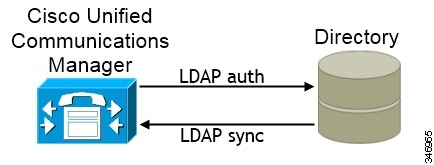
Synchronizing with the directory server replicates contact data from your directory to Cisco Unified Communications Manager.
Enabling authentication with the directory server lets Cisco Unified Communications Manager proxy authentication from the client to the directory server. In this way, users authenticate with the directory server, not with Cisco Unified Communications Manager or a presence server.
Synchronize with the Directory Server
Enable Synchronization
What to Do Next
Specify an LDAP attribute for the user ID.
Populate User ID and Directory URI
- User ID
-
You must specify a value for the user ID on Cisco Unified Communications Manager. This value is required for the default IM address scheme and for users to log in. The default value is sAMAccountName.
- Directory URI
-
You should specify a value for the directory URI if you plan to:
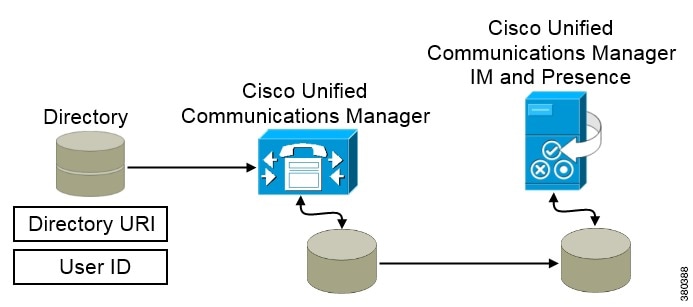
When Cisco Unified Communications Manager synchronizes with the directory source, it retrieves the values for the directory URI and user ID and populates them in the end user configuration table in the Cisco Unified Communications Manager database.
The Cisco Unified Communications Manager database then synchronizes with the Cisco Unified Communications Manager IM and Presence Service database. As a result, the values for the directory URI and user ID are populated in the end user configuration table in the Cisco Unified Communications Manager IM and Presence Service database.
Specify an LDAP Attribute for the User ID
When you synchronize from your directory source to Cisco Unified Communications Manager, you can populate the user ID from an attribute in the directory. The default attribute that holds the user ID is sAMAccountName.
Specify an LDAP Attribute for the Directory URI
On Cisco Unified Communications Manager version 9.0(1) and higher, you can populate the directory URI from an attribute in the directory. The default attribute is msRTCSIP-primaryuseraddress.
Perform Synchronization
This service keeps data synchronized between the presence server and Cisco Unified Communications Manager. When you perform the synchronization with your directory server, Cisco Unified Communications Manager then synchronizes the data with the presence server. However, the Cisco Sync Agent service must be activated and started.
User data from your directory server is synchronized to the Cisco Unified Communications Manager database. Cisco Unified Communications Manager then synchronizes the user data to the presence server database.
Authenticate with the Directory Server
| Step 1 | Open the Cisco Unified CM Administration interface. |
| Step 2 | Select . |
| Step 3 | Select Use LDAP Authentication for End Users. |
| Step 4 | Specify LDAP credentials and a user search base as appropriate. See the Cisco Unified Communications Manager Administration Guide for information about the fields on the LDAP Authentication window. |
| Step 5 | Select Save. |
Contact Sources
In on-premises deployments, the client requires a contact source to resolve directory look ups for user information. You can use the following as a contact source:
- Basic Directory Integration
-
Basic Directory Integration (BDI) is an LDAP-based contact source.
- Cisco Unified Communications Manager User Data Service
-
Cisco Unified Communications Manager User Data Service (UDS) is a contact source on Cisco Unified Communications Manager.
UDS is used for contact resolution in the following cases: - If you configure the DirectoryServerType parameter in the client configuration file to use "UDS". With this configuration, the client uses UDS for contact resolution when it is inside or outside of the corporate firewall.
- If you deploy Expressway for Mobile and Remote Access. With this configuration, the client automatically uses UDS for contact resolution when it is outside of the corporate firewall.

NoteCisco Jabber supports UDS using the following Cisco Unified Communications Manager versions: You can deploy approximately 50 percent of the maximum number of Cisco Jabber clients that your Cisco Unified Communications Manager node supports.
For example, if a Cisco Unified Communications Manager node can support 10,000 Cisco Jabber clients using an LDAP-based contact source, that same node can support 5,000 Cisco Jabber clients using UDS as a contact source.
Basic Directory Integration
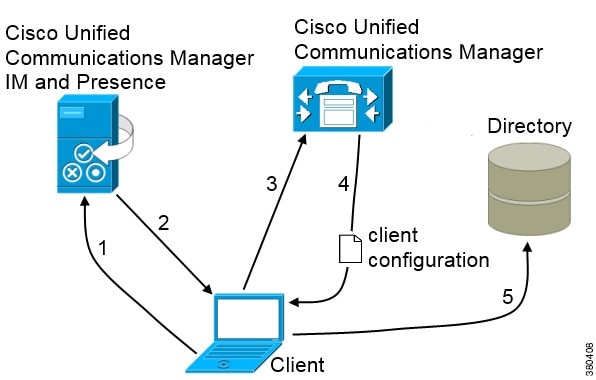
When using Basic Directory Integration (BDI), the client retrieves contact data from the directory service as follows.
- The client connects to the Cisco Unified Presence or Cisco Unified Communications Manager IM and Presence Service server.
- The client gets the LDAP profile configuration section in the service profile from the Cisco Unified Presence or Cisco Unified Communications Manager IM and Presence Service server. The service profile contains the location of Cisco Unified Communications Manager (TFTP) server. Depending on your configuration, the service profile can also contain the credentials to authenticate with the directory.
- The client connects to the Cisco Unified Communications Manager server.
- The client downloads the client configuration file from the Cisco Unified Communications Manager server. The client configuration file contains the location of the directory. Depending on your configuration, the client configuration file can also contain the credentials to authenticate with the directory.
- The client uses the directory location and the authentication credentials to connect to the directory.
Authentication with Contact Sources
- Specify credentials in Cisco Unified Presence or Cisco Unified Communications Manager
Specify credentials in a profile on the server. The client can then retrieve the credentials from the server to authenticate with the directory.
This method is the most secure option for storing and transmitting credentials.
- Set common credentials in the client configuration file
You specify a shared username and password in the client configuration file. The client can then authenticate with the directory server.
Important: The client transmits and stores these credentials as plain text.
You should use only a well-known or public set of credentials. The credentials should also be linked to an account that has read-only permissions.
- Use anonymous binds
Configure the client to connect to the directory source with anonymous binds.
- Specify LDAP Directory Configuration on Cisco Unified Presence
- Specify LDAP Directory Configuration on Cisco Unified Communications Manager
- Set Credentials in the Client Configuration
- Use Anonymous Binds
Specify LDAP Directory Configuration on Cisco Unified Presence
If your environment includes Cisco Unified Presence version 8.x, you can specify directory configuration in the LDAP profile. The client can then get the directory configuration from the server to authenticate with the directory source.
Complete the steps to create an LDAP profile that contains authentication credentials, and then assign that profile to users.
| Step 1 | Open the Cisco Unified Presence Administration interface. |
| Step 2 | Select . |
| Step 3 | Select Add New. |
| Step 4 | Specify a name and optional description for the profile in the following fields: |
| Step 5 | Specify a distinguished name for a user ID that is authorized to run queries on the LDAP server. Cisco Unified Presence uses this name for authenticated bind with the LDAP server. |
| Step 6 | Specify a password that the client can use to authenticate with the LDAP server in the following fields: |
| Step 7 | Select Add Users to Profile and add the appropriate users to the profile. |
| Step 8 | Select Save. |
What to Do Next
Specify any additional BDI information in the client configuration file.
Specify LDAP Directory Configuration on Cisco Unified Communications Manager
If your environment includes Cisco Unified Communications Manager version 9.x and higher, you can specify credentials when you add a directory service. The client can then get the configuration from the server to authenticate with the directory source.
Complete the steps to add a directory service, apply the directory service to the service profile, and specify the LDAP authentication configuration for the directory service.
Set Credentials in the Client Configuration
The client transmits and stores these credentials as plain text.
You should use only a well-known or public set of credentials. The credentials should also be linked to an account that has read-only permissions.
The following is an example configuration:
<Directory>
  <BDIConnectionUsername>admin@example.com</BDIConnectionUsername>
  <BDIConnectionPassword>password</BDIConnectionPassword>
</Directory>
Use Anonymous Binds
To use anonymous binds, you set the following parameters in the client configuration file:
| Parameter | Value |
|---|---|
| DirectoryServerType | BDI |
| BDIPrimaryServerName |
IP address FQDN |
| BDIEnableTLS | True |
| BDISearchBase1 |
Searchable organizational unit (OU) in the directory tree |
| BDIBaseFilter | Object class that your directory service uses; for example, inetOrgPerson |
| BDIPredictiveSearchFilter | uid or other search filter
A search filter is optional. |
The following is an example configuration:
<Directory> <BDIPrimaryServerName>11.22.33.456</BDIPrimaryServerName> <BDIEnableTLS>True</BDIEnableTLS> <BDISearchBase1>ou=people,dc=cisco,dc=com</BDISearchBase1> <BDIBaseFilter>(&(objectClass=inetOrgPerson)</BDIBaseFilter> <BDIPredictiveSearchFilter>uid</BDIPredictiveSearchFilter> </Directory>
Cisco Unified Communications Manager User Data Service
UDS is a REST interface on Cisco Unified Communications Manager that provides contact resolution.
- If you set the DirectoryServerType parameter to use a value of UDS in the client configuration file. With this configuration, the client uses UDS for contact resolution when it is inside or outside of the corporate firewall.
- If you deploy Expressway for Mobile and Remote Access. With this configuration, the client automatically uses UDS for contact resolution when it is outside of the corporate firewall.
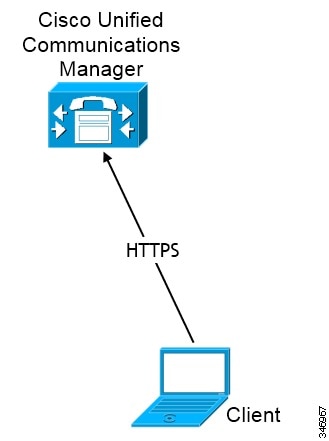
You synchronize contact data into Cisco Unified Communications Manager from a directory server. Cisco Jabber then automatically retrieves that contact data from UDS.
Enable Integration with UDS
To enable integration with UDS, perform the following steps:
| Step 1 | Create your directory source in Cisco Unified Communications Manager. |
| Step 2 | Synchronize
the contact data to
Cisco Unified
Communications Manager.
After the synchronization occurs, your contact data resides in Cisco Unified Communications Manager. |
| Step 3 | For manual
connections, specify the IP address of the
Cisco
Unified Communications Manager User Data Service server to ensure that the client can
discover the server.
<UdsServer>11.22.33.444</UdsServer> |
| Step 4 | Configure the
client to retrieve contact photos with
UDS.
<UdsPhotoUriWithToken>http://server_name.domain/%%uid%%.jpg</UdsPhotoUriWithToken> |
Set UDS Service Parameters
You can set service parameters for UDS on Cisco Unified Communications Manager.
UDS Service Parameters
| Parameter | Description | ||
|---|---|---|---|
| Enable All User Search | Allows searches for all users in the directory (search with no
last name, first name, or directory number specified).
The default value is true. |
||
| User Search Limit | Limits the number of users returned in a query.
The default value is 64. |
||
| Number of Digits to Match | Specifies the number of digits to match when users search for
phone numbers.
|
Contact Resolution with Multiple Clusters
For contact resolution with multiple Cisco Unified Communications Manager clusters, you should synchronize all users on the corporate directory to each cluster. You should then provision a subset of those users on the appropriate cluster.
When users in Europe call users in North America, Cisco Jabber retrieves the contact details for the user in Europe from cucm-cluster-na.
When users in North America call users in Europe, Cisco Jabber retrieves the contact details for the user in North America from cucm-cluster-eu.
Client Configuration for Directory Integration
Directory integration can be configured through Service Profiles using Cisco Unified Communications Manager 9 or higher or with the configuration file. Use this section to learn how to configure the client for directory integration.
Note | In instances where a Service Profile and the configuration file are present, settings in the Service Profile take priority. |
Note | Cisco Unified Presence 8 profiles cannot be used for directory integration. |
- Configure Directory Integration in a Service Profile
- Summary of Directory Integration Configuration Parameters
- Directory Integration Parameters
- UDS Parameters
- Directory Server Configuration Examples
Configure Directory Integration in a Service Profile
With Cisco Unified Communications Manager version 9 and higher, you can provision users with service profiles and deploy the _cisco-uds SRV record on your internal domain name server.
The client can then automatically discover Cisco Unified Communications Manager and retrieve the service profile to get directory integration configuration.
- Deploy the _cisco-uds SRV record on your internal domain name server.
- Ensure that the client can resolve the domain name server address.
- Ensure that the client can resolve the hostname of Cisco Unified Communications Manager.
- Ensure that the client can resolve the fully qualified domain name (FQDN) for the Cisco Unified Communications Manager.
Cisco Jabber now supports Cisco Unified Communications Manager User Data Service (UDS). In addition to being able to deploy Cisco Jabber using LDAP to connect to Active Directory, Jabber can now alternatively be deployed with Cisco Unified Communications Manager User Data Services contact lookup service. Server scaling must be considered when using the UDS server. A Cisco Unified Communication node can support UDS contact service connections for 50% of the maximum device registrations supported by the server.
To configure directory integration in a service profile, do the following:
Directory Profile Parameters
| Directory Service Configuration | Description | ||
|---|---|---|---|
| Primary server |
Specifies the address of the primary directory server. This parameter is required for manual connections where the client cannot automatically discover the directory server. |
||
| Secondary server | |||
| Use UDS for Contact Resolution |
Specifies if the client uses UDS as a contact source.
|
||
| Use Logged On User Credential |
|
||
| Username |
Lets you manually specify a shared username that the client can use to authenticate with the directory server. If you must use this parameter, you should use only a well-known or public set of credentials. The credentials should also be linked to an account that has read-only permissions. |
||
| Password |
Lets you manually specify a shared password that the client can use to authenticate with the directory server. If you must use this parameter, you should use only a well-known or public set of credentials. The credentials should also be linked to an account that has read-only permissions. |
||
|
Search Base 1 |
Specifies a location in the directory server from which searches begin. In other words, a search base is the root from which the client executes a search. By default, the client searches from the root of the directory tree. You can specify the value of up to three search bases in your OU to override the default behavior. Active Directory does not typically require a search base. You should specify search bases for Active Directory only for specific performance requirements. You must specify a search base for directory servers other than Active Directory to create bindings to specific locations in the directory.
|
||
| Base Filter |
Specifies a base filter for Active Directory queries. Specify a directory subkey name only to retrieve objects other than user objects when you query the directory. |
||
| Predictive Search Filter |
Defines filters to apply to predictive search queries. You can define multiple, comma-separated values to filter search queries. The default value is ANR. |
Attribute Mappings
It is not possible to change the default attribute mappings in a service profile. If you plan to change any default attribute mappings, you must define the required mappings in a client configuration file.
Summary of Directory Integration Configuration Parameters
This topic lists all the parameters you can specify to configure directory integration.
| Attribute Mapping Parameters | |
|---|---|
| Directory Server Connection Parameters | |
|---|---|
| Contact Resolution and Directory Query Parameters | |
|---|---|
Summary of UDS Parameters
| UDS Parameters |
|---|
Directory Integration Parameters
The following sections lists details about the parameters you can configure for LDAP-based directory integration.
- Attribute Mapping Parameters
- Directory Connection Parameters
- Directory Query Parameters
- Contact Photo Parameters
Attribute Mapping Parameters
| Parameter | Directory Attribute | Exists in Global Catalog by Default | Is Indexed by Default | Set for Ambiguous Name Resolution (ANR) by Default | ||
|---|---|---|---|---|---|---|
| BDICommonName | cn | Yes | Yes | No | ||
| BDIDisplayName | displayName | Yes | Yes | Yes | ||
| BDIFirstname | givenName | Yes | Yes | Yes | ||
| BDILastname | sn | Yes | Yes | Yes | ||
| BDIEmailAddress | Yes | Yes | Yes | |||
BDISipUri
|
msRTCSIP-PrimaryUserAddress | Yes | Yes | Yes | ||
| BDIPhotoSource | thumbnailPhoto | No | No | No | ||
| BDIBusinessPhone | telephoneNumber | Yes | No | No | ||
| BDIMobilePhone | mobile | Yes | No | No | ||
| BDIHomePhone | homePhone | Yes | No | No | ||
| BDIOtherPhone | otherTelephone | Yes | No | No | ||
BDIDirectoryUri
|
Yes | No | No | |||
| BDITitle | title | Yes | No | No | ||
| BDICompanyName | company | Yes | Yes | No | ||
| BDIUserAccountName | sAMAccountName | Yes | Yes | Yes | ||
| BDIDomainName |
dn |
Yes | Yes | No | ||
| BDICountry | co | Yes | No | No | ||
| BDILocation | Yes | No | No | |||
| BDINickname | displayName | Yes | Yes | Yes | ||
| BDIPostalCode | postalCode | Yes | No | No | ||
| BDICity | l | Yes | Yes | No | ||
| BDIState | st | Yes | Yes | No | ||
| BDIStreetAddress | streetAddress | Yes | No | No |
Attributes on the Directory Server
You must index attributes on your LDAP directory server so that the client can resolve contacts.
Directory Connection Parameters
| Parameter | Value | Description | ||
|---|---|---|---|---|
| BDILDAPServerType |
AD OpenLDAP |
|
||
| BDIPresenceDomain |
Domain of the presence server |
Required parameter. Specifies the domain of the presence server. The client appends this domain to the user ID to create an IM address. For example, a user named Adam McKenzie has the following user ID: amckenzie. You specify example.com as the presence server domain. When the user logs in, the client constructs the following IM address for Adam McKenzie: amckenzie@example.com. |
||
| BDIPrimaryServerName |
Required parameter. Specifies the address of the primary directory server. This parameter is required for manual connections where the client cannot automatically discover the directory server.
|
|||
| BDIServerPort1 | ||||
| BDIUseJabberCredentials |
true false |
|
||
| BDIConnectionUsername |
Lets you manually specify a shared username that the client can use to authenticate with the directory server. The client transmits and stores this username as plain text. If you must use this parameter, you should use only a well-known or public set of credentials. The account that you use for integration should have read-only permissions to the directory. |
|||
| BDIConnectionPassword |
Lets you manually specify a shared password that the client can use to authenticate with the directory server. The client transmits and stores this password as plain text. If you must use this parameter, you should use only a well-known or public set of credentials. The account that you use for integration should have read-only permissions to the directory. |
|||
| BDIEnableTLS |
true false |
|
Directory Query Parameters
| Parameter | Value | Description | ||
|---|---|---|---|---|
| BDIBaseFilter |
Specifies a base filter for Active Directory queries. Specify a directory subkey name only to retrieve objects other than user objects when you query the directory. The default value is (&(objectCategory=person)). Configuration files can contain only valid XML character entity references. Use & instead of & if you specify a custom base filter. |
|||
| BDIUseANR |
true false |
You must configure your directory server to set attributes for ANR if you want the client to search for those attributes. |
||
| BDIPredictiveSearchFilter |
Defines filters to apply to predictive search queries. You can define multiple, comma-separated values to filter search queries. |
|||
|
Specifies a location in the directory server from which searches begin. In other words, a search base is the root from which the client executes a search. By default, the client searches from the root of the directory tree. You can specify the value of up to five search bases in your OU to override the default behavior. Active Directory does not typically require a search base. You should specify search bases for Active Directory only for specific performance requirements. You must specify a search base for directory servers other than Active Directory to create bindings to specific locations in the directory.
|
Base Filter Examples
The following are example base filters you can use to look up specific locations or objects.
Find only specific groups:
(&(objectClass=user)(memberOf=cn=group-name,ou=Groups,dc=example,dc=com))
Find a nested group within a group:
(&(objectClass=user)(memberOf:search-oid:=cn=group-name,ou=Groups,dc=example,dc=com))
Find only enabled accounts and non-administrator accounts:
(&(objectCategory=person)(objectClass=user)(!(userAccountControl:search-oid:=2))
(!(sAMAccountName=*_dbo))(!(sAMAccountName=*-admin)))
Contact Photo Parameters
| Parameter | Value | Description |
|---|---|---|
| BDIPhotoUriSubstitutionEnabled |
|
|
| BDIPhotoUriSubstitutionToken |
Specifies a directory attribute to insert in the photo URI; for example, sAMAccountName. |
|
| BDIPhotoUriWithToken |
Specifies a photo URI with a directory attribute as a variable value; for example, http://staffphoto.example.com/sAMAccountName.jpg. The parameter applies to LDAP directory integrations. To configure photo URI substitution, you set the directory attribute as the value of BDIPhotoUriSubstitutionToken. The client must be able to retrieve the photos from the web server without credentials. |
Contact Photo Retrieval with BDI
Note | When you change a photo in the Active Directory, the photo can take up to 24 hours to refresh in Cisco Jabber. |
- URI substitution
-
Cisco Jabber dynamically builds a URL to contact photos with a directory attribute and a URL template.
To use this method, set the following values in your configuration file: - Specify true as the value of the BDIPhotoUriSubstitutionEnabled parameter.
- Specify a directory
attribute to use as a dynamic token as the value of the
BDIPhotoUriSubstitutionToken parameter; for example,
<BDIPhotoUriSubstitutionToken>sAMAccountName</BDIPhotoUriSubstitutionToken>
- Specify the URL and the
dynamic token as the value of the
BDIPhotoUriWithToken parameter; for example,
<BDIPhotoUriWithToken>http://staffphoto.example.com/sAMAccountName.jpg</BDIPhotoUriWithToken>
With the example values in the preceding steps, the sAMAccountName attribute might resolve to msmith in your directory. Cisco Jabber then takes this value and replaces the token to build the following URL: http://staffphoto.example.com/msmith.jpg.
- Binary objects
-
Cisco Jabber retrieves the binary data for the photo from your database.
if using binary objects from Active Directory, BDIPhotoUriWithToken should not be set.
To use this method to retrieve contact photos, specify the attribute that contains the binary data as the value of the BDIPhotoSource parameter in the configuration; for example, <BDIPhotoSource>jpegPhoto</BDIPhotoSource>
- PhotoURL attribute
-
Cisco Jabber retrieves a URL from a directory attribute.
To use this method to retrieve contact photos, specify the attribute that contains the photo URL as the value of the BDIPhotoSource parameter in the configuration; for example, <BDIPhotoSource>photoUri</BDIPhotoSource>
Contact Photo Formats and Dimensions
To achieve the best result with Cisco Jabber, your contact photos should have specific formats and dimensions. Review supported formats and optimal dimensions. Learn about adjustments the client makes to contact photos.
Contact Photo Formats
Cisco Jabber does not apply any modifications to enhance rendering for contact photos in GIF format. As a result, contact photos in GIF format might render incorrectly or with less than optimal quality. To obtain the best quality, you should use PNG format for your contact photos.
Contact Photo Dimensions
 Tip | The optimum dimensions for contact photos are 128 pixels by 128 pixels with an aspect ratio of 1:1. |
| Location | Dimensions |
|---|---|
Audio call window |
128 pixels by 128 pixels |
64 pixels by 64 pixels |
|
32 pixels by 32 pixels |
Contact Photo Adjustments
- Resizing
-
If contact photos in your directory are smaller or larger than 128 pixels by 128 pixels, the client automatically resizes the photos. For example, contact photos in your directory are 64 pixels by 64 pixels. When Cisco Jabber retrieves the contact photos from your directory, it resizes the photos upwards to 128 pixels by 128 pixels.
Tip
Resizing contact photos can result in less than optimal resolution. For this reason, you should use contact photos that are 128 pixels by 128 pixels so that the client does not automatically resize them.
- Cropping
-
Cisco Jabber automatically crops non-square contact photos to a square aspect ratio, or an aspect ratio of 1:1 where the width is the same as the height.
- Portrait orientation
-
If contact photos in your directory have portrait orientation, the client crops 30 percent from the top and 70 percent from the bottom.
For example, if contact photos in your directory have a width of 100 pixels and a height of 200 pixels, Cisco Jabber needs to crop 100 pixels from the height to achieve an aspect ratio of 1:1. In this case, the client crops 30 pixels from the top of the photos and 70 pixels from the bottom of the photos.
- Landscape orientation
-
If contact photos in your directory have landscape orientation, the client crops 50 percent from each side.
For example, if contact photos in your directory have a width of 200 pixels and a height of 100 pixels, Cisco Jabber needs to crop 100 pixels from the width to achieve an aspect ratio of 1:1. In this case, the client crops 50 pixels from the right side of the photos and 50 pixels from the left side of the photos.
UDS Parameters
| Parameter | Value | Description |
|---|---|---|
|
PresenceDomain |
Domain of the presence server |
Required parameter. Specifies the domain of the presence server. The client appends this domain to the user ID to create an IM address. For example, a user named Adam McKenzie has the following user ID: amckenzie. You specify example.com as the presence server domain. When the user logs in, the client constructs the following IM address for Adam McKenzie: amckenzie@example.com. |
| UdsServer |
IP address FQDN |
Specifies the address of the Cisco Unified Communications Manager User Data Service (UDS) server. This parameter is required for manual connections where the client cannot automatically discover the UDS server. |
| UdsPhotoUriWithToken |
URI |
Specifies a photo URI with a directory attribute as a variable value; for example, http://www.photo/url/path/%%uid%%.jpg.
The client must be able to retrieve the photos from the web server without credentials. |
Contact Photo Retrieval with UDS
UDS dynamically builds a URL for contact photos with a directory attribute and a URL template.
<UdsPhotoUriWithToken>http://server_name/%%uid%%.jpg</UdsPhotoUriWithToken>
UDS substitutes the %%uid%% token with the value of the userName attribute in UDS. For example, a user named Mary Smith exists in your directory. The value of the userName attribute for Mary Smith is msmith. To resolve the contact photo for Mary Smith, Cisco Jabber takes the value of the userName attribute and replaces the %%uid%% token to build the following URL: http://staffphoto.example.com/msmith.jpg
Note | When you change a photo in the Active Directory, the photo can take up to 24 hours to refresh in Cisco Jabber. |
- If you deploy Expressway for Mobile and Remote Access, the client automatically uses UDS for contact resolution when users connect to services from outside the corporate network. When you set up UDS contact resolution for Expressway for Mobile and Remote Access, you must add the web server on which you host the contact photos to the HTTP server allow list in your Cisco Expressway-C server configuration. The HTTP server allow list enables the client to access web services inside the corporate network.
- All contact photos must follow the format of the URL you specify as the value of UdsPhotoUriWithToken.
Contact Photo Formats and Dimensions
To achieve the best result with Cisco Jabber, your contact photos should have specific formats and dimensions. Review supported formats and optimal dimensions. Learn about adjustments the client makes to contact photos.
Contact Photo Formats
Cisco Jabber does not apply any modifications to enhance rendering for contact photos in GIF format. As a result, contact photos in GIF format might render incorrectly or with less than optimal quality. To obtain the best quality, you should use PNG format for your contact photos.
Contact Photo Dimensions
Tip | The optimum dimensions for contact photos are 128 pixels by 128 pixels with an aspect ratio of 1:1. |
| Location | Dimensions |
|---|---|
Audio call window |
128 pixels by 128 pixels |
64 pixels by 64 pixels |
|
32 pixels by 32 pixels |
Contact Photo Adjustments
- Resizing
-
If contact photos in your directory are smaller or larger than 128 pixels by 128 pixels, the client automatically resizes the photos. For example, contact photos in your directory are 64 pixels by 64 pixels. When Cisco Jabber retrieves the contact photos from your directory, it resizes the photos upwards to 128 pixels by 128 pixels.
Tip
Resizing contact photos can result in less than optimal resolution. For this reason, you should use contact photos that are 128 pixels by 128 pixels so that the client does not automatically resize them.
- Cropping
-
Cisco Jabber automatically crops non-square contact photos to a square aspect ratio, or an aspect ratio of 1:1 where the width is the same as the height.
- Portrait orientation
-
If contact photos in your directory have portrait orientation, the client crops 30 percent from the top and 70 percent from the bottom.
For example, if contact photos in your directory have a width of 100 pixels and a height of 200 pixels, Cisco Jabber needs to crop 100 pixels from the height to achieve an aspect ratio of 1:1. In this case, the client crops 30 pixels from the top of the photos and 70 pixels from the bottom of the photos.
- Landscape orientation
-
If contact photos in your directory have landscape orientation, the client crops 50 percent from each side.
For example, if contact photos in your directory have a width of 200 pixels and a height of 100 pixels, Cisco Jabber needs to crop 100 pixels from the width to achieve an aspect ratio of 1:1. In this case, the client crops 50 pixels from the right side of the photos and 50 pixels from the left side of the photos.
Directory Server Configuration Examples
This section describes supported integration scenarios and provides example configurations.
UDS Integration
| Parameter | Value |
|---|---|
| DirectoryServerType | UDS |
| UdsServer | IP address of the UDS server |
| UdsPhotoUriWithToken | Contact photo URL |
Note | Configure the DirectoryServerType parameter to UDS only if you want to use UDS for all contact resolution (that is, from inside and outside the corporate firewall). |
<Directory>
  <DirectoryServerType>UDS</DirectoryServerType>
  <UdsServer>11.22.33.444</UdsServer>
  <UdsPhotoUriWithToken>http://server-name/%%uid%%.jpg</UdsPhotoUriWithToken>
</Directory>
LDAP Integration with Expressway for Mobile and Remote Access
Note | LDAP is the default configuration, so it is not necessary to include the DirectoryServerType parameter in your client configuration file. |
| Parameter | Value |
|---|---|
| BDIPhotoUriWithToken | Contact photo URL when inside the corporate firewall |
| UdsPhotoUriWithToken | Contact photo URL when outside the corporate firewall |
<Directory>
  <BDIPhotoUriWithToken>http://staffphoto.example.com/sAMAccountName.jpg
      </BDIPhotoUriWithToken>
  <UdsPhotoUriWithToken>http://server-name/%%uid%%.jpg</UdsPhotoUriWithToken>
</Directory>
OpenLDAP Integration
You can integrate with OpenLDAP using anonymous binds or authenticated binds.
- Anonymous Binds for Mobile Clients and Cisco Jabber for Mac
- Authenticated Binds for Mobile Clients and Cisco Jabber for Mac
Anonymous Binds for Mobile Clients and Cisco Jabber for Mac
| Parameter | Value |
|---|---|
| BDILDAPServerType | OpenLDAP |
| BDIPrimaryServerName |
IP address Hostname |
| BDIEnableTLS | True |
| BDISearchBase1 |
Root of the directory service or the organizational unit (OU) |
| BDIServerPort1 | The port for the primary directory server |
| BDIUserAccountName | Unique identifier such as uid or cn |
| BDIBaseFilter |
Object class that your directory service uses; for example, inetOrgPerson. |
| (Optional) BDIPredictiveSearchFilter | uid or other search filter |
<Directory> <BDILDAPServerType>OpenLDAP</BDILDAPServerType> <BDIPrimaryServerName>11.22.33.456</BDIPrimaryServerName> <BDIEnableTLS>True</BDIEnableTLS> <BDISearchBase1>ou=people,dc=cisco,dc=com</BDISearchBase1> <BDIServerPort1>636/3269</BDIServerPort1> <BDIUserAccountName>uid</BDIUserAccountName> <BDIBaseFilter>(&(objectClass=inetOrgPerson)</BDIBaseFilter> <BDIPredictiveSearchFilter>uid</BDIPredictiveSearchFilter> </Directory>
Authenticated Binds for Mobile Clients and Cisco Jabber for Mac
| Parameter | Value |
|---|---|
| BDILDAPServerType | OpenLDAP |
| BDIPrimaryServerName |
IP address Hostname |
| BDIEnableTLS | False |
| BDISearchBase1 |
Root of the directory service or the organizational unit (OU) |
| BDIServerPort1 |
The port for the primary directory server |
| BDIUserAccountName | Unique identifier such as uid or cn |
| BDIBaseFilter |
Object class that your directory service uses; for example, inetOrgPerson. |
| (Optional) BDIPredictiveSearchFilter | uid or other search filter |
| BDIConnectionUsername | Username |
| BDIConnectionPassword | Password |
<Directory> <BDILDAPServerType>OpenLDAP</BDILDAPServerType> <BDIPrimaryServerName>11.22.33.456</BDIPrimaryServerName> <BDIEnableTLS>False</BDIEnableTLS> <BDISearchBase1>ou=people,dc=cisco,dc=com</BDISearchBase1> <BDIServerPort1>389/3268</BDIServerPort1> <BDIUserAccountName>uid</BDIUserAccountName> <BDIBaseFilter>(&(objectClass=inetOrgPerson)</BDIBaseFilter> <BDIPredictiveSearchFilter>uid</BDIPredictiveSearchFilter> <BDIConnectionUsername>cn=administrator,dc=cisco,dc=com</BDIConnectionUsername> <BDIConnectionPassword>password</BDIConnectionPassword> </Directory>
Federation
Federation lets Cisco Jabber users communicate with users who are provisioned on different systems and who are using client applications other than Cisco Jabber.
Interdomain Federation
Interdomain federation enables Cisco Jabber users in an enterprise domain to share availability and send instant messages with users in another domain.
You configure interdomain federation for Cisco Jabber on Cisco Unified Presence or Cisco Unified Communications Manager IM and Presence Service. See the appropriate server documentation for more information.
Intradomain Federation
Intradomain federation enables users within the same domain to share availability and send instant messages between Cisco Unified Presence and Microsoft Office Communications Server, Microsoft Live Communications Server, or other presence server.
- Cisco Unified Presence: Integration Guide for Configuring Partitioned Intradomain Federation for Cisco Unified Presence Release 8.6 and Microsoft LCS/OCS
- Cisco Unified Communications IM and Presence: Partitioned Intradomain Federation for IM and Presence Service on Cisco Unified Communications Manager
Configure Intradomain Federation for BDI or EDI
In addition to configuring intradomain federation on the presence server, you might need to specify some configuration settings in the Cisco Jabber configuration files.
To resolve contacts during contact search or retrieve contact information from your directory, Cisco Jabber requires the contact ID for each user. Cisco Unified Presence uses a specific format for resolving contact information that does not always match the format on other presence servers such as Microsoft Office Communications Server or Microsoft Live Communications Server.
The parameters that you use to configure intradomain federation depend on whether you use Enhanced Directory Integration (EDI) or Basic Directory Integration (BDI). EDI uses native Microsoft Windows APIs to retrieve contact data from the directory service and is only used by Cisco Jabber for Windows. For BDI, the client retrieves contact data from the directory service and is used by Cisco Jabber for Mac, Cisco Jabber for Android, and Cisco Jabber for iPhone and iPad.
| Step 1 | Set the value of the relevant parameter to true: | ||
| Step 2 | Specify an
attribute that contains the Cisco Jabber contact ID that the client uses to
retrieve contact information. The default value is
msRTCSIP-PrimaryUserAddress, or you can specify
another attribute in the relevant parameter:
| ||
| Step 3 | In the
UriPrefix parameter, specify any prefix text that precedes each contact ID in
the relevant
SipUri parameter.
Example:For example, you specify msRTCSIP-PrimaryUserAddress as the value of BDISipUri. In your directory the value of msRTCSIP-PrimaryUserAddress for each user has the following format: sip:username@domain. |
<Directory>
  <BDIUseSIPURIToResolveContacts>true</BDIUseSIPURIToResolveContacts>
  <BDISipUri>non-default-attribute</BDISipUri>
  <BDIUriPrefix>sip:</BDIUriPrefix>
</Directory>
<Directory>
  <UseSIPURIToResolveContacts>true</UseSIPURIToResolveContacts>
  <SipUri>non-default-attribute</SipUri>
  <UriPrefix>sip:</UriPrefix>
</Directory>
Example of Intradomain Federation
Intradomain Federation using BDI or EDI
- For BDI: BDISipUri
- For EDI: SipURI
-
Value: msRTCSIP-PrimaryUserAddress
- For BDI: BDIUseSIPURIToResolveContacts
- For EDI: UseSIPURIToResolveContacts
-
Value: true
- For BDI: BDIUriPrefix
- For EDI: UriPrefix
-
Value: sip:
For the user Mary Smith, the directory contains sip:msmith@domain.com as the value of the msRTCSIP-PrimaryUserAddress attribute.
When Cisco Jabber users search for Mary Smith, the client removes the sip: prefix from sip:msmith@domain.com to get her contact ID.
 Feedback