Integrate with Directory Sources

Cisco Jabber integrates with directory sources in on-premises deployments to query for and resolve contact information. Learn why you should enable synchronization and authentication between your directory source and Cisco Unified Communications Manager. Understand how directory integration works with certain contact sources. Review when you should configure the client for directory integration. Find configuration examples of specific integration scenarios.

Set Up Directory Synchronization and Authentication

When you set up an on-premises deployment, you should configure Cisco Unified Communications Manager to do both of the following:
  • Synchronize with the directory server.

  • Authenticate with the directory server.
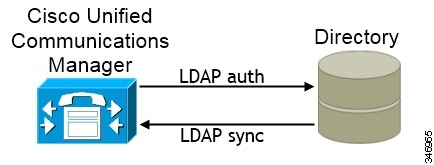
Directory integration with Cisco Unified Communications Manager

Synchronizing with the directory server replicates contact data from your directory to Cisco Unified Communications Manager.

Enabling authentication with the directory server lets Cisco Unified Communications Manager proxy authentication from the client to the directory server. In this way, users authenticate with the directory server, not with Cisco Unified Communications Manager or a presence server.

Synchronize with the Directory Server

Directory server synchronization ensures that contact data in your directory server is replicated to Cisco Unified Communications Manager.

Enable Synchronization

To ensure that contact data in your directory server is replicated to Cisco Unified Communications Manager, you must synchronize with the directory server. Before you can synchronize with the directory server, you must enable synchronization.

Procedure

Step 1

Open the Cisco Unified CM Administration interface.

Step 2

Select System > LDAP > LDAP System.

The LDAP System Configuration window opens.

Step 3

Locate the LDAP System Information section.

Step 4

Select Enable Synchronizing from LDAP Server.

Step 5

Select the type of directory server from which you are synchronizing data from the LDAP Server Type drop-down list.


What to do next

Specify an LDAP attribute for the user ID.

Specify an LDAP Attribute for the User ID

When you synchronize from your directory source to Cisco Unified Communications Manager, you can populate the user ID from an attribute in the directory. The default attribute that holds the user ID is sAMAccountName.

Procedure

Step 1

Locate the LDAP Attribute for User ID drop-down list on the LDAP System Configuration window.

Step 2

Specify an attribute for the user ID as appropriate and then select Save.

Important 

If the attribute for the user ID is other than sAMAccountName and you are using the default IM address scheme in Cisco Unified Communications Manager IM and Presence Service, you must specify the attribute as the value for the parameter in your client configuration file as follows:

The EDI parameter is UserAccountName.

<UserAccountName>attribute-name</UserAccountName>

If you do not specify the attribute in your configuration, and the attribute is other than sAMAccountName, the client cannot resolve contacts in your directory. As a result, users do not get presence and cannot send or receive instant messages.


Perform Synchronization

After you add a directory server and specify the required parameters, you can synchronize Cisco Unified Communications Manager with the directory server.

Before you begin
If your environment includes a presence server, you should ensure the following feature service is activated and started before you synchronize with the directory server:
  • Cisco Unified Presence — Cisco UP Sync Agent

  • Cisco Unified Communications Manager IM and Presence ServiceCisco Sync Agent

This service keeps data synchronized between the presence server and Cisco Unified Communications Manager. When you perform the synchronization with your directory server, Cisco Unified Communications Manager then synchronizes the data with the presence server. However, the Cisco Sync Agent service must be activated and started.

Procedure

Step 1

Select System > LDAP > LDAP Directory.

Step 2

Select Add New.

The LDAP Directory window opens.

Step 3

Specify the required details on the LDAP Directory window.

See the Cisco Unified Communications Manager Administration Guide for more information about the values and formats you can specify.

Step 4

Create an LDAP Directory Synchronization Schedule to ensure that your information is synchronized regularly.

Step 5

Select Save.

Step 6

Select Perform Full Sync Now.

Note 

The amount of time it takes for the synchronization process to complete depends on the number of users that exist in your directory. If you synchronize a large directory with thousands of users, you should expect the process to take some time.


User data from your directory server is synchronized to the Cisco Unified Communications Manager database. Cisco Unified Communications Manager then synchronizes the user data to the presence server database.

Authenticate with the LDAP Server

Perform this procedure if you want to enable LDAP authentication so that end user passwords are authenticated against the password that is assigned in the company LDAP directory. LDAP authentication gives system administrators the ability to assign an end user a single password for all company applications. This configuration applies to end user passwords only and does not apply to end user PINs or application user passwords. When users sign in to the client, the presence service routes that authentication to Cisco Unified Communications Manager. Cisco Unified Communications Manager then sends that authentication to the directory server.

Procedure


Step 1

Open the Cisco Unified CM Administration interface.

Step 2

Select System > LDAP > LDAP Authentication.

Step 3

Select Use LDAP Authentication for End Users.

Step 4

Specify LDAP credentials and a user search base as appropriate.

See the Cisco Unified Communications Manager Administration Guide for information about the fields on the LDAP Authentication window.

Step 5

Select Save.


Contact Sources

In on-premises deployments, the client requires a contact source to resolve directory look ups for user information. You can use the following as a contact source:

Enhanced Directory Integration

Enhanced Directory Integration (EDI) is an LDAP-based contact source.

Cisco Unified Communications Manager User Data Service

Cisco Unified Communications Manager User Data Service (UDS) is a contact source on Cisco Unified Communications Manager.

UDS is used for contact resolution in the following cases:
  • If you configure the DirectoryServerType parameter in the client configuration file to use "UDS".

    With this configuration, the client uses UDS for contact resolution when it is inside or outside of the corporate firewall.

  • If you deploy Expressway for Mobile and Remote Access.

    With this configuration, the client automatically uses UDS for contact resolution when it is outside of the corporate firewall.


Note

Cisco Jabber supports UDS using the following Cisco Unified Communications Manager versions:
  • Cisco Unified Communications Manager Version 9.1(2) or later with the following COP file: cmterm-cucm-uds-912-5.cop.sgn.

  • Cisco Unified Communications Manager Version 10.0(1). No COP file is required.

You can deploy approximately 50 percent of the maximum number of Cisco Jabber clients that your Cisco Unified Communications Manager node supports.

For example, if a Cisco Unified Communications Manager node can support 10,000 Cisco Jabber clients using an LDAP-based contact source, that same node can support 5,000 Cisco Jabber clients using UDS as a contact source.


Enhanced Directory Integration

EDI uses native Microsoft Windows APIs to retrieve contact data from the directory service.

The following are the default settings for on-premises deployments with EDI:
  • Cisco Jabber integrates with Active Directory as the contact source.

  • Cisco Jabber automatically discovers and connects to a Global Catalog.

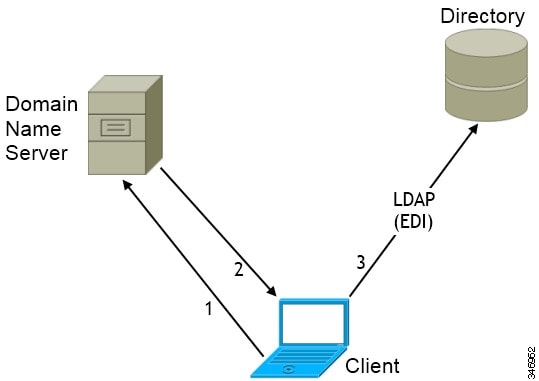
EDI diagram
In the preceding diagram, the client does the following by default:
  1. Gets the DNS domain from the workstation and looks up the SRV record for the Global Catalog.

  2. Retrieves the address of the Global Catalog from the SRV record.

  3. Connects to the Global Catalog with the logged in user's credentials.

Domain Name Retrieval

Cisco Jabber for Windows retrieves the fully qualified DNS domain from the USERDNSDOMAIN environment variable on the client workstation.

After the client gets the DNS domain, it can locate the Domain Name Server and retrieve SRV records.

If the USERDNSDOMAIN environment variable is not present, you can deploy the LdapUserDomain configuration parameter to specify which domain to execute the request for the LDAP service. If that parameter is not configured, then Jabber uses the domain from the email address screen.

In some instances, the value of the USERDNSDOMAIN environment variable does not resolve to the DNS domain that corresponds to the domain of the entire forest. For example, when an organization uses a sub-domain or resource domain. In this case, the USERDNSDOMAIN environment variable resolves to a child domain, not the parent domain. As a result, the client cannot access information for all users in the organization.

If the USERDNSDOMAIN environment variable resolves to a child domain, you can use one of the following options to enable Cisco Jabber for Windows to connect to a service in the parent domain:

  • Ensure that the Global Catalog or LDAP directory server can access all users in the organization.

  • Configure your DNS server to direct the client to a server that can access all users in the organization when Cisco Jabber for Windows requests a Global Catalog or LDAP directory server.

  • Configure Cisco Jabber for Windows to use the FQDN of the domain controller.

    Specify the FQDN of the domain controller as the value of the PrimaryServerName parameter in your client configuration as follows:
    <PrimaryServerName>parent-domain-fqdn</PrimaryServerName>

Directory Server Discovery

Cisco Jabber can automatically discover and connect to the directory server if:
  • The workstation on which you install Cisco Jabber automatically detects the workstation by determining the user domain.

  • The workstation retrieves the server connection address from the DNS SRV record.

Directory Server

SRV Record

Global Catalog

_gc._msdcs._tcp.domain.com

Domain Controller

LDAP-based directory servers

_ldap._msdcs._tcp.domain.com

Cisco Unified Communications Manager User Data Service

User Data Service (UDS) is a REST interface on Cisco Unified Communications Manager that provides contact resolution.

UDS is used for contact resolution in the following cases:
  • If you set the DirectoryServerType parameter to use a value of UDS in the client configuration file.

    With this configuration, the client uses UDS for contact resolution when it is inside or outside of the corporate firewall.

  • If you deploy Expressway for Remote and Mobile Access.

    With this configuration, the client automatically uses UDS for contact resolution when it is outside of the corporate firewall.

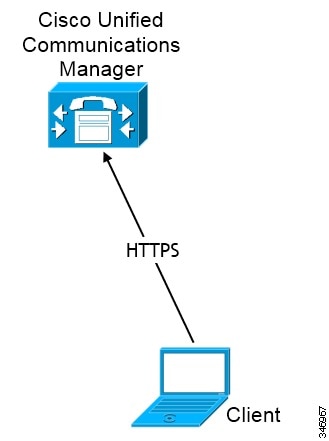
You synchronize contact data into Cisco Unified Communications Manager from a directory server. Cisco Jabber then automatically retrieves that contact data from UDS.

UDS diagram

Enable Integration with UDS

To enable integration with UDS, perform the following steps:

Procedure

Step 1

Create your directory source in Cisco Unified Communications Manager.

Step 2

Synchronize the contact data to Cisco Unified Communications Manager.

After the synchronization occurs, your contact data resides in Cisco Unified Communications Manager.

Step 3

For manual connections, specify the IP address of the Cisco Unified Communications Manager server to ensure that the client can discover the server.

The following is an example configuration for the Cisco Unified Communications Manager server:
<UdsServer>11.22.33.444</UdsServer>
Step 4

Configure the client to retrieve contact photos with UDS.

The following is an example configuration for contact photo retrieval:
<UdsPhotoUriWithToken>http://server_name.domain/%%uid%%.jpg</UdsPhotoUriWithToken>

Set UDS Service Parameters

You can set service parameters for UDS on Cisco Unified Communications Manager.

Procedure

Step 1

Open the Cisco Unified CM Administration interface.

Step 2

Select System > Enterprise Parameters.

The Enterprise Parameters Configuration window opens.

Step 3

Locate the User Data Service Parameters section.


UDS Service Parameters
Set values for the following service parameters to configure UDS:

Parameter

Description

Enable All User Search

Allows searches for all users in the directory (search with no last name, first name, or directory number specified).

The default value is true.

User Search Limit

Limits the number of users returned in a query.

The default value is 64.

Number of Digits to Match

Specifies the number of digits to match when users search for phone numbers.

Tip 

To resolve PSTN numbers, set the value equal to the number of digits in the PSTN numbers. For example, if the PSTN numbers have 10 digits, set the value to 10.

Contact Resolution with Multiple Clusters

For contact resolution with multiple Cisco Unified Communications Manager clusters, synchronize all users on the corporate directory to each cluster. Provision a subset of those users on the appropriate cluster.

For example, your organization has 40,000 users. 20,000 users reside in North America. 20,000 users reside in Europe. Your organization has the following Cisco Unified Communications Manager clusters for each location:
  • cucm-cluster-na for North America

  • cucm-cluster-eu for Europe

In this example, synchronize all 40,000 users to both clusters. Provision the 20,000 users in North America on cucm-cluster-na and the 20,000 users in Europe on cucm-cluster-eu.

When users in Europe call users in North America, Cisco Jabber retrieves the contact details for the user in Europe from cucm-cluster-na.

When users in North America call users in Europe, Cisco Jabber retrieves the contact details for the user in North America from cucm-cluster-eu.

Client Configuration for Directory Integration

You can configure directory integration through service profiles using Cisco Unified Communications Manager release 9 or later or with the configuration file. Use this section to learn how to configure the client for directory integration.

When both a service profile and a configuration file are present, the following table describes which parameter value takes precedence.

Service Profile

Configuration File

Which Parameter Value Takes Precedence?

Parameter value is set

Parameter value is set

Service profile

Parameter value is set

Parameter value is blank

Service profile

Parameter value is blank

Parameter value is set

Configuration file

Parameter value is blank

Parameter value is blank

Service profile blank (default) value


Note

Cisco Unified Presence, Release 8.x profiles cannot be used for directory integration.


When to Configure Directory Integration


Note

Install Cisco Jabber for Windows on a workstation that is registered to an Active Directory domain. In this environment, you do not need to configure Cisco Jabber for Windows to connect to the directory. The client automatically discovers the directory and connects to a Global Catalog server in that domain.


Configure Cisco Jabber to connect to a directory services if you plan to use one of the following services as the contact source:
  • Domain Controller

  • Cisco Unified Communications Manager User Data Service

  • OpenLDAP

  • Active Directory Lightweight Directory Service

  • Active Directory Application Mode

You can optionally configure directory integration to:
  • Change the default attribute mappings.

  • Adjust directory query settings.

  • Specify how the client retrieves contact photos.

  • Perform intradomain federation.

Configure Directory Integration in a Service Profile

With Cisco Unified Communications Manager version 9 and higher, you can provision users with service profiles and deploy the _cisco-uds SRV record on your internal domain name server.

The client can then automatically discover Cisco Unified Communications Manager and retrieve the service profile to get directory integration configuration.

To set up service discovery to support service profiles, you must:
  • Deploy the _cisco-uds SRV record on your internal domain name server.

  • Ensure that the client can resolve the domain name server address.

  • Ensure that the client can resolve the hostname of Cisco Unified Communications Manager.

  • Ensure that the client can resolve the fully qualified domain name (FQDN) for the Cisco Unified Communications Manager.

Cisco Jabber now supports Cisco Unified Communications Manager User Data Service (UDS). In addition to being able to deploy Cisco Jabber using LDAP to connect to Active Directory, Jabber can now alternatively be deployed with Cisco Unified Communications Manager User Data Services contact lookup service. Server scaling must be considered when using the UDS server. A Cisco Unified Communication node can support UDS contact service connections for 50% of the maximum device registrations supported by the server.

To configure directory integration in a service profile, do the following:

Procedure


Step 1

Open the Cisco Unified CM Administration interface.

Step 2

Add a directory service.

  1. Select User Management > User Settings > UC Service.

    The Find and List UC Services window opens.
  2. Select Add New.

    The UC Service Configuration window opens.
  3. Select Directory from the UC Service Type menu and then select Next.

  4. Set all appropriate values for the directory service and then select Save.

Step 3

Apply the directory service to a service profile.

  1. Select User Management > User Settings > Service Profile.

    The Find and List Service Profiles window opens.
  2. Select Add New.

    The Service Profile Configuration window opens.
  3. Add the directory services to the directory profile.

  4. Select Save.


Directory Profile Parameters

The following table lists the configuration parameters you can set in the directory profile:

Directory Service Configuration

Description

Primary server

Specifies the address of the primary directory server.

This parameter is required for manual connections where the client cannot automatically discover the directory server.

Secondary server

Specifies the address of the backup directory server.

Use UDS for Contact Resolution

Specifies if the client uses UDS as a contact source.

True (Default)
Use UDS as a contact source. When this option is selected the following parameters in this table are not used.
False
Use EDI or BDI as a contact source.
The following parameters are used to connect to the LDAP server.

By default, UDS provides contact resolution when users connect to the corporate network through Expressway for Mobile and Remote Access.

Use Logged On User Credential

Specifies if the client uses the logged on username and password for LDAP contact resolution.

If you have configured Active Directory (AD) SSO, this will take priority over this setting.

True (default)
Use logged on user credentials. This value maps to the values for the UseWindowsCredentials parameter for Windows clients, and the BDIUseJabberCredntials parameter for other clients.
False
Do not use logged on user credentials.

When you have SSO configured, Jabber uses those credentials before using the ConnectionUsername and ConnectionPassword parameters.

You must specify the logged on user credentials with the following parameters:
  • ConnectionUsername

  • ConnectionPassword

You must specify the logged on user credentials with the following parameters:
  • EDI (Windows client)

    • ConnectionUsername

    • ConnectionPassword

  • BDI (Mac, Android, iOS clients)

    • BDIConnectionUsername

    • BDIConnectionPassword

Username

Lets you manually specify a shared username that the client can use to authenticate with the directory server.

By default, Cisco Jabber for Windows uses Integrated Windows Authentication when connecting to the directory server.

You should use this parameter only in deployments where you cannot authenticate with the directory server using Microsoft Windows credentials.

Use only a well-known or public set of credentials for an account that has read-only permissions.

Password

Lets you manually specify a shared password that the client can use to authenticate with the directory server.

By default, Cisco Jabber for Windows uses Integrated Windows Authentication when connecting to the directory server.

You should use this parameter only in deployments where you cannot authenticate with the directory server using Microsoft Windows credentials.

Use only a well-known or public set of credentials for an account that has read-only permissions.

Search Base 1

The following parameters only apply to Cisco Jabber for Windows:

Search Base 2

Search Base 3

Specifies a location in the directory server from which searches begin. In other words, a search base is the root from which the client executes a search.

By default, the client searches from the root of the directory tree. You can specify the value of up to three search bases in your OU to override the default behavior.

Active Directory does not typically require a search base. Specify search bases for Active Directory only for specific performance requirements.

Specify a search base for directory servers other than Active Directory to create bindings to specific locations in the directory.

Tip 

Specify an OU to restrict searches to certain user groups.

For example, a subset of your users have instant messaging capabilities only. Include those users in an OU and then specify that as a search base.

Recursive Search on All Search Bases

Select this option to perform a recursive search of the directory starting at the search base. Use recursive searches to allow the Cisco Jabber client contact search queries to search all of the LDAP directory tree from a given search context (search base). This is a common option when searching LDAP.

This is a required field.

The default value is True.

Search Timeout

Specifies the timeout period for directory queries in seconds.

The default value is 5.

Base Filter

Specifies a base filter for Active Directory queries.

Specify a directory subkey name only to retrieve objects other than user objects when you query the directory.

The default value is (&(&(objectCategory=person)( objectClass=user).

Predictive Search Filter

Defines filters to apply to predictive search queries.

You can define multiple, comma-separated values to filter search queries.

The default value is ANR.

When Cisco Jabber performs a predictive search, it issues a query using Ambiguous Name Resolution (ANR). This query disambiguates the search string and returns results that match the attributes that are set for ANR on your directory server.
Important 

Configure your directory server to set attributes for ANR if you want the client to search for those attributes.

Attribute Mappings

It is not possible to change the default attribute mappings in a service profile. If you plan to change any default attribute mappings, you must define the required mappings in a client configuration file.

Summary of Directory Integration Configuration Parameters

This topic lists all the parameters you can specify to configure directory integration.

The following table lists the parameters you can use for attribute mapping with LDAP directory servers:
Attribute Mapping Parameters
  • CommonName

  • DisplayName

  • Firstname

  • Lastname

  • EmailAddress

  • SipUri

  • PhotoSource

  • BusinessPhone

  • MobilePhone

  • HomePhone

  • OtherPhone

  • Title

  • CompanyName

  • UserAccountName

  • DomainName

  • Location

  • Nickname

  • PostalCode

  • City

  • State

  • StreetAddress

The following table lists the parameters you can use to connect to an LDAP directory server:
Directory Server Connection Parameters
  • ConnectionType

  • PrimaryServerName

  • SecondaryServerName

  • ServerPort1

  • ServerPort2

  • UseWindowsCredentials

  • ConnectionUsername

  • ConnectionPassword

  • UseSSL

  • UseSecureConnection

The following table lists the parameters you can use for contact resolution and directory queries with LDAP directory servers:
Contact Resolution and Directory Query Parameters
  • BaseFilter

  • PredictiveSearchFilter

  • DisableSecondaryNumberLookups

  • PhoneNumberMasks

  • SearchTimeout

  • UseWildcards

  • MinimumCharacterQuery

  • SearchBase1, SearchBase2, SearchBase3, SearchBase4, and SearchBase5

  • PhotoUriSubstitutionEnabled

  • PhotoUriSubstitutionToken

  • PhotoUriWithToken

  • UseSIPURIToResolveContacts

  • UriPrefix

  • IMAddresses

  • IMAddress

Summary of UDS Parameters

The following table lists the parameters you can use to connect to UDS and perform contact resolution and directory queries.
UDS Parameters
  • DirectoryServerType
  • PresenceDomain
  • UdsServer
  • UdsPhotoUriWithToken

Directory Integration Parameters

The following sections lists details about the parameters you can configure for LDAP-based directory integration.

Attribute Mapping Parameters

The following table describes the parameters for mapping LDAP directory attributes:
Parameter Directory Attribute Exists in Global Catalog by Default Is Indexed by Default Set for Ambiguous Name Resolution (ANR) by Default
CommonName cn Yes Yes No
DisplayName displayName Yes Yes Yes
Firstname givenName Yes Yes Yes
Lastname sn Yes Yes Yes
EmailAddress mail Yes Yes Yes
SipUri msRTCSIP-PrimaryUserAddress Yes Yes Yes
PhotoSource thumbnailPhoto No No No
BusinessPhone telephoneNumber Yes No No
MobilePhone mobile Yes No No
HomePhone homePhone Yes No No
OtherPhone otherTelephone Yes No No
Title title Yes No No
CompanyName company Yes Yes No
UserAccountName sAMAccountName Yes Yes Yes
DomainName

userPrincipalName

Yes Yes No
Location

co

Yes No No
Nickname displayName Yes Yes Yes
PostalCode postalCode Yes No No
City l Yes Yes No
State st Yes Yes No
StreetAddress streetAddress Yes No No
Attributes on the Directory Server

You must index attributes on your LDAP directory server for the clients. This lets clients resolve contacts.

To use the default attribute mappings, you must index the following attributes:
  • sAMAccountName

  • displayName

  • sn

  • name

  • proxyAddresses

  • mail

  • department

  • givenName

  • telephoneNumber

    Additionally, you must index the following attributes for secondary number queries:
    • otherTelephone

    • mobile

    • homePhone


    Note

    By default secondary number queries are enabled in Cisco Jabber for Windows. You can disable secondary number queries with the DisableSecondaryNumberLookups parameter.


  • msRTCSIP-PrimaryUserAddress

    Index msRTCSIP-PrimaryUserAddress for intradomain federation only.

Since Cisco Jabber for Windows connects to a Global Catalog server by default, you must ensure that all attributes reside on your Global Catalog server. You can replicate attributes to a Global Catalog server using an appropriate tool such as the Microsoft Active Directory Schema Snap-in. You can choose either to replicate or not to replicate attributes to your Global Catalog server:
  • If you replicate attributes to your Global Catalog server, it generates traffic between Active Directory servers in the domain. For this reason, you should replicate attributes to your Global Catalog server only if the network traffic can handle extra load.

  • If you do not want to replicate attributes to a Global Catalog server, configure Cisco Jabber to connect to a Domain Controller. In this case, the client queries single domains only when it connects to a Domain Controller.

Directory Connection Parameters

The following table describes parameters for configuring your LDAP directory connection:
Parameter Value Description
ConnectionType

0

1

Specifies if the client connects to a Global Catalog or a Domain Controller.
0
Connect to a Global Catalog. This is the default value.
1
Connect to a Domain Controller.
Note 
Default ports are as follows:
  • Global Catalog: 3268

  • Domain Controller: 389

PrimaryServerName

IP address

FQDN

Required parameter. Specifies the address of the primary directory server.

This parameter is required for manual connections where the client cannot automatically discover the directory server.

Note 
Each time the client starts, it attempts to connect to the primary server. The client attempts to connect to the secondary server if:
  • The primary server is not available.

  • The primary server fails after the client connects to it.

If the connection to the secondary server is successful, the client keeps the connection to the secondary server until the next restart.

If the secondary server fails while the client is connected to it, the client attempts to connect to the primary server.

SecondaryServerName

IP address

FQDN

Specifies the address of the backup directory server.

This parameter is required for manual connections where the client cannot automatically discover the directory server.

ServerPort1

Port number

Specifies the port for the primary directory server.

ServerPort2

Port number

Specifies the port for the backup directory server.

UseWindowsCredentials

0

1

Specifies if the client uses Microsoft Windows usernames and passwords.
0
Do not use Windows credentials.

Specify credentials with the ConnectionUsername and ConnectionPassword parameters.

1
Use Windows credentials. This is the default value.
ConnectionUsername

Username

Lets you manually specify a shared username that the client can use to authenticate with the directory server. You should use this parameter only in deployments where you cannot authenticate with the directory server using Microsoft Windows credentials.

Important 

The client transmits and stores this username as plain text.

By default, the client uses Integrated Windows Authentication when connecting to the directory server. This parameter lets you manually specify a username in scenarios where it is not possible to authenticate with the directory server with the user's Microsoft Windows credentials.

If you must use this parameter, you should use only a well-known or public set of credentials. The account that you use for integration should have read-only permissions to the directory.

ConnectionPassword

Password

Lets you manually specify a shared password that the client can use to authenticate with the directory server. You should use this parameter only in deployments where you cannot authenticate with the directory server using Microsoft Windows credentials.

Important 

The client transmits and stores this password as plain text.

By default, the client uses Integrated Windows Authentication when connecting to the directory server. This parameter lets you manually specify a password in scenarios where it is not possible to authenticate with the directory server with the user's Microsoft Windows credentials.

If you must use this parameter, you should use only a well-known or public set of credentials. The account that you use for integration should have read-only permissions to the directory.

UseSSL

0

1

Use SSL for secure connections to the directory.
0
Do not use SSL. This is the default value.
1
Use SSL.
The SSL connection certificate must be present:
  • In the Microsoft Windows certificate store.

  • On the directory server to which the client connects.

To establish an SSL connection, the server presents the client with the certificate. The client then validates the certificate from the server against the certificate in the store on the client computer.
Default protocols and ports for SSL connections are as follows:
Global Catalog
  • Protocol: TCP
  • Port number: 3269
Domain Controller
  • Protocol: TCP
  • Port number: 636
UseSecureConnection

0

1

Specifies the mechanism for authentication with the directory server.
0

Use simple authentication.

Set this value to connect to the directory server using simple binds.

Note 

With simple authentication, the client transmits credentials in plain text. You can enable SSL to encrypt credentials with the UseSSL parameter.

1

Use Generic Security Service API (GSS-API). This is the default value.

GSS-API leverages the system authentication mechanism. In a Microsoft Windows environment, GSS-API lets you connect to the directory server using Kerberos-based Windows authentication.

Directory Query Parameters

The following table describes parameters for configuring how the client queries your LDAP directory:
Parameter Value Description
BaseFilter

Base filter

Specifies a base filter for Active Directory queries.

Specify a directory subkey name only to retrieve objects other than user objects when you query the directory.

The default value is (&amp;(objectCategory=person)).

Configuration files can contain only valid XML character entity references. Use &amp; instead of & if you specify a custom base filter.

PredictiveSearchFilter

Search filter

Defines filters to apply to predictive search queries.

You can define multiple, comma-separated values to filter search queries.

The default value is anr

When Cisco Jabber for Windows performs a predictive search, it issues a query using Ambiguous Name Resolution (ANR). This query disambiguates the search string and returns results that match the attributes that are set for ANR on your directory server.
Important 

You must configure your directory server to set attributes for ANR if you want the client to search for those attributes.

DisableSecondaryNumberLookups

0

1

Specifies whether users can search for alternative contact numbers if the work number is not available, such as the mobile, home, or other number.
0
Users can search for alternative contact numbers. This is the default value.
1
Users cannot search for alternative contact numbers.
SearchTimeout

Number of seconds

Specifies the timeout period for queries in seconds.

The default value is 5.

UseWildcards

0

1

Enables wildcard searches.
0
Do not use wildcards. This is the default value.
1
Use wildcards.

If you use wildcards, it might take longer to search the directory.

MinimumCharacterQuery

Numerical value

Sets the minimum number of characters in a contact name to query the directory.

For example, if you set 2 as the value of this parameter, the client searches the directory when users enter at least two characters in the search field.

The default value is 3.

SearchBase1

SearchBase2

SearchBase3

SearchBase4

SearchBase5

Searchable organizational unit (OU) in the directory tree

Specifies a location in the directory server from which searches begin. In other words, a search base is the root from which the client executes a search.

By default, the client searches from the root of the directory tree. You can specify the value of up to five search bases in your OU to override the default behavior.

Active Directory does not typically require a search base. You should specify search bases for Active Directory only for specific performance requirements.

You must specify a search base for directory servers other than Active Directory to create bindings to specific locations in the directory.

Tip 

Specify an OU to restrict searches to certain user groups.

For example, a subset of your users have instant messaging capabilities only. Include those users in an OU and then specify that as a search base.

Base Filter Examples

The following are example base filters you can use to look up specific locations or objects.

Find only specific groups:

(&amp;(objectClass=user)(memberOf=cn=group-name,ou=Groups,dc=example,dc=com))

Find a nested group within a group:

(&amp;(objectClass=user)(memberOf:search-oid:=cn=group-name,ou=Groups,dc=example,dc=com))

Find only enabled accounts and non-administrator accounts:

(&amp;(objectCategory=person)(objectClass=user)(!(userAccountControl:search-oid:=2))
(!(sAMAccountName=*_dbo))(!(sAMAccountName=*-admin)))

Phone Number Masks Parameter

Phone number masks parameter only applies to EDI. The following table describes the parameter to configure masks for phone number resolution:

Parameter

Value

Description

PhoneNumberMasks

Mask string

Specifies masks to use when users search for phone numbers.

For example, a user receives a call from +14085550100. In the directory, this number is +(1) 408 555 0100.

The following mask resolves the number: +1408|+(#) ### ### ####

The length of mask strings cannot exceed the size restriction for registry subkey names.

Phone masks apply to phone numbers before the client searches your directory. If you configure phone masks correctly, directory searches succeed as exact query matches and prevent any impact to performance of your directory server.

The following table describes the elements you can include in a phone mask:

Element

Description

Phone number pattern

Provides a number pattern to retrieve phone numbers from your directory.

To add a phone mask, you specify a number pattern that applies to the mask.

For example, to specify a mask for searches that begin with +1408, you can use the following mask: +1408|+(#) ### ### ####

To enable a mask to process phone numbers that have the same number of digits, but different patterns, use multiple masks with the same number of digits.

For example, your company has site A and site B. Each site maintains a separate directory in which the phone numbers have different formats, such as the following:
  • +(1) 408 555 0100
  • +1-510-5550101
The following mask ensures you can use both numbers correctly: +1408|+(#) ### ### ####|+1510|+#-###-#######.

Pipe symbol

(|)

Separates number patterns and masks.

For example, +1408|+(#) ### ### ####|+34|+(##) ### ####.

Wildcard character

Substitutes one or more characters for a subset of possible matching characters.

Any wildcard character can exist in a phone mask.

For example, an asterisk (*) represents one or more characters and can apply to a mask as follows: +3498|+##*##*###*####. Using this mask with the wildcard, a phone number search can match any of the following formats:
  • +34(98)555 0199
  • +34 98 555-0199
  • +34-(98)-555.0199

Reverse mask

Applies a number pattern from right to left.

For example, a mask of +3498|R+34 (98) 559 #### applied to +34985590199 results in +34 (98) 559 0199.

You can use both forward and reverse masks.

Contact Photo Parameters

The following table describes parameters for configuring how the client retrieves contact photos from an LDAP directory:
Parameter Value Description
PhotoUriSubstitutionEnabled

true

false

Specifies if photo URI substitution is enabled.
true
Photo URI substitution is enabled.
false
Specifies if photo URI substitution is disabled. This is the default value.
PhotoUriSubstitutionToken

Directory attribute

Specifies a directory attribute to insert in the photo URI; for example, sAMAccountName.

Only the following attributes are supported for use with the PhotoURISubstitutionToken parameter:
  • Common Name

  • Display Name

  • First Name

  • Last Name

  • Nickname

  • Email Address

  • Photo Source

  • Business Phone

  • Mobile Phone

  • Home Phone

  • Preferred Phone

  • Other Phone

  • Title

  • Company Name

  • User Account Name

  • Domain Name

  • Location

  • Post Code

  • State

  • City

  • Street

PhotoUriWithToken

URI

Specifies a photo URI with a directory attribute as a variable value; for example, http://staffphoto.example.com/sAMAccountName.jpg.

The parameter applies to LDAP directory integrations.

To configure photo URI substitution, you set the directory attribute as the value of PhotoUriSubstitutionToken.

Restriction 

The client must be able to retrieve the photos from the web server without credentials.

Contact Photo Retrieval with EDI
Cisco Jabber retrieves and displays contact photos with the following methods.

Note

When you change a photo in the Active Directory, the photo can take up to 24 hours to refresh in Cisco Jabber.


URI substitution

Cisco Jabber dynamically builds a URL to contact photos with a directory attribute and a URL template.

To use this method, set the following values in your configuration file:
  1. Specify true as the value of the PhotoUriSubstitutionEnabled parameter.
  2. Specify a directory attribute to use as a dynamic token as the value of the PhotoUriSubstitutionToken parameter; for example,
    <PhotoUriSubstitutionToken>sAMAccountName</PhotoUriSubstitutionToken>
  3. Specify the URL and the dynamic token as the value of the PhotoUriWithToken parameter; for example,
    <PhotoUriWithToken>http://staffphoto.example.com/sAMAccountName.jpg</PhotoUriWithToken>

With the example values in the preceding steps, the sAMAccountName attribute might resolve to msmith in your directory. Cisco Jabber then takes this value and replaces the token to build the following URL: http://staffphoto.example.com/msmith.jpg.

Binary objects

Cisco Jabber retrieves the binary data for the photo from your database.

if using binary objects from Active Directory, PhotoUriWithToken should not be set.

To use this method to retrieve contact photos, specify the attribute that contains the binary data as the value of the PhotoSource parameter in the configuration; for example,
<PhotoSource>jpegPhoto</PhotoSource>
PhotoURL attribute

Cisco Jabber retrieves a URL from a directory attribute.

To use this method to retrieve contact photos, specify the attribute that contains the photo URL as the value of the PhotoSource parameter in the configuration; for example,
<PhotoSource>photoUri</PhotoSource>
Contact Photo Formats and Dimensions

To achieve the best result with Cisco Jabber, your contact photos should have specific formats and dimensions. Review supported formats and optimal dimensions. Learn about adjustments the client makes to contact photos.

Contact Photo Formats
Cisco Jabber supports the following formats for contact photos in your directory:
  • JPG

  • PNG

  • BMP

  • GIF


Important

Cisco Jabber does not apply any modifications to enhance rendering for contact photos in GIF format. As a result, contact photos in GIF format might render incorrectly or with less than optimal quality. To obtain the best quality, use PNG format for your contact photos.


Contact Photo Dimensions

Tip

The optimum dimensions for contact photos are 128 pixels by 128 pixels with an aspect ratio of 1:1.

128 pixels by 128 pixels are the maximum dimensions for local contact photos in Microsoft Outlook.


The following table lists the different dimensions for contact photos in Cisco Jabber.

Location

Dimensions

Audio call window

128 pixels by 128 pixels

Invitations and reminders, for example:
  • Incoming call windows

  • Meeting reminder windows

64 pixels by 64 pixels

Lists of contacts, for example:
  • Contact lists

  • Participant rosters

  • Call history

  • Voicemail messages

32 pixels by 32 pixels

Contact Photo Adjustments
Cisco Jabber adjusts contact photos as follows:
  • Resizing—If contact photos in your directory are smaller or larger than 128 pixels by 128 pixels, the client automatically resizes the photos. For example, contact photos in your directory are 64 pixels by 64 pixels. When Cisco Jabber retrieves the contact photos from your directory, it resizes the photos to 128 pixels by 128 pixels.

    Tip

    Resizing contact photos can result in less than optimal resolution. For this reason, use contact photos that are 128 pixels by 128 pixels so that the client does not automatically resize them.


  • Cropping—Cisco Jabber automatically crops nonsquare contact photos to a square aspect ratio, or an aspect ratio of 1:1 where the width is the same as the height.

  • Portrait orientation—If contact photos in your directory have portrait orientation, the client crops 30 percent from the top and 70 percent from the bottom.

    For example, if contact photos in your directory have a width of 100 pixels and a height of 200 pixels, Cisco Jabber needs to crop 100 pixels from the height to achieve an aspect ratio of 1:1. In this case, the client crops 30 pixels from the top of the photos and 70 pixels from the bottom of the photos.

  • Landscape orientation—If contact photos in your directory have landscape orientation, the client crops 50 percent from each side.

    For example, if contact photos in your directory have a width of 200 pixels and a height of 100 pixels, Cisco Jabber needs to crop 100 pixels from the width to achieve an aspect ratio of 1:1. In this case, the client crops 50 pixels from the right side of the photos and 50 pixels from the left side of the photos.

  • Rounding — Cisco Jabber rounds the corners of contact photos after retrieving them from your directory.

UDS Parameters

The following table provides details about the parameters you can use in the configuration file to connect to UDS and perform contact resolution and directory queries.
Parameter Value Description

PresenceDomain

Domain of the presence node.

Required parameter. Specifies the domain of the presence server.

The client appends this domain to the user ID to create an IM address. For example, a user named Adam McKenzie has the following user ID: amckenzie. You specify example.com as the presence server domain.

When the user logs in, the client constructs the following IM address for Adam McKenzie: amckenzie@example.com.

UdsServer

IP address

FQDN

Specifies the address of the Cisco Unified Communications Manager User Data Service (UDS) server.

This parameter is required for manual connections where the client cannot automatically discover the UDS server.

UdsPhotoUriWithToken

URI

Specifies a photo URI with a directory attribute as a variable value; for example, http://www.photo/url/path/%%uid%%.jpg.

This parameter applies to UDS directory integrations. You must specify this parameter to download contact photos in either of the following cases:
  • If you configure the DirectoryServerType parameter to use UDS. With this configuration, the client uses UDS for contact resolution when it is inside or outside of the corporate firewall.

  • If you deploy Expressway for Mobile and Remote Access. With this configuration, the client automatically uses UDS for contact resolution when it is outside of the corporate firewall.

Restriction 

The client must be able to retrieve the photos from the web server without credentials.

Contact Photo Retrieval with UDS

Cisco Unified Communications Manager User Data Service (UDS) dynamically builds a URL for contact photos with a directory attribute and a URL template.

To resolve contact photos with UDS, you specify the format of the contact photo URL as the value of the UdsPhotoUriWithToken parameter. You also include a %%uid%% token to replace the contact username in the URL, for example,
<UdsPhotoUriWithToken>http://server_name/%%uid%%.jpg</UdsPhotoUriWithToken>

UDS substitutes the %%uid%% token with the value of the userName attribute in UDS. For example, a user named Mary Smith exists in your directory. The value of the userName attribute for Mary Smith is msmith. To resolve the contact photo for Mary Smith, Cisco Jabber takes the value of the userName attribute and replaces the %%uid%% token to build the following URL: http://staffphoto.example.com/msmith.jpg


Note

When you change a photo in the Active Directory, the photo can take up to 24 hours to refresh in Cisco Jabber.


Important

  • If you deploy Expressway for Mobile and Remote Access, the client automatically uses UDS for contact resolution when users connect to services from outside the corporate network. When you set up UDS contact resolution for Expressway for Mobile and Remote Access, you must add the web server on which you host the contact photos to the HTTP server allow list in your Cisco Expressway-C server configuration. The HTTP server allow list enables the client to access web services inside the corporate network.

  • All contact photos must follow the format of the URL you specify as the value of UdsPhotoUriWithToken.


Contact Photo Formats and Dimensions

To achieve the best result with Cisco Jabber, your contact photos should have specific formats and dimensions. Review supported formats and optimal dimensions. Learn about adjustments the client makes to contact photos.

Contact Photo Formats
Cisco Jabber supports the following formats for contact photos in your directory:
  • JPG

  • PNG

  • BMP

  • GIF


Important

Cisco Jabber does not apply any modifications to enhance rendering for contact photos in GIF format. As a result, contact photos in GIF format might render incorrectly or with less than optimal quality. To obtain the best quality, use PNG format for your contact photos.


Contact Photo Dimensions

Tip

The optimum dimensions for contact photos are 128 pixels by 128 pixels with an aspect ratio of 1:1.

128 pixels by 128 pixels are the maximum dimensions for local contact photos in Microsoft Outlook.


The following table lists the different dimensions for contact photos in Cisco Jabber.

Location

Dimensions

Audio call window

128 pixels by 128 pixels

Invitations and reminders, for example:
  • Incoming call windows

  • Meeting reminder windows

64 pixels by 64 pixels

Lists of contacts, for example:
  • Contact lists

  • Participant rosters

  • Call history

  • Voicemail messages

32 pixels by 32 pixels

Contact Photo Adjustments
Cisco Jabber adjusts contact photos as follows:
  • Resizing—If contact photos in your directory are smaller or larger than 128 pixels by 128 pixels, the client automatically resizes the photos. For example, contact photos in your directory are 64 pixels by 64 pixels. When Cisco Jabber retrieves the contact photos from your directory, it resizes the photos to 128 pixels by 128 pixels.

    Tip

    Resizing contact photos can result in less than optimal resolution. For this reason, use contact photos that are 128 pixels by 128 pixels so that the client does not automatically resize them.


  • Cropping—Cisco Jabber automatically crops nonsquare contact photos to a square aspect ratio, or an aspect ratio of 1:1 where the width is the same as the height.

  • Portrait orientation—If contact photos in your directory have portrait orientation, the client crops 30 percent from the top and 70 percent from the bottom.

    For example, if contact photos in your directory have a width of 100 pixels and a height of 200 pixels, Cisco Jabber needs to crop 100 pixels from the height to achieve an aspect ratio of 1:1. In this case, the client crops 30 pixels from the top of the photos and 70 pixels from the bottom of the photos.

  • Landscape orientation—If contact photos in your directory have landscape orientation, the client crops 50 percent from each side.

    For example, if contact photos in your directory have a width of 200 pixels and a height of 100 pixels, Cisco Jabber needs to crop 100 pixels from the width to achieve an aspect ratio of 1:1. In this case, the client crops 50 pixels from the right side of the photos and 50 pixels from the left side of the photos.

  • Rounding — Cisco Jabber rounds the corners of contact photos after retrieving them from your directory.

Directory Server Configuration Examples

This section describes supported integration scenarios and provides example configurations.

Domain Controller Connection

To connect to a Domain Controller, set the following parameters:

Parameter

Value

ConnectionType

1

The following is an example configuration:
<Directory>
<ConnectionType>1</ConnectionType></Directory>

Manual Server Connection

To manually connect to a directory server, set the following parameters:
Parameter Value
PrimaryServerName

FQDN

IP address

ServerPort1 Port number
SecondaryServerName

FQDN

IP address

ServerPort2 Port number
The following is an example configuration:
<Directory>
  <PrimaryServerName>primary-server-name.domain.com</PrimaryServerName>
  <ServerPort1>1234</ServerPort1>
  <SecondaryServerName>secondary-server-name.domain.com</SecondaryServerName>
  <ServerPort2>5678</ServerPort2>
</Directory>

UDS Integration

To integrate with UDS, set the following parameters.

Parameter

Value

DirectoryServerType

UDS

UdsServer

IP address of the UDS server

UdsPhotoUriWithToken

Contact photo URL

PresenceDomain

Note 
This parameter is only applicable to Phone Mode.

Server address of your presence domain


Note

Configure the DirectoryServerType parameter to UDS only if you want to use UDS for all contact resolution (that is, from inside and outside the corporate firewall).


The following is an example configuration:
<Directory>
		<DirectoryServerType>UDS</DirectoryServerType>
  <UdsServer>11.22.33.444</UdsServer>
		<UdsPhotoUriWithToken>http://server-name/%%uid%%.jpg</UdsPhotoUriWithToken>
</Directory>

LDAP Integration with Expressway for Mobile and Remote Access

When you deploy Expressway for Mobile and Remote Access with an LDAP directory integration, the client uses:
  • LDAP when inside the corporate firewall

  • UDS when outside the corporate firewall


Note

LDAP is the default configuration, so it is not necessary to include the DirectoryServerType parameter in your client configuration file.


To ensure that the client can resolve contact photos from both inside and outside your corporate firewall, set the following parameters.

Parameter

Value

PhotoUriWithToken

Contact photo URL when inside the corporate firewall

BDIPhotoUriWithToken

Contact photo URL when inside the corporate firewall

UdsPhotoUriWithToken

Contact photo URL when outside the corporate firewall

The following is an example configuration:
<Directory>
  <PhotoUriWithToken>http://photo.example.com/sAMAccountName.jpg</PhotoUriWithToken>
  <BDIPhotoUriWithToken>http://photo.example.com/sAMAccountName.jpg</BDIPhotoUriWithToken>
  <UdsPhotoUriWithToken>http://server-name/%%uid%%.jpg</UdsPhotoUriWithToken>
</Directory>

Simple Authentication for Cisco Jabber for Windows

Simple authentication lets you connect to a directory server using simple binds, as in the following example configuration:
<UseWindowsCredentials>0</UseWindowsCredentials>
<UseSSL>0</UseSSL>
<UseSecureConnection>0</UseSecureConnection>
<ConnectionUsername>username</ConnectionUsername>
<ConnectionPassword>password</ConnectionPassword>
This configuration specifies that the client:
  • Does not use Microsoft Windows credentials.

  • Does not use SSL.

  • Uses simple authentication.

  • Uses custom credentials.

As a result of the simple bind, the client transmits the credentials in the payload of the bind request in plain text.

Simple Authentication with SSL for Cisco Jabber for Windows

Enable SSL in directory server connections with the UseSSL parameter. You can use SSL to encrypt credentials when you use simple authentication, as in the following example configuration:
<UseWindowsCredentials>0</UseWindowsCredentials>
<UseSSL>1</UseSSL>
<UseSecureConnection>0</UseSecureConnection>
<ConnectionUsername>username</ConnectionUsername>
<ConnectionPassword>password</ConnectionPassword>
This configuration specifies that the client:
  • Does not use Microsoft Windows credentials.

  • Uses SSL.

  • Uses simple authentication.

  • Uses custom credentials.

As a result, the client uses SSL to encrypt the credentials in the client configuration.

OpenLDAP Integration

You can integrate with OpenLDAP using anonymous binds or authenticated binds.

Anonymous Binds for Cisco Jabber for Windows
To integrate with OpenLDAP using anonymous binds, set the following parameters:

Parameter

Value

ConnectionType

1

PrimaryServerName

IP address

Hostname

UseWindowsCredentials

0

UseSecureConnection

1

SearchBase1

Root of the directory service or the organizational unit (OU)

UserAccountName

Unique identifier such as UID or CN

BaseFilter

Object class that your directory service uses; for example, inetOrgPerson.

PredictiveSearchFilter

UID or other search filter

The following is an example configuration:
<Directory>
	
	<ConnectionType>1</ConnectionType>
 <PrimaryServerName>11.22.33.456</PrimaryServerName>
 <UseWindowsCredentials>0</UseWindowsCredentials>
 <UseSecureConnection>1</UseSecureConnection>
 <SearchBase1>ou=people,dc=cisco,dc=com</SearchBase1>
 <UserAccountName>uid</UserAccountName>
  <BaseFilter>(&amp;(objectClass=inetOrgPerson)</BaseFilter>
 <PredictiveSearchFilter>uid</PredictiveSearchFilter>
</Directory>
Authenticated Binds for Cisco Jabber for Windows
To integrate with OpenLDAP using authenticated binds, set the following parameters:

Parameter

Value

ConnectionType

1

PrimaryServerName

IP address

Hostname

UserWindowsCredentials

0

UseSecureConnection

0

SearchBase1

Root of the directory service or the organizational unit (OU)

UserAccountName

Unique identifier such as UID or CN

BaseFilter

Object class that your directory service uses; for example, inetOrgPerson.

PredictiveSearchFilter

UID or other search filter

ConnectionUsername

Username

ConnectionPassword

Password

The following is an example configuration:
<Directory>
  <ConnectionType>1</ConnectionType>
  <PrimaryServerName>11.22.33.456</PrimaryServerName>
  <UserWindowsCredentials>0</UserWindowsCredentials>
  <UseSecureConnection>0</UseSecureConnection>
  <SearchBase1>ou=people,dc=cisco,dc=com</SearchBase1>
  <UserAccountName>uid</UserAccountName>
  <BaseFilter>(&amp;(objectClass=inetOrgPerson)</BaseFilter>
  <PredictiveSearchFilter>uid</PredictiveSearchFilter>
  <ConnectionUsername>cn=lds-read-only-user,dc=cisco,dc=com</ConnectionUsername>
  <ConnectionPassword>password</ConnectionPassword>
</Directory>

AD LDS Integration

You can integrate with AD LDS or ADAM using specific configurations.

Anonymous Binds
To integrate with AD LDS or ADAM using anonymous binds, set the following parameters:
Parameter Value
PrimaryServerName IP address

Hostname

ServerPort1 Port number
UseWindowsCredentials 0
UseSecureConnection 1
SearchBase1 Root of the directory service or the organizational unit (OU)
The following is an example configuration:
<Directory>
  <PrimaryServerName>11.22.33.456</PrimaryServerName>
  <ServerPort1>50000</ServerPort1>
  <UseWindowsCredentials>0</UseWindowsCredentials>
  <UseSecureConnection>1</UseSecureConnection>
  <SearchBase1>dc=adam,dc=test</SearchBase1>
</Directory>
Windows Principal User Authentication
To integrate with AD LDS or ADAM using authentication with the Microsoft Windows principal user, set the following parameters:

Parameter

Value

PrimaryServerName

IP address

Hostname

ServerPort1

Port number

UseWindowsCredentials

0

UseSecureConnection

1

ConnectionUsername

Username

ConnectionPassword

Password

UserAccountName

Unique identifier such as UID or CN

SearchBase1

Root of the directory service or the organizational unit (OU)

The following is an example configuration:
<Directory>
  <PrimaryServerName>11.22.33.456</PrimaryServerName>
  <ServerPort1>50000</ServerPort1>
  <UseWindowsCredentials>0</UseWindowsCredentials>
  <UseSecureConnection>1</UseSecureConnection>
  <ConnectionUsername>cn=administrator,dc=cisco,dc=com</ConnectionUsername>
  <ConnectionPassword>password</ConnectionPassword>
  <UserAccountName>cn</UserAccountName>
  <SearchBase1>ou=people,dc=cisco,dc=com</SearchBase1>
</Directory>
AD LDS Principal User Authentication
To integrate with AD LDS or ADAM using authentication with the AD LDS principal user, set the following parameters:
Parameter Value
PrimaryServerName IP address

Hostname

ServerPort1 Port number
UseWindowsCredentials 0
UseSecureConnection 0
ConnectionUsername Username
ConnectionPassword Password
UserAccountName Unique identifier such as uid or cn
SearchBase1 Root of the directory service or the organizational unit (OU)
The following is an example configuration:
<Directory>
  <PrimaryServerName>11.22.33.456</PrimaryServerName>
  <ServerPort1>50000</ServerPort1>
  <UseWindowsCredentials>0</UseWindowsCredentials>
  <UseSecureConnection>0</UseSecureConnection>
  <ConnectionUsername>cn=administrator,dc=cisco,dc=com</ConnectionUsername>
  <ConnectionPassword>password</ConnectionPassword>
  <UserAccountName>cn</UserAccountName>
  <SearchBase1>ou=people,dc=cisco,dc=com</SearchBase1>
</Directory>

Federation

Federation lets Cisco Jabber users communicate with users who are provisioned on different systems and who are using client applications other than Cisco Jabber.

Interdomain Federation

Interdomain federation enables Cisco Jabber users in an enterprise domain to share availability and send instant messages with users in another domain.

  • Cisco Jabber users must manually enter contacts from another domain.

  • Cisco Jabber supports federation with the following:
    • Microsoft Office Communications Server

    • Microsoft Lync

    • IBM Sametime

    • XMPP standard-based environments such as Google Talk


      Note

      Expressway for Mobile and Remote Access doesn’t enable XMPP Interdomain federation itself. Cisco Jabber clients connecting over Expressway for Mobile and Remote Access can use XMPP Interdomain federation if it has been enabled on Cisco Unified Communications Manager IM and Presence.


    • AOL Instant Messenger

You configure interdomain federation for Cisco Jabber on Cisco Unified Communications Manager IM and Presence Service. See the appropriate server documentation for more information.

Intradomain Federation

Intradomain federation enables users within the same domain to share availability and send instant messages between Cisco Unified Communications Manager IM and Presence Service and Microsoft Office Communications Server, Microsoft Live Communications Server, or another presence server.

Intradomain federation allows you to migrate users to Cisco Unified Communications Manager IM and Presence Service from a different presence server. For this reason, you configure intradomain federation for Cisco Jabber on the presence server. See the following for more information:
  • Cisco Unified Presence: Integration Guide for Configuring Partitioned Intradomain Federation for Cisco Unified Presence Release 8.6 and Microsoft LCS/OCS

  • Cisco Unified Communications Manager IM and Presence Service: Partitioned Intradomain Federation for IM and Presence Service on Cisco Unified Communications Manager

Configure Intradomain Federation for BDI or EDI

In addition to configuring intradomain federation on the presence server, you might need to specify some configuration settings in the Cisco Jabber configuration files.

To resolve contacts during contact search or retrieve contact information from your directory, Cisco Jabber requires the contact ID for each user. Cisco Unified Communications Manager IM & Presence server uses a specific format for resolving contact information that does not always match the format on other presence servers such as Microsoft Office Communications Server or Microsoft Live Communications Server.

The parameters that you use to configure intradomain federation depend on whether you use Enhanced Directory Integration (EDI) or Basic Directory Integration (BDI). EDI uses native Microsoft Windows APIs to retrieve contact data from the directory service and is only used by Cisco Jabber for Windows. For BDI, the client retrieves contact data from the directory service and is used by Cisco Jabber for Mac, Cisco Jabber for Android, and Cisco Jabber for iPhone and iPad.

Procedure

Step 1

Set the value of the relevant parameter to true:

  • For BDI: BDIUseSipUriToResolveContacts

  • For EDI: UseSIPURIToResolveContacts

Step 2

Specify an attribute that contains the Cisco Jabber contact ID that the client uses to retrieve contact information. The default value is msRTCSIP-PrimaryUserAddress, or you can specify another attribute in the relevant parameter:

  • For BDI: BDISipUri

  • For EDI: SipUri

Note 
When you deploy intradomain federation and the client connects with Expressway for Mobile and Remote Access from outside the firewall, contact search is supported only when the contact ID uses one of the following formats:
  • sAMAccountName@domain

  • UserPrincipleName (UPN)@domain

  • EmailAddress@domain

  • employeeNumber@domain

  • phoneNumber@domain

Step 3

In the UriPrefix parameter, specify any prefix text that precedes each contact ID in the relevant SipUri parameter.

Example:
For example, you specify msRTCSIP-PrimaryUserAddress as the value of SipUri. In your directory the value of msRTCSIP-PrimaryUserAddress for each user has the following format: sip:username@domain.
  • For BDI: BDIUriPrefix

  • For EDI: UriPrefix


Example
The following XML snippet provides an example of the resulting configuration for BDI:
<Directory>
  <BDIUseSIPURIToResolveContacts>true</BDIUseSIPURIToResolveContacts>
  <BDISipUri>non-default-attribute</BDISipUri>
  <BDIUriPrefix>sip:</BDIUriPrefix>
</Directory>
The following XML snippet provides an example of the resulting configuration for EDI:
<Directory>
  <UseSIPURIToResolveContacts>true</UseSIPURIToResolveContacts>
  <SipUri>non-default-attribute</SipUri>
  <UriPrefix>sip:</UriPrefix>
</Directory>

Example of Intradomain Federation

The following example shows how to create intradomain federation contacts using the following BDI or EDI parameters and example values:

For BDI: SipUri
For EDI: SipURI

Value: msRTCSIP-PrimaryUserAddress

For BDI: UseSIPURIToResolveContacts
For EDI: UseSIPURIToResolveContacts

Value: true

For BDI: UriPrefix
For EDI: UriPrefix

Value: sip

For the user Mary Smith, the directory contains sip:msmith@domain.com as the value of the msRTCSIP-PrimaryUserAddress attribute.

The following workflow describes how the client connects to your directory to resolve contact information for Mary Smith:

  1. Your presence server passes msmith@domain.com to the client.

  2. The client adds sip: to msmith@domain.com and then queries your directory.

  3. sip:msmith@domain.com matches the value of the msRTCSIP-PrimaryUserAddress attribute.

  4. The client retrieves contact information for Mary Smith.

When Cisco Jabber users search for Mary Smith, the client removes the sip: prefix from sip:msmith@domain.com to get her contact ID.