Contents

Upgrading the Firmware on Cisco UCS E-Series Servers

This chapter includes the following topics:

Basic Workflow for Using the HUU

  1. Download the HUU ISO image from Cisco.com.

  2. Use the KVM console or the CIMC CLI to map the HUU ISO image.

  3. Set the boot order to make the virtual CD/DVD drive as the boot device.

  4. From the HUU GUI, select all or specific firmware components to update.

  5. After the firmware updates, click Exit to reboot the HUU.

  6. Unmap the HUU ISO image.

  7. Reboot the server.

Upgrading the Firmware Using the HUU


    Step 1   Navigate to http:/​/​www.cisco.com/​.
    Step 2   If you are not already logged in, click Log In at the top-right edge of the page and log in using your Cisco.com credentials.
    Step 3   In the menu bar at the top, click Support.

    A roll-down menu appears.

    Step 4   From the Downloads (center) pane, click All Downloads (located at the bottom right corner).

    The Download Software page appears.

    Step 5   From the left pane, click Products.
    Step 6   From the center pane, click Servers—Unified Computing.
    Step 7   From the right pane, click Cisco UCS E-Series Software.
    Step 8   From the right pane, click the name of the server model for which you want to download the software.

    The Download Software page appears.

    Step 9   Click Unified Computing System (UCSE) Server Firmware.
    Step 10   Click the Download button associated with the Cisco UCS Host Upgrade Utility ISO image to download the image onto your PC.

    The End User License Agreement dialog box appears.

    Step 11   Click Accept License Agreement.
    Step 12   The Opening ucse-server-platform-huu.iso dialog box appears.

    Either open the file or browse to the location where you want to save the HUU ISO image, and then click OK.

    Step 13   You can use either the KVM Console or the CIMC CLI to map the HUU ISO image:
    • To use the KVM Console, do the following:
      1. Use a browser to connect to the CIMC GUI on the server that you are upgrading.

      2. In the address field of the browser, enter the CIMC IP address for that server, and then enter your username and password to log in to the CIMC GUI.

      3. Click the Launch KVM Console icon on the toolbar. The KVM Console opens in a separate window.

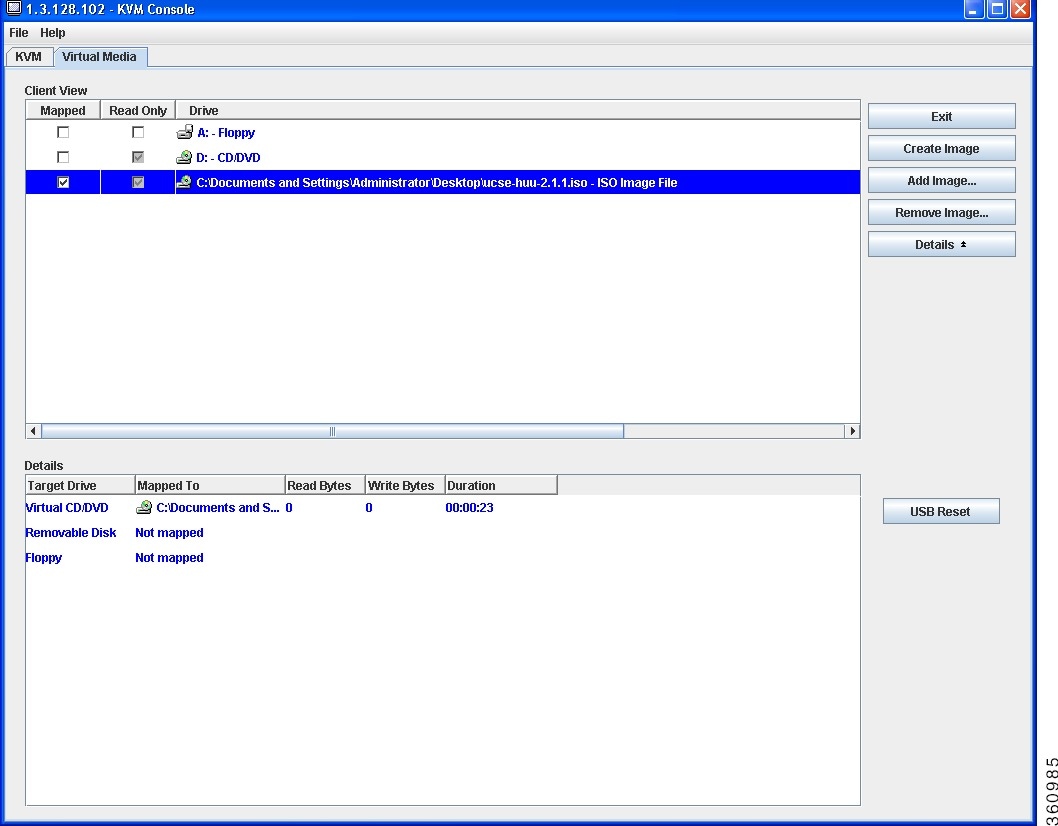
      4. From the KVM Console, click the Virtual Media tab.

      5. Click Add Image, navigate to and select the Host Upgrade Utility ISO image, and then click Open to mount the image.

      6. In the Client View area, in the Mapped column, check the check box for the mounted ISO image.


    • To use the CIMC CLI, download the ISO image on to an FTP or TFTP server, and then use the following commands:
      1. Server# scope host-image-mapping.

      2. Server/host-image-mapping # download-image protocol server-ip-address huu-ISO-filename

      3. Server/host-image-mapping # map-image huu-ISO-filename.

      Server# scope host-image-mapping
      Server/host-image-mapping # download-image ftp 10.20.34.56 2.1.1.iso
      Username: anonymous
      Password: 
      Image download has started.
      Please check the status using "show detail".
      Server/host-image-mapping # map-image 2.1.1.iso
      
    Step 14   After the image is mapped, set the boot order to make the virtual CD/DVD drive as the boot device.
    Step 15   Reboot the server.
    Step 16   From the CIMC GUI, click the Launch KVM Console icon on the toolbar.

    The HUU and the Cisco Software License Agreement page appears.

    Step 17   Click I Agree to accept the licensing terms and conditions.

    The Cisco Host Upgrade Utility GUI appears with a list of components that are available for update.
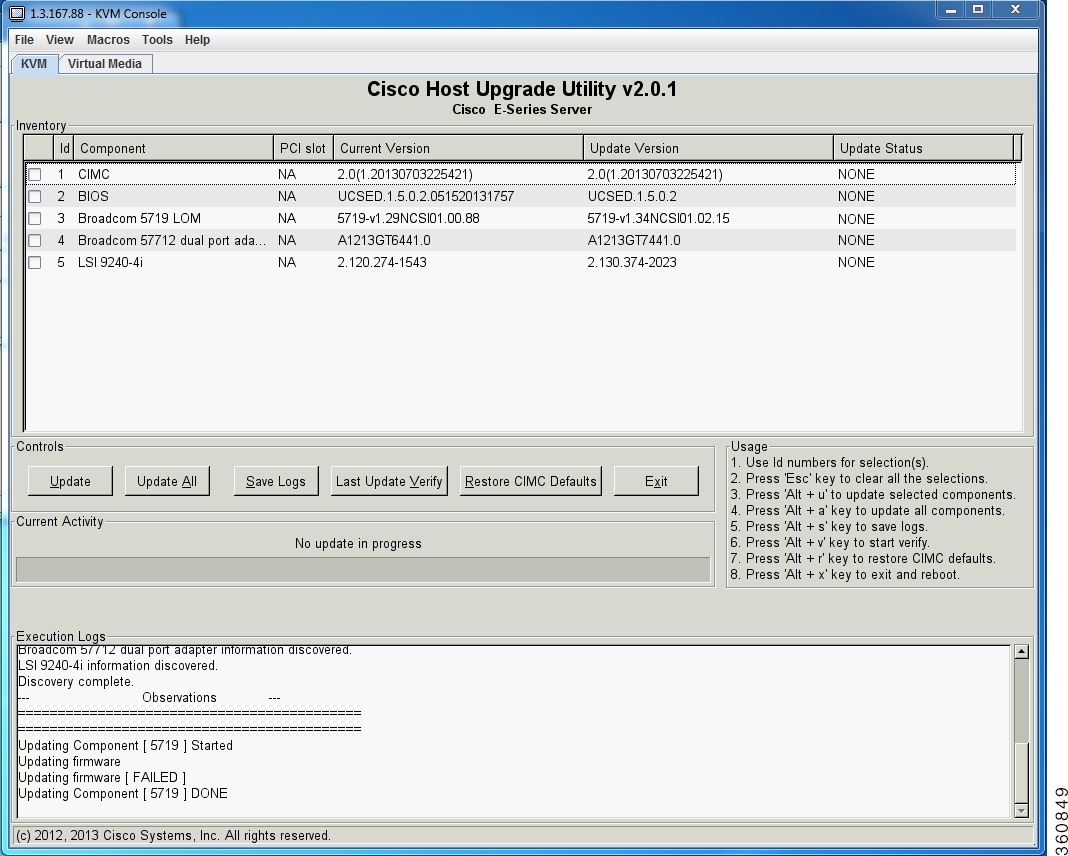


    Step 18   Do one of the following:
    • To update all the listed components, click Update all.
    • To update specific components, select the components, and then click Update.

    The status of the update is displayed in the Update Status column. To view details about the update status, see the Execution Logs area.

    Note   

    We recommend that you always update the BIOS and the CIMC firmware at the same time.

    Step 19   After the firmware is updated, click Exit, and then click Ok at the confirmation prompt.

    The HUU reboots.

    Important:
    • If the BIOS firmware is selected for update, it will be the last one to update because it requires the host to be powered off. You can check the progress of the BIOS update from the CIMC GUI or CIMC CLI. After the BIOS update completes, you must use the CIMC GUI or the CIMC CLI to manually power on the host.

    • If the CIMC firmware is selected for update—after you click the Exit button from the HUU GUI—the new CIMC firmware gets automatically activated. However, if both the BIOS and CIMC firmwares are selected for update, the CIMC firmware does not get automatically activated. You must use the CIMC GUI or the CIMC CLI to manually activate the new CIMC firmware.

    • When the new CIMC firmware gets activated, you will lose network connectivity to the CIMC GUI, CIMC CLI, and virtual KVM. Also, the mapped HUU ISO image gets unmapped. To run the HUU, you must map the HUU ISO image again.

    • When the LOM firmware is updated, you might lose network connectivity to the CIMC GUI and virtual KVM.

    Step 20   Unmap the HUU ISO image. Do one of the following:
    • From the CIMC GUI, click the Launch KVM Console icon on the toolbar, from the Mapped column, check the check box for the mounted HUU ISO image, and then click Remove Image.
    • From the CIMC CLI, use the unmap-image command:
    • Server/host-image-mapping # unmap-image
    Step 21   Reboot the server.


    Upgrading the Firmware on Cisco UCS E-Series Servers

    Upgrading the Firmware on Cisco UCS E-Series Servers

    This chapter includes the following topics:

    Basic Workflow for Using the HUU

    1. Download the HUU ISO image from Cisco.com.

    2. Use the KVM console or the CIMC CLI to map the HUU ISO image.

    3. Set the boot order to make the virtual CD/DVD drive as the boot device.

    4. From the HUU GUI, select all or specific firmware components to update.

    5. After the firmware updates, click Exit to reboot the HUU.

    6. Unmap the HUU ISO image.

    7. Reboot the server.

    Upgrading the Firmware Using the HUU


      Step 1   Navigate to http:/​/​www.cisco.com/​.
      Step 2   If you are not already logged in, click Log In at the top-right edge of the page and log in using your Cisco.com credentials.
      Step 3   In the menu bar at the top, click Support.

      A roll-down menu appears.

      Step 4   From the Downloads (center) pane, click All Downloads (located at the bottom right corner).

      The Download Software page appears.

      Step 5   From the left pane, click Products.
      Step 6   From the center pane, click Servers—Unified Computing.
      Step 7   From the right pane, click Cisco UCS E-Series Software.
      Step 8   From the right pane, click the name of the server model for which you want to download the software.

      The Download Software page appears.

      Step 9   Click Unified Computing System (UCSE) Server Firmware.
      Step 10   Click the Download button associated with the Cisco UCS Host Upgrade Utility ISO image to download the image onto your PC.

      The End User License Agreement dialog box appears.

      Step 11   Click Accept License Agreement.
      Step 12   The Opening ucse-server-platform-huu.iso dialog box appears.

      Either open the file or browse to the location where you want to save the HUU ISO image, and then click OK.

      Step 13   You can use either the KVM Console or the CIMC CLI to map the HUU ISO image:
      • To use the KVM Console, do the following:
        1. Use a browser to connect to the CIMC GUI on the server that you are upgrading.

        2. In the address field of the browser, enter the CIMC IP address for that server, and then enter your username and password to log in to the CIMC GUI.

        3. Click the Launch KVM Console icon on the toolbar. The KVM Console opens in a separate window.

        4. From the KVM Console, click the Virtual Media tab.

        5. Click Add Image, navigate to and select the Host Upgrade Utility ISO image, and then click Open to mount the image.

        6. In the Client View area, in the Mapped column, check the check box for the mounted ISO image.


      • To use the CIMC CLI, download the ISO image on to an FTP or TFTP server, and then use the following commands:
        1. Server# scope host-image-mapping.

        2. Server/host-image-mapping # download-image protocol server-ip-address huu-ISO-filename

        3. Server/host-image-mapping # map-image huu-ISO-filename.

        Server# scope host-image-mapping
        Server/host-image-mapping # download-image ftp 10.20.34.56 2.1.1.iso
        Username: anonymous
        Password: 
        Image download has started.
        Please check the status using "show detail".
        Server/host-image-mapping # map-image 2.1.1.iso
        
      Step 14   After the image is mapped, set the boot order to make the virtual CD/DVD drive as the boot device.
      Step 15   Reboot the server.
      Step 16   From the CIMC GUI, click the Launch KVM Console icon on the toolbar.

      The HUU and the Cisco Software License Agreement page appears.

      Step 17   Click I Agree to accept the licensing terms and conditions.

      The Cisco Host Upgrade Utility GUI appears with a list of components that are available for update.


      Step 18   Do one of the following:
      • To update all the listed components, click Update all.
      • To update specific components, select the components, and then click Update.

      The status of the update is displayed in the Update Status column. To view details about the update status, see the Execution Logs area.

      Note   

      We recommend that you always update the BIOS and the CIMC firmware at the same time.

      Step 19   After the firmware is updated, click Exit, and then click Ok at the confirmation prompt.

      The HUU reboots.

      Important:
      • If the BIOS firmware is selected for update, it will be the last one to update because it requires the host to be powered off. You can check the progress of the BIOS update from the CIMC GUI or CIMC CLI. After the BIOS update completes, you must use the CIMC GUI or the CIMC CLI to manually power on the host.

      • If the CIMC firmware is selected for update—after you click the Exit button from the HUU GUI—the new CIMC firmware gets automatically activated. However, if both the BIOS and CIMC firmwares are selected for update, the CIMC firmware does not get automatically activated. You must use the CIMC GUI or the CIMC CLI to manually activate the new CIMC firmware.

      • When the new CIMC firmware gets activated, you will lose network connectivity to the CIMC GUI, CIMC CLI, and virtual KVM. Also, the mapped HUU ISO image gets unmapped. To run the HUU, you must map the HUU ISO image again.

      • When the LOM firmware is updated, you might lose network connectivity to the CIMC GUI and virtual KVM.

      Step 20   Unmap the HUU ISO image. Do one of the following:
      • From the CIMC GUI, click the Launch KVM Console icon on the toolbar, from the Mapped column, check the check box for the mounted HUU ISO image, and then click Remove Image.
      • From the CIMC CLI, use the unmap-image command:
      • Server/host-image-mapping # unmap-image
      Step 21   Reboot the server.