9800 WLCでのローカルで有効な証明書プロビジョニングのためのSCEPの設定

はじめに
このドキュメントでは、Windows Server 2012 R2 Standard内のMicrosoft Network Device Enrollment Service(NDES)およびSimple Certificate Enrollment Protocol(SCEP)機能を使用して、アクセスポイント(AP)の加入の目的でローカルで有効な証明書(LSC)を登録するように9800ワイヤレスLANコントローラ(WLC)を設定する方法について説明します。
前提条件
Windows ServerでSCEPを正常に実行するには、9800 WLCが次の要件を満たしている必要があります。
- コントローラとサーバの間に到達可能性が存在する必要があります。
- コントローラとサーバが同じNTPサーバに同期されているか、同じ日付とタイムゾーンを共有している(CAサーバとAPの時刻が異なる場合、APでは証明書の検証とインストールに問題があります)。
Windows Serverでは、事前にインターネットインフォメーションサービス(IIS)が有効になっている必要があります。
要 件
次のテクノロジーに関する知識があることが推奨されます。
- 9800 Wireless LAN Controllerバージョン16.10.1以降。
- Microsoft Windows Server 2012 Standard.
- Private Key Infrastructure(PKI)と証明書
使用するコンポーネント
このドキュメントの情報は、次のソフトウェアとハードウェアのバージョンに基づいています。
- 9800-L WLCソフトウェアバージョン17.2.1
- Windows Server 2012 Standard R2。
- 3802アクセスポイント
このドキュメントの情報は、特定のラボ環境にあるデバイスに基づいて作成されたものです。このドキュメントで使用するすべてのデバイスは、クリアな(デフォルト)設定で作業を開始しています。本稼働中のネットワークでは、各コマンドによって起こる可能性がある影響を十分確認してください。
バックグラウンド情報
新しいLSC証明書(認証局(CA)ルート証明書とデバイス証明書の両方)をコントローラにインストールして、最終的にAPにダウンロードする必要があります。SCEPを使用すると、CA証明書とデバイス証明書がCAサーバから受信され、後でコントローラに自動的にインストールされます。
APがLSCを使用してプロビジョニングされる場合も、同じ認証プロセスが実行されます。これを行うために、コントローラはCAプロキシとして機能し、CAによって署名されたAP用の証明書要求(自己生成)を取得するのに役立ちます。
設定
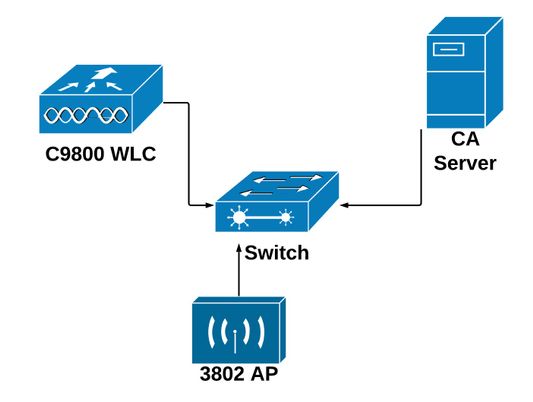
ネットワーク図
Windows ServerでのSCEPサービスの有効化
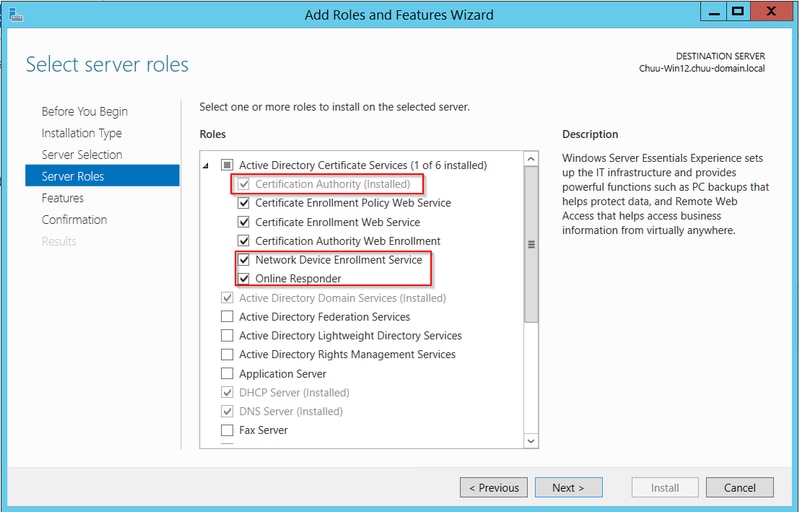
ステップ 1:Server Managerアプリケーションで、Manageメニューを選択してから、Add Roles and Featuresオプションを選択して、ロールの追加と機能設定ウィザードを開きます。そこから、SCEPサーバ登録に使用するサーバインスタンスを選択します。
ステップ 2Certification Authority、Network Device Enrollment Service、およびOnline Responderの機能が選択されていることを確認し、Nextを選択します。
ステップ 3Nextを2回選択してから、Finishを選択して、設定ウィザードを終了します。サーバが機能のインストールプロセスを完了するまで待ってから、Closeを選択してウィザードを閉じます。
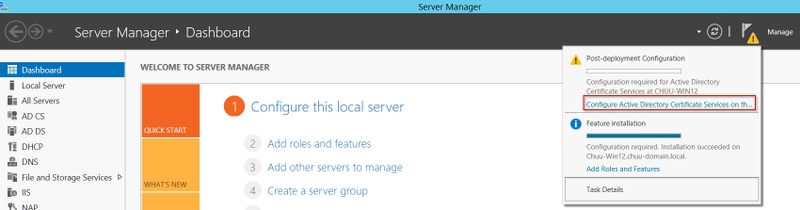
ステップ 4インストールが完了すると、サーバマネージャの通知アイコンに警告アイコンが表示されます。これを選択し、[移行先サーバーでのActive Directoryサービスの構成]オプションリンクを選択して、AD CS構成ウィザードメニューを起動します。
ステップ 5Network Device Enrollment Serviceを選択し、メニューで設定するオンラインレスポンダー役割サービスを選択して、Nextを選択します。
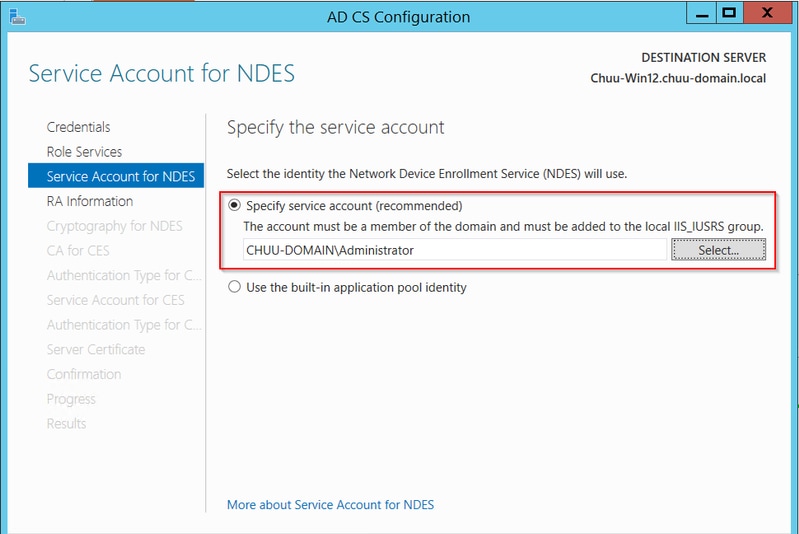
ステップ 6Service Account for NDESで、組み込みアプリケーションプールまたはサービスアカウントのオプションを選択し、Nextを選択します。
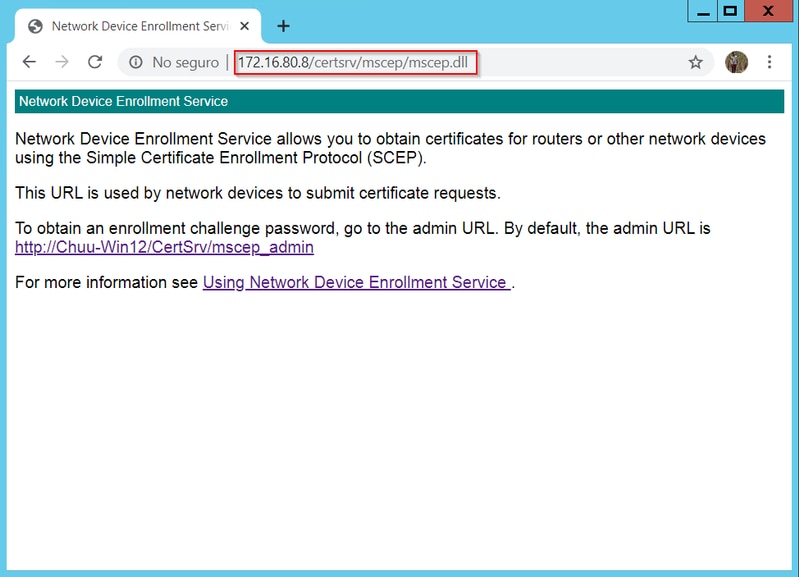
ステップ 7次の画面でNextを選択し、インストールプロセスを終了します。インストール後、SCEPのURLは任意のWebブラウザで使用できます。URL http://<server ip>/certsrv/mscep/mscep.dllに移動し、サービスが使用可能であることを確認します。
SCEP 登録チャレンジ パスワードの要件の無効化
デフォルトでは、Windows Serverは、Microsoft SCEP(MSCEP)内で登録する前に、クライアントおよびエンドポイントの要求を認証するために動的チャレンジパスワードを使用しました。 これには、管理者アカウントがWeb GUIを参照して、要求ごとにオンデマンドパスワードを生成する必要があります(パスワードは要求内に含まれている必要があります)。コントローラは、サーバに送信する要求にこのパスワードを含めることはできません。この機能を削除するには、NDESサーバのレジストリキーを変更する必要があります。
ステップ 1:レジストリエディタを開き、StartメニューでRegeditを探します。
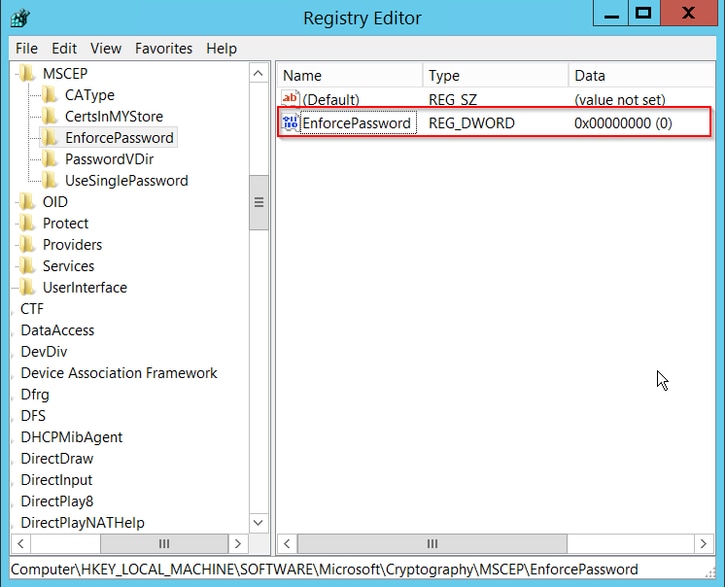
ステップ 2Computer > HKEY_LOCAL_MACHINE > SOFTWARE > Microsoft > Cryptography > MSCEP > EnforcePasswordの順に移動します。
ステップ 3EnforcePasswordの値を0に変更します。すでに0になっている場合は、そのまま残します。
証明書テンプレートとレジストリの設定
証明書および証明書に関連付けられたキーは、CAサーバ内のアプリケーションポリシーで定義された異なる目的で、複数のシナリオで使用できます。アプリケーションポリシーは、証明書の拡張キー使用法(EKU)フィールドに保存されます。このフィールドは、オーセンティケータによって解析され、クライアントが目的に合わせて使用していることを確認します。適切なアプリケーションポリシーがWLCとAPの証明書に確実に統合されるようにするには、適切な証明書テンプレートを作成し、それをNDESレジストリにマッピングします。
ステップ 1:Start > Administrative Tools > Certification Authorityの順に移動します。
ステップ 2CAサーバのフォルダツリーを展開し、Certificate Templatesフォルダを右クリックして、Manageを選択します。
ステップ 3Users証明書テンプレートで右クリックし、コンテキストメニューからDuplicate Templateを選択します。
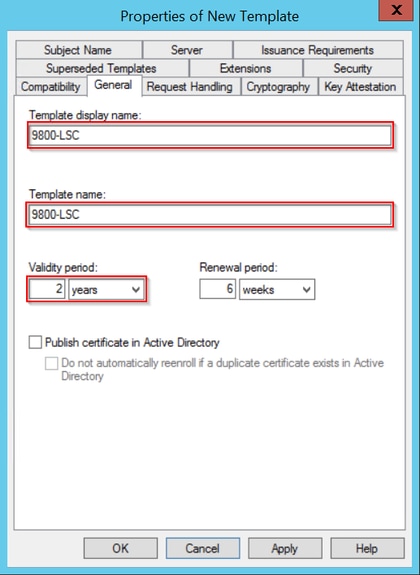
ステップ 4Generalタブに移動し、必要に応じてテンプレート名と有効期間を変更します。その他のオプションはすべてオフのままにします。
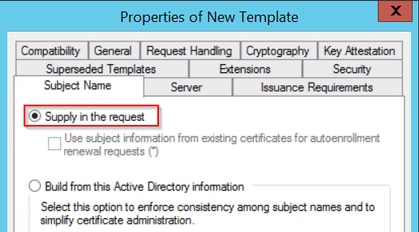
ステップ 5Subject Nameタブに移動し、Supply in the requestが選択されていることを確認します。ポップアップが表示され、証明書の署名に管理者の承認が不要であることが示されたら、OKを選択します。
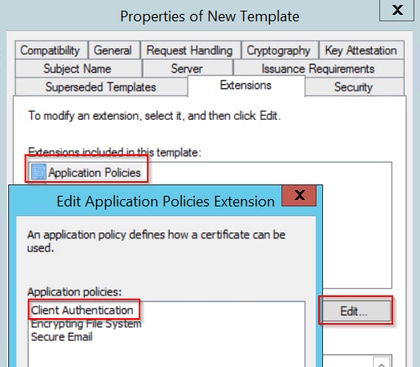
ステップ 6Extensionsタブに移動し、Application Policiesオプションを選択して、Edit...ボタンを選択します。Client AuthenticationがApplication Policiesウィンドウにあることを確認します。そうでない場合は、Addを選択して追加します。
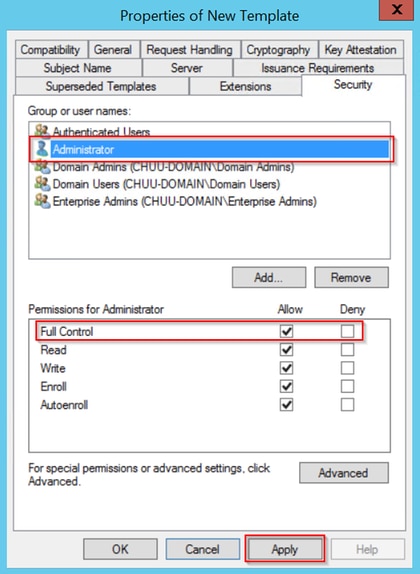
ステップ 7Securityタブに移動し、Enable SCEP Services in the Windows Serverのステップ6で定義したサービスアカウントにテンプレートのフルコントロール権限があることを確認し、ApplyとOKを選択します。
ステップ 8Certification Authority ウィンドウに戻り、Certificate Templatesフォルダを右クリックして、New > Certificate Template to Issueの順に選択します。
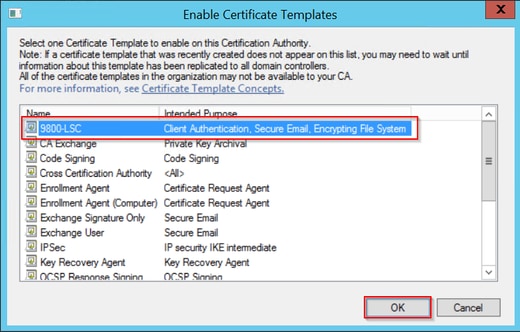
ステップ 9以前に作成した証明書テンプレート(この例では9800-LSC)を選択し、OKを選択します。
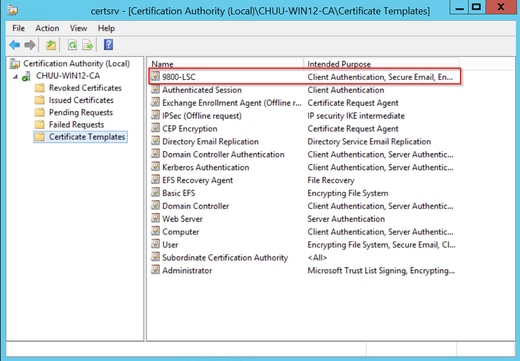
新しい証明書テンプレートがCertificate Templatesフォルダのコンテンツ内に一覧表示されます。
ステップ 10Registry Editorウィンドウに戻り、Computer > HKEY_LOCAL_MACHINE > SOFTWARE > Microsoft > Cryptography > MSCEPの順に移動します。
ステップ 11EncryptionTemplate、GeneralPurposeTemplate、およびSignatureTemplateレジストリを編集して、これらのレジストリが新しく作成した証明書テンプレートを指すようにします。
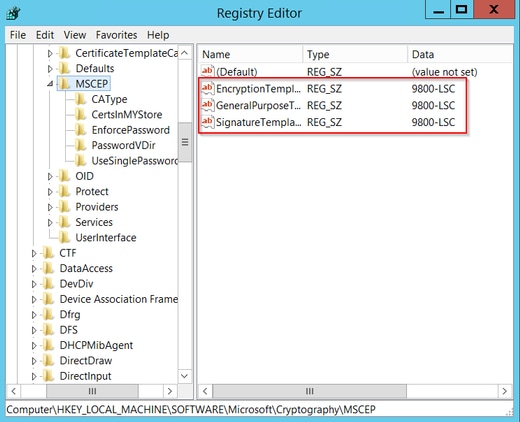
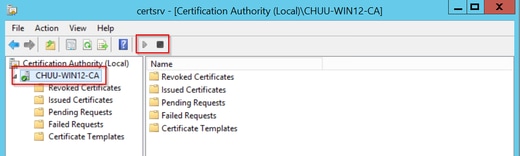
ステップ 12NDESサーバをリブートします。それから、Certification Authority ウィンドウに戻り、サーバ名を選択して、Stop and Play ボタンを選択します。
9800デバイスのトラストポイントを設定する
プロビジョニングが完了したAPを認証するには、コントローラにトラストポイントを定義する必要があります。トラストポイントには、9800デバイス証明書と、同じCAサーバ(この例ではMicrosoft CA)から取得されたCAルート証明書が含まれます。 証明書をトラストポイントにインストールするには、サブジェクト属性と、それに関連付けられたRSAキーのペアが証明書に含まれている必要があります。設定は、Webインターフェイスまたはコマンドラインを使用して行います。
ステップ 1:Configuration > Security > PKI Managementの順に移動し、RSA Keypair Generationタブを選択します。+追加ボタンを選択します。
ステップ 2キーペアに関連付けるラベルを定義し、Exportableチェックボックスが選択されていることを確認します。
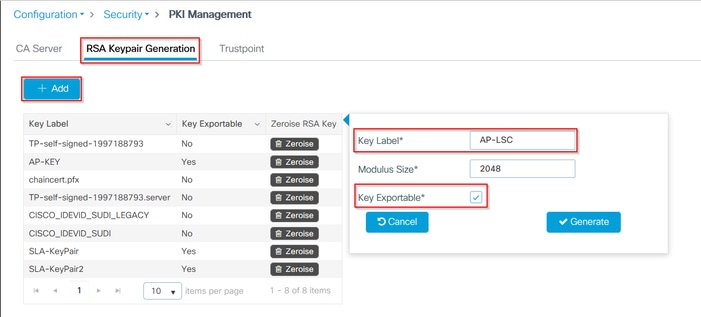
ステップ1とステップ2のCLI設定。この設定例では、キーペアはラベルAP-LSCで生成され、モジュラスサイズは2048ビットです。
9800-L(config)#crypto key generate rsa exportable general-keys moduluslabel The name for the keys will be: AP-LSC % The key modulus size is 2048 bits % Generating 2048 bit RSA keys, keys will be exportable... [OK] (elapsed time was 1 seconds)
ステップ 3同じセクションで、Trustpointタブを選択し、+ Addボタンを選択します。
ステップ 4トラストポイントの詳細にデバイス情報を入力してから、Apply to Deviceを選択します。
- Labelフィールドは、トラストポイントに関連付けられている名前です
- 登録URLには、「Windows ServerでのSCEPサービスの有効化」セクションのステップ7で定義したURLを使用します
- CA証明書をダウンロードするためにAuthenticateチェックボックスがオンになっていることを確認します
- ドメイン名フィールドは、証明書要求の共通名属性として配置されます
- Key Generatedチェックボックスをオンにします。ドロップダウンメニューが表示されます。ステップ2で生成されたキーペアを選択します
- Enroll Trustpointチェックボックスをオンにします。2つのパスワードフィールドが表示されます。パスワードを入力します。これは、デバイス証明書およびCA証明書と証明書キーをチェーンするために使用されます
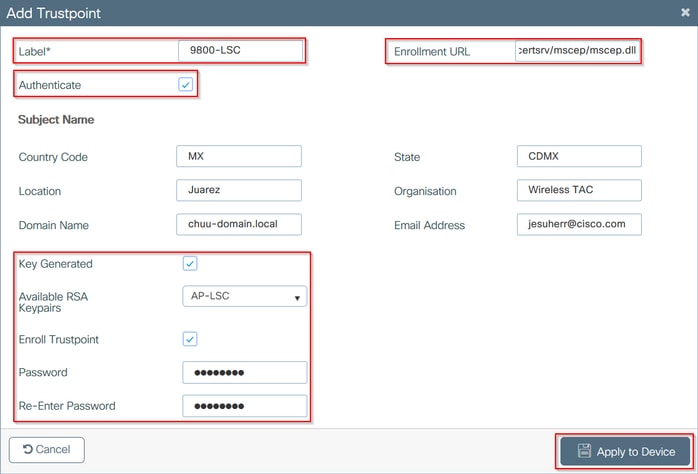
ステップ3および4のCLI設定:
9800-L(config)#crypto pki trustpoint9800-L(ca-trustpoint)#enrollment url http:// /certsrv/mscep/mscep.dll 9800-L(ca-trustpoint)#subject-name C=, ST= 9800-L(ca-trustpoint)#rsakeypair, L= , O= , CN= /emailAddress= 9800-L(ca-trustpoint)#revocation-check none 9800-L(ca-trustpoint)#exit 9800-L(config)#crypto pki authenticate Certificate has the following attributes: Fingerprint MD5: E630EAE6 FB824658 690EB0F5 638D7224 Fingerprint SHA1: 97070ACD CAD03D5D 0C1A6085 19992E0D 6B8C4D8B % Do you accept this certificate? [yes/no]: yes Trustpoint CA certificate accepted. 9800-L(config)#crypto pki enroll <trustpoint name> % % Start certificate enrollment .. % Create a challenge password. You will need to verbally provide this password to the CA Administrator in order to revoke your certificate. For security reasons your password will not be saved in the configuration. Please make a note of it. Password: Re-enter password: % The subject name in the certificate will include: C=MX, ST=CDMX, L=Juarez, O=Wireless TAC, CN=9800-L.chuu-domain.local/emailAddress=jesuherr@cisco.com % The subject name in the certificate will include: 9800-L.alzavala.local % Include the router serial number in the subject name? [yes/no]: no % Include an IP address in the subject name? [no]: no Request certificate from CA? [yes/no]: yes % Certificate request sent to Certificate Authority % The 'show crypto pki certificate verbose AP-LSC' commandwill show the fingerprint.
AP登録パラメータの定義と管理トラストポイントの更新
APの登録では、先に定義したトラストポイントの詳細を使用して、コントローラが証明書要求を転送する先のサーバの詳細が決定されます。コントローラは証明書登録のプロキシとして使用されるため、証明書要求に含まれるサブジェクトパラメータを認識する必要があります。設定は、Webインターフェイスまたはコマンドラインを使用して行います。
ステップ 1:Configuration > Wireless > Access Pointsの順に移動し、LSC Provisionメニューを展開します。
ステップ 2AP証明書要求で指定された属性をサブジェクト名パラメータに入力し、Applyを選択します。

ステップ1および2のCLI設定:
9800-L(config)#ap lsc-provision subject-name-parameter countrycity domain org email-address

ステップ 3同じメニュー内で、ドロップダウンリストから以前に定義したトラストポイントを選択し、APの接続試行回数(MICを再度使用するまでの接続試行回数を定義します)を指定し、証明書キーサイズを設定します。次に、[Apply] をクリックします。
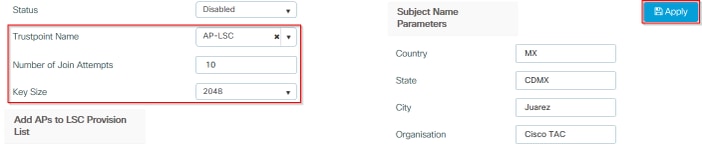
ステップ3のCLI設定:
9800-L(config)#ap lsc-provision join-attempt9800-L(config)#ap lsc-provision trustpoint 9800-L(config)#ap lsc-provision key-size
ステップ4:(オプション)AP LSCプロビジョニングは、コントローラに加入しているすべてのAP、またはMACアドレスリストに定義されている特定のAPに対してトリガーできます。同じメニューで、テキストフィールドにAPのイーサネットMACアドレス(xxxx.xxxx.xxxx)を入力し、+記号をクリックします。または、APのMACアドレスが含まれているcsvファイルをアップロードして、ファイルを選択し、Upload Fileを選択します。
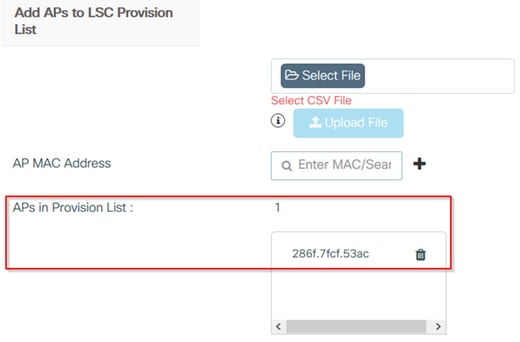
ステップ4のCLI設定:
9800-L(config)#ap lsc-provision mac-address
ステップ5:Statusラベルの横にあるドロップダウンメニューからEnabledまたはProvision Listを選択し、ApplyをクリックしてAP LSC enrollementをトリガーします。

手順5のCLI設定:
9800-L(config)#ap lsc-provision
In Non-WLANCC mode APs will be provisioning with RSA certificates with specified key-size configuration. In WLANCC mode APs will be provisioning with EC certificates with a 384 bit key by-default or 256 bit key if configured.
Are you sure you want to continue? (y/n): y
If specific AP list provisioning is preferred then use:
9800-L(config)#ap lsc-provision provision-list
ステップ 6Configuration > Interface > Wirelessの順に移動し、管理インターフェイスを選択します。Trustpointフィールドで、ドロップダウンメニューから新しいトラストポイントを選択し、Update & Apply to Deviceをクリックします。
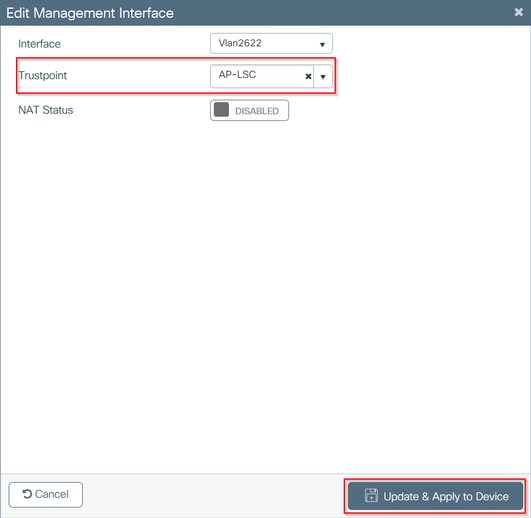
手順6のCLI設定:
9800-L(config)#wireless management trustpoint
確認
コントローラ証明書のインストールの確認
9800 WLCのトラストポイントにLSC情報が存在することを確認するには、コマンドshow crypto pki certificates verbose <trustpoint name>を発行し、LSCのプロビジョニングと登録用に作成されたトラストポイントに2つの証明書を関連付けます。この例では、トラストポイント名は「microsoft-ca」です(関連する出力のみが表示されます)。
9800-L#show crypto pki certificates verbose microsoft-ca
Certificate
  Status: Available
  Version: 3
  Certificate Usage: General Purpose
  Issuer:
    cn=CHUU-WIN12-CA
    dc=chuu-domain
    dc=local
  Subject:
    Name: 9800-L.alzavala.local
    cn=9800-L.chuu-domain.local/emailAddress=jesuherr@cisco.com
    o=Wireless TAC
    l=Juarez
    st=CDMX
    c=MX
    hostname=9800-L.alzavala.local
  CRL Distribution Points:
    ldap:///CN=CHUU-WIN12-CA,CN=Chuu-Win12,CN=CDP,CN=Public%20Key%20Services,CN=Services,CN=Coint
  Validity Date:
    start date: 04:25:59 Central May 11 2020
    end date: 04:25:59 Central May 11 2022
  Subject Key Info:
    Public Key Algorithm: rsaEncryption
    RSA Public Key: (2048 bit)
  Signature Algorithm: SHA256 with RSA Encryption
  [...]
    Authority Info Access:
        CA ISSUERS: ldap:///CN=CHUU-WIN12-CA,CN=AIA,CN=Public%20Key%20Services,CN=Services,CN=Configuration,DC=chuu-domain,DC=local?cACertificate?base?objectClass=certificationAuthority
  [...]
CA Certificate
  Status: Available
  Version: 3
  Certificate Serial Number (hex): 37268ED56080CB974EF3806CCACC77EC
  Certificate Usage: Signature
  Issuer:
    cn=CHUU-WIN12-CA
    dc=chuu-domain
    dc=local
  Subject:
    cn=CHUU-WIN12-CA
    dc=chuu-domain
    dc=local
 Validity Date:
    start date: 05:58:01 Central May 10 2019
    end date: 06:08:01 Central May 10 2024
  Subject Key Info:
    Public Key Algorithm: rsaEncryption
    RSA Public Key: (2048 bit)
  Signature Algorithm: SHA256 with RSA Encryption
9800 WLC LSC設定の確認
ワイヤレス管理トラストポイントの詳細を確認するには、show wireless management trustpointコマンドを実行して、正しいトラストポイント(この例ではLSC詳細AP-LSCを含むトラストポイント)が使用中で、Availableとマークされていることを確認します。
9800-L#show wireless management trustpoint

Trustpoint  Name : AP-LSC
Certificate Info : Available
Certificate Type : LSC
Certificate Hash : 9e5623adba5307facf778e6ea2f5082877ea4beb
Private key Info : Available
AP LSCプロビジョニング設定の詳細と、プロビジョニングリストに追加されたAPのリストを確認するには、show ap lsc-provision summary コマンドを実行します。正しいプロビジョニング状態が表示されていることを確認します。
9800-L#show ap lsc-provision summary
AP LSC-provisioning : Enabled for all APs
Trustpoint used for LSC-provisioning : AP-LSC
LSC Revert Count in AP reboots : 10

AP LSC Parameters :
Country : MX
State : CDMX
City : Juarez
Orgn : Cisco TAC
Dept : Wireless TAC
Email : josuvill@cisco.com
Key Size : 2048
EC Key Size : 384 bit

AP LSC-provision List :

Total number of APs in provision list: 2

Mac Addresses :
--------------
xxxx.xxxx.xxxx
xxxx.xxxx.xxxx
アクセスポイント証明書のインストールの確認
APにインストールされている証明書を確認するには、AP CLIからshow cryptoコマンドを実行し、CAルート証明書とデバイス証明書の両方が存在することを確認します(出力には関連するデータのみが表示されます)。
AP3802#show crypto

[...]

------------------------------------------------------------------------------
LSC: Enabled
----------------------------- Device Certificate -----------------------------
Certificate:
    Data:
        Version: 3 (0x2)
        Serial Number:
            73:00:00:00:0b:9e:c4:2e:6c:e1:54:84:96:00:00:00:00:00:0b
    Signature Algorithm: sha256WithRSAEncryption
        Issuer: DC=local, DC=chuu-domain, CN=CHUU-WIN12-CA
        Validity
            Not Before: May 13 01:22:13 2020 GMT
            Not After : May 13 01:22:13 2022 GMT
        Subject: C=MX, ST=CDMX, L=Juarez, O=Cisco TAC, CN=ap3g3-286F7FCF53AC/emailAddress=josuvill@cisco.com
        Subject Public Key Info:
            Public Key Algorithm: rsaEncryption
                Public-Key: (2048 bit)

----------------------------- Root Certificate -------------------------------
Certificate:
    Data:
        Version: 3 (0x2)
        Serial Number:
            32:61:fb:93:a8:0a:4a:97:42:5b:5e:32:28:29:0d:32
    Signature Algorithm: sha256WithRSAEncryption
        Issuer: DC=local, DC=chuu-domain, CN=CHUU-WIN12-CA
        Validity
            Not Before: May 10 05:58:01 2019 GMT
            Not After : May 10 05:58:01 2024 GMT
        Subject: DC=local, DC=chuu-domain, CN=CHUU-WIN12-CA
        Subject Public Key Info:
            Public Key Algorithm: rsaEncryption
                Public-Key: (2048 bit)
スイッチポートdot1x認証用のLSCが使用されている場合、ポート認証が有効になっているかどうかをAPから確認できます。
AP3802#show ap authentication status
AP dot1x feature is disabled.
トラブルシュート
一般的な問題
- テンプレートがサーバレジストリに正しくマッピングされていない場合、またはサーバがパスワードのチャレンジを必要とする場合、9800 WLCまたはAPの証明書要求は拒否されます。
- IISのデフォルトサイトが無効になっている場合は、SCEPサービスも無効になるため、トラストポイントで定義されているURLに到達できず、9800 WLCは証明書要求を送信しません。
- サーバと9800 WLCの間で時刻が同期されていない場合、時刻の有効性チェックが失敗するため、証明書はインストールされません。
debugコマンドとlogコマンド
9800コントローラの証明書登録をトラブルシューティングするには、次のコマンドを使用します。
9800-L#debug crypto pki transactions
9800-L#debug crypto pki validation
9800-L#debug crypto pki scep
AP登録をトラブルシューティングおよびモニタするには、次のコマンドを使用します。
AP3802#debug capwap client payload
AP3802#debug capwap client events
APコマンドラインから、show loggingは、APに証明書のインストールに関する問題があるかどうか、および証明書がインストールされなかった理由に関する詳細を表示します。
[...]
Mar 19 19:39:13 kernel: *03/19/2020 19:39:13.3429] AP has joined controller 9800-L
Mar 19 19:39:13 kernel: 03/19/2020 19:39:13.3500] SELinux: initialized (dev mtd_inodefs, type mtd_inodefs), not configured for labeling
Mar 19 19:39:13 kernel: *03/19/2020 19:39:13.5982] Generating a RSA private key
Mar 19 19:39:14 kernel: *03/19/2020 19:39:13.5989] .......................
Mar 19 19:39:15 kernel: *03/19/2020 19:39:14.4179] ..
Mar 19 19:39:15 kernel: *03/19/2020 19:39:15.2952] writing new private key to '/tmp/lsc/priv_key'
Mar 19 19:39:15 kernel: *03/19/2020 19:39:15.2955] -----
Mar 19 19:39:15 kernel: *03/19/2020 19:39:15.5421] cen_validate_lsc: Verification failed for certificate:
Mar 19 19:39:15 kernel: *03/19/2020 19:39:15.5421] countryName               = MX
Mar 19 19:39:15 kernel: *03/19/2020 19:39:15.5421] stateOrProvinceName       = CDMX
Mar 19 19:39:15 kernel: *03/19/2020 19:39:15.5421] localityName              = Juarez
Mar 19 19:39:15 kernel: *03/19/2020 19:39:15.5421] organizationName          = cisco-tac
Mar 19 19:39:15 kernel: *03/19/2020 19:39:15.5421] commonName                = ap3g3-
Mar 19 19:39:15 kernel: *03/19/2020 19:39:15.5421] emailAddress              = jesuherr@cisco.com
Mar 19 19:39:15 kernel: *03/19/2020 19:39:15.5427] LSC certificates/key failed validation!
Mar 19 19:39:15 kernel: *03/19/2020 19:39:15.5427]
登録に成功した例
コントローラとそれに関連付けられているAPの両方の登録が成功した場合の、前述のデバッグの出力を次に示します。
9800 WLCへのCAルート証明書インポート:
[...]
Certificate has the following attributes:
       Fingerprint MD5: E630EAE6 FB824658 690EB0F5 638D7224
      Fingerprint SHA1: 97070ACD CAD03D5D 0C1A6085 19992E0D 6B8C4D8B

% Do you accept this certificate? [yes/no]: yes
CRYPTO_PKI_SCEP: Client sending GetCACert request
CRYPTO_PKI: Sending CA Certificate Request:
GET /certsrv/mscep/mscep.dll/pkiclient.exe?operation=GetCACert&message=AP-LSC HTTP/1.0
User-Agent: Mozilla/4.0 (compatible; MSIE 5.0; Cisco PKI)
Host: 172.16.80.8

CRYPTO_PKI: locked trustpoint AP-LSC, refcount is 1
CRYPTO_PKI: http connection opened
CRYPTO_PKI: Sending HTTP message

CRYPTO_PKI: Reply HTTP header:
HTTP/1.0
User-Agent: Mozilla/4.0 (compatible; MSIE 5.0; Cisco PKI)
Host: 172.16.80.8

CRYPTO_PKI: unlocked trustpoint AP-LSC, refcount is 0
CRYPTO_PKI: locked trustpoint AP-LSC, refcount is 1
CRYPTO_PKI: Header length received: 192
CRYPTO_PKI: parse content-length header. return code: (0) and content-length : (3638)
CRYPTO_PKI: Complete data arrived
CRYPTO_PKI: unlocked trustpoint AP-LSC, refcount is 0
CRYPTO_PKI: Reply HTTP header:
HTTP/1.1 200 OK
Content-Type: application/x-x509-ca-ra-cert
Server: Microsoft-IIS/8.5
X-Powered-By: ASP.NET
Date: Tue, 19 May 2020 21:47:34 GMT
Connection: close
Content-Length: 3638
Content-Type indicates we have received CA and RA certificates.

CRYPTO_PKI_SCEP: Client received CA and RA certificate
CRYPTO_PKI:crypto_process_ca_ra_cert(trustpoint=AP-LSC)

The PKCS #7 message contains 3 certificates.
CRYPTO_PKI:crypto_pkcs7_extract_ca_cert found cert
CRYPTO_PKI: Bypassing SCEP capabilities request 0
CRYPTO_PKI: transaction CRYPTO_REQ_CA_CERT completed
CRYPTO_PKI: CA certificate received.
CRYPTO_PKI: CA certificate received.
CRYPTO_PKI: crypto_pki_get_cert_record_by_cert()
CRYPTO_PKI: crypto_pki_authenticate_tp_cert()
CRYPTO_PKI: trustpoint AP-LSC authentication status = 0
Trustpoint CA certificate accepted.
9800 WLCデバイス登録:
[...]
CRYPTO_PKI: using private key AP-LSC for enrollment
CRYPTO_PKI_SCEP: Client sending GetCACert request
CRYPTO_PKI: Sending CA Certificate Request:
GET /certsrv/mscep/mscep.dll/pkiclient.exe?operation=GetCACert&message=AP-LSC HTTP/1.0
User-Agent: Mozilla/4.0 (compatible; MSIE 5.0; Cisco PKI)
Host: 172.16.80.8

CRYPTO_PKI: locked trustpoint AP-LSC, refcount is 1
CRYPTO_PKI: http connection opened
CRYPTO_PKI: Sending HTTP message
CRYPTO_PKI: Reply HTTP header:
HTTP/1.0
User-Agent: Mozilla/4.0 (compatible; MSIE 5.0; Cisco PKI)
Host: 172.16.80.8

CRYPTO_PKI: unlocked trustpoint AP-LSC, refcount is 0
CRYPTO_PKI: locked trustpoint AP-LSC, refcount is 1
CRYPTO_PKI: Header length received: 192
CRYPTO_PKI: parse content-length header. return code: (0) and content-length : (3638)
CRYPTO_PKI: Complete data arrived
CRYPTO_PKI: unlocked trustpoint AP-LSC, refcount is 0
CRYPTO_PKI: Reply HTTP header:
HTTP/1.1 200 OK
Content-Type: application/x-x509-ca-ra-cert
Server: Microsoft-IIS/8.5
X-Powered-By: ASP.NET
Date: Tue, 19 May 2020 21:48:33 GMT
Connection: close
Content-Length: 3638
Content-Type indicates we have received CA and RA certificates.

CRYPTO_PKI_SCEP: Client received CA and RA certificate
CRYPTO_PKI:crypto_process_ca_ra_cert(trustpoint=AP-LSC)
The PKCS #7 message contains 3 certificates.
CRYPTO_PKI:crypto_pkcs7_insert_ra_certs found RA certs
CRYPTO_PKI:crypto_pkcs7_insert_ra_certs found RA certs

CRYPTO_PKI_SCEP: Client Sending GetCACaps request with msg = GET /certsrv/mscep/mscep.dll/pkiclient.exe?operation=GetCACaps&message=AP-LSC HTTP/1.0
User-Agent: Mozilla/4.0 (compatible; MSIE 5.0; Cisco PKI)
Host: 172.16.80.8

CRYPTO_PKI: locked trustpoint AP-LSC, refcount is 1
CRYPTO_PKI: http connection opened
CRYPTO_PKI: Sending HTTP message
CRYPTO_PKI: Reply HTTP header:
HTTP/1.0
User-Agent: Mozilla/4.0 (compatible; MSIE 5.0; Cisco PKI)
Host: 172.16.80.8

CRYPTO_PKI: unlocked trustpoint AP-LSC, refcount is 0
CRYPTO_PKI: locked trustpoint AP-LSC, refcount is 1
CRYPTO_PKI: Header length received: 171
CRYPTO_PKI: parse content-length header. return code: (0) and content-length : (34)
CRYPTO_PKI: Complete data arrived
CRYPTO_PKI: unlocked trustpoint AP-LSC, refcount is 0
CRYPTO_PKI: Reply HTTP header:
HTTP/1.1 200 OK
Content-Type: text/plain
Server: Microsoft-IIS/8.5
X-Powered-By: ASP.NET
Date: Tue, 19 May 2020 21:48:33 GMT
Connection: close
Content-Length: 34

CRYPTO_PKI: HTTP header content length is 34 bytes
CRYPTO_PKI_SCEP: Server returned capabilities: 92
CA_CAP_RENEWAL CA_CAP_S
alz_9800(config)#HA_1 CA_CAP_SHA_256  CA_CAP_SHA_512
CRYPTO_PKI: transaction CRYPTO_REQ_CERT completed
CRYPTO_PKI: status:
%PKI-6-CSR_FINGERPRINT:
                      CSR Fingerprint MD5 : 9BFBA438303487562E888087168F05D4
                      CSR Fingerprint SHA1: 58DC7DB84C632A7307631A97A6ABCF65A3DEFEEF
CRYPTO_PKI:  Certificate Request Fingerprint MD5: 9BFBA438 30348756 2E888087 168F05D4
CRYPTO_PKI:  Certificate Request Fingerprint SHA1: 58DC7DB8 4C632A73 07631A97 A6ABCF65 A3DEFEEF
PKI:PKCS7 to issuer cn=CHUU-WIN12-CA,dc=chuu-domain,dc=local serial
     18 00 00 00 38 DB 68 64 C0 52 C0 0F 0E 00 00 00
     00 00 38

CRYPTO_PKI: Deleting cached key having key id 65
CRYPTO_PKI: Attempting to insert the peer's public key into cache
CRYPTO_PKI:Peer's public inserted successfully with key id 66
CRYPTO_PKI: Expiring peer's cached key with key id 66
PKI: Trustpoint AP-LSC has no router cert
PKI: Signing pkcs7 with AP-LSC trustpoint temp self-signed cert
CRYPTO_PKI_SCEP: Client sending PKCSReq
CRYPTO_PKI: locked trustpoint AP-LSC, refcount is 1
CRYPTO_PKI: http connection opened
CRYPTO_PKI: Sending HTTP message
CRYPTO_PKI: Reply HTTP header:
HTTP/1.0
Host: 172.16.80.8

CRYPTO_PKI: unlocked trustpoint AP-LSC, refcount is 0
CRYPTO_PKI: locked trustpoint AP-LSC, refcount is 1
CRYPTO_PKI: locked trustpoint AP-LSC, refcount is 2
CRYPTO_PKI: Header length received: 188
CRYPTO_PKI: parse content-length header. return code: (0) and content-length : (2807)
CRYPTO_PKI: Complete data arrived
CRYPTO_PKI: unlocked trustpoint AP-LSC, refcount is 1
CRYPTO_PKI:  received msg of 2995 bytes
CRYPTO_PKI: Reply HTTP header:
HTTP/1.1 200 OK
Content-Type: application/x-pki-message
Server: Microsoft-IIS/8.5
X-Powered-By: ASP.NET
Date: Tue, 19 May 2020 21:48:33 GMT
Connection: close
Content-Length: 2807

CRYPTO_PKI: Prepare global revocation service providers
CRYPTO_PKI: Deleting cached key having key id 66
CRYPTO_PKI: Attempting to insert the peer's public key into cache
CRYPTO_PKI:Peer's public inserted successfully with key id 67
CRYPTO_PKI: Expiring peer's cached key with key id 67
CRYPTO_PKI: Remove global revocation service providers
The PKCS #7 message has 1 verified signers.
signing cert: issuer cn=CHUU-WIN12-CA,dc=chuu-domain,dc=local serial 1800037A239DF5180C0672C0000037
Signed Attributes:

CRYPTO_PKI_SCEP: Client received CertRep - GRANTED (AF58BA9313638026C5DC151AF474723F)
CRYPTO_PKI: status = 100: certificate is granted
The PKCS #7 message contains 1 certs and 0 crls.
Newly-issued Router Cert: issuer=cn=CHUU-WIN12-CA,dc=chuu-domain,dc=local serial=1800043245DC93E1D943CA70000043
start  date: 21:38:34 Central May 19 2020
end    date: 21:38:34 Central May 19 2022
Router date: 21:48:35 Central May 19 2020
%PKI-6-CERT_INSTALL: An ID certificate has been installed under
                      Trustpoint   : AP-LSC
                      Issuer-name  : cn=CHUU-WIN12-CA,dc=chuu-domain,dc=local
                      Subject-name : cn=9800-L.chuu-domain.local/emailAddress=jesuherr@cisco.com,o=Wireless TAC,l=Juarez,st=CDMX,c=MX,hostname=alz_9800.alzavala.local
                      Serial-number: 1800000043245DC93E1D943CA7000000000043
                      End-date     : 2022-05-19T21:38:34Z
Received router cert from CA
CRYPTO_PKI: Not adding alz_9800.alzavala.local to subject-alt-name field because : Character allowed in the domain name.

 Calling pkiSendCertInstallTrap to send alert
CRYPTO_PKI: All enrollment requests completed for trustpoint AP-LSC
コントローラ側からのAP enrollment debugの出力では、9800 WLCに加入しているAPごとに、次の出力が複数回繰り返されます。
[...]
CRYPTO_PKI: (A6964) Session started - identity selected (AP-LSC)
CRYPTO_PKI: Doing re-auth to fetch RA certificate.
CRYPTO_PKI_SCEP: Client sending GetCACert request
CRYPTO_PKI: Sending CA Certificate Request:
GET /certsrv/mscep/mscep.dll/pkiclient.exe?operation=GetCACert&message=AP-LSC HTTP/1.0
User-Agent: Mozilla/4.0 (compatible; MSIE 5.0; Cisco PKI)
Host: 172.16.80.8

CRYPTO_PKI: locked trustpoint AP-LSC, refcount is 2
CRYPTO_PKI: http connection opened
CRYPTO_PKI: Sending HTTP message
CRYPTO_PKI: Reply HTTP header:
HTTP/1.0
User-Agent: Mozilla/4.0 (compatible; MSIE 5.0; Cisco PKI)
Host: 172.16.80.8

CRYPTO_PKI: unlocked trustpoint AP-LSC, refcount is 1
CRYPTO_PKI: locked trustpoint AP-LSC, refcount is 2
CRYPTO_PKI: Header length received: 192
CRYPTO_PKI: parse content-length header. return code: (0) and content-length : (3638)
CRYPTO_PKI: Complete data arrived
CRYPTO_PKI: unlocked trustpoint AP-LSC, refcount is 1
CRYPTO_PKI: Reply HTTP header:
HTTP/1.1 200 OK

Content-Type: application/x-x509-ca-ra-cert
Server: Microsoft-IIS/8.5
X-Powered-By: ASP.NET
Date: Tue, 19 May 2020 21:51:03 GMT
Connection: close
Content-Length: 3638
Content-Type indicates we have received CA and RA certificates.

CRYPTO_PKI_SCEP: Client received CA and RA certificate
CRYPTO_PKI:crypto_process_ca_ra_cert(trustpoint=AP-LSC)
The PKCS #7 message contains 3 certificates.
CRYPTO_PKI:crypto_pkcs7_insert_ra_certs found RA certs
CRYPTO_PKI:crypto_pkcs7_insert_ra_certs found RA certs
CRYPTO_PKI: Capabilites already obtained CA_CAP_RENEWAL CA_CAP_SHA_1 CA_CAP_SHA_256  CA_CAP_SHA_512
 PKCS10 request is compulsory
CRYPTO_PKI: byte 2 in key usage in PKCS#10 is 0x5
May 19 21:
alz_9800(config)#51:04.985: CRYPTO_PKI: all usage
CRYPTO_PKI: key_usage is 4
CRYPTO_PKI: creating trustpoint clone Proxy-AP-LSC8
CRYPTO_PKI: Creating proxy trustpoint Proxy-AP-LSC8
CRYPTO_PKI: Proxy enrollment request trans id = 7CBB299A2D9BC77DBB1A8716E6474C0C
CRYPTO_PKI: Proxy forwading an enrollment request
CRYPTO_PKI: using private key AP-LSC for enrollment
CRYPTO_PKI: Proxy send CA enrollment request with trans id: 7CBB299A2D9BC77DBB1A8716E6474C0C
CRYPTO_PKI: No need to re-auth as we have RA in place
CRYPTO_PKI: Capabilites already obtained CA_CAP_RENEWAL CA_CAP_SHA_1 CA_CAP_SHA_256  CA_CAP_SHA_512
CRYPTO_PKI: transaction CRYPTO_REQ_CERT completed
CRYPTO_PKI: status:
PKI:PKCS7 to issuer cn=CHUU-WIN12-CA,dc=chuu-domain,dc=local serial
     18 00 00 00 38 DB 68 64 C0 52 C0 0F 0E 00 00 00
     00 00 38

CRYPTO_PKI: Deleting cached key having key id 67
CRYPTO_PKI: Attempting to insert the peer's public key into cache
CRYPTO_PKI:Peer's public inserted successfully with key id 68
CRYPTO_PKI: Expiring peer's cached key with key id 68
PKI: Trustpoint Proxy-AP-LSC8 has no router cert and loaded
PKI: Signing pkcs7 with Proxy-AP-LSC8 trustpoint temp self-signed cert
CRYPTO_PKI_SCEP: Client sending PKCSReq
CRYPTO_PKI: locked trustpoint Proxy-AP-LSC8, refcount is 2
CRYPTO_PKI: http connection opened
CRYPTO_PKI: Sending HTTP message
CRYPTO_PKI: Reply HTTP header:
HTTP/1.0
Host: 172.16.80.8

CRYPTO_PKI: unlocked trustpoint Proxy-AP-LSC8, refcount is 1
CRYPTO_PKI: locked trustpoint Proxy-AP-LSC8, refcount is 2
CRYPTO_PKI: locked trustpoint Proxy-AP-LSC8, refcount is 3
CRYPTO_PKI: Header length received: 188
CRYPTO_PKI: parse content-length header. return code: (0) and content-length : (2727)
CRYPTO_PKI: Complete data arrived
CRYPTO_PKI: unlocked trustpoint Proxy-AP-LSC8, refcount is 2
CRYPTO_PKI:  received msg of 2915 bytes
CRYPTO_PKI: Reply HTTP header:
HTTP/1.1 200 OK
Content-Type: application/x-pki-message
Server: Microsoft-IIS/8.5
X-Powered-By: ASP.NET
Date: Tue, 19 May 2020 21:51:03 GMT
Connection: close
Content-Length: 2727

CRYPTO_PKI: Prepare global revocation service providers
CRYPTO_PKI: Deleting cached key having key id 68
CRYPTO_PKI: Attempting to insert the peer's public key into cache
CRYPTO_PKI:Peer's public inserted successfully with key id 69
CRYPTO_PKI: Expiring peer's cached key with key id 69
CRYPTO_PKI: Remove global revocation service providers
The PKCS #7 message has 1
alz_9800(config)# verified signers.
signing cert: issuer cn=CHUU-WIN12-CA,dc=chuu-domain,dc=local serial 1800037A239DF5180C0672C0000037
Signed Attributes:
CRYPTO_PKI_SCEP: Client received CertRep - GRANTED (7CBB299A2D9BC77DBB1A8716E6474C0C)
CRYPTO_PKI: status = 100: certificate is granted
The PKCS #7 message contains 1 certs and 0 crls.
Received router cert from CA
CRYPTO_PKI: Enrollment poroxy callback status: CERT_REQ_GRANTED
CRYPTO_PKI: Proxy received router cert from CA
CRYPTO_PKI: Rcvd request to end PKI session A6964.
CRYPTO_PKI: PKI session A6964 has ended. Freeing all resources.
CRYPTO_PKI: unlocked trustpoint AP-LSC, refcount is 0
CRYPTO_PKI: Cleaning RA certificate for TP : AP-LSC
CRYPTO_PKI: All enrollment requests completed for trustpoint Proxy-AP-LSC8.
CRYPTO_PKI: All enrollment requests completed for trustpoint Proxy-AP-LSC8.
CRYPTO_PKI: unlocked trustpoint Proxy-AP-LSC8, refcount is 1
CRYPTO_PKI: All enrollment requests completed for trustpoint Proxy-AP-LSC8.
CRYPTO_CS: removing trustpoint clone Proxy-AP-LSC8
AP側からのAP登録デバッグ出力:
[DEC] CAPWAP_CONFIGURATION_UPDATE_REQUEST(7) seq 40 len 407
..Vendor Type: SPAM_VENDOR_ID_PAYLOAD(104) vendId 409600
...Vendor SubType: CERTIFICATE_PARAMETER_PAYLOAD(63) vendId 409600
LSC set retry number from WLC: 1

Generating a RSA private key
...
..............................
writing new private key to '/tmp/lsc/priv_key'
-----
[ENC] CAPWAP_WTP_EVENT_REQUEST(9)
...Vendor SubType: LSC_CERTIFICATE_PAYLOAD(64) Len 1135 Total 1135
[ENC] CAPWAP_CONFIGURATION_UPDATE_RESPONSE(8)
.Msg Elem Type: CAPWAP_MSGELE_RESULT_CODE(33) Len 8 Total 8
[DEC] CAPWAP_CONFIGURATION_UPDATE_REQUEST(7) seq 41 len 20
..Vendor Type: SPAM_VENDOR_ID_PAYLOAD(104) vendId 409600
...Vendor SubType: LSC_CERTIFICATE_PAYLOAD(64) vendId 409600
LSC_CERT_ENROLL_PENDING from WLC

[ENC] CAPWAP_CONFIGURATION_UPDATE_RESPONSE(8)
.Msg Elem Type: CAPWAP_MSGELE_RESULT_CODE(33) Len 8 Total 8
Received Capwap watchdog update msg.
[DEC] CAPWAP_CONFIGURATION_UPDATE_REQUEST(7) seq 42 len 1277
..Vendor Type: SPAM_VENDOR_ID_PAYLOAD(104) vendId 409600
...Vendor SubType: LSC_CERTIFICATE_PAYLOAD(64) vendId 409600
LSC_ENABLE: saving ROOT_CERT

[ENC] CAPWAP_CONFIGURATION_UPDATE_RESPONSE(8)
.Msg Elem Type: CAPWAP_MSGELE_RESULT_CODE(33) Len 8 Total 8
[DEC] CAPWAP_CONFIGURATION_UPDATE_REQUEST(7) seq 43 len 2233
..Vendor Type: SPAM_VENDOR_ID_PAYLOAD(104) vendId 409600
...Vendor SubType: LSC_CERTIFICATE_PAYLOAD(64) vendId 409600
LSC_ENABLE: saving DEVICE_CERT

SC private key written to hardware TAM

root: 2:  LSC enabled
AP Rebooting: Reset Reason - LSC enabled
以上で、SCEPを介したLSC登録の設定例を終了します。
更新履歴
| 改定 | 発行日 | コメント |
|---|---|---|
1.0 |
28-May-2020
|
初版 |
 フィードバック